
|
You must take note of the news identified with this icon since it highly modifies Akuiteo's current behavior or it adds significant value. |
| Also review the Deleted feature flags to ensure you are properly accounting for changes now available as standard. |
 Purchases
Quotes and Purchase orders: Ability to define the requester as approver
Purchases
Quotes and Purchase orders: Ability to define the requester as approver
| DMF |
0402** PURCHASES QUOTES QUOTES 040302 PURCHASES PURCHASES ORDERS PURCHASES ORDERS 0618** PROJECTS APPROVALS * |
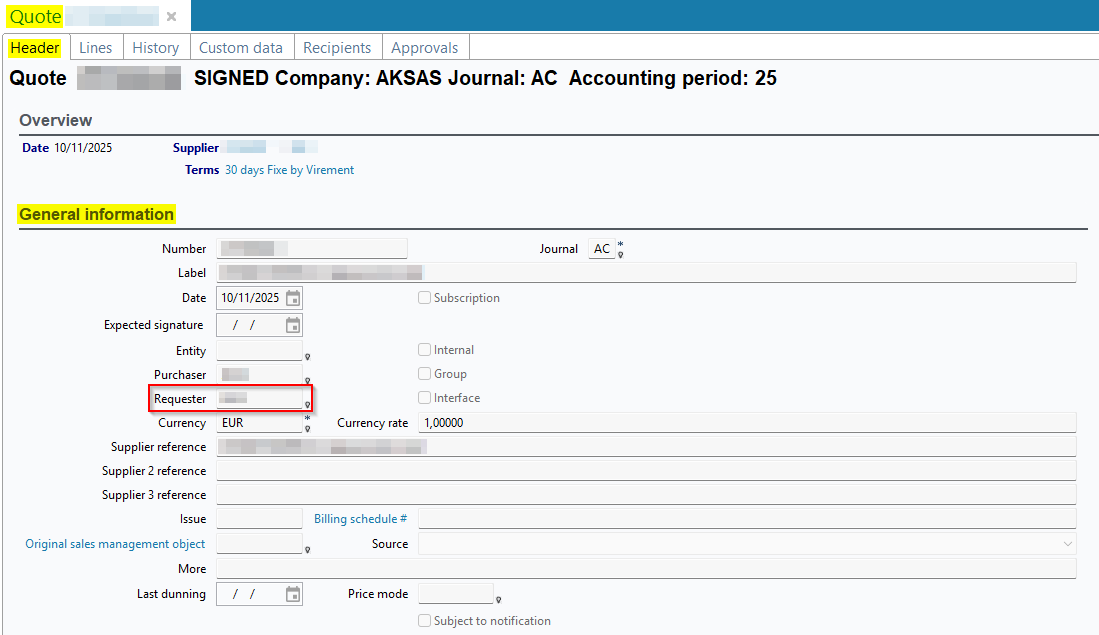
On a quotation (Management > Purchases > Quotations) or a purchase order (Management > Purchases > Purchase orders) > Header view > General information section, the requester of the object can be specified in the Requester field.
Previously, in the approval setup (Tools > Setup > General setup > Resources and Labor > Approvals > Approvals tab), the requester could not be defined as an approver.
Now, the Requester checkbox has been added in the Approvers section for approval rules related to quotations and purchase orders (Data selection section > Object type field > Quotations and Purchase order).
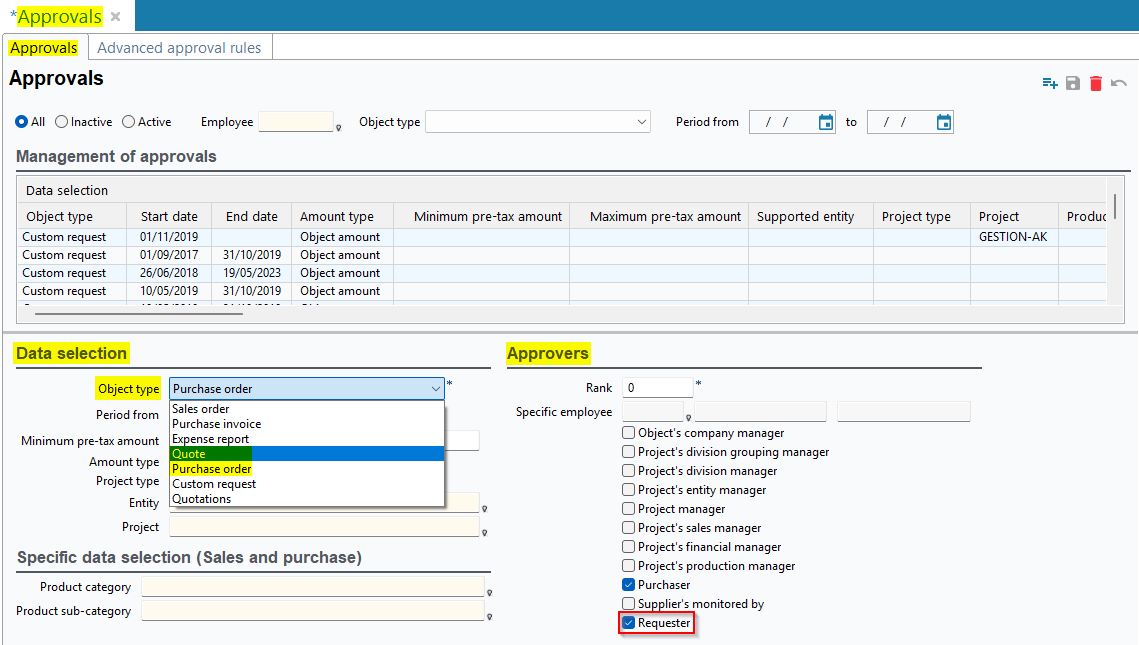
When the Requester box is checked, the requester is added among the approvers of the object.
Projects
360 degree view: Possibility to validate services linked to the project
| DMF |
0601** PROJECTS PROJECTS * 1921** WEB PORTAL VALIDATE SERVICES * |
The 360 degree view of the project (Management > Projects > 360 degree view) gives you an overview and key information about a project.
Before, the services validation was only available from the Web Portal > Manager module > Services menu.
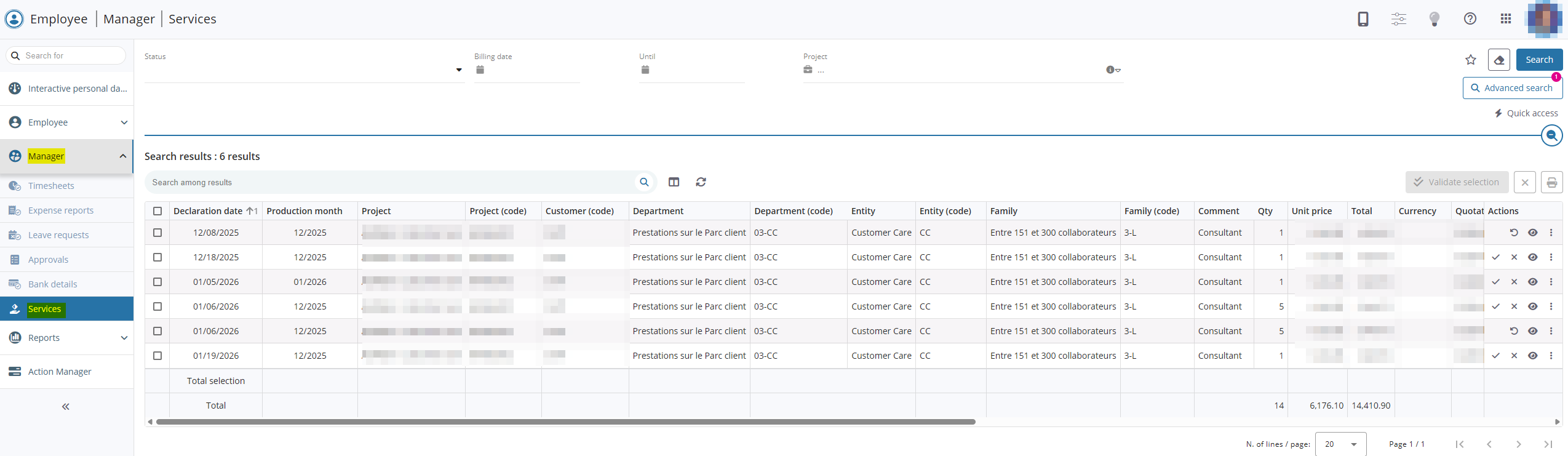
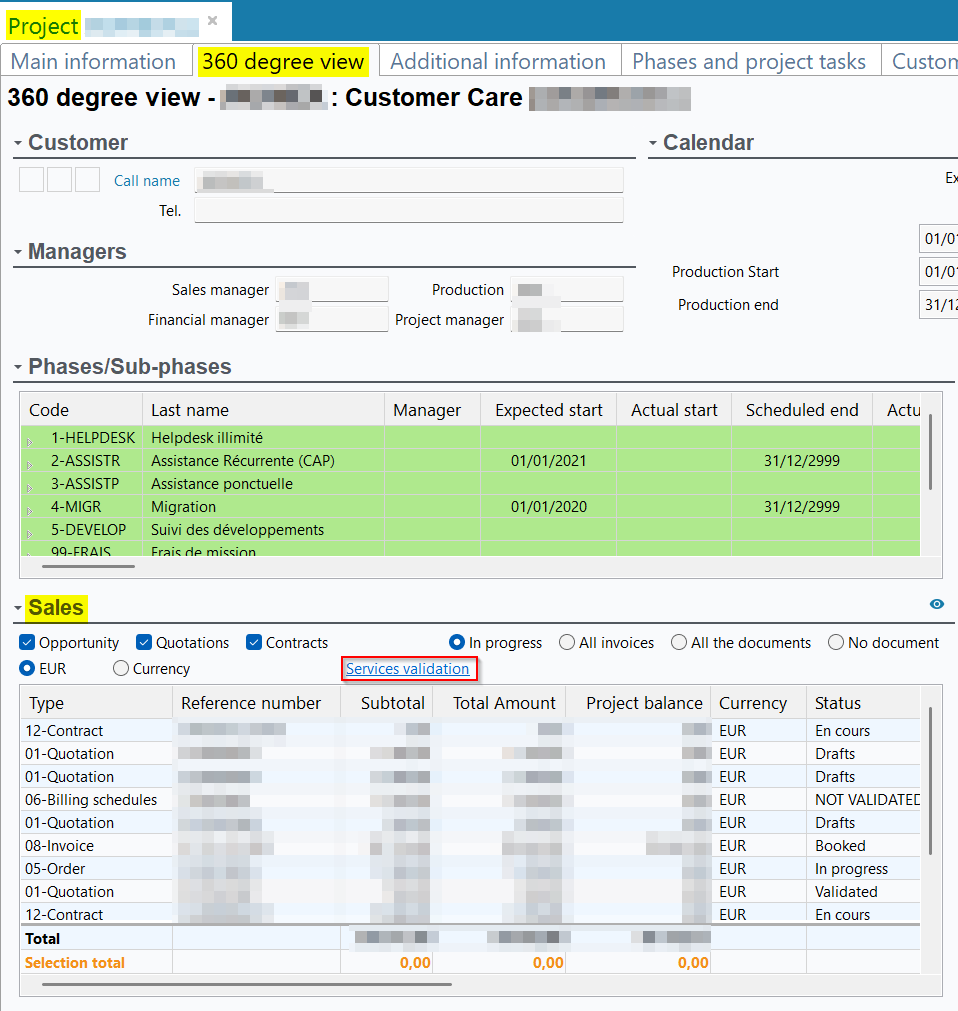
From now on, it is also possible to access this menu from the Desktop Application. The Services validation hyperlink has been added to the 360 degree view of a project > Sales section and automatically starts a search of the Manager module > Services menu with the Project search criterion specified with the name of the current project.
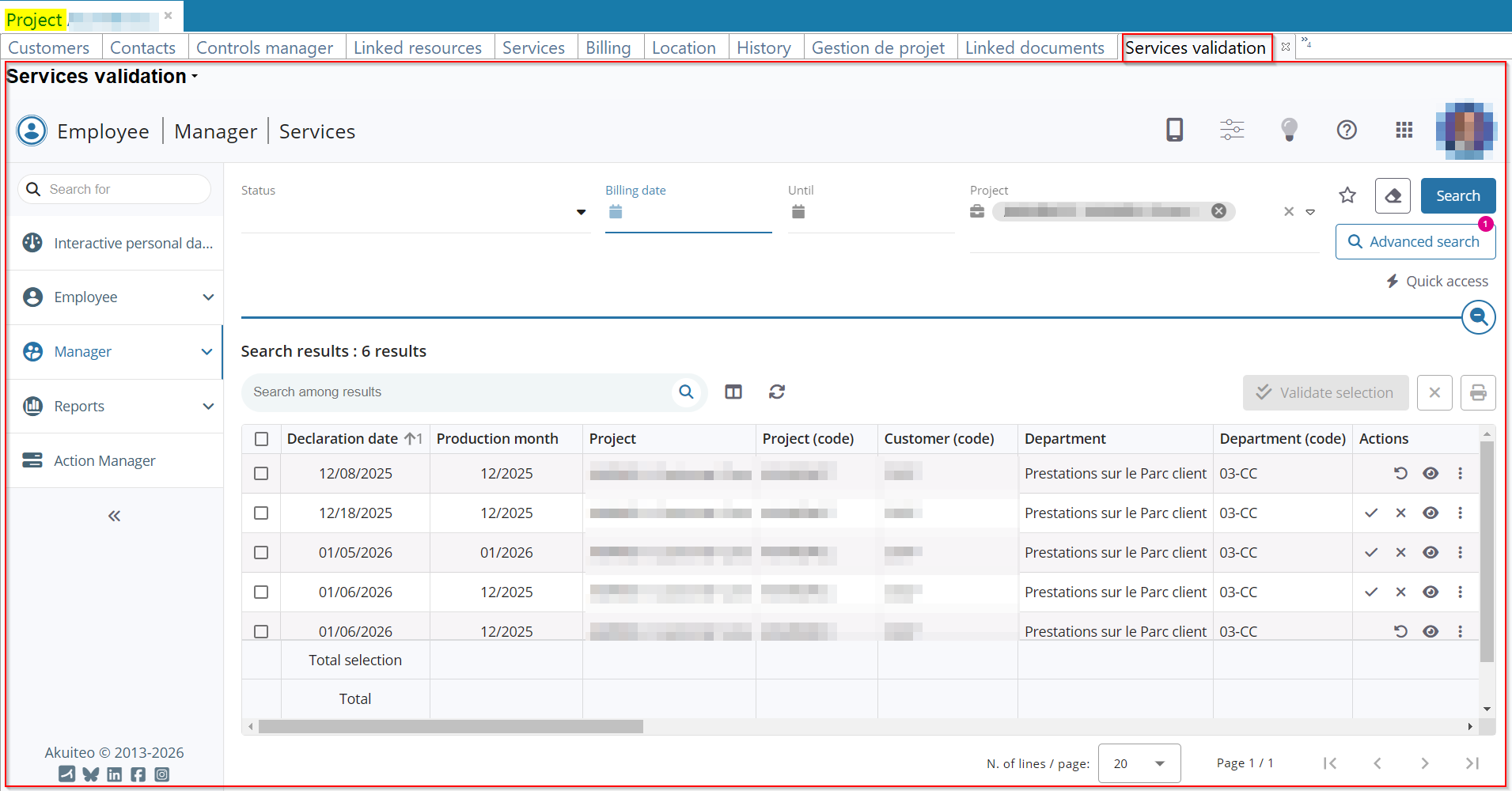
This feature requires the DMFs:
- 1921** WEB PORTAL VALIDATE SERVICES VALIDATE SERVICES; or
- 192101 WEB PORTAL VALIDATE SERVICES VALIDATE ALL SERVICES; or
- 192103 WEB PORTAL VALIDATE SERVICES VALIDATE SERVICES AS LINE MANAGER; or
- 192104 WEB PORTAL VALIDATE SERVICES VALIDATE SERVICES AS PROJECT MANAGER.
If the user has the required rights, the actions linked to the services can be done from this tab (for instance, validating or reject a service).
Notes
From the user preference (Edit > Preferences > General) the Akuiteo option must be selected for the Open the URLs in preference in order to open the tab in the Desktop Application.
To access this feature, the user must be connected to the Web Portal > Manager module.
Akuiteo Mobile
Approvals: New Approval menu available
| DMF | 5008** MOBILE APPROVALS APPROVALS |
Important
This evolution requires enabling the following feature flag: Mobile domain > Approbations label. To enable it, go to the Administration console > Configuration > Features, enable the Approbations feature flag then log in again.
The Approvals menu is now available from the Akuiteo Mobile app. It allows the manager to approve or reject management objects inputted by the employees. The new 5008** MOBILE APPROVALS APPROVALS DMF is required to access this menu.
Several actions are available:
- Showing the details of the management object to approve;
- Approving or denying a management object;
- Canceling approbation or denial or a management object.
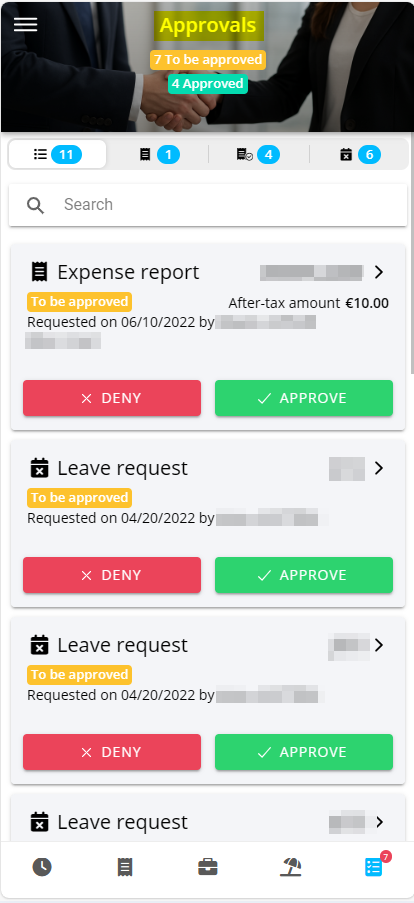
Note
It is also possible to validate or deny expense reports and leave requests from this menu.
Timesheet & schedule: Visual indicator added for linked expenses and custom requests
| DMF |
5002** MOBILE TIMESHEETS * |
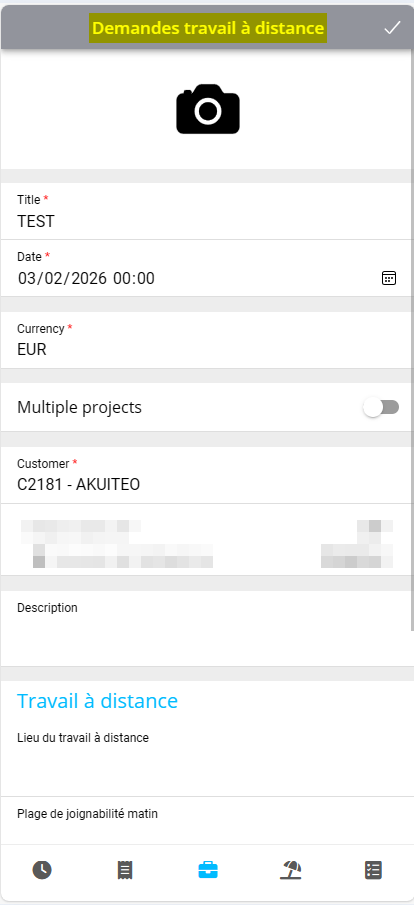
An expense or custom request can be created from a timesheet or scheduled item in Akuiteo Mobile > Timesheet & schedule by touching the relevant item then by touching + EXPENSE or + REQUEST.
Before, no visual indicator was displayed when an expense or a custom request was linked to a timesheet or scheduled item.
Now, the following icons are displayed under the remote work icons of the relevant day when an expense or a custom request is linked to it:
-
 for the expenses;
 -
 for the custom requests.
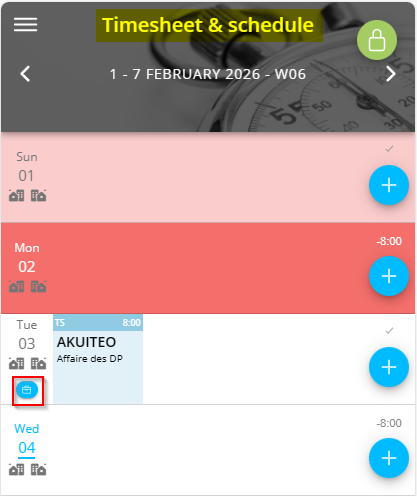
When the user touches the relevant icon, the expenses or custom requests labels and their amounts, if there is one, are displayed as a list.
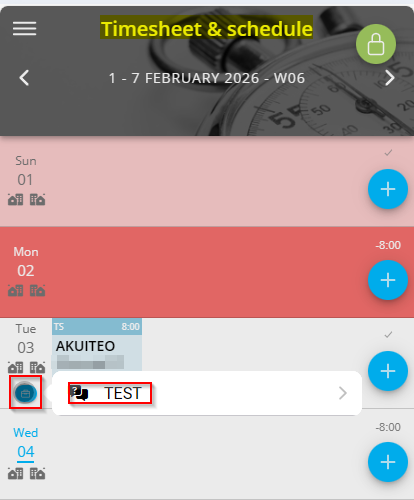
By touching an expense or custom request line of the list, the relevant form is displayed so you can view the details of it.
Timesheets & schedules: Maximum number of hours taken into account when transferring into timesheets
| DMF |
0903** ADMINISTRATOR MODEL WEEKS MODEL WEEKS 5002** MOBILE TIMESHEETS * 5003** MOBILE SCHEDULES * |
In the setup screen of model weeks (Tools > Setup > General setup > Resources and Labor > Model weeks):
- A Maximum number of hours per day and/or a Maximum number of hours per week can be specified.
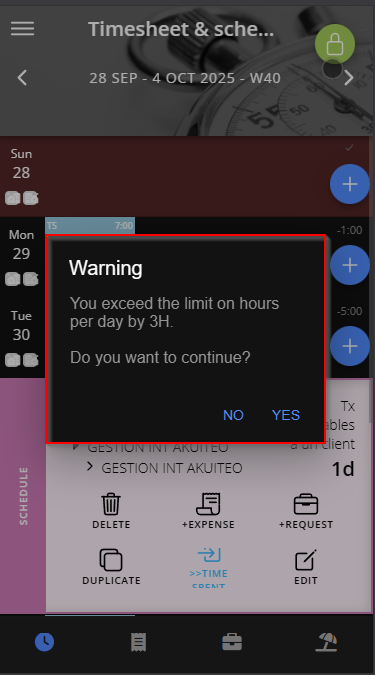
- The Warning or the Critical option can be checked in order to either warn the employee or prevent them from entering a timesheet when the employee exceeds the maximum number of hours on the day and/or the week.

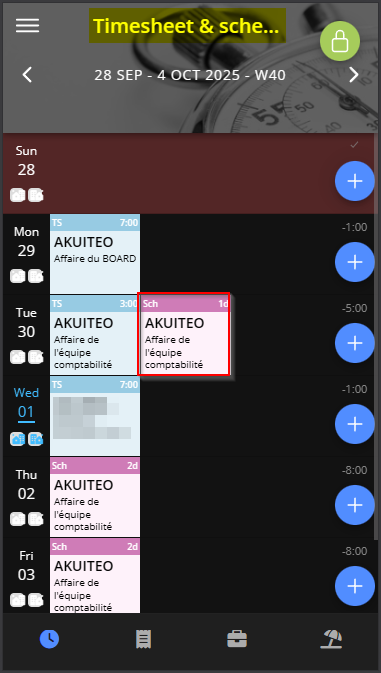
Previously, those options were not taken into account when transferring a scheduled item into timesheets on the Akuiteo Mobile > Timesheets & schedules.
Now, on Akuiteo Mobile, the employee is either warn or blocked (depending on the setup) when they transfer a scheduled item into timesheets and the maximum number of hours is exceeded.
Accounting
Entries: Possibility to only display entries headers in the search result
| DMF | 0701** ACCOUNTING ENTRIES ENTRIES |
In the entries search screen (Accounting > Entries > Entries), the Quick search criterion has been replaced by the Quick search (only headers without lines) criterion in the Entry criteria tab > Options section.
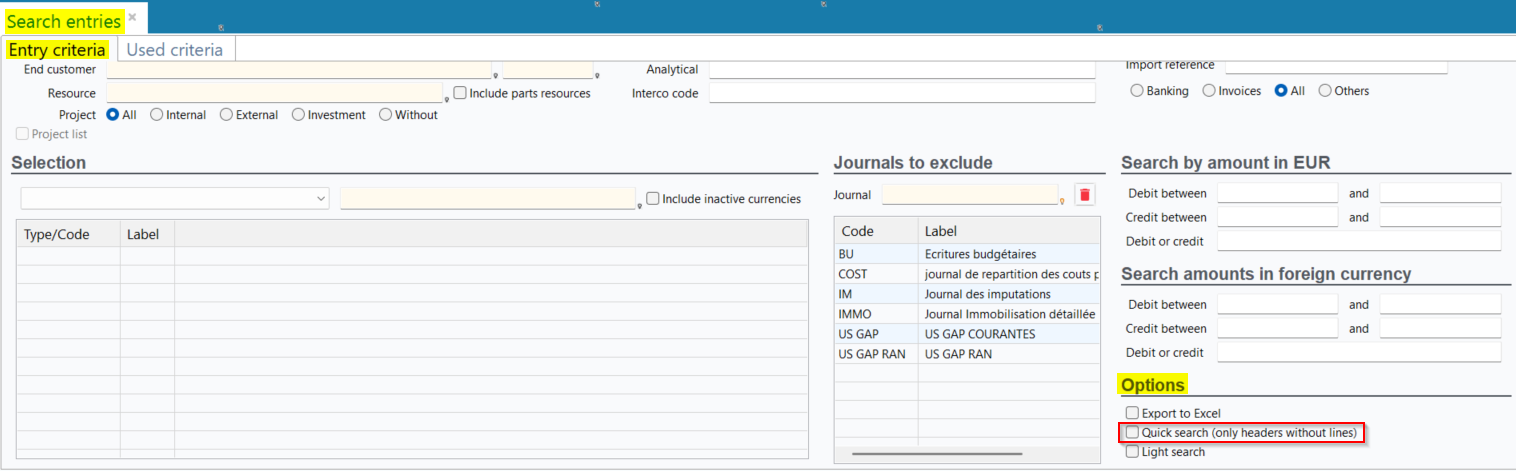
It allows you to, when the box is checked, to only display entries headers information in the search result. Thus, the search result has less lines than a search result with the lines.

Note
This feature allows you to validate by batch more entries compared to when the search is started with the lines.
Doubtful debt management: Total Amount column added
| DMF | 0816** BANKING DOUBTFUL CUSTOMERS DOUBTFUL CUSTOMERS |
The Doubtful debt management menu (Accounting > Periodic work > Doubtful debt management) allows you to view the management of provisions made for each invoice of a doubtful customer.
From now on, the Total Amount column has been added to the provisions search results.

Bank statement managements: Various improvements
| DMF | 0711** ACCOUNTING BANK STATEMENTS BANK STATEMENTS |
Important
This evolution requires enabling the following feature flag: Transverse Domain > Vir Clients Auto Label. To enable it, go to the Administration console > Configuration > Features, enable the Vir Clients Auto feature flag then log in again.
Improvements have been made to the import and management of bank statements (Accounting > Bank reconciliation > Bank statement management).
Added support for other transaction codes
As part of bank statement management, statements can be imported:
- automatically via the CreationReleveBridge and/or ImportReleveBancaire batch;
- manually from the bank reconciliation screen:
- by going to Edit > Import a statement, or
- by cliking on
 from the action bar, or
 - by cliking on
 at the top right of the results table.
After importing a bank statement, some transaction codes are not recognized, and the corresponding imported lines are therefore assigned the default type AU (Other) in General tab > Non-reconciled Statement lines section > Type column.
From now on, for statement lines with the following transaction codes, the corresponding nature is correctly assigned to each imported statement line:
| Transaction code in the import file | Type applied to the statement line |
|---|---|
| C1 | VI (Bank transfer) |
| C2 | |
| C3 | |
| D1 | PR (Direct debit) |
| D2 | |
| D3 | |
| E1 | CH (Check) |
| E2 | |
| FC | CB (Credit/debit card) |

Note
In the import file, the transaction code corresponds to the characters in positions 33 and 34 of each transaction line.
Third-party determined based on the label
After importing a bank statement, the third party for each imported line (General tab > Non-reconciled Statement lines section > Organization code column) is automatically determined and specified:
- If any of the columns Label, wording (cont.), Comment, Discount reference, or Sold-to-party account contains the reference specified in the customer record sheet (People > Customers/Prospects) or supplier record sheet (People > Suppliers > Finances tab > Terms and conditions section > Reference on bank statement field), otherwise,
- If any of the columns contains the number of a customer or supplier invoice.
From now on, before applying these existing rules, Akuiteo first checks whether the columns Label, wording (cont.), Comment, Discount reference, or Sold-to-party account contain the code of a third party in Akuiteo. If a match is found with the third-party code, it is automatically specified in the Organization code column.

For more information, refer to .
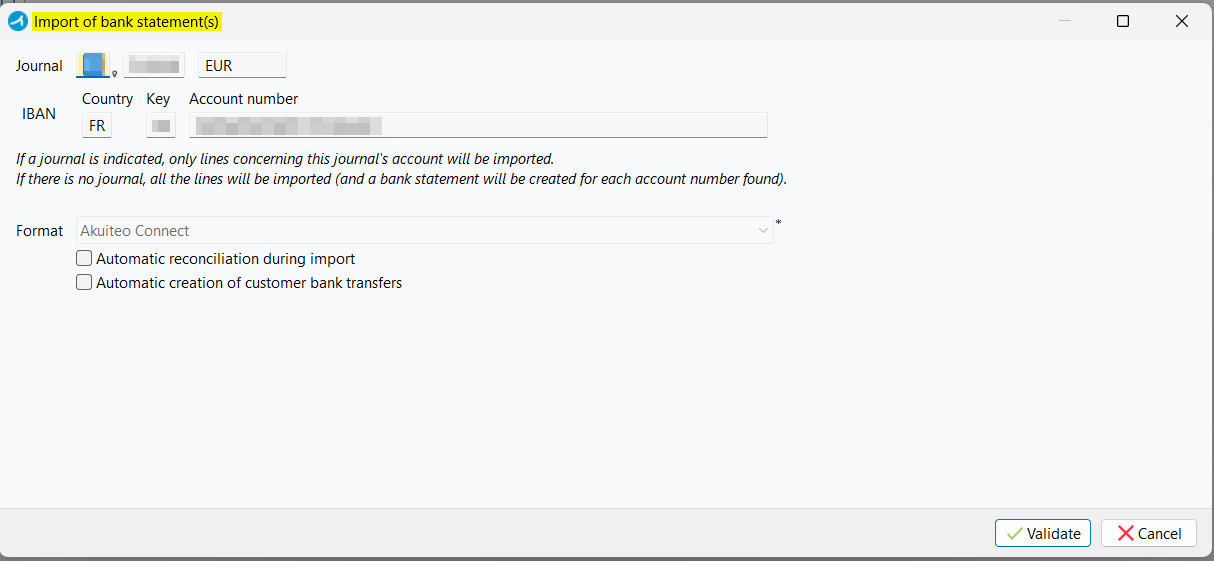
Automatic creation of bank transfers when importing statements
The bank statement import window can be accessed from the search screen or the search results:
- by going to Edit > Import a statement, or
- by cliking on from the action bar, or
- by cliking on at the top right of the results table.
In the import window, the Automatic creation of customer bank transfers option has been added and allows the import to automatically create customer receipts corresponding to the transfers and charge them to the respective invoice.

For the option to work on a statement line:
- The line type must be VI (Bank transfer);
- The amount of the line must be a credit;
- The third-party must be a customer;
- The customer and the invoice for the line must be automatically identified during import.
When a line meets these conditions during the import, the following steps are then performed automatically for that line:
- A customer receipt is created and booked automatically;
- The statement line is reconciled with the entry generated from the booking;
- The receipt is charged to the customer invoice determined while importing.
In the ImportReleveBancaire batch (Tools > Setup > Batches > Batch creation and modification), the VIR_CLIENTS_AUTO parameter has also been added and corresponds to the Automatic creation of customer bank transfers option. The parameter can be set to True or False depending on whether the option should be enabled or not for statement imports processed by the batch.

For more information, see Importing a bank statement and ImportReleveBancaire batch.
Separate reconciliation numbers when creating cash movements and entries in batch
From the bank statement management screen > General tab > Non-reconciled Statement lines section, it is possible to create:
- one or more cash movements for multiple lines, by right‑clicking on a selection of non-reconciled statement lines and then clicking on Create ... receipt, Create ... payment, or Generate cash movements.
- one or more accounting entries for multiple lines, by right‑clicking on a selection of non-reconciled statement lines and then clicking on Generate single entry / Generate multiple entries.

Previously, after generating cash movements or accounting entries in batch, the same reconciliation number (Report # column) was applied to all the movements or entries created.

From now on, after generating cash movements or accounting entries in batch, a different reconciliation number is applied to each transaction or entry created.

For more information, refer to Generating multiple cash movements.
Charging a single bank statement line to multiple invoices
For an non-reconciled statement line (General tab > Non-reconciled Statement lines section), the Invoice column can be specified to charge the line to that invoice.

Now, a function has been added and allow charging a line to multiple invoices. It can be accessed by right-clicking from the line desired > Multiple charges, and it is available only when:
- the Organization code column is specified and,
- the Invoice column is empty.

The function opens a window that lists the unpaid due dates of the booked customer/supplier invoices that are not paid and are associated with the line’s third-party. Specify the desired charging amount for each due date in the Charged ... column and click on Validate. If the Charged ... column is left empty for a due date, the line will not be charged to that due date. The total charging amount specified in the window can be partial or full, but it cannot exceed the amount of the statement line.

When multiple charges have been defined for a statement line, the Invoice column displays Multi.

Then:
- if the cash movement does not exist yet, it can be created with a right-click on the line > Create ... receipt / Create ... disbursement. Thus, the new cash movement will be charge to the matching due dates and will be paid.
- If the cash movement already exists, the due dates will be paid and the existing movement will be charged to those due dates when the bank reconciliation for the line is validated.
Charges are visible from the cash movement record sheet (Banking > ... receipts / ... disbursements) in the Charging tab.

For more information, refer to Adding various due dates of invoices to a statement line.
Statement line label carried over to all generated accounting entry lines
If an entry template is specified on statement lines (General tab > Non-reconciled Statement lines section > Entry template column), the entries corresponding to these lines can be generated by right-clicking the selection > Generate single entry / Generate multiple entries.

Previously, in the generated entries > Lines section > Line Wording column, the bank statement label was only specified on the banking account line. The entry template label was specified for the other entry lines.
From now on, the bank statement line label is specified on all lines of the generated entries, whether they were generated individually or in batch.


For more information, refer to Generating entries lines on a statement.
Allocation of expenses to the period: Possibility to add the object label to the PIA and Deferred expenses entries
| DMF | 0708** ACCOUNTING PERIODIC WORKS * |
The allocation of expenses to the period (Accounting > Periodic works > Allocation of expenses to the period) allows you to generate the entries of the Receivable invoices (PIA) and Non-received invoices and the entries of deferred expenses on the accounting position date.
From now on, in the set up of the accounting position > Allocation of income and expenses to the period section (Tools > Setup > General setup > Accounting > Accounting position), the Add management object label to entry label box has been added and is unchecked by default.
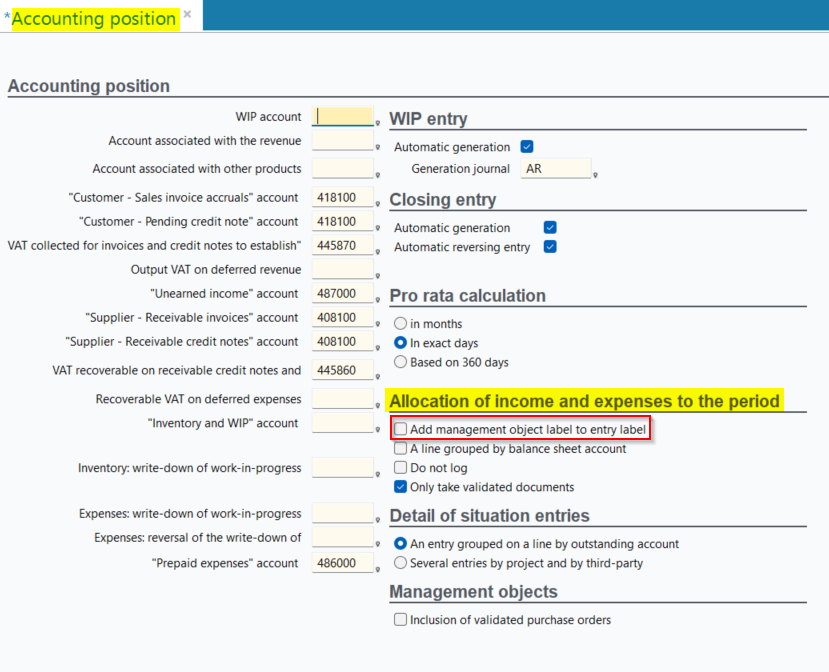
When the box is:
- checked, the management object label is added to the PIA and Deferred expenses entries generated (Accounting > Entries) when allocating the income to the period, in the Line Wording column. This label is displayed under the following form: FNP or CCA + current label + management object label.
- unchecked, the default behavior is kept, the PIA and Deferred expenses entries generated does not retrieve the management object label.
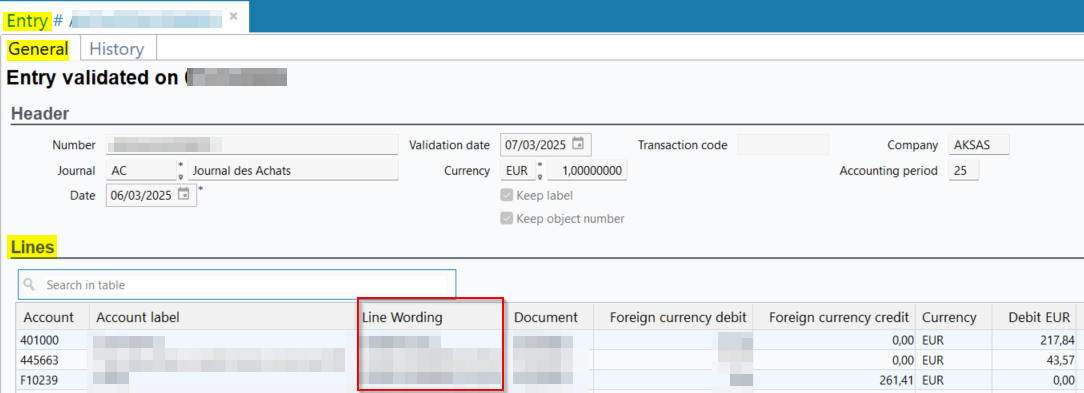
The Management object label column has also been added to the table of the expense lines to allocate to the period (Accounting > Periodic works > Allocation of expenses to the period) and displays the label of the management object.

Relevés bancaires importés par Bridge : Améliorations liées à la récupération des transactions
| DMF | 0711** ACCOUNTING BANK STATEMENT * |
The Bridge connector is used to retrieve bank transactions from your bank accounts directly to Akuiteo, without having to import statement files. These transactions can then be retrieved to create a bank statement:
- automatically with the CreationReleveBridge batch (Tools > Setup > Batches > Batch creation and modification),
- manually from the bank statement screen (Accounting > Bank reconciliation > Bank statement management).
Before, when searching for transaction to import with Bridge, only the transactions with a date coming after the one specified in the relevant cash journal (General setup > Accounting > Cash journals > Bridge tab > Last statement date field) were processed. Thus, some transactions were never imported and were missing.
From now, the transactions of the last 30 days relative to the current date are processed and imported when transactions have already been imported for the cash journal. When this action is done for the first time for a journal, all the transactions done after the date specified are imported.
If the transaction does not exist and is not part of a Akuiteo bank statement, it is added to the relevant statement:
- If there are multiple bank statements for the date of the transaction, it is added to the more recent statement.
- If there is no statement for the date of the transaction but there are statements for the month of the statement, it is added to the statement with the closer end date to the date of the transaction and coming before it. In this case, the end date of the bank statement is updated and indicates the date of the added transaction.
- If there is no statement for the date of the transaction but there are statements later on the month of the transaction, it is added to the statement with the closer start date of the transaction. In this case, the start date of the statement is updated and indicates the date of the added transaction.
- If there is no bank statement for the month of the transaction, then a new statement in the 1 - Imported status is created and the start date of the statement is the date of the transaction.
When a transaction is added to a statement, its balance (General tab > Statement balance field) is updated and so are the balances of the next statements.
If the statement in which the transaction has been added was in the 3 - Reconciled statement, its status is changed to 2 - WIP.
Bank statement imported by Bridge: Possibility to add a line
| DMF | 0711** ACCOUNTING BANK STATEMENT * |
The Bridge connector is used to retrieve bank transactions from your bank accounts directly to Akuiteo, without having to import statement files. These transactions can then be retrieved to create a bank statement:
- automatically with the CreationReleveBridge batch (Tools > Setup > Batches > Batch creation and modification),
- manually from the bank statement screen (Accounting > Bank reconciliation > Bank statement management).
It is possible that some lines are not imported when retrieving banking transactions.
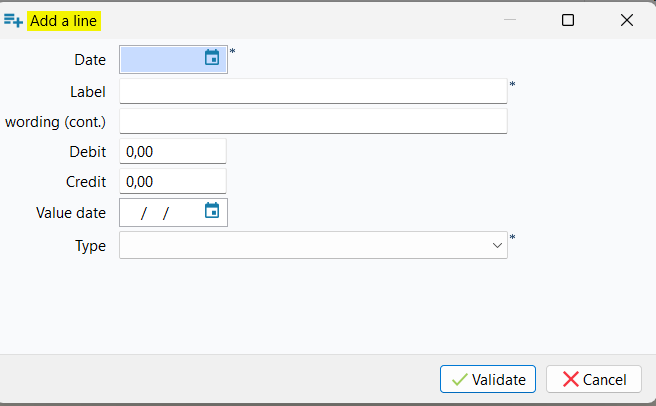
Now, in a bank statement in the 1 - Imported or 2 - WIP status, it is possible to add a statement line in the General tab > Non-reconciled Statement lines section > right-click > Add line. This feature requires the new 071116 ACCOUNTING BANK STATEMENTS ADD BRIDGE LINE DMF.
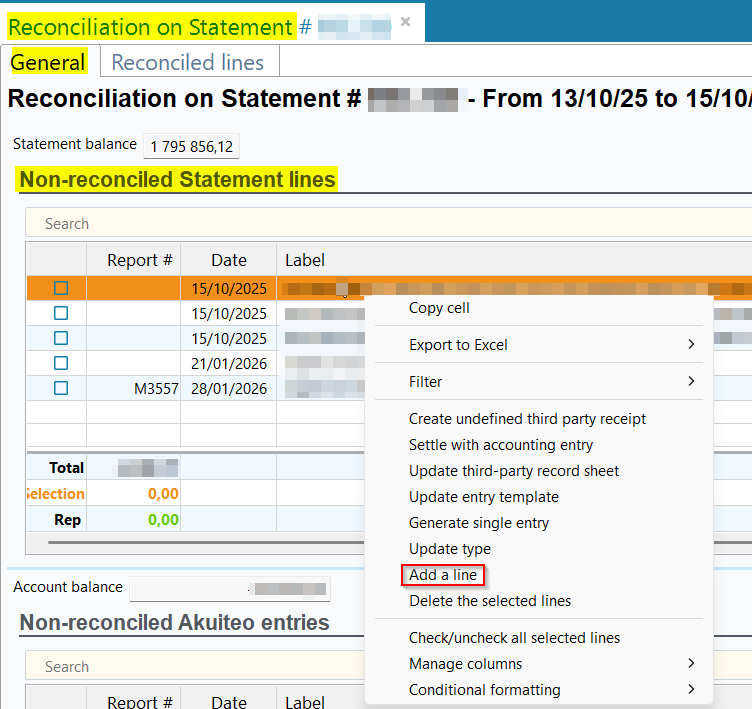
When clicking on this feature, a window opens so the user can specify all information about the statement line to add. When the user clicks on Validate, the line is added to the Non-reconciled Statement lines section of the bank statement and the Statement balance of the current statement is recalculated and for the next statements too.
Administration console
API: New API tokens menu available
| DMF | 0902** ADMINISTRATOR SERVER ADMINISTRATION CONSOLE * |
Important
This feature requires enabling the following feature flag: Technique domain > Jetons Api label. To enable it, go to the Administration console > Configuration > Features, enable the Jetons Api feature flag then log in again.
API tokens are only use to access Akuiteo API resources, in replacement of the Oauth2 authentication. They allow you to identify and the authentication to third-parties app accessing the Akuiteo API resources.
From now on, the API tokens is available and can be accessed from Administration console > Security > API tokens. It allows you to manage API tokens of the technical users in Akuiteo. The 090201 ADMINISTRATOR SETUP SERVER ADMINISTRATION CONSOLE DMF is required to access this menu.
Several actions are available:
- Tokens creation;
- Tokens removal;
- Tokens deletion.

General configuration: Field added to define the retention period for temporary files
| DMF | 0902** ADMINISTRATOR SERVER ADMINISTRATION CONSOLE * |
Previously, some temporary files on the Akuiteo server were never deleted.
In the Administration console > Configuration > General, the field Temporary files retention period (in days) has been added. It allows you to specify the number of days before Akuiteo's temporary files are automatically deleted.
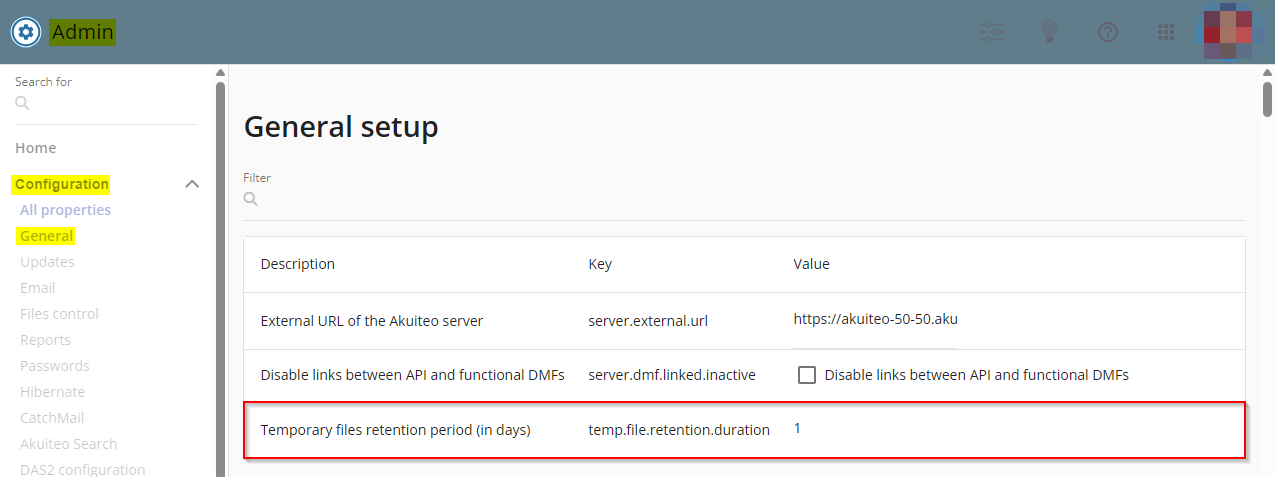
If the parameter is empty, the retention period is 90 days by default.
Files control: Authorized extensions configurable for custom request receipts
| DMF | 0902** ADMINISTRATOR SETUP SETUP |
Important
This evolution affects the authorized extensions for custom request receipts. Make sure to check the setup of files control in the Administration console.
On custom requests, receipts can be added:
- from the Web Portal > Employee module > custom request category, by clicking or dragging and dropping on the
 frame of the custom request form.
- from Akuiteo Mobile > Custom requests, by tapping
 from the custom request form.
Previously, for custom requests on the Web Portal and Akuiteo Mobile, the authorized extensions for receipts were .jpg, .jpeg, .pdf, .png and could not be modified.
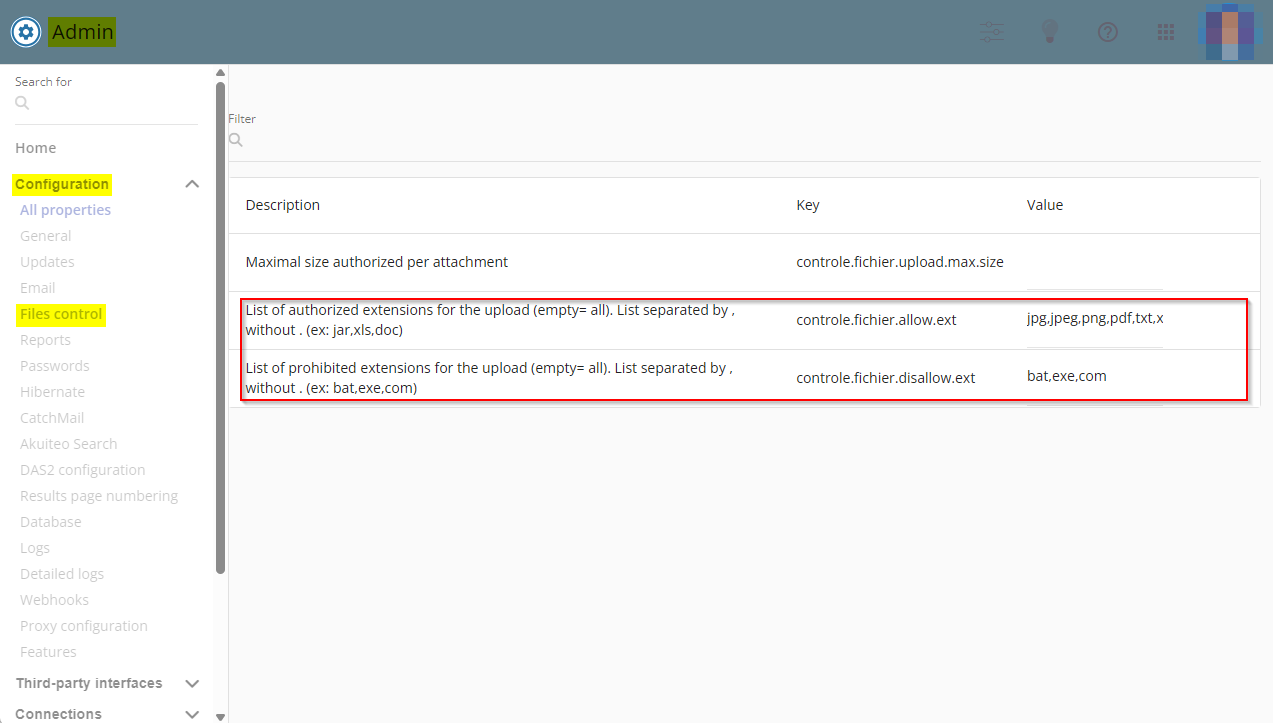
Now, extensions authorized or not for custom request receipts were set up from the Administration console > Configuration > Files control > List of authorized extensions for the upload and List of prohibited extensions for the upload fields.
Webhooks : Ajout d'un bouton pour tester l'URL du webhook
| DMF | 0901** ADMINISTRATOR SETUP SETUP |
A webhook is used to notify an external system of an event occurring in Akuiteo.
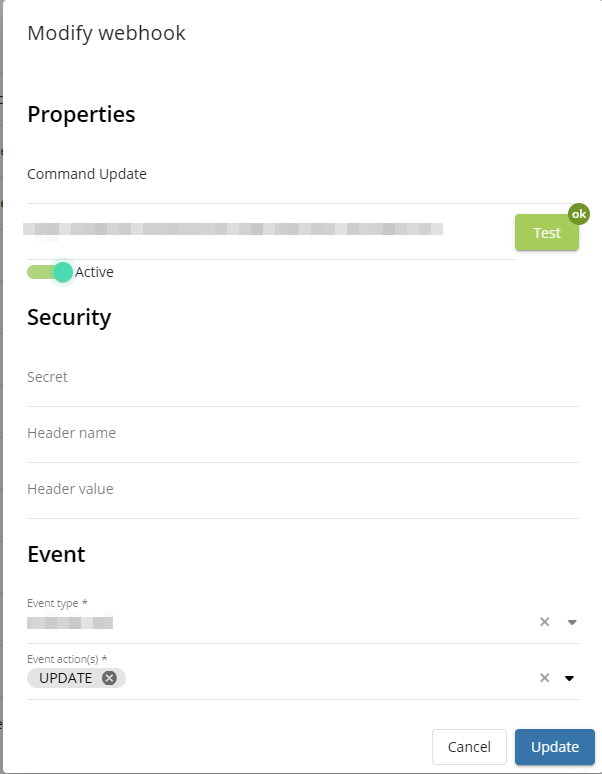
From now on, in creation and modification of a webhook (Administration console > Configuration > Webhooks), the Test button is available at the right of the Endpoint (URL) field. It allows you to verify the accessibility and the validity of the URL for the relevant webhook.
Webhooks: Possibility to set up an email alert in case of error
| DMF | 0901** ADMINISTRATOR SETUP * |
Important
This feature requires enabling the following feature flag: Transverse domain > Notification Echec Webhook label. To enable it, go to the Administration console > Configuration > Features, enable the Notification Echec Webhook feature flag then log in again.
A webhook is used to notify an external system of an event occurring in Akuiteo.
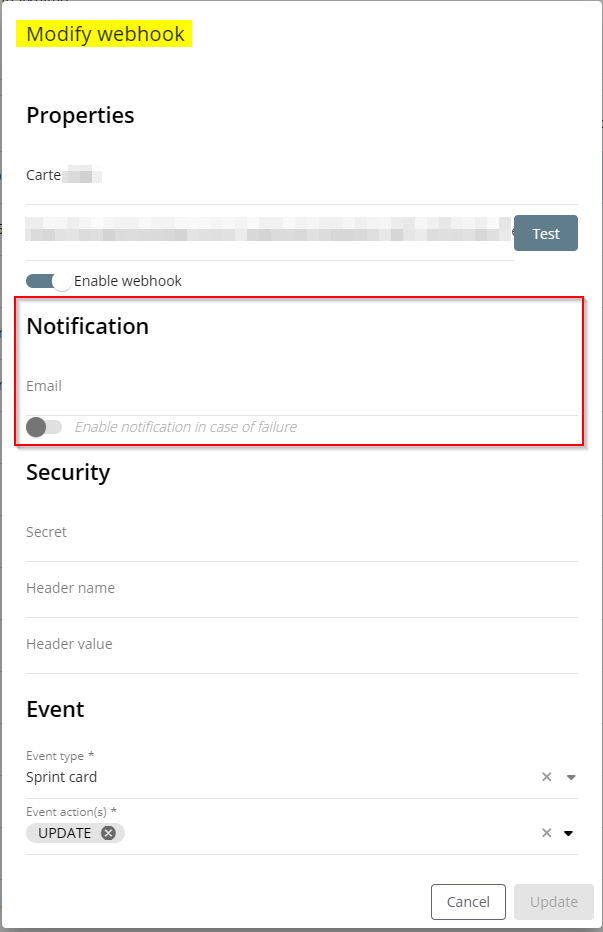
Now, the new Notification section is available in webhooks forms (Administration console > Configuration > Webhooks) in creation an modification mode. It allows you to define an email address and enable the linked option to be notified when an error occurs on the webhook.
Note
This feature can be used when the sending attempt returns an HTTP error or if an exception occurs (timeout, unreachable host, etc).
Training
Trainers: New management rule to schedule multiple training sessions on the same day for a trainer
| DMF | 1805** TRAINING TRAINERS TRAINERS |
By default, trainers can only be scheduled on two half-days or one day for training sessions (Training > Sessions).
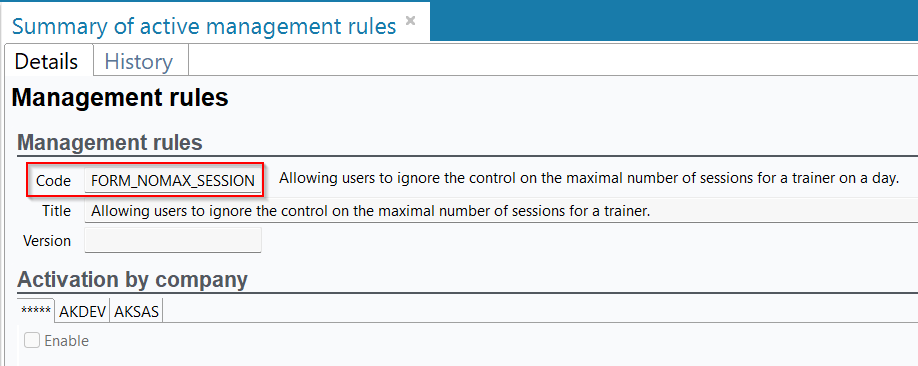
From now on, in order to be able to schedule trainers on multiple short training sessions for the same day, the FORM_NOMAX_SESSION management rule has been added and can be enabled from Tools > Setup > General setup > Specific parameters > Management rules. When the rule is enabled, it allows you to create as many training sessions as you want for the same trainer on the same day. The total duration of the created sessions is no longer controlled when this management rule is enabled.
Sessions: Participant deletion taken into account in Bsoft
| DMF | 1803** TRAINING SESSIONS * |
When the Bsoft connector is used for electronic margin, the participants, also called trainees, registered to the training session (Training > Sessions) are synchronized to Bsoft and can be seen in the Bsoft space of the company.
Before, when a participant was deleted from a training session in the Desktop Application (Registration > Participant(s) tab), they were still visible in the Bsoft space of the company for the relevant training session.
From now on, when a participant is deleted from the participants list of the training session then they are no longer visible in the Bsoft space of the company.

Imports
Resources imports: Columns renamed in various import templates
| DMF | 1609** TOOLS CROSS-FUNCTION * |
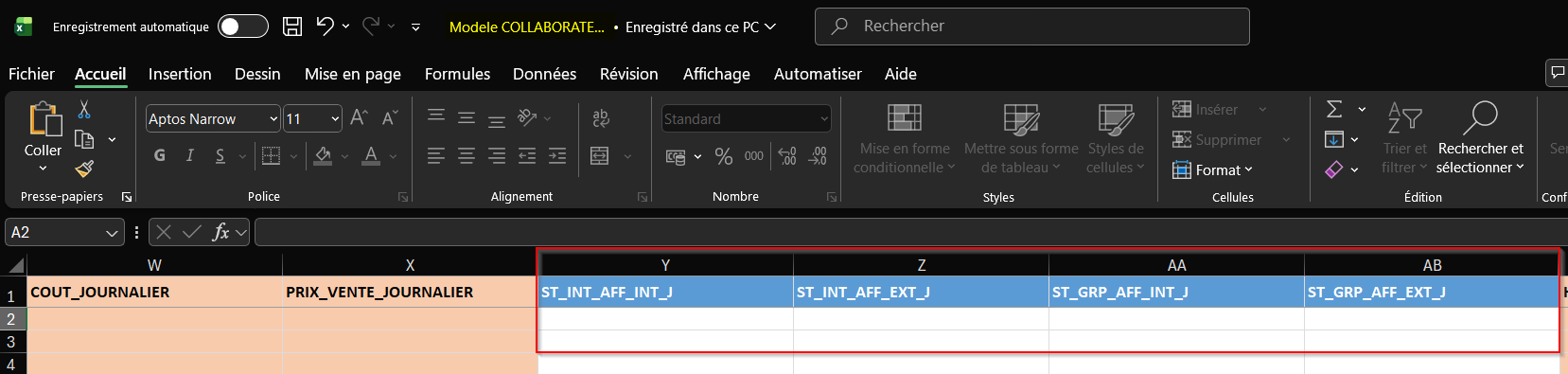
In the Employees, Status history (recovery) and the Employee status histories imports templates, available from Management > Imports then Resource, the following columns have been added:
ST_INT_AFF_INThas been renamedST_INT_AFF_INT_J;ST_INT_AFF_EXThas been renamedST_INT_AFF_EXT_J;ST_GRP_AFF_INThas been renamedST_GRP_AFF_INT_J;ST_GRP_AFF_EXThas been renamedST_GRP_AFF_EXT_J.
Setting up
Closing calendar: Services declaration module added to the calendar
| DMF | 0901** ADMINISTRATOR SETUP SETUP |
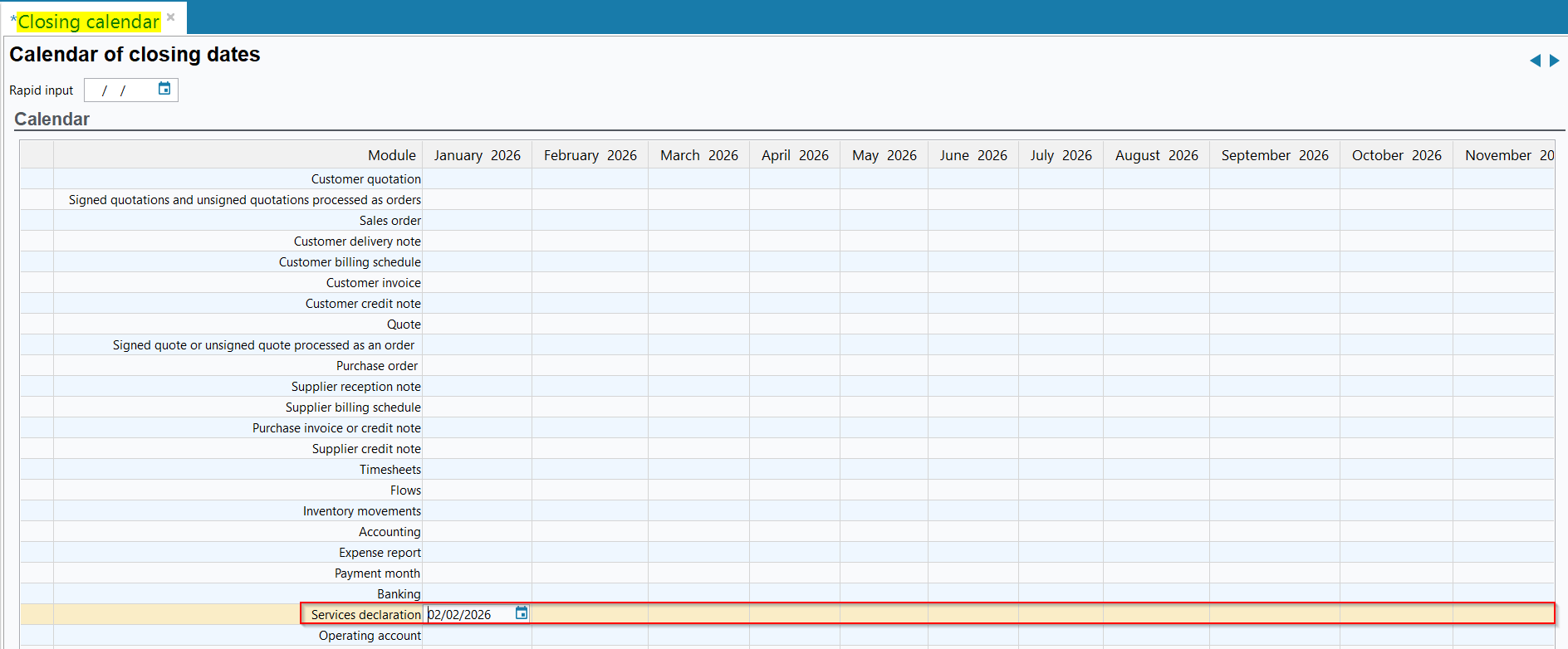
The closing calendar (Tools > Setup > General setup > Project > Closing calendar) allows you to define for each module and each month a date from which it is no longer possible to create, modify or delete an object.
Now, the Services declaration module has been added to the closing calendar. Thus, it is possible to define a closing date for this menu. When saving a service from the Web Portal > Employee > Services, a control is made between the billing date specified and the closing date in the calendar for the ongoing month. If the billing date of the service comes before the closing date, the action is blocked.
Example
The company defines a closing date on December, 3rd 2025 for November 2025 for the Services declaration menu.
The employee declares a service for November 2025 and specifies a billing date on December, 5th 2025. When saving this service, an error message appears because the closing date has passed and the service cannot be saved.
Sending emails: Setup modified for the new Microsoft Outlook
| DMF |
0902** ADMINISTRATOR SETUP SETUP 1609** TOOLS CROSS-FUNCTION * |
Important
This evolution requires modifying Akuiteo's setup if the new Microsoft Outlook is used as the email software.
Previously, to be able to select the Microsoft Outlook (new) option from the Desktop Application > Edit > Preferences > General > Office automation > Email software section > Microsoft Outlook (new) option and thus set the new Microsoft Outlook as the default email software, one of the management rules GOOGLE_APPS or GOOGLE_MAIL had to be enabled.
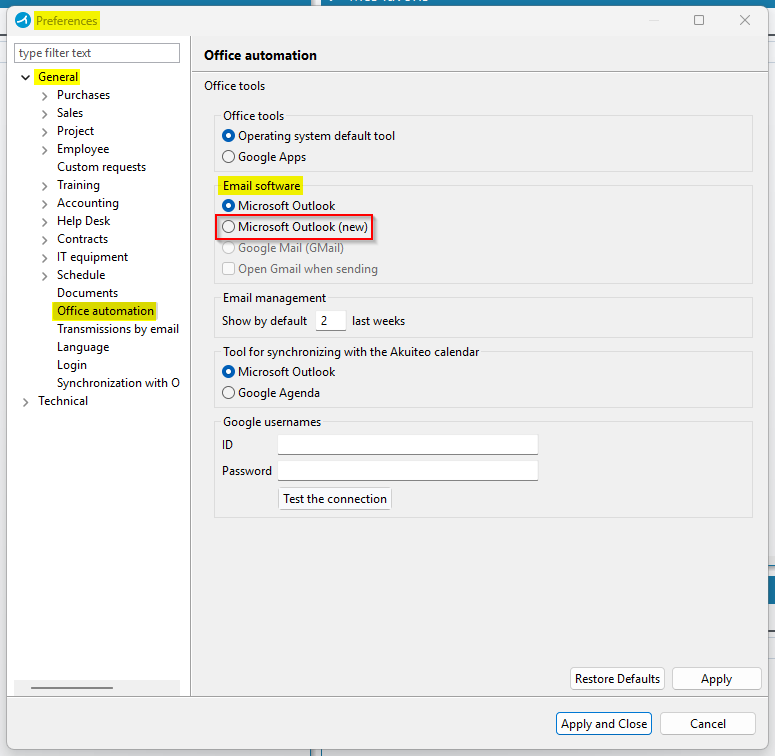
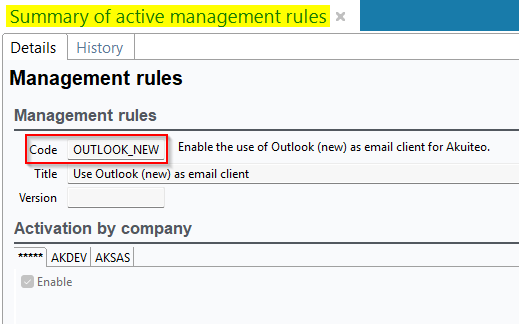
From now on, these management rules no longer allow selecting the Microsoft Outlook (new) option. The OUTLOOK_NEW management rule has been added and must now be enabled in order to select the Microsoft Outlook (new) option in the office preferences. The OUTLOOK_NEW management rule also enables the Office automation menu to be available in the Akuiteo preferences, just like the management rules GOOGLE_APPS and GOOGLE_MAIL.
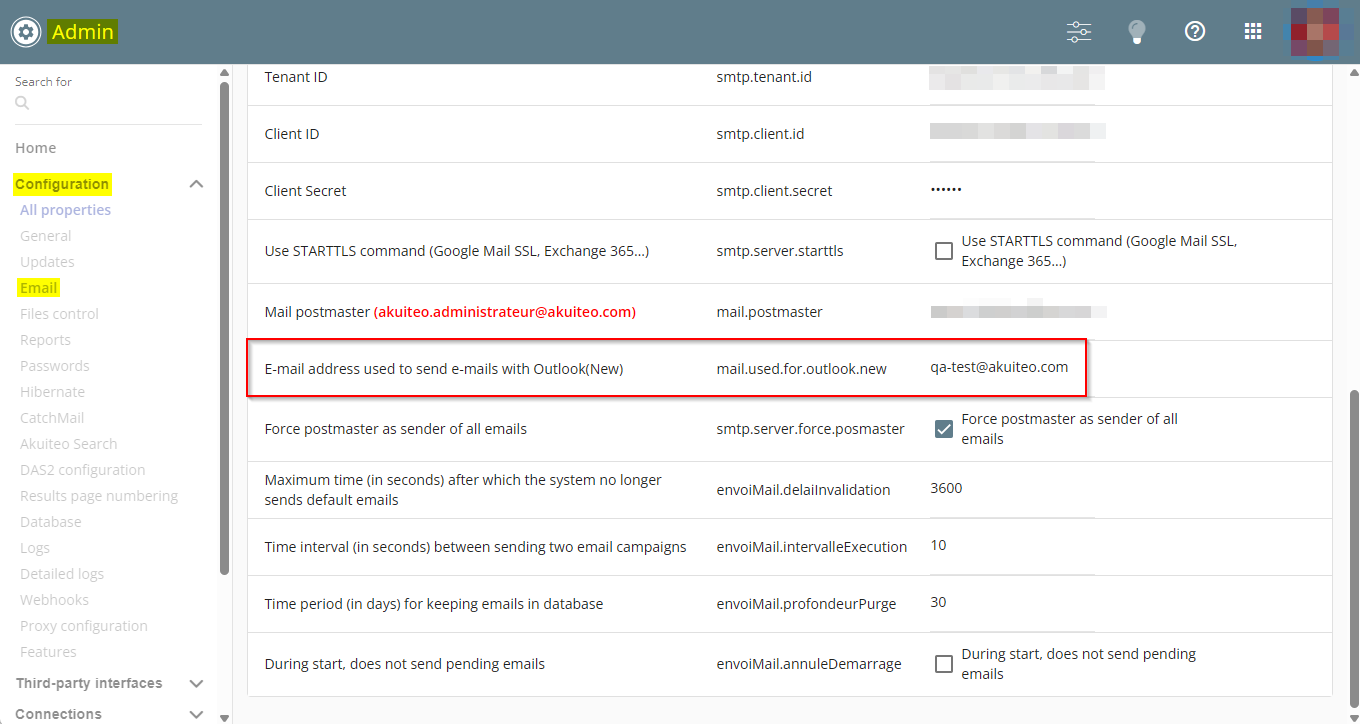
In the Administration console > Configuration > Email, the E-mail address used to send e-mails with Outlook(New) field has been added. It allows selecting the sender email address for messages sent from Akuiteo when the new Microsoft Outlook is used as the email software.
Customer Portal
Issues: Ability to display custom data
| DMF |
1401** HELPDESK SETUP SETUP 2106** CUSTOMER PORTAL HELP DESK HELP DESK |
It is now possible to display custom data when creating and modifying issues in Customer Portal > Help Desk.
The Custom data displayed on Customer Portal setup menu has been added in the Desktop Application > Tools > Setup > Help Desk setup > Custom data.
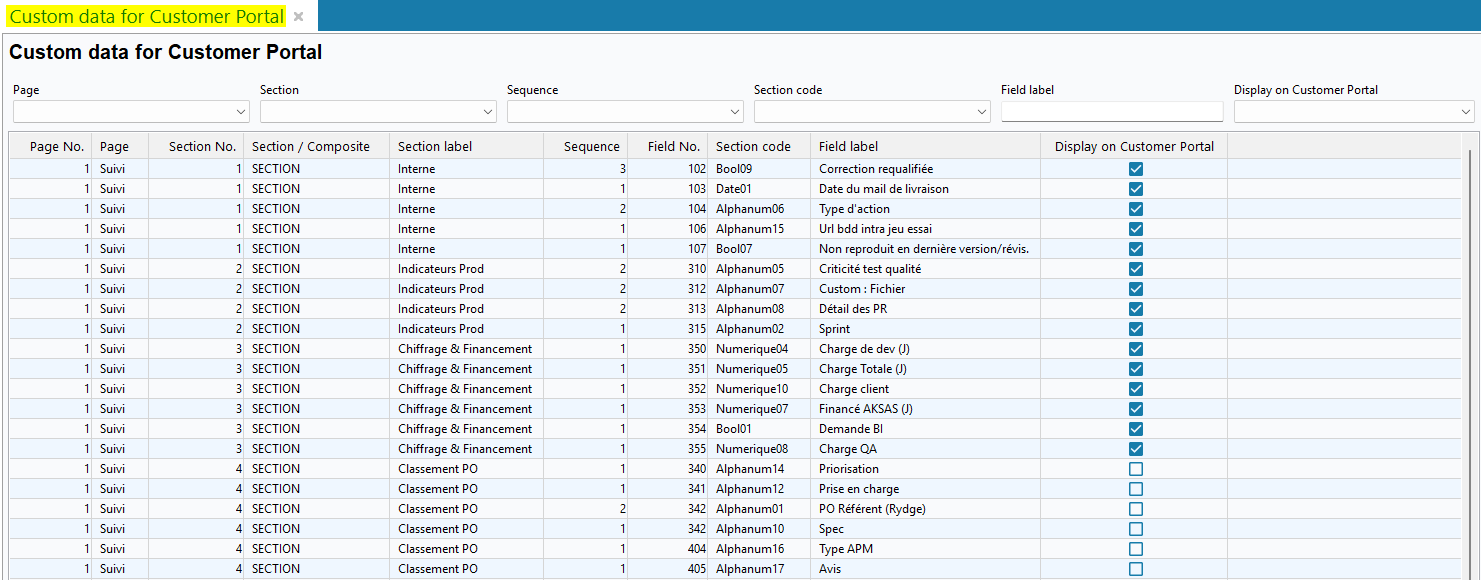
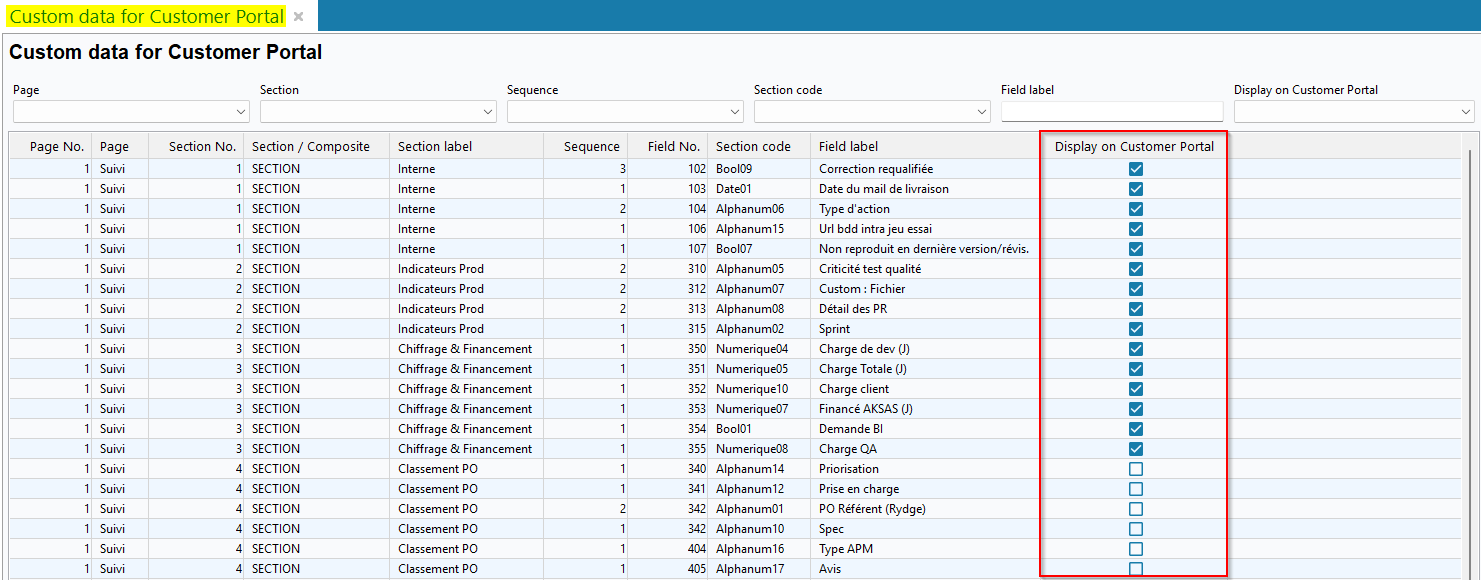
The screen contains a table listing the custom data for help desk issues, set up from Tools > Setup > Help Desk setup > Custom data > Issues custom data. Criteria are available at the top of the screen to narrow down the custom data displayed in the table. To make custom data visible on the Customer Portal, check the corresponding data in the Display on Customer Portal column of the table.
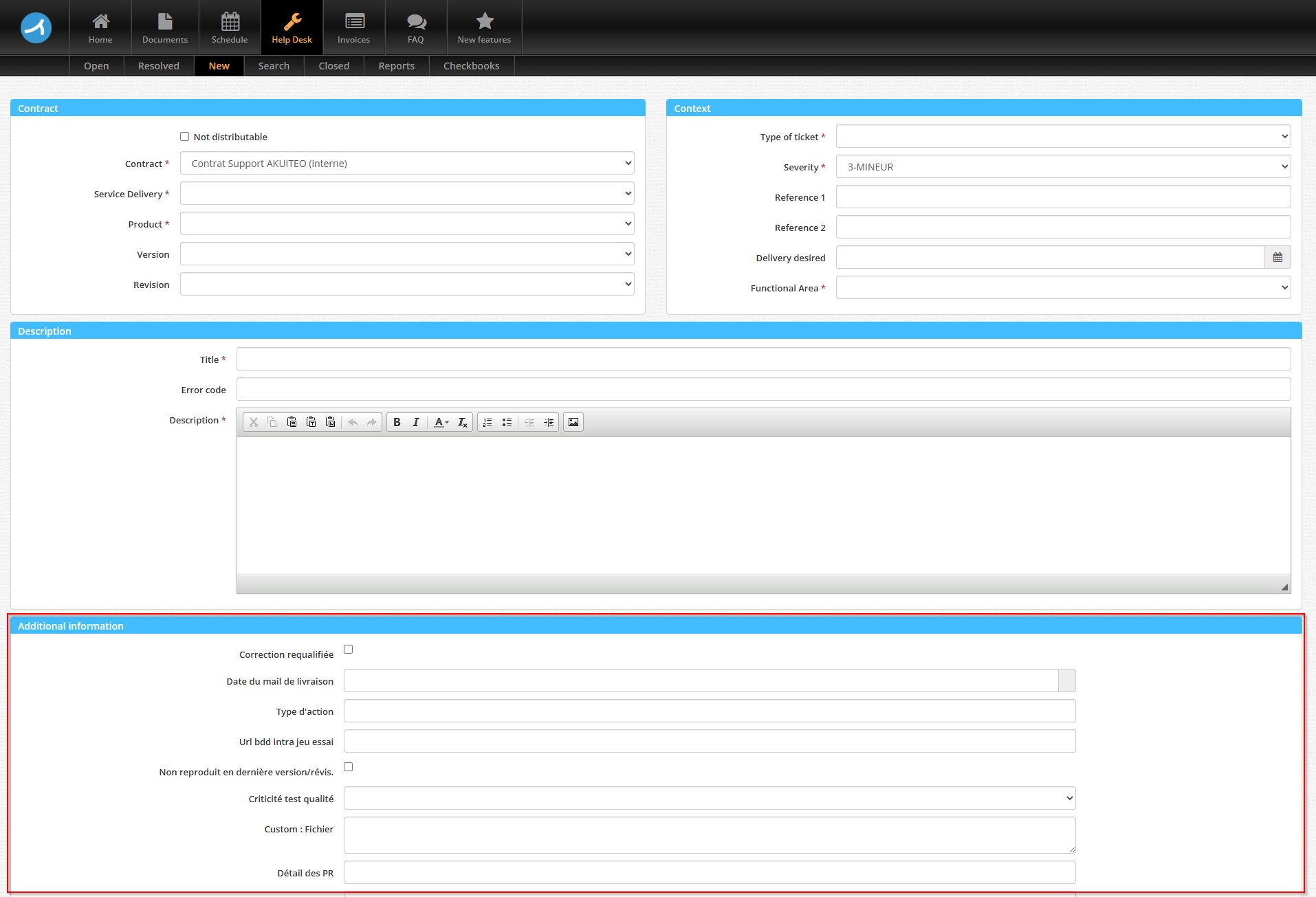
When custom data are set as visible, a new Additional Information section is displayed in issues in the Customer Portal > Help Desk and contains the corresponding custom data. This section is visible when creating or modifying issues.
Old Employee Portal
Old Web Portal: Employee and Manager modules deprecated
| DMF | 19**** WEB PORTAL * WEB PORTAL |
Important
This evolution requires resetting the Launcher's Employee and Manager links.
To reset those links, refer to Setting up the Launcher.
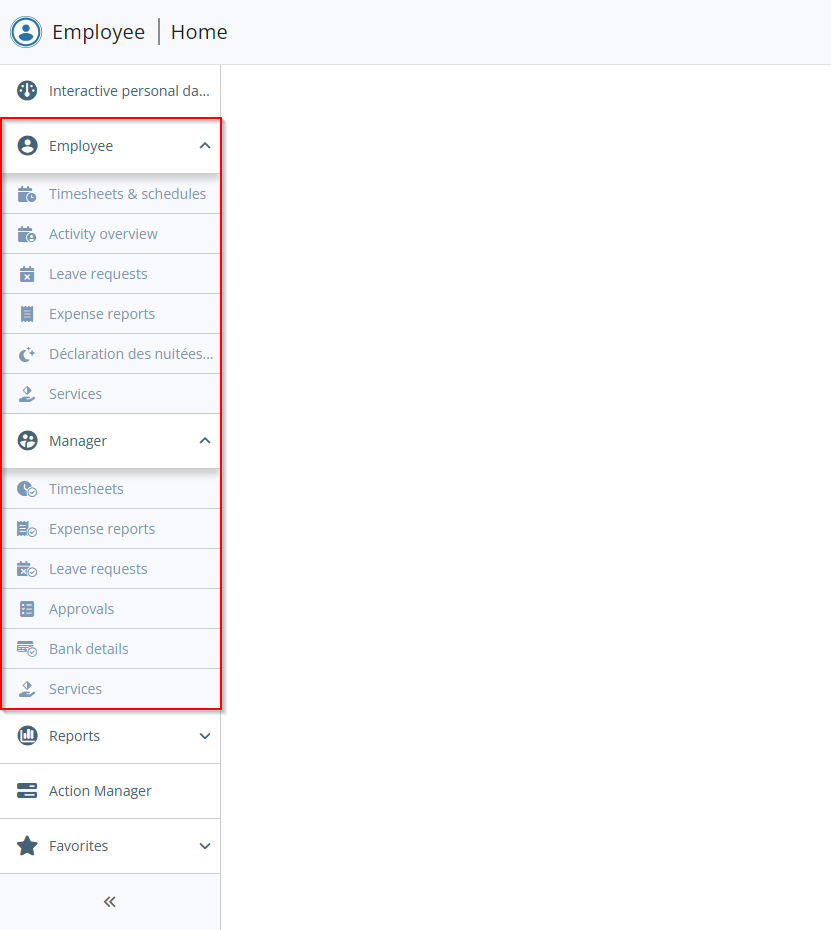
On the old Web Portal, the Employee and Manager modules are deprecated and are no longer available.
Now:
- Only the old CRM module and the Reports module remain accessible on the old portal.
- The Employee and Manager modules can only be accessed through the new Web Portal. The related feature flags are now available as standard (see Deleted feature flags).
New Employee Portal
Timesheets & schedules and Activity overview: New function to manage the calendar and activity on behalf of another employee
| DMF |
1901** WEB PORTAL TIMESHEETS & SCHEDULES MENU TIMESHEETS & SCHEDULES MENU 1903** WEB PORTAL TIMESHEETS TIMESHEETS 1904** WEB PORTAL SCHEDULES SCHEDULES |
Important
This feature requires the following feature flag: Portail collaborateur domain > Changer De Collaborateur label. To enable it, go to the Administration console > Configuration > Features, enable the Changer De Collaborateur feature flag then log in again.
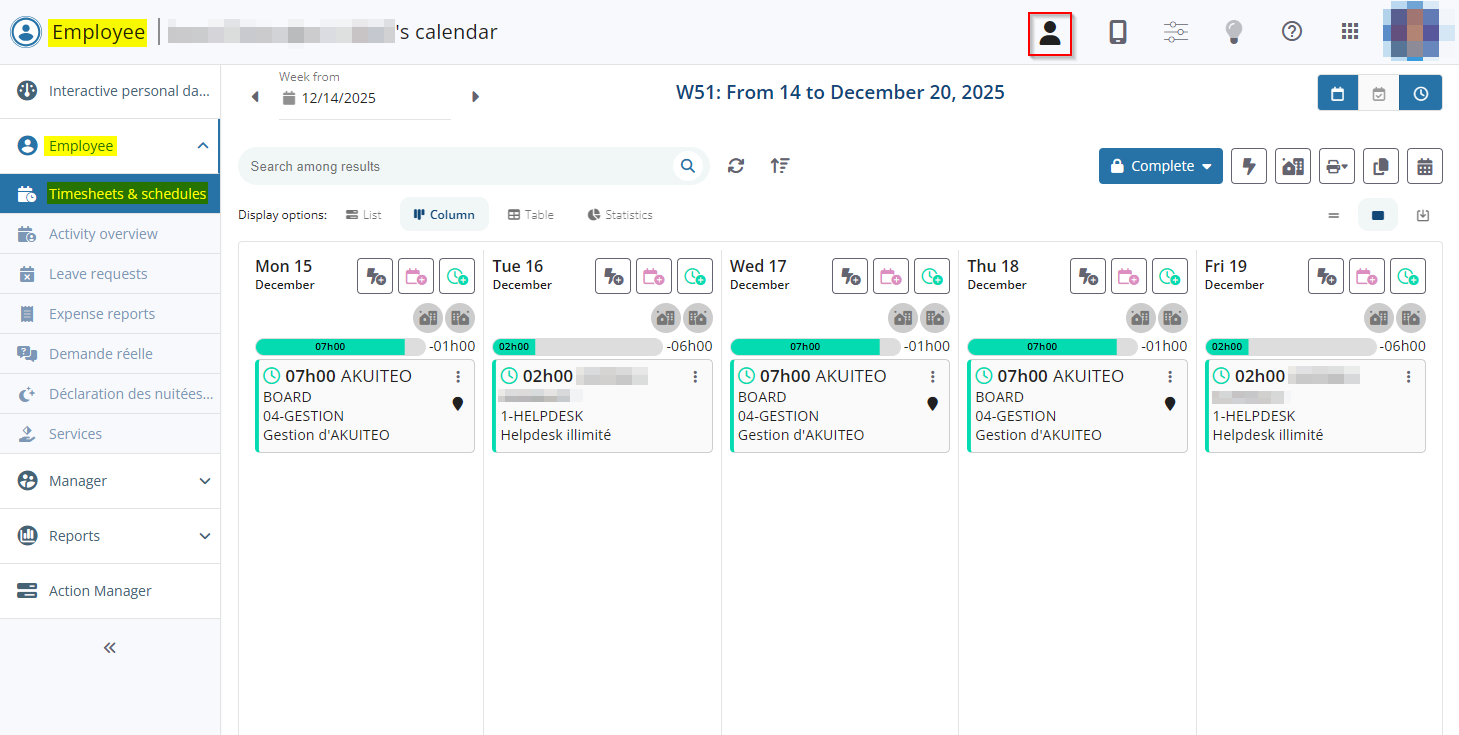
From the Web Portal > Employee module > Timesheets & schedules and Activity overview, a manager can now view and manage another employee’s calendar and activity on their behalf.
This new function can be accessed by clicking on the  icon in the Web Portal's upper bar. It requires the DMF 060208 PROJECTS SCHEDULES MODIFY RESOURCE.
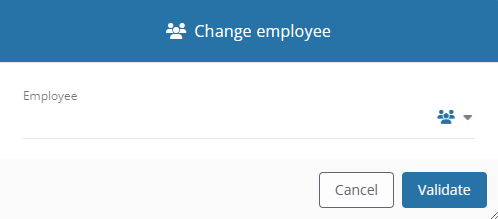
A window opens allowing you to select the employee you want to display the Web Portal for. The filter  to the right of the field allows you to choose whether to filter based on the employees for whom the logged‑in user is the manager. If the filter is disabled
  , all non-generic employees present in the current company are shown in the help list.
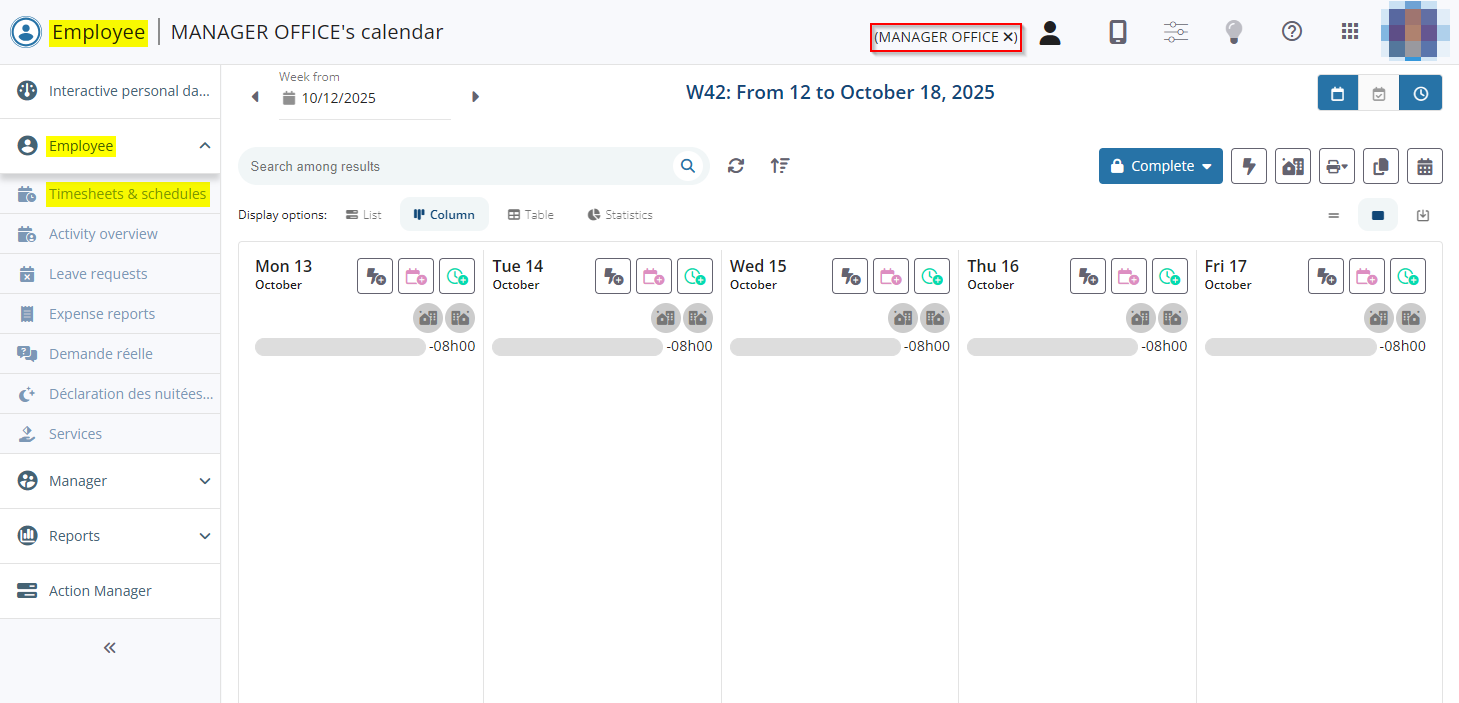
The screen is then displayed in the view of the selected employee. The manager must have the DMF 060348 PROJECTS TIMESHEETS TIMESHEETS CORRECTION - TIMESHEET VALIDATION in order to create, modify or delete timesheets. The other actions require the usual DMFs. The logged-in manager's DMFs are taken into account instead of the displayed employee's DMFs.
The name of the displayed employee is shown in the upper bar of the screen, and the manager can click on  to return to their own view.
Timesheets & schedules: Visual indicator added on schedules items on several consecutive days
| DMF | 1904** WEB PORTAL SCHEDULES SCHEDULES |
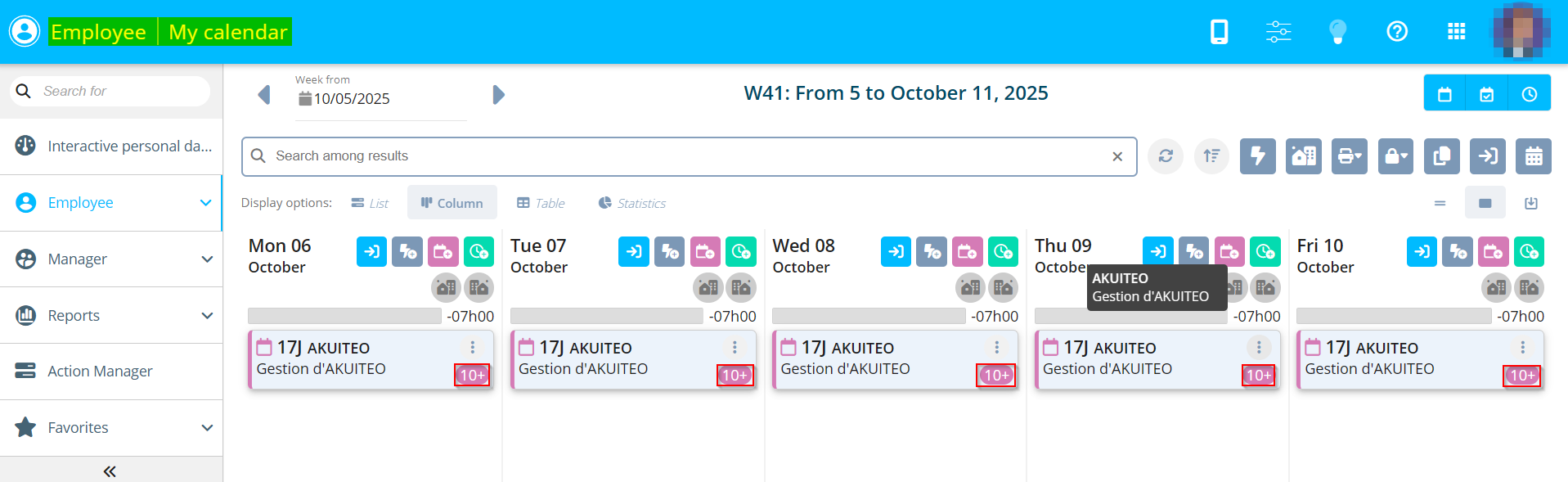
From the Web Portal > Employee > Timesheets & schedules, a scheduled item can be on consecutive days. It can also be on two consecutive days when its duration is inferior to 1D, for instance when the schedule starts on the afternoon. In this case, the total duration of the scheduled item is displayed on each scheduled item.
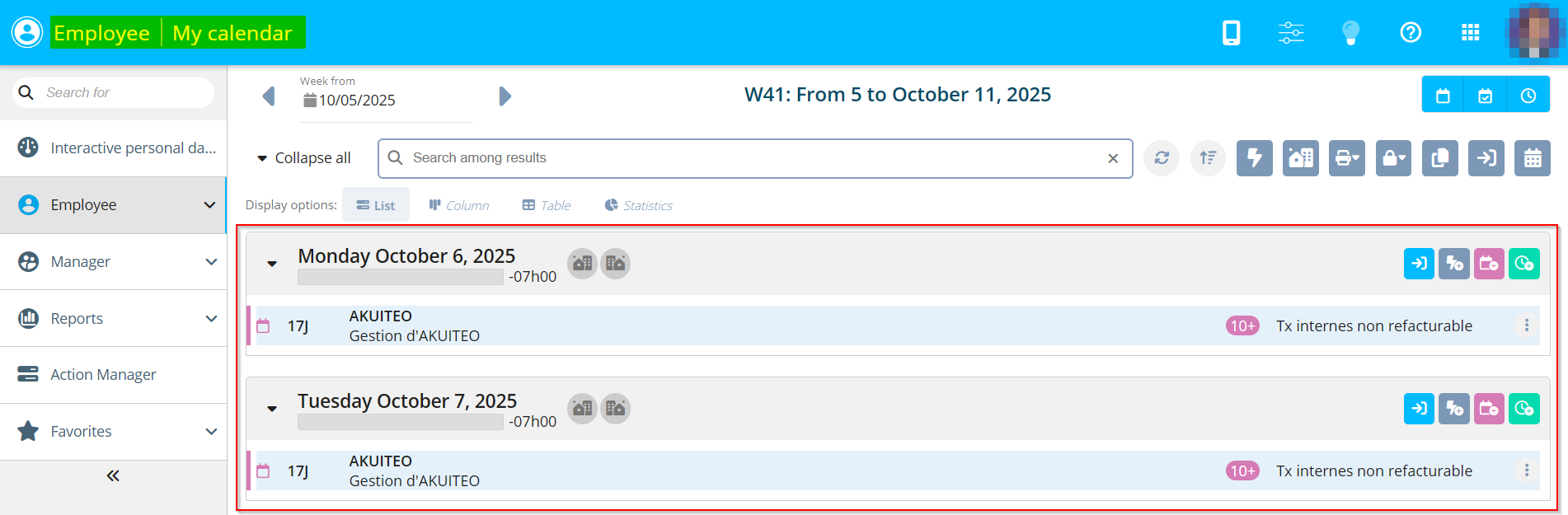
From now on, a visual indicator, available in List and Column view, is displayed on the right of each scheduled item and indicates the number of the scheduled item.
Thus, when a scheduled item is created with a duration of three days, the item of the first day displays the indication 1/3, the item of the second day displays the indication 2/3 and the item of the third day displays the indication 3/3. If the scheduled item is over 10 days, the indication 10+ is displayed on all the scheduled items.
Note
When the scheduled item created is over two following months, the numbering is not continued. The two months are processed separately from each other.
When hovering over a scheduled item of various days in List and Column view, all scheduled items associated are displayed in blue.
Timesheets & schedules: Visual indicators added for scheduled item tags
| DMF | 1904** WEB PORTAL SCHEDULES SCHEDULES |
On the form of a scheduled item, from Project and the Web Portal, tags can be specified in the Tags field.

Indicators for these tags are then displayed in the calendar block from Project.

From now on, the tags added to a scheduled item are also visible from the Web Portal > Timesheets & schedules, directly on the calendar:
- In the List display option, the tag icons are shown on the right side of the scheduled item line. The list of tags is displayed when hovering over the icons.

- In the Column display option, a colored dot is shown for each tag on the scheduled item block.

- In the Table display option, the tag icons are shown in the new Tags column.

The detailed list of tags is displayed when hovering over the indicators.

Up to 3 tags are visible for a scheduled item. If there are more than 3 tags, the mention +X is added to indicate the number of additional tags.

Timesheets & schedules: New features available to transfer a scheduled item into the timesheets
| DMF | 1904** WEB PORTAL SCHEDULES SCHEDULES |
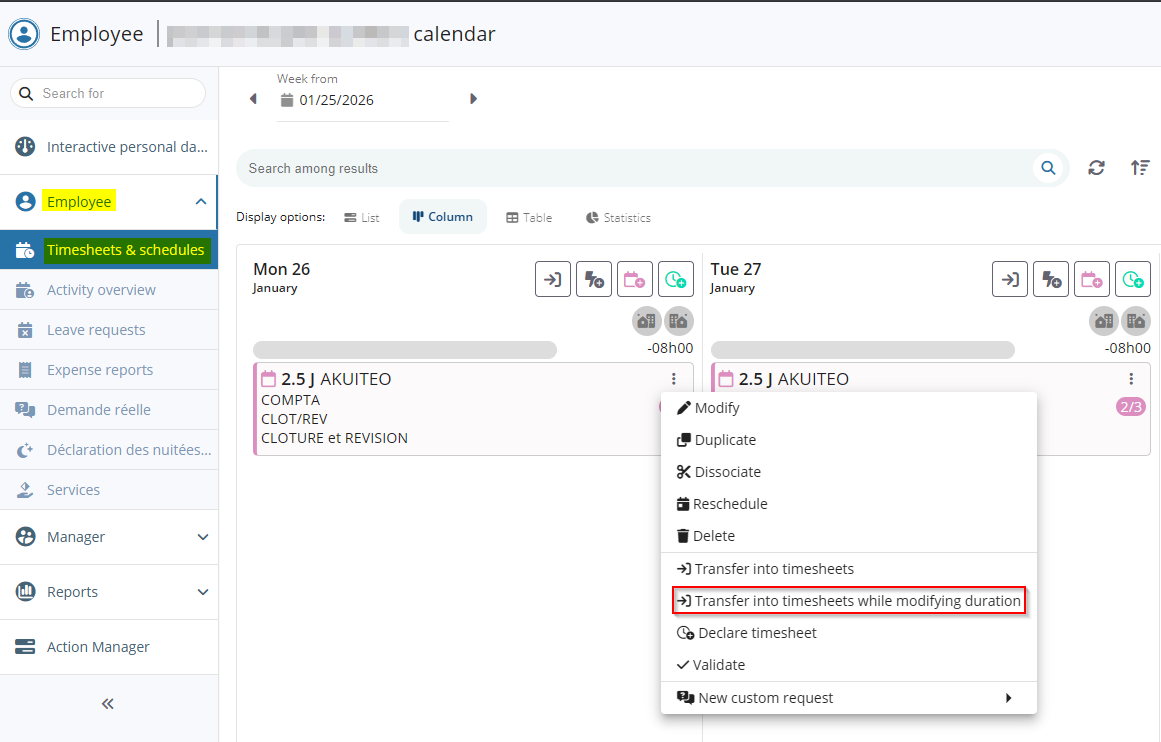
From the Web Portal > Employee > Timesheets & schedules, in List, Column and Table view, features have been added in order to improve the transfer of scheduled items into timesheets.
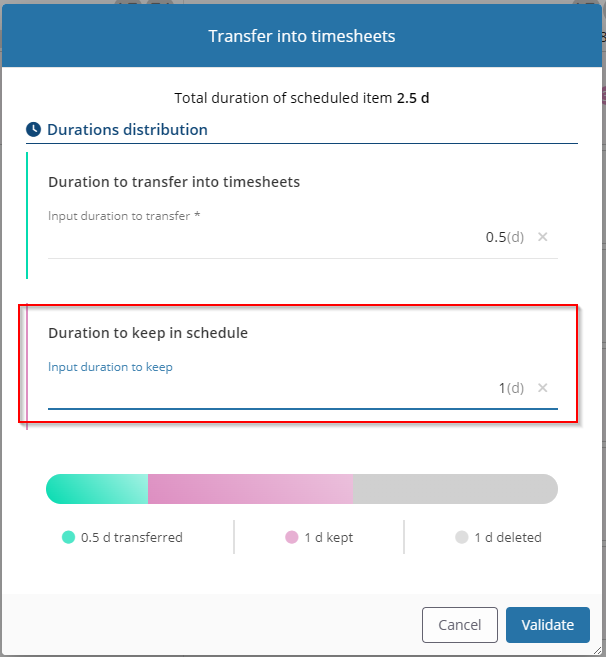
Now, the Transfer into timesheets while modifying duration is available from a scheduled item >  . When clicking on it, a window opens and allow you to define the durations to transfer into timesheets and remaining task management.
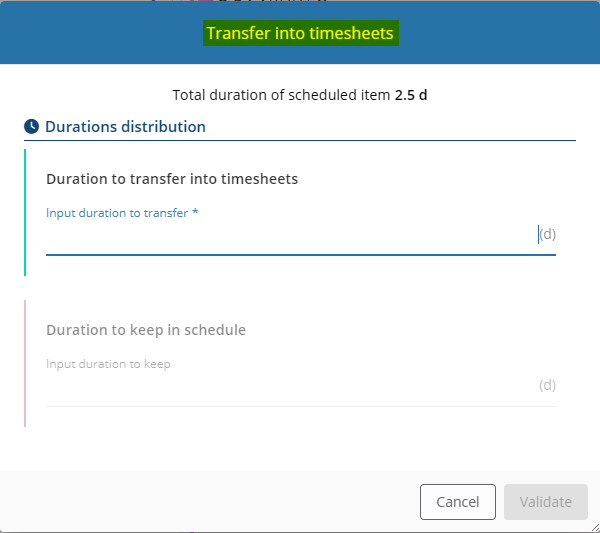
The Duration to transfer into timesheets is to specify with the duration to transfer into timesheets. This duration can be inferior or superior to the duration of the scheduled item.
The Duration to keep in schedule field can be:
- left empty. When the user clicks on Validate, the scheduled item is no longer displayed unless the
PLG_TRANSF_TEMPmanagement rule is enabled. In this case, the original scheduled item is kept and marked as done. - specified with a new value. When the user clicks on Validate, a new non-validated scheduled item is displayed instead of the original scheduled item. If the
PLG_TRANSF_TEMPmanagement rule is enabled, the original scheduled item is modified to display the duration specified in the Duration to keep in schedule field and is marked as done.
Example
An employee wants to transfer into their timesheets a part of a scheduled item with a duration of two days and recreated a new scheduled item with the remaining duration. The PLG_TRANSF_TEMP management rule is disabled for the entity.
In the window of transfer into timesheets, they specify the value 1 in the Duration to transfer into timesheets field and the value 1 is specified in the Duration to keep in schedule field. When clicking on Validate:
- a timesheet with a duration of 8 hours is created;
- a non-validated scheduled item with a duration of 1 day is created on the same day as the original scheduled item;
- the original scheduled item is no longer displayed.
The Duration to keep into the schedule can only be specified if the value specified in the Duration to transfer into timesheets field is inferior to the duration of the original scheduled item.
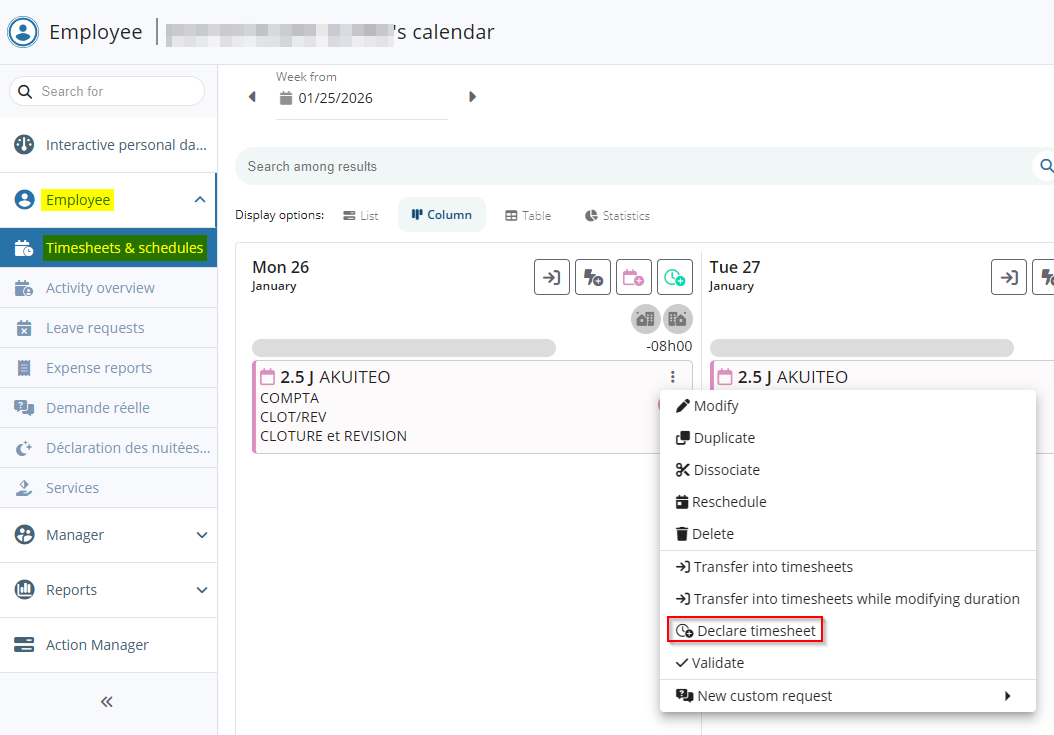
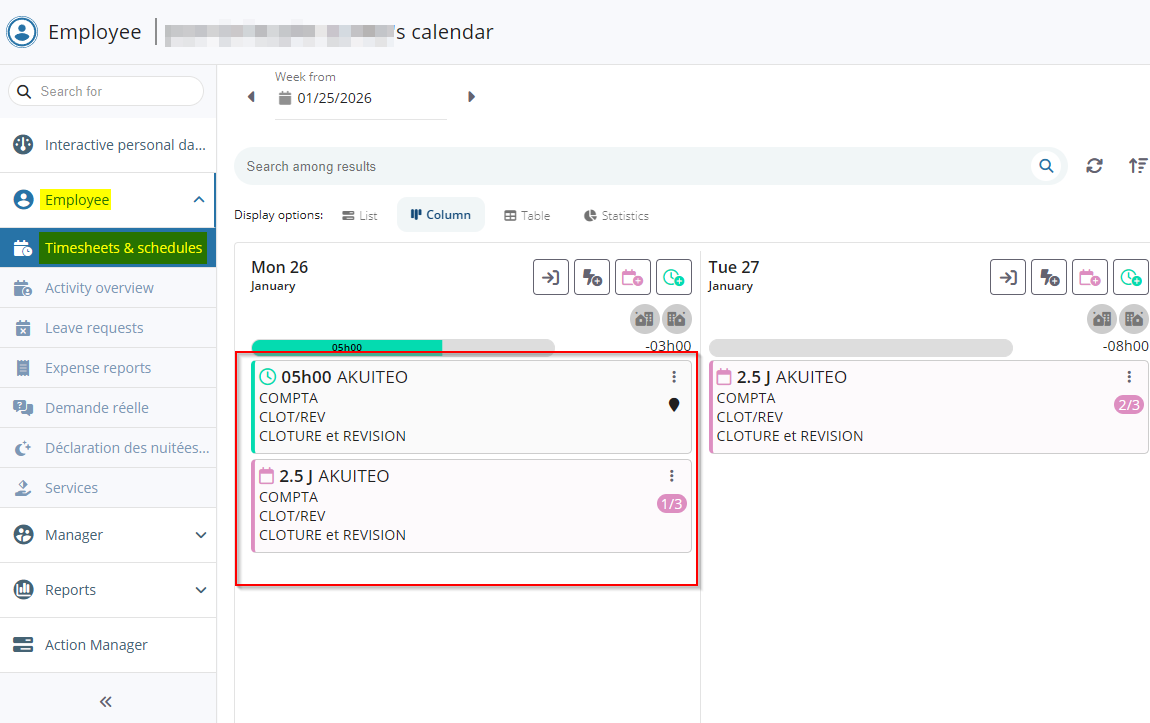
The Declare timesheet feature is also available from a scheduled item > and requires the 190302 WEB PORTAL TIMESHEETS MODIFY DMF. It allows you to create a timesheet with a duration inferior or superior to the duration of the original scheduled item. When clicking on the feature, the creation form of a timesheet opens with the fields of the assignment specified with the information of the scheduled item.
When the user clicks on Save, the timesheet is created and the original scheduled item is kept.
Note
These features are not available when:
- the project specified is a leave project;
- the
PLG_HORODATEmanagement rule is enabled.
Timesheets and schedules: Possibility to access the task details when creating a scheduled item or a timesheet
| DMF | 1904** WEB PORTAL SCHEDULES SCHEDULES |
From the Web Portal > Employee > Timesheets & schedules, when creating a scheduled item or a timesheet, it was not possible to view the details of the specified task.
Now, when the user has the 061604 PROJECT PROJECT TASKS SEARCH DMF, they can access the task details when creating the scheduled item or timesheet in List or Column view. When clicking on  at the right of the task, the user can modify the fields of the detail.
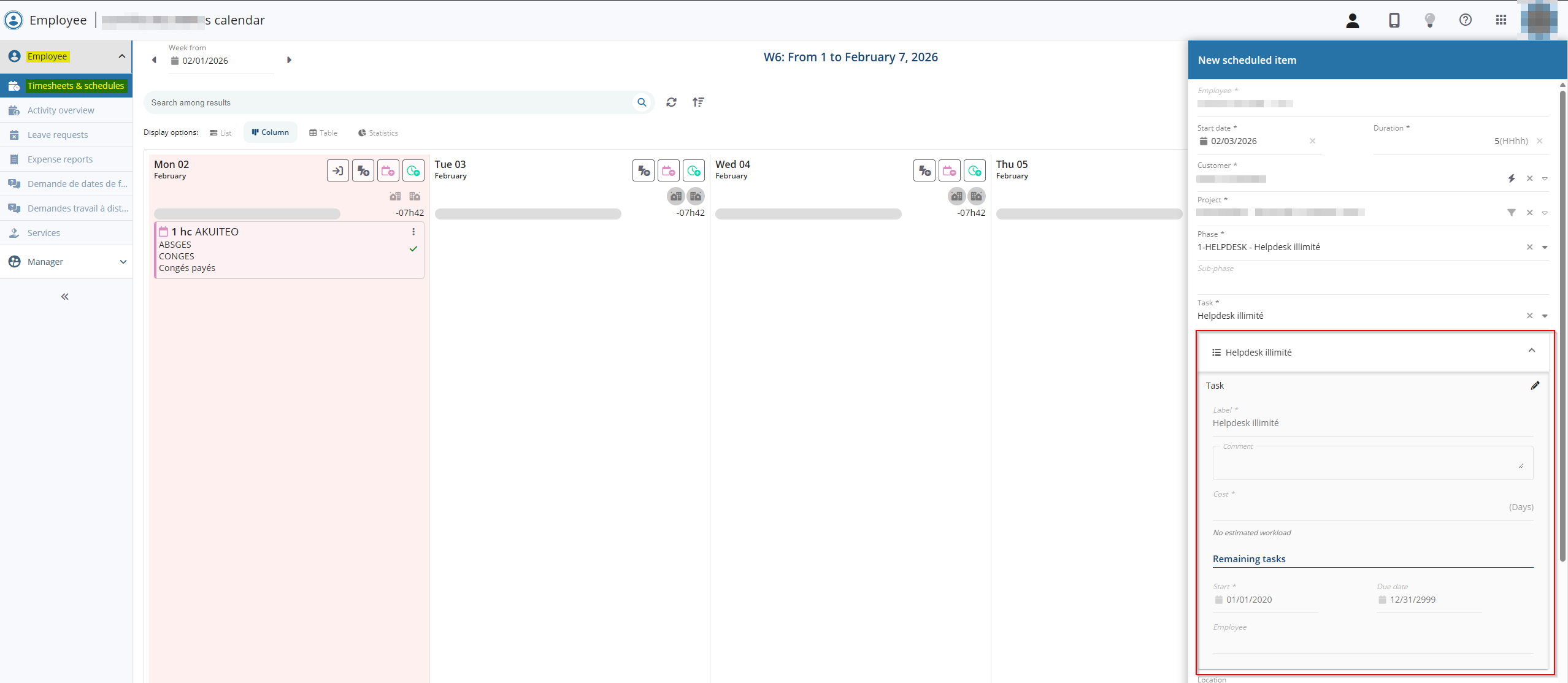
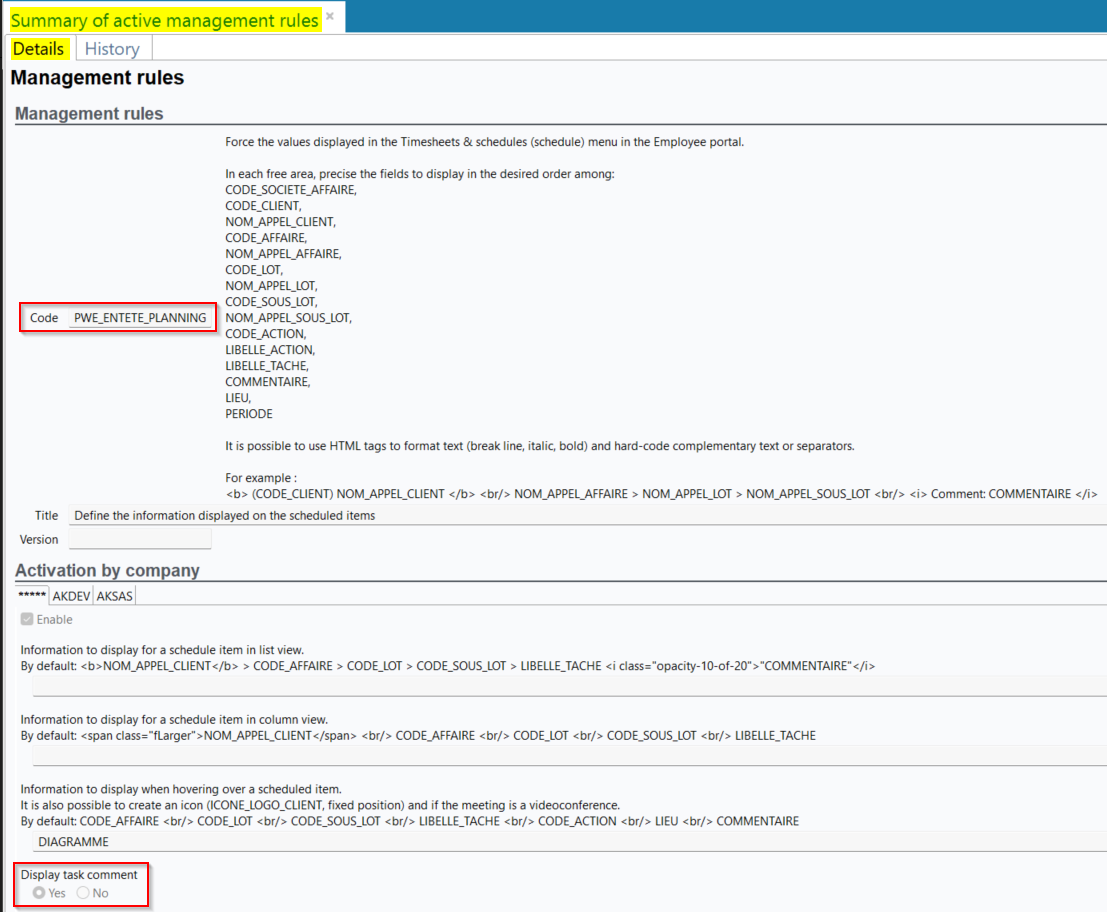
The Display task comment parameter has also been added to the PWE_ENTETE_PLANNING and PWE_ENTETE_TEMPS management rules and is set by default on No. When the option is on Yes, the task comment (Management > Projects > Phases and Project tasks tab > Project task details section > Comment field)
Timesheets & schedules: Ability to open a timesheet or scheduled item by clicking on it
| DMF |
1903** WEB PORTAL TIMESHEETS TIMESHEETS 1904** WEB PORTAL SCHEDULES SCHEDULES |
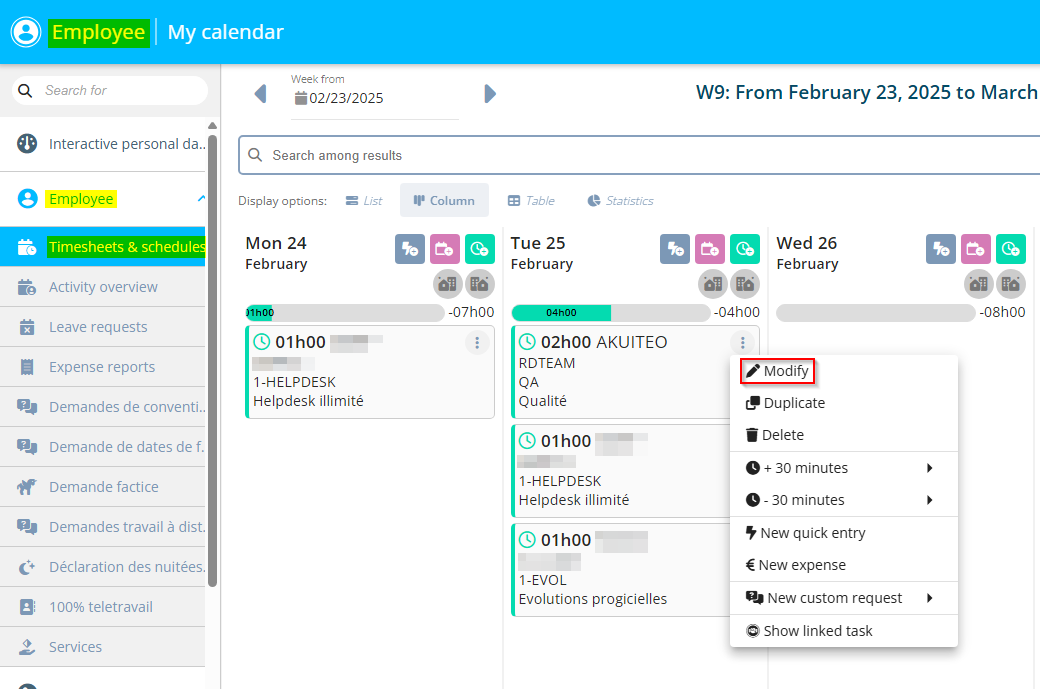
On the Web Portal > Employee module > Timesheets & schedule, the form of a scheduled item or timesheet can be opened by going in  > Modify from the relevant block.
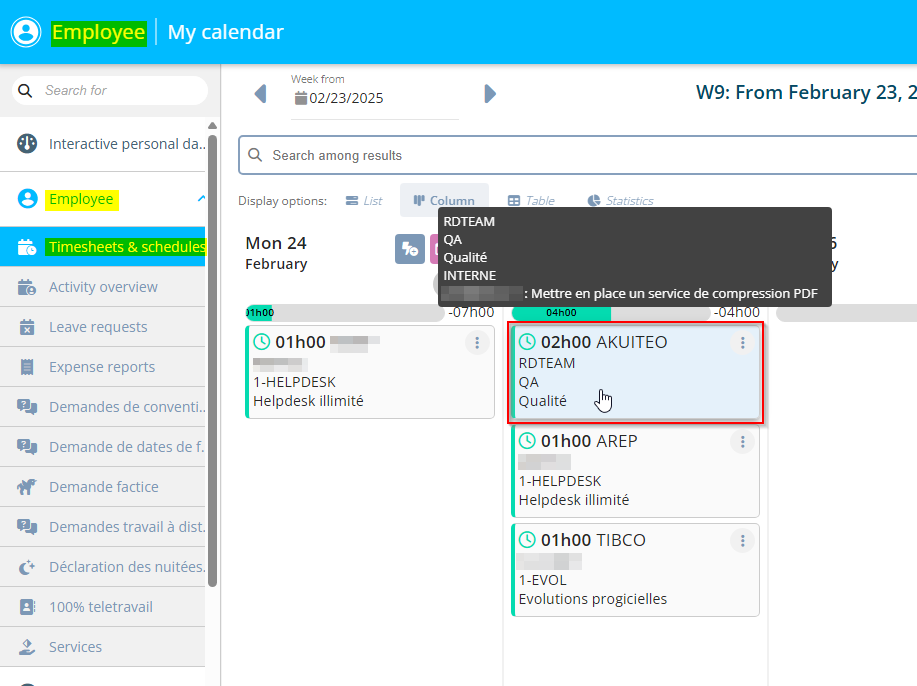
Now, in Column view, a block can also be clicked on in order to open the form of the timesheet or scheduled item.
Timesheets & schedules: Ability to duplicate a timesheet or scheduled item with a drag-and-drop
| DMF |
1903** WEB PORTAL TIMESHEETS TIMESHEETS 1904** WEB PORTAL SCHEDULES SCHEDULES |
In the Web Portal > Employee > Timesheet & schedule, timesheets and scheduled items can be duplicated from > Duplicate. In this case, the form of the duplicated item is opened in order to modify the Date field.
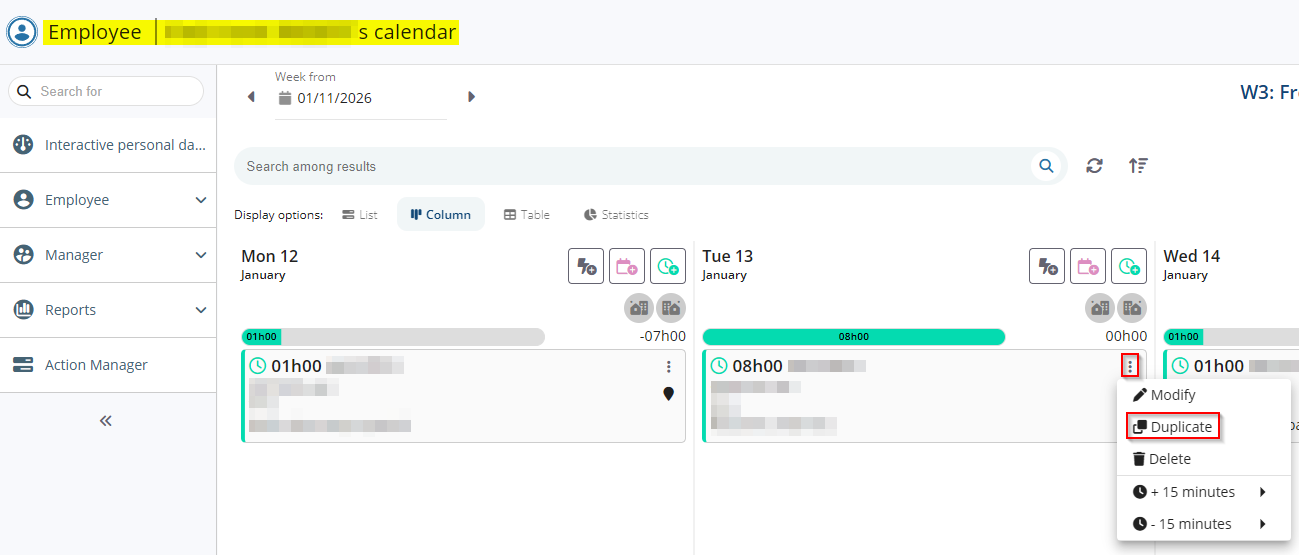
From now on, from the List or Column view, it is possible to quickly duplicate a timesheets or scheduled item by doing a Ctrl + drag and drop of this item toward the desired day. Thus, the item is duplicated and the Date of the item is automatically updated.
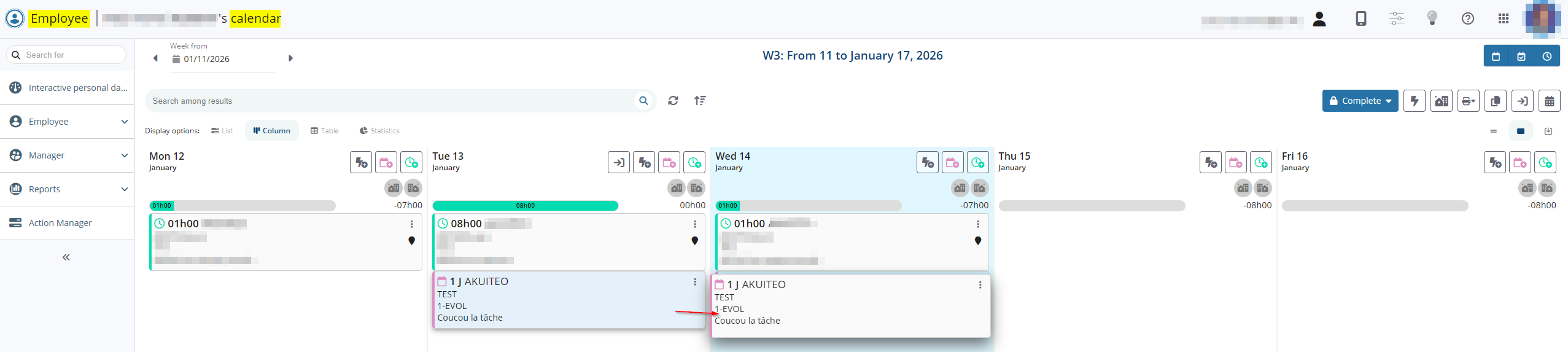
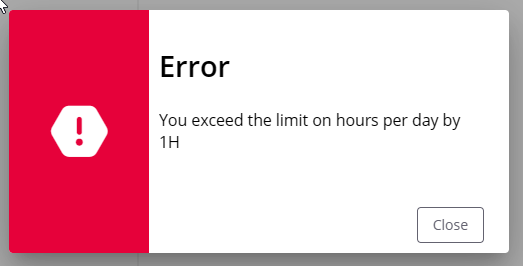
If the duplicated item exceeds the maximum hours of work per day or week, according to the setup of the model week, an error message is displayed and the item is not duplicated.
Timesheets & schedules: Ability to reschedule and dissociate scheduled items
| DMF | 1904** WEB PORTAL SCHEDULES SCHEDULES |
From the Web Portal > Employee > Timesheets & schedules, new functions have been added to allow rescheduling and dissociating scheduled items.
Rescheduling scheduled items
A new function allows scheduled items to be rescheduled to another date. This function is accessible from the icon of a scheduled item > Reschedule. The new DMF 190407 WEB PORTAL SCHEDULES POSTPONE is required to use this feature.

The function opens a window where you can specify the new date to which the scheduled item will be rescheduled.
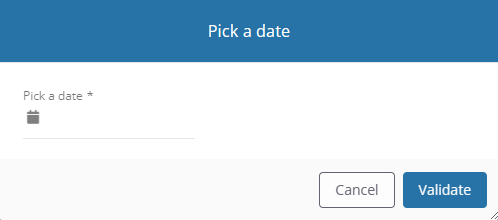
For more information, refer to Rescheduling a scheduled item.
Dissociating scheduled items
A new function allows a scheduled item to be dissociated into several distinct scheduled items. This function is accessible from the icon of a scheduled item > Dissociate. The DMFs 190402 WEB PORTAL TIMESHEETS MODIFY or 060201 PROJECTS SCHEDULES NEW are required to use the feature.
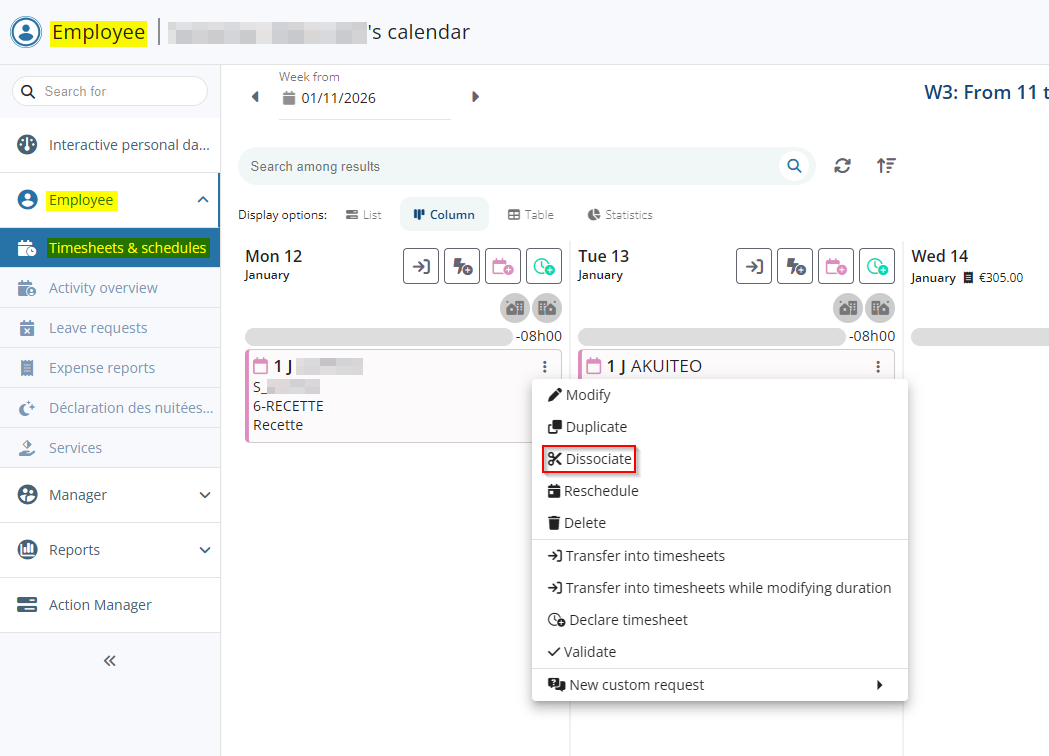
The function opens a window where you can choose the number of dissociated scheduled items and the duration of each one.
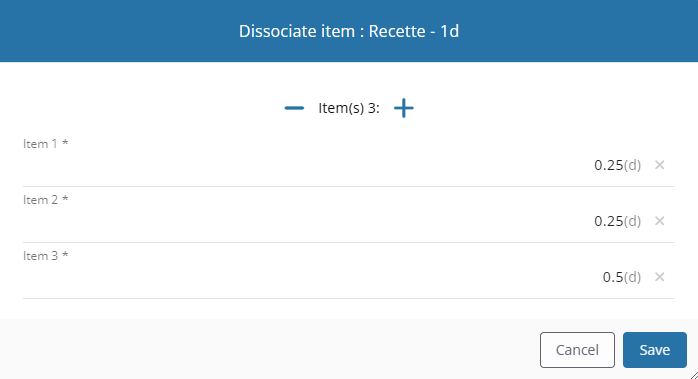
For more information, refer to Dissociating a scheduled item.
Approvals: New display for approvals
| DMF | 1909** WEB PORTAL APPROVALS APPROVALS |
Important
This feature requires the following feature flag: Portail Collaborateur domain > Pastilles Approbateurs label. To enable it, go to the Administration console > Configuration > Features, enable the Pastilles Approbateurs feature flag then log in again.
The Approvals menu of the Web Portal > Manager allows you to approve multiple management objects requesting approval.
Before, when multiple approvers need to approve a management object, they were displayed on a vertical view. This could affect the display of each management object to approve.
From now on, the display of approvers has been improved. Approvers who must approve, have approved or denied the management object are now displayed on the same line in order to keep a correct display.

When multiple approvers must approve, have approved or denied the object, a badge is displayed at the right of an approver with the mention + X. When clicking on the avatar of the first approver, the others approvers are displayed in a drop-down list. The following information are displayed for each approver:
- First and last name of the approver;
- Rank of the approver;
- Approval or denial date;
- Comment linked to the approval or denial.

When an approver approves for another person, their avatar is displayed as well as the comment Approved by XX under the first name and last name of the original approver.

At least, when hoovering over the  icon at the left of the approvers, the Response rate line has been added and indicates the percentage of approvals received (approval or denial) for the object.

Timesheets validation: Visual improvement
| DMF | 1907** WEB PORTAL TIMESHEETS VALIDATION TIMESHEETS VALIDATION |
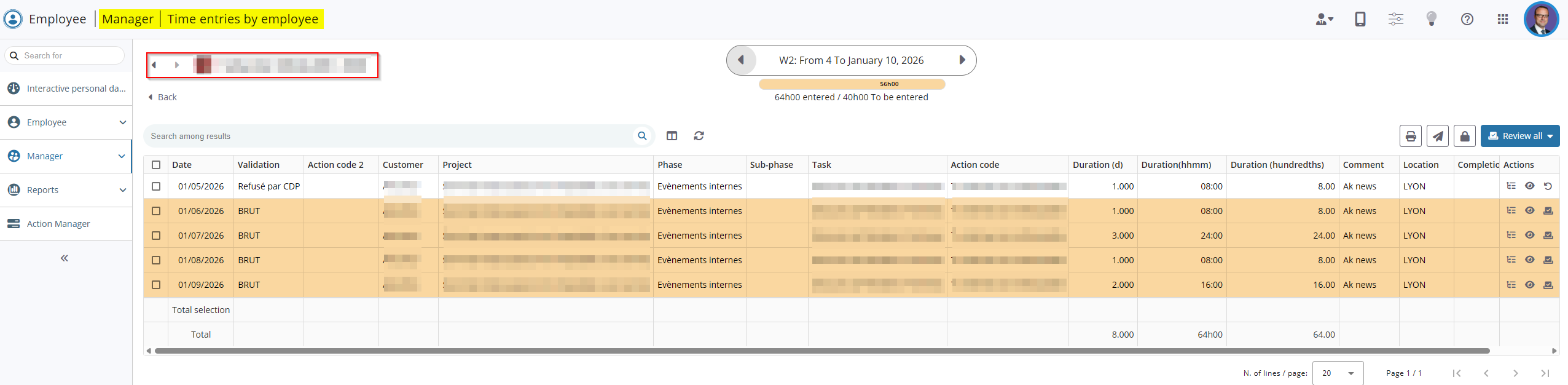
The Timesheets menu (Web Portal > Manager) allows the manager to review and validate their employees timesheets in a Project of Employee view. The employee detailed view allows them to view for each week, timesheets inputted by the employee. Visual improvements have been made on this screen.
Now, in order to be more clear, start and end dates of the week are displayed after the week number the manager consults.
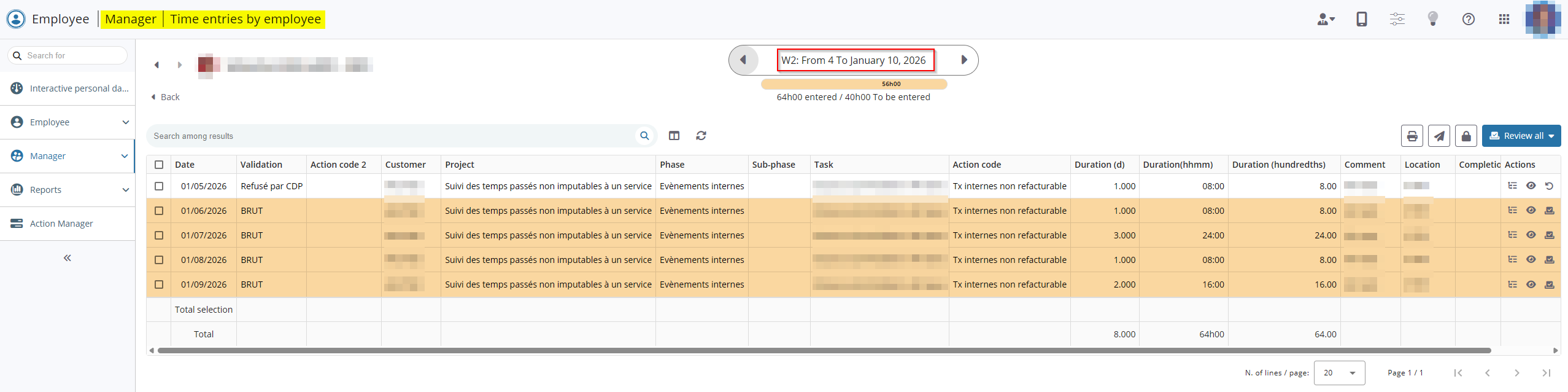
The name of the employee has be moved and is now displayed above the Back button.
Custom requests: Possibility to view canceled requests
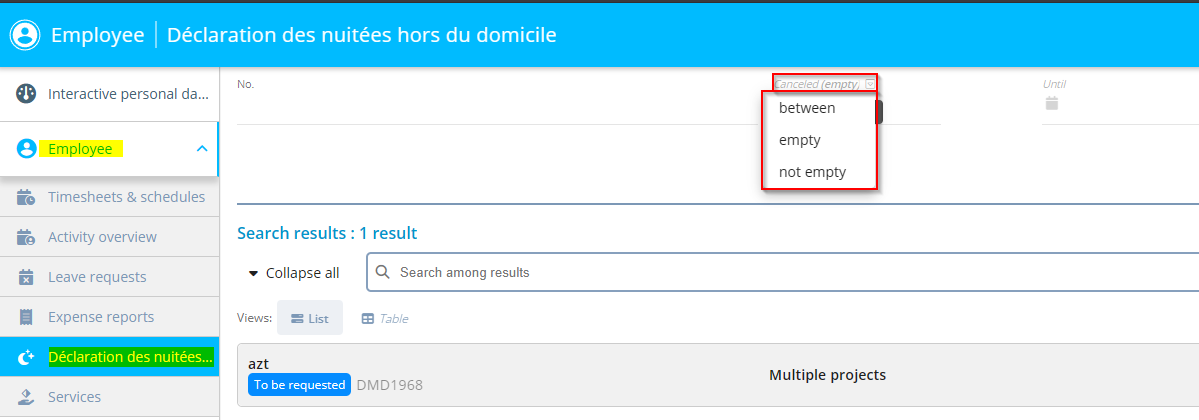
| DMF | 1911** WEB PORTAL CUSTOM REQUESTS CUSTOM REQUESTS |
The Custom requests menu of the Web Portal > Employee module allows employees to specify specific requests depending on each company needs. A custom request can be canceled when it is in the To be approved or Approved status.
Before, when a custom request was canceled, it was not possible to view this request.
From now on, canceled custom requests are visible. Thus, the Canceled ... until search criterion has been added and allows you to search canceled custom requests.
This criterion is on the empty behavior by default in order to not view canceled custom requests.
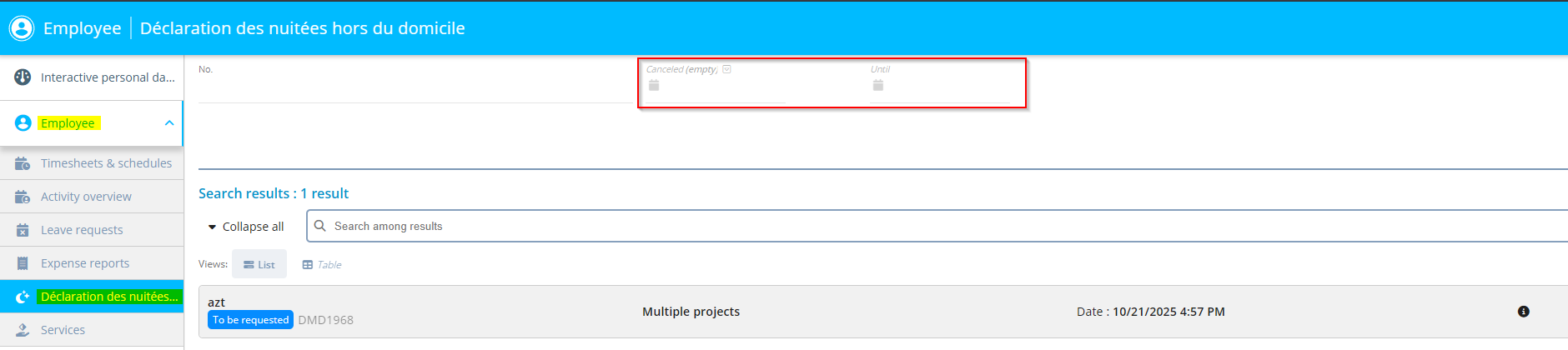
To display:
- canceled custom requests on a specific date, select the between behavior for the criterion and specify the relevant dates.
- all canceled custom requests, select the not empty behavior for this criterion.
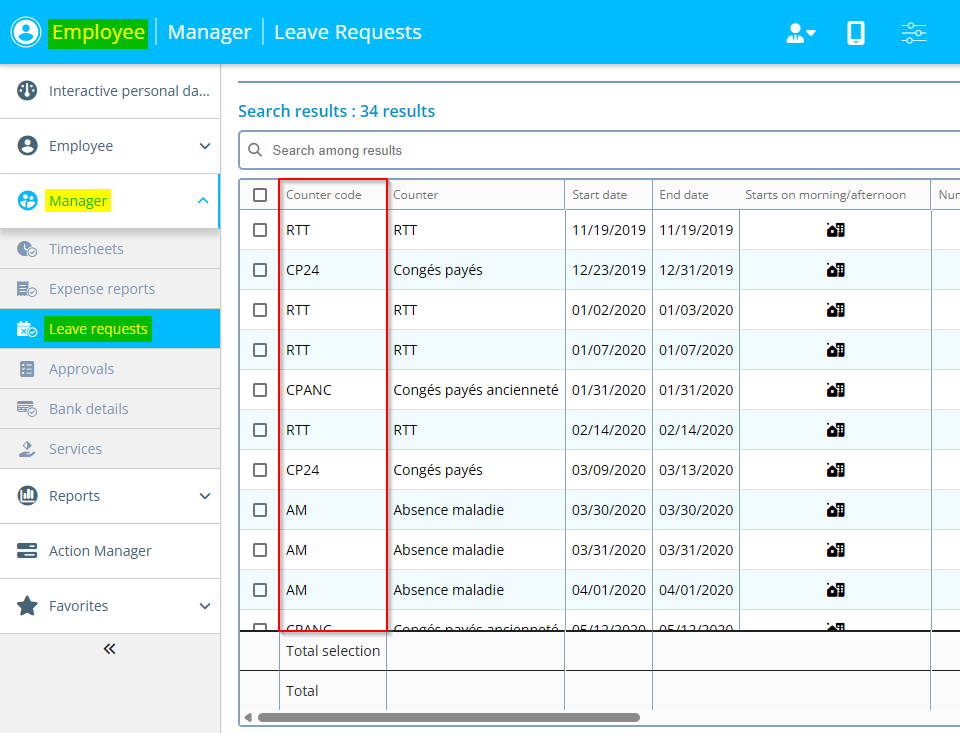
Validation of leave requests: Counter code column added
| DMF | 1906** WEB PORTAL LEAVE REQUESTS VALIDATION LEAVE REQUESTS VALIDATION |
On the Web Portal > Manager > Leave requests, the Counter code column has been added to the results.
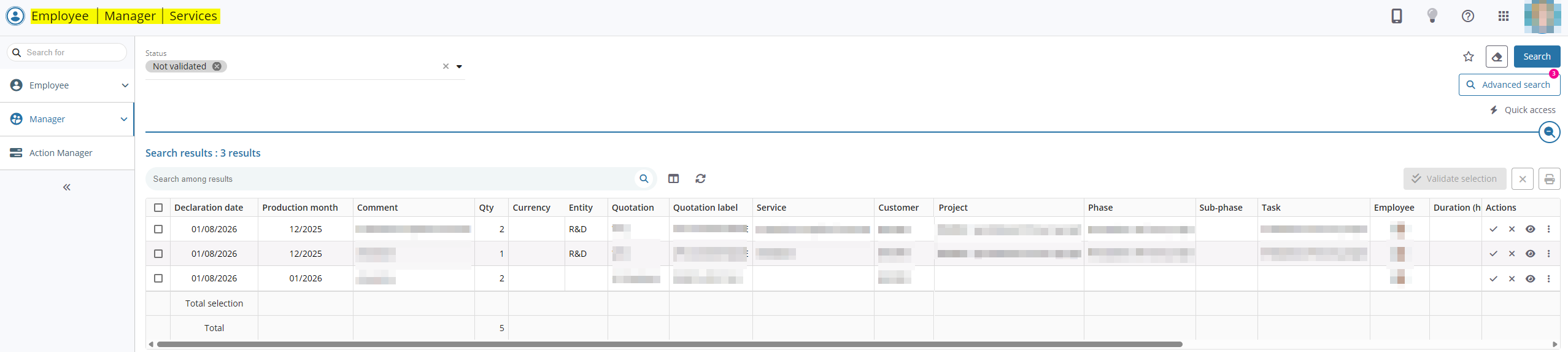
Services validation: partitioning applied according to DMF
| DMF | 1921** WEB PORTAL VALIDATE SERVICES * |
Before, the services to be validated (Web Portal > Manager > Services) followed the partitioning of the connected user. Thus, it was not always possible for the connected user to see all the services to validate.
Now, the partitioning of the connected user is applied according to the DMFs they have. Indeed, when the user has one of the following DMFs, they can view all the services to validate without being partitioned to one company only:
- 192103 WEB PORTAL VALIDATE SERVICES VALIDATE SERVICES AS LINE MANAGER;
- 192104 WEB PORTAL VALIDATE SERVICES VALIDATE SERVICES AS PROJECT MANAGER.
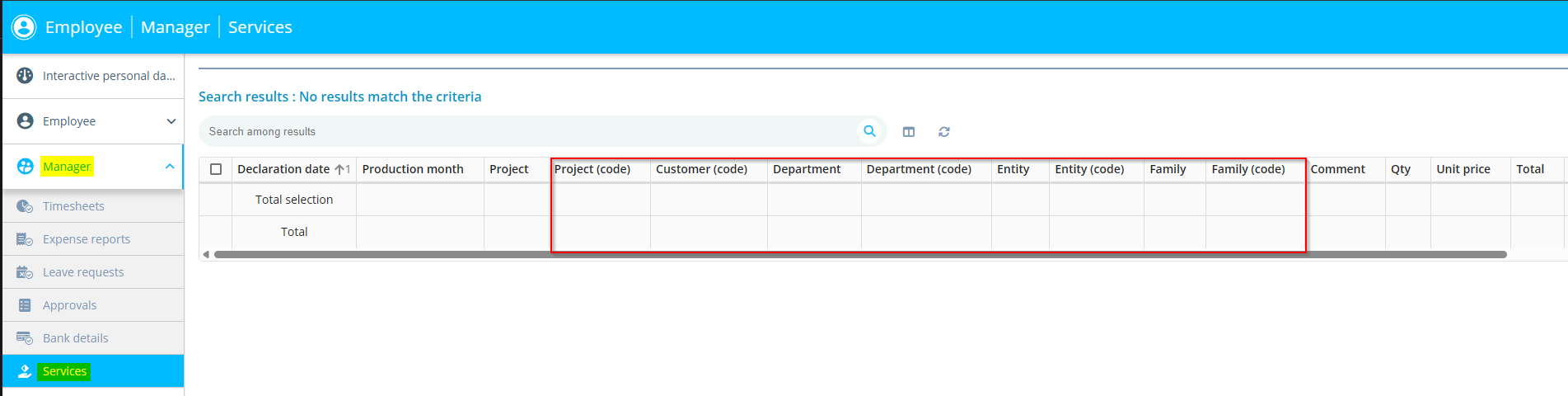
Services validation: Columns added in search results
| DMF | 1921** WEB PORTAL VALIDATE SERVICES * |
In the validation services menu (Web Portal > Manager > Services), the following columns have been added:
- Project (code);
- Phase (code);
- Sub-phase (code);
- Customer (code);
- Division and Division (code);
- Entity and Entity (code);
- Department and Department (code);
- Activity and Activity (code);
- Year;
- Family and Family (code);
- Sub-family and Sub-family (code);
- Sub-family 2 and Sub-family 2 (code);
- Project status;
- Project manager;
- Production manager;
- Financial manager;
- Sales manager;
- Quotation entity and Quotation entity (code).
The Approver column has been renamed Validator.
Project Portal
Scheduled items: Item duplication improved
| DMF | 25**** PROJECT * * |
In Project in Employee view or Project view, a scheduled item can be duplicated via a right-click on the item > Duplicate. A window is displayed so the employee can define the options linked to the duplication. Thus, it is possible to choose between duplicating:
- At a specific date;
- With a recurrence ;
- With a range of recurrence.
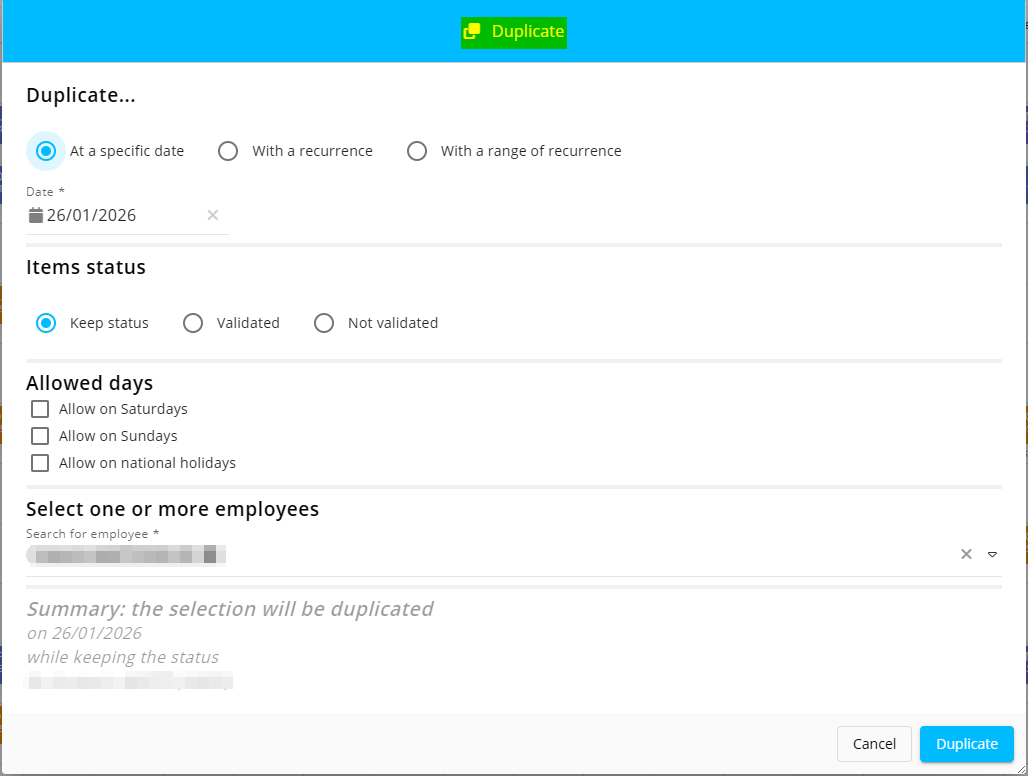
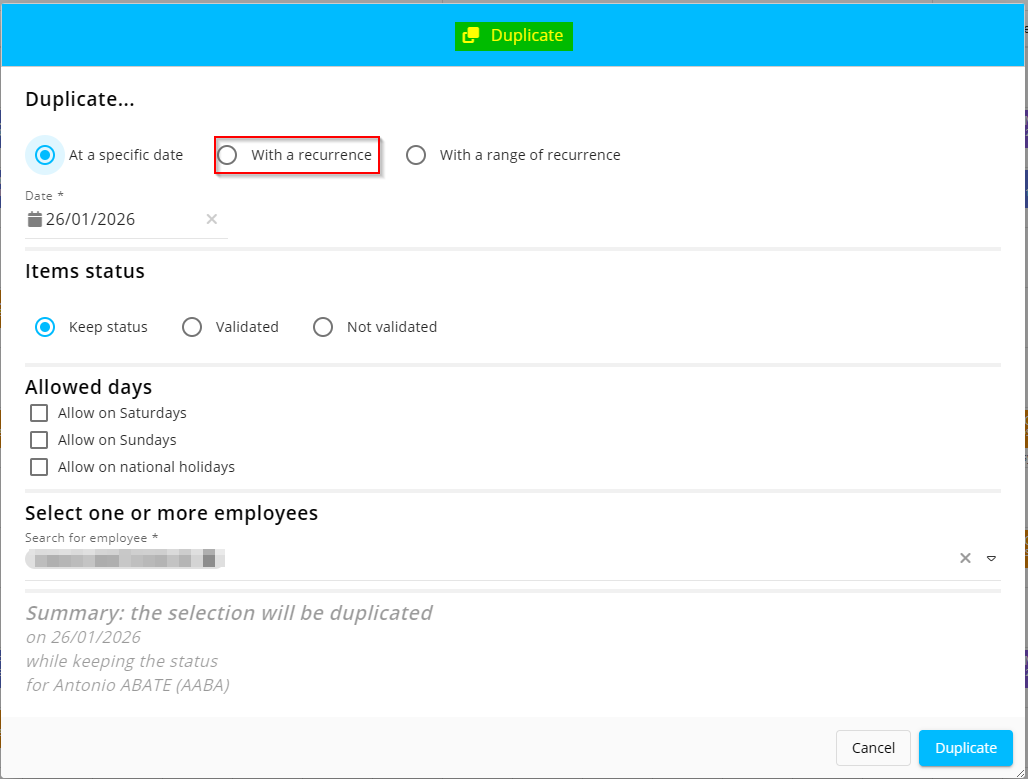
From now on, for more clarity, the duplication window has been improved and the With a recurrence option has been deleted.
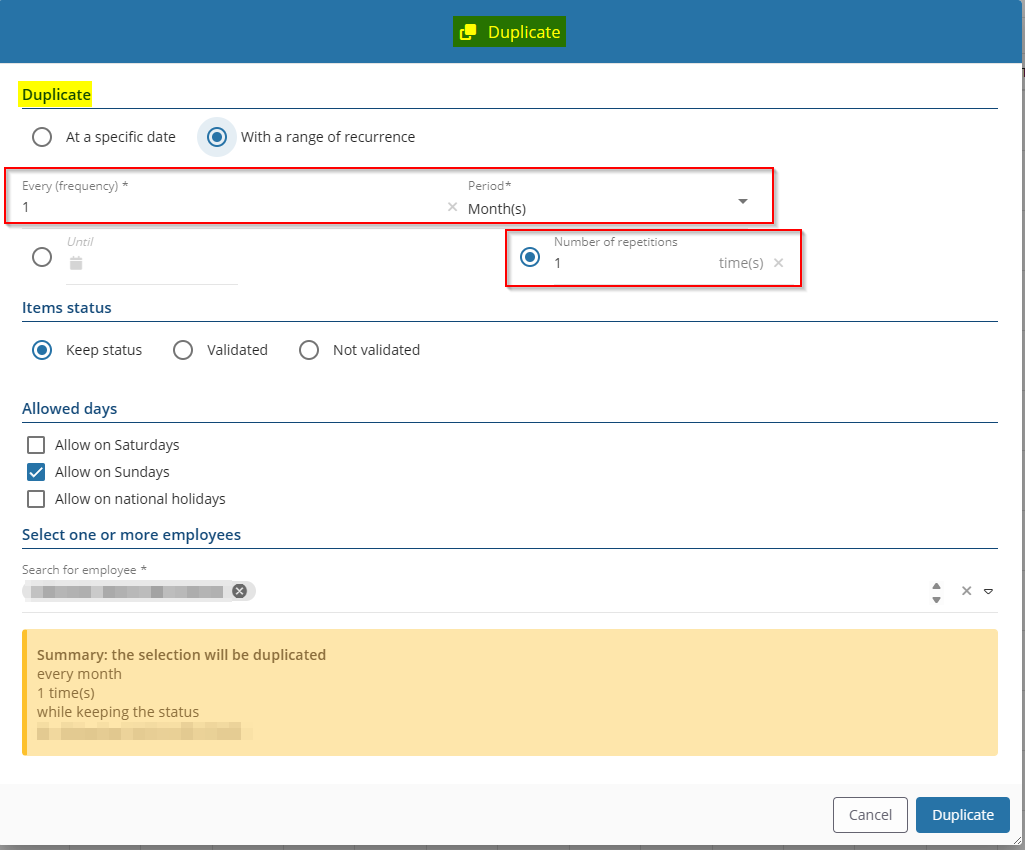
The fields of the section Duplicate have been renamed:
- Number of occurrences has been renamed Every (frequency);
- Type of recurrence has been renamed Period;
- Or ... times has been renamed Number of repetitions.
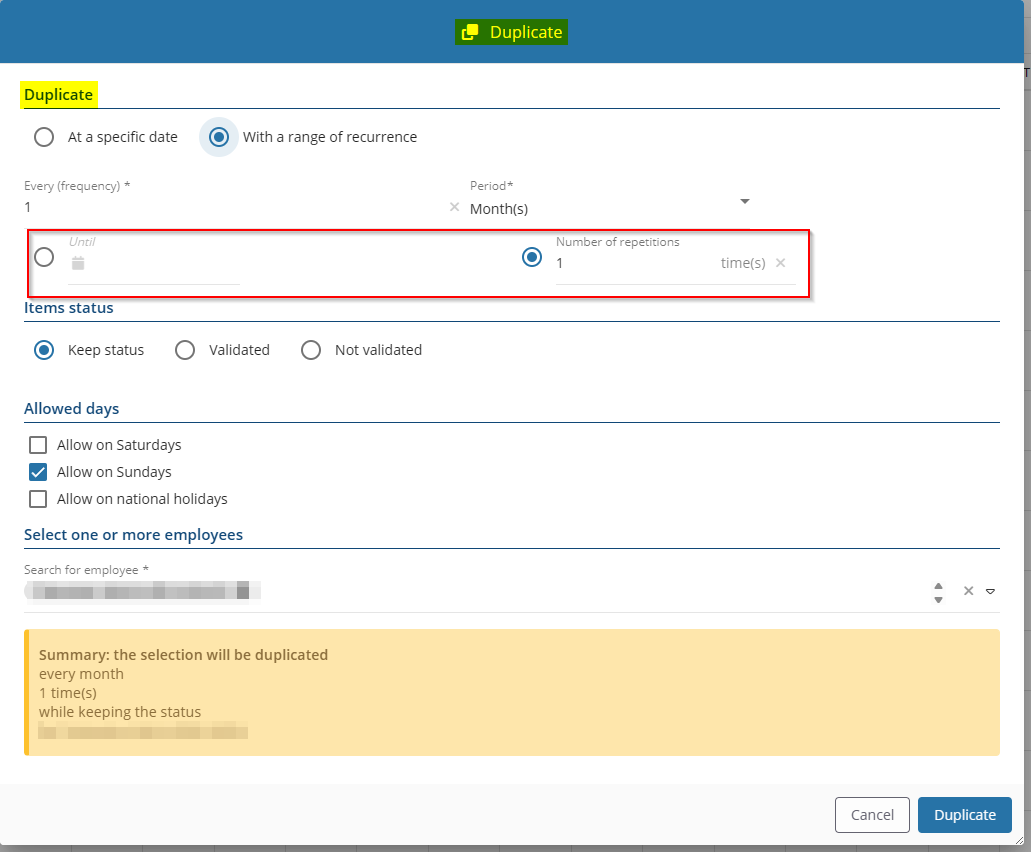
A modification has been made on the Until and Number of repetitions. A selection button is now available at the left of each field in order to select one field or the other. By default, the selected field is Number of repetitions.
Employee view and Project view: Various improvements
| DMF | 25**** PROJECT * * |
Improvement on under/over-scheduled days
On Project > Employee view, The Under/over-scheduled days view displays indicators on each day cell to highlight days that are under‑ or over‑scheduled.
From now on, when the Under/over-scheduled days view is enabled, under/over-scheduling indicators are available for a larger number of employees at once.
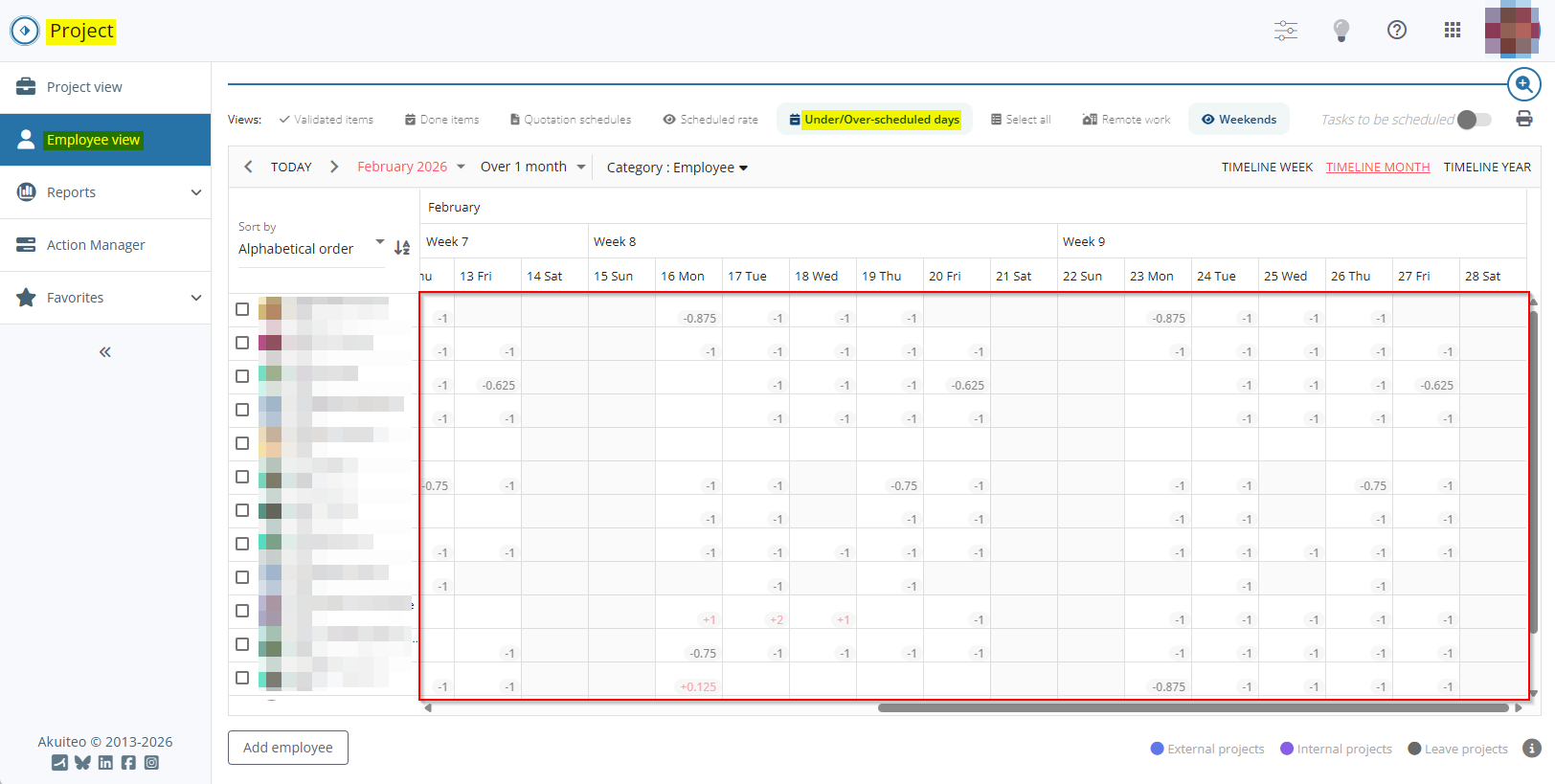
To enable this new display:
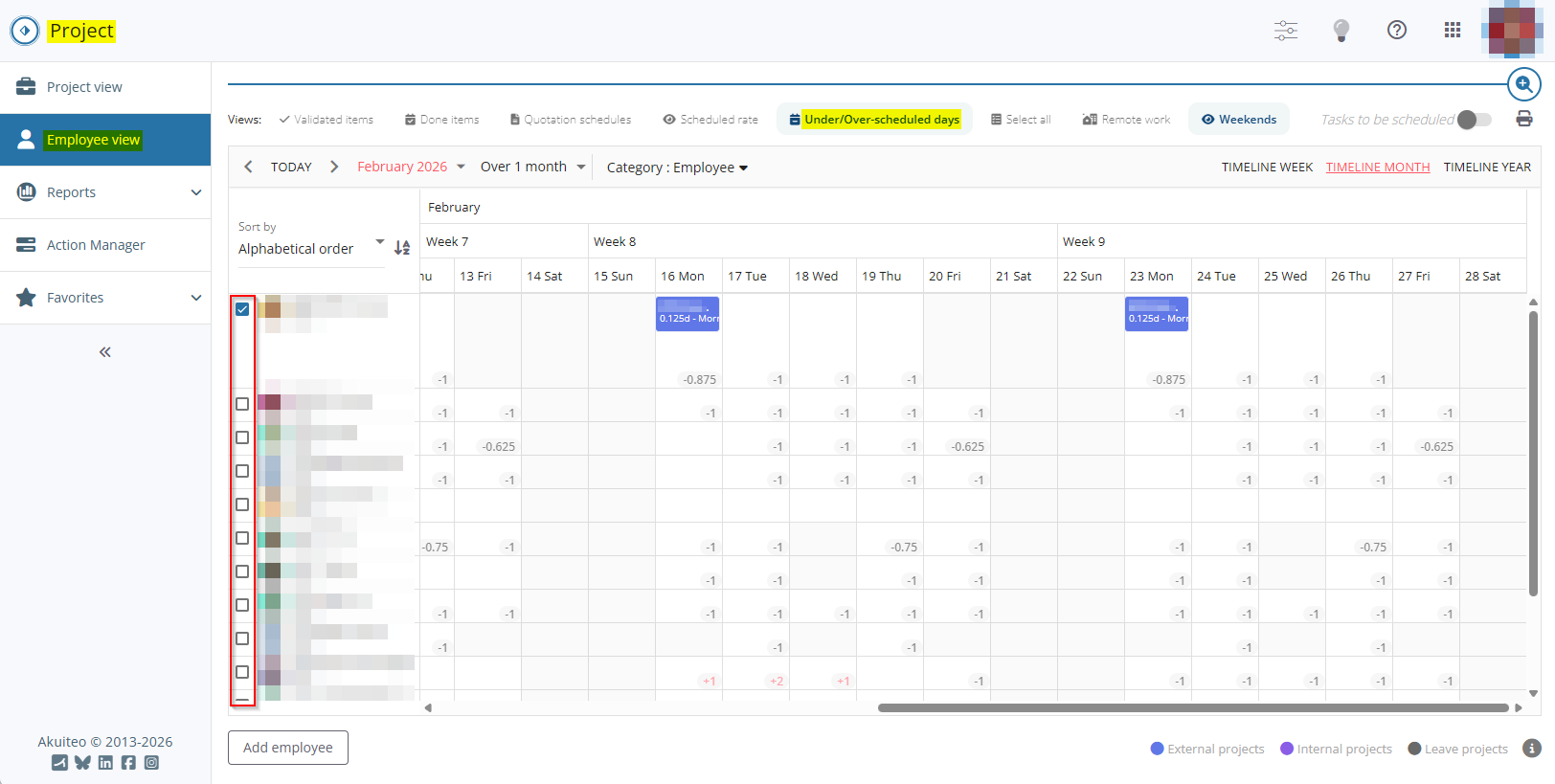
- The Expanded view is no longer available and schedule blocks in the calendar are no longer displayed by default.
- A new checkbox is displayed to the left of each employee and can be selected to show the scheduled items for the corresponding employee.
- In the list of employees to the left of the calendar, the name of each employee’s company is no longer displayed when the Scheduled rate view is enabled.
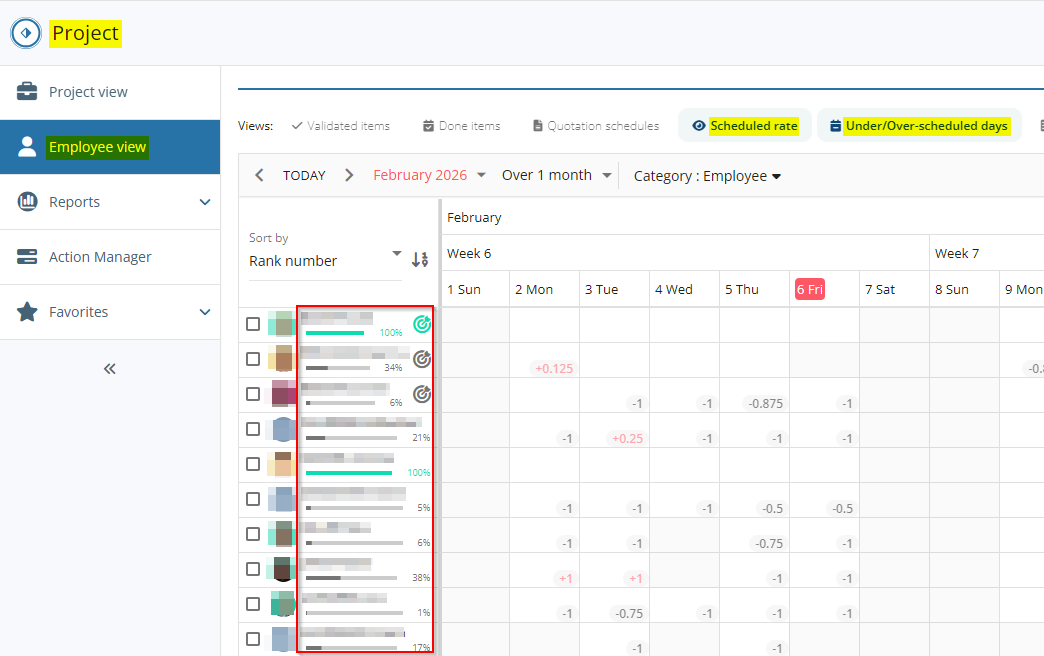
Previously, the indicator was missing on days without any scheduled items. From now on, the indicator is also displayed for days without any scheduled items, shown as -1.
For more information, refer to Under/over-scheduled days.
Ability to order the list of employees
In Project > Employee view, the Rank number option has been added in the Sort by drop-down list above the list of employees. The option allows the list of employees to be ordered based on the employees' rank numbers.
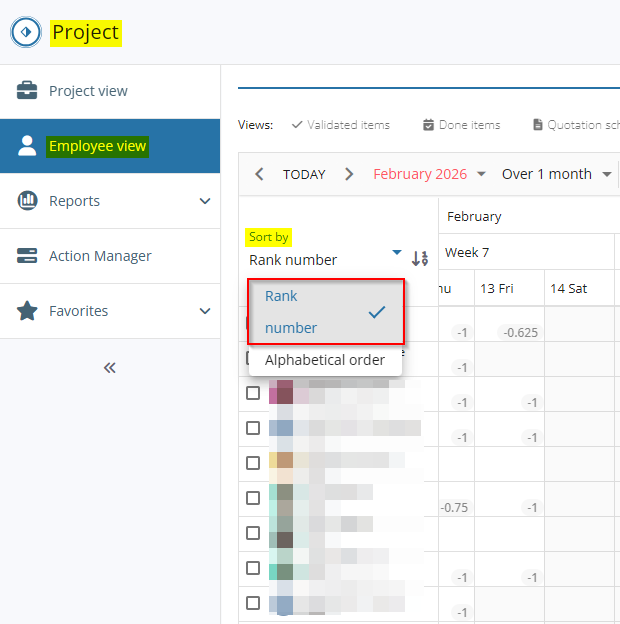
To set the rank number of each employee, the Rank # field has been added to employee record sheets (Desktop Application > People > Employees and Subcontractors) > Employee tab > new Project > Employee view section.
This new section replaces the former Scheduled rate section and thus contains the Target scheduled rate (%) field too.
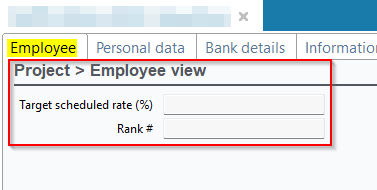
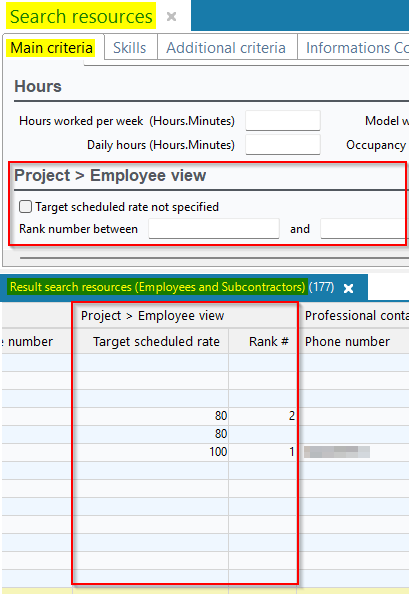
In the employee search screen > Main criteria tab, the Project > Employee view section has been added and contains the Target scheduled rate not specified and Rank number between ... and ... criteria.
In the employee search results, the corresponding Project > Employee view column group has also been added and contains the Target scheduled rate and Rank # columns.
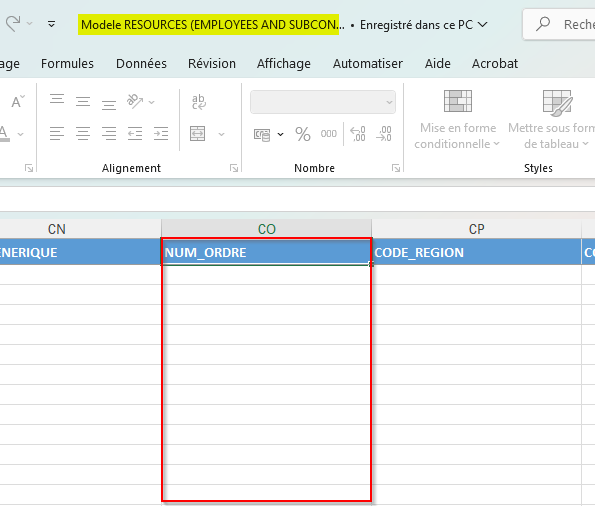
The NUM_ORDRE column has been added to the import template of employees (Desktop Application > Management > Imports then Resource > Employees).
In an employee's detailed information window, accessible from Project > Employee view > right-click on the desired employee > View employee, the Project > Employee view section has been added and contains the related Target scheduled rate and Rank number fields.
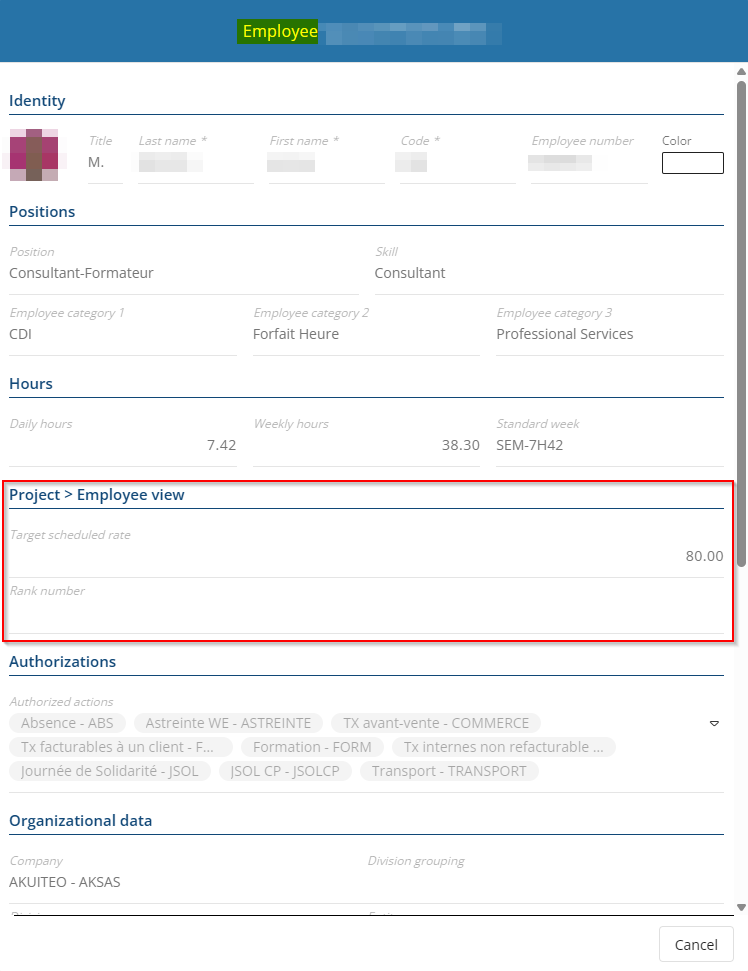
The PLG_CHAMPS_COLLAB management rule enables you to customize the fields and custom data displayed in the detailed information window of an employee on Project. From now on, the INFO_PROJECT code has been added among the codes supported in the Defines the fields to display for the employee, separated by a '-' parameter. This new code corresponds to the Project > Employee view section of the detailed information window of employees.
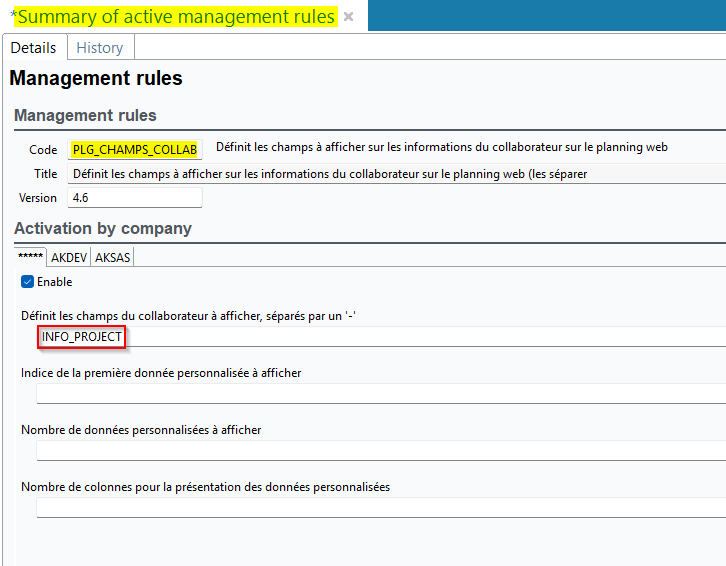
For more information, refer to Sorting the list of resources.
Target scheduled rates standardized
As part of the PLG_TACE management rule, the target scheduled rate defines the scheduled rate that the employee should ideally reach each month, and allow the display of an indicator in Project > Employee view highlighting whether the employee’s scheduled rate is below or above their target scheduled rate.
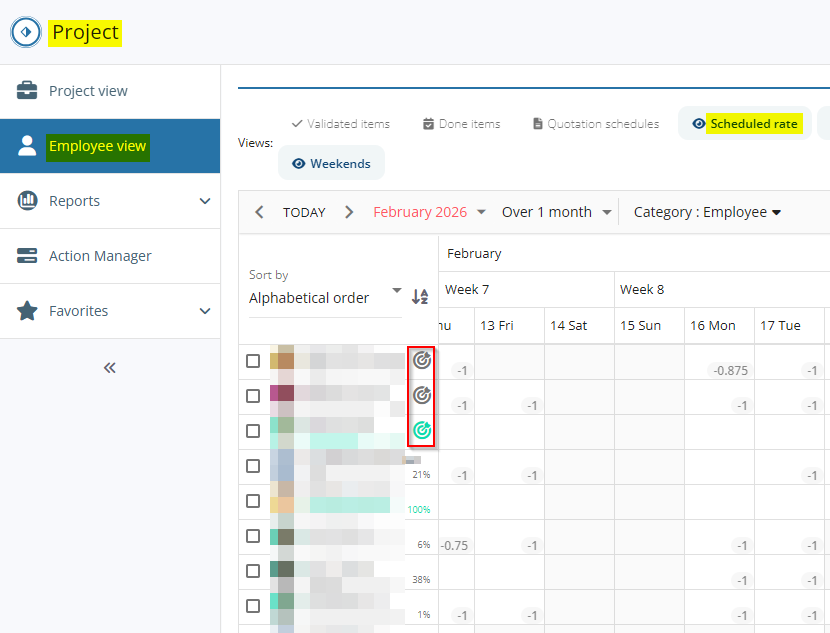
Previously, the management of target scheduled rates was enabled or disabled from the Settings Portal > Project > Scheduled rate calculation > Target scheduled rates menu.
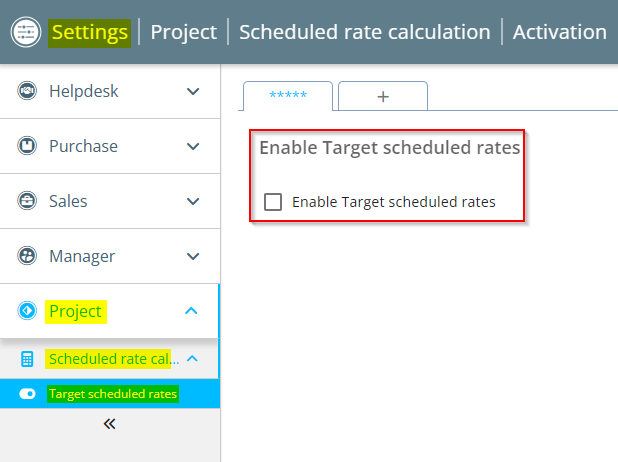
From now on, this setup menu is no longer available and the management of target scheduled rates is now always enabled by default.
For more information, refer to Scheduled rates.
Color coding modified for scheduled rates and target scheduled rates
Previously:
- The following color coding was used for target scheduled rates on Project:
 if the employee's scheduled rate stands below 100%, meaning the employee still has empty time slots.
 if the employee has been scheduled for the entire displayed timeline.
 if the employee's scheduled rate exceeds 100%, meaning the employee is over-scheduled.
- The target scheduled rate indicator was:
- red
 when the employee's scheduled rate was inferior to their target scheduled rate.
 - green
 when the employee's scheduled rate was equal or superior to their target scheduled rate.
- red
Now, for more consistency:
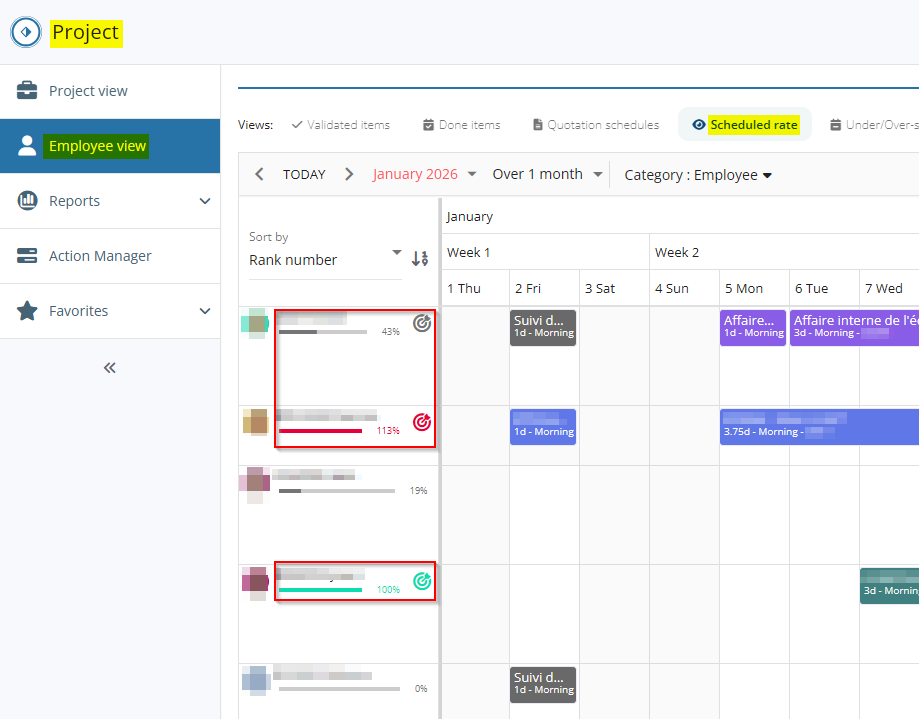
- The following color coding is used for scheduled rates:
 if the employee's scheduled rate is below 100%.
 if the employee has been scheduled for the entire displayed timeline.
 if the employee's scheduled rate exceeds 100%.
- The target scheduled rate indicator is:
- gray
 when the employee's scheduled rate is inferior to their target scheduled rate.
 - green when the employee's scheduled rate is equal or superior to their target scheduled rate.
- red when the employee's scheduled rate exceeds 100%.
- gray
For more information, refer to Scheduled rates.
Search criteria added
In Project > Employee view, the Candidates employees and Executive employees search criteria have been added and offer the All / Yes / No options. in the advanced search window, these criteria are located in the Employee filters tab > Classification section.
The Entity (generic resources) criterion has also been added and allows hiding all scheduled items assigned to generic resources whose project does not belong to the entity specified in the criterion. in the advanced search window, this criterion is located in the Schedule filters tab > Classification section.
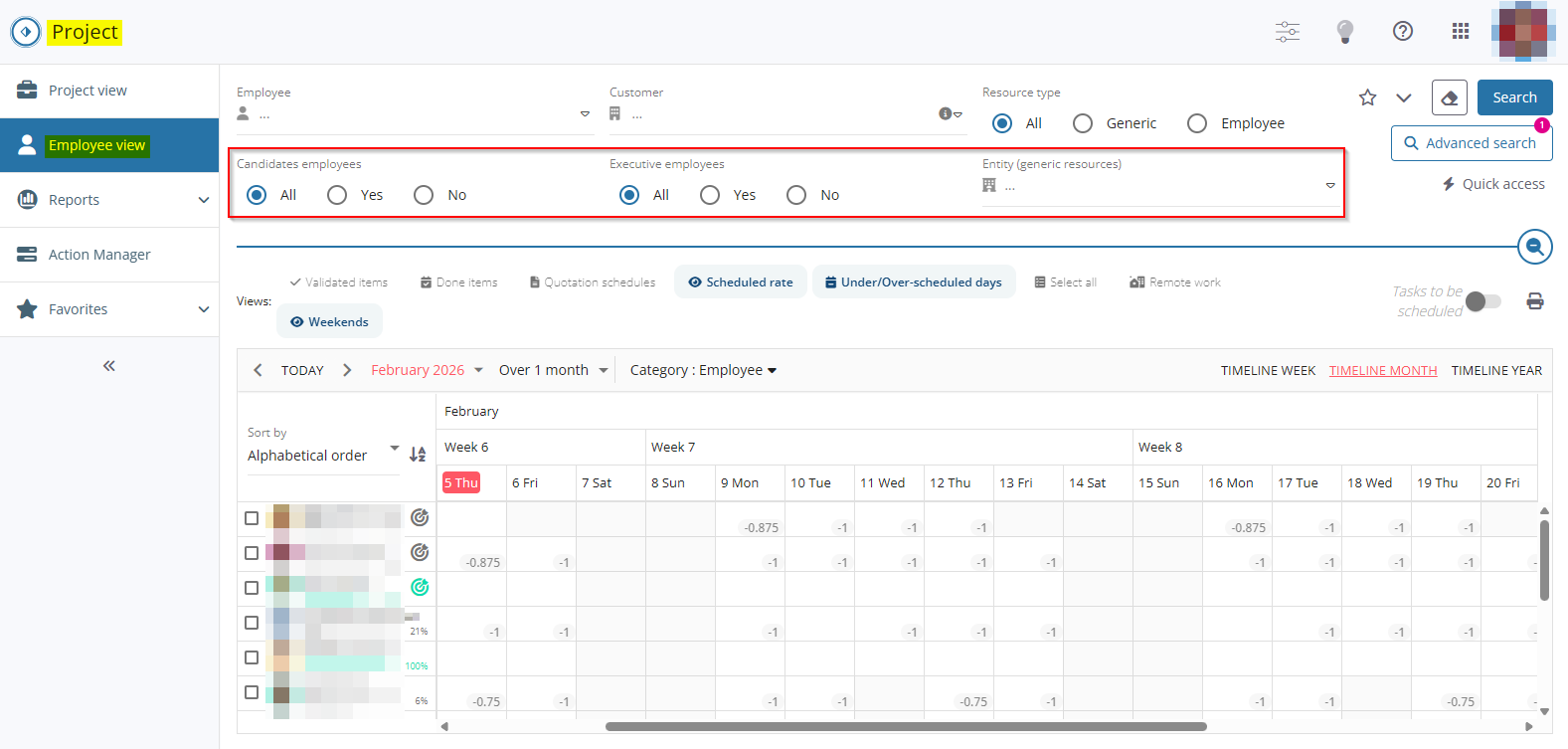
For more information, refer to Search interface.
Scheduled item selection improved
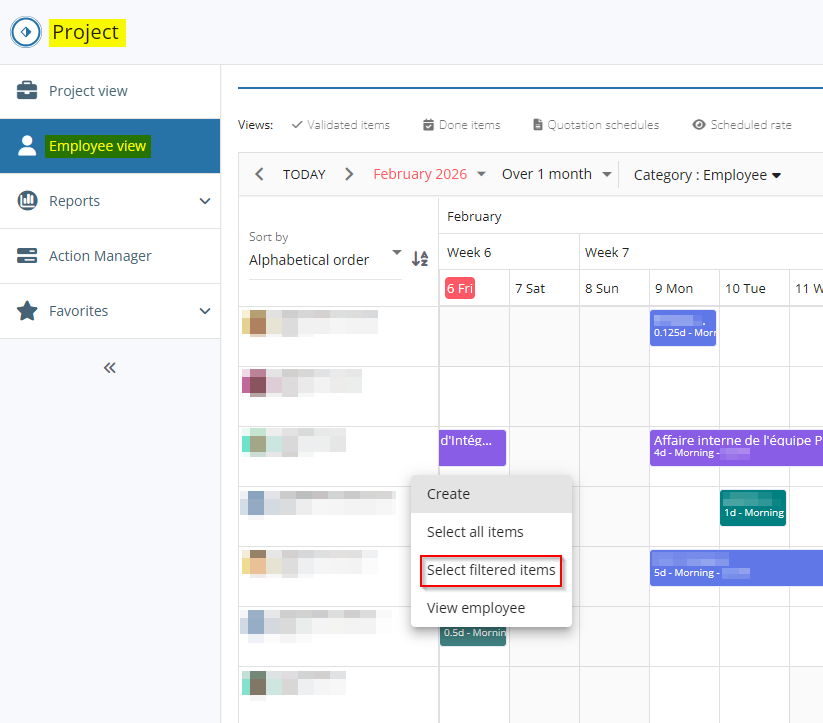
On Project > Employee view and Project view, all the scheduled items of a line or a column can be selected by right-clicking on the resource on the left of the calendar or on the header of the desired column > Select all items.
A new Select filtered items function has been added and allows selecting all items of a line except grayed-out items, which are items that do not match the full filters specified from the search criteria. The Select filtered items function is accessible by right-clicking on the desired resource on the left of the calendar > Select filtered items.
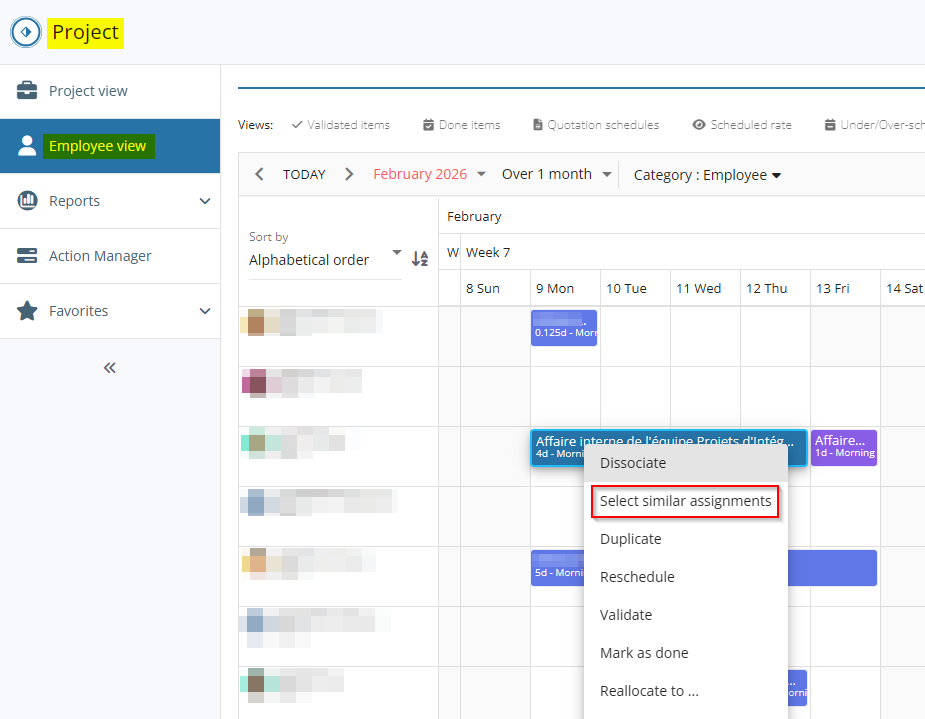
Furthermore, the Select similar assignments function has been added to the context menu of scheduled items.
This function selects all scheduled items of the calendar line that share the same project/phase/sub-phase/task/employee than the selected item.
For more information, refer to Selecting scheduled items.
Employee View: Number of days remaining to be scheduled displayed
| DMF | 25**** PROJECT * * |
When the PLG_TACE management rule is enabled, the Scheduled rate view on Project > Employee view is available and displays scheduled rates in the list of employees.
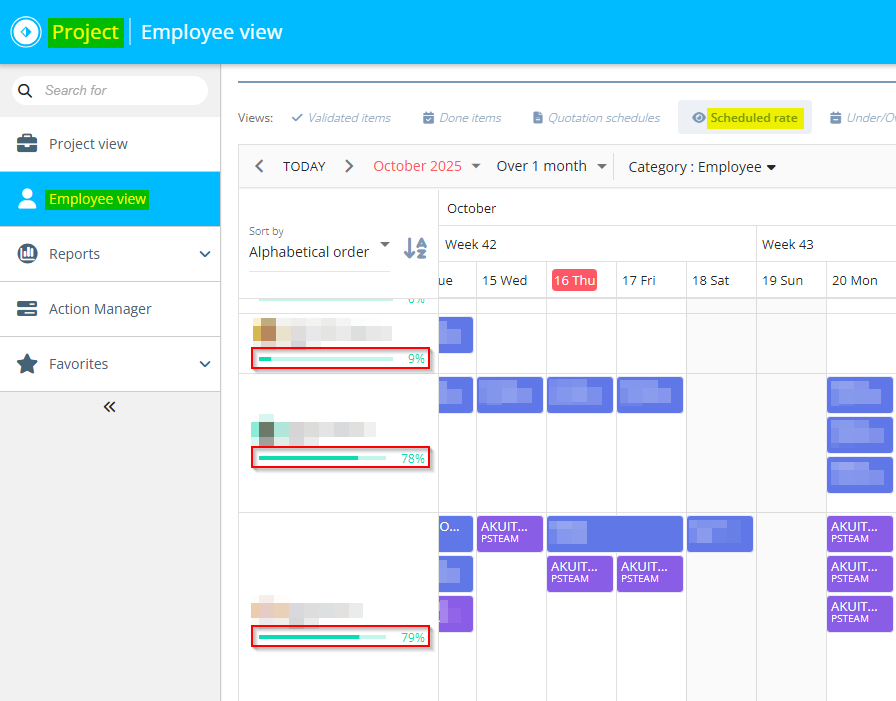
Now, when hovering over a scheduled rate progression bar from the list of employees, the No. of remaining days to be scheduled line has been added to the tooltip and shows the number of remaining days to be scheduled before the scheduled rate reaches 100%.
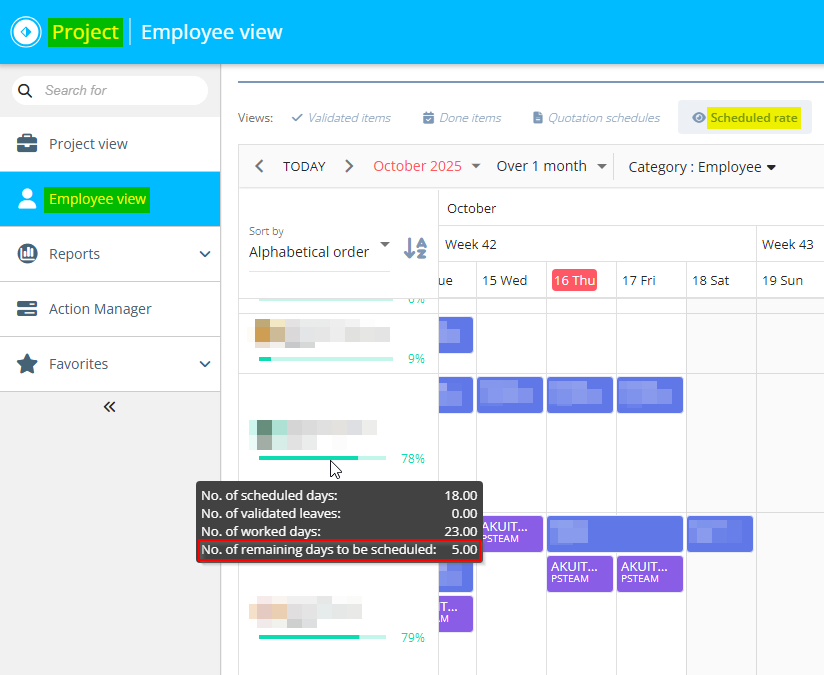
The No. of remaining days to be scheduled is calculated according to the following formula:
No. of worked days - No. of scheduled days - No. of validated leaves
Employee view: Under/over-scheduling indicators as percentages
| DMF |
25**** PROJECT * * |
Important
This evolution requires enabling the following feature flag: Portail project domain > Indicateur Depassement De Plg Label. To enable it, go to the Administration console > Configuration > Features, enable the Indicateur Depassement De Plg feature flag then log in again.
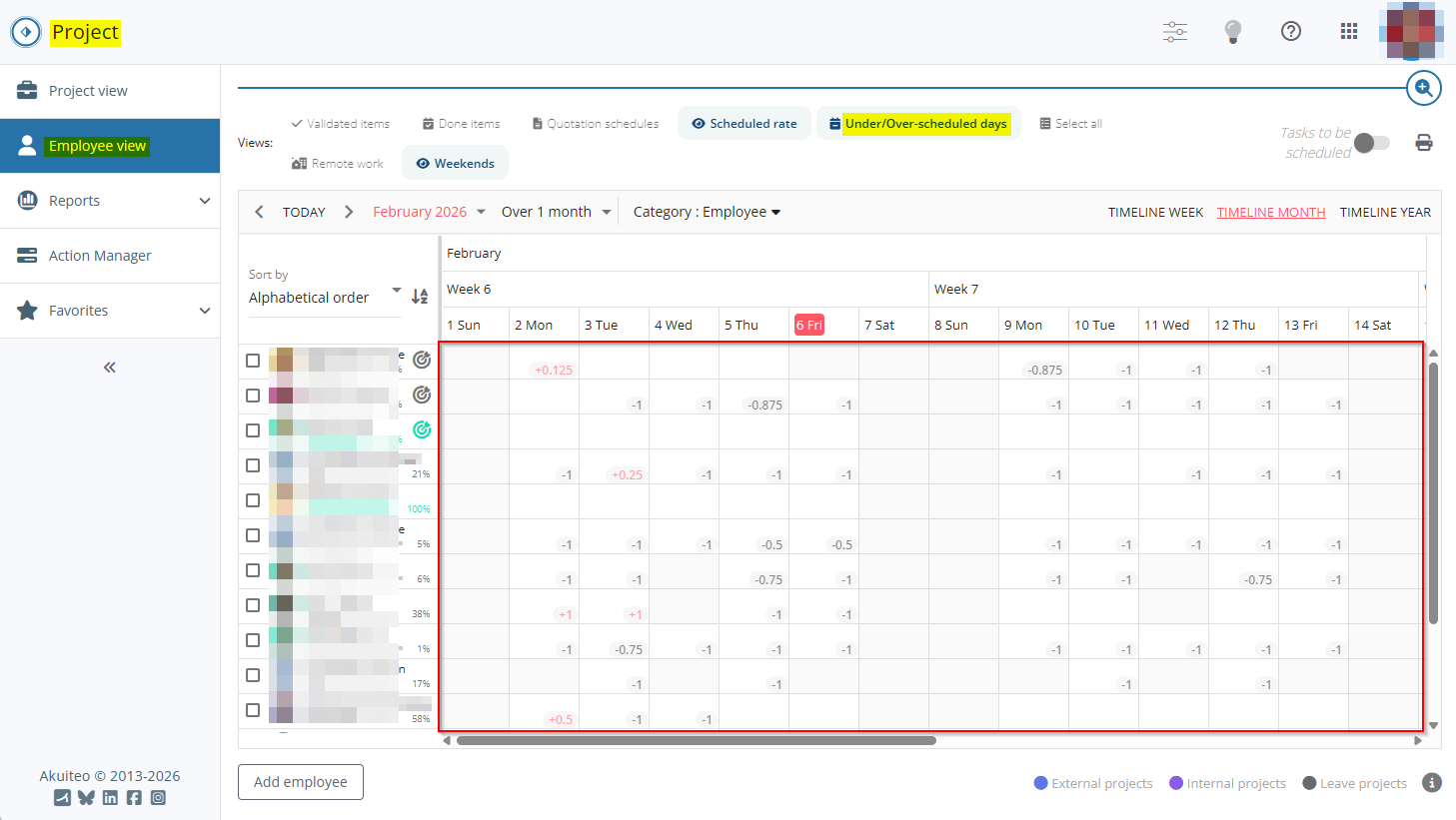
On Project > Employee view, The Under/over-scheduled days view displays indicators on each day cell to highlight days that are under‑ or over‑scheduled.
Previously, the under/over-scheduling indicators on each day cell was displayed as follows:
- -XX for under-occupied days (ex : -0.75 pour 0.75 day of under-occupation).
- +XX for over-scheduled days (ex : +0.5 for 0.5 over-scheduled days).
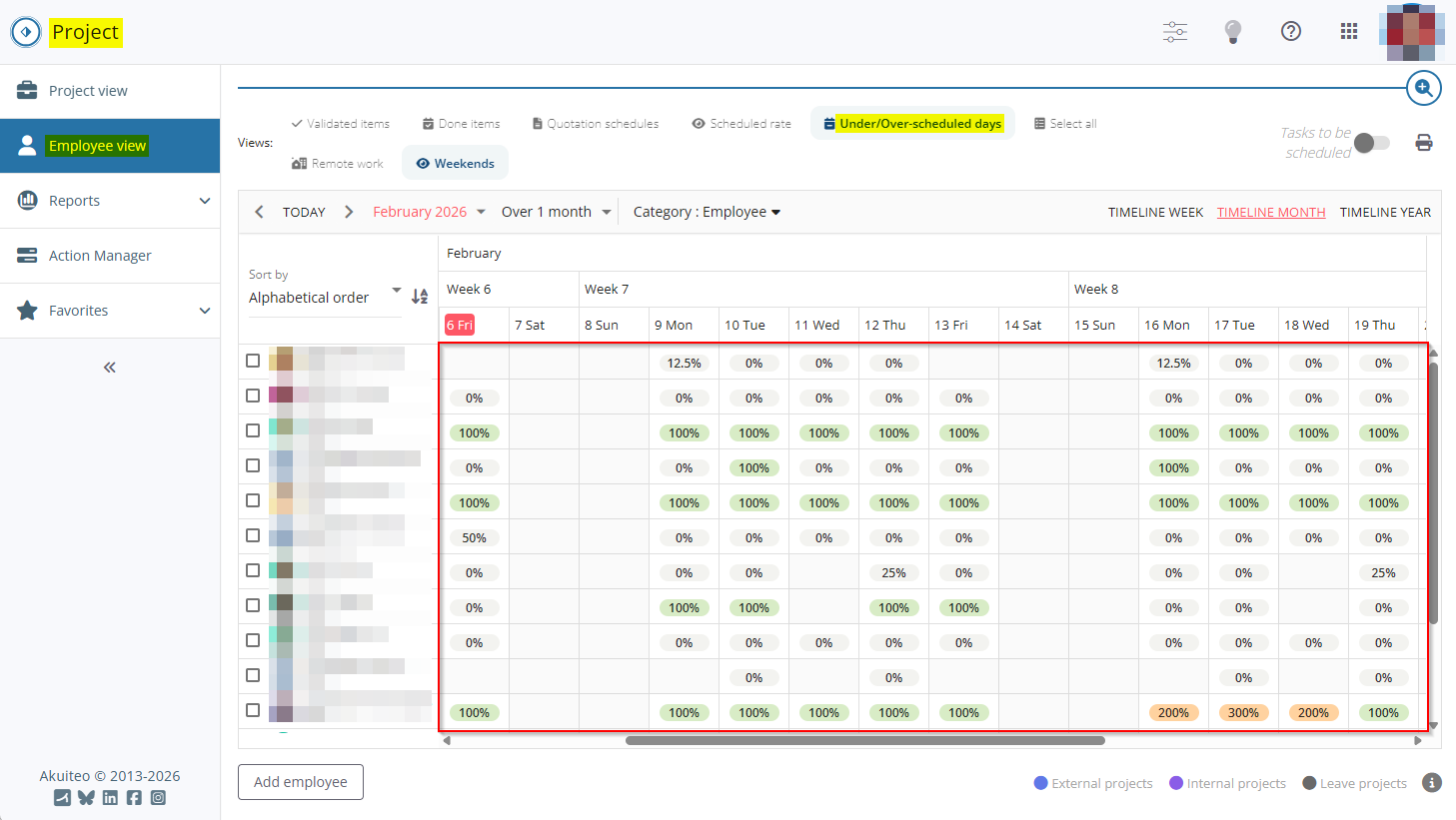
Now, indicators are shown as percentages:
- XX% for under-scheduled days (ex : 50% for 0.5 under-scheduled days).
- 100% for normally scheduled days.
- XX% for over-scheduled days (ex : 150% for 0.5 over-scheduled days).
Employee view: Button added to schedule duplication to specify all employees displayed
| DMF | 25**** PROJECT * * |
In Project, one or more scheduled items can be duplicated by right-clicking on a selection > Duplicate / Duplicate all.
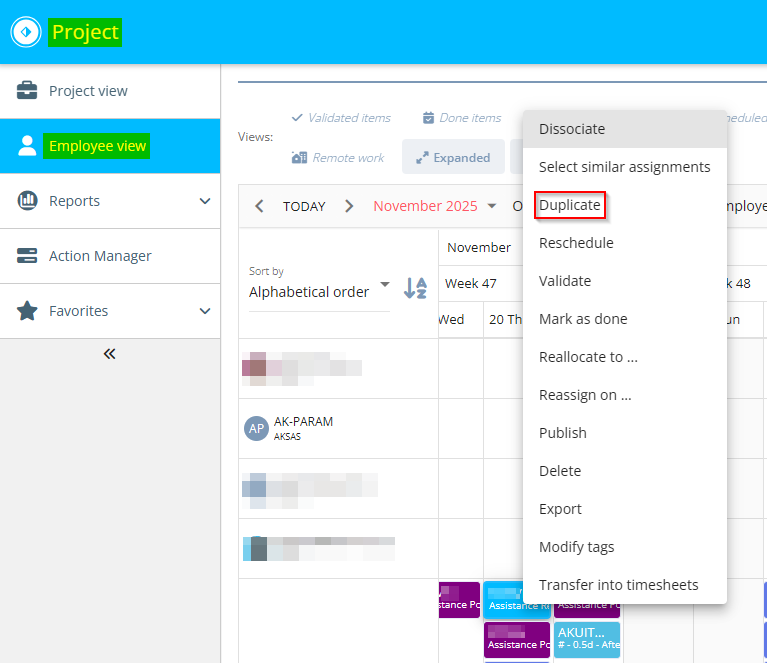
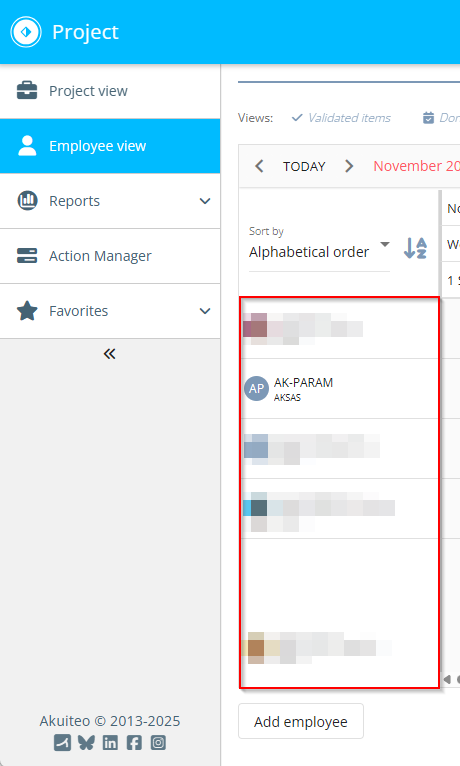
The All employees displayed button has been added to the schedule duplication window in the Select one or more employees section. This button is visible only when the duplication is performed from the Employee view. The button is used to add all employees displayed in the list of employees on the left of the calendar.
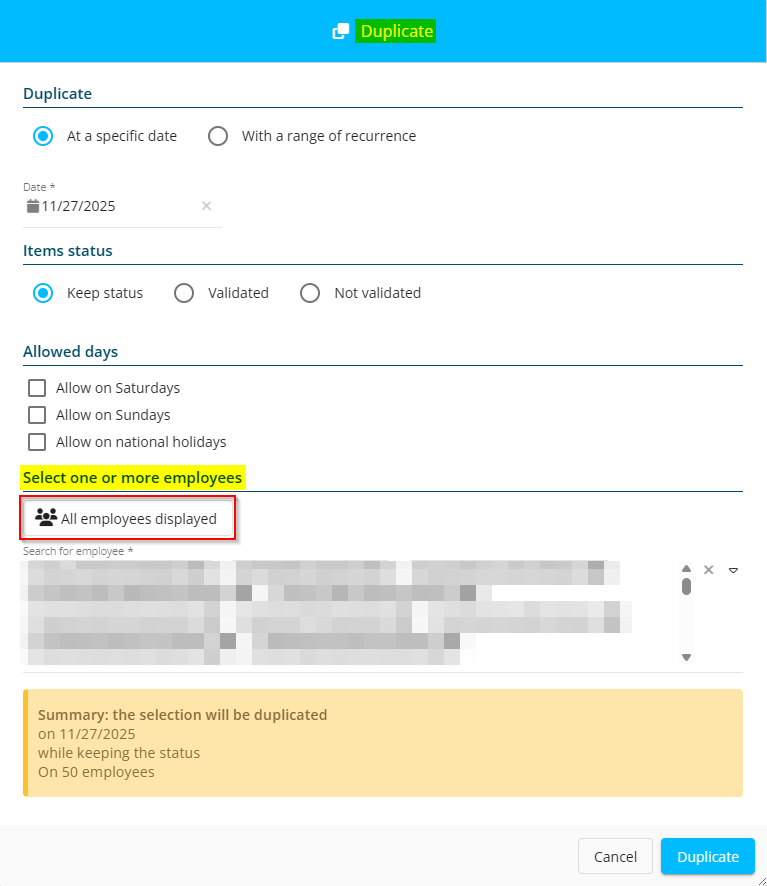
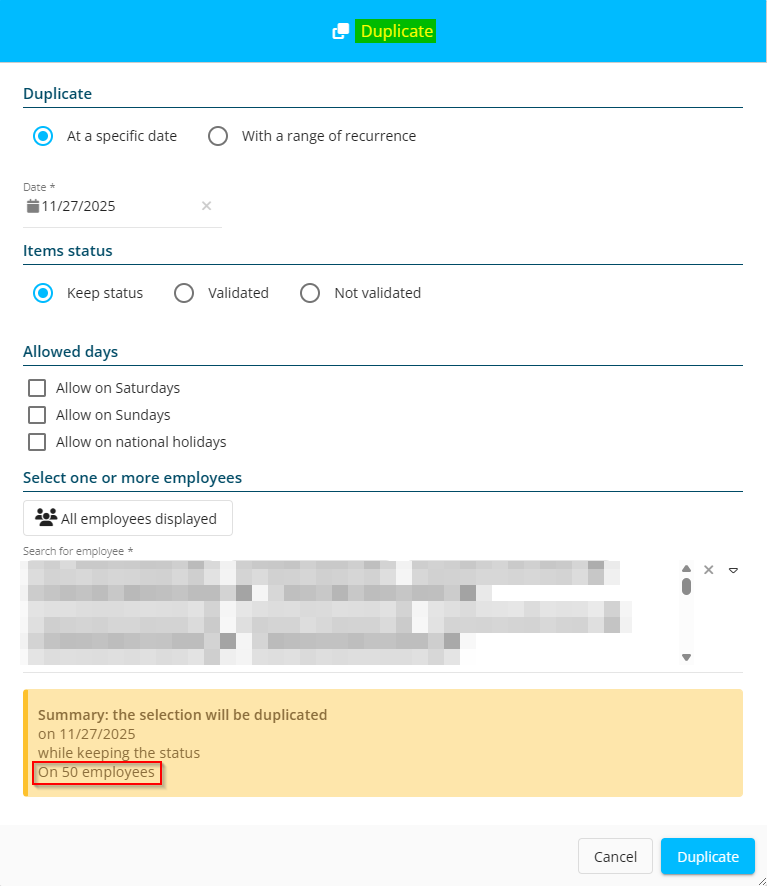
Previously, over 10 employees specified, the summary text at the bottom of the window showed On X employees instead of showing the full list.
From now on, On X employees is displayed starting from the second employee specified in the field.
Help Desk Portal
Issues: Automatic display of the External requester help list
| DMF | 1413** HELPDESK ISSUES * or 1426** HELPDESK SIMPLIFIED ISSUE * |
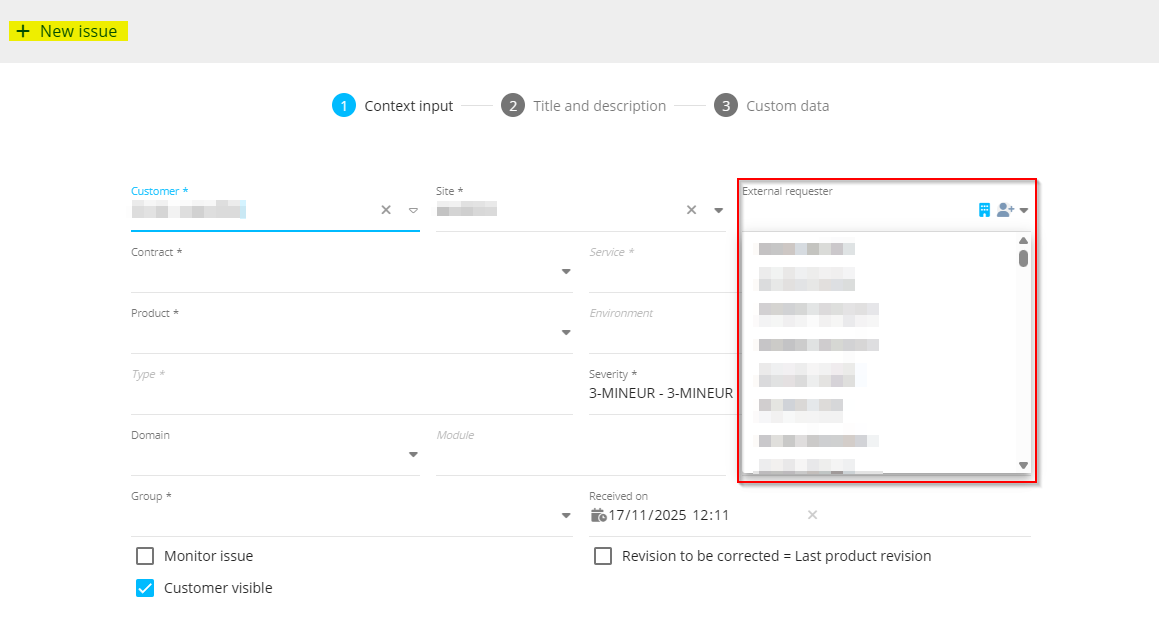
When creating an issue from the Help Desk Portal (+ Issue > New issue), the display of help lists is automatically done when the user specifies the previous field except for the External requester field which must be specified manually.
From now on, when the user specifies the Site field, the help list of the External requester is automatically displayed. If there is only one value for this field, it is automatically specified in the field and the help list of the next field is displayed.
Issues: My quick accesses section added
| DMF | 1413** HELP DESK ISSUES * |
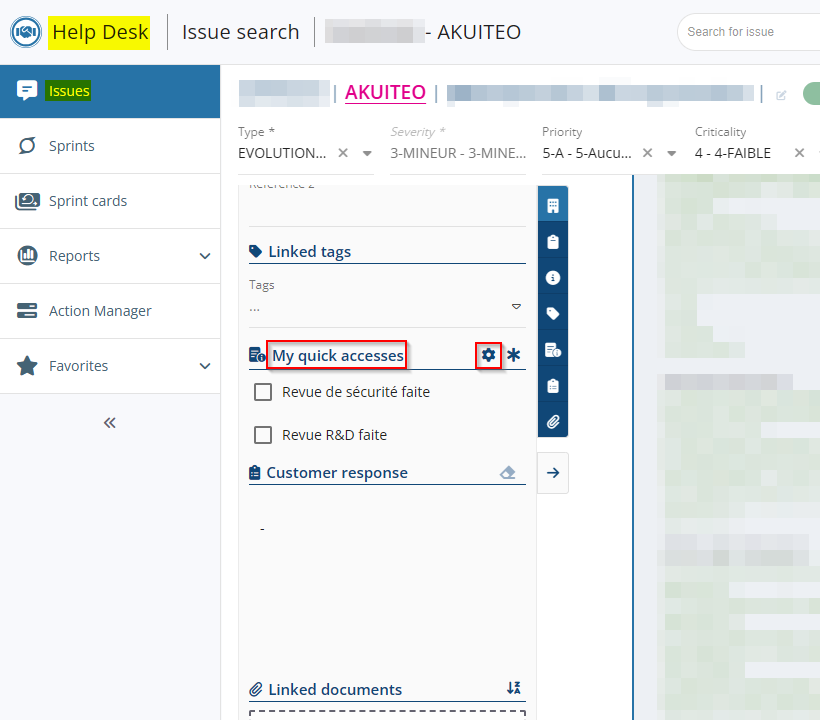
Before, on an issue (Help Desk Portal > Issues), the Custom data section was available in the context pane.
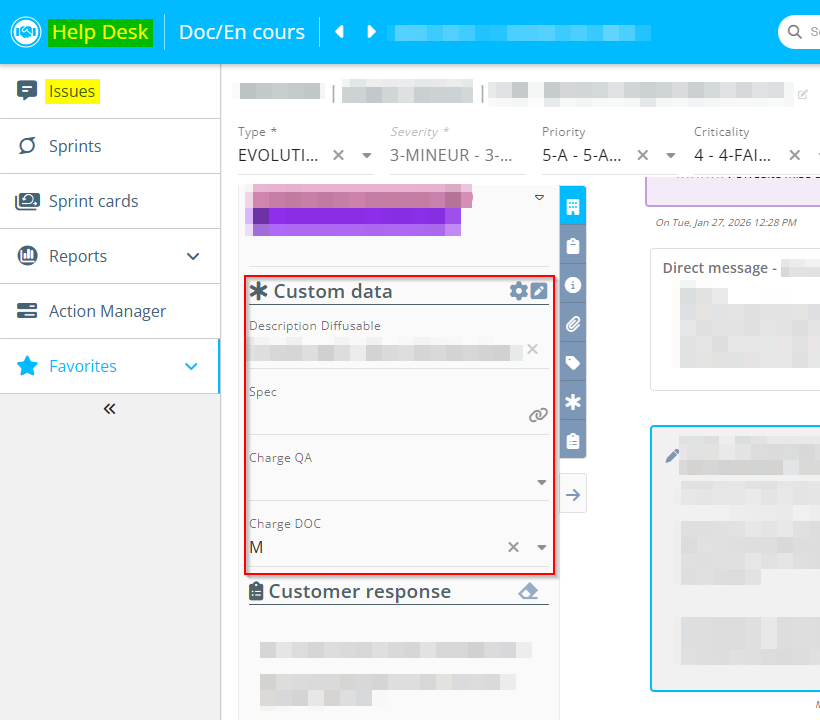
From now on, for better alignment with the objects of the other portals, this section has been renamed My quick accesses and the icon  used to display all custom data has been replaced with
  .
.
Issues: Job information added to the contact record sheets of the user and the requester
| DMF | 1413** HELP DESK ISSUES * |
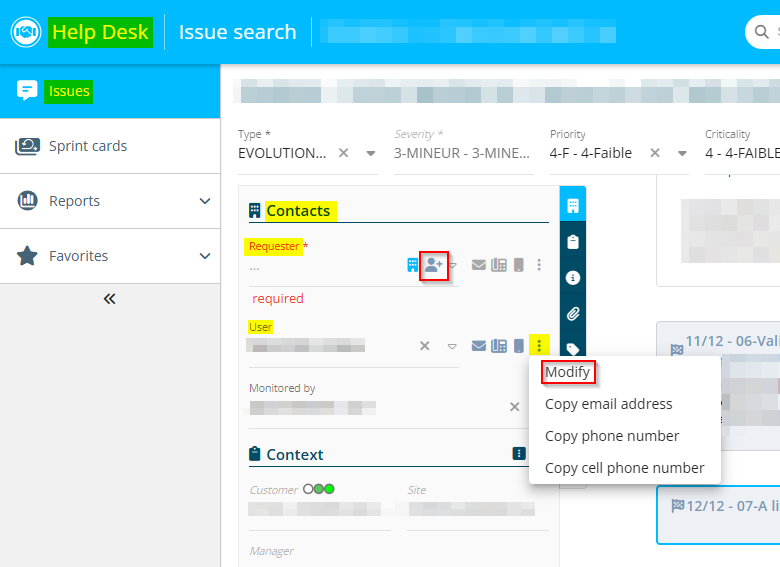
On an issue (Help Desk Portal > Issues), a contact record sheet can be created or modified from the context panel > Contacts section > User or Requester fields:
- by clicking on
 from the empty field to create a contact.
 - by clicking on
 > Modify to modify a contact.
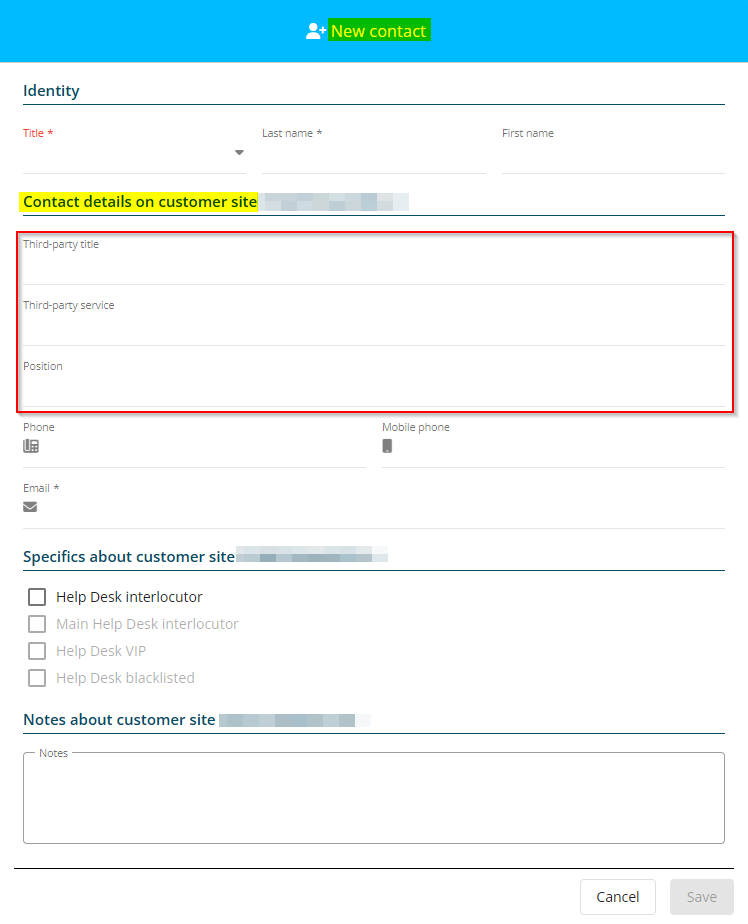
The following fields have been added to the creation or modification window of a contact record sheet > Contact details on customer site section:
- Third-party title;
- Third-party service;
- Position.
Issues: Visual improvement for the Project, Phase, Sub-phase and Task fields
| DMF | 1413** HELPDESK ISSUES * or 1426** HELPDESK SIMPLIFIED ISSUE * |
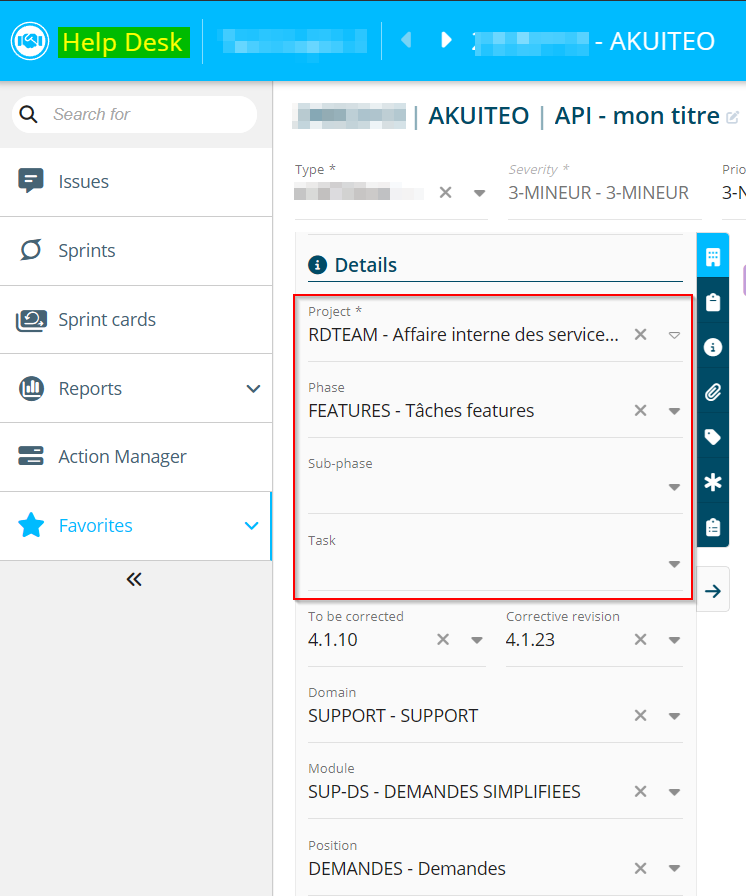
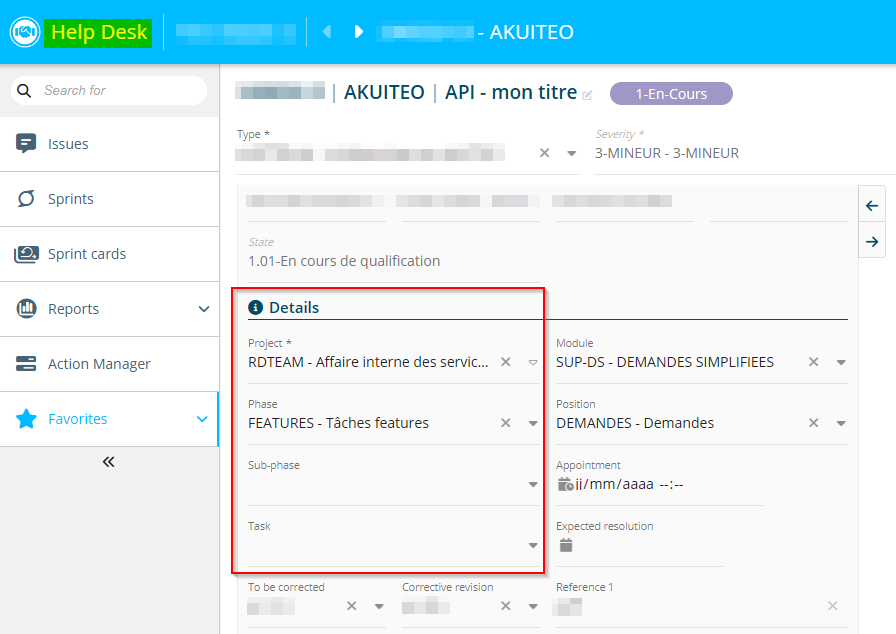
Before, in the issues of the Help Desk Portal the Project, Phase, Sub-phase and Task fields of the context pane > Details section did not allow the user to clearly view the values specified in these fields when the pane is collapsed or expanded.
When the pane is collapsed, the Project, Phase, Sub-phase and Task fields now occupy the entire line for a better readability. When the pane is expanded, the fields are now displayed on two columns only.
Issues: New warning when modifying an issue
| DMF |
1413** HELP DESK ISSUES * 1426** HELPDESK SIMPLIFIED ISSUE * |
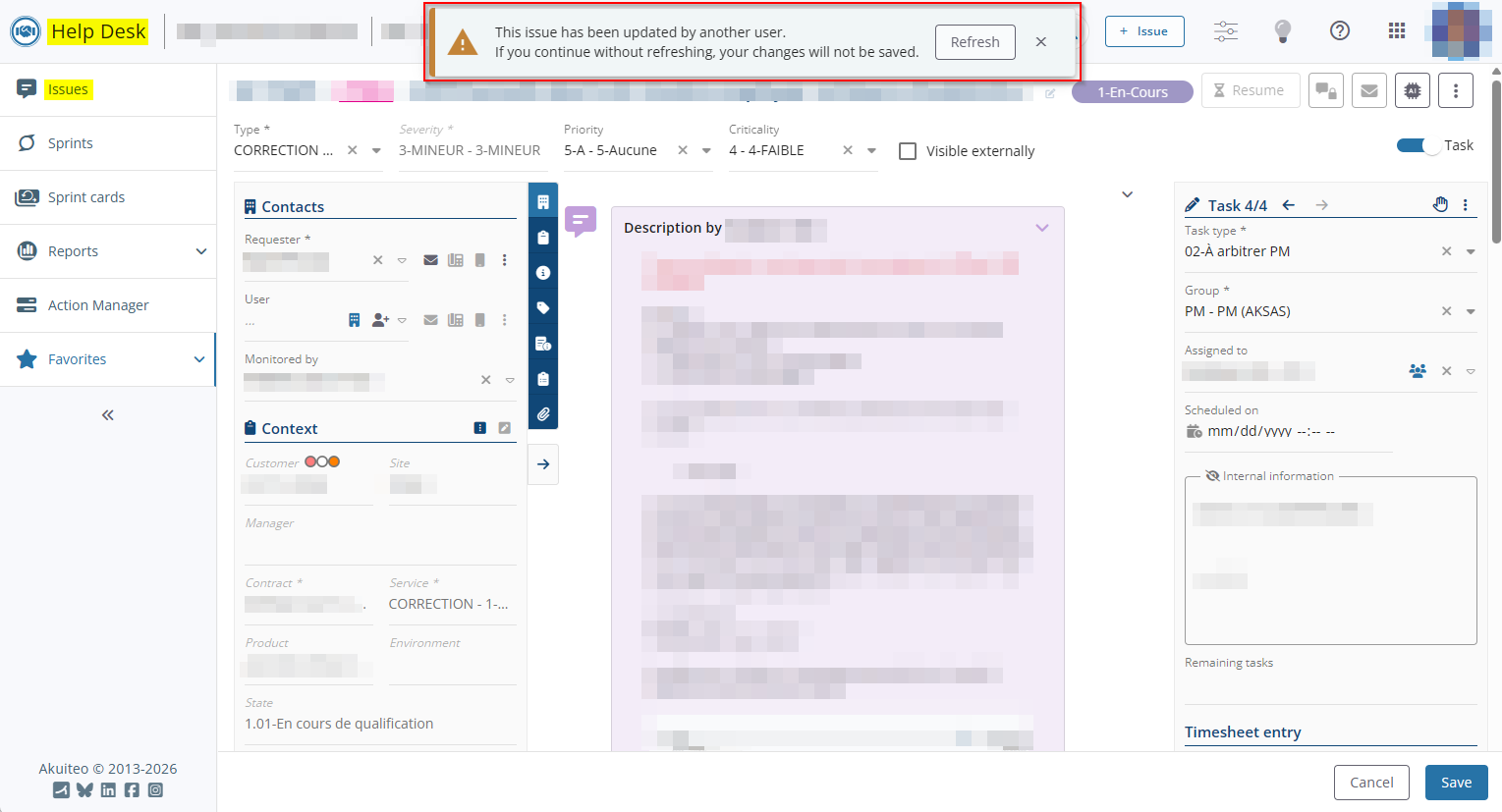
When another user modified an issue (Help Desk Portal > Issues) while you are viewing it, a warning window is displayed and the issue must be refreshed in order to modify it.
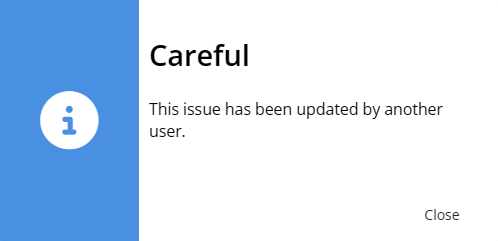
Now, this message is displayed at the top of the screen and the Refresh button has been added.
Sales Portal
Customers, Prospects, Contacts, Opportunities and Quotations: New My quick accesses section
| DMF |
0101** PROSPECTING PROSPECTS * 0102** PROSPECTING OPPORTUNITIES * 0201** SALES CUSTOMER * 0202** SALES QUOTATIONS * 1604** TOOLS CONTACTS * |
Before, the General information and Custom data sections were available on the following management objects of the Sales Portal > Header view:
- Customer (CRM > Customers);
- Prospect (CRM > Customers);
- Contact (CRM > Customers then Contacts view);
- Opportunity (Sales > Opportunities);
- Quotation (Sales > Quotations).
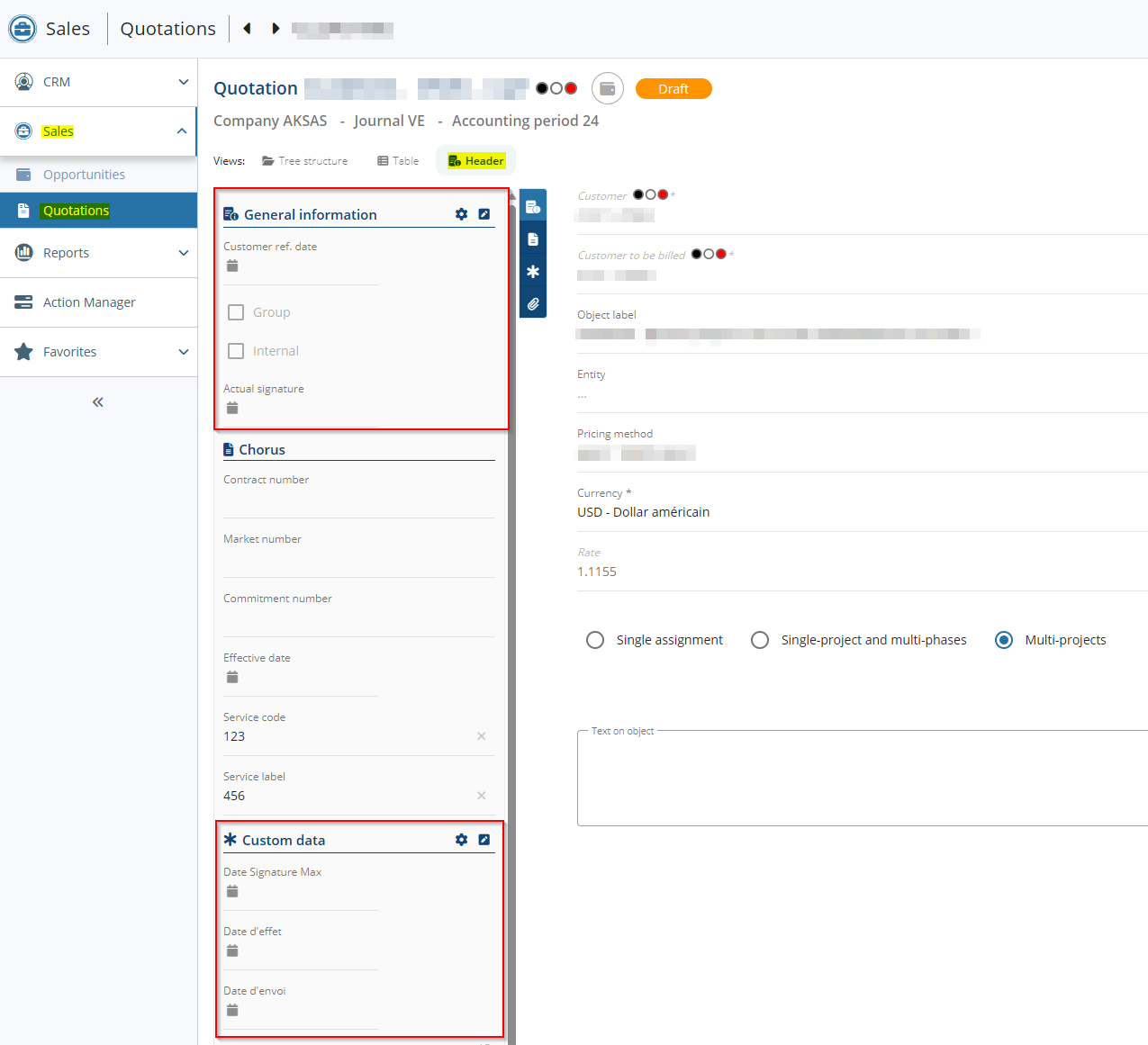
Now, the My quick accesses section is available on these management objects in Header view and groups the fields of the previous General information and Custom data sections. The  and icons are available at the right of the section and their behavior remains unchanged.
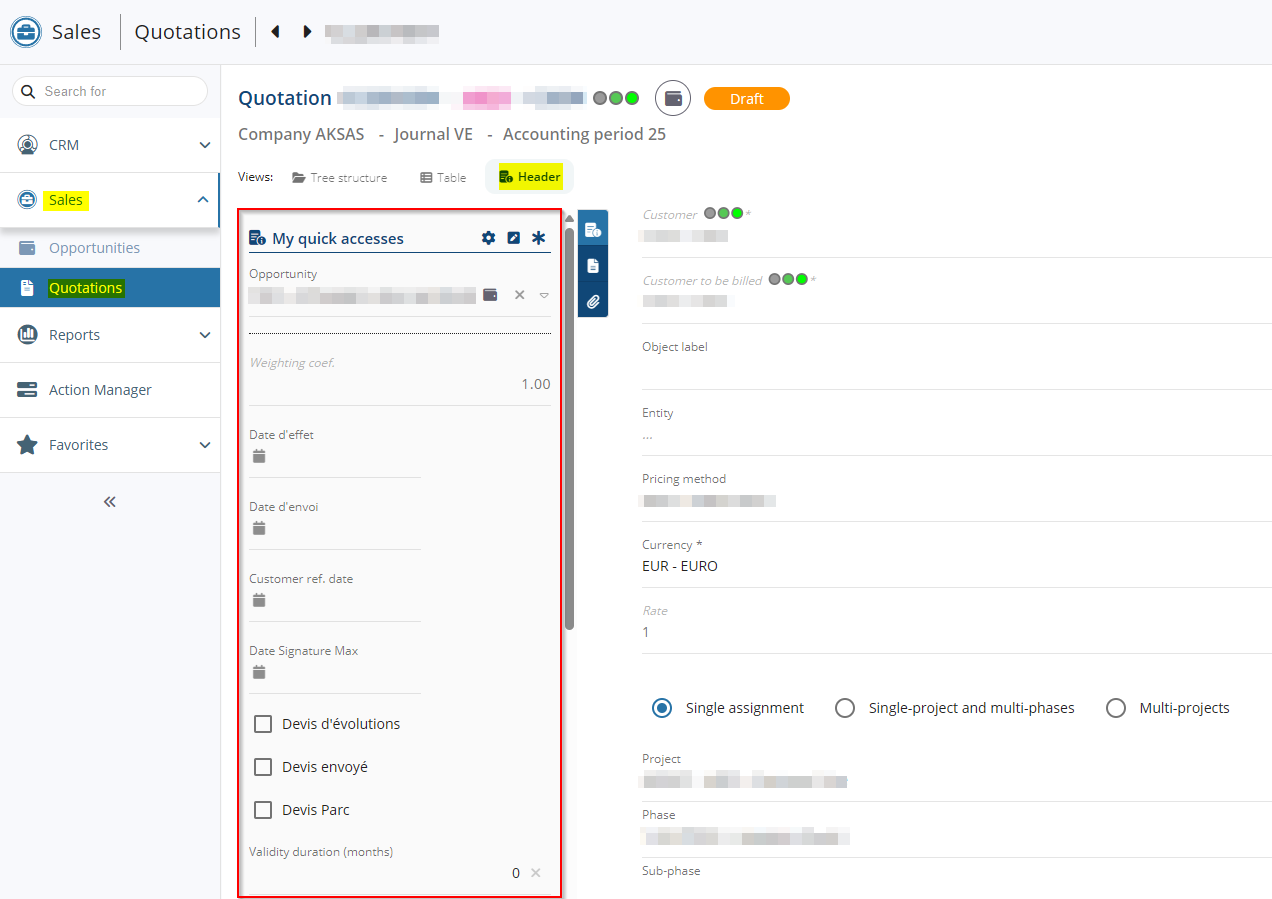
The icon has been added at the right of My quick accesses section and allow you to display all custom data set for the object.
Note
The fields setup to be displayed in the General information and Custom data sections before this evolution are retrieved in the new My quick accesses section.
Customers, Prospects and Contacts: Country code added to phone numbers
| DMF |
0101** PROSPECTING PROSPECTS * 0201** SALES CUSTOMER * 1604** TOOLS CONTACTS * |
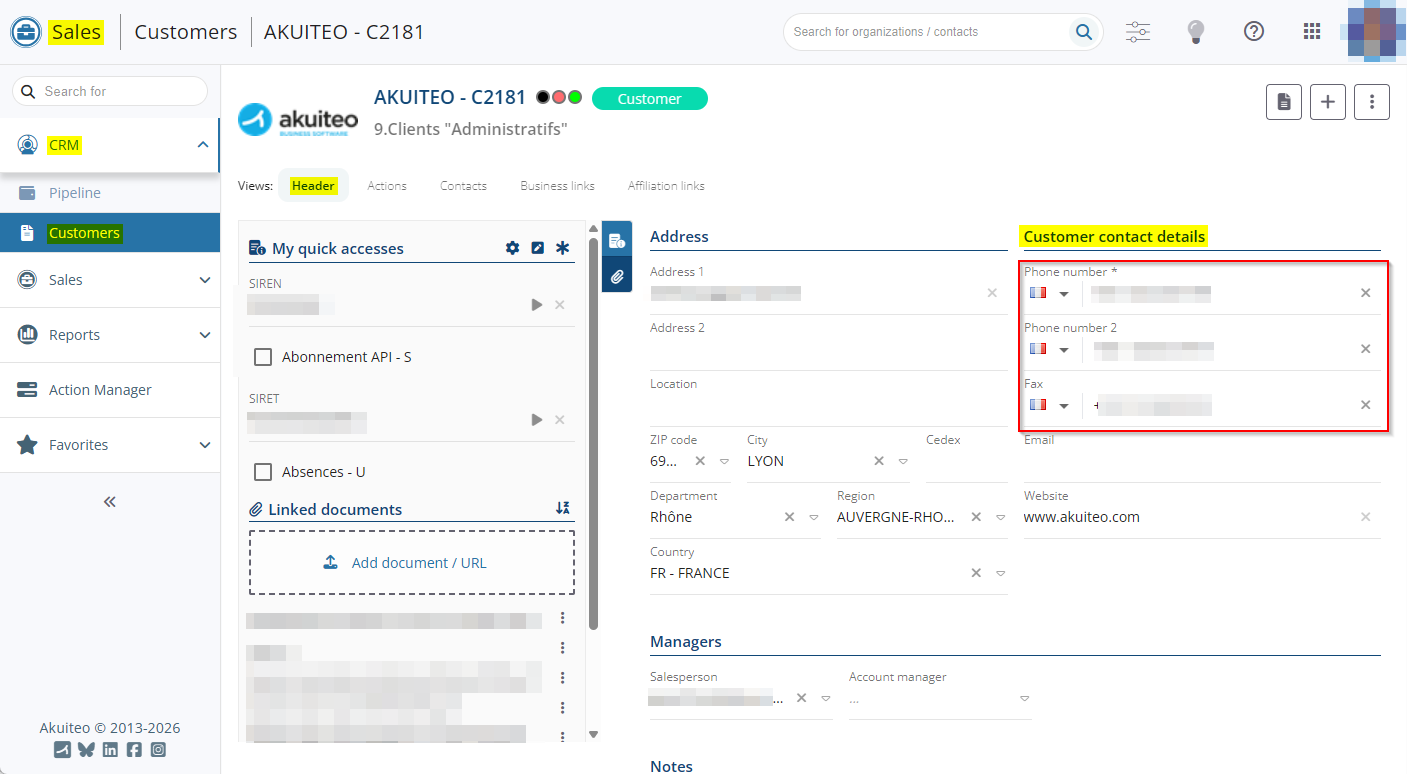
On the Sales Portal, the selection of the country code for phone number fields has been added and can now be applied to the following fields:
- customer and prospect record sheets (CRM module > Customers) > Header view > Customer contact details section:
- Phone number;
- Phone number 2;
- Fax.
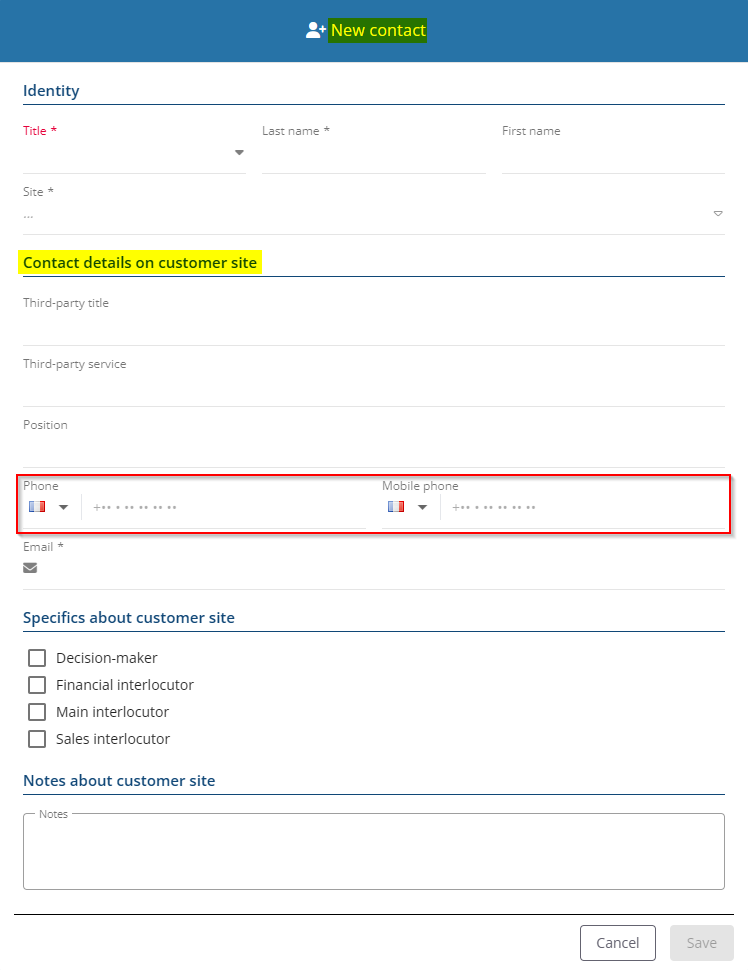
- contact creation form (customer or prospect record sheet > Contacts view > + New / CRM module > Pipeline or Sales module > Opportunities > Main contact field >
 ) > Contact details on customer site ... section:
- Phone;
- Mobile phone.
- customer contact record sheets (customer or prospect record sheet > Contacts view > Header view > Information about customer site ... section:
- Phone number;
- Cell phone number;
- Fax;
- Desk;
- Job.
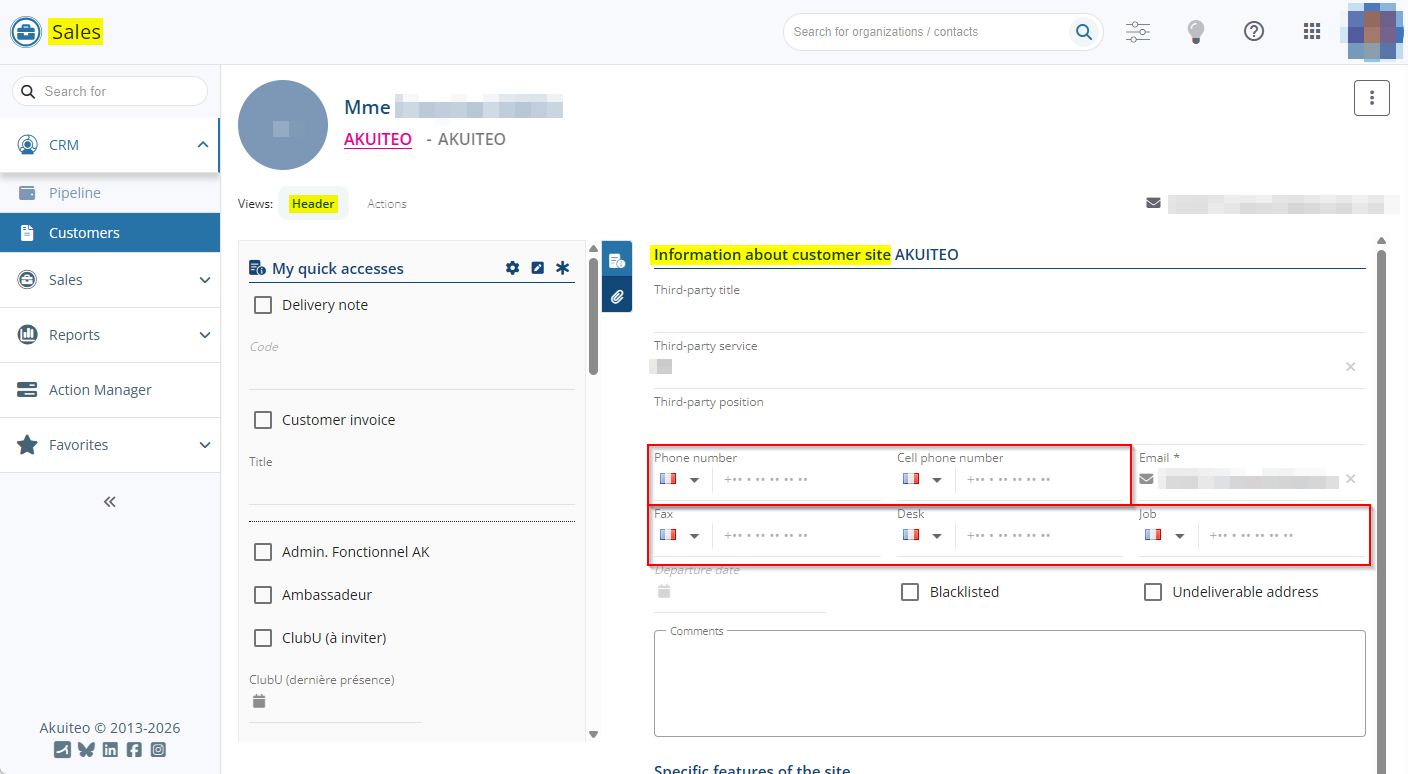
By default, the country code corresponding to the country of the connected company is selected. The country code can be modified by clicking on the flag. At the top of the drop-down list, a search field allows you to filter for the desired country.
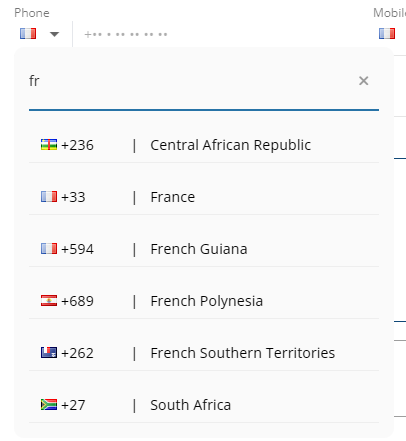
When the user enters the phone number, the selected country code is automatically applied at the beginning of the number input. The country code can also be entered manually at the beginning of the number.

Note
If the number is saved without a country code, a globe icon is displayed instead of the flag.
Customers and Prospects: SIREN column added
| DMF | 0201** SALES CUSTOMER * |
In the search results of customers and prospects (Sales Portal > CRM > Customers), the SIREN column has been added and retrieve the SIREN number specified on the record sheet (Header tab > My quick accesses section).

Customers and Prospects: Title and Service added in contacts table
| DMF |
1604** TOOLS CONTACTS * |
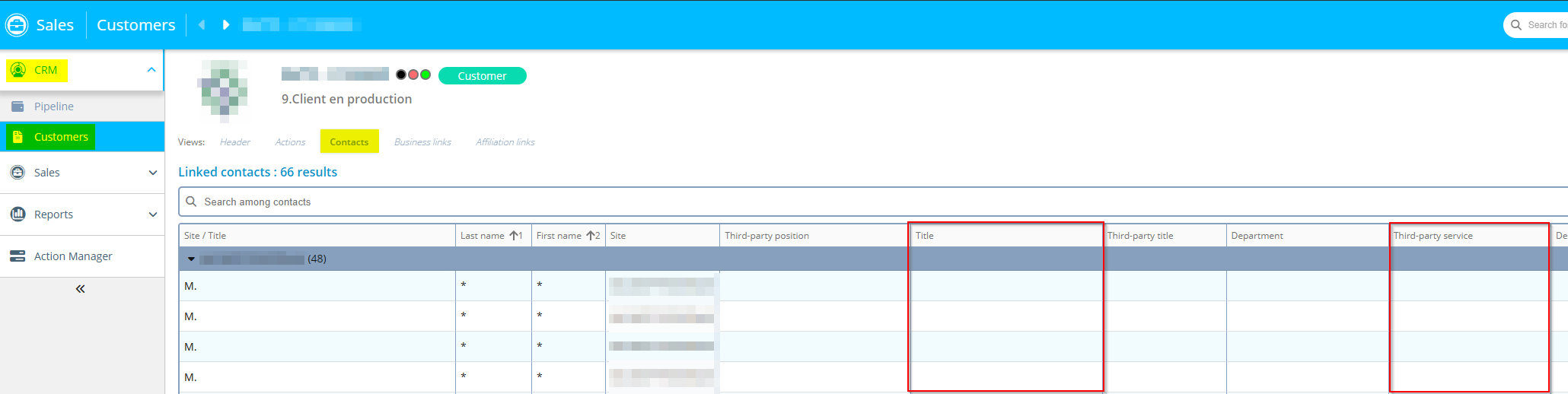
In the Sales Portal > CRM > Customers, it is possible to create and access the customer or prospect record sheet. A customer or a prospect can be linked to multiple contacts visible in the Contacts view.
From now on, in the table of the Contacts view of the customer or prospect record sheet:
- the existing Title and Service columns have been renamed Third-party title and Third-party service;
- the Title and Service columns have been added to display the contact's title and service.
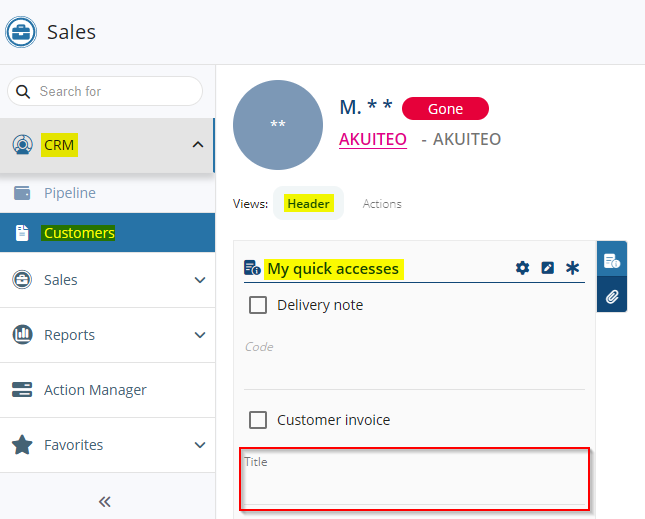
Furthermore, in the contact record sheet, the Position field (Identity section) has been renamed Title and has been moved to the General information section.
Customers and prospects: Improvements made on the Activity view
| DMF |
0101** PROSPECTING PROSPECTS * 0201** SALES CUSTOMER * |
From the Sales Portal > CRM > Customers > Actions view, actions and opportunities linked to a customer or a prospect can quickly be viewed.
From now on, the  icon has been added to the It allows you to open the opportunity form and to modify or delete the opportunity when the user has the 010202 PROSPECTING OPPORTUNITIES MODIFY and 010203 PROSPECTING OPPORTUNITIES DELETE DMFs.
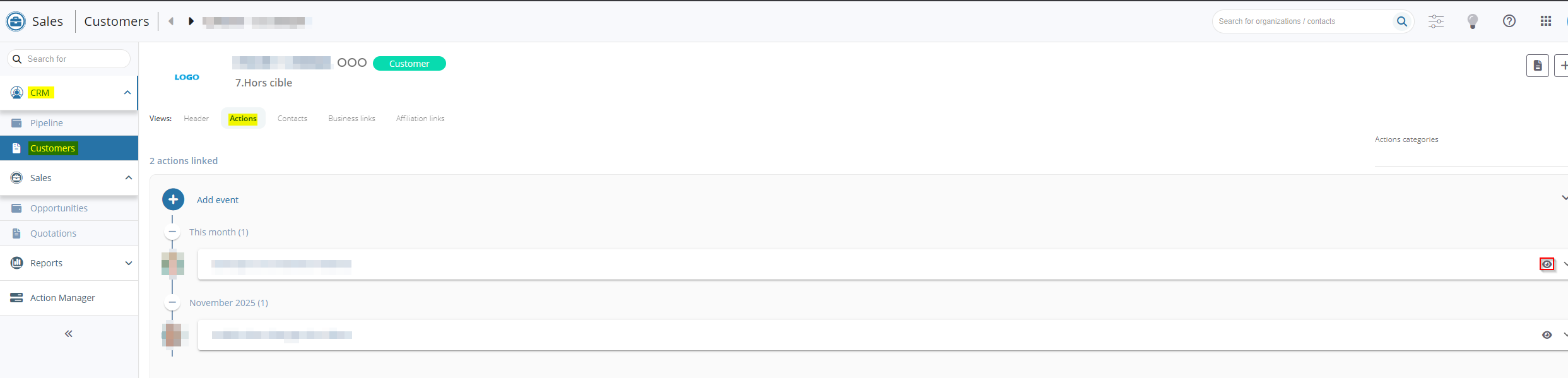
Furthermore, the display of opportunities in this view requires now the 010204 PROSPECTING OPPORTUNITIES SEARCH DMF.
In addition, the  icon allowing you to open an action from the customer and opportunity record sheet (Sales Portal > Sales > Opportunities) has been replaced by the icon.
Customers and Prospects: New function to view the linked objects
| DMF | 02**** SALES * SALES |
A new feature has been added to allow viewing quotations or opportunities from a customer or prospect record sheet (Sales Portal > CRM > Customers). This feature is accessible via the  icon at the top of a customer or prospect record sheet > New management object and then allows you to select Opportunity or Quotation.
The function requires the DMFs:
- 010201 PROSPECTING OPPORTUNITY NEW to view opportunities;
- 020204 SALES QUOTATIONS SEARCH to view quotations.
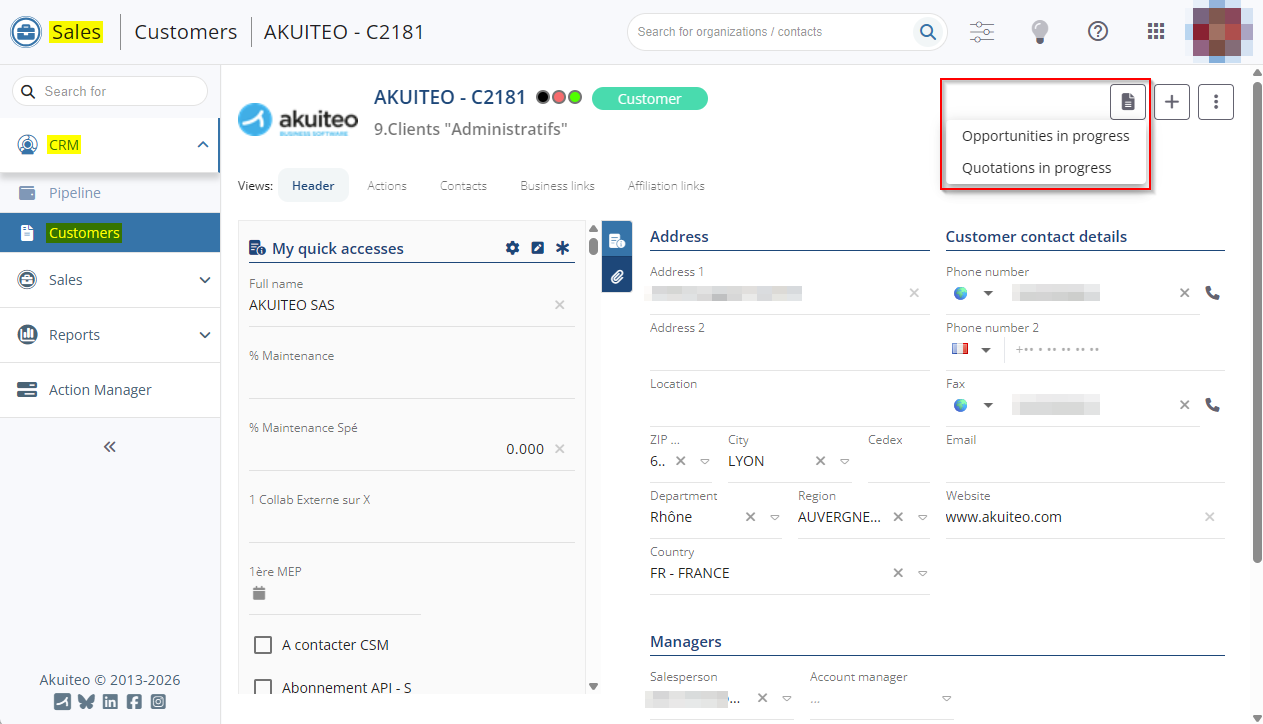
When using the function, the list of quotations or opportunities related to the customer or prospect opens in a new tab.
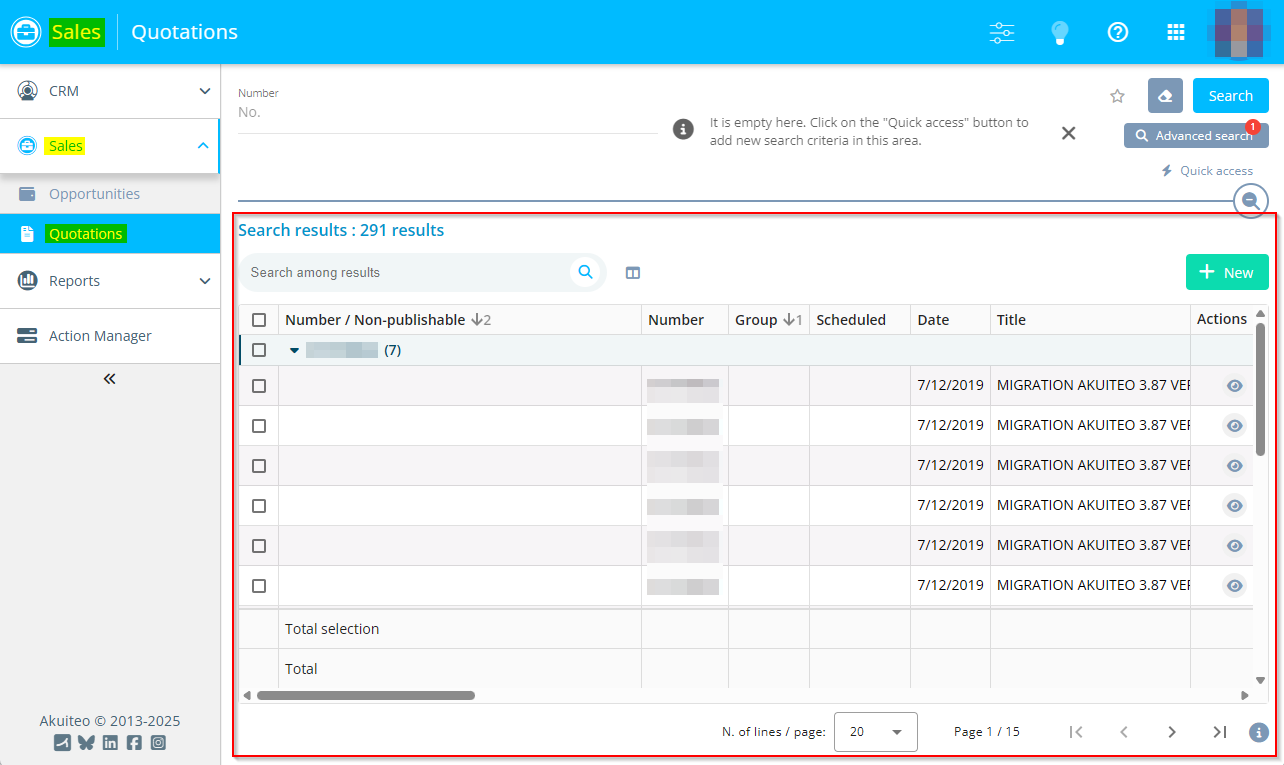
Note
Functions associated with opportunities and quotations require the respective feature flags Portail ventes Domain > Opportunités and Devis Labels.
Customers and Prospects: New function to create an opportunity or a quotation
| DMF | 02**** SALES * SALES |
A feature has been added to allow creating an opportunity or a quotation from a customer or prospect record sheet (Sales Portal > CRM > Customers). This feature is accessible via the  icon at the top of a customer or prospect record sheet > New management object and then allows you to select Opportunity or Quotation.
The function requires the DMFs:
- 010201 PROSPECTING OPPORTUNITY NEW to create an opportunity;
- 020201 SALES QUOTATIONS NEW to create a quotation.
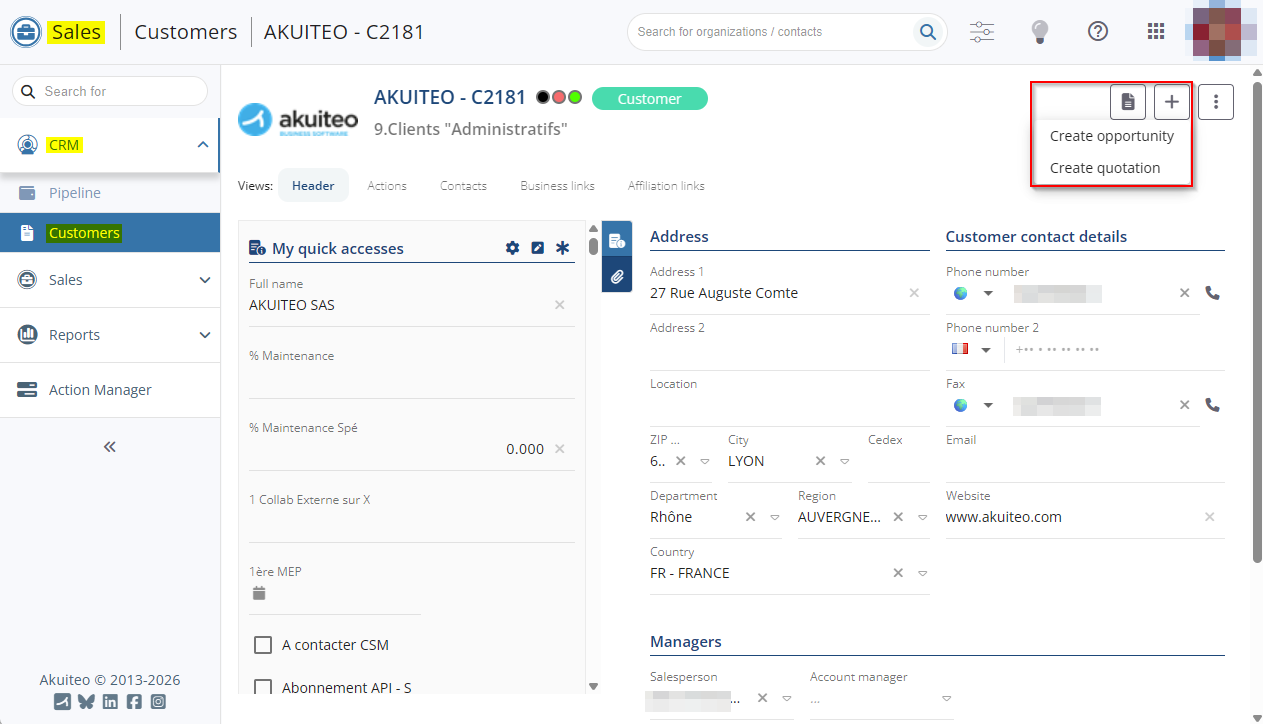
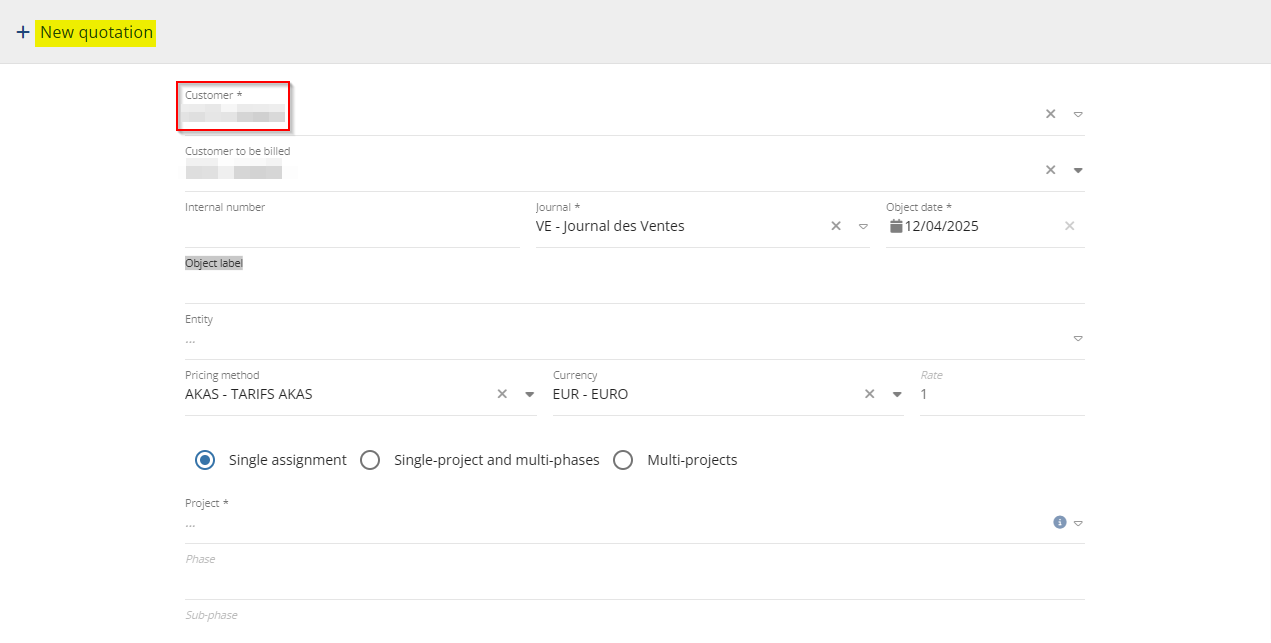
When using the function, the screen for creating a quotation or an opportunity opens with the customer or prospect automatically specified on the form.
Note
Functions associated with opportunities and quotations require the respective feature flags Portail ventes Domain > Opportunités and Devis Labels.
Customers and Prospects: Ability to define the information in the opportunity blocks
| DMF |
0901** ADMINISTRATOR SETUP SETUP 2501** PROJECT SCHEDULE VIEW SCHEDULE VIEW |
The CLI_ACTIVITES_OPP management rule (Desktop Application > Tools > Setup > General setup > Special parameters > Management rules) has been added and makes it possible to define which information is displayed in the opportunity blocks within customer or prospect record sheets, accessible from the Sales Portal > CRM > Customers and then Actions view.
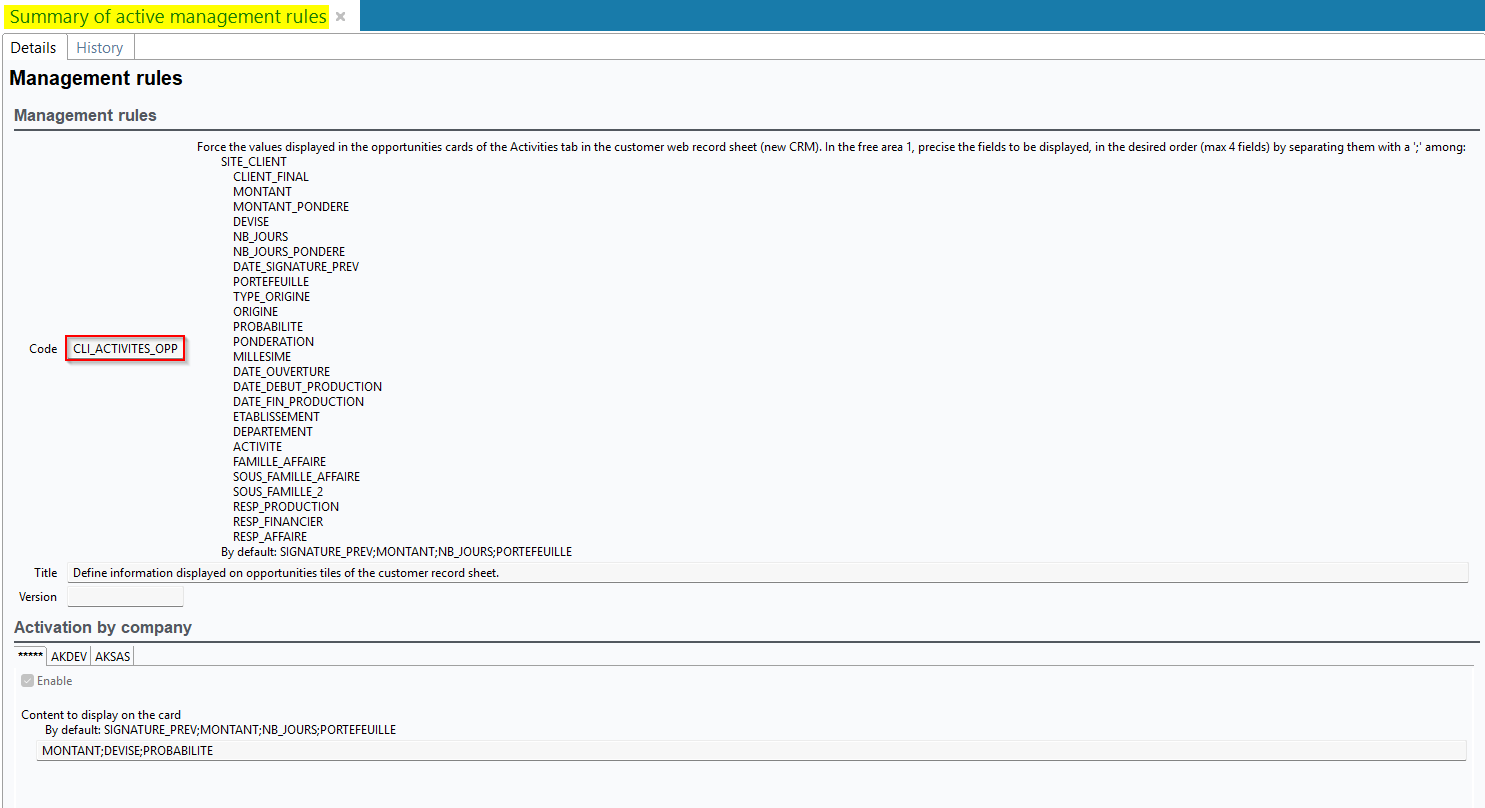
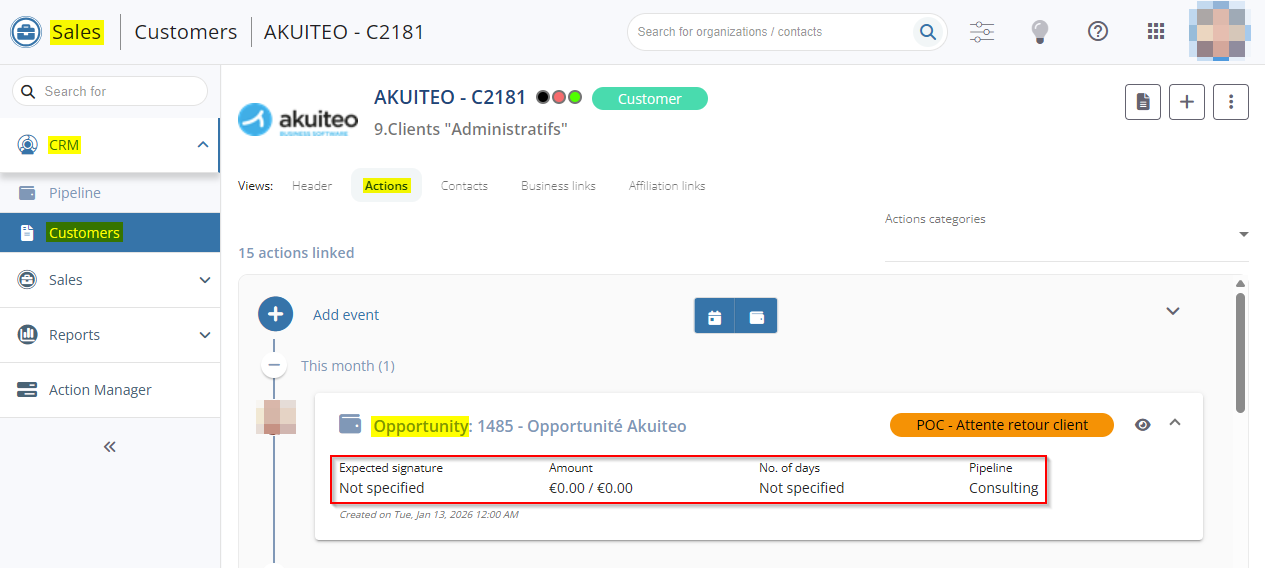
When the management rule is enabled, the default information displayed in the opportunity blocks (Expected signature, Amount, No. of days and Pipeline), is replaced by the fields whose codes are specified in the Content to display on the card parameter of the management rule.
Example
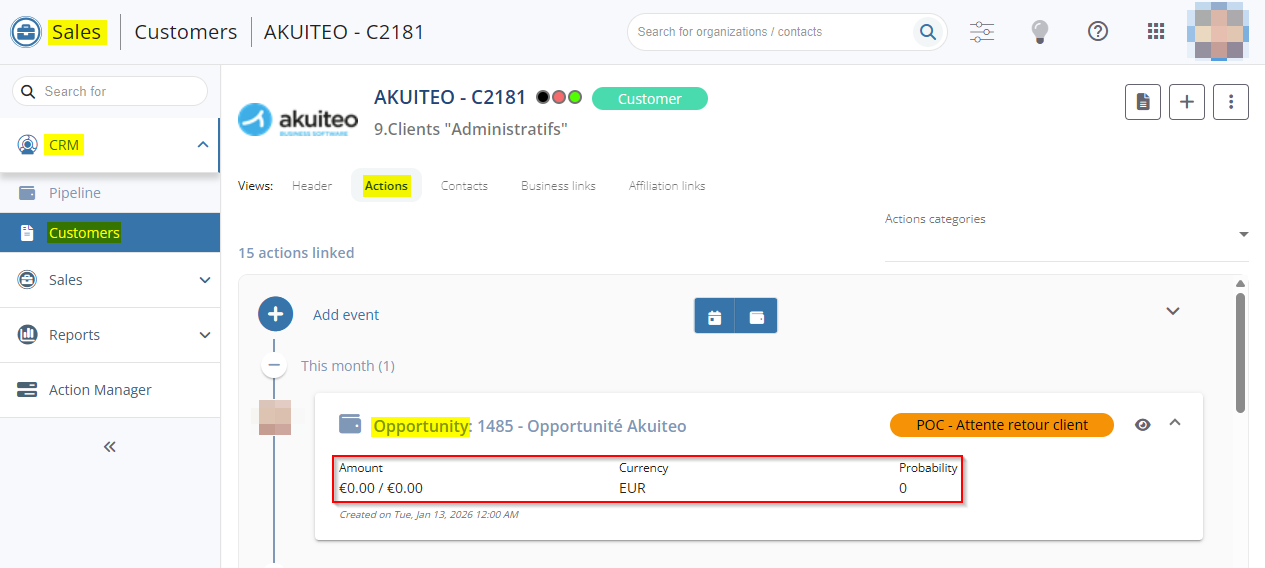
In the CLI_ACTIVITES_OPP management rule, I specify MONTANT;DEVISE;PROBABILITE in the Content to display on the card parameter.
On a customer record sheet (Sales Portal > CRM > Customers and then Actions view), the opportunity blocks contain the Amount, Currency and Probability columns.
Customers and Prospects: Ability to modify the address and contact details
| DMF |
0101** PROSPECTING PROSPECTS * 0201** SALES CUSTOMER * |
Previously, on customer and prospect record sheets (Sales Portal > CRM > Customers) > Header view > Customer contact details, the Address and Contact details could not be modified.
Now, the  icon has been added at the top right of each of these two sections and allows you to modify the related information. This function requires the DMFs:
- 010102 PROSPECTING PROSPECTS MODIFY for prospects;
- 020102 SALES CUSTOMER MODIFY for customers.
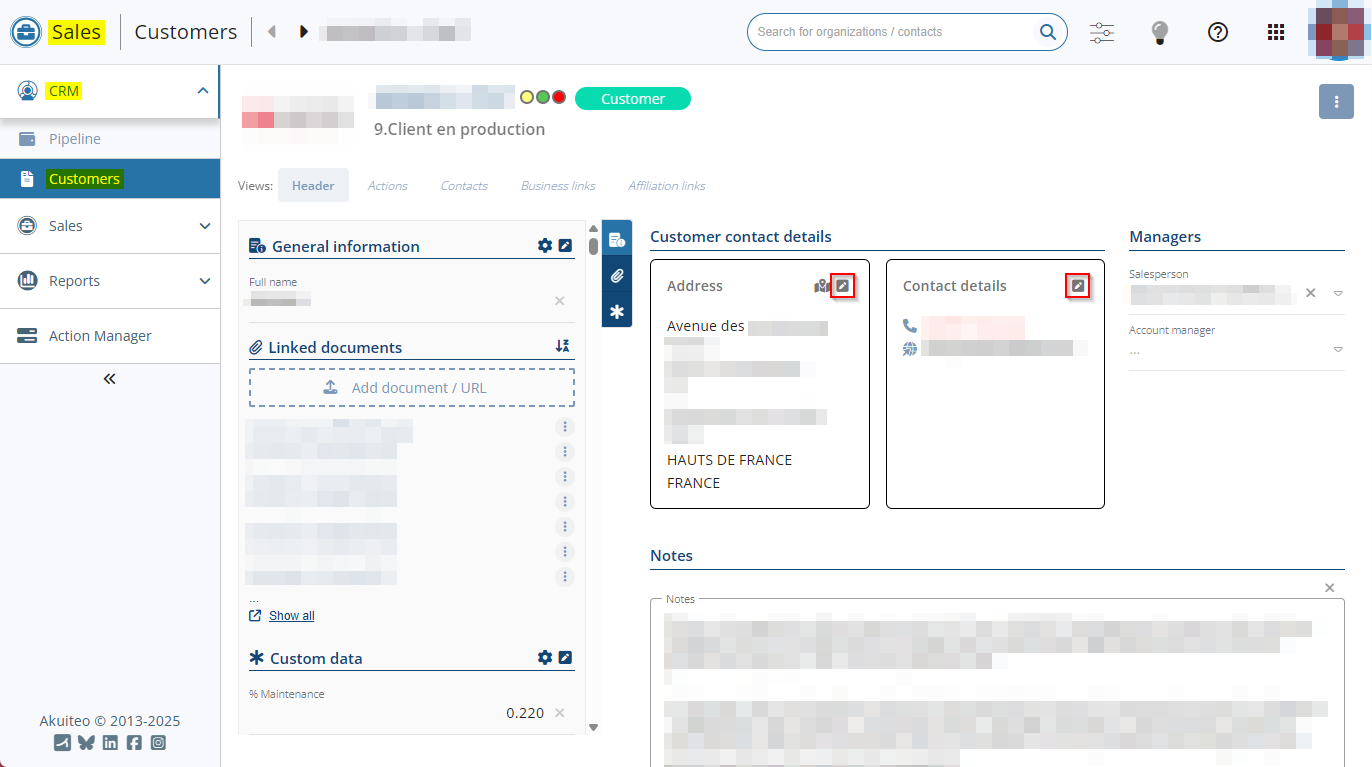
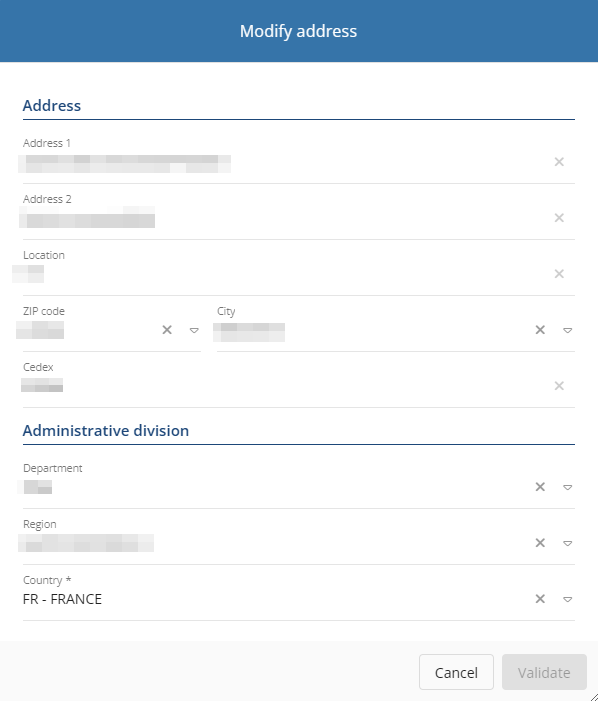
The icon opens a window in order to modify the fields related to the corresponding Address or Contact details section.
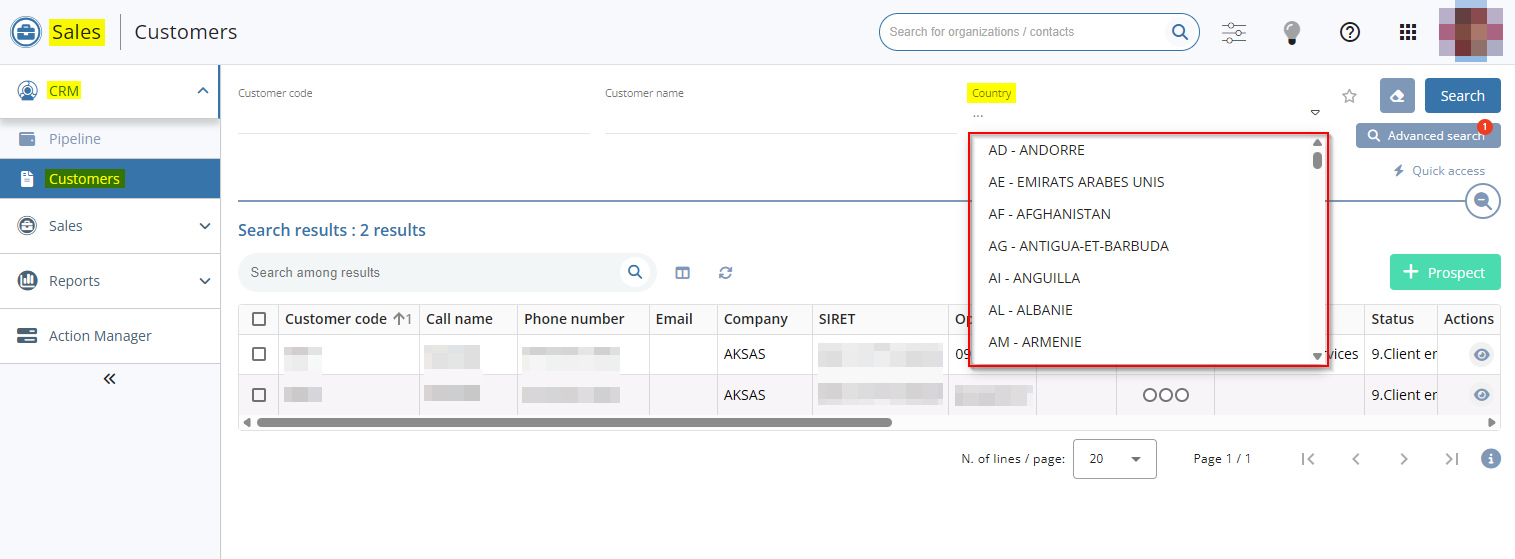
Additionally, on the customer and prospect search screen, a help list has been added for the Country search criterion.
Customers and Prospects: Possibility to use the SIRENE API on customer and prospect record sheets
| DMF |
0101** PROSPECTING PROSPECTS * 0201** SALES CUSTOMER * |
The SIRENE API is used to automatically fill in information when creating a prospect, a customer or a supplier thanks to the specified SIRET or SIREN number. This API is provided by INSEE.
Before, it was only possible to use the SIRENE API to create or modify third-party record sheets on the Desktop Application or the old CRM module.
From now on, it is possible to use the SIRENE API in the Sales Portal > CRM > Customers when creating or modifying a customer or prospect record sheet.
When creating a prospect, click on the  icon at the right of the SIRET or SIREN field to complete the following fields with the SIRENE API:
- Call name;
- Full name;
- SIREN (only if the SIRET is specified);
- SIRET.
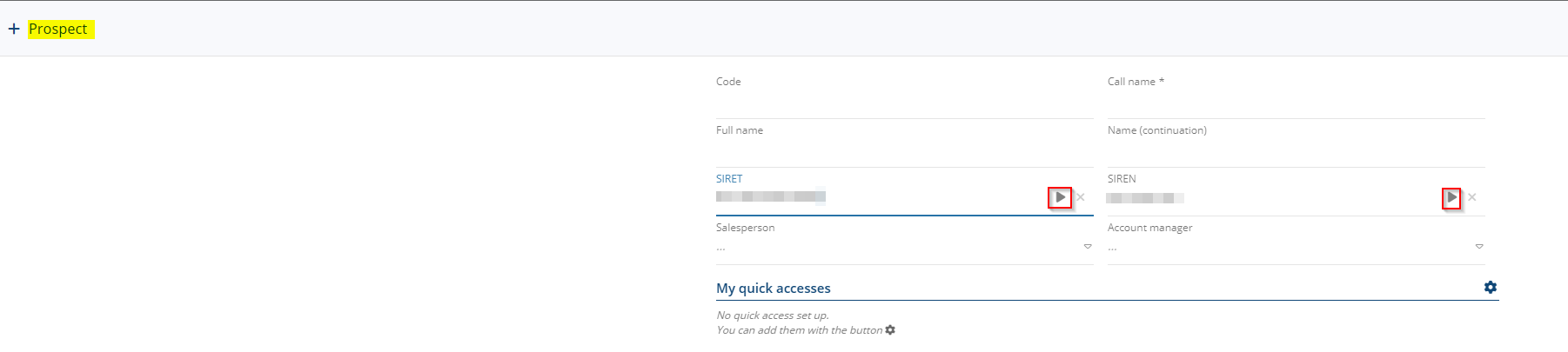
From an existing prospect or customer record sheet (Header view > My quick accesses section); click on the icon at the right of the SIRET or SIREN field to update non specified fields among the following fields:
- APE code;
- Legal structure;
- Address;
- SIREN (only if the SIRET is specified).
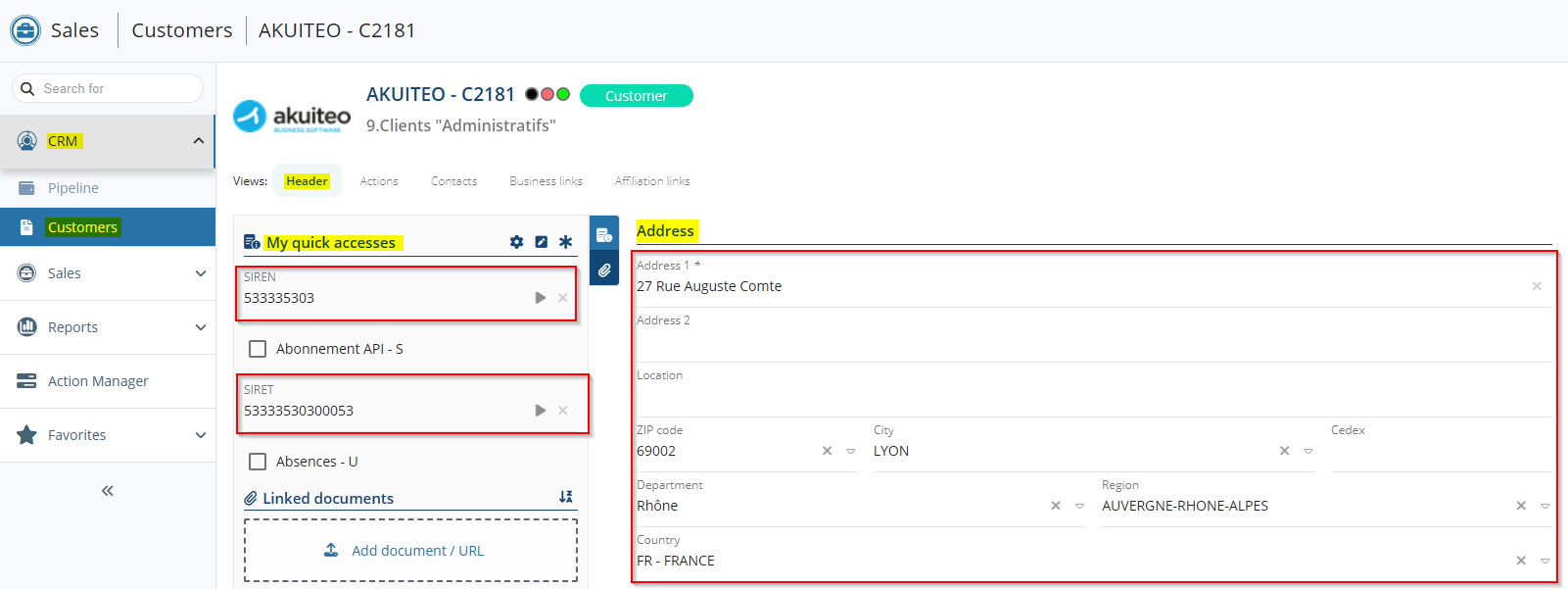
The icon is hidden on a customer or prospect record sheet if the user does not have the 010102 PROSPECTING PROSPECTS MODIFY and 020102 SALES CUSTOMER MODIFY DMFs.
Clients et Prospects : Réorganisation de la section Coordonnées du client
| DMF |
0101** PROSPECTING PROSPECTS * 0201** SALES CUSTOMER * |
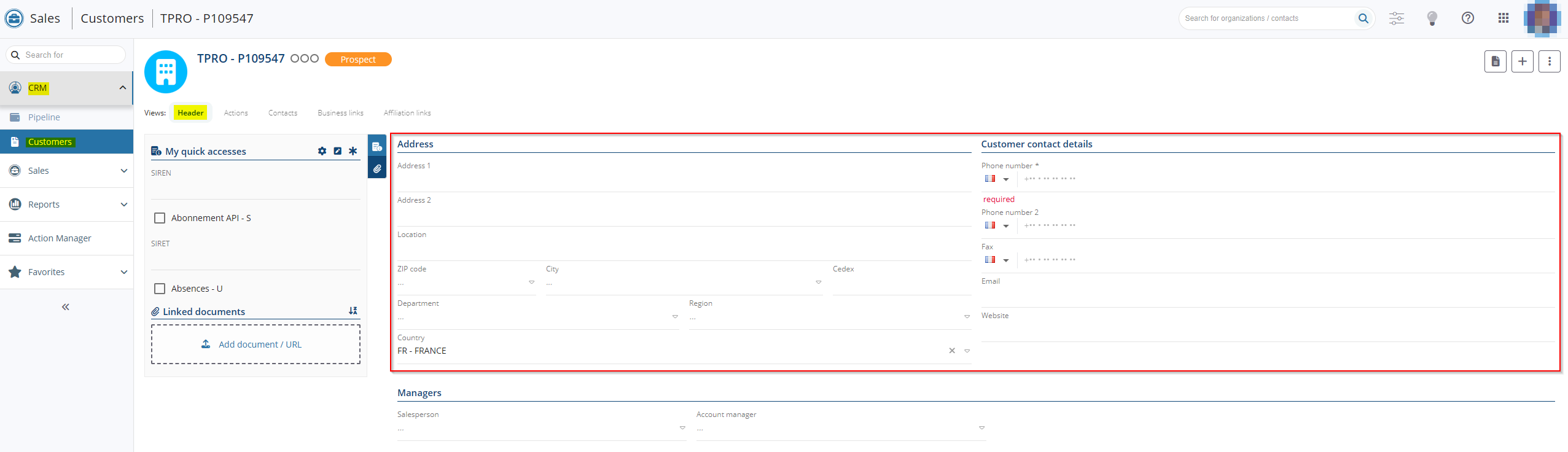
On the customer and prospect record sheets (Sales Portal > CRM > Customers), the Customer contact details section of the Header view has been reorganized.
Now, two sections Address and Customer contact details are available and each field is displayed individually. Click directly in the relevant field to modify it.
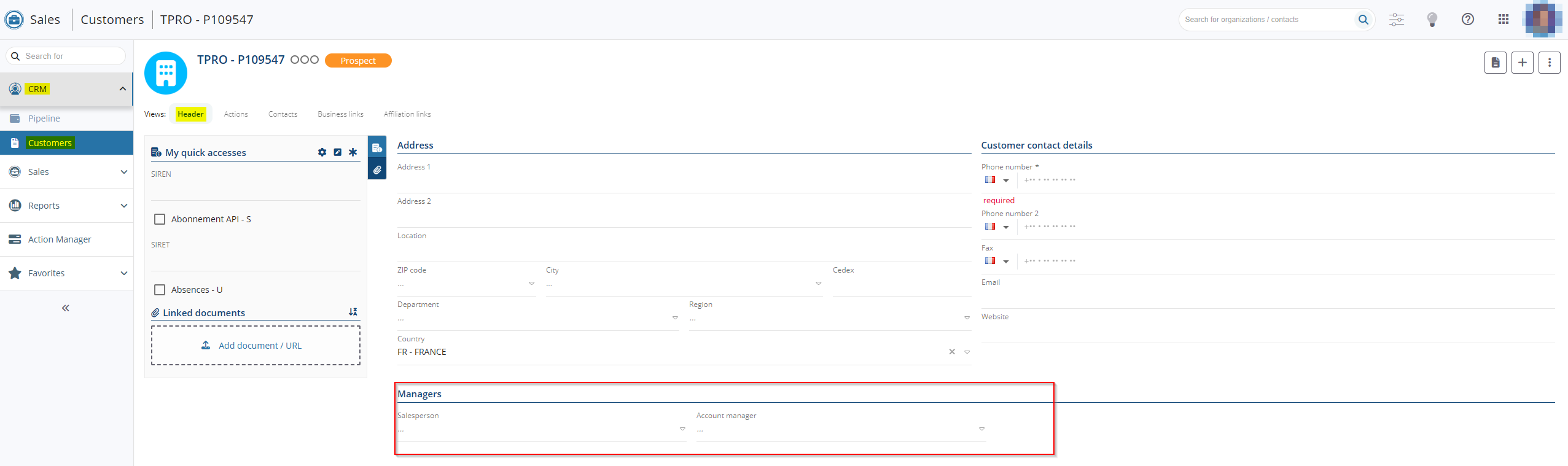
The Managers section is now displayed under the Address section.
Customers and Prospects: Header view displayed by default
| DMF |
0101** PROSPECTING PROSPECTS * 0201** SALES CUSTOMER * |
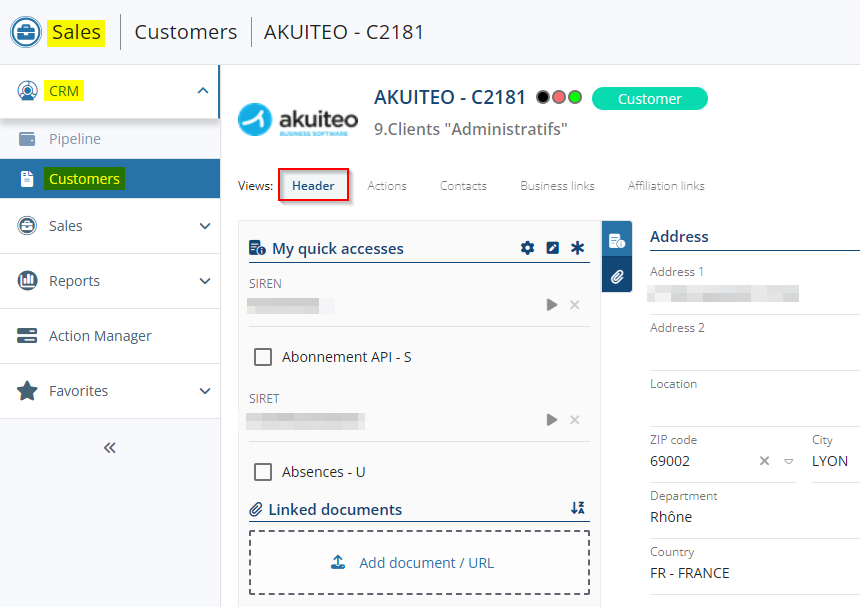
Previously, after opening a customer or prospect record sheet (Sales Portal > CRM > Customers), the default view displayed was the last view that had been shown from a customer or prospect record sheet.
Now, the Header view is always displayed by default after opening a customer or prospect record sheet.
Contacts: Fields added and harmonization of creation forms
| DMF | 0201** SALES CUSTOMER * |
A contact can be created from the Sales Portal:
- customer and prospect record sheets (CRM module > Customers) > Contacts view > + New.

- From an opportunity record sheet ( > Sales module > Opportunities or CRM module > Pipeline), in creation or modification mode, from the empty Main contact field by specifying the last name and then the first name, and clicking on to the right of the field.
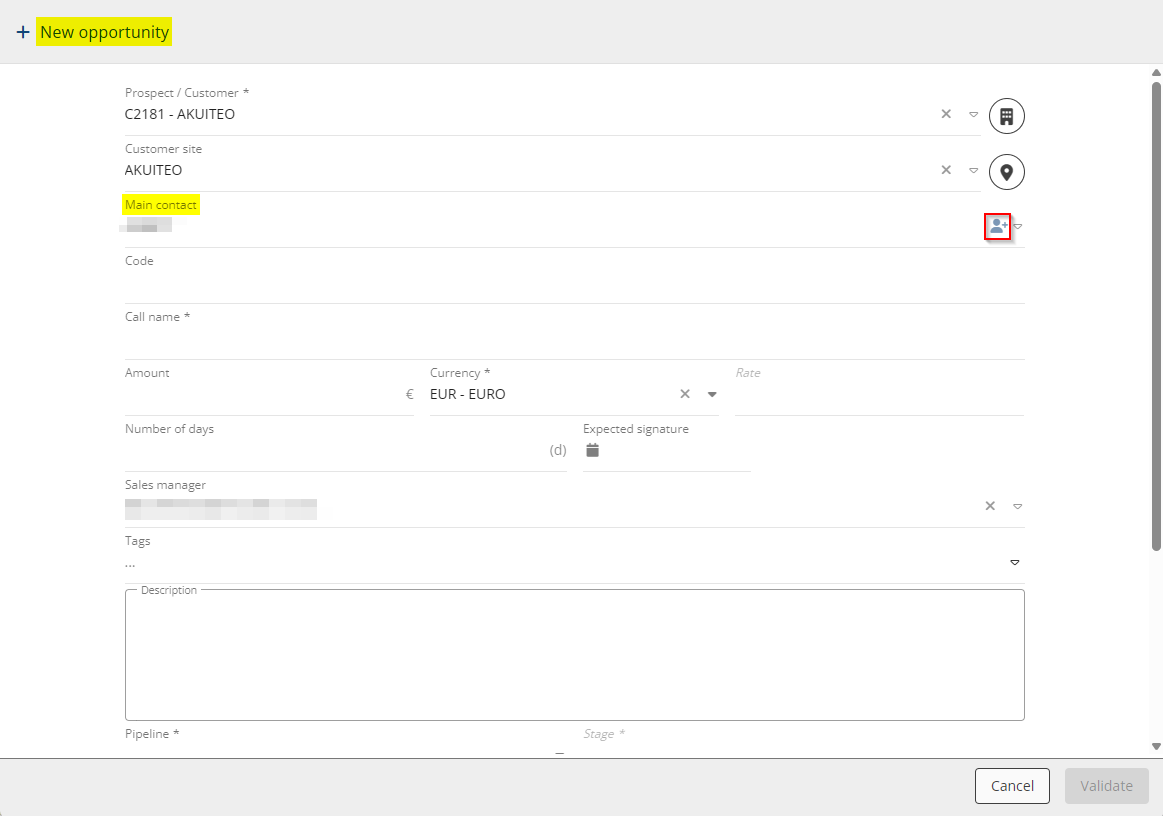
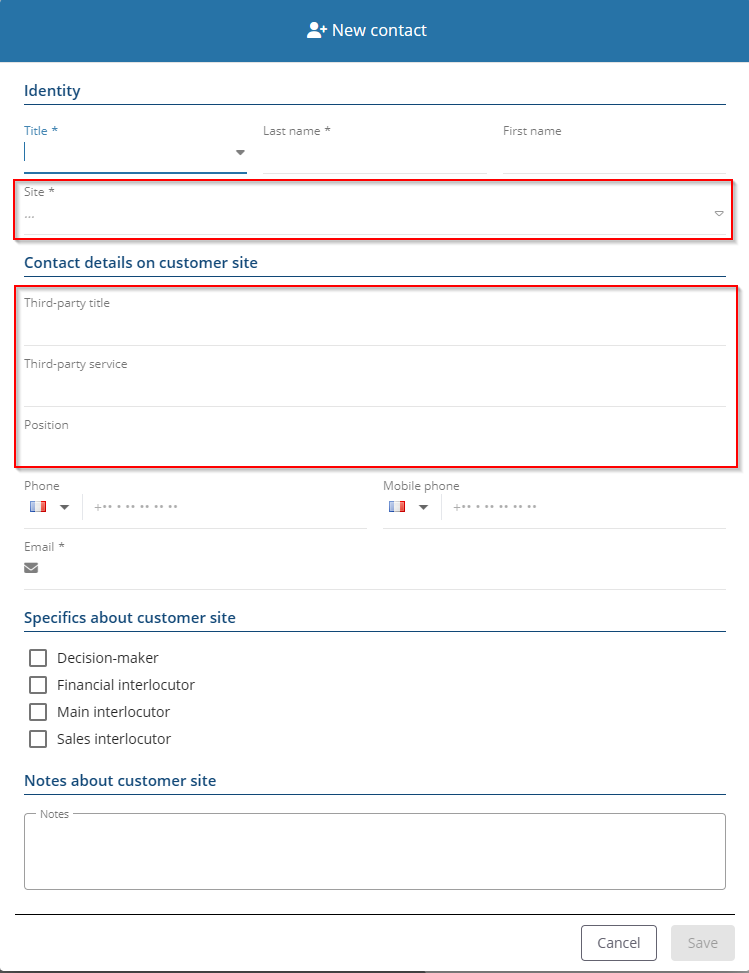
Before, the contact creation form from a customer/prospect record sheet contained less fields than the form available from an opportunity.
Now, both forms are identical.
The following fields have also been added to the forms:
- In the Identity section:
- Site.
- In the Customer contact details section:
- Third-party title,
- Third-party service,
Quotations and Opportunities: Button added to view the linked quotations/opportunities
| DMF |
0102** PROSPECTING OPPORTUNITIES * 0202** SALES QUOTATIONS * |
From a quote (Sales Portal > Sales module > Quotations) > Header view > General information section, the  icon to the right of the Opportunity field allows you to open the record sheet of that opportunity.
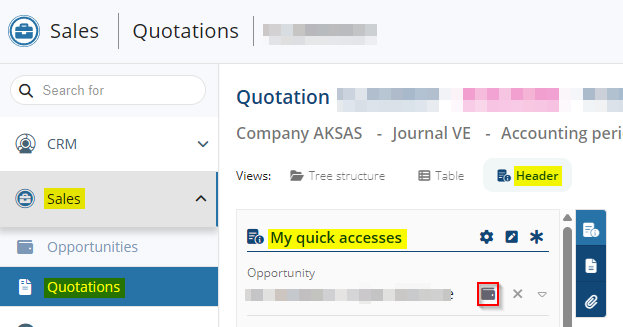
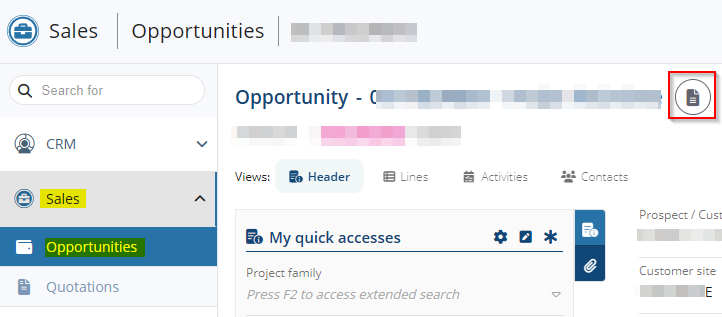
Now, the  icon has been added at the top of the quotation screen too, which allows you to open the record sheet of the linked opportunity. This feature requires the DMF 010204 PROSPECTING OPPORTUNITIES SEARCH.
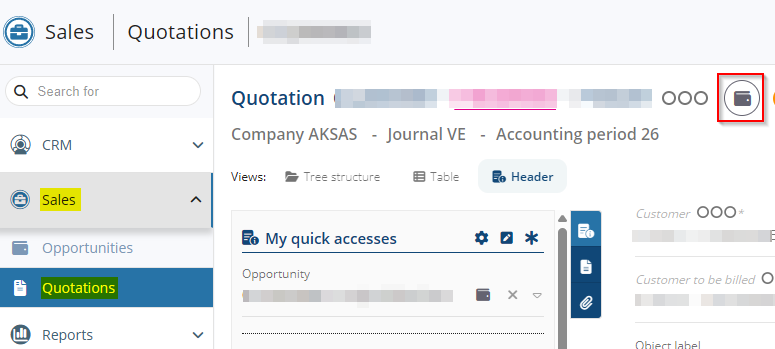
From an opportunity (Sales module > Opportunities), the function to view linked quotations, previously available via  > Show linked quotations, has been moved and is now accessible from the new
  icon at the top of the opportunity screen.
Quotations: Quick accesses added to the compact view of lines
| DMF | 0202** SALES QUOTATIONS * |
In the quotation line form (Sales Portal > Sales > Quotations), the My quick accesses section has been added to the compact view of the form.
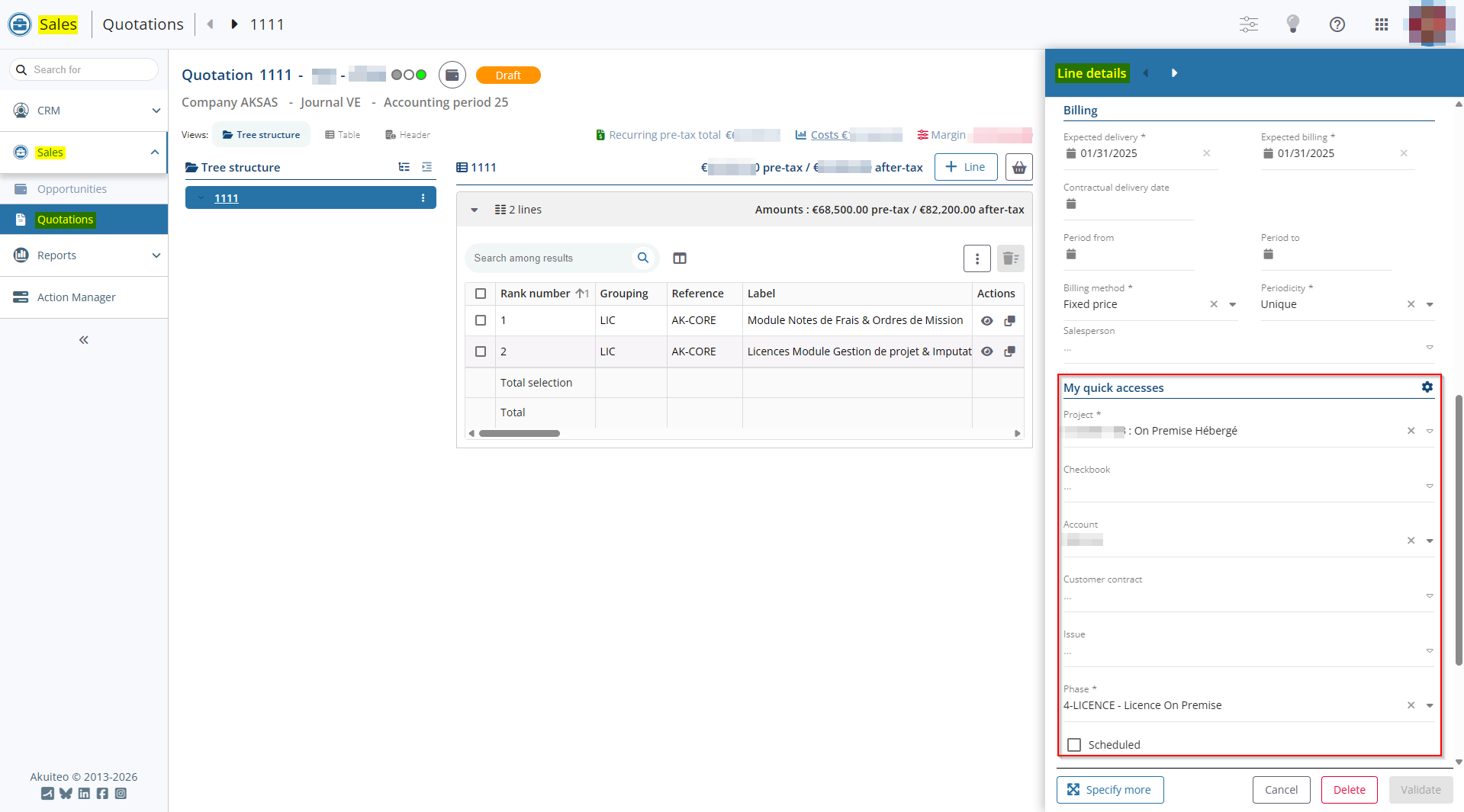
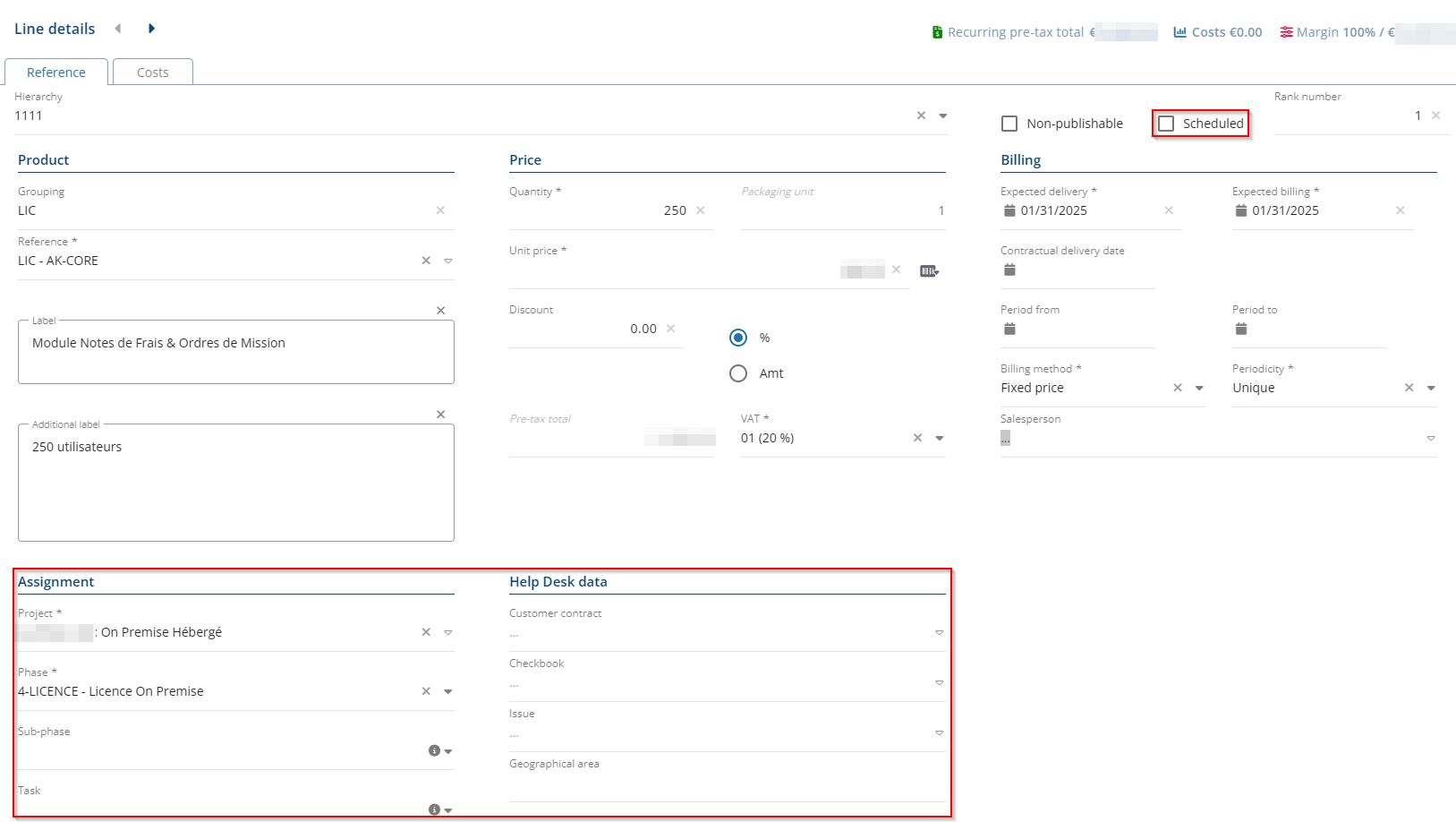
This new section allows you to display and specify fields that were previously only available in the full view of the form, namely the fields from the Assignment and Help Desk data sections, as well as the Scheduled checkbox.
Note
Custom control for these fields are also applied in complete view and the My quick accesses section of the reduced view.
Quotations: Features added to modify the amount of multiple lines
| DMF |
0202** SALES QUOTATIONS * |
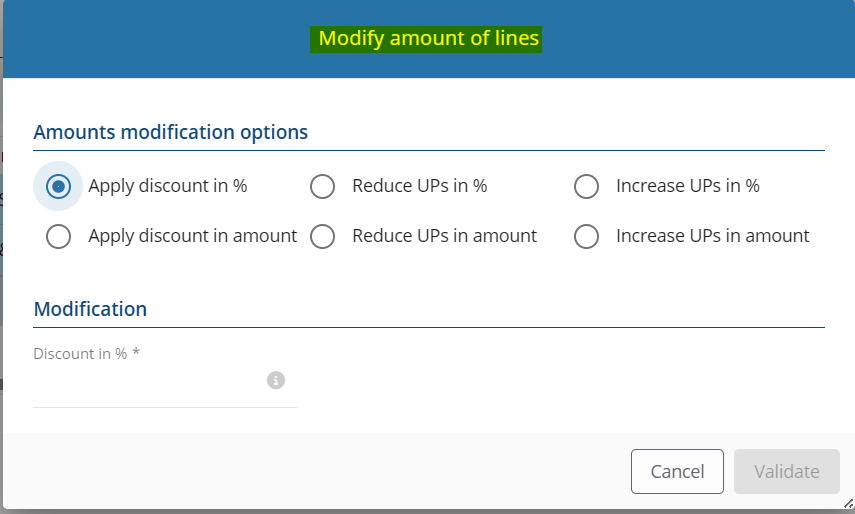
From the quotations (Sales Portal > Sales > Quotations > Tree or Table view), discounts in percentage can be applied on multiple lines from > Apply discount on selected lines.
Now, in order to group the new amounts modifications options, this feature has been renamed Modify amount of selected lines.
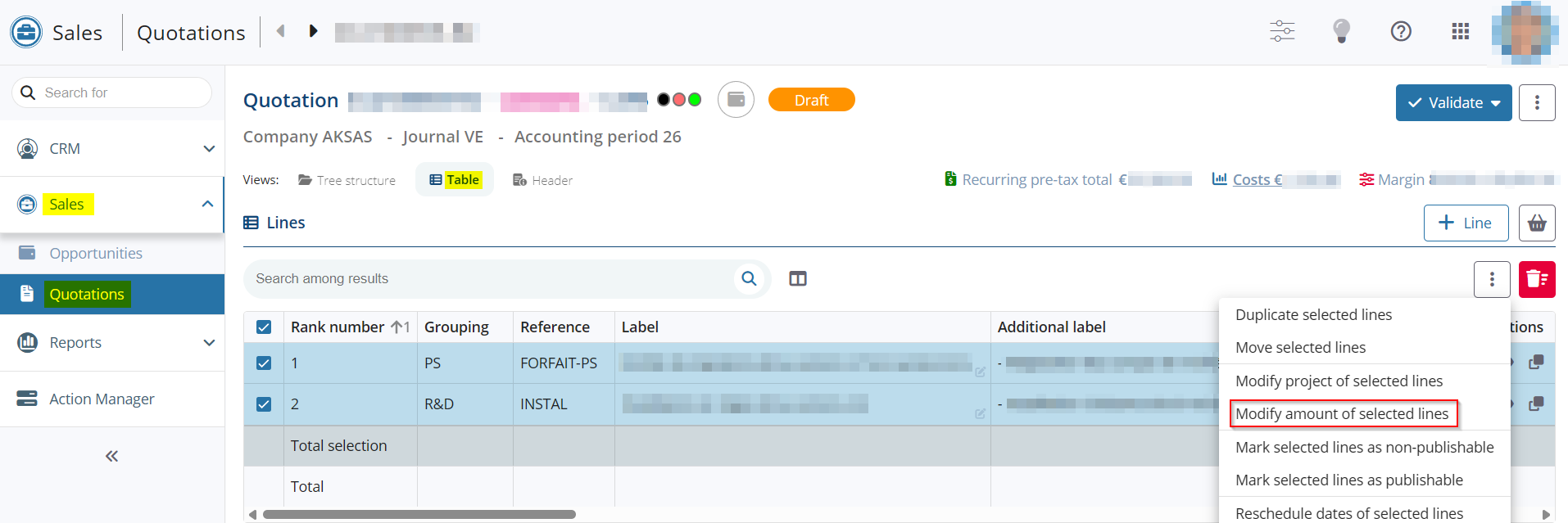
The following features are now available from the amount modification window:
- Apply discount in % - Allows you to specify in the field of the Modification section the percentage of the discount to apply to the Total of the selected lines;
- Apply discount in amount - Allows you to specify in the field of the Modification section the amount of the discount to apply to the Total of the selected lines;
- Reduce UPs in % - Allows you to specify in the field of the Modification section the percentage of the discount to apply to the unit price of the selected lines;
- Reduce UPs in amount - Allows you to specify in the field of the Modification section the amount of the discount to apply to the unit price of the selected lines;
- Increase UPs in % - Allows you to specify in the field of the Modification section the percentage of the increase to apply to the unit price of the selected lines;
- Increase UPs in amount - Allows you to specify in the field of the Modification section the amount of the increase to apply to the unit price of the selected lines;
Notes
Discounts and reductions cannot exceed the amount or the unit price of the selected lines.
The lines of the quotations in Archived status cannot be modified.
Quotations: ID column added to the lines
| DMF | 0202** SALES QUOTATIONS * |
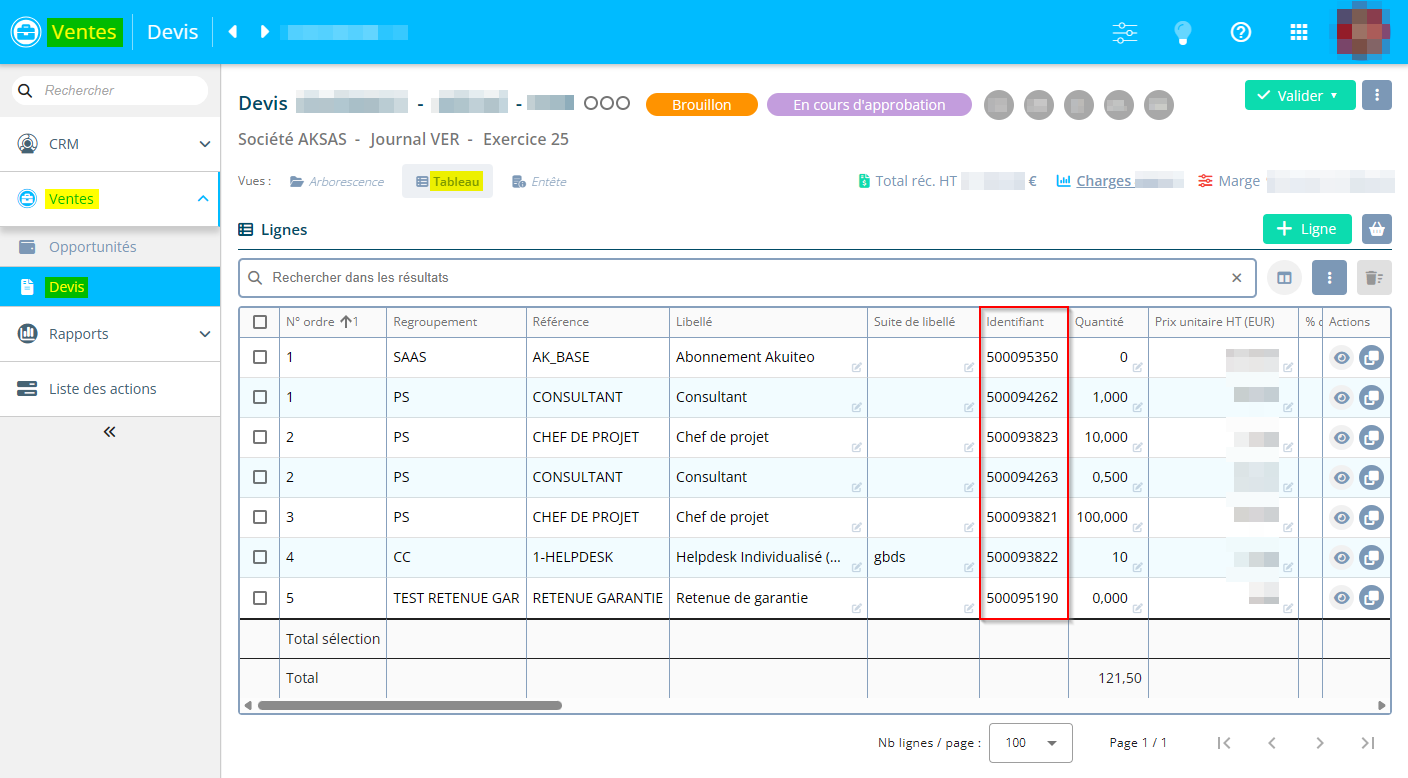
On quotations (Sales Portal > Sales > Quotations), the ID column has been added for quotation lines (Tree structure and Table views).
Quotations: Function added to adjust the budget on multiple lines
| DMF | 0202** SALES QUOTATIONS * |
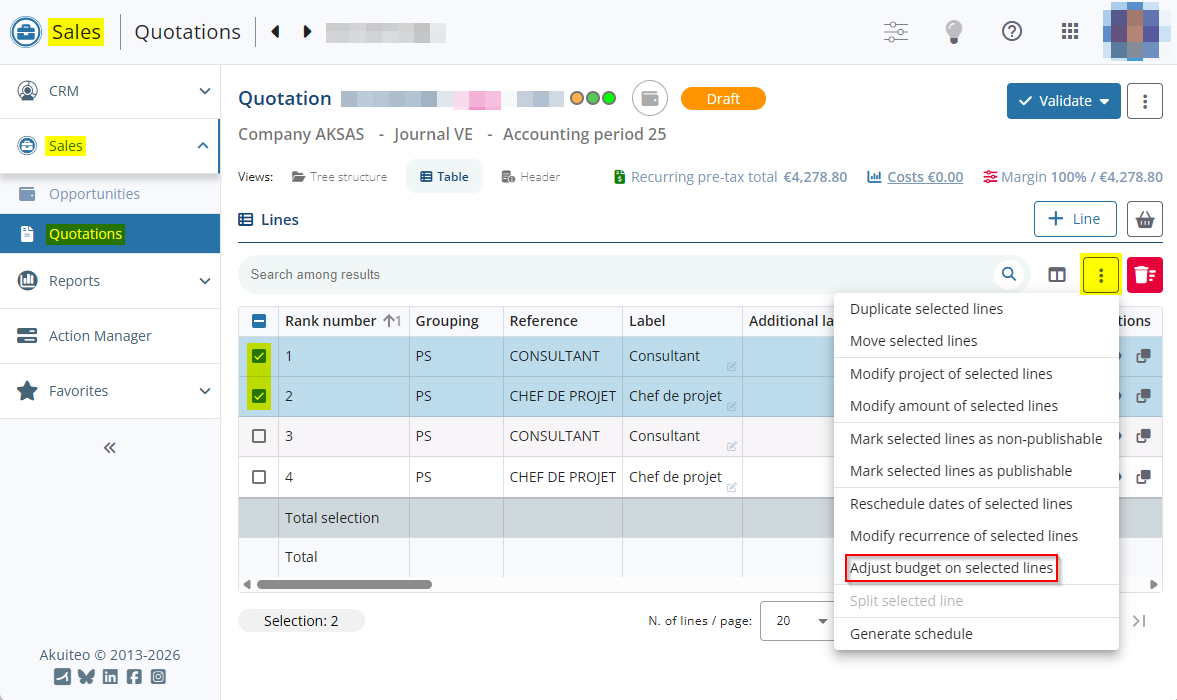
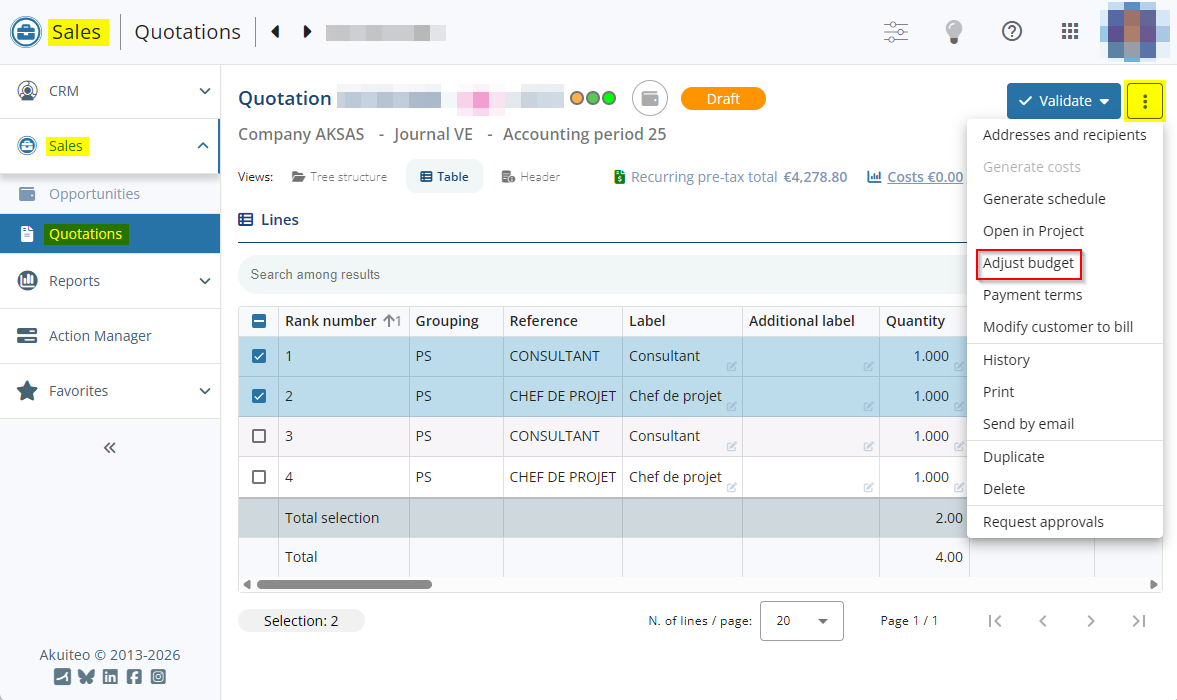
On quotations (Sales Portal > Sales > Quotations), a budget adjustment function has been added. It allows you to modify the total pre‑tax amount of multiple lines in order to automatically calculate and apply the corresponding discount or unit‑price adjustment to each line, while preserving their initial proportions.
This function can be used:
- on a selection of lines: by checking one or multiple lines then by clicking on at the top right of the lines > Adjust budget on selected lines.
- on all lines: by clicking on at the top of the quotation screen then on Adjust budget.
The function is accessible only when the relevant lines do not have any discount specified.
A window opens and is used to specify a new Target recurring pre-tax total for the relevant lines, and to select the adjustment option desired under the Adjust field:
- the unit price to modify the budget by modifying the unit prices of the lines.
- the discount in % to modify the budget by applying a discount in percentage on the lines.
- the discount in amount to modify the budget by applying a discount in amount on the lines.
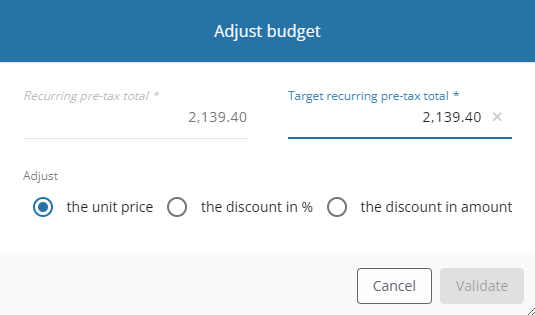
When validating, the corresponding unit-price modification or discount is applied to the relevant lines, depending on the adjustment option chosen.
Note
Custom controls can be set up for the fields in the budget adjustment window.
Quotations: DMF check added to add a cost
| DMF | 0202** SALES QUOTATIONS * |
On a quotation (Sales Portal > Sales > Quotations), the costs screen can be accessed:
- Or from the details of a line > Costs tab > + Cost.
- Either from the root of the quotation in the Tree structure pane >
 icon > View costs > + Cost.
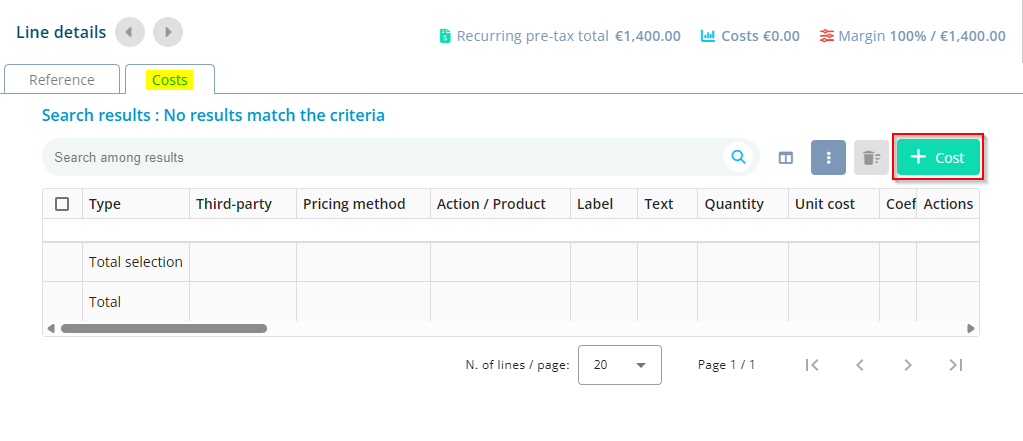
Previously, no DMF was required to add a cost.
Now, the + Cost button is hidden if the user does not have the DMF 020236 SALES QUOTATIONS MODIFY COST LINES.
Quotations: Chorus service added to the Chorus section
| DMF | 0202** SALES QUOTATIONS * |
When the CHORUS application control is enabled, the Chorus section is displayed in the Header view of a quotation (Sales Portal > Sales > Quotations)
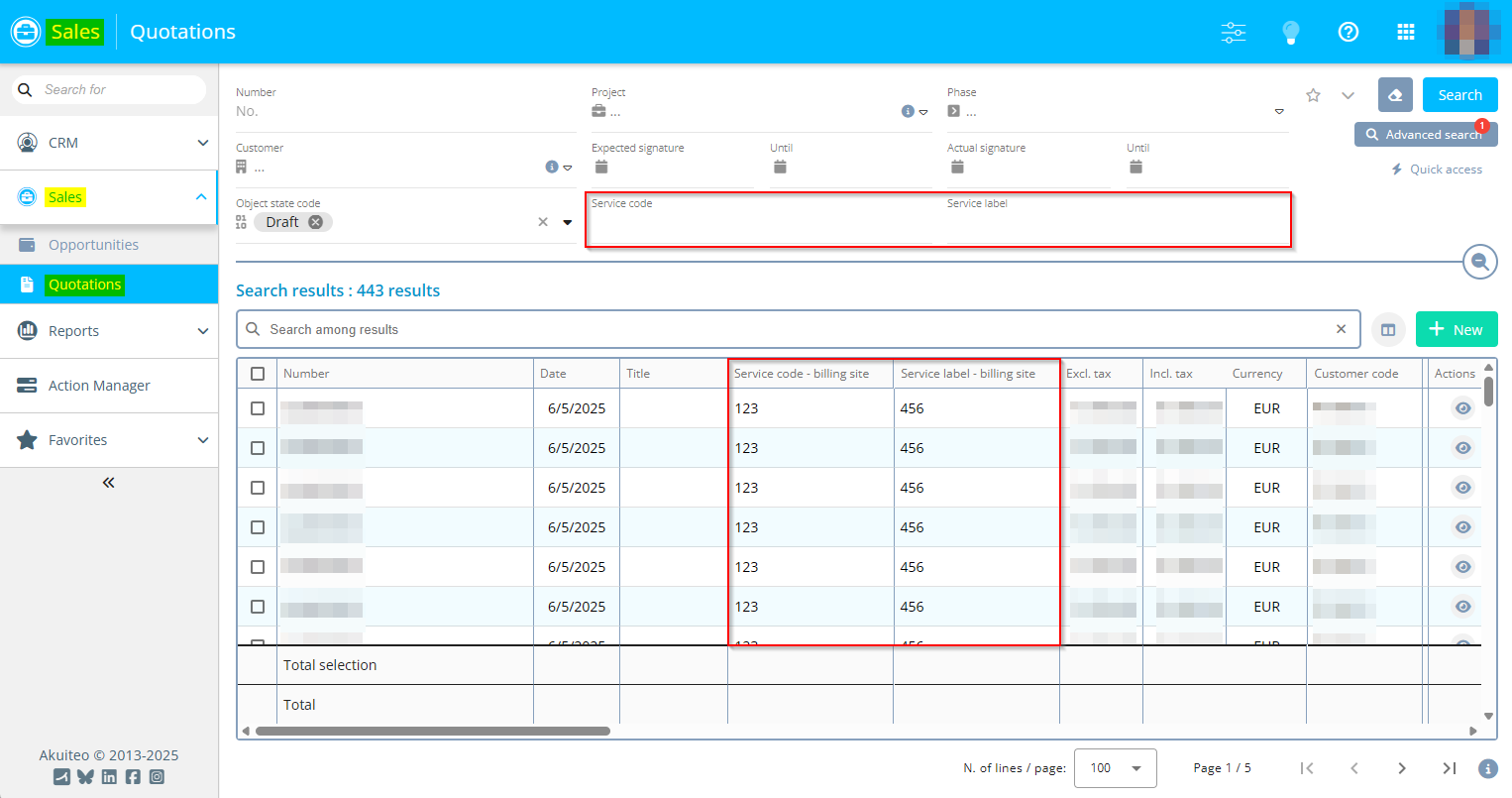
The Service code and Service label fields have been added to the Chorus section.
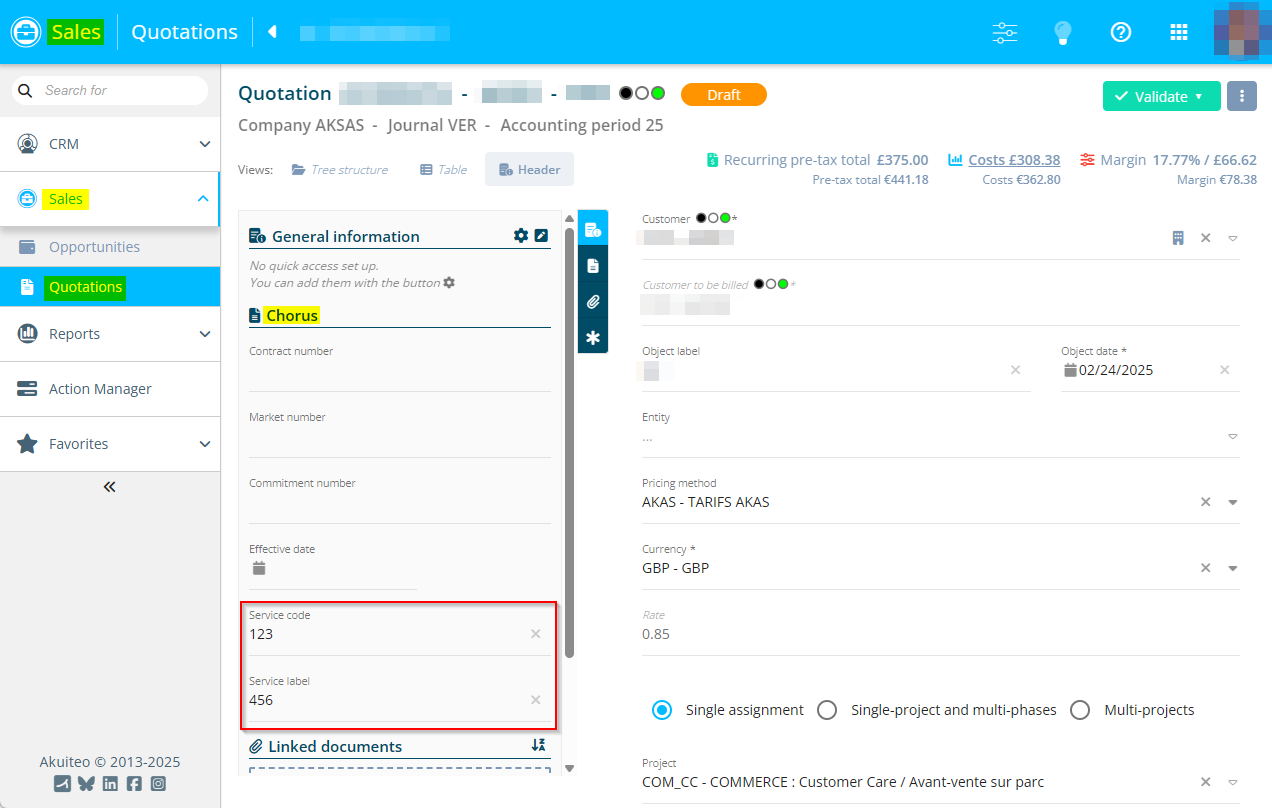
When the billing site of the object is specified or modified from the icon at the top of the quotation > Addresses and recipients > Addresses tab > Billing address, the service code and label on the quotation are automatically updated with those from the billing site specified. Those fields can still be modified manually from the quotation.
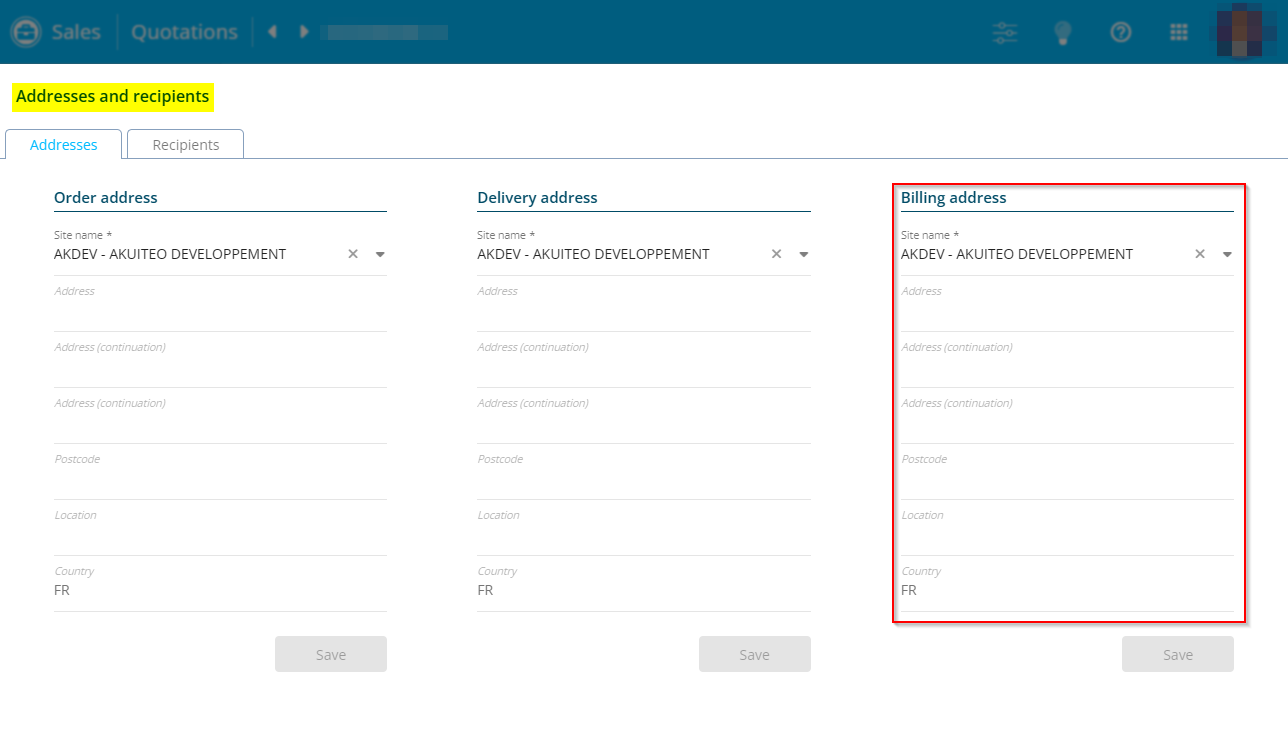
On the quotation search screen, the Service code and Service label search criteria have been added. The corresponding Service code - billing site and Service label - billing site columns have also been added to the search results of quotations.
Quotations: Keyword taken into account for the start date of contract
| DMF | 02**** SALES * SALES |
On a quotation line (Sales Portal > Sales > Quotations), the Start of contract field is displayed when the Billing method is different from Service and the Periodicity is different from Unique.
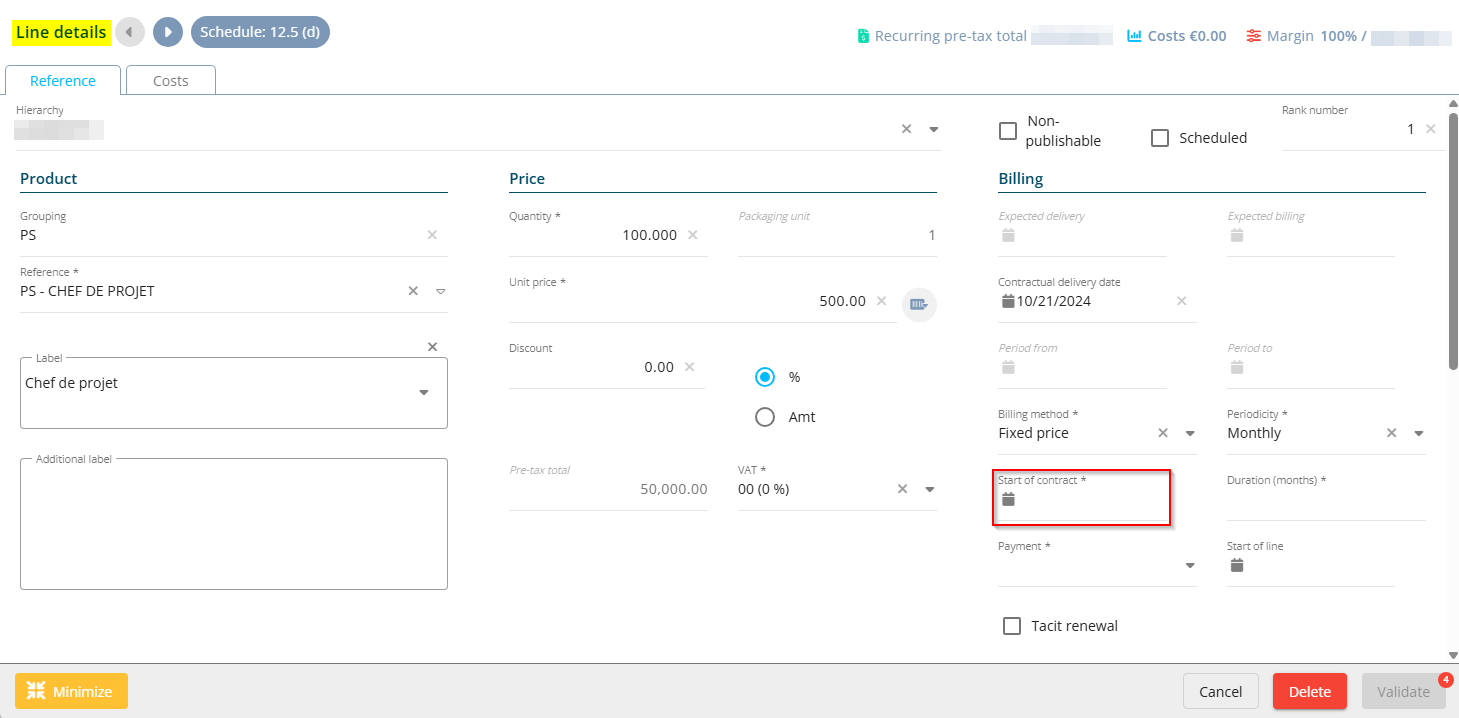
Previously, the Start of contract field was empty be default.
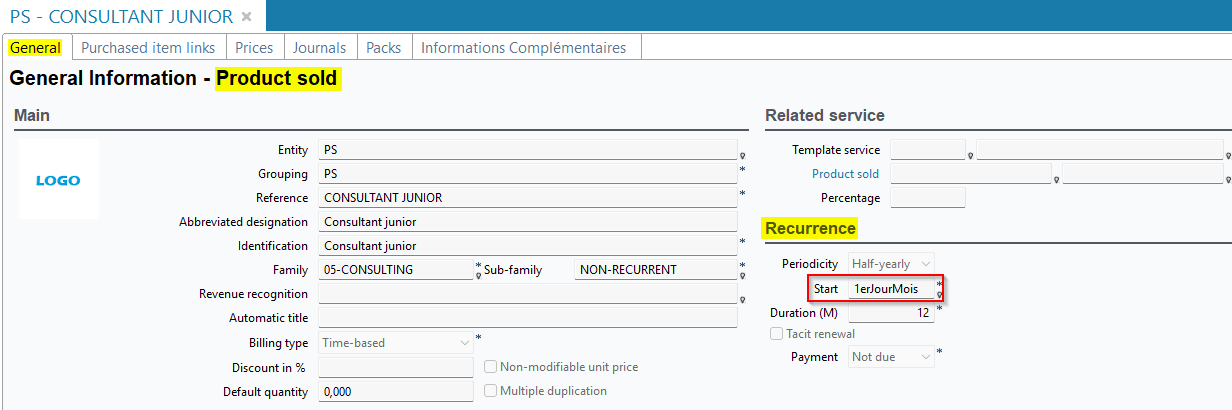
Now, the date corresponding to the keyword specified in the Start field of the sold product (Desktop Application > Management > Sales > Sold items then General tab > Recurrence section) was specified by default on quotations lines containing this sold product. If the keyword does not correspond to a date, the Start of contract field remains empty by default.
Quotations: Manager of the quotation automatically specified
| DMF | 0202** SALES QUOTATIONS * |
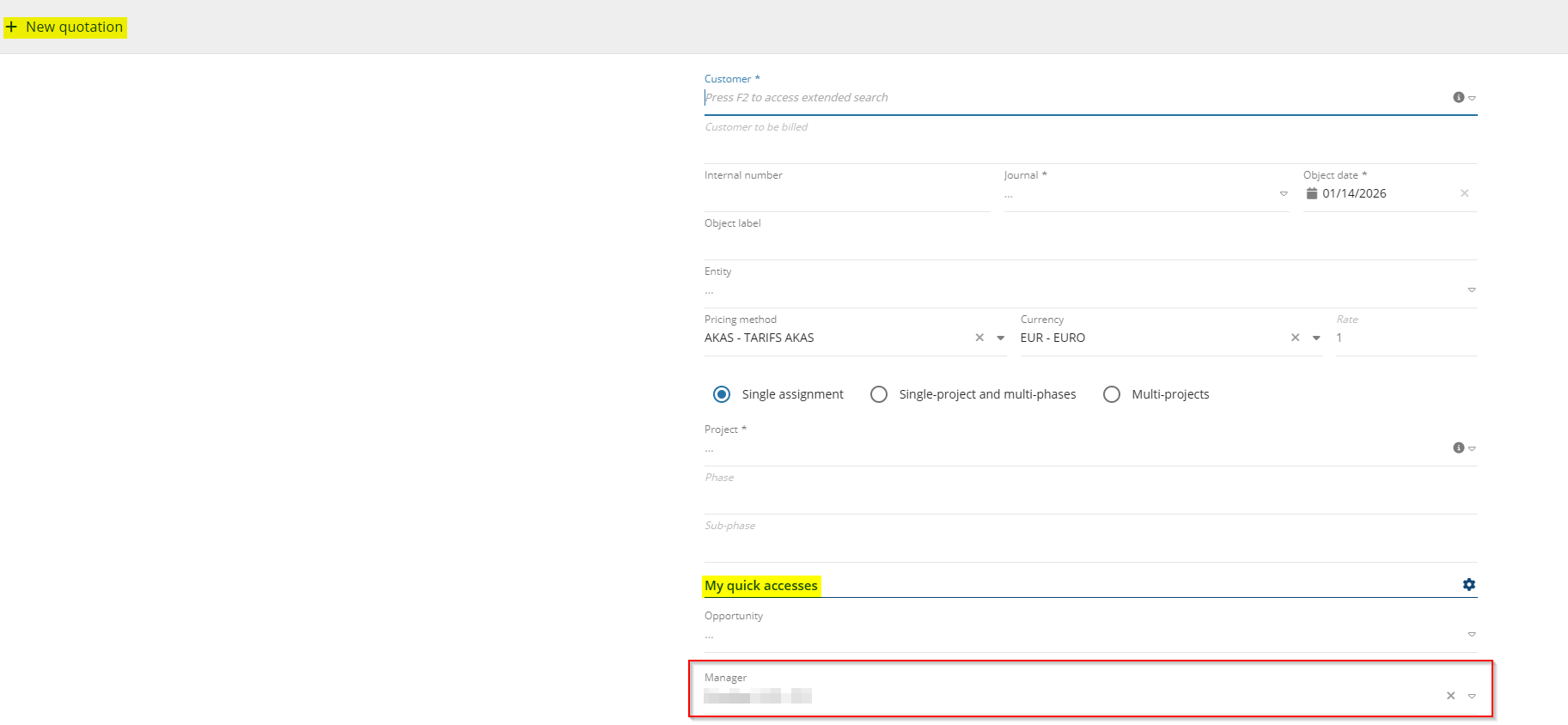
Before, the person who created the quotation (Sales Portal > Sales > Quotations) was not automatically specified when creating the quotation.
Now, in the creation screen of the quotation, the Manager field (My quick accesses section) is automatically specified with the first name and last name of the connected employee in order to indicate who created the quotation. This field can be manually specified.
From the quotations search:
- The existing search criterion Customer manager has been renamed Manager.

- The Customer manager search criterion has been added.

Quotations: Resource now editable directly from the table of lines
| DMF | 0202** SALES QUOTATIONS * |
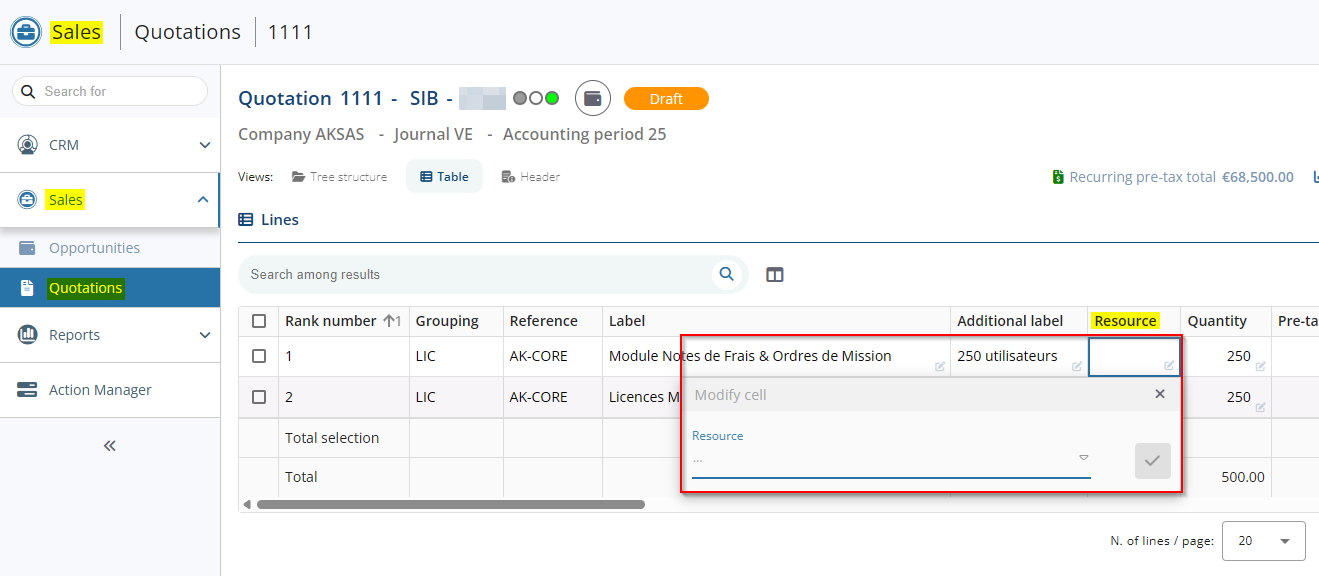
In the quotation line table (Sales Portal > Sales > Quotations, then Tree structure or Table views), the resource for each line can now be specified directly from the table by double-clicking on the Resource column.
Opportunities: Button added to modify the stage of an opportunity
| DMF | 0102** PROSPECTING OPPORTUNITIES * |
Previously, changing the stage of an opportunity on the Sales Portal could only be done by dragging and dropping within CRM > Pipeline in the Kanban view.
From now on, the  icon has been added next to the Stage field in existing opportunity record sheets:
- from the CRM module > Pipeline;
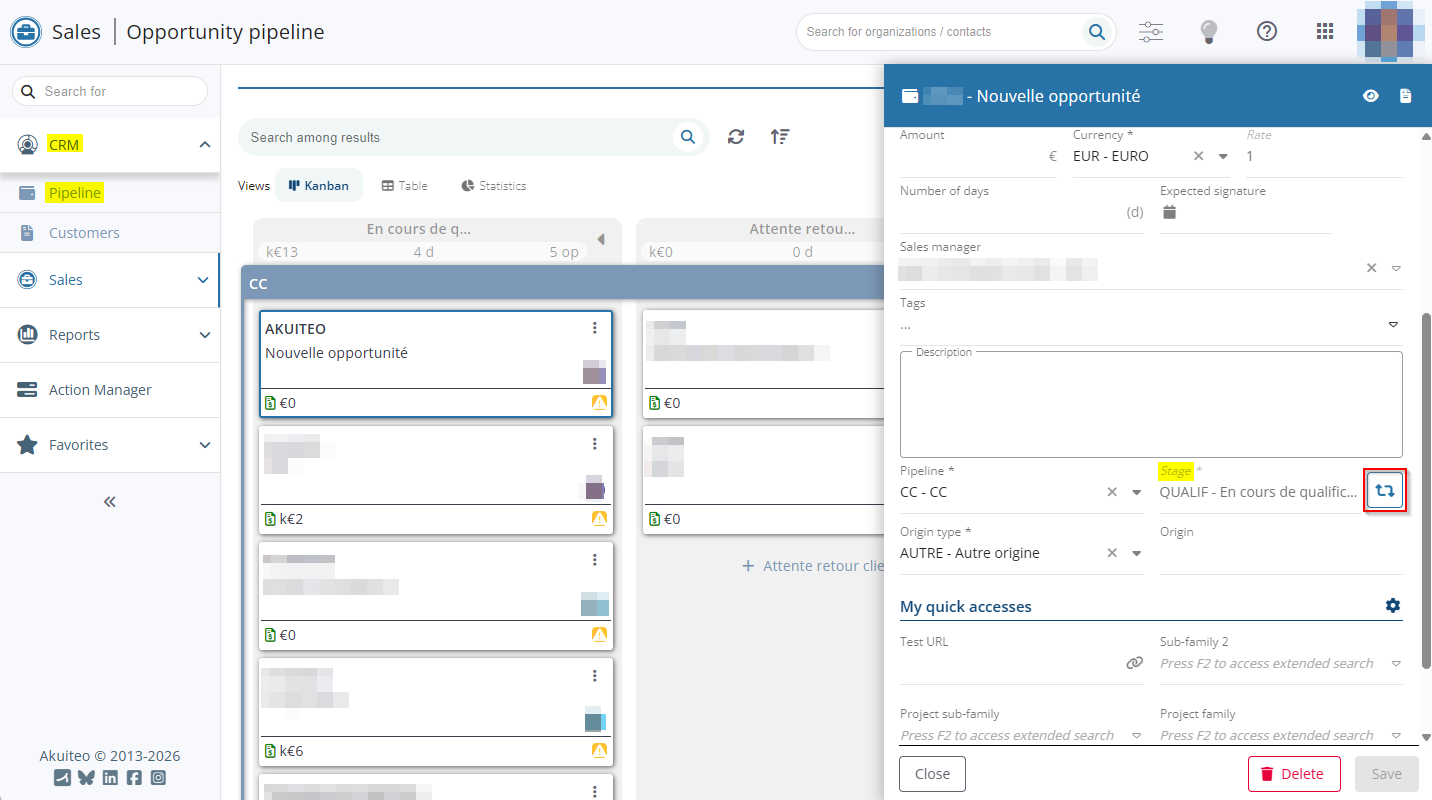
- from the Sales module > Opportunities, on the Header view of the opportunity.
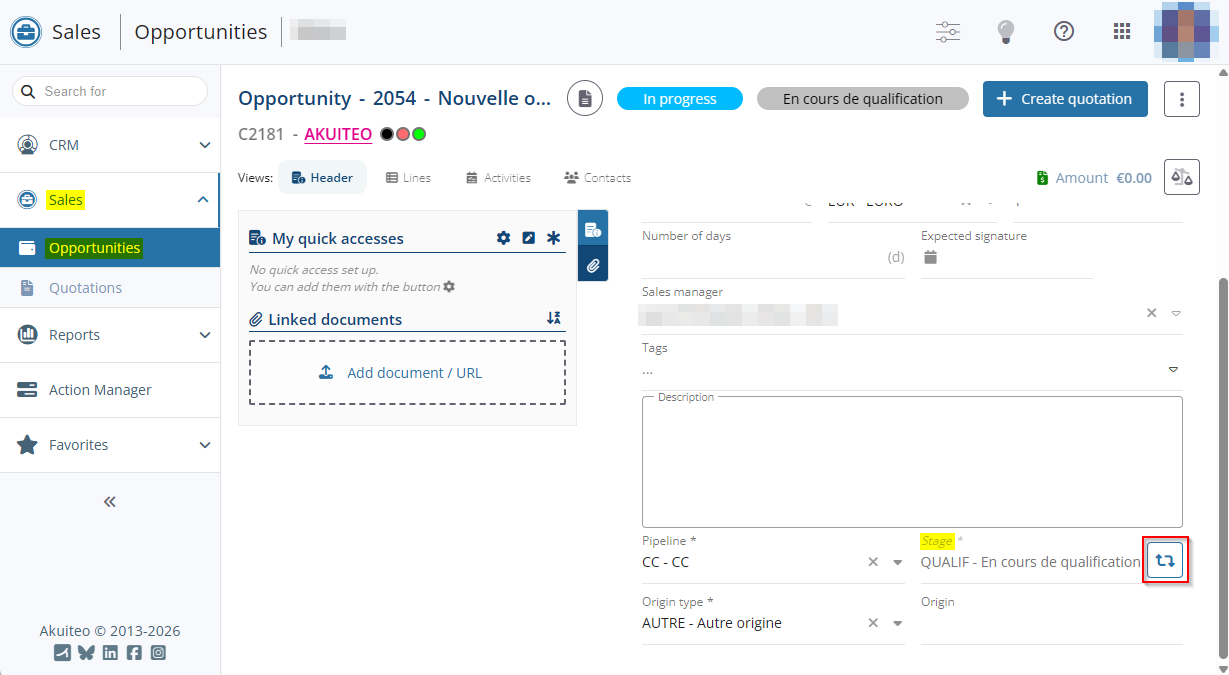
This new function allows you to modify the stage of the opportunity. The DMF 010202 PROSPECTING OPPORTUNITIES MODIFY is required to modify the stage.
Depending on the required fields set up for stages, a window opens after selecting the stage in order to specify the fields required for the change of stage.
Opportunities: Required field check added when marking an opportunity as won
| DMF | 0102** PROSPECTING OPPORTUNITIES * |
On the Sales Portal, an opportunity can be marked as won:
- From the CRM module > Pipeline, by clicking on from the opportunity card > Mark as won;
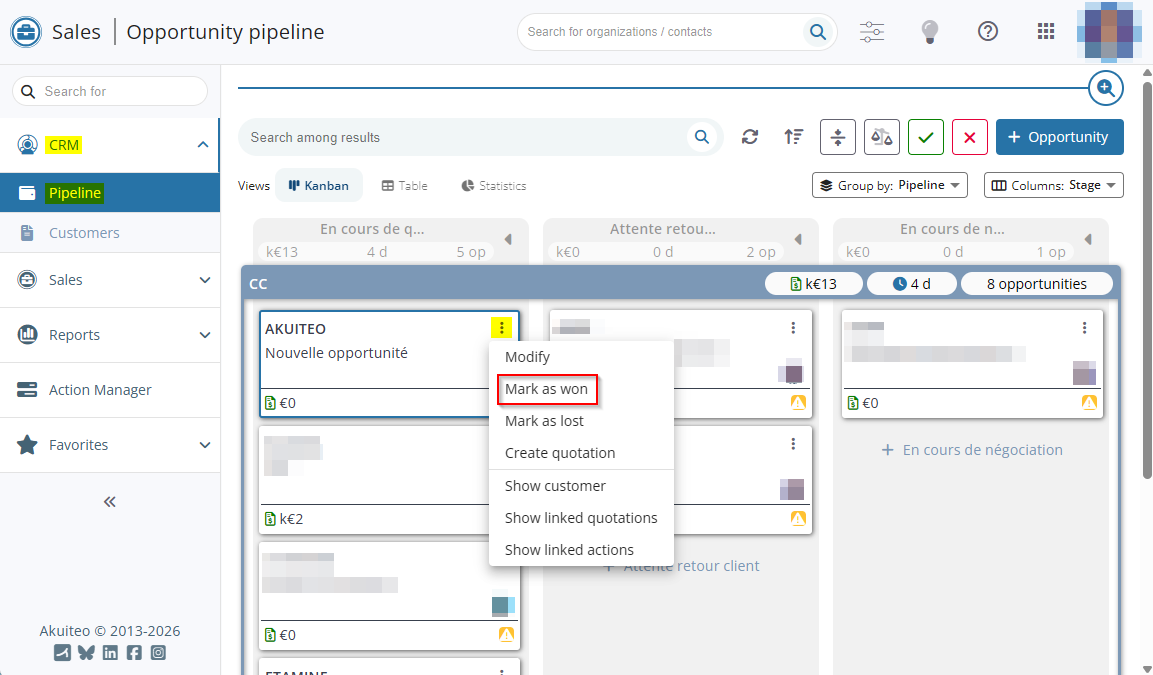
- From the Sales module > Opportunities, by going in > Mark as won from the opportunity sheet.
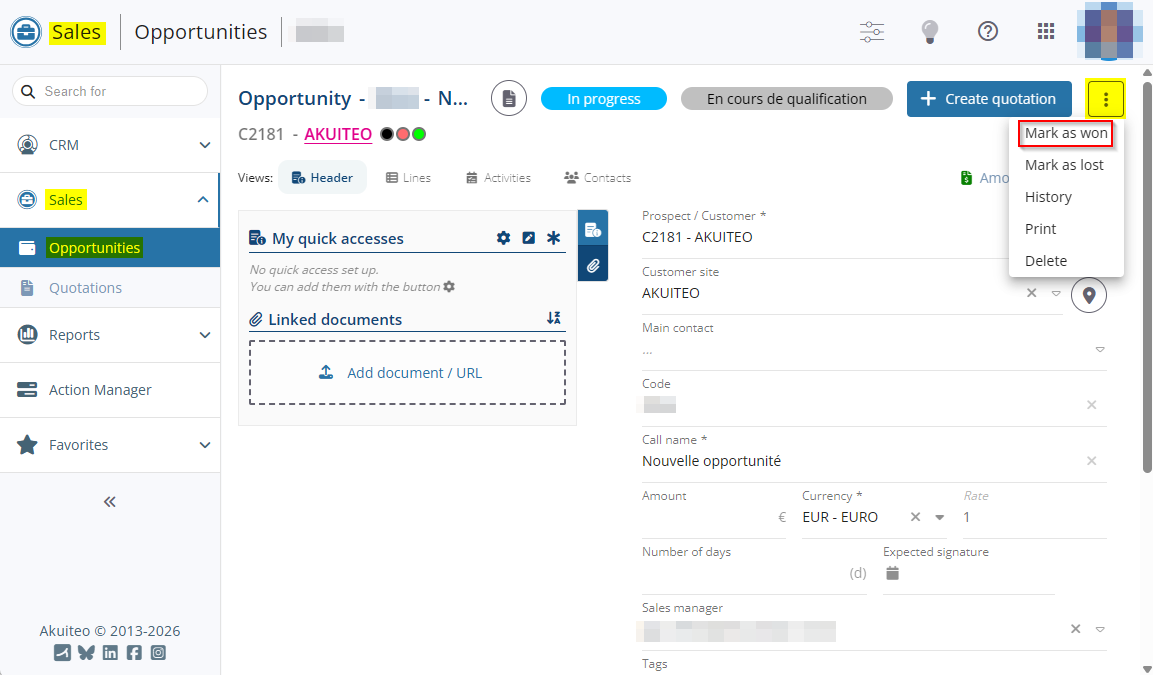
Previously, an opportunity could be marked as won without needing to specify the required fields set up for the remaining stages in the pipeline.
From now on, to mark an opportunity as won, all required fields set up for the remaining stages in the pipeline must be specified. A window opens in order to specify those fields.
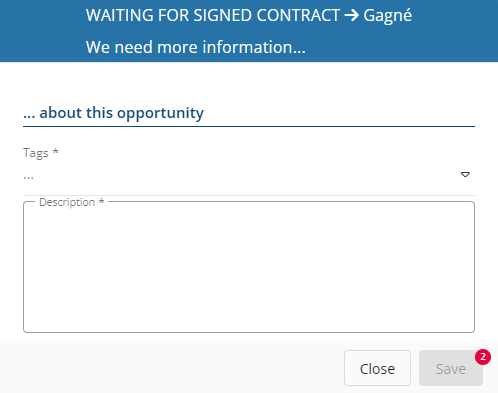
Opportunities: Added a DMF check when creating a contact from an opportunity
| DMF | 0102** PROSPECTING OPPORTUNITIES * |
From an opportunity record sheet (Sales Portal > Sales module > Opportunities or CRM module > Pipeline), in creation or modification mode, a main contact can be created from the empty Main contact field by specifying the last name and then the first name, and clicking the icon to the right of the field.
Previously, creating a main contact from an opportunity did not require any specific DMF.
From now on, this feature requires:
- either the DMF 010211 PROSPECTING OPPORTUNITIES ADD CONTACT;
- or the DMF 191420 WEB PORTAL OPPORTUNITIES ACCESS TO THE QUICK CREATION.
Opportunities: DMFs added to win and lose opportunities
| DMF |
0102** PROSPECTING OPPORTUNITIES * 1914** WEB PORTAL OPPORTUNITIES * |
An opportunity can be marked as won or lost:
- On the Sales Portal > CRM module > Pipeline, by clicking on
 from the opportunity card > Mark as won / Mark as lost.
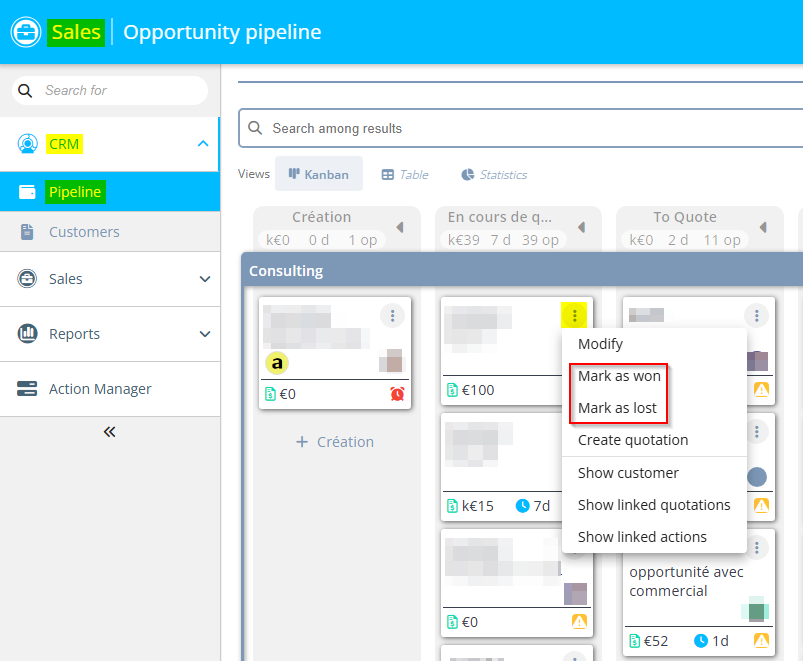
- On the Sales Portal > Sales module > Opportunities, by going in
 > Mark as won / Mark as lost from the opportunity record sheet.
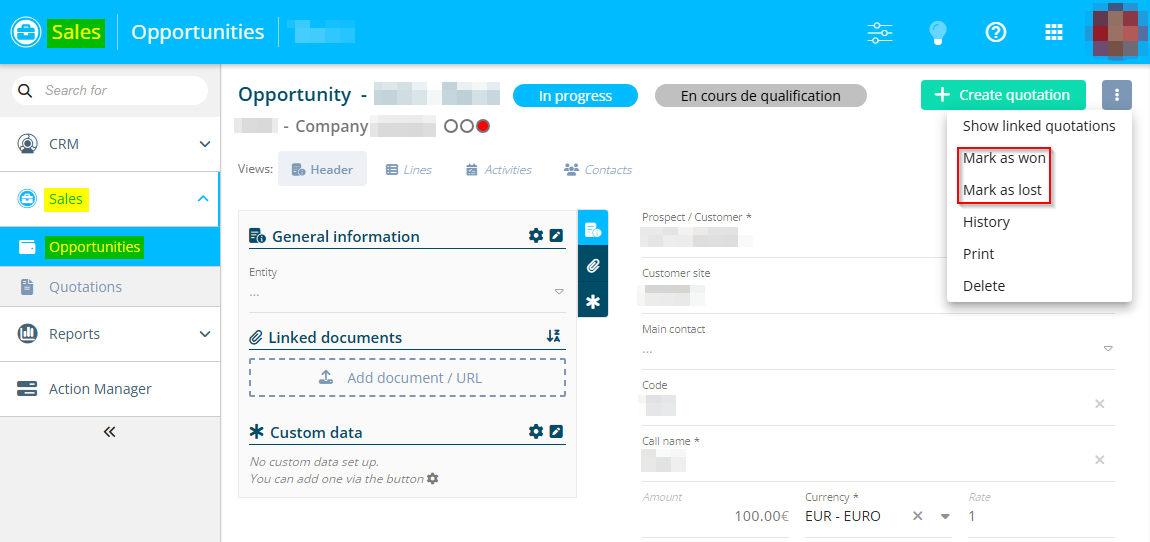
- On the old CRM module > Opportunities, by dragging the opportunity card desired then dropping it on the Won / Lost frame that shows up at the bottom right of the screen.
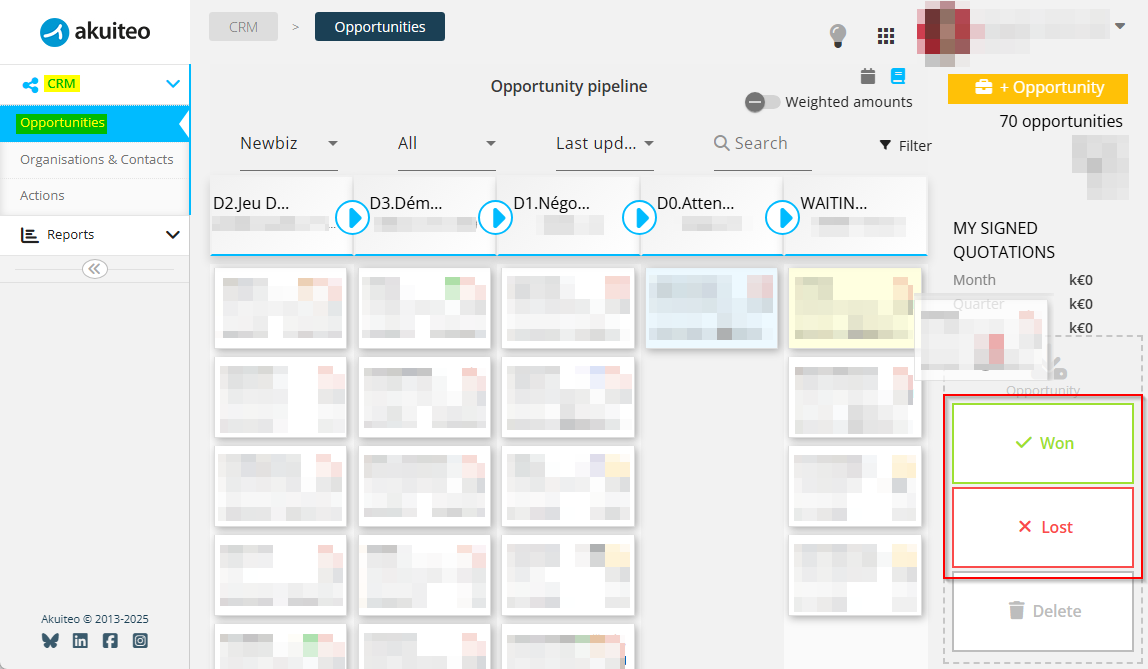
Previously, this action required the DMFs:
- 010216 PROSPECTING OPPORTUNITIES MARK OPPORTUNITY AS WON/LOST for the Sales Portal.
- 191412 WEB PORTAL OPPORTUNITIES WIN / LOSE for the old CRM.
Now, the following DMFs have been added:
- 191422 WEB PORTAL OPPORTUNITIES WIN that is used to mark opportunities as won. If the user does not have the DMF, the Mark as won function is hidden.
- 191423 WEB PORTAL OPPORTUNITIES LOSE that is used to mark opportunities as lost. If the user does have the DMF, the Mark as lost function is hidden.
If the user has the DMF 010216, opportunities can still be won or lost on the Sales Portal, even if the user does not have the DMF 191422 or 191423.
If the user has the DMF 191412, opportunities can still be won or lost on the old CRM, even if the user does not have the DMF 191422 or 191423.
Opportunities: Traceability information added to the search
| DMF | 0102** PROSPECTING OPPORTUNITIES * |
In the Sales Portal > CRM module > Pipeline and Sales module > Opportunities, the following search criteria have been added to the search screen:
- Created ... Until ... (in the Sales module > Opportunities, this criterion replaces the old criterion Creation date ... Until ...);
- Created by;
- Modified ... Until ...;
- Modified by.
The corresponding columns have also been added to the search results:
- Created on;
- Created by;
- Modified on;
- Modified by.
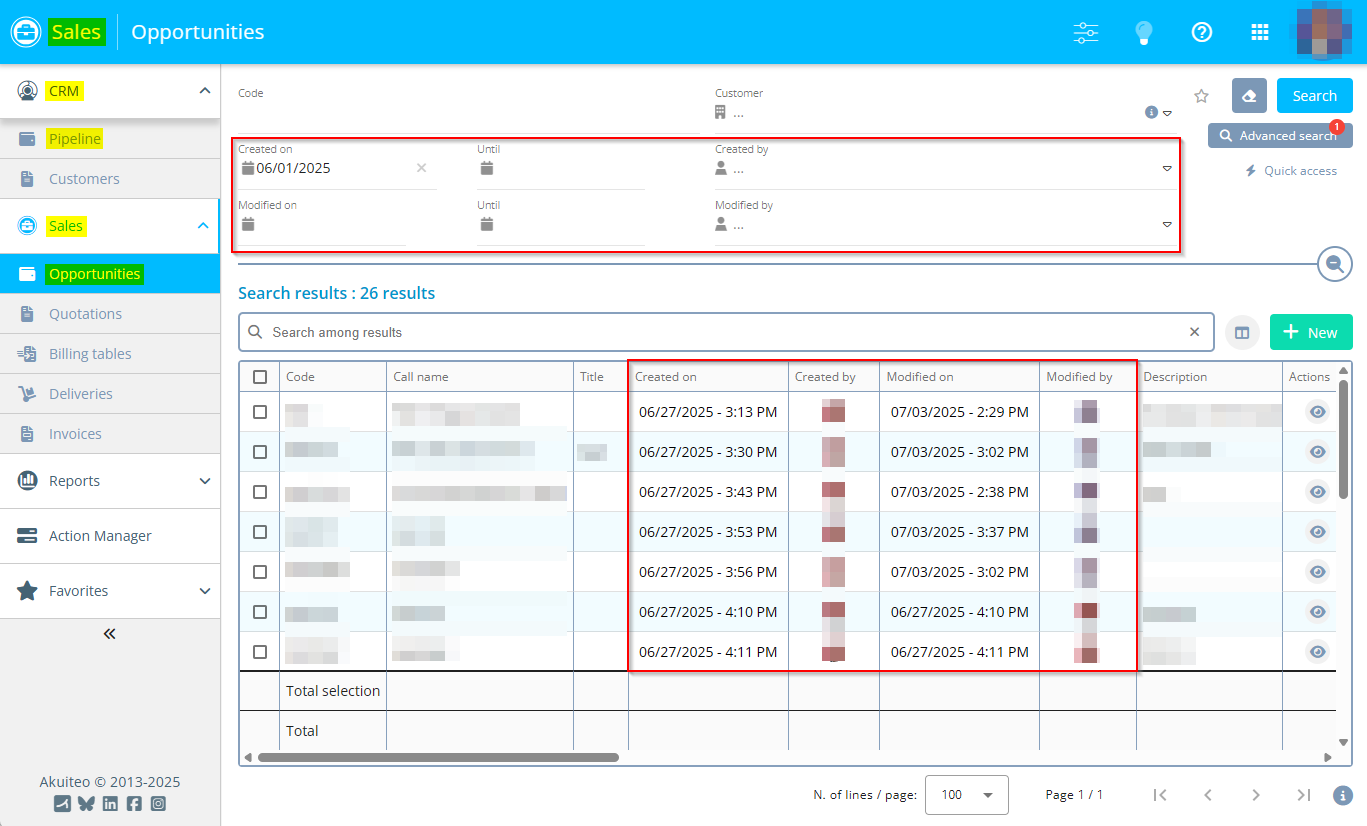
In the advanced search window, those criteria are located in a new Traceability tab.
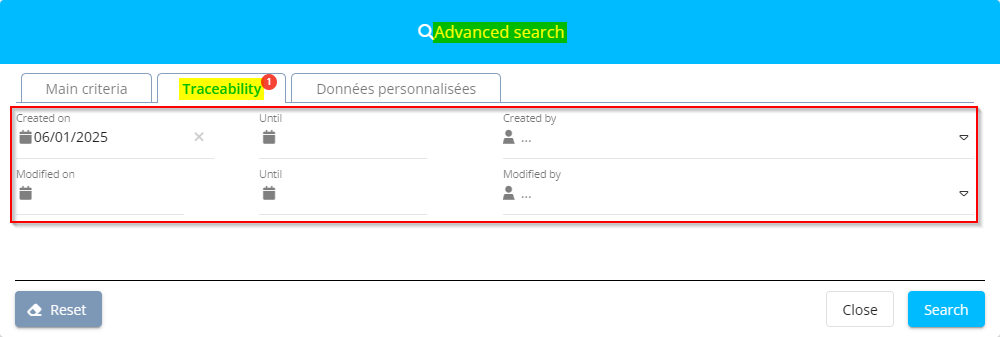
Opportunities: Customer tab added to the advanced search screen
| DMF |
0102** PROSPECTING OPPORTUNITIES * |
The Customer tab is now available in the opportunities advanced search screen (Sales Portal > Sales > Opportunities).
It groups the following search criteria:
- Customer type;
- Customer account manager;
- Customer sales manager;
- Customer family;
- Customer sub-family;
- Sector.
These criteria are also available in quick access.
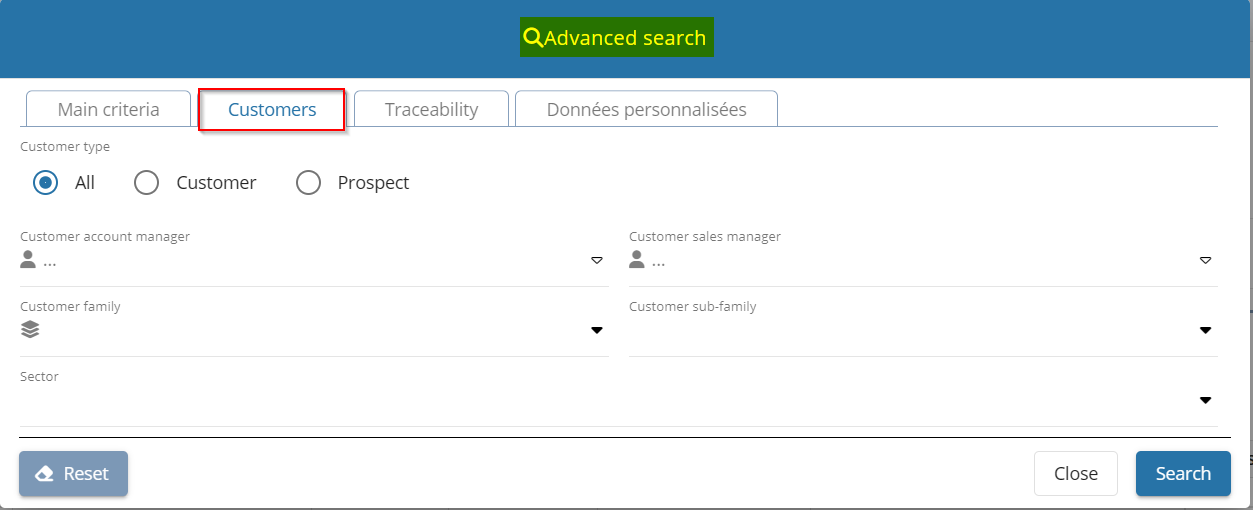
Opportunities: Shortcut to the main contact record sheet added
| DMF | 0102** PROSPECTING OPPORTUNITIES * |
On an opportunity (Sales Portal > CRM module > Pipeline or Sales module > Opportunities), when the Main contact field is specified, the  icon has been added to the right of the field and allows you to open the contact record sheet in a new tab. This icon is visible on an existing opportunity record sheet as well as when creating a new opportunity.
Displaying the icon requires the DMF 160405 TOOLS CONTACTS SEARCH.
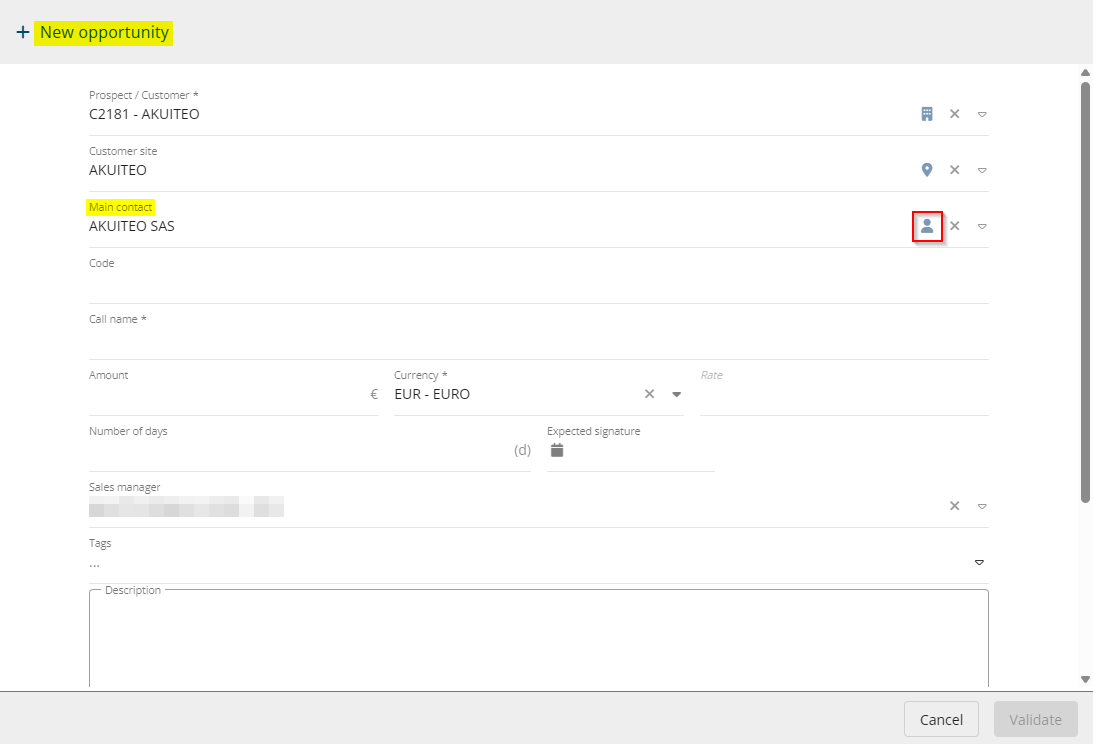
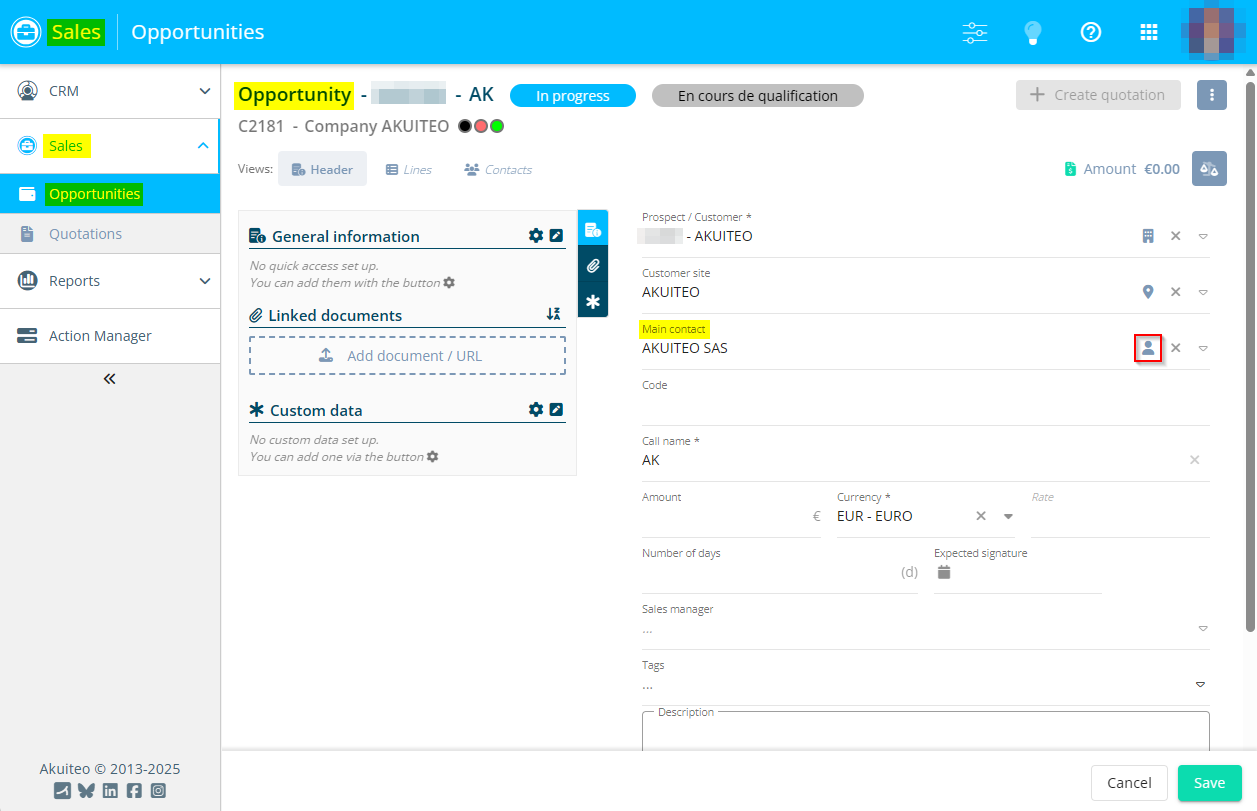
Opportunités : Améliorations apportées aux champs Famille d'affaire, Sous-famille d'affaire et Sous-famille 2
| DMF | 0102** PROSPECTING OPPORTUNITIES * |
Project family, Project sub-family and Sub-family 2 allows you to organize customers and projects according to some criteria and create dependencies between them. These families and sub-families are set up from Tools > Setup > General setup > Projects, in the menus:
- Project families;
- Project sub-families;
- Project sub-families 2.
Before, the Project family, Project sub-family and Sub-family 2 fields were specified independently of each other in the Sales Portal:
- in creation of an opportunity (Sales > Opportunities and CRM > Pipeline);
- in modification of an opportunity (Sales > Opportunities > Header view > My quick accesses section).
From now on, help lists of these fields only display the families and sub-families for which the Project type match the customer or prospect type (People > Customers/Prospects > Finances tab > Accounting parameters section) or all types:
- for a customer/prospect identified as Internal, only the families, sub-families and sub-families 2 of Internal or All type will be displayed.
- for a customer/prospect identified as External, only the families, sub-families and sub-families 2 of External or All type will be displayed.
A filter is also applied:
- If the Project family is specified, then the help list of the Project sub-family field will only display sub-families matching the Main project family specified of without any project family specified in its set up.
- If the Project sub-family is specified, then the help list of the Sub-family 2 field only display sub-families 2 matching the Project sub-family specified or without any project sub-family specified in its set up.
Note
The Project sub-family field can automatically be specified if the Sub-family 2 field is specified and if there is a link between them, which means, if the Project sub-family is specified in its set up. In the same way, the Project family field can automatically be specified if the Project sub-family field is specified and if there is a link between them, which means, if the Main project family is specified in its set up.
Help lists have also been added for the Project family, Project sub-family and Sub-family 2 fields in the Sales Portal:
- in creation of an opportunity (Sales > Opportunities and CRM > Pipeline);
- in modification of an opportunity (Sales > Opportunities > Header view > My quick accesses section).

This help list is displayed in a window accessible by pressing F2 from the relevant field: Search results are displayed in a table. A search area is available at the top of the window and allows you to specify the criteria:
- Label;
- Code;
- Description.
Select the result desired then click on Select at the bottom right of the window.

Last, the Description field has been added to the setup menus and in the search results of the Project family, Project sub-family and Sub-family 2 (see Project families and Project sub-families).
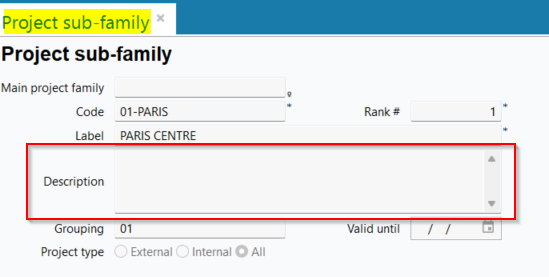
Opportunités : Possibilité de renseigner les données personnalisées dans les lignes d'opportunités
| DMF | 0102** PROSPECTING OPPORTUNITIES * |
Previously, custom data on opportunity lines (Desktop Application > Tools > Setup > General setup > Sales > Custom sales opportunity line data) were not available in opportunity line forms in the Sales Portal > Sales > Opportunities.
Now, the Custom data section has been added to opportunity line forms.
Click on to add fields to the relevant section in order to specify them. Fields added to the relevant section will be displayed again when creating other opportunity lines.
Click on to display all custom data in a window and specify them if needed.
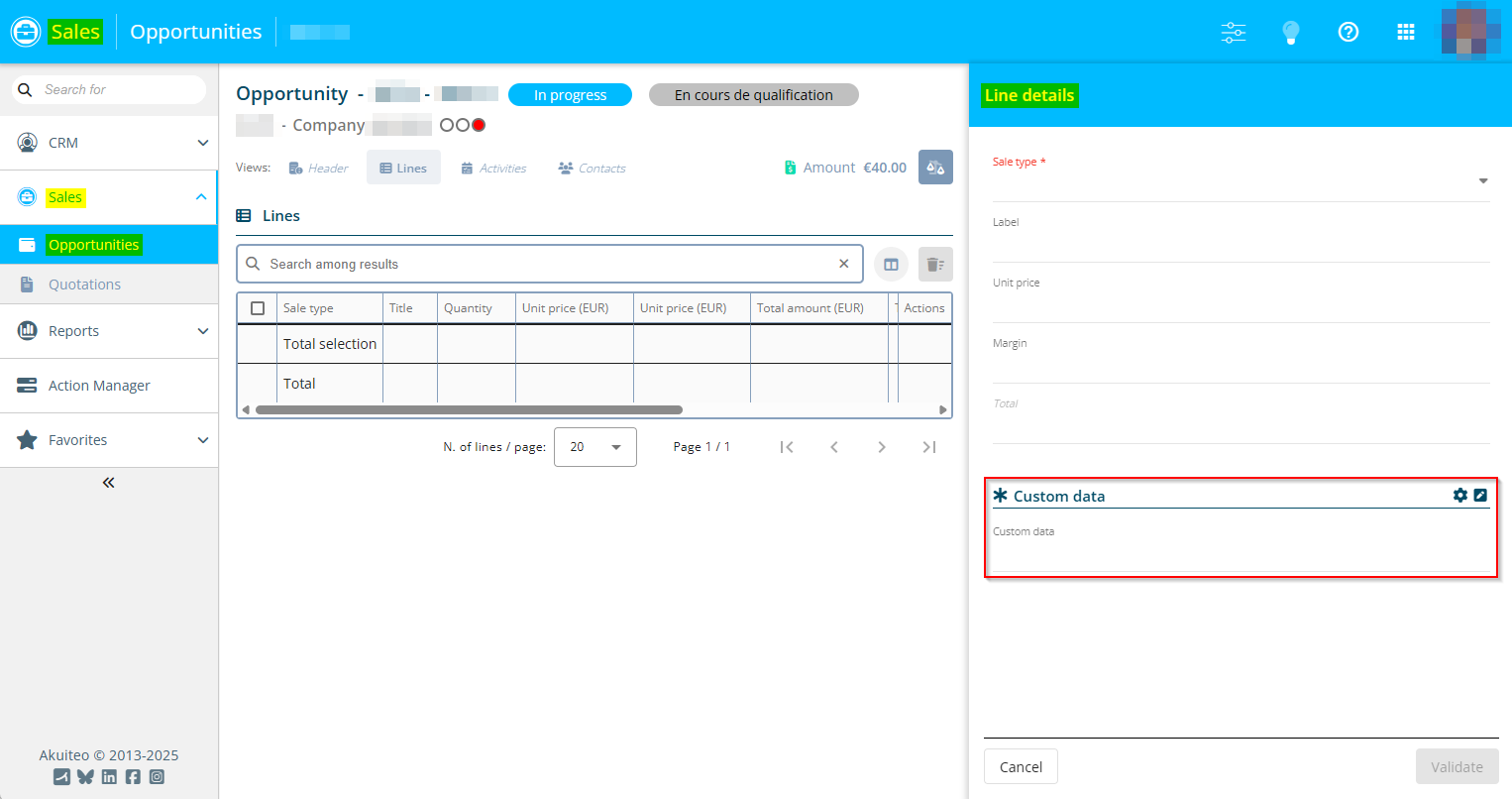
The columns corresponding to custom data have also been added to the Lines view of opportunities.
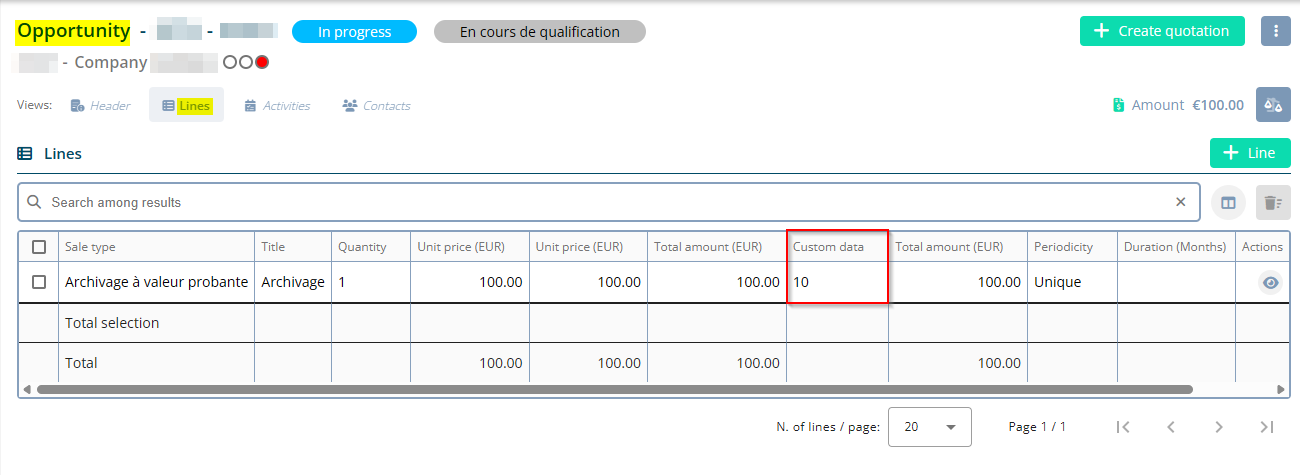
Opportunities: Default pipeline taken into account when creating opportunity
| DMF | 0102** PROSPECTING OPPORTUNITIES * |
An opportunity can be created from:
- The Sales Portal > CRM > Pipeline, or
- The Sales Portal > Sales > Opportunities.
Before, when creating an opportunity, the Pipeline field was empty by default and the user had to select it from the help list.
Now, the pipeline with the By default box checked in its setup (Tools > Setup > General setup > Sales > Pipelines) is taken into account in the creation form of the pipeline.
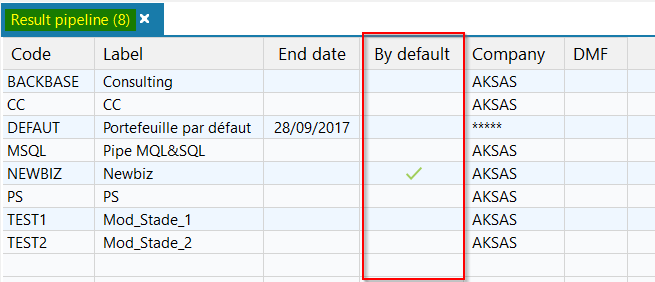
So, from:
- CRM > Pipeline, the default pipeline is specified by default in the Pipeline field. However, when a Pipeline is specified in the search criterion then this pipeline is specified by default in the creation form of the opportunity.
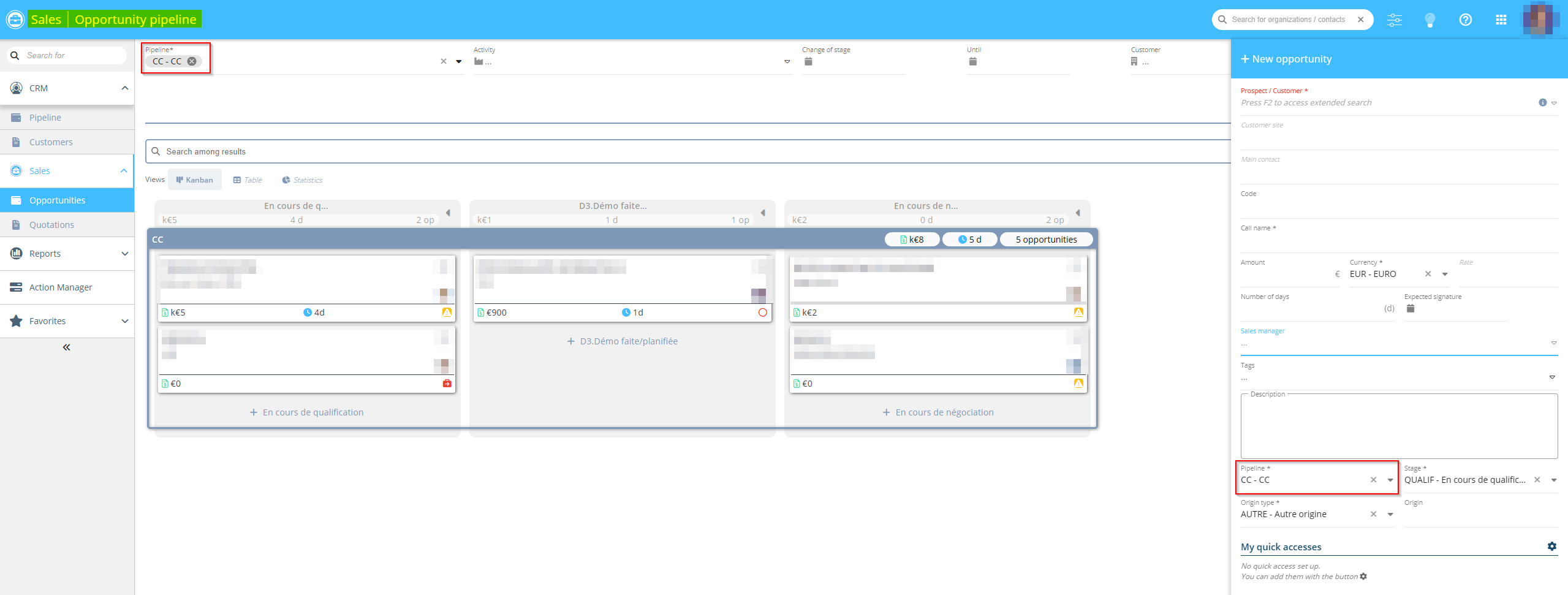
- Sales > Opportunities, the default pipeline is specified by default in the Pipeline field;
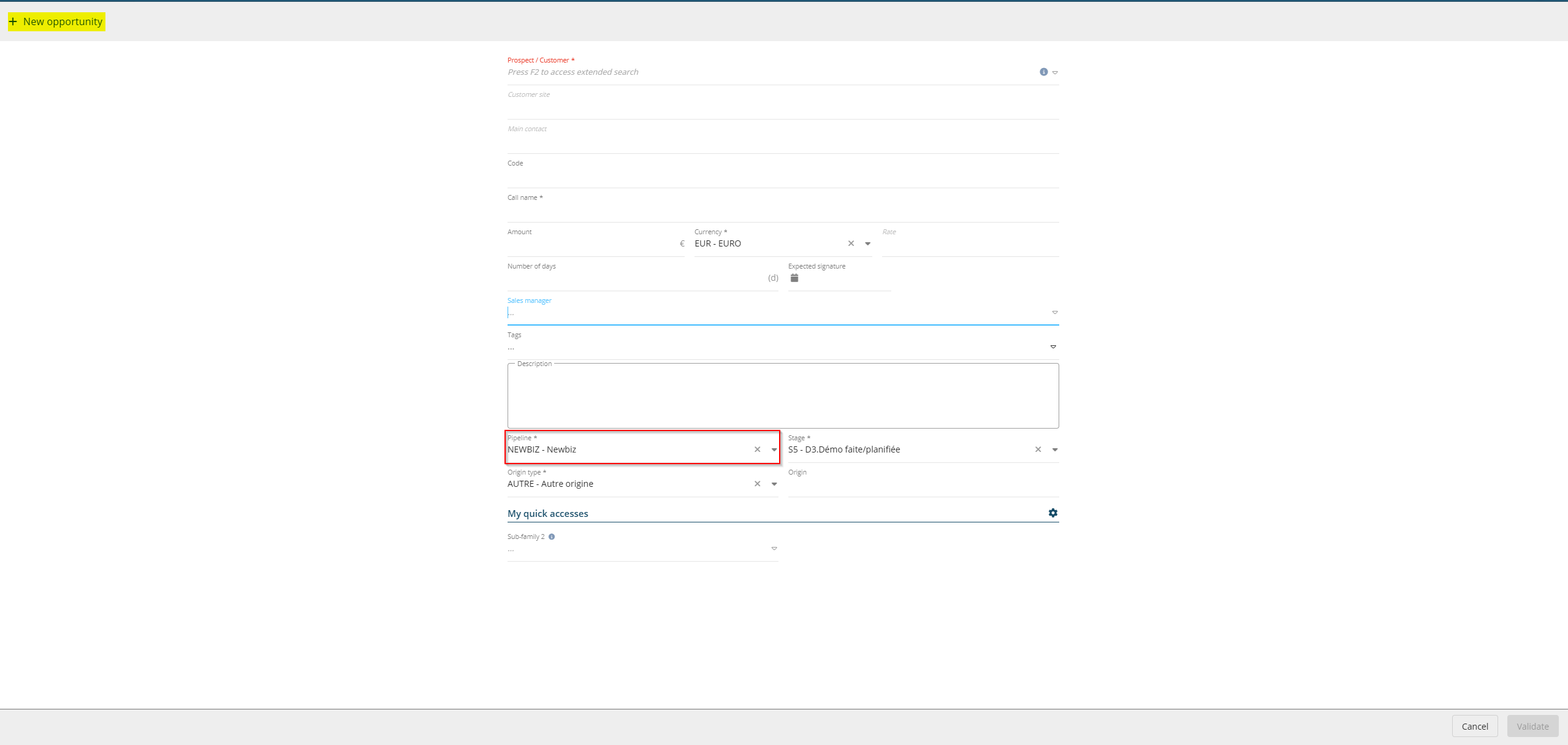
Prospects: Ability to create a prospect without going through an opportunity
| DMF | 0101** PROSPECTING PROSPECTS * |
Previously, in the Sales Portal, a prospect could only be created from an opportunity being created or modified (CRM module > Pipeline or Sales module > Opportunities) by specifying the prospect's name in the Prospect / Customer field and then clicking on  from that field.
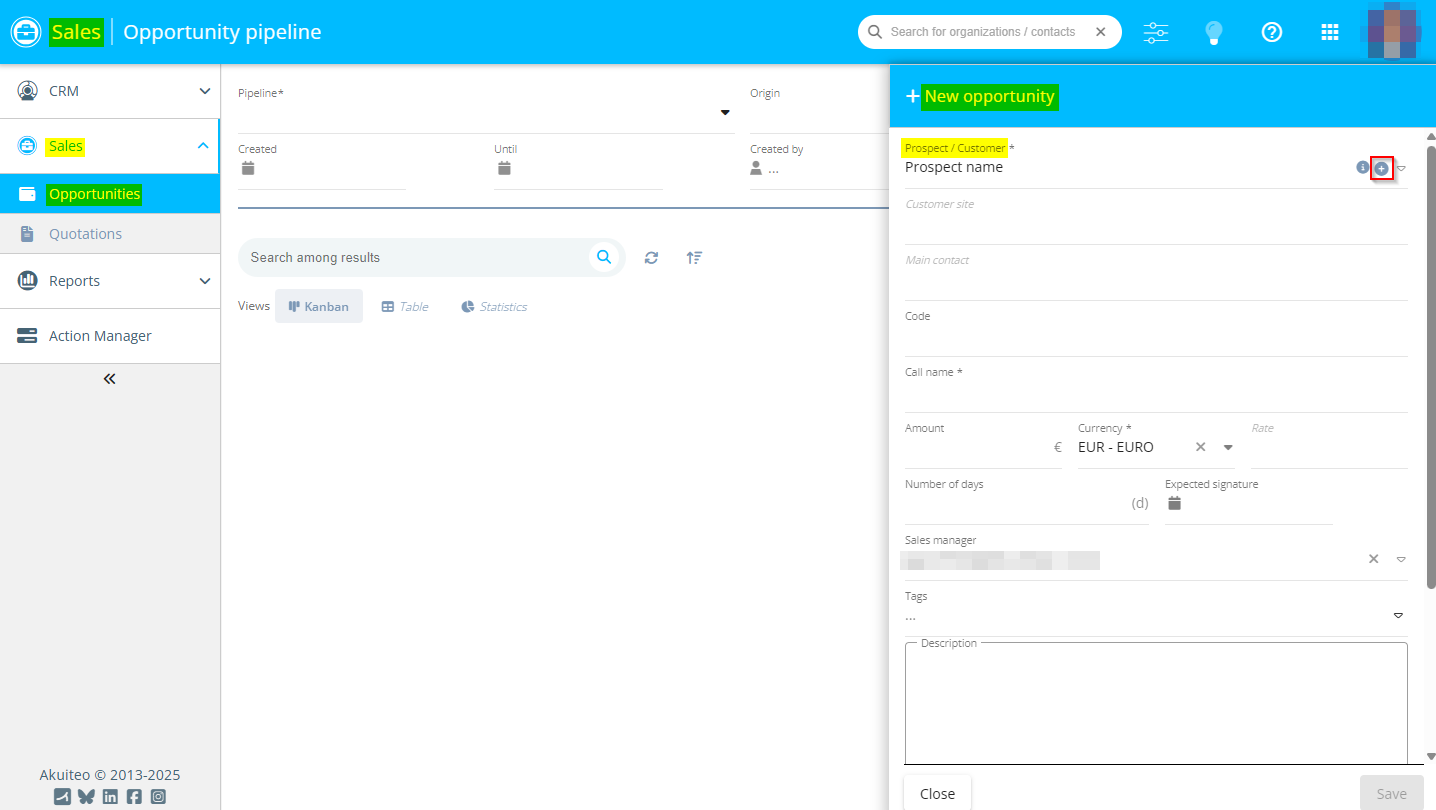
Now, a prospect can also be created from the CRM module > Customers. The + Prospect button has then been added from the search screen and requires the DMF 010101 PROSPECTING PROSPECTS NEW.
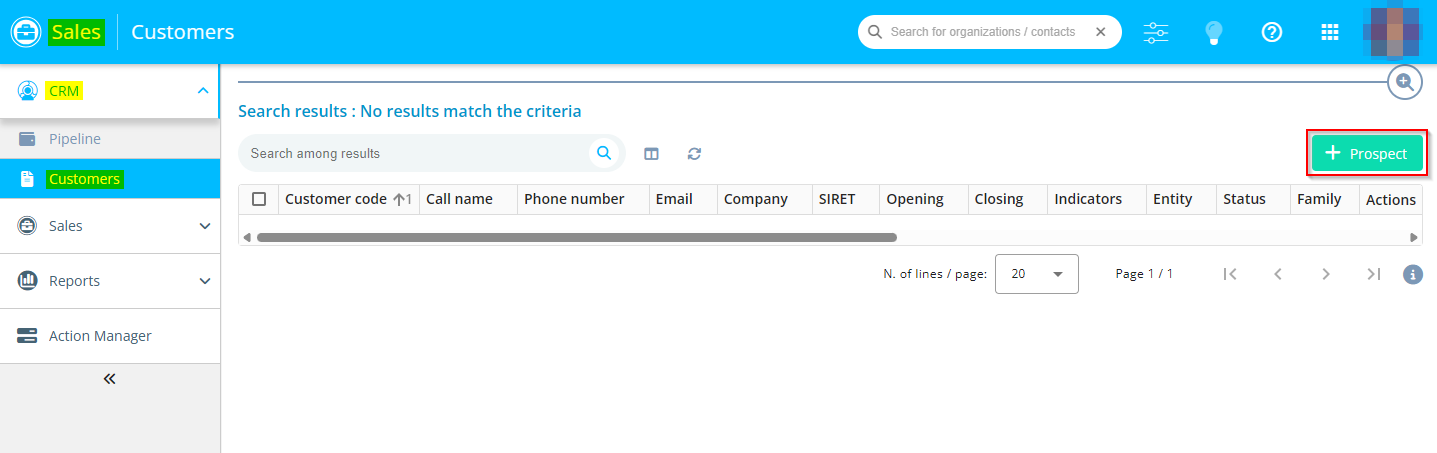
The button opens a form that allows you to specify the prospect's information and validate the creation of the prospect.
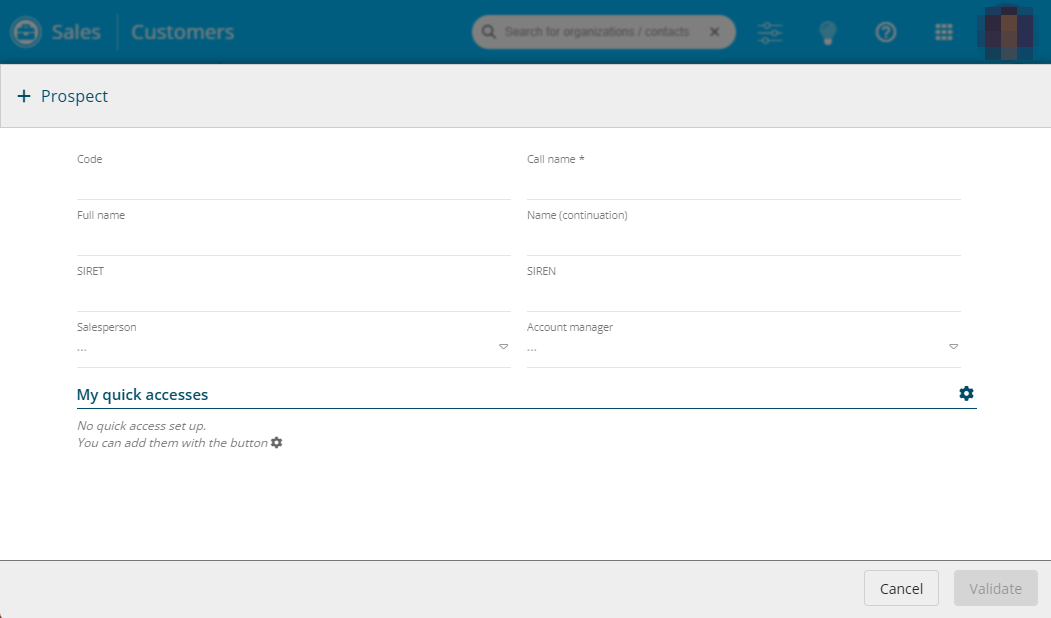
People
Customers: Possibility to exclude an invoice from a direct debit from the customer record sheet
| DMF | 0201** SALES CUSTOMER * |
The customer record sheet has a tab dedicated to the customer arrears (People > Customers/Prospects then Edit > Accounting view > Arrears tracking). Before, it was not possible to see in this tab the invoices excluded from the next direct debit. Furthermore, it was not possible to exclude an invoice from the next direct debit from this tab.
Now, the Exclude from the direct debit box has been added in the arrears tracking tab > Invoices section then selection of an invoice > Details section. When this box is checked, the invoice is excluded from the direct debit to come.
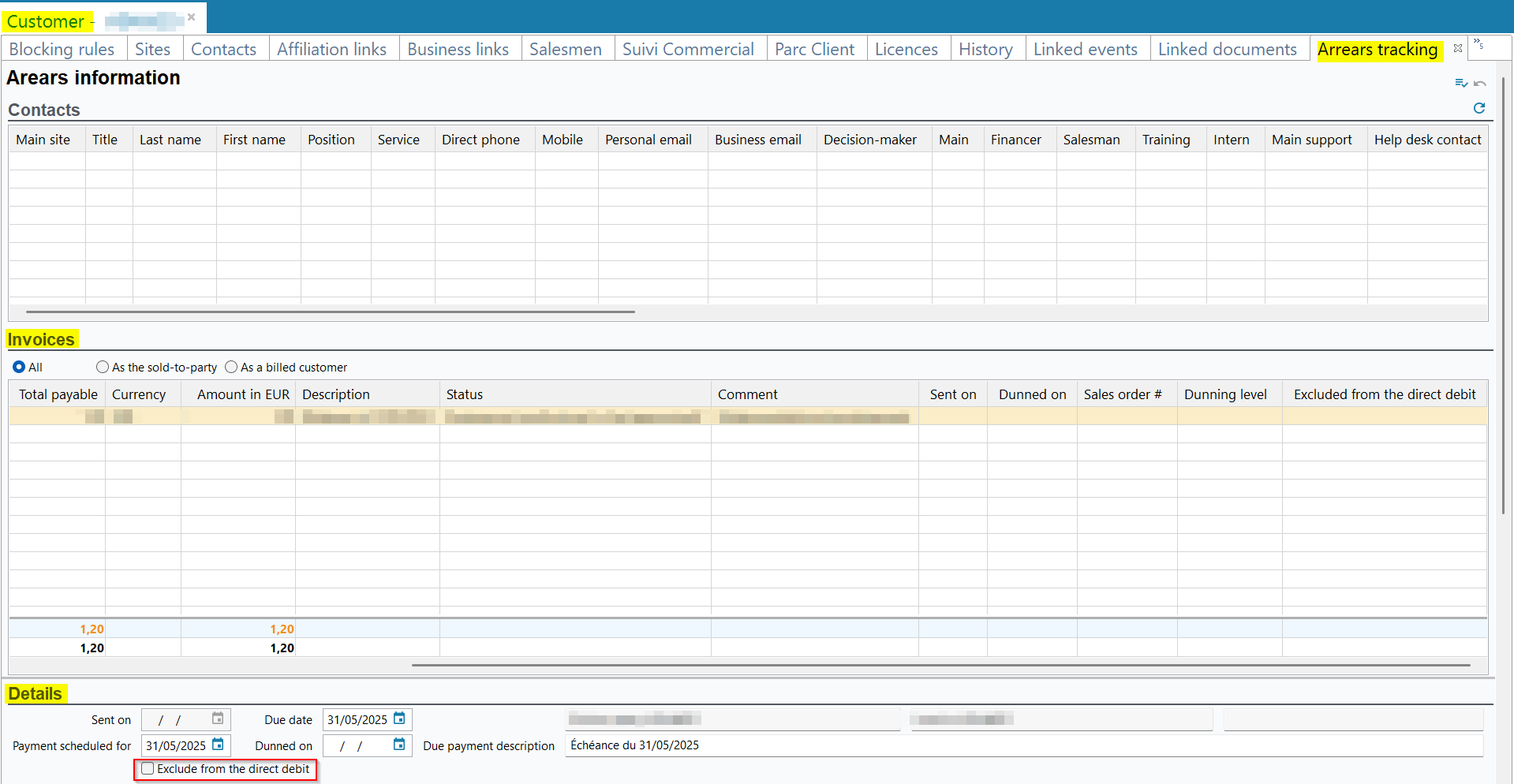
In addition, the Excluded from the direct debit column has been added to the invoices table of the arrears tracking > Invoices section and indicates the invoices excluded from the direct debit to come.
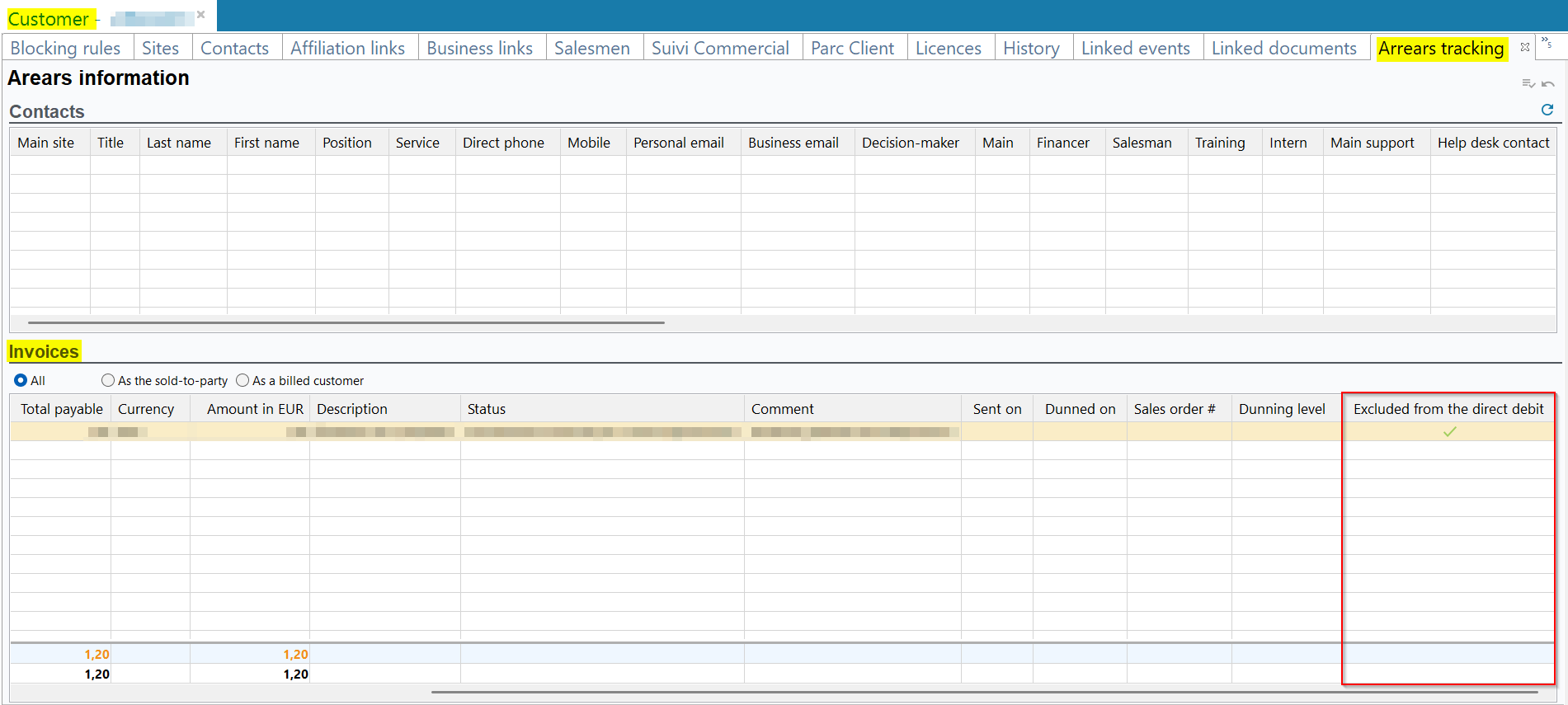
Employees: Modifications on employee record sheet
| DMF | 1608** TOOLS RESOURCES * |
The resource record sheet (People > Resources(Employees and Subcontractors)) gathers all information about the employee in the company.
Before, the Values section of the employee record sheet (Employee tab) grouped all the fields about the cost of the employee and the valuation applied for the sub-contracting.
From now on, the following fields have been moved to a new Pre-tax daily unit price valuation for subcontracting section:
- Internal subcontracting - Internal project;
- Internal subcontracting - External project;
- Group subcontracting - Internal project;
- Group subcontracting - External project.
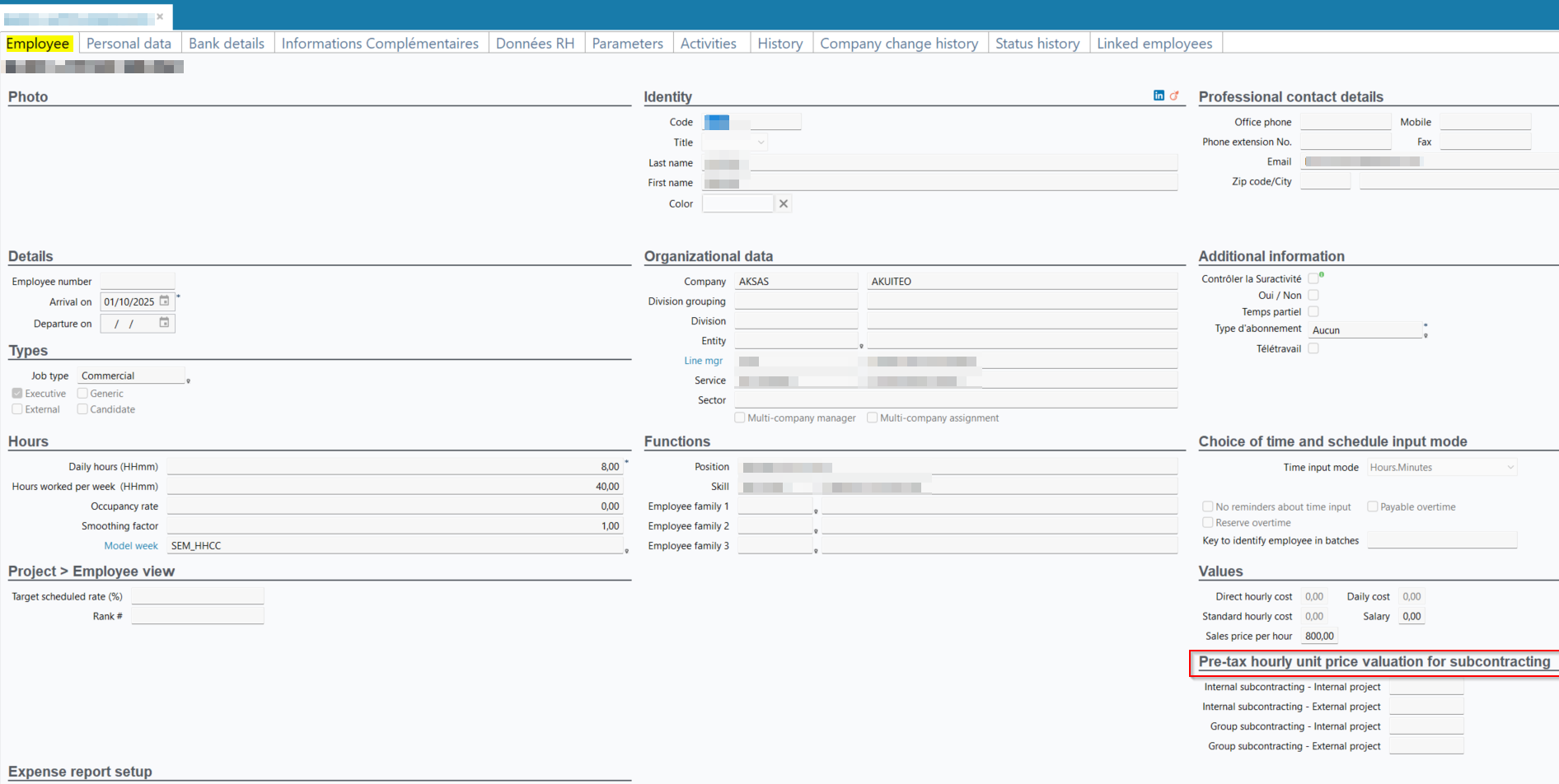
These fields have also been moved to a new Pre-tax daily unit price valuation for subcontracting section in the batch modification window of the resources ( at the right of the search results).
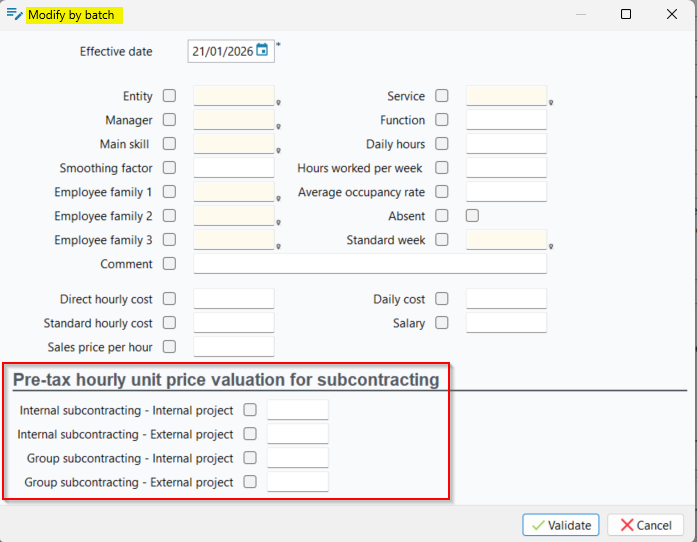
On the other hand, the Pre-tax unit price valuation for subcontracting section (Status history tab) has been renamed Pre-tax daily unit price valuation for subcontracting.
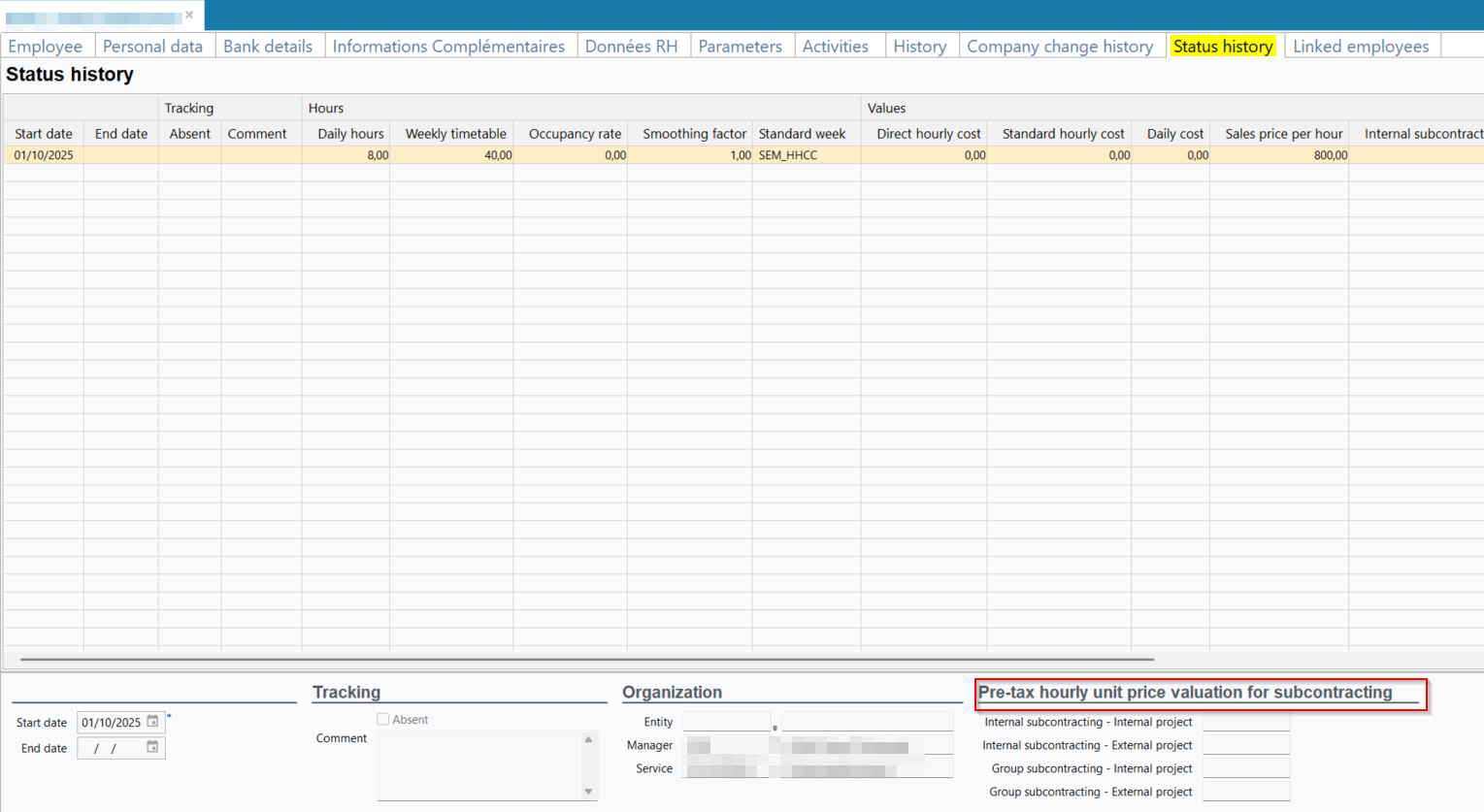
Leave requests: Parameter added to the ABS_FIN_BYDUREE management rule
| DMF |
1602** TOOLS LEAVE REQUESTS MANAGEMENT LEAVE REQUESTS MANAGEMENT |
The ABS_FIN_BYDUREE management rule (Desktop Application > Tools > Setup > General setup > Specific parameters > Management rules) allows you to automatically calculate the end date of a leave request (Desktop Application > Favorites > My leave requests) from the start date and the duration. The End date field is disabled and cannot be specified manually.
From now on, the Allow input of the end date parameter has been added to the set up of the management rule and allow you to manually specify the end date of the leave request.
When the parameter is on:
- Yes, the End date field is available and can be specified manually.
- No, the default behavior is kept.
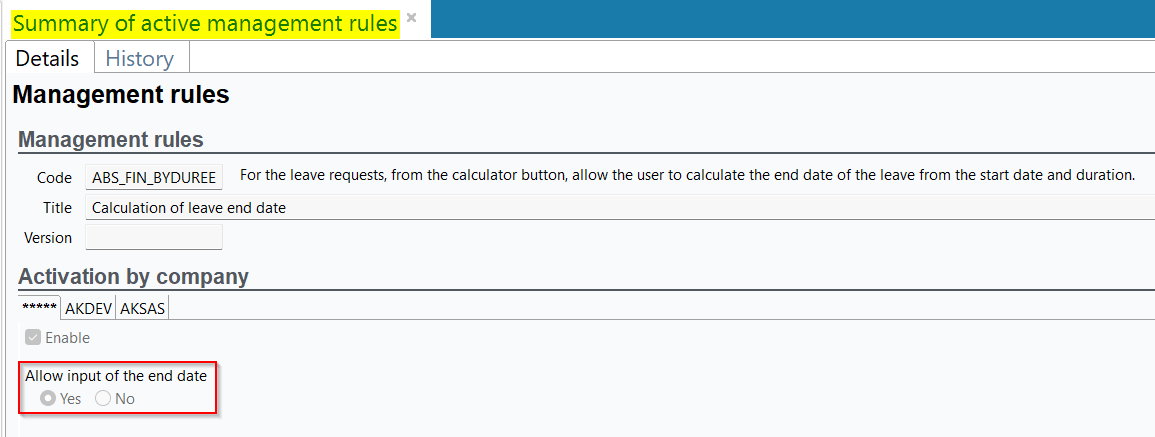
Transverse
Purchases and Sales: Partitioning disabled for certain fields and criteria
| DMF |
02**** SALES * SALES 04**** PURCHASES * * |
Previously, for the fields listed below and their respective search criteria, the available resources were filtered based on the partitioning of the logged-in user.
From now on, for these fields and criteria, it is possible to select from all company employees and all multi-company managers, without applying any filter based on the logged-in user's partitioning.
The relevant fields are located in the Header tab > General information section of the relevant objects.
The relevant criteria are located in the Main criteria tab of the search screen of the relevant objects.
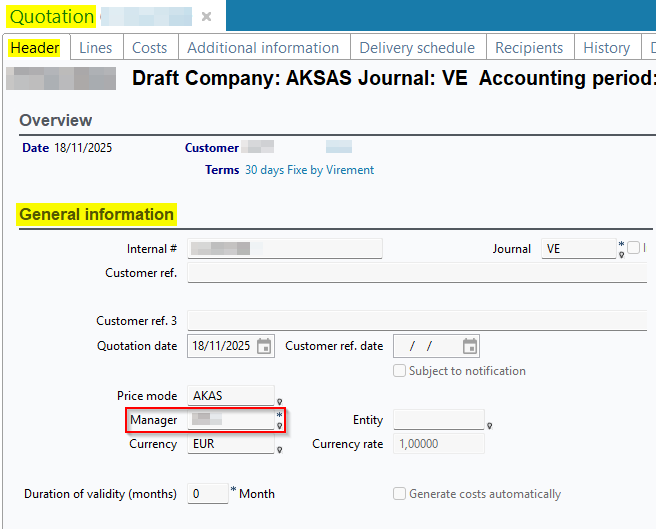
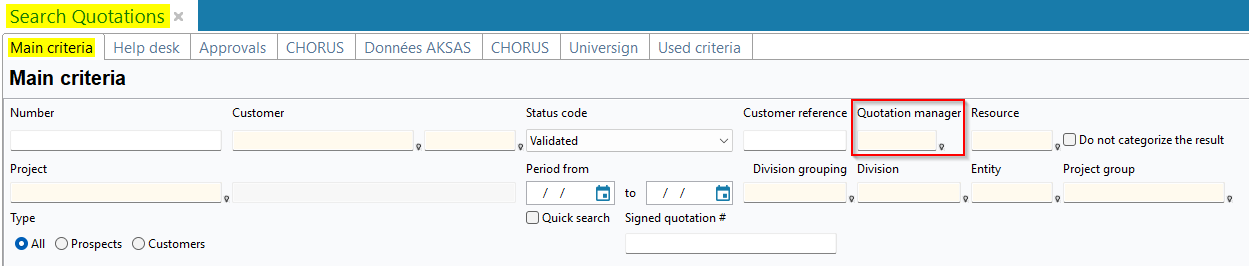
Sales objects
- Quotations (Management > Sales > Quotations):
- Field: Manager
- Search criterion: Quotation manager
- Orders (Management > Sales > Orders):
- Fields: Manager and Sales person
- Search criteria: Sales order mgr. (Lines section) and Salesman
- Billing schedules (Management > Sales > Billing schedules):
- Field: Mgr
- Deliveries (Management > Sales > Deliveries):
- Field: Manager
- Search criterion: Manager
- Sales invoices (Management > Sales > Invoices):
- Field: Mgr
- Search criterion: Manager (Main criteria section)
Purchase objects
- Quotes (Management > Purchases > Quotes);
- Fields: Purchaser and Requester
- Search criteria: Purchaser and Requester
- Purchase orders (Management > Purchases > Purchase orders):
- Fields: Purchaser and Requester
- Search criteria: Purchaser and Requester
- Purchase billing schedules (Management > Purchases > Supplier billing schedule):
- Field: Mgr
- Receptions (Management > Purchases > Receptions):
- Field: Purchaser
- Search criterion: Purchaser
- Purchase invoices (Management > Purchases > Invoices):
- Field: Purchaser
- Search criterion: Purchaser
Actions: New Linked third-parties section available in the details of an action
| DMF | 160104 TOOLS EVENTS SEARCH |
Actions are tasks that the employees must do during their working hours. They can be created and modified from the Action Manager menu and from the Sales Portal:
- CRM > Customers > Actions view;
- CRM > Customers > Contacts > Actions view;
- Sales > Opportunities > Actions view;

Now, the Linked third-parties section is available from the details of an action and allows you to manage the following third-parties types:
- Supplier,
- Supplier site,
- Customer,
- Customer site,
- Contact,
- Employee.
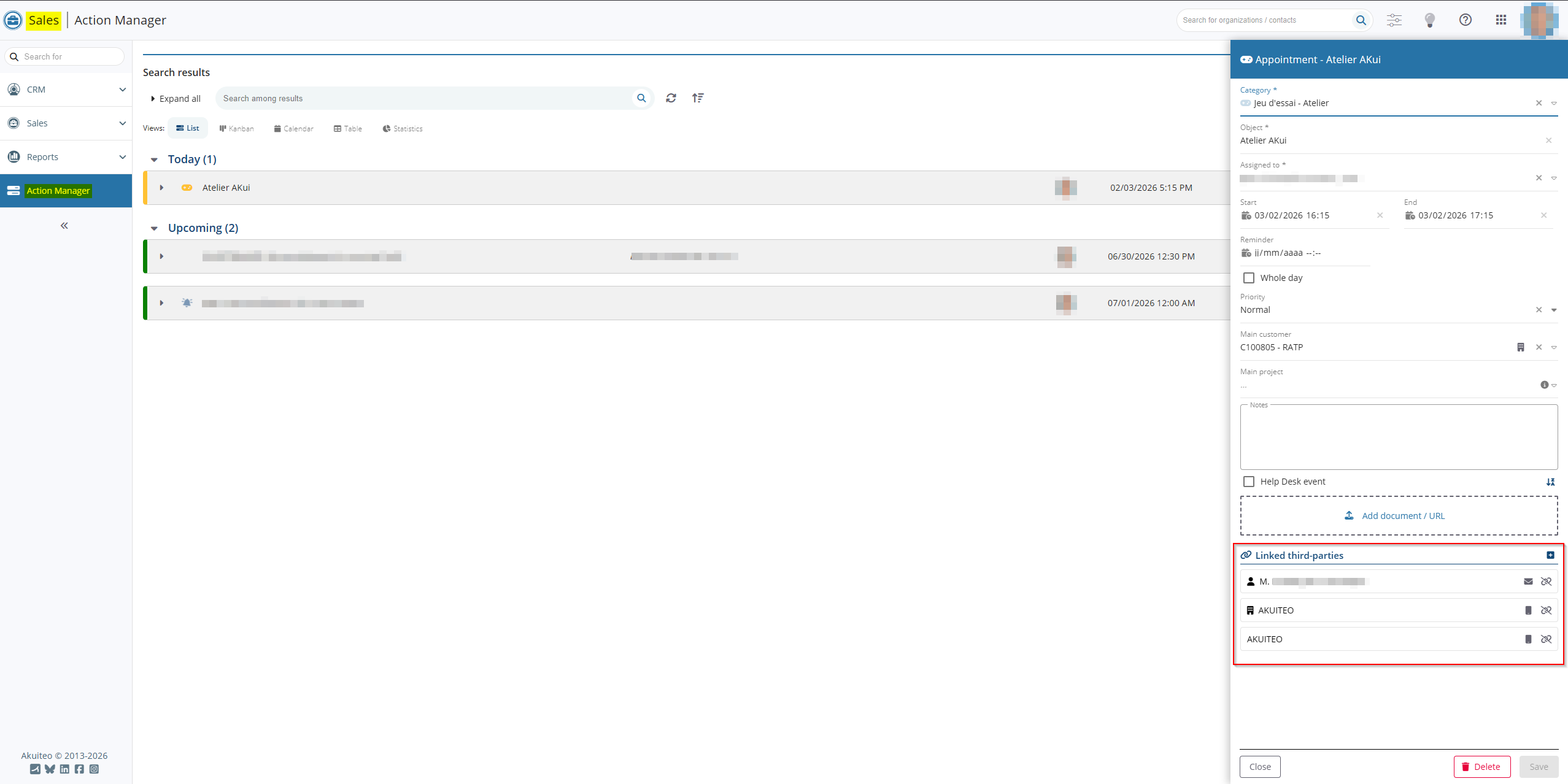
Various actions are available for the third-parties:
- Link a third-party;
- Unlink a third-party;
- Call a third-party;
- Send an email to a third-party.
Projects, Customers and Prospects: Customer group added
| DMF |
0101** PROSPECTING PROSPECTS * 0201** SALES CUSTOMER * |
The customer group are all the companies belonging to the same person.
From now on, the Customer group free field has been added to the:
- Customers/Prospects of the Sales Portal > CRM > Customers > Header view > My quick accesses section and the Desktop Application > People > Customers/Prospects > General tab > Identity section;
- Projects (Management > Projects > Main information tab > Customer section) and retrieves the value specified in the linked customer or prospect record sheet.
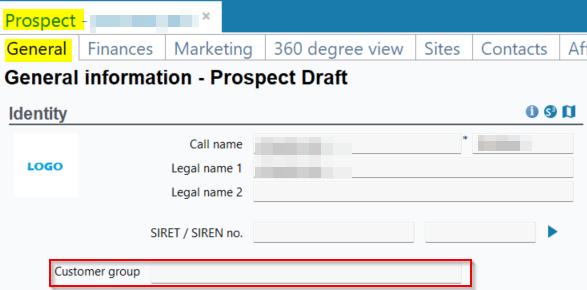
The Customer group has been added as a search criterion and as a column in the search results of the following screens:
- Customers/Prospects of the Sales Portal and the Desktop Application (Main criteria tab > Customer/prospect identity section);
- Projects (Main criteria tab > Identity section);
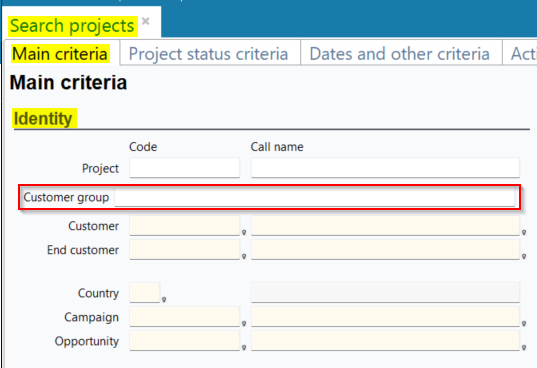
The Customer group search criterion has also been added to:
- Project in Project view and Employee view in order to filter displayed scheduled items.
- Sales Portal > CRM > Pipeline in order to filter displayed opportunities of the selected pipeline.

Desktop Application: Possibility to copy the content of a cell
| DMF |
From the search results of the Desktop Application, it is possible to copy to the clipboard the whole line by doing a Ctrl + C.
From now on, from all tables (for example a table of search results or the table of the lines of an object of the Desktop Application) it is possible to copy to the clipboard the value of a cell in particular.
From the relevant line, place the cursor on the cell to copy then right-click on it and select Copy cell.
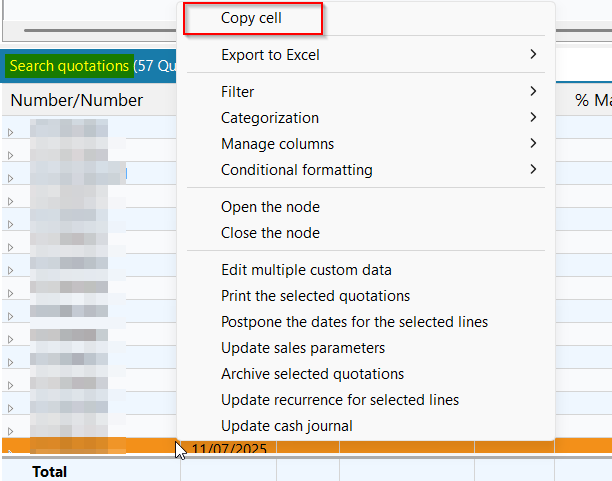
Approvals: Improvements made to notification emails and quotation approvals
| DMF |
0202** SALES QUOTATIONS * 0618** PROJECTS APPROVALS * 1909** WEB PORTAL APPROVALS APPROVALS |
Link added in notification emails
In the advanced rules for approvals of an object type (Desktop Application > Tools > Setup > General setup > Resources and Labor > Approvals > Advanced approval rules tab), when the option Notify approvers by email is enabled, a notification email is automatically sent to approvers when an object requires approval.
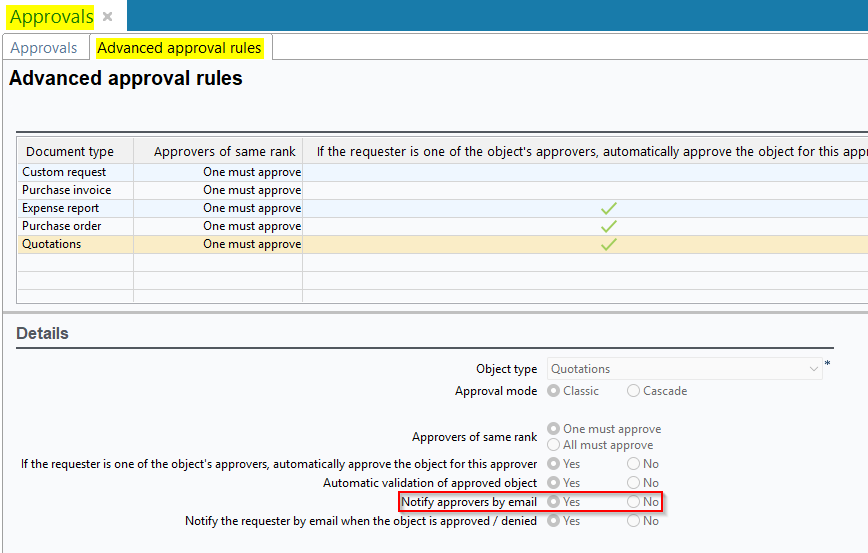
From now on, a link has been added to the notification emails, allowing users to access the Web Portal > Manager module > Approvals.
If the feature flag Portail ventes Domain > Devis Label is enabled and the notification relates to a quotation, the link redirects users directly to the quotation sheet in the Sales Portal > Sales > Quotations.
Important
Links to the Web Portal and/or the Sales Portal must be initialized from the Administration console. For more information, refer to Introduction to the Launcher.
For more information, refer to Managing advanced approval rules.
Automatic approval request when attempting to validate a quotation
When approvals are required for the quotation (Sales Portal > Sales > Quotations) and the user attempts to validate it using the Validate button at the top of the screen, a message indicates that validation is not possible.
From now on, in this situation, if the user has the DMF 061807 PROJECTS APPROVALS REQUEST, validation is still not possible, but the approvals are requested automatically.
For more information, refer to Validating a quotation.
Accounting and Banking: Possibility to restrict access to a journal with a DMF
| DMF |
07**** ACCOUNTING * * 08**** BANKING * BANKING |
Before, only the access to the purchase and sales journals could be restricted to a DMF (Tools > Setup > General setup > Accounting > Purchasing journals and Sales journals). This action restrict the access to these journals and the creation of data on them.
From now on, the DMF for access to the journal field has been added to the setup of the following journals:
- Analytical journals;
- Transaction journals;
- Subscription journals;
- Simulation journals;
- Cash journals.
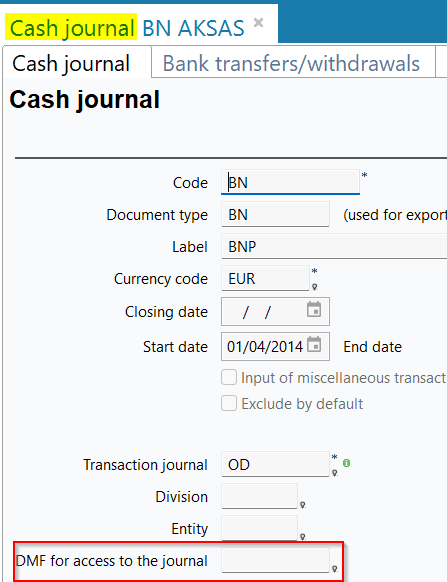
Thus, only the users with the matching DMF can access and create data on the relevant journal. This evolution applies to the following menus and features:
- Management;
- Sales > Invoices > Booked invoice then Lines tab > right-click from the lines > Reassign the analytical areas of the selected lines / Change the sold item for the selected lines.
- Imports then Accounting > Entries >
EC_CODE_JOURNALcolumn;
-
Banking;
- Customer receipts;
- Supplier receipts;
- Undefined third party receipts;
- Customer disbursements;
- Supplier disbursements;
- Undefined third party disbursements;
- Payables;
- Receivables;
- Expected cash movements;
- Banking > Batch outputs and processing:
- Charge multiple cash movements;
- Monthly total of bank movements;
- List of customer receipts over a period;
- Payables > Main criteria tab > Company section > Journal field and right-click from the search results > Multiple drafts payment;
- Batch accounting;
- Receivables on due date > 1. Enter into receipts / 2. Generate withdrawal order file / 3. Print waybill / 4. Mark as paid;
- Advance payments;
- International advance payments;
- Bank transfers;
- International bank transfers;
- Search currency transfers for booking in euros;
- Direct debits.
- Accounting > Entries > New entry;
- Accounting > Reports;
- Trial balance;
- General ledger;
- Journals;
- Opening journal; Financial position statement reports (income statement, balance sheet, etc.) > Filters section in the search screen;
- Accounting > Periodic works;
- Closing of an accounting period > Generation of carry-forward / Definitive closing;
- Journal closing > Start closing on a journal / Start closing on all journals;
- Reverse the revision entries;
- Allocation of income to the period;
- Allocation of expenses to the period;
- Distribution of costs centers over profit centers;
- Doubtful debt management > Right-click from a selection of search results > Validate provision; Balance revaluation (requires the
FACT_EQ_DEVISE_ECR
- Accounting > Budgetary accounting > Income and expenses budget tracking;
- Tools > Setup > Batches > Batch creation and modification > GenericImportBatch batch template >
MODELE_IMPORTparameter > Entries.
Demandes, Devis, Opportunités et Contacts : Possibilité d'ouvrir une fiche client depuis une pièce liée via un hyperlien
| DMF |
0101** PROSPECTING PROSPECTS * 0102** PROSPECTING OPPORTUNITIES * 0201** SALES CUSTOMER * 0202** SALES QUOTATIONS * 1413** HELP DESK ISSUES * 1426** HELPDESK SIMPLIFIED ISSUE * 1604** TOOLS CONTACTS CONTACTS |
Now, so it is easier to access a customer or prospect record sheet (Sales Portal > CRM > Customers), a hyperlink is positioned on the customer or prospect name in the following objects:
- Issue (Help Desk Portal > Issues);
- Contact (Sales Portal > CRM > Customers > Contacts view);
- Opportunity (Sales Portal > Sales > Opportunities);
- Quotation (Sales Portal > Sales > Quotations).
When clicking on the hyperlink, the customer or prospect record sheet opens in a new tab of the browser.
This action requires the 010104 PROSPECTING PROSPECTS SEARCH DMF.
Note
When the Portefeuille feature flag is disabled, the customer or prospect record sheet opens in the old CRM module > Organisations & Contacts.
Mileage expenses: Distance recalculated after modifying the departure or arrival address
| DMF |
1905** WEB PORTAL EXPENSE REPORTS * 5001** MOBILE * * MOBILE EXPENSE REPORTS * MOBILE EXPENSE REPORTS * |
Google APIs are used to make it easier to specify the number of kilometers when creating expenses in expense reports on the new Web Portal > Employee module > Expense reports and Akuiteo Mobile > Expense reports.
When modifying a mileage expense, the number of kilometers is not recalculated automatically after modifying the Departure address or Arrival address. The number of kilometers is only recalculated after using the dedicated feature again:
- Kilometers field >
 icon on the Web Portal;
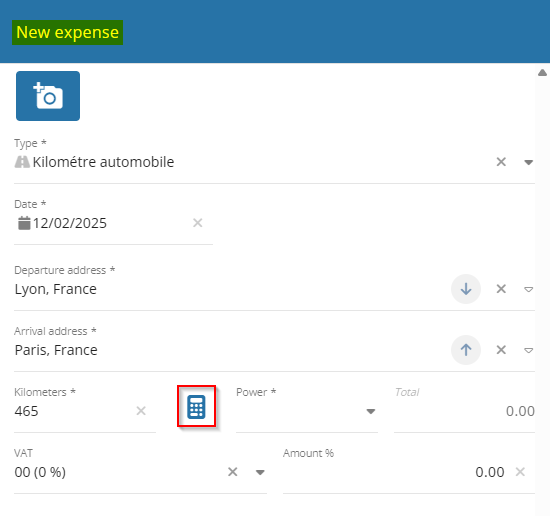
- KM field >
 icon on Akuiteo Mobile.
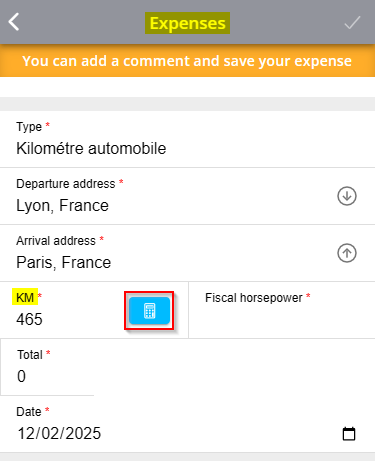
Previously, after modifying an address, the expense could be saved without recalculating the number of kilometers again.
Now, the number of kilometers is emptied automatically after each modification to the departure or arrival address. Therefore, the number of kilometers must be recalculated using the calculation icon before saving the expense.
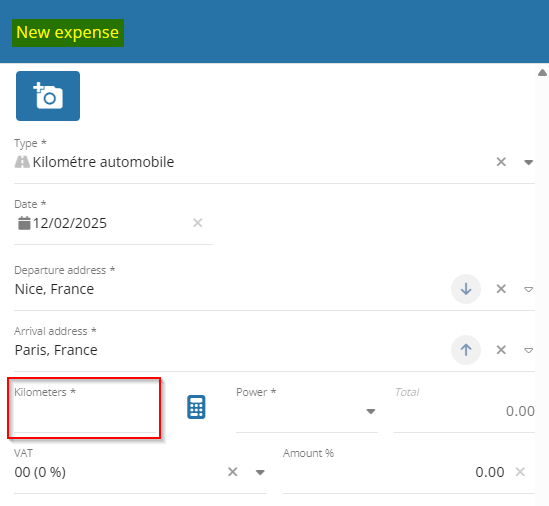
Receipts: Remittance number overwritten when validating the receipt
| DMF |
0801** BANKING CUSTOMER RECEIPTS * 0802** BANKING UNDEFINED THIRD-PARTY RECEIPTS * 0803** BANKING SUPPLIER RECEIPTS SUPPLIER RECEIPTS 0205** SALES INVOICES * |
It is possible to make a remittance on the following management objects:
- Customer receipt (Banking > Customer receipts);
- Undefined third party receipt (Banking > Undefined third party receipts);
- Supplier receipt (Banking > Supplier receipts).
When a check remittance is done, the Remittance field is automatically specified with the value defined in the cash journal used (Tools > Setup > General setup > Accounting > Cash journals > Cash journal tab > Bank details section > Remittance # field). However, it is possible to modify this number in order to specify a temporary number. When this number if modified, this information is also retrieved on the linked entries.
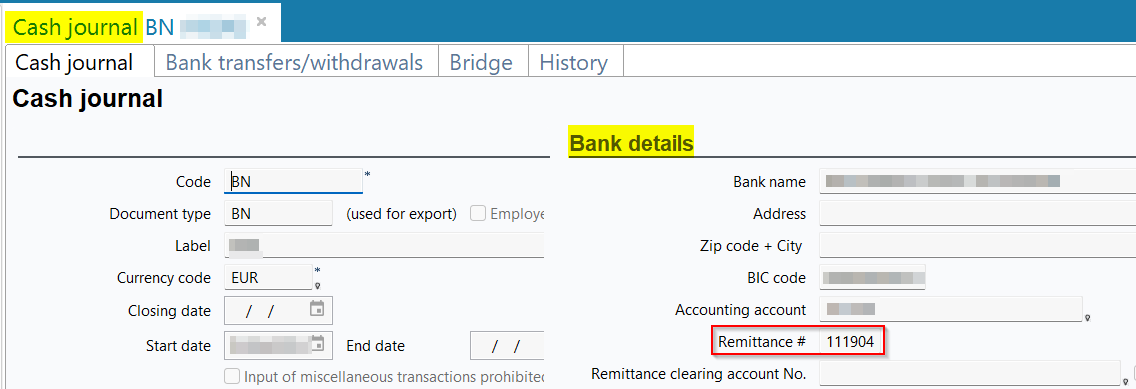
From now on, if a temporary number has been specified in the Remittance field, then the value is overwritten and replaced by the value defined in the cash journal when validating the receipt. The number is also replaced on the linked entries.
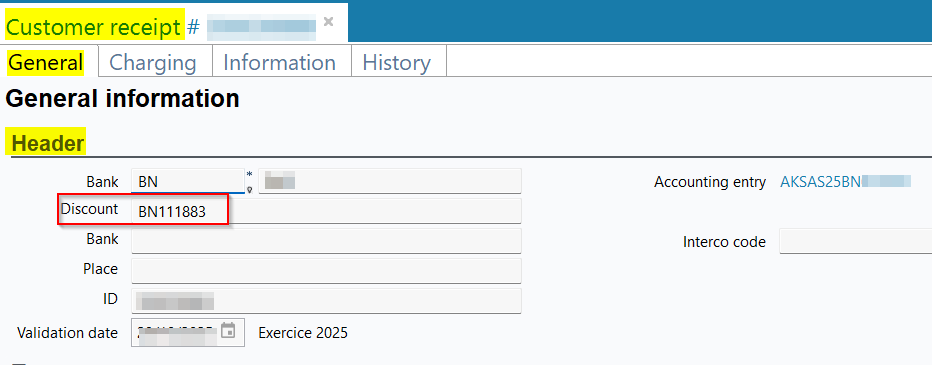
Expanded help lists: Ability to select multiple items
| DMF |
01**** PROSPECTING * * 02**** SALES * SALES |
On web portals, an expanded help list is available for certain fields by pressing F2, which displays the help list in the form of a detailed table.
From now on, for fields that allow multiple selections, it is possible to select several items directly from the expanded help list.

Currently, this change only applies to search criteria.
For single-selection fields, only the selection of one item remains possible.
Actions list: Icon added to open the action form
| DMF | 160904 TOOLS CROSS-FUNCTION WEB TASKS LIST |
From the Action Manager menu, the action can be opened from > Modify.
Now, the icon has been added to allow you to open the action form, in the:
- Kanban view, on the left of the icon;
- List view, on the left of the icon;
- Table view in the Actions column.
The 160102 TOOLS EVENTS MODIFY DMF is required to access this feature.

Action manager: Display improved when sorting by deadline or start date
| DMF | 1609** TOOLS CROSS-FUNCTION * |
From the web portals, in the Action Manager menu in List view, the sorting options available from the  icon to the right of the search field > Sort headers allow you to sort the list of actions.

Previously, when the Deadline sorting option was selected, actions were grouped into the sections Without due date / Late / This week / Upcoming, depending on their deadlines.


Now:
- when the Deadline sorting option is applied, the Today and Next week sections have been added.
- when the Start sorting option is applied, actions are also grouped into the sections Without date / Late / Today / This week / Next week / Upcoming.


Paginated results: Excel export added for results
| DMF |
02**** SALES * SALES 04**** PURCHASES * * |
On the Desktop Application, some search results need to be displayed in a paginated view when there are too many of them, depending on the options defined in the Administration console > Configuration > Results page numbering.
In the pagination warning window, the Export all data to Excel (including lines) feature has been added and allow you to export all search results with their lines. The columns displayed in the search result (from a right-click > Manage columns > Manage columns) are exported identically.
This feature is available for the following searches:
- Quotes (Management > Purchases > Quotes);
- Quotations (Management > Sales > Quotations);
- Sales orders (Management > Sales > Orders) and purchase orders (Management > Purchases > Purchase orders);
- Sales billing schedules (Management > Sales > Billing schedules) and purchase billing schedules (Management > Purchases > Supplier billing schedule);
- Deliveries (Management > Sales > Deliveries);
- Sales invoices (Management > Sales > Invoices) and supplier invoices (Management > Purchases > Invoices).
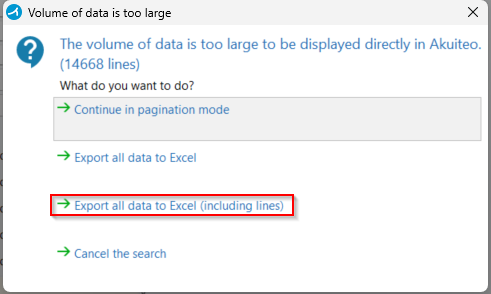
Paginated results: Excel export added for results
| DMF |
02**** SALES * SALES 04**** PURCHASES * * |
On the Desktop Application, some search results need to be displayed in a paginated view when there are too many of them, depending on the options defined in the Administration console > Configuration > Results page numbering.
In the pagination warning window, the Export all data to Excel option exports all search results and all columns. By contrast, exporting via right-click on the results > Export to Excel only exports a single page and does not include all columns.
Previously, that function was not available on all searches where paginated view is available.
Now, the function has been added to the following search results:
- Quotes (Management > Purchases > Quotes);
- Sales orders (Management > Sales > Orders) and purchase orders (Management > Purchases > Purchase orders);
- Sales billing schedules (Management > Sales > Billing schedules) and purchase billing schedules (Management > Purchases > Supplier billing schedule);
- Deliveries (Management > Sales > Deliveries);
- Supplier invoices (Management > Purchase > Invoices).
Scheduled items: New management rule added for the management of scheduled items in hours hundredth
| DMF | 19**** WEB PORTAL WEB PORTAL |
Important
This feature requires the feature flag Transverse Domain > Heures Centiemes Label. To enable it, go to the Administration console > Configuration > Features, enable the Heures Centiemes feature flag then log in again.
This feature flag cannot be enabled then disabled like a regular feature flag. Indeed, scheduled items created with the feature flag enabled will no longer be processed correctly with the feature flag disabled.
Before, the PLG_HORODATE management rule allowed you to create and manage scheduled items in hours hundredth by specifying a start date and an end date for each item in Project, in the Desktop Application and in the Web Portal > Employee > Timesheets & schedules.
From now on, Akuiteo allows you to use hours hundredth on an extended perimeter by only using the duration of the scheduled item.
Management rule added
The PLG_HHCC management rule has been added and can be enabled from Tools > Setup > General setup > Specific parameters > Management rules. It allow employees to create a scheduled item in hours hundredth without needing to specify a start and end date. Thus, it is only necessary to specify the duration in hours hundredth of the scheduled item.
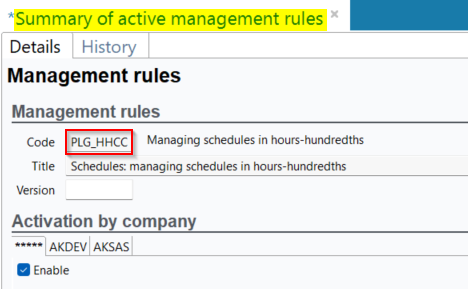
When the management rule is enabled, the Quotations cost input mode fields in the project options (Tools > Setup > General setup > Project > Project options) > Choice of quotation cost input mode section and in the employee record sheet (People > Employees > Employee tab > Choice of time and schedule input mode section) are hidden.
Important
The PLG_HHCC management rule is not compatible with the PLG_HORODATE management rule. Thus, it is not possible to enable these two management rules at the same time.
General modifications
Management of scheduled items in the web portals and in Akuiteo Mobile
Modifications have been made on the creation of scheduled items in hours hundredth in the following web portals:
- Project > Employee view and Project view;
- Web Portal > Employee > Timesheets & schedules;
- Akuiteo Mobile > Timesheet & schedule.
From now on, in the creation form of a scheduled item from the Web Portal > Timesheets & schedules and Project > Employee view and Project view, the following fields are hidden:
- Ends at noon;
- Starts on the afternoon;
- Quarter of day.

In the Web Portal > Activity overview and Timesheets & schedules in Table view, the Duration column has been added.

When a scheduled item is created from Akuiteo Mobile > Timesheet & schedule, fields related to quarters of day are now hidden.
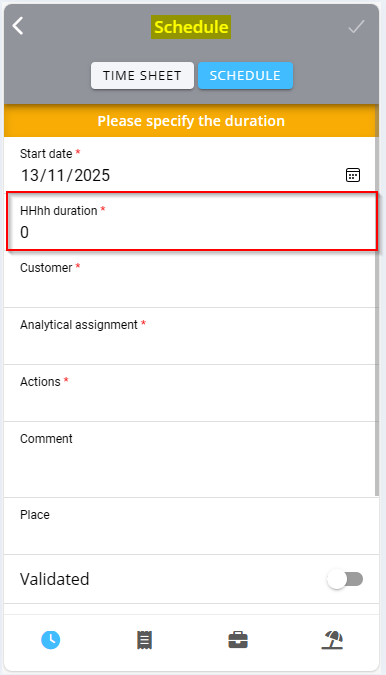
The scheduled item is now only displayed at the start date specified in the following menus:
- Project > Employee view and Project view;
- Web Portal > Employee > Timesheets & schedules;
- Akuiteo Mobile > Timesheet & schedule.
For scheduled items linked to leave projects, the default display is kept.
Example
An employee wants to create a scheduled item with the management rule enabled. They create on Wednesday a scheduled item with a duration of 72HHhh to indicate that the task last for three days (until the Friday). When saving this item, the scheduled item will only be displayed on Wednesday and has a duration of 72HHhh. Therefore, no indication is displayed on Thursday and Friday.
However, if the employee creates a scheduled item on the Wednesday with a leave request and specifies a duration of 72HHh then, when saving it, three scheduled items will be displayed : one on Wednesday, one on Thursday and one on Friday.
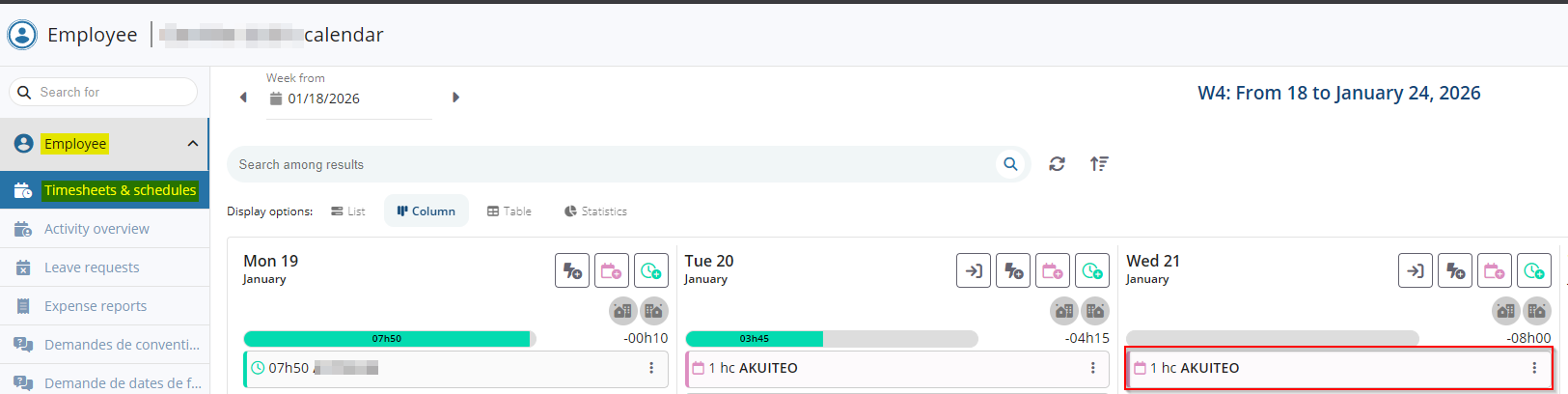
When a scheduled item is transferred into timesheets, its duration is converted to hours minutes. When a scheduled item with a duration superior to 24HHhh is transferred into timesheets, the items are divided in multiples of 24 hours.
For more information about the creation of a scheduled item in the Web Portal and in Akuiteo Mobile, see Creating a leave request and Specifying a leave request.
Management of tasks in hours hundredth on project record sheet
The management of tasks in project record sheets (Management > Projects > Phases and project tasks tab) can be done in hours hundredth.
In the Additional information tab of the project, the Task workload unit (by default) has been added and allows you to select the unit to apply for the task created on the project among:
- Workload in days;
- Workload in hundredth hours.
By default, the indicator is positioned on Workload in days. The indicator can be changed when creating a task.
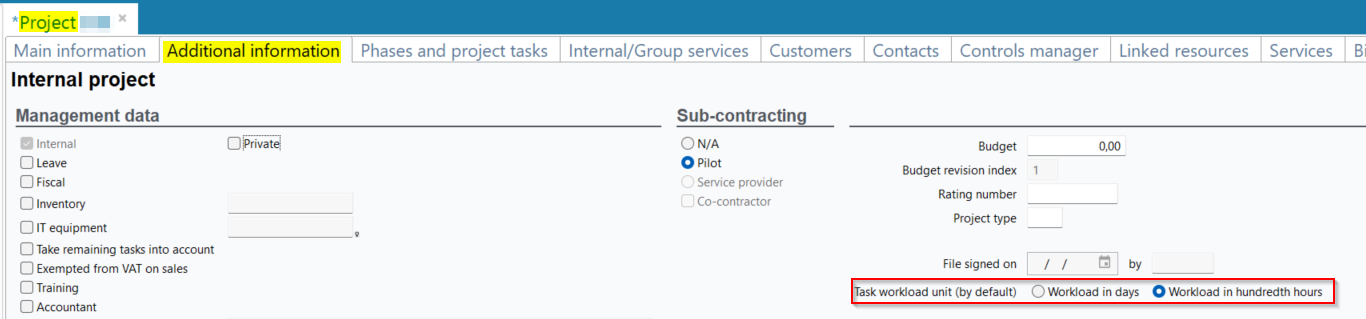
The following columns have been added to the phases and tasks table of the project (Phases and project tasks tab):
- Workload (HHhh);
- Remaining tasks (HHhh);
- Excess (HHhh);
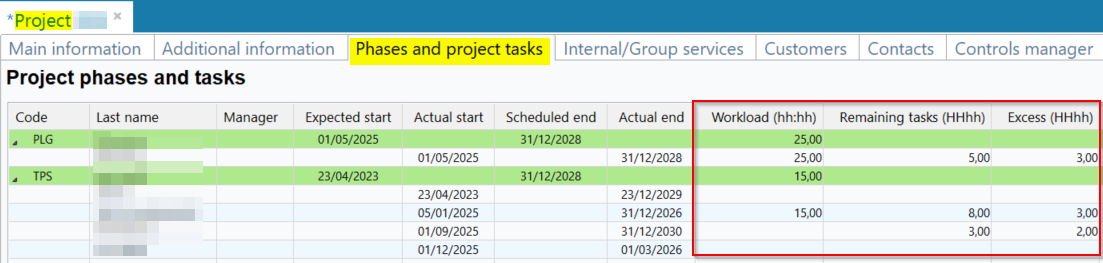
The Sales price per hour has also been added to the task details (Project task details tab > Main information section) and in the phases and tasks table.
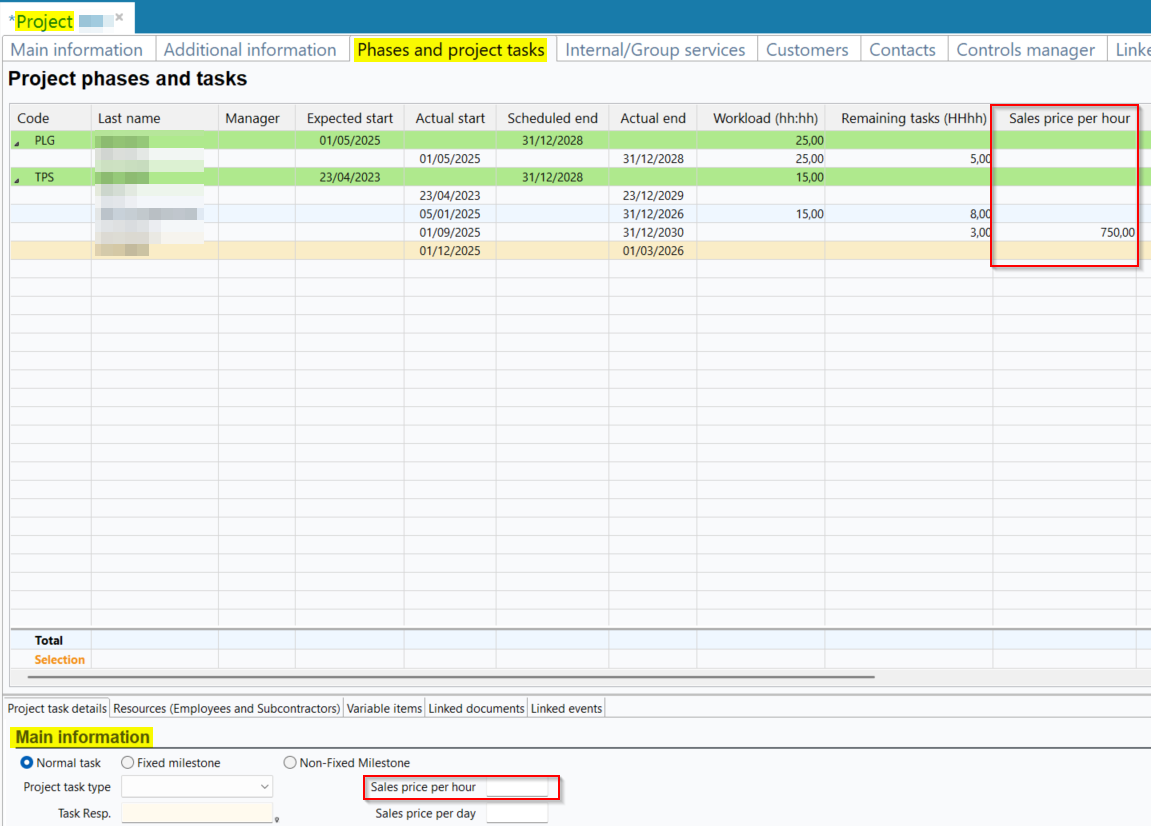
For more information about the management of project record sheets, see Creating a project.
Modifications made on the billing tool of the project
In the billing tool of a project (Management > Projects then Edit > Billing tool) > Delivery of project task and time tab, the following columns have been added:
- No. HHhh and No. HHmm in the List of time section;
- Billing type in the Sales order to deliver section.
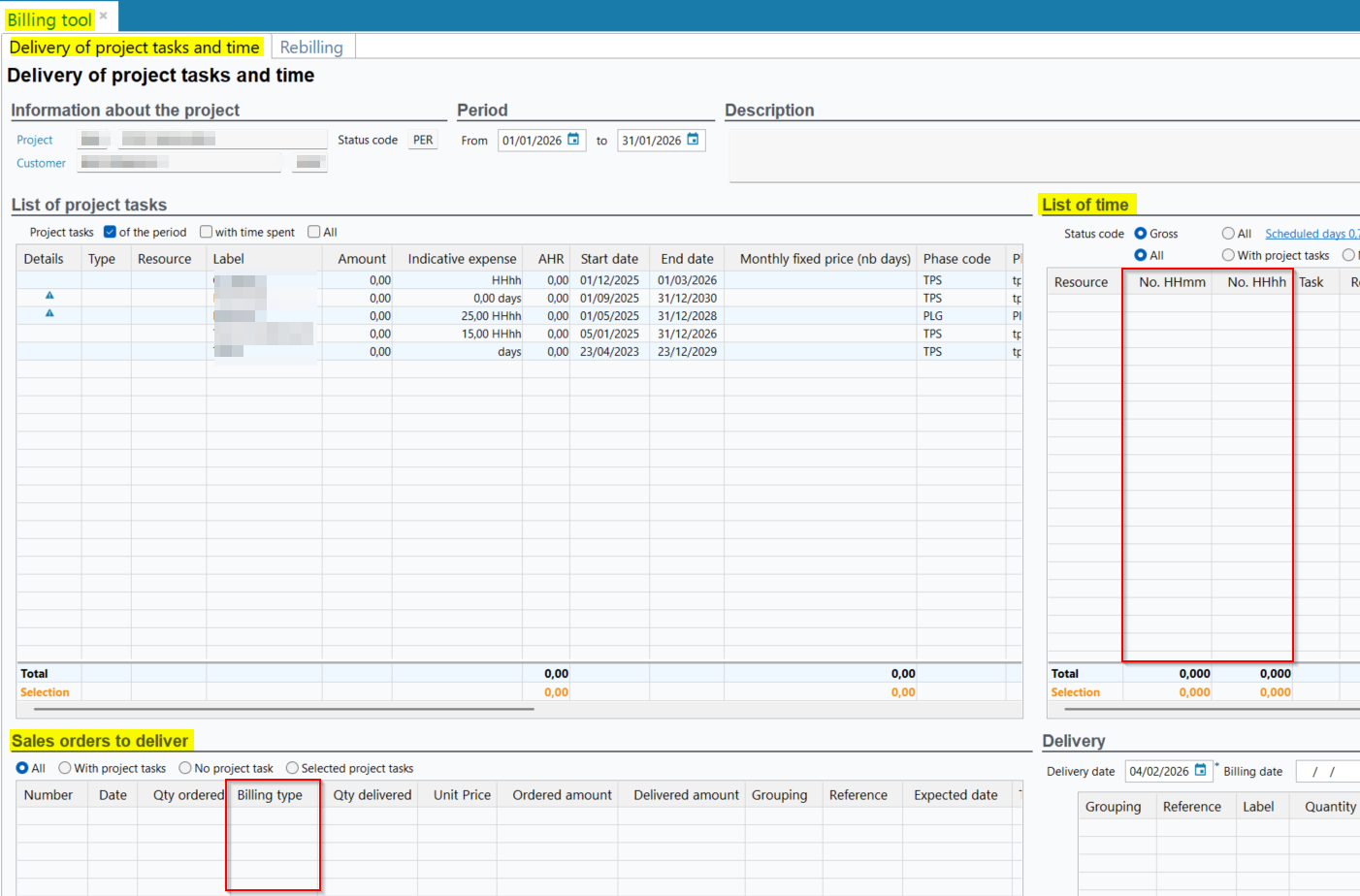
The Time-based HHhh billing method is now taken into account when creating the delivery from the Delivery section. Thus, the value displayed in the Quantity column is in hours hundredth. This section is only available when the AFF_FACTURATION management rule is enabled.
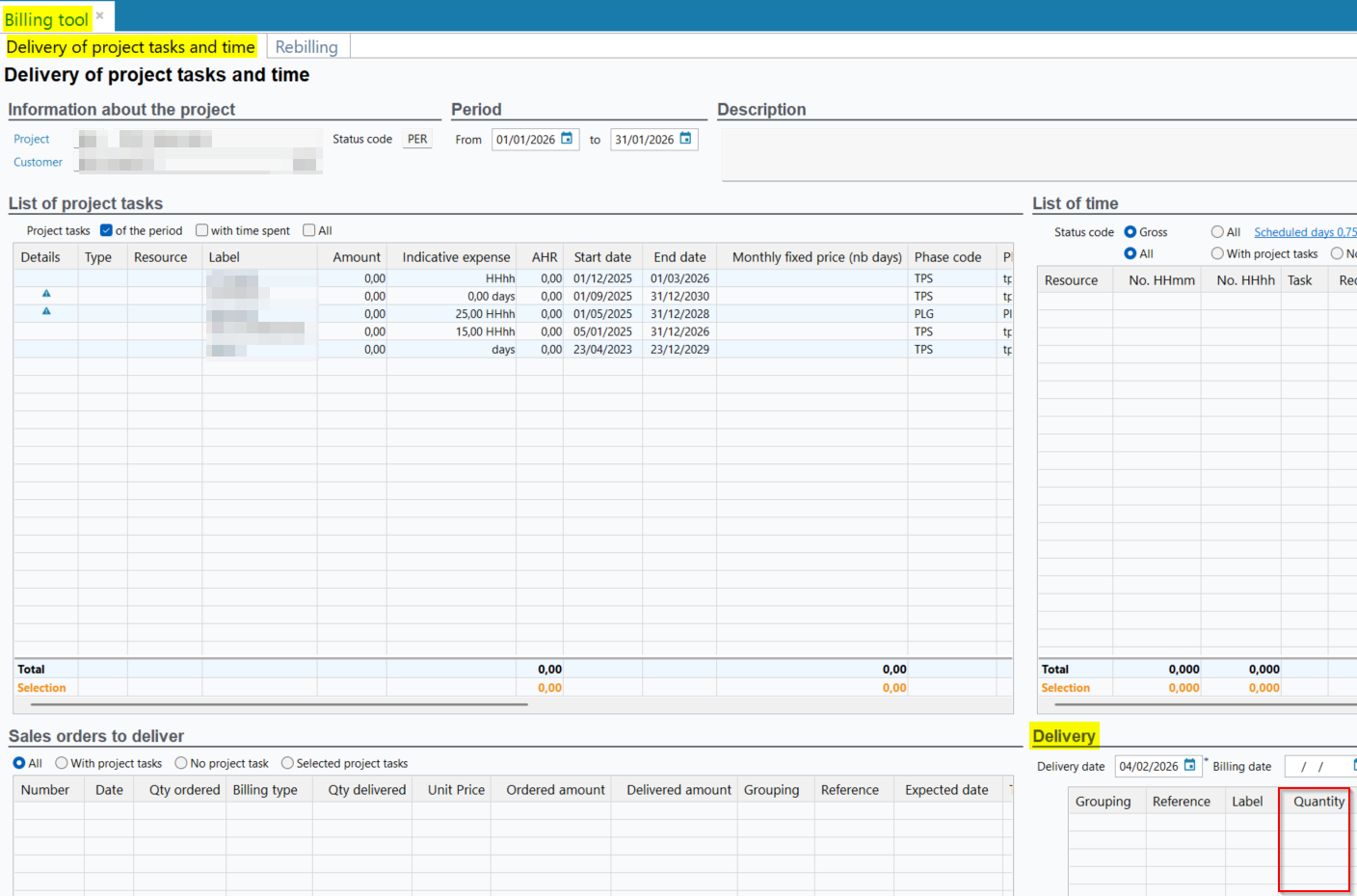
In the Rebilling tab > Time section, the following columns have been added:
- Duration HHmm;
- Duration HHhh.
The Duration column has been renamed Duration D.
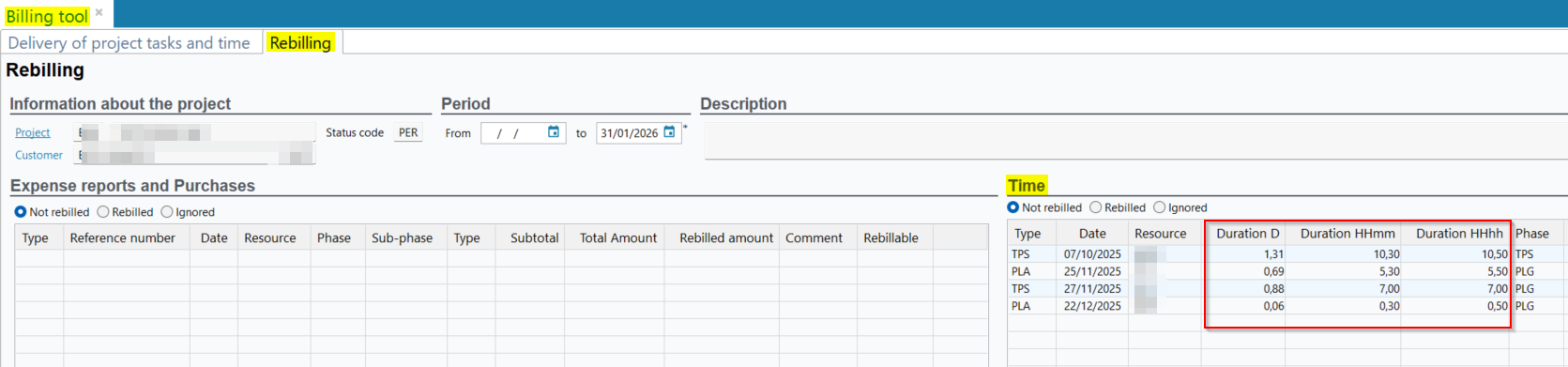
The Billing type column has also been added to the Deliveries section of this tab.
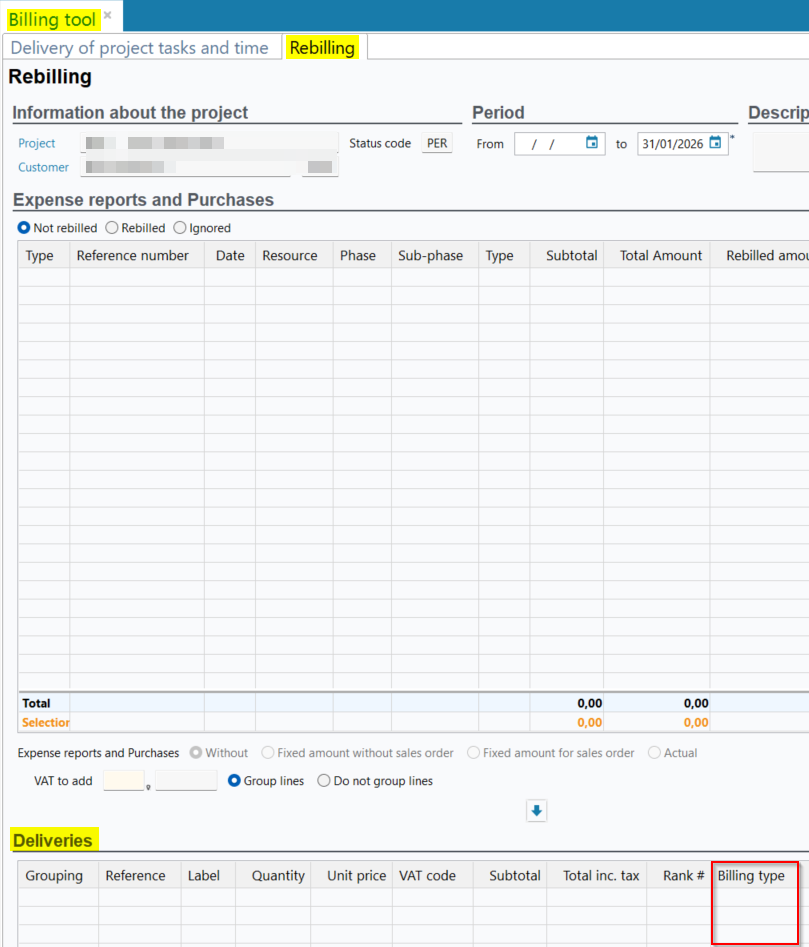
For more information about the billing tool, see Billing timesheets from a project.
Adding the workload unit on the task template
In the project task template (Tools > Setup > General setup > Project > Project task templates) when clicking on a line > Project task details > Workload section, the Task workload unit (by default) has been added and allows you to select the unit to apply by default on the tasks created on the project among:
- Workload in days;
- Workload in hundredth hours.
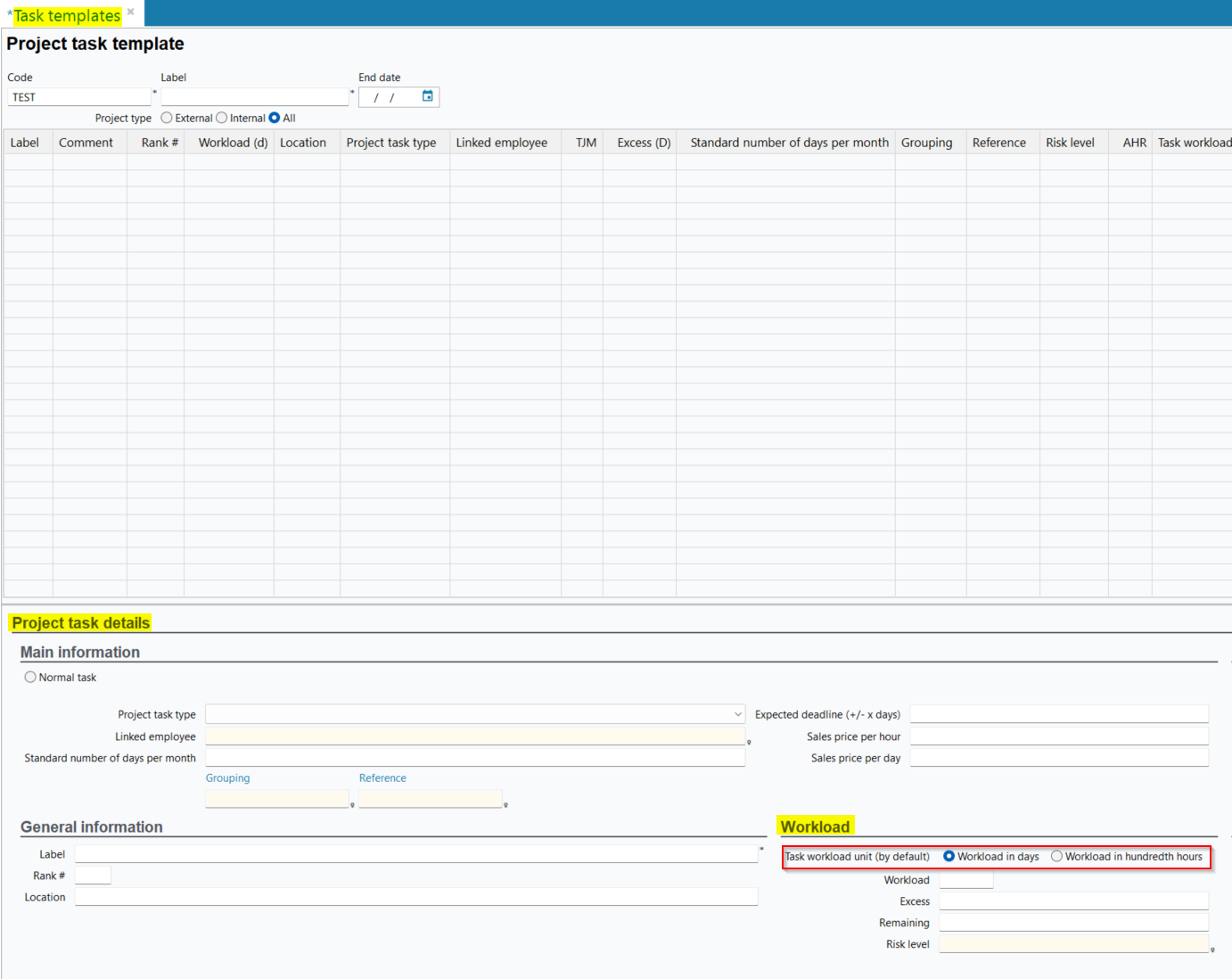
By default, the indicator is positioned on Workload in days. When creating a task from the project, the indicator can be modified. In this case, the Workload, Excess and Remaining fields are to be specified in hundredth hours.
The Task workload unit (by default) and Remaining columns have also been added to the table of the tasks template.

The Sales price per hour field has been added to the Project task details > Main information section and allows you to specify the hourly sales price of the task template.
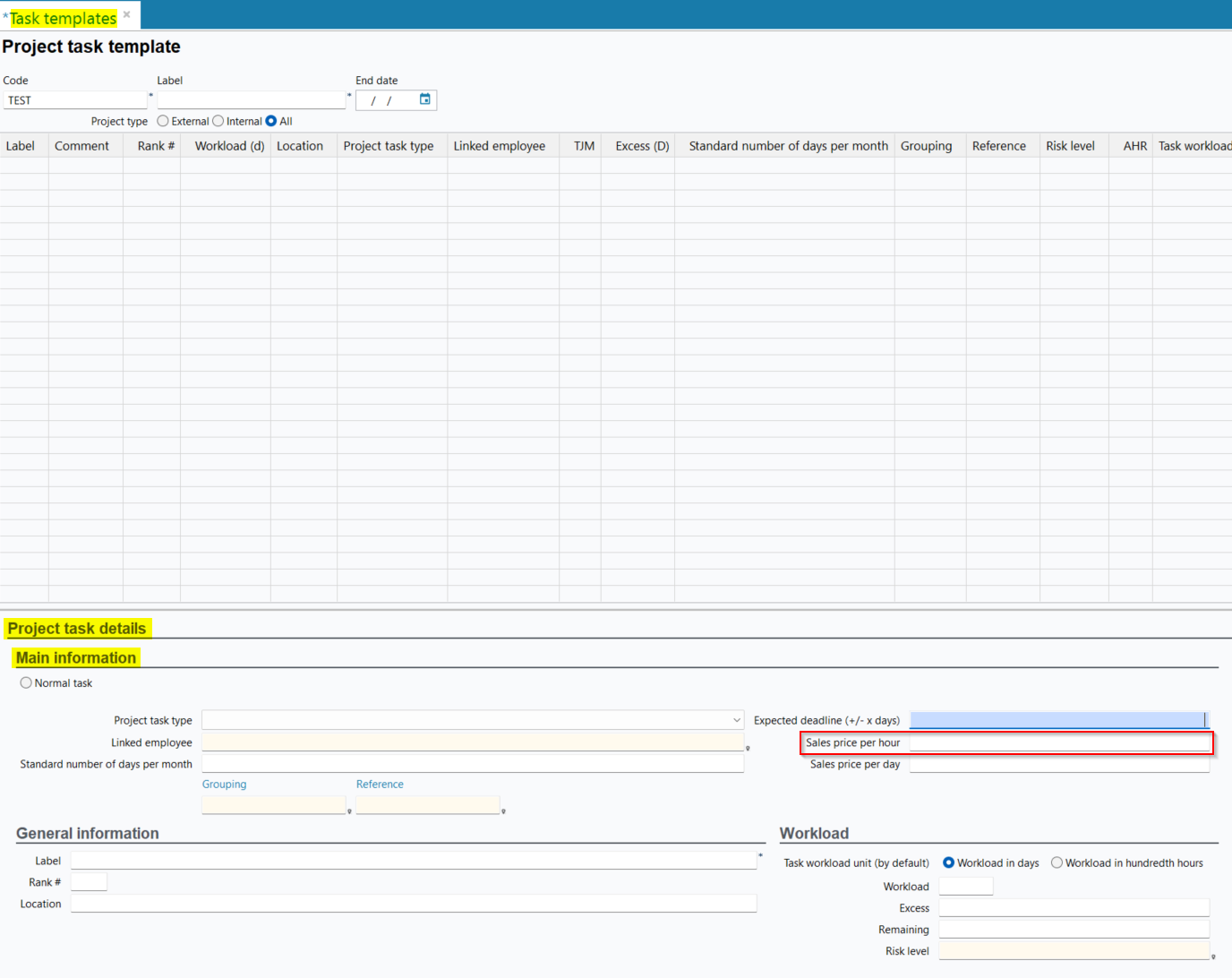
For more information about the tasks templates, see Adding a task.
Addition to the Phases - Sub-phases - Tasks import template
The DEPASSEMENT_HHCC and RESTE_A_FAIRE_HHCC columns have been added to the Phases, sub-phases and tasks import template (Management > Imports > then Project > Phases - Sub-phases - Tasks).
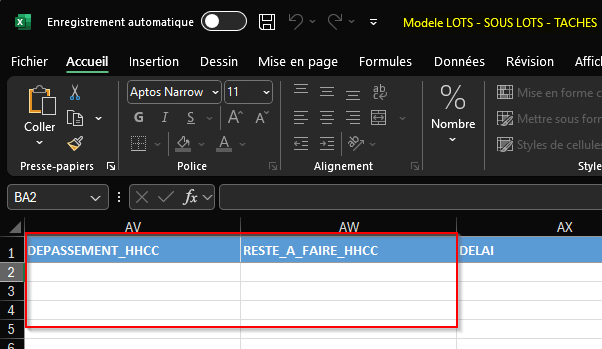
Adding to the Project import template
The UNIT_CHARGE_TACHE column has been added to the project import template (Management > Imports then Project > Projects).
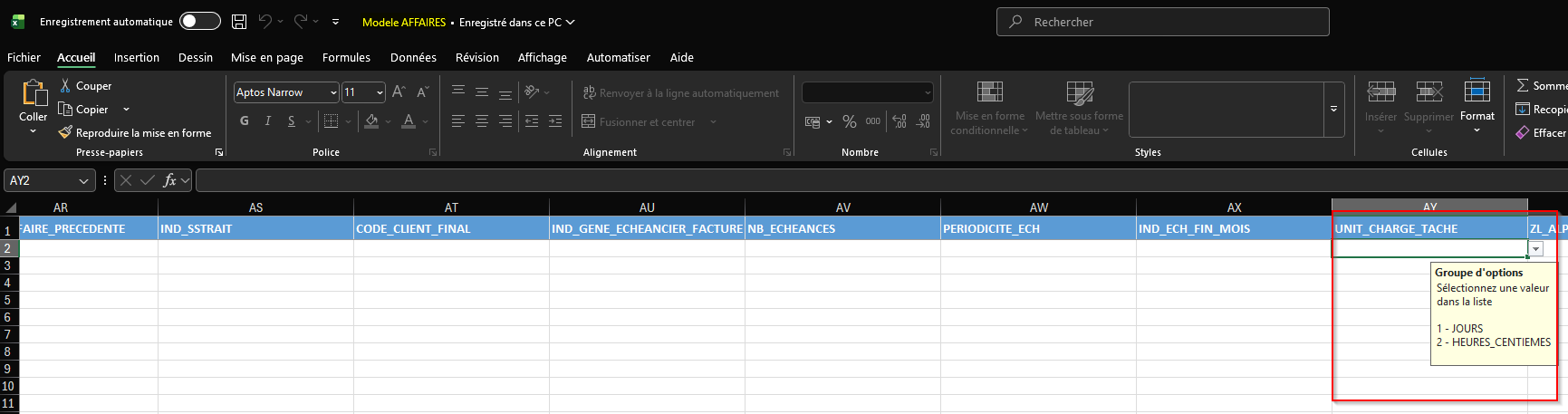
Management of scheduled items in the Desktop Application
The hours hundredth managed with the PLG_HHCC management rule are not compatible with the management of the schedules in the Desktop Application. Thus, the following features are not accessible:
- Management > Projects and Edit > Schedule;
- Management > Projects > Phases and project tasks tab > right-click on a line > Project task graphic schedule and Phase's graphic schedule.
- Management > Projects > right-click on a selection of results > Graphic schedule of selected projects;
- Management > Projects > right-click on a selection of results > Schedule of resources by project;
- Management > Sales > Quotations then Edit > Schedule > View the schedule;
- My Akuiteo > My schedule or My Akuiteo > My graphic schedule when the
PL_CHARGEmanagement rule is enabled; - People > Employees then Edit > Graphic schedule or
 at the right of the search results.
The note (Schedule in HHhh) is now added in the name of the week displayed in My weekly activity (My Akuiteo > My weekly activity).
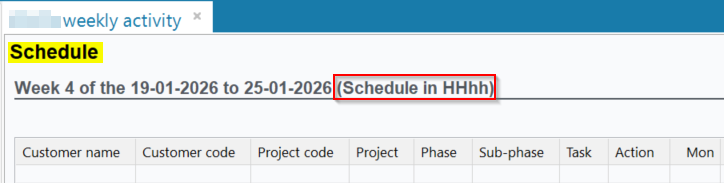
Modifications made on the workload dashboard
The following columns have been added to the workload dashboard (Dashboard > Labor > Workload):
- Total (HHhh) for all views;
- Smoothed duration (HHhh) for all views;
- (HHhh) for the days and the months columns;
- (HHmm) for the days and the months columns.

Modifications made on the model week
From mow on, in the setup of the model week (Tools > Setup > General setup > Resources and Labor > Model weeks) can now be done in hours hundredth. Indeed, the Input mode field has been added to the setup of the model week and allow you to select an input mode in Hours hundredth or in Hours minutes. By default, the input mode is in hours hundredth. When the type week is saved, it is no longer possible to modify the input mode.
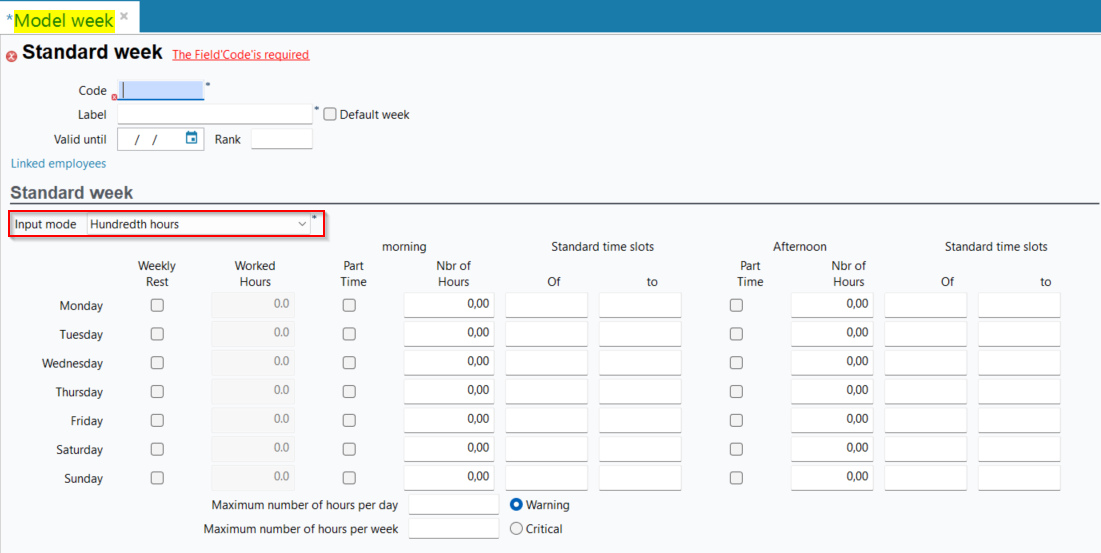
For more information about the model week, see Model week.
Blocking of the PlanningExchange batch
The PlanningExchange batch allow you to transfer the schedules of the employees of the company into their Outlook calendar.
Now, when the PLG_HHCC management rule is enabled, the transfer of scheduled items created in hours hundredth is blocked and the batch cannot be used.

For more information about the PlanningExchange batch, see PlanningExchange batch.
Blocking of the Training module
The Training module allow you to manage training sessions in Akuiteo. This module is not compatible with the PLG_HHCC management rule.
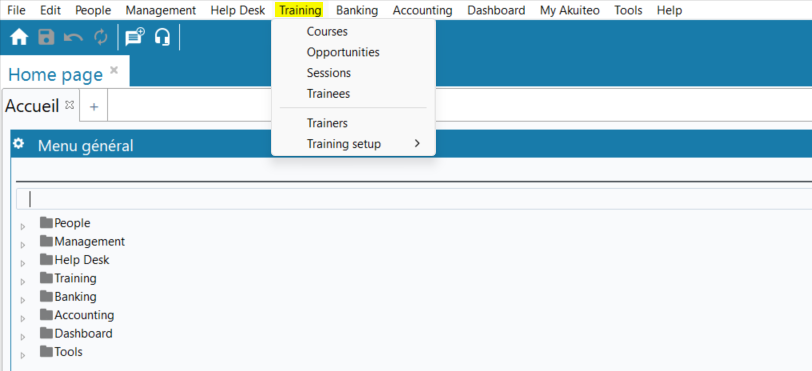
For more information about the training module, see Introduction to the Training module.
Billing in hours hundredth added for the time-based billing of orders
Time-based billing (Management > Sales > Time-based billing) refers to all offers for which each day spent by a service provider is billed based on an agreed rate. Before, it was only possible to do a time-based billing in days.
From now on, the Time-based HHhh option has been added to the Billing mode:
- in the sold item record sheet (Management > Sales > Sold items > General tab > Main section);
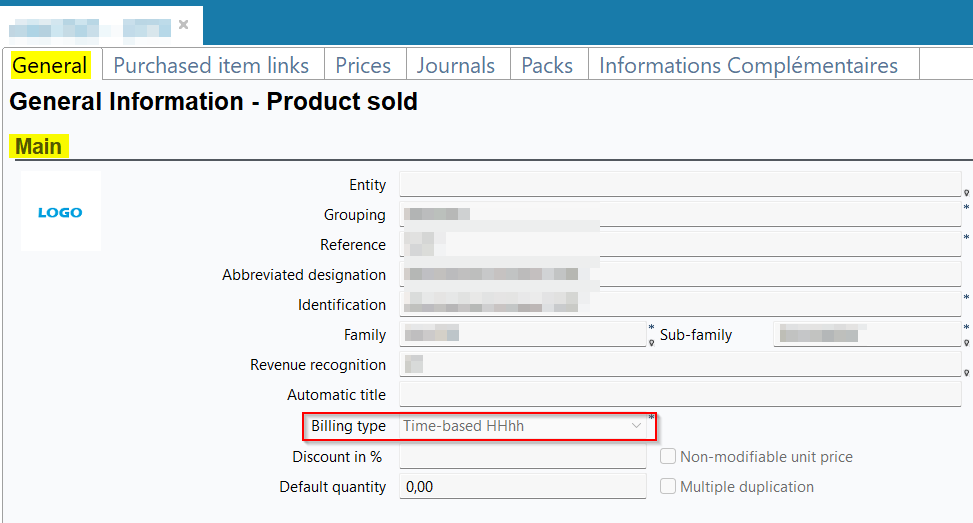
- in the sold items search screen > Billing type search criteria (Main criteria tab > Billing section);
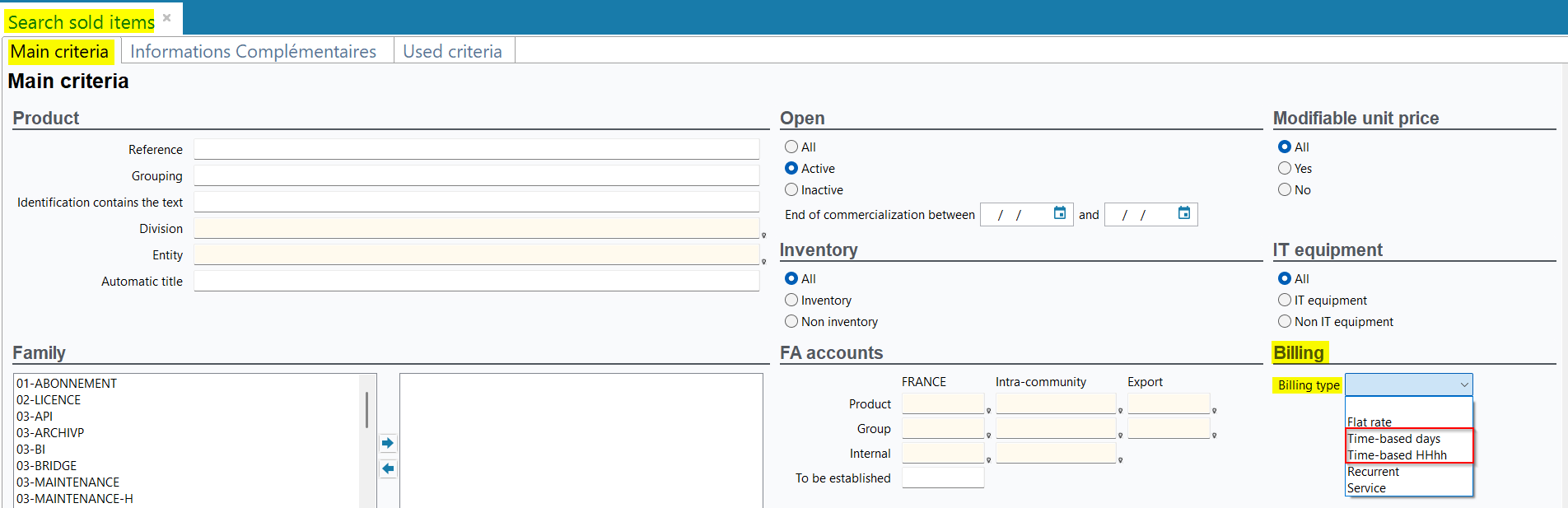
- in the line details of the management objects of the Sales chain (Management > Sales > Quotations / Orders / Billing schedules / Deliveries / Invoices > Lines tab > Multiple criteria section). The Quantity field is to be specified in hours hundredth.
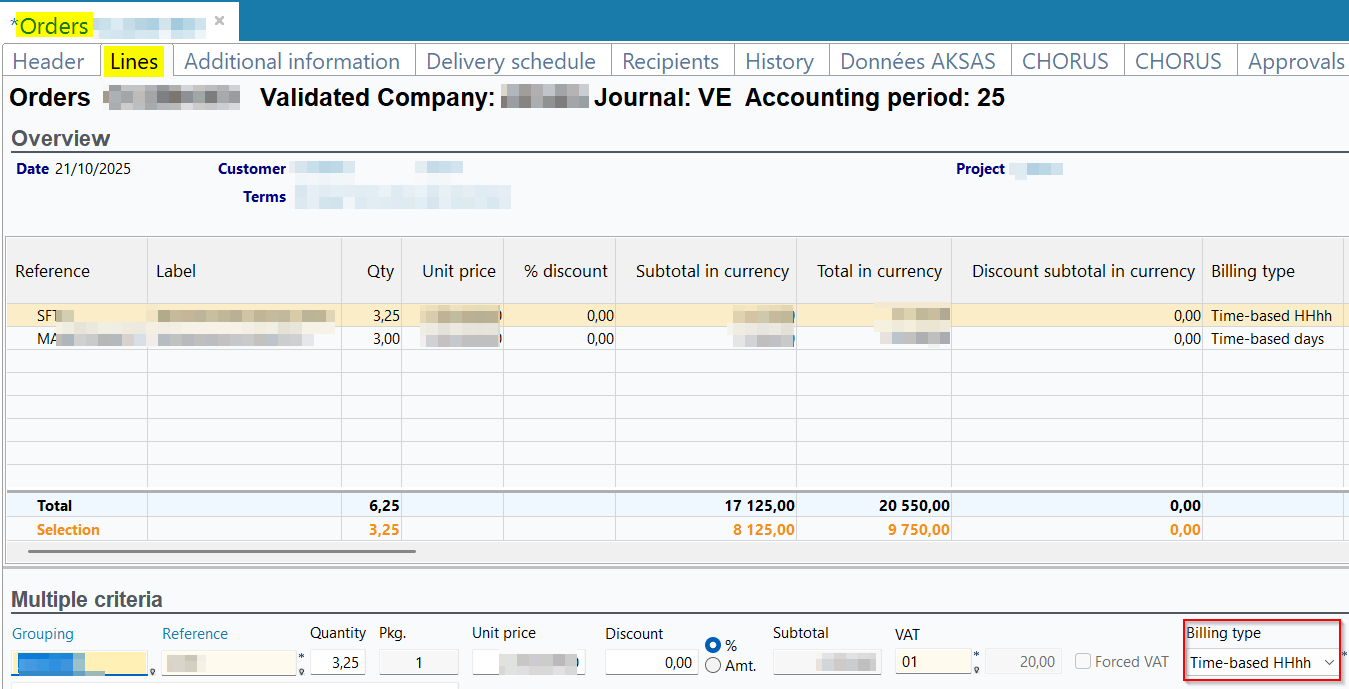
In addition, the Time-based HHhh option has been added to the Main criteria tab > Types section of the search screen of the sales chain (Quotations / Orders / Deliveries / Invoices).
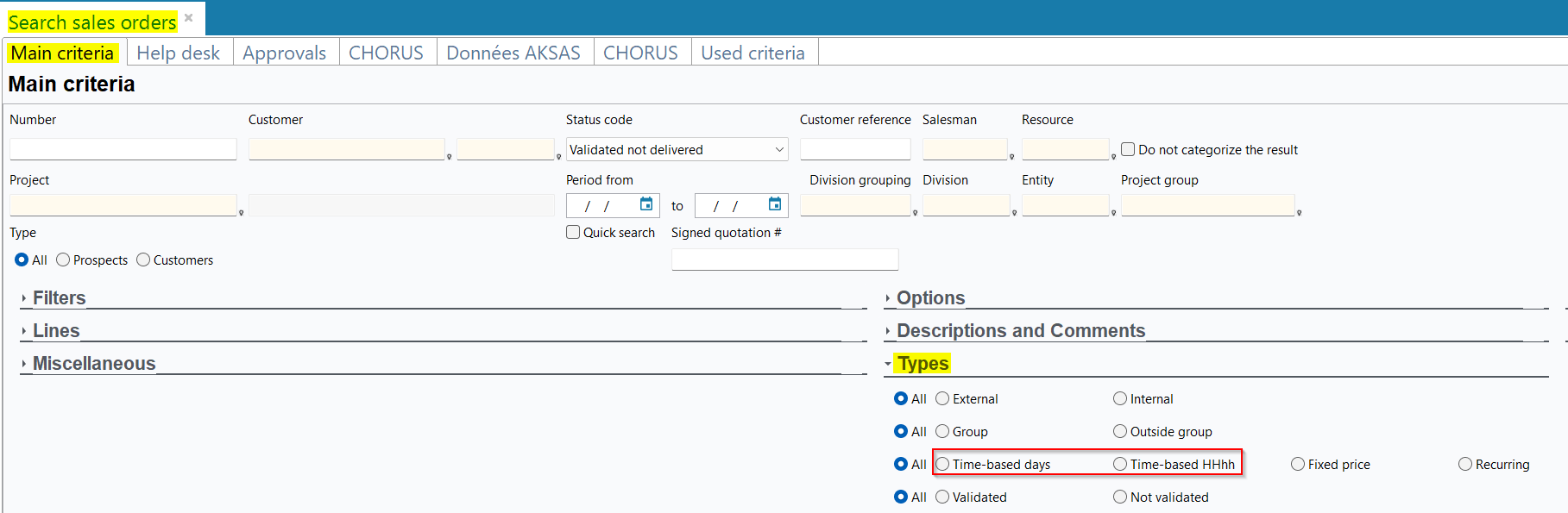
The 4 - Régie HHcc value can be specified in the columns about the billing type in the following imports templates (Management > Imports):
- Sold items import (Sales > Sold items) in the
PRD_TYPE_MODE_FACTcolumn; - Quotations import (Sales > Quotations) in the
LCC_MODE_FACTURATIONcolumn; - Orders import (Sales > Sales orders) in the
LCC_MODE_FACTURATIONcolumn; - Billing schedules import (Sales > Customer billing schedule) in the
MODE_FACTURATIONcolumn; - Deliveries import (Sales > Customer deliveries) in the
LC_LCC_MODE_FACTURATIONcolumn; - Invoices import (Sales > Customer invoices) in the
FC_LFC_MODE_FACTURATIONcolumn.
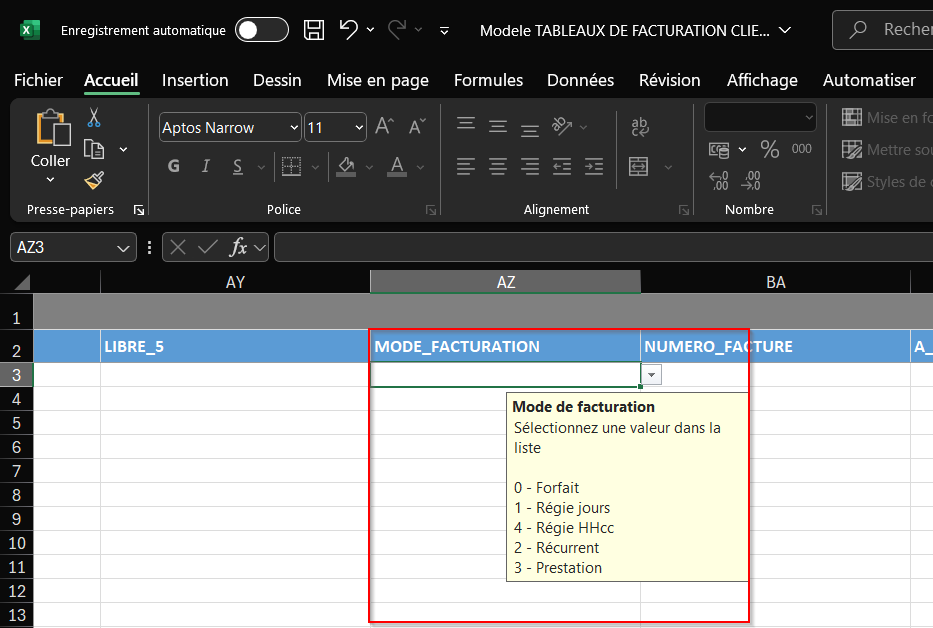
In the time-based billing for orders menu (Management > Sales > Time-based billing for orders), the Billing type column has been added to the table of the Bill section. This column is specified with the billing type applied to the line: Time-based days or Time-based HHhh.
From now on, for the lines which billing type is Time-based HHhh, the Timesheets/Expenses column is specified in hours hundredth. For the lines which billing type is Time-based days, the Timesheets/Expenses column is specified in days.
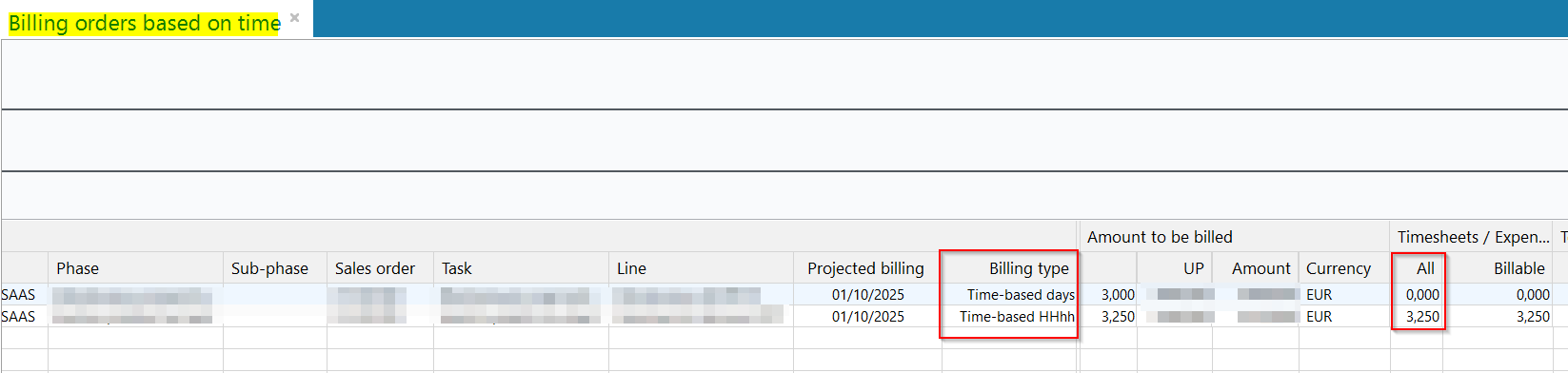
The features of the Round up button, at the right of the table of the lines to be billed allow you to round up the selected lines. To be more clear, they are renamed as follow:
- To the next day has been renamed To the next day/hour;
- To the next half-day has been renamed To the next half-day/half-hour;
- To the next fourth of a day has been renamed To the next fourth of a day/quarter of an hour;
- To the previous day has been renamed To the previous day/hour;
- To the previous half-day has been renamed To the previous half-day/half-hour;
- To the previous fourth of a day has been renamed To the previous fourth of a day/quarter of an hour.
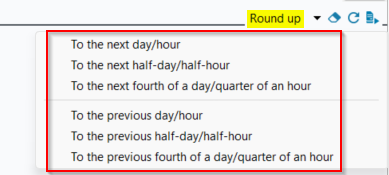
For more information about the time-based billing of orders, see Facturation en régie.
Additions in project options
From now on, the following options are available in the project options (Tools > Setup > General setup > Projects > Project options) > Method for valuation of timesheets and schedules (sales prices) and Intra-group time valuing method sections:
-
Employee's hourly sales price allows you to use the employee's hourly sales price of the employee record sheet and for the intra-group rebilling;
-
Task hourly sales price allows you to use the hourly sales price of the task in the tasks management on the project record sheet.
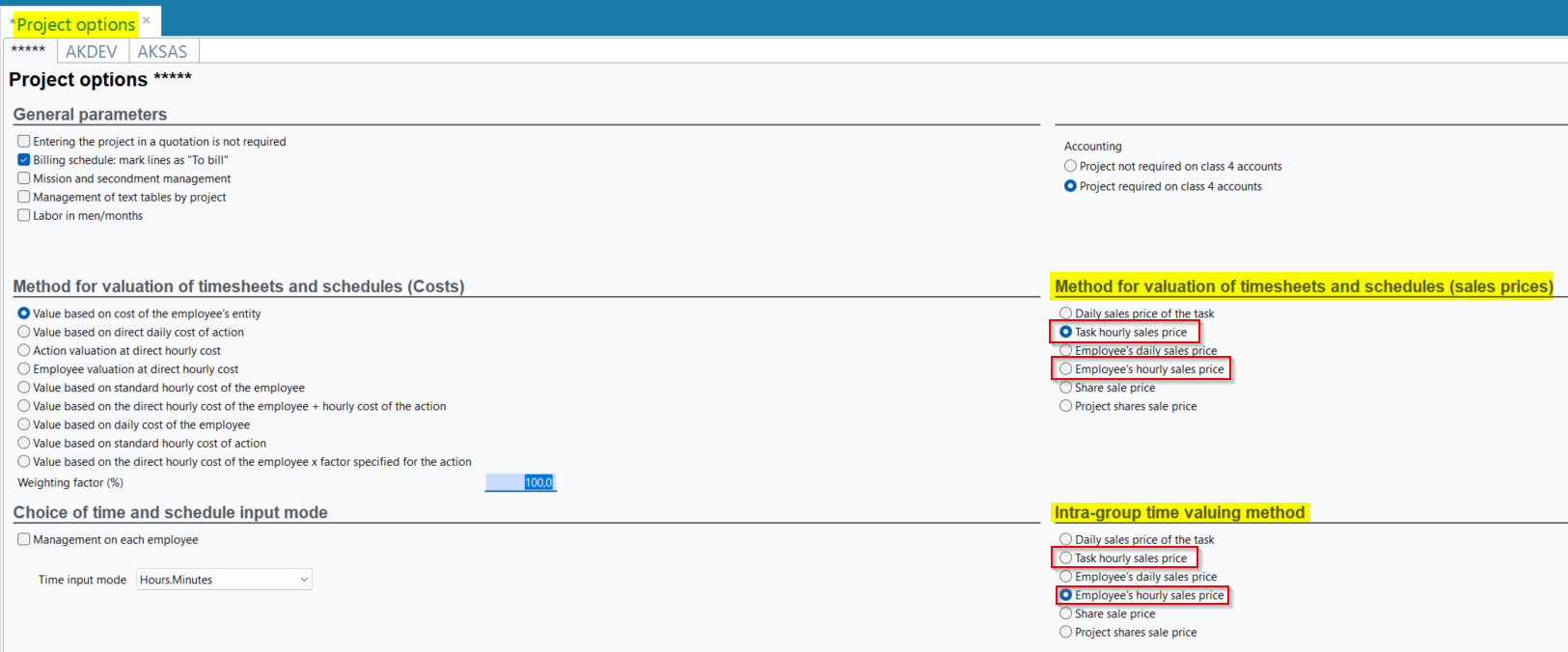
The Quotation cost input mode field(Choice of quotation cost input section) is only available in Hundredth hours and cannot be modified. Thus, the schedules generated from the lines and costs of the quotation (Management > Sales > Quotations then Lines tab > right-click from the lines > Generate the schedule based on the selected lines and Costs tab > right-click from the lines > Generate the schedule based on the selected lines) are now in hours hundredth.
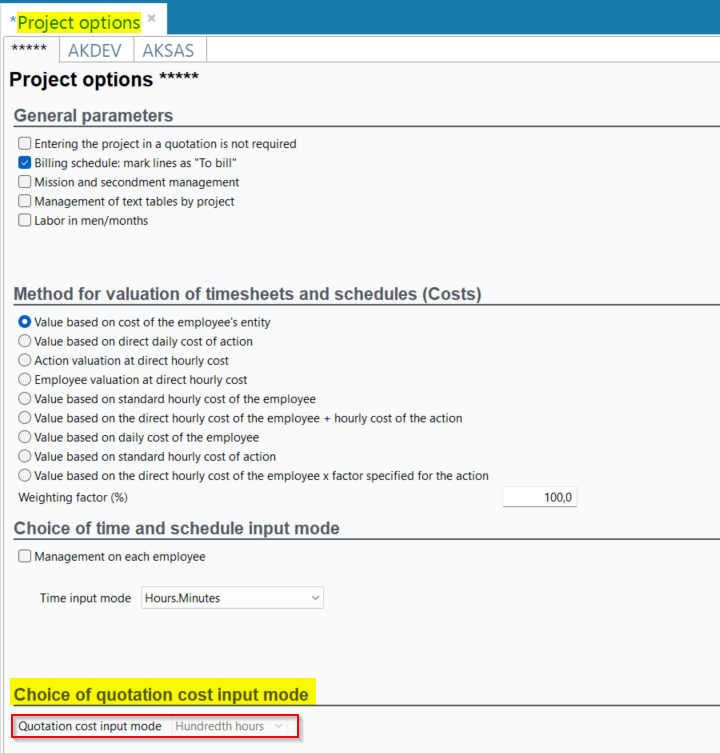
For more information about the project options, see Projects options.
Modifications made for the Employee's hourly sales price option
Thus, when the Method for valuation of timesheets and schedules (sales price) or Intra-group time valuing method selected is Employee's hourly sales price, the following modifications are made:
- in the employee record sheet, the Daily sales price field and the Pre-tax daily unit price valuation for subcontracting section are replaced by the Sales price per hour field and the Pre-tax hourly unit price valuation for subcontracting section in the:
- multiple modification of employees window ( at the right of the search results);
- Employee tab > Valuation section;
- Status history tab > Valuation section.
- multiple modification of employees window (
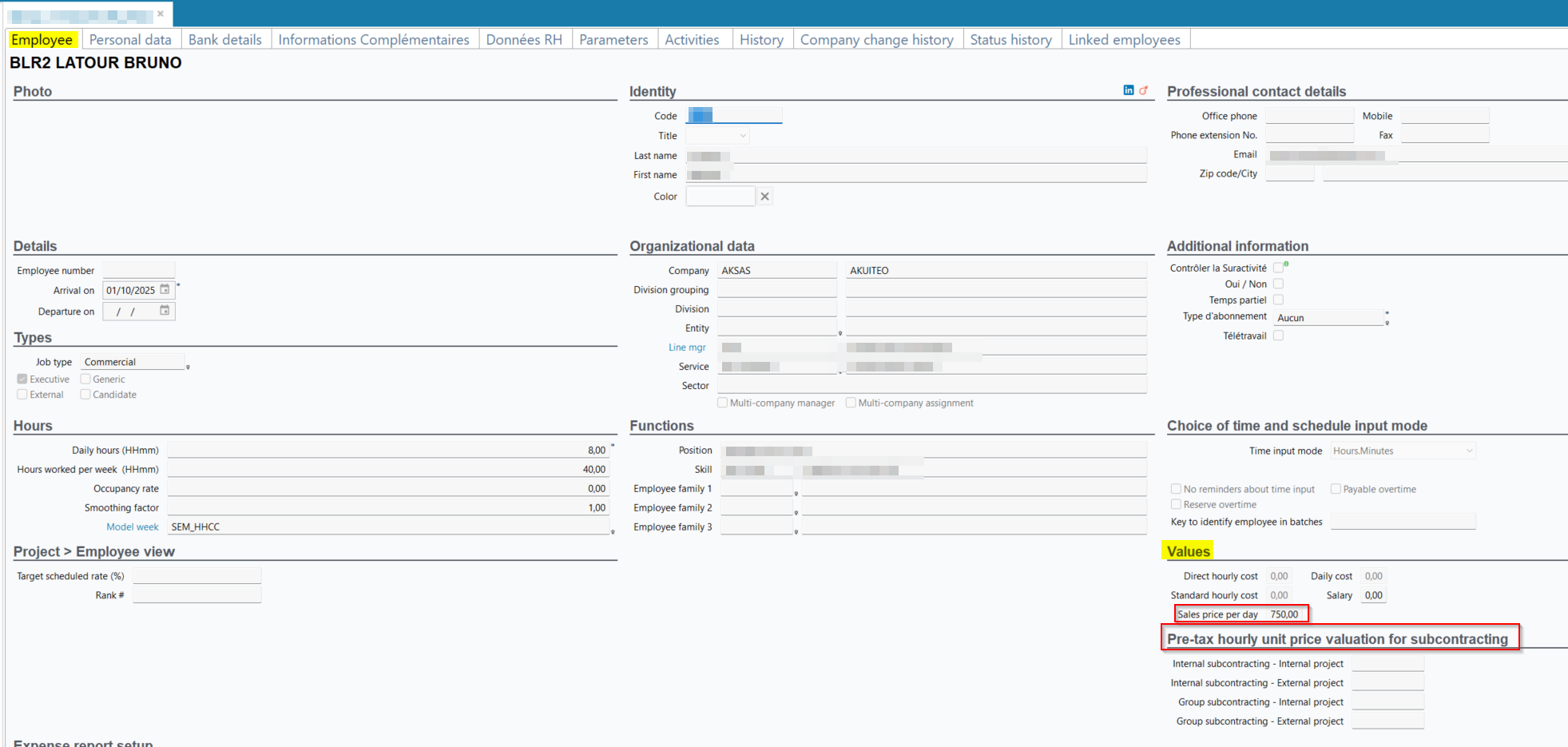
For more information about the management of the employee record sheet, see Gérer les collaborateurs.
- in the billing tool of the project > Delivery of project tasks and time tab > List of project task section:
- the TJM column is replaced by the THM (Average Hourly Rate);
- the Indicative expense column is specified with the task unit.
- the
PRIX_VENTE_JOURNALIERcolumn is replaced byPRIX_VENTE_HORAIREin the following imports templates:- Employees (Resource > Employees);
- Status history (recovery) (Resource > Status history (recovery) );Employees status histories ( Resource > Employee status histories).
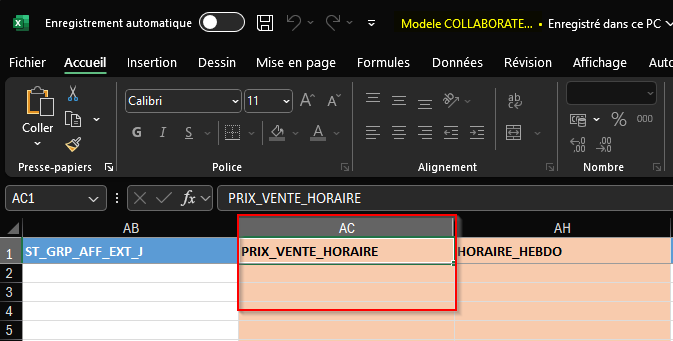
- the Duration (HHhh) and Smoothed duration (HHhh) columns have been added to the schedules search results in Week view and Period.

- The Sales Invoice - Quantity (HHhh) and Timesheets and expenses - Hourly price columns replace the Quantity (d) and Daily price columns in the intra-group rebilling table (Management > Sales > Intra-group rebilling of expenses and timesheets > Rebilling section). For more information, refer to Intra-group rebilling.
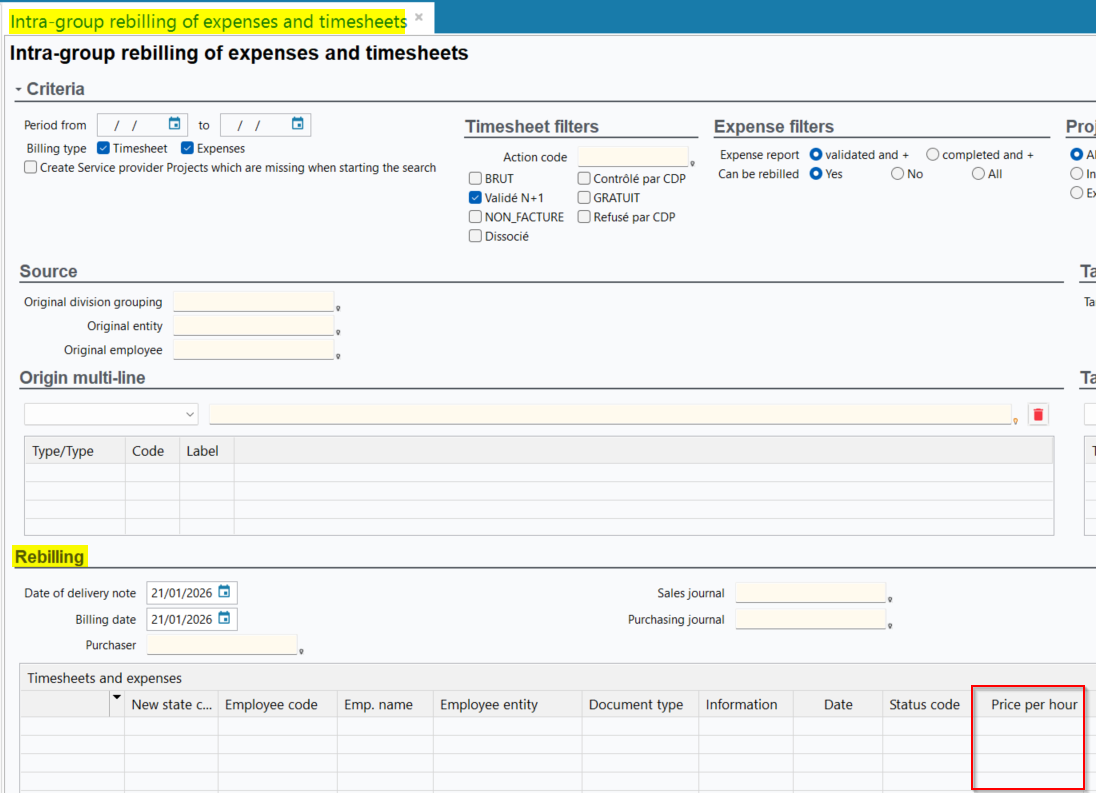
- the Unit price ex VAT amount column indicates the hourly sales price of the employee in the Customer billing of expenses and timesheets screen (Management > Sales > Customer billing of expenses and timesheets).
- the Sales price column indicates the hourly sales price of the employee in the following dashboards (Dashboard > Sales /Labor):
- Workload;
- Timesheets analysis;
- Schedules;
- Sales dashboard;
- Time and schedule dashboard in Sales valuation analysis;
- Timesheets Validation
- the Timesheets (HHhh) column has been added in the Project tasks dashboard and indicates the time spent by an employee in hours hundredth.

- in the
TPS_COUT_RESmanagement rule when the parameter YES: Daily selling price is on Yes, the following columns have been added and replace the existing columns in the Labor cost menu (Tools > Setup > General setup > Resources and Labor > Labor cost):- Daily sales price is replaced by Hourly sales price;
- Internal subcontracting daily sales price - Internal project has been renamed Internal subcontracting hourly sales price - Internal project;
- Internal subcontracting daily sales price - External project has been renamed Internal subcontracting hourly sales price - External project;
- Group subcontracting daily sales price - Internal project has been renamed Group subcontracting hourly sales price - Internal project; Group subcontracting daily sales price - External project has been renamed Group subcontracting hourly sales price - External project.

- in the
TPS_COUT_RESmanagement rule, when the YES: Daily selling price is on Yes, the following columns are added and replace the existing columns in the Labor cost import template:PRIX_VENTE_JOURNALIERis replaced byPRIX_VENTE_HORAIRE;PRIX_VENTE_JOURNALIER_ST_INT_INTis replaced byPRIX_VENTE_HORAIRE_ST_INT_INT;PRIX_VENTE_JOURNALIER_ST_INT_EXTis replaced byPRIX_VENTE_HORAIRE_ST_INT_EXT;PRIX_VENTE_JOURNALIER_ST_GRP_INTis replaced byPRIX_VENTE_HORAIRE_ST_GRP_INT; is replaced by PRIX_VENTE_JOURNALIER_ST_GRP_EXTPRIX_VENTE_HORAIRE_ST_GRP_EXT
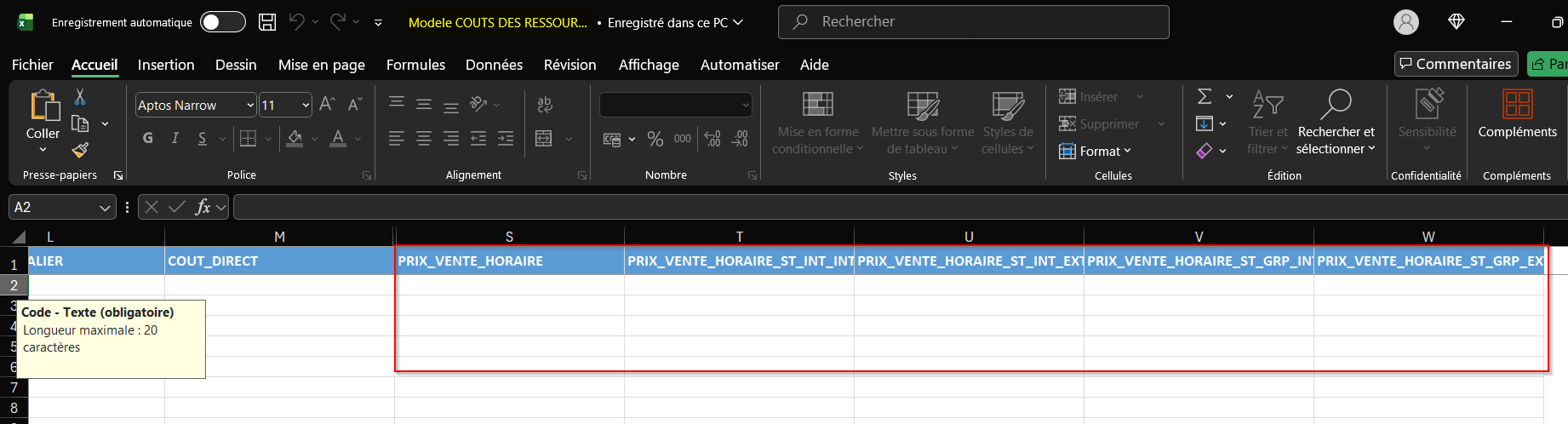
Modifications made for the Task hourly sales price option
Thus, when the Method for valuation of timesheets and schedules (sales price) or Intra-group time valuing method selected is Task hourly sales price, the following modifications are made in Akuiteo:
- The Sales price column of the following dashboards is in hours:
- Schedules in Week view and Period;
- Workload;
- Timesheets Validation;
- Timesheets analysis; Project tasks

- amounts displayed in the following dashboards are calculated by taking into account the hourly sales price of the task:
- Sales dashboard;
- Time and schedule dashboard for a Sales value analysis.
- in the billing tool of the project > Delivery of project tasks and time tab > List of project task section:
- the TJM column is replaced by the THM (Average Hourly Rate);
- Indicative expense is specified with the task unit.
- Amount is specified with the hourly sales price of the task.
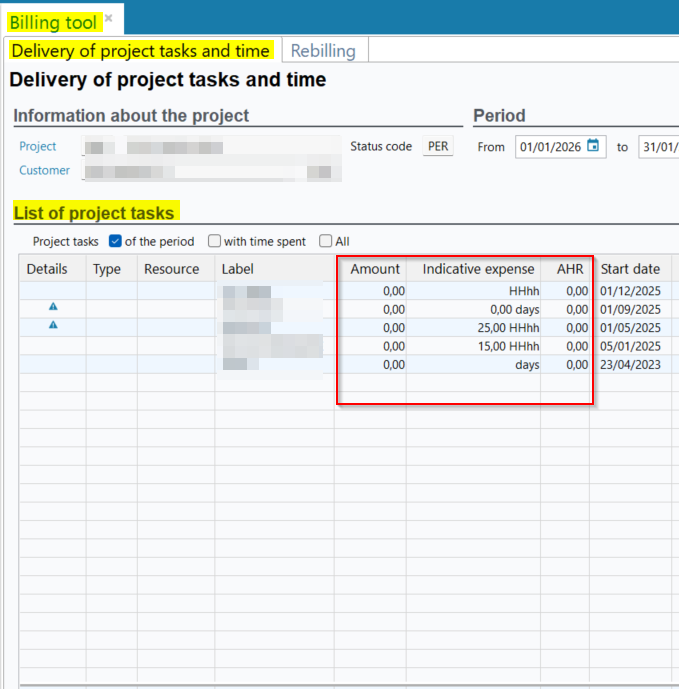
Web Portal and Project: Ability to display a graph in the tooltip of timesheets and schedules
| DMF |
0901** ADMINISTRATOR SETUP SETUP |
The PWE_ENTETE_TEMPS, PWE_ENTETE_PLANNING and PLG_ENTETE_FICHE management rules (Tools > Setup > General setup > Special parameters > Management rules) are used to define which information is displayed in the blocks and tooltips of schedules/timesheets on the Web Portal > Timesheets & schedules and Project > Project view and Employee view.
Now, the DIAGRAMME code can now be specified in the following parameters:
PWE_ENTETE_TEMPSmanagement rule > Information to display when hovering over a timesheet parameter;PWE_ENTETE_PLANNINGmanagement rule > Information to display when hovering over a scheduled item parameter;PLG_ENTETE_FICHEmanagement rule > Information to display when hovering over a scheduled item (Project view) and Information to display when hovering over a scheduled item (Employee view) parameters.
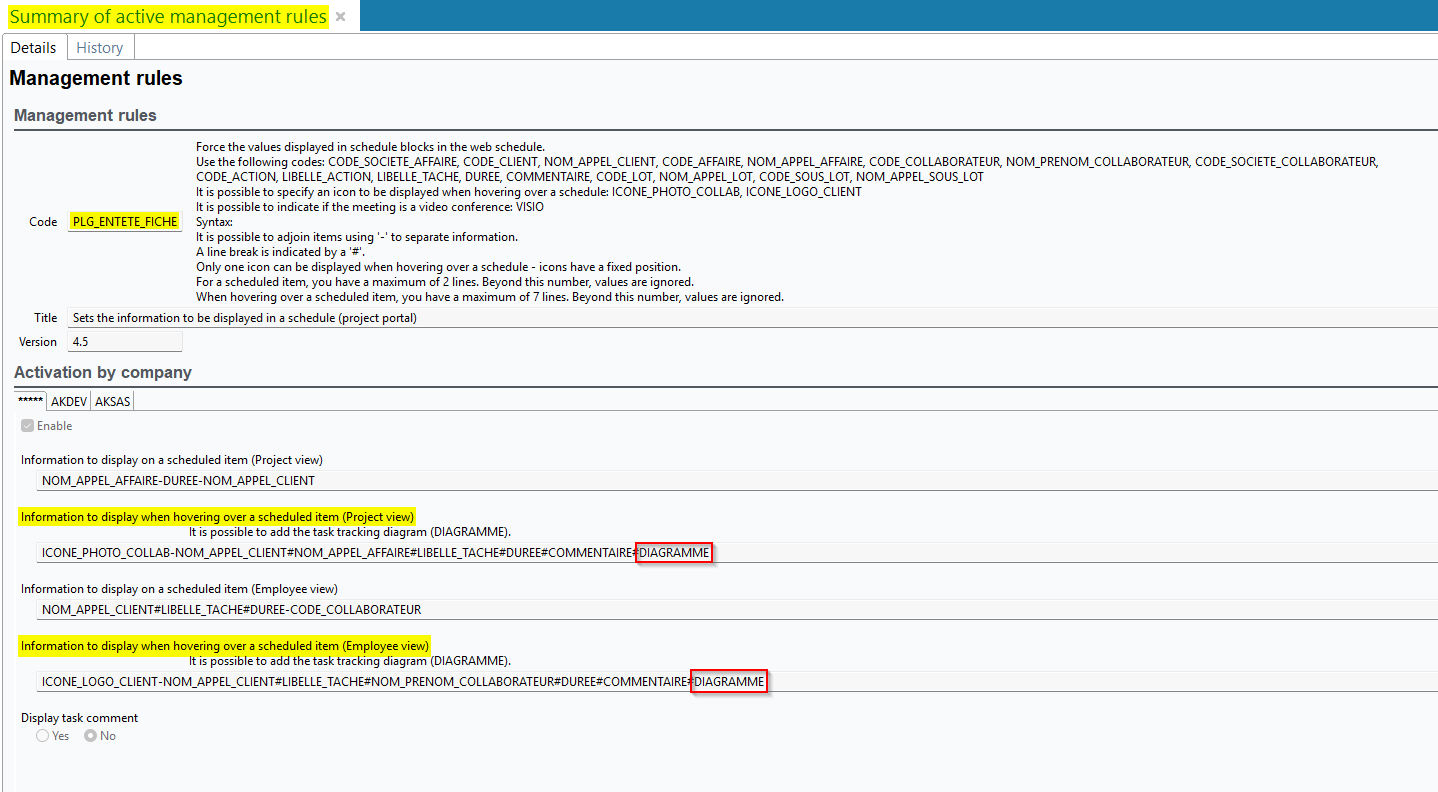
When the DIAGRAMME code is specified, the tooltip of the corresponding timesheets and/or schedules displays:
- a Scheduling section containing a chart showing the distribution of the task duration, and its detail: Total duration, Actual, Scheduled, To be sched.. The chart is displayed only if the duration to be scheduled is specified and greater than 0.
- A Remaining tasks section containing a gauge showing the validated timesheets and the remaining tasks duration. The Remaining tasks section is displayed only if remaining tasks duration has been specified for the task.
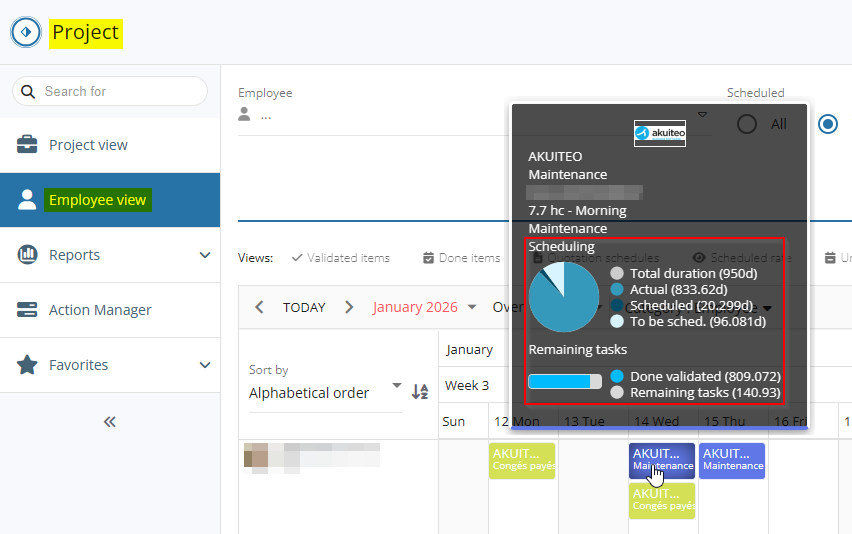
Help Desk Portal and Sales Portal: Extended help lists added for table texts
| DMF |
0202** SALES QUOTATIONS * 1414** HELPDESK TASKS * 1426** HELPDESK SIMPLIFIED ISSUE * |
From the Help Desk Portal and the Sales Portal, table texts are predefined texts that can be quickly inserted in a field where the cursor is placed by typing / followed by the code of the table text desired.
The Table texts button has been added at the top right of the input area of the fields that support table texts.
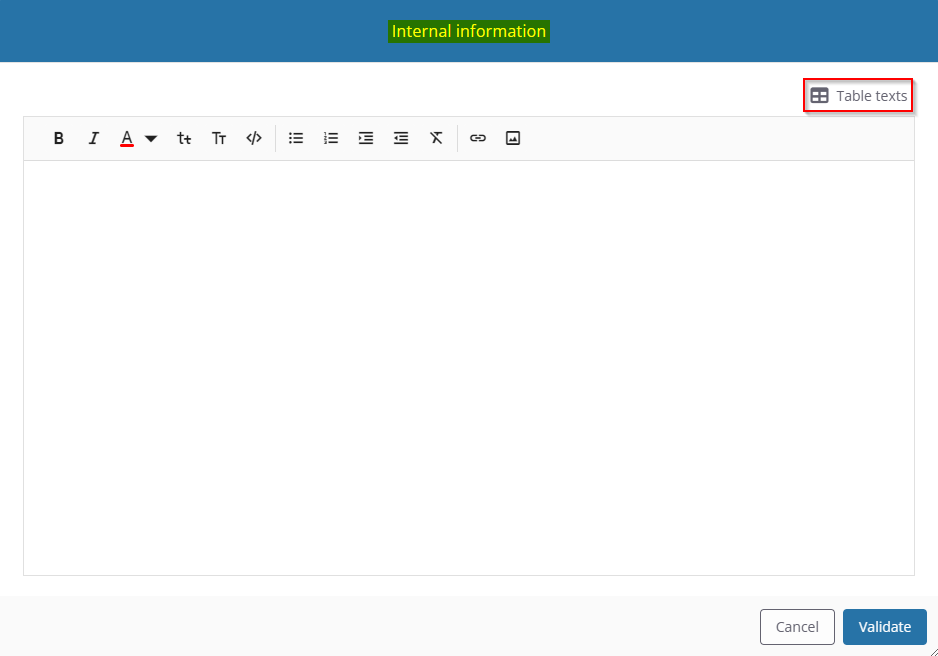
This button opens a window used to search for table texts thanks to search criteria, then to select the desired table text from the results.
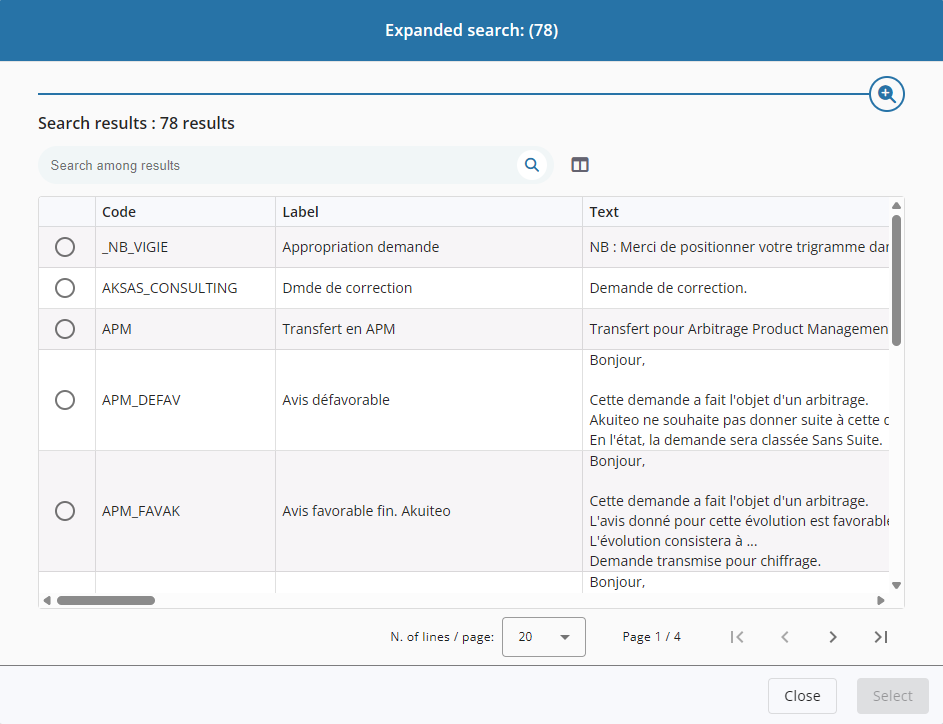
Web portals: Search field added to the menus' list of web portals
| DMF | 19**** WEB PORTAL * WEB PORTAL |
Multiple menus and saved searches can be available in the following web portals:
- Purchase Portal ;
- Web Portal ;
- Settings Portal ;
- Project ;
- Help Desk Portal ;
- Sales Portal.
In order to facilitate the search of a menu or saved search in particular, a search field has been added at the top of the navigation pane. This field is available when the portal has at least 10 menus and saved searches. When the user specify at least two characters in the search field, only the menus and saved searches matching the characters specified are displayed in the navigation pane.
When the navigation pane is folded, only the  icon is displayed.

When the navigation pane is unfolded, the field is visible at the top of the pane.
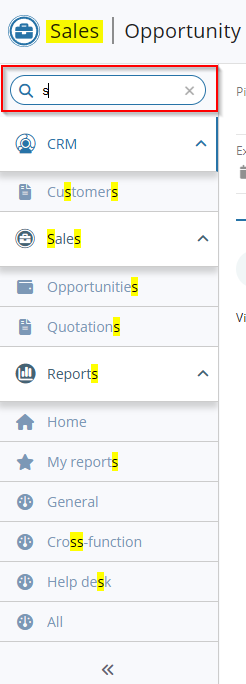
Web portals: Various improvements of Akuiteo's design
| DMF | 19**** WEB PORTAL * WEB PORTAL |
The design of the web portals of Akuiteo have evolved in order to improve visual consistency and readability.
The following modifications have been added:
- Harmonization of the pane and upper bar color;
- Standardization and modification of the colors used for the icons;
- Modification of the graphic style and dimensions of the search bars;
- Redesign of the search results tables.
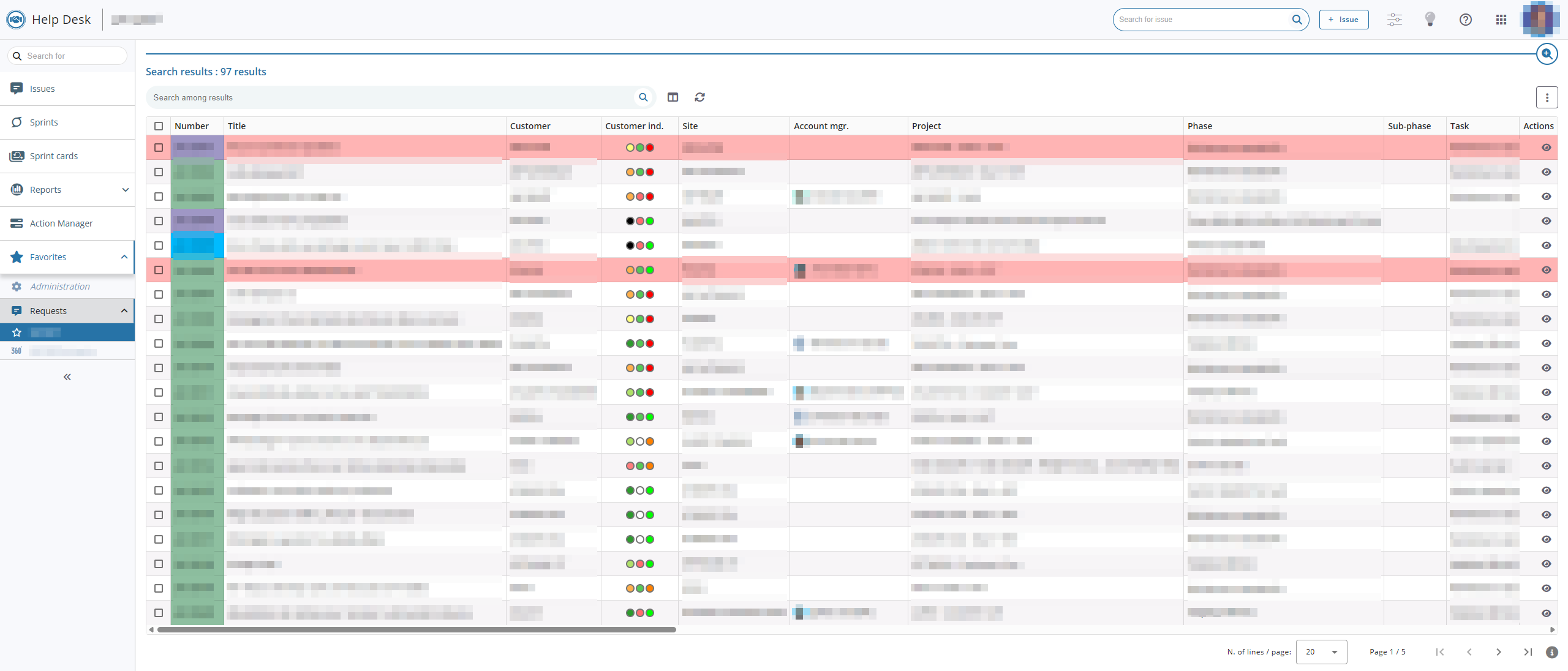
Web portals: Possibility to add titles and separators in quick accesses
| DMF |
0101** PROSPECTING PROSPECTS * 0102** PROSPECTING OPPORTUNITIES * 0201** SALES CUSTOMER * 0202** SALES QUOTATIONS * 1604** TOOLS CONTACTS * |
The My quick accesses section is available in the following locations and allows you to manage the general information and/or the custom data of the following related objects:
- Customer and prospects (Sales Portal > CRM > Customers then Header view);
- Contacts (Sales Portal > CRM > Customers then Contacts view > Header view);
- Opportunities (Sales Portal > Sales > Opportunities then Header view);
- Quotations (Sales Portal > Sales > Quotations then Header view);
- Quotation lines (quotation record sheet in Tree structure or Table view > line form in compact view);
- Issues (Help Desk Portal > Issues).
In the quick access setup window, accessible from the icon, separators can now be added to divide the quick accesses into several sections.
To add a separator, drag and drop the new Title / Separator field from the left pane to the desired location in the list of fields on the right.
Specify the label in order to define a section title in the quick accesses. If the label is not specified, the separator will be displayed without a title.
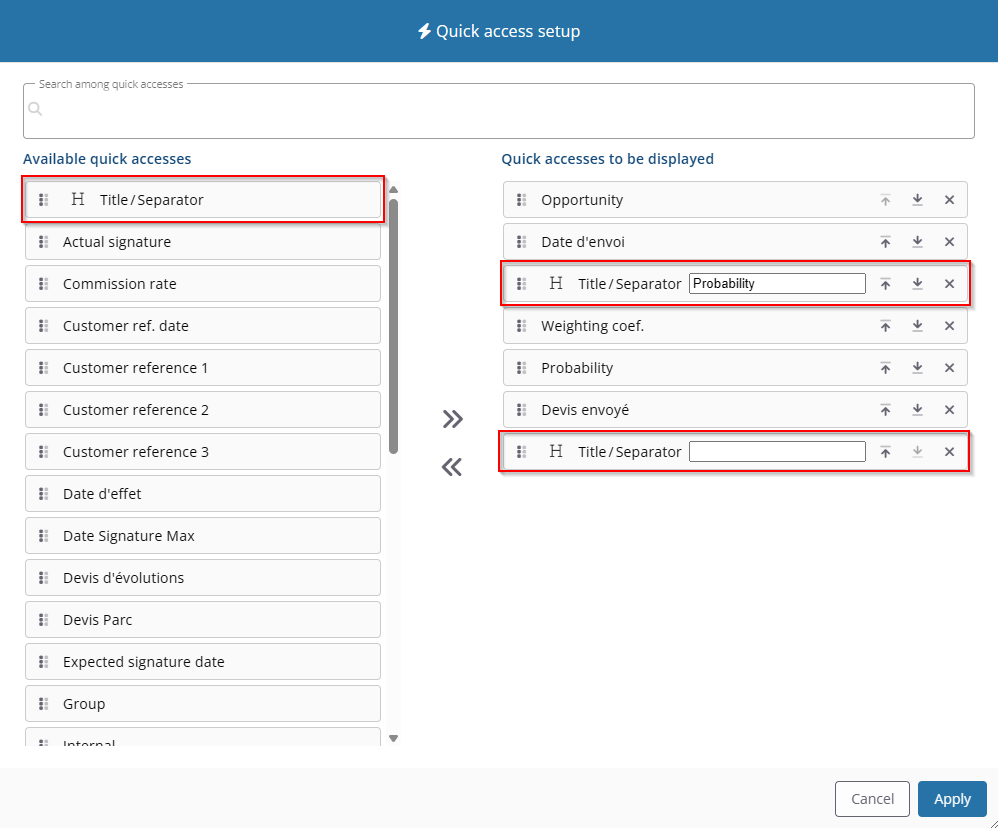
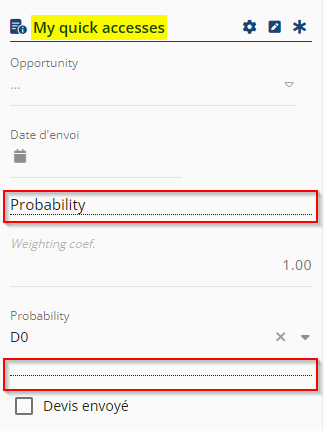
Banking
Direct debits: Totals added for the Balance in the search results of the invoices to debit
| DMF | 0811** BANKING AUTOMATIC PAYMENTS * |
From a direct debit (Banking > Batch reports and batch processing > Direct debits), it is possible to start a search of the invoices to include in the direct debit ( at the right of the debit table).
Now, in the search results, the Total and the Selection total have been added to the Balance column and display respectively the balance of all displayed invoices and the balance of the selection of invoices.
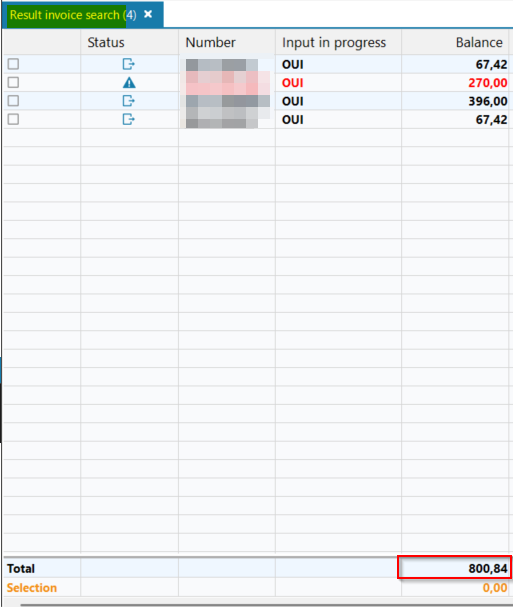
Direct debits: Search of due dates of invoices to debit improved
| DMF | 0811** BANKING AUTOMATIC PAYMENTS * |
From a direct debit (Banking > Batch reports and batch processing > Direct debits), it is possible to start a search of the invoices to include in the direct debit ( at the right of the debit table).
Now, the Expected payment date from ... to search criterion has been added to the due dates search screen > Main criteria tab > Invoice selection criteria section and allows you to filter results per expected payment date for due dates.
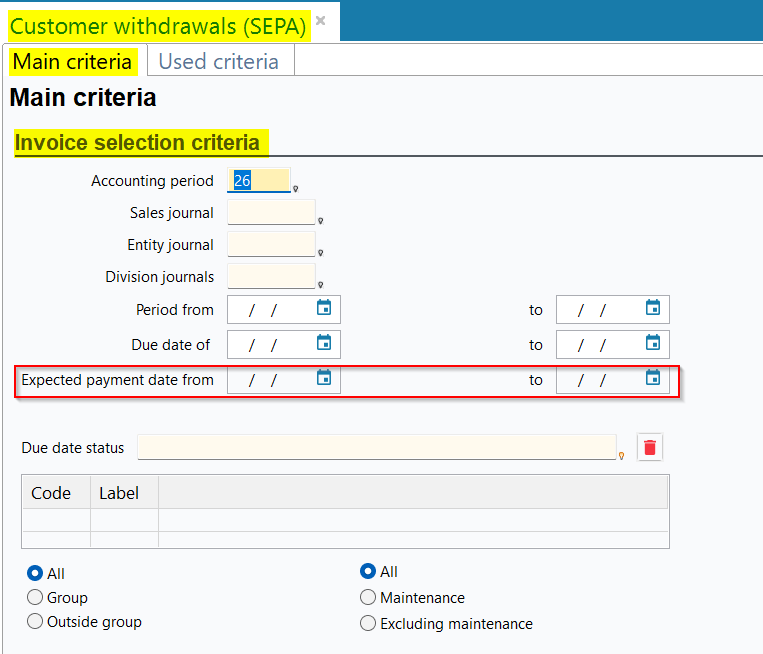
The Expected payment date column has also been added to the search results of the invoices to include to the direct debit and indicates the expected date of payment of the invoice.
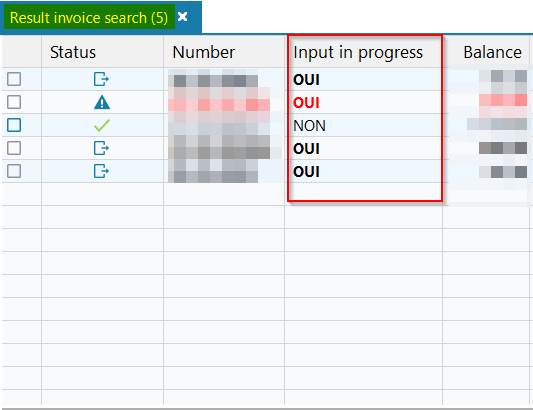
Direct debits: Various improvements
| DMF | 0811** BANKING AUTOMATIC PAYMENTS * |
Bank details origin column added
From a direct debit (Banking > Batch reports and batch processing > Direct debits), RIB and BIC numbers of customers linked to invoices are visible in the direct debit details and in the search results of due date to include in the direct debit ( at the right of the debit table).
From now on, the Bank details origin column has been added to these screens. It indicates the origin of the bank details (RIB, IBAN, BIC) displayed for the due date line. It can be specified with the SITE or CLIENT value to indicate that the bank details are from the billing site or the customer record sheet.
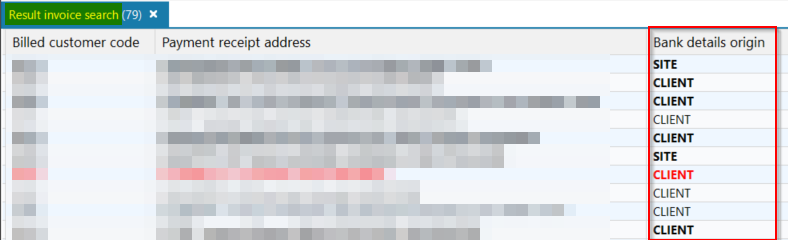
Mandate and linked information added
From now on, information linked to the active mandate are displayed in the direct debit screen and in the search result of due date of invoices to include to the direct debit. Thus, the following columns have been added:
- Mandate origin;
- Status;
- Activation date;
- Deactivation date;
- Expiry date;
- Send date;
- Date signed;
- Due date;
- Date First.

The following columns have been added to the direct debit screen only:
- UMR;
- Type;
- Sequence.
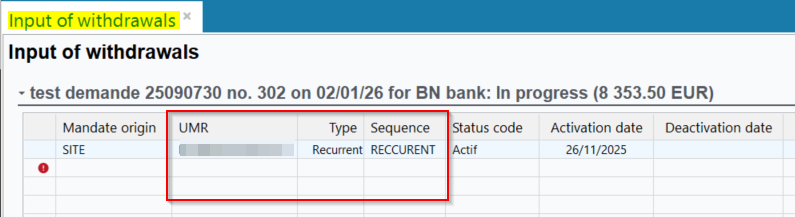
Display of status in the Excel export modified
Before, in the Excel export of the due date of the invoices to include to the direct debit, the Status column displayed a following of numbers.
Now, for more clarity, the Status column display one of the following values according to the status of each line:
- Erreur;
- Validé;
- Saisie en cours.
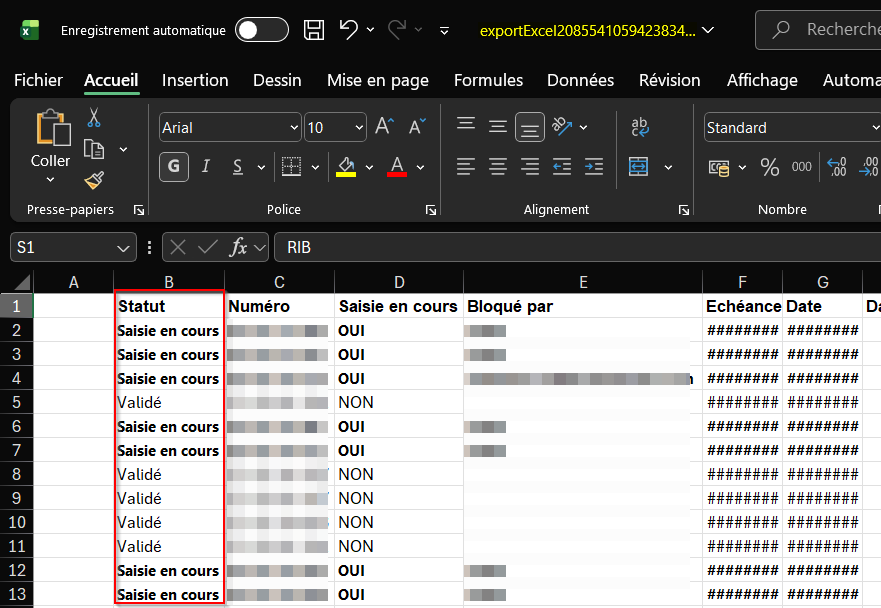
Prélèvements : Possibilité de filtrer les échéances à inclure au prélèvement par statut
| DMF | 0811** BANKING AUTOMATIC PAYMENTS * |
From a direct debit (Banking > Batch reports and batch processing > Direct debits), it is possible to start a search of the invoices to include in the direct debit ( at the right of the debit table).
Before, it was only possible to view the status of a sales invoice due date from the Due dates tab of the relevant invoice (Management > Sales > Invoices).
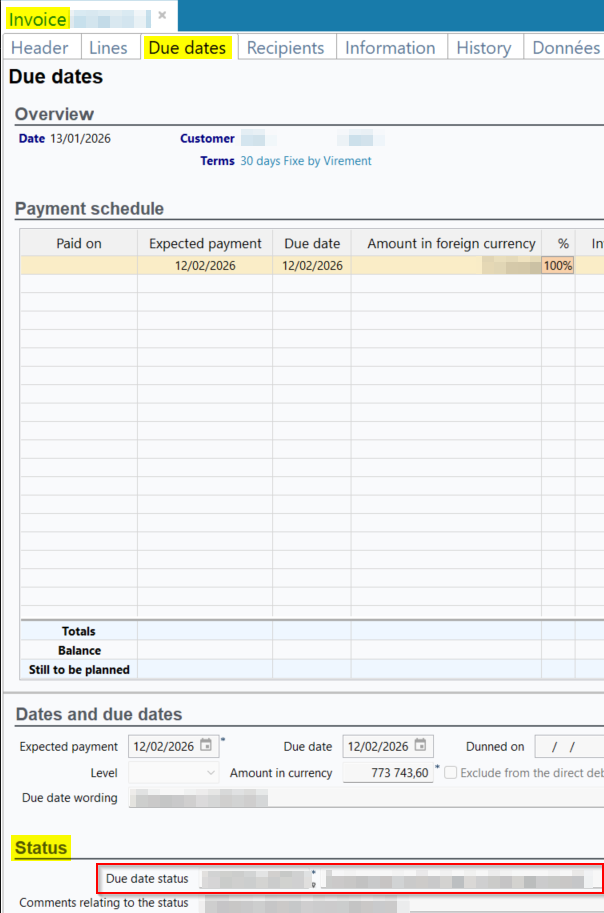
From now on, the Due date status search criterion has been added to the search screen of invoices to include to the direct debit (Main criteria tab > Invoice selection criteria section). It allows you to select one or multiple due date statuses for the invoice search.
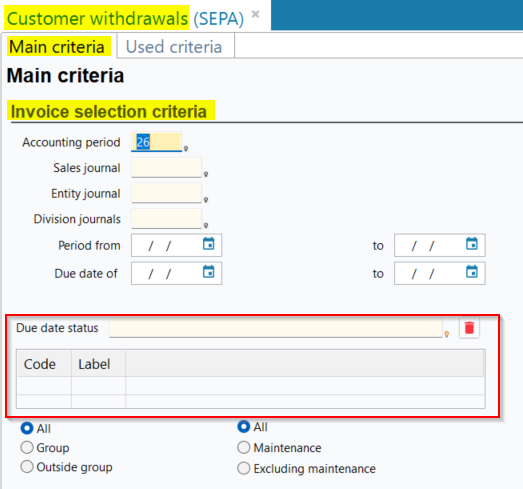
Furthermore, the following columns have been added to the search results table of the invoices to include to the direct debit:
- Due date status code;
- Due date status label.
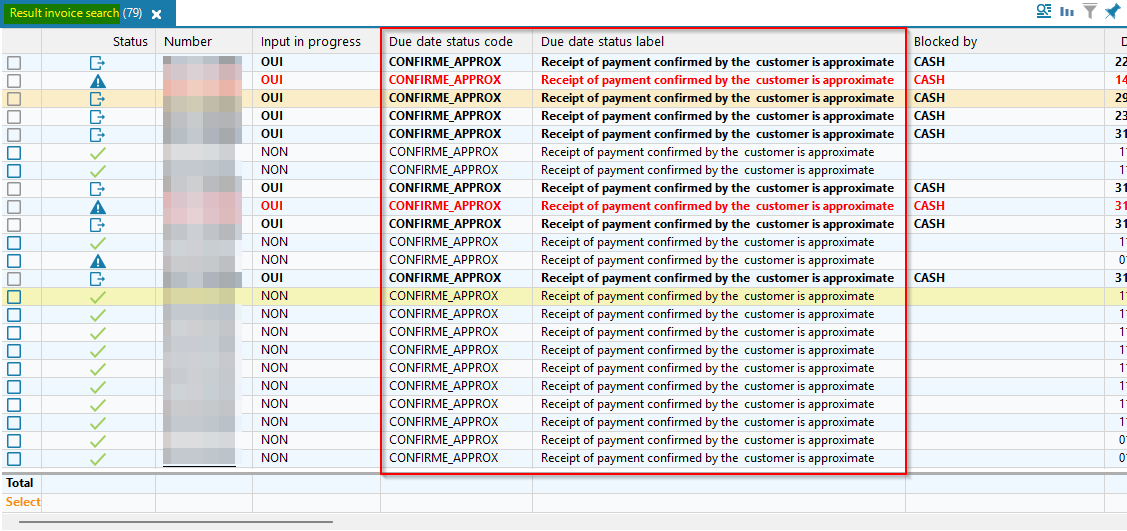
Sales
Factoring: Ability to make partial payments and partial credit notes
| DMF | 02**** SALES * SALES |
Improvements have been made to allow the creation of partial payments and partial credit notes from customer invoices managed through factoring (Management > Sales > Invoices).
Partial payments
From now on, when using the function to mark invoices as paid by the customer, accessible from an invoice via Edit > Factoring management > Selection of invoices paid by customers, the Payment amount column has been added to the results. By default, this column displays the invoice’s after-tax balance.
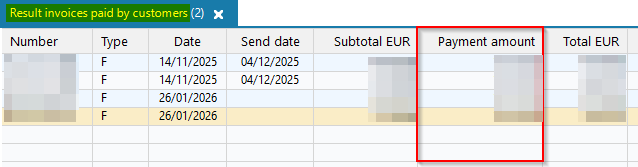
The Modify payment amount function has also been added and is accessible by right‑clicking on a result. This function allows you to modify the payment amount for each invoice in order to process a partial receipt.
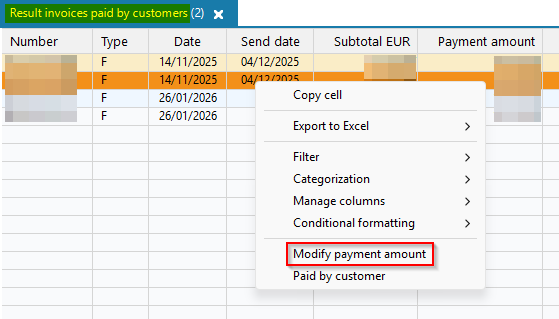
The function opens a window that allows you to specify the new payment amount to be applied. By default, the invoice’s after-tax balance is specified in the Payment amount field.
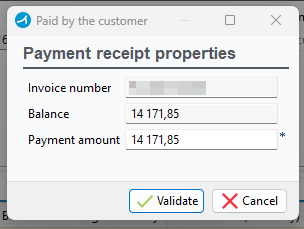
In addition, when an invoice is individually marked as paid from Edit > Paid by customer, this new window is also displayed so that you can specify the desired payment amount for the invoice.
Note
The invoice remains in the Réglée par le factor status as long as the after-tax balance is not zero.
When a partial payment is made, the Paid by the customer on date is automatically updated on the invoice.
Aside from the different amount, a partial payment entry is identical to a full payment entry.
Partial credit notes
Previously, it was not possible to create a partial credit note from a factoring‑managed invoice using Edit > Partial credit note > Partial credit note on quantity or Partial credit note on amount.
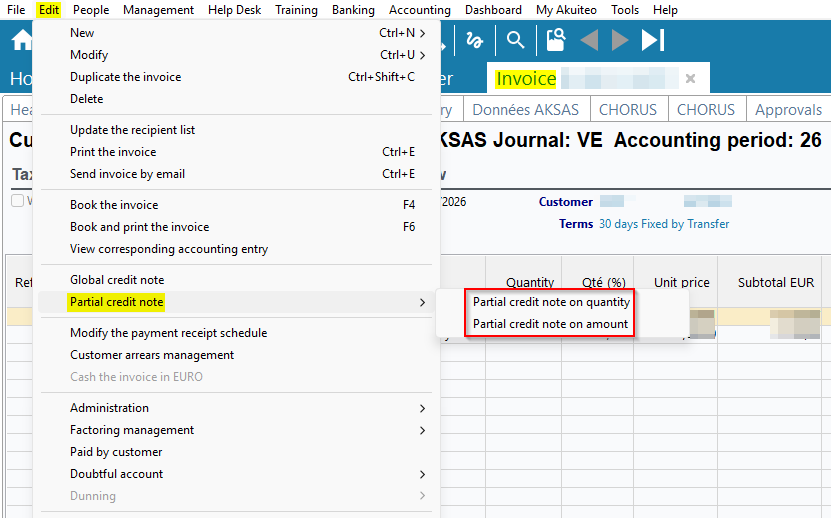
From now on, these functions remain available for invoices managed through factoring.
Creating a partial credit note generates the associated accounting entries:
- An entry corresponding to the creation of the credit note;
- An entry corresponding to the partial reversal of the factoring entries already created.
When the invoice balance after creating the credit note is not zero, the factoring status of the invoice remains unchanged. However, when the invoice balance after creating the credit note is zero:
- If no partial customer payment had been made, the factoring is canceled on the invoice and the factoring status is cleared.
- If a partial customer payment had already been entered, the factoring status of the invoice changes to Réglée par le client.
Reorganization of factoring information on invoices
On customer invoices > Information tab, the following factoring‑related fields have been moved from the Information section to a new Factoring section for improved clarity:
- Paid by factor on
- Remittance slip #
- Booked on (factoring)
- Paid by the customer on
The invoice status has also been moved to this section, and the Status label has been added for this field.
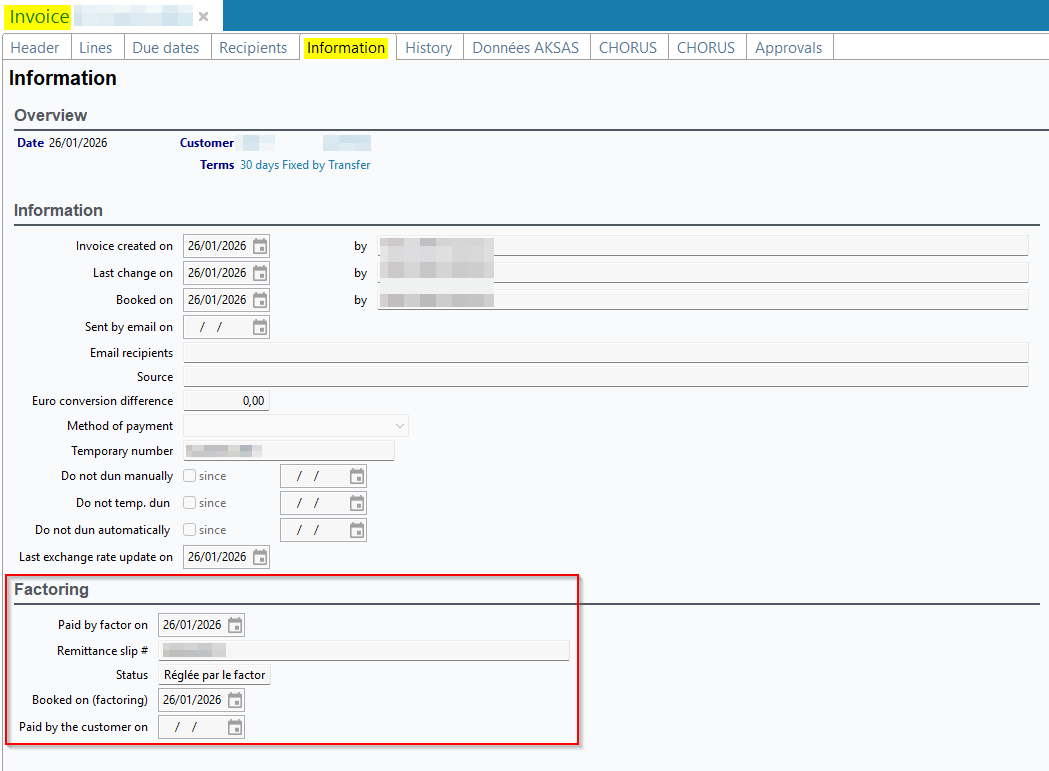
Deliveries billing: Choice of delivery site for grouped deliveries
| DMF | 0204** SALES DELIVERIES * |
Deliveries of the same customer (Management > Sales > Deliveries) can be grouped in one invoice by clicking on  at the right of the search results table.

Before, when multiple deliveries were grouped into one invoice, the Delivery site of the generated invoice (Header tab > Customer section) was the default delivery site of the customer (People > Customers/Prospects > Sites tab).
Now, when grouped deliveries have the same delivery site which is not the default delivery site, this site is kept on the generated invoice. However, if the grouped deliveries have different delivery sites, the default delivery site is kept on the generated invoice.
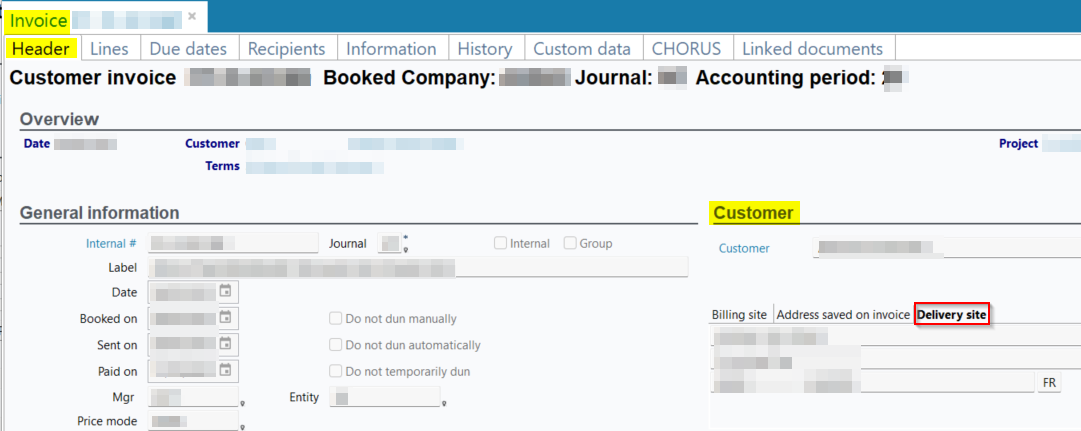
Deliveries billing: Additional security added when billing deliveries
| DMF | 0204** SALES DELIVERIES * |
Important
This evolution requires enabling the following feature flag: Transverse domain > Lock Facturation Bl label. To enable it, go to the Administration console > Configuration > Features, enable the Lock Facturation Bl feature flag then log in again.
Afin de sécuriser la facturation des livraisons (Gestion > Ventes > Livraisons puis Edition > Facturer la livraison) effectuée dans les traitements longs (par exemple, la facturation d'une livraison comportant des centaines de lignes au sein d'un traitement de facturation en lot de plusieurs livraisons), une amélioration technique a été apportée.
When a delivery is being billed, this delivery is locked in order to prevent billing other deliveries at the same time, and thus to prevent billing a delivery twice. As long as the processing is not finished, the locked object cannot be billed or updated.
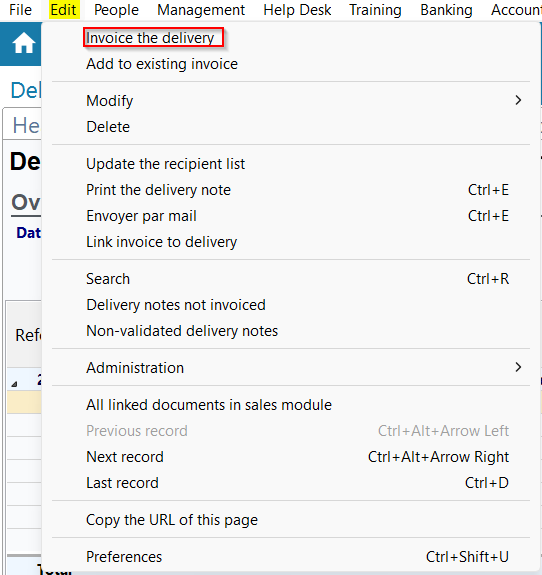
Billing of services: Filter added for project years
| DMF | 02**** SALES * SALES |
In the billing launch window for services (Management > Sales > Services billing), a new filter PROJECT - Year has been added to the dropdown list in the Service filters section. It allows you to specify one or more years in order to bill only the services linked to the projects corresponding to the selected years.
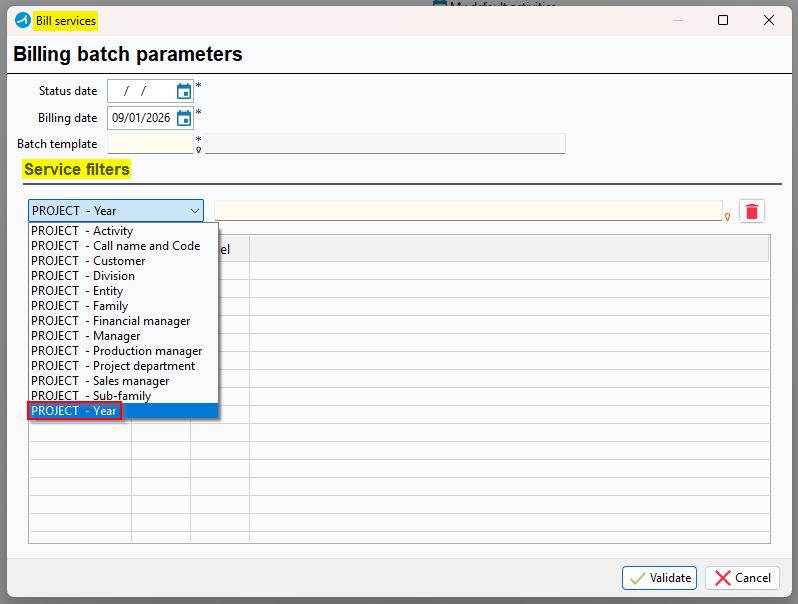
Invoices and Deliveries: Possibility to retrieve the number of persons registered to the session from the Bsoft tool
| DMF |
0204** SALES DELIVERIES DELIVERIES 0205** SALES INVOICES * |
The deliveries and invoices (Management > Sales > Deliveries and Invoices) can have training lines linked to registration files. The delivery or invoice line with a sold product of training type can be linked to a training session and a training registration file by using the Link to registration file feature by doing a right-click on this line.
The Bsoft connector is an electronic sign-in tool used for training sessions. Trainers can, during training sessions, give a QR code or a link to the trainees so they can access the sign-in sheet in numeric format. Once the sign-in sheet is signed by the trainees, Akuiteo allows you to retrieve this sheet and attach it to the relevant training session (for more information, see Using the Bsoft connector).
Before, when the company used the Bsoft connector, it was not possible to retrieve the list of the training having participated to the whole training from the these management objects. It was necessary to consult the Bsoft space of the company to access this information.
From now on, the Retrieve registrations from signing tool feature has been added and can be accessed from a delivery or an invoice > Edit > Retrieve registrations from signing tool.
It allows you to automatically specify the No. individuals field (Lines tab > Details section) with the number of trainees having participated to the whole training.
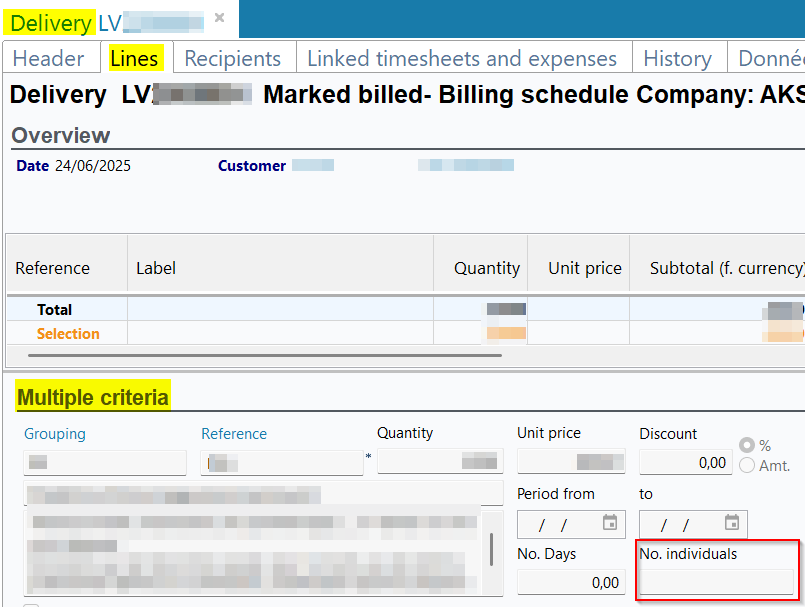
This feature also allows you to launch an overview report of Session type.
Invoices: Blocking added for invoices included in a direct debit
| DMF | 0811** BANKING AUTOMATIC PAYMENTS * |
Important
This evolution requires enabling the following feature flag: Transverse domain > Treso Controle Prlvt label. To enable it, go to the Administration console > Configuration > Features, enable the Treso Controle Prlvt feature flag then log in again.
Blocking the payment of an invoice
In the Desktop Application, a sales invoice can be payed from:
- the invoice (Edit > Cash the invoice in EURO);
- a customer receipt (Banking > Customer receipts);
- a customer disbursement (Banking > Customer disbursements).
Before, when a customer invoice was part of a direct debit (Banking > Batch reports and batch processing > Direct debits), it was still possible to pay this invoice, which could caused errors because the invoice would be paid twice.
From now on, a blocking has been added to prevent the payment of an invoice included in a direct debit.

Blocking the mandate modification
When a direct debit (Banking > Batch reports and batch processing > Direct debits) is generated, the amounts are collected using a mandate linked to each customer. Mandates are managed from Banking > Mandates or from the customer site record sheet > Direct debit mandates tab (People > Customers / Prospects).
Before, it was possible to modify a mandate for which a direct debit was generated, which led to the blocking of the mandate.
From now on, when a direct debit is generated, the mandates associated with the customers to be debited can no longer be modified. Thus, the following features are blocked from the mandate record sheet:
- Modify (Edit > Modify or
 from the action bar);
 - Activate the mandate (Edit > Activate the mandate);
- Review the mandate (Edit > Review the mandate);
- Force deactivation of the mandate (Edit > Force deactivation of the mandate);
- Cause the mandate to expire (Edit > Cause the mandate to expire);
- Mark first (Edit > Mark First).
The following features are blocked from the search results, by right-clicking from a selection of results:
- Activate the selected credit debit mandates;
- Force deactivation of the selected mandates;
- First Mark the selected mandates.
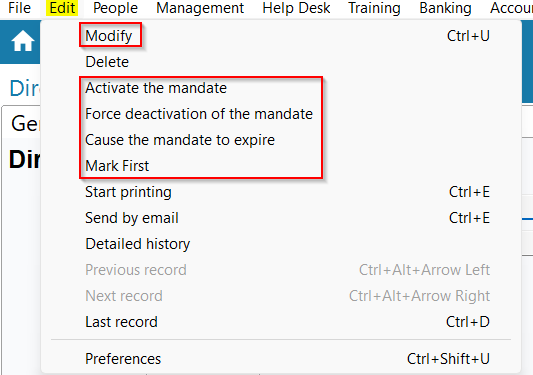
Blocking the modification of payment terms
In the invoice search results (Management > Sales > Invoices), payment terms can be modified on multiple invoices at once by right-clicking on a selection > Update > Update terms and conditions.
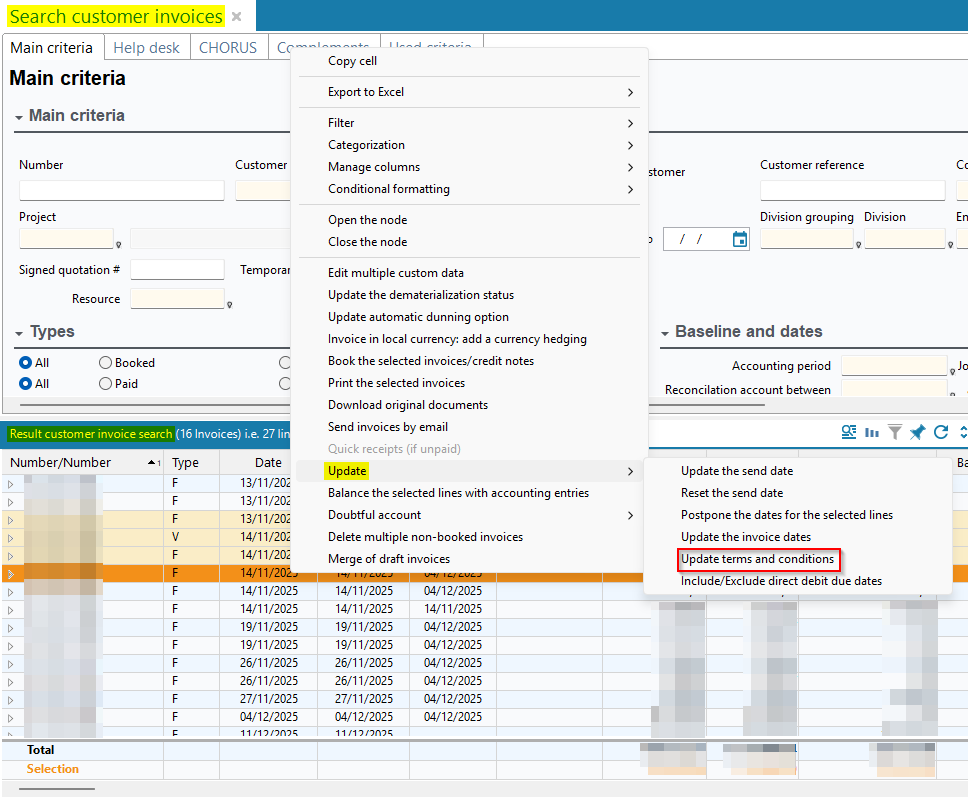
In the window, the option Recalculate the due date can be unchecked to avoid recalculating the due date on the invoices.
Previously, for invoices already included in a direct debit (Banking > Batch reports and batch processing > Direct debits), payment terms could be modified if the Recalculate the due date option was unchecked.
From now on, a restriction has been added, and payment terms can no longer be modified for invoices included in a direct debit, even if the Recalculate the due date option is unchecked.
Invoices: Recipients of invoice update when modifying billing site
| DMF | 0205** SALES INVOICES * |
Before, when the billing site of an invoice (Management > Sales > Invoices > Header tab > Customer section) was modified, an informational message asked the user to manually verify if the recipients of the invoice needed to be updated (Recipients tab).
From now on, an alert message ask the user if they want to automatically update the recipients when they click on Yes. In this case, initial recipients are overwritten with the contacts identified as recipients of the invoice on the selected billing site (Customer site > Contacts tab). If the new billing site does not have any contact identified as recipient of the sales invoices, the initial recipients are deleted and the Recipients tab remains empty.
If the user clicks on No, the initial recipients remains.
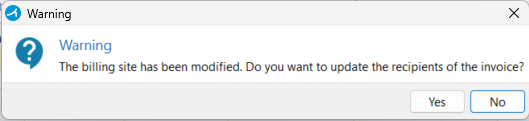
Note
If a contact of the initial billing site is checked All-sites invoice (Main tab > Recipient of section), this contact will always be a recipient of the invoice, even if the user clicks on Yes.
Invoices: Security added when merging draft invoices
| DMF | 0205** SALES INVOICES * |
Important
This feature requires enabling the following feature flag: Transverse domain > Lock Fusion Factures label. To enable it, go to the Administration console > Configuration > Features, enable the Lock Fusion Factures feature flag then log in again.
The Merging draft invoices feature (Management > Sales > Invoices > right-click from the search results > Merging draft invoices) and the FusionFacture batch (Tools > Setup > Batches > Batch creation and modification) allow you to merge non booked draft invoices into one draft invoice, according to the grouping criteria selected.
In order to make the merging process more secure, when an invoice is currently being merged, it is locked to prevent other users to start an other process at the same time. As long as the processing is not finished, it is not possible to modify, delete or include the locked object to another process.
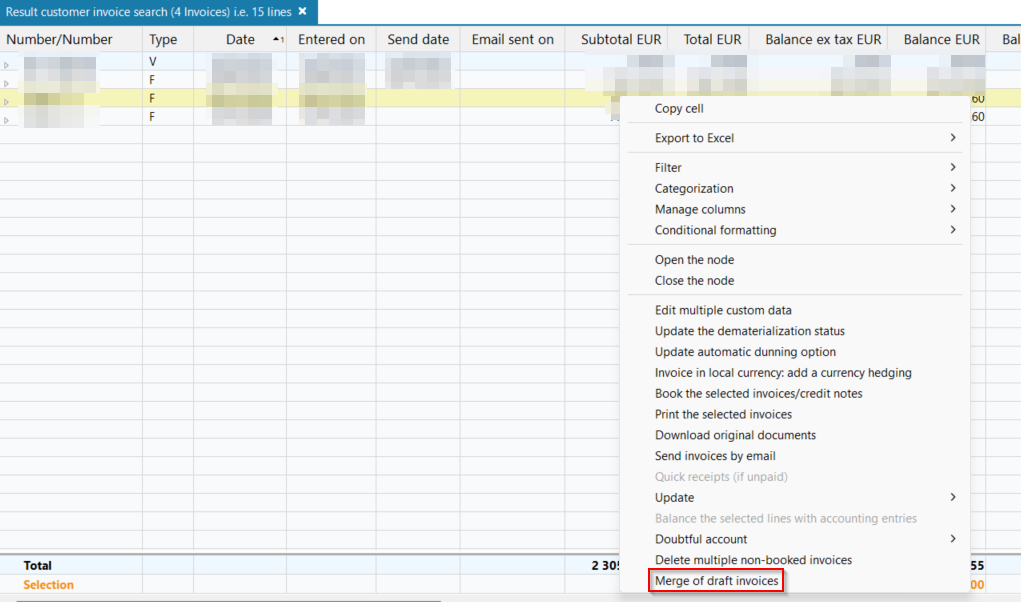
Invoices: Possibility to approve customer invoices
| DMF |
0618** PROJECTS APPROVALS * 1909** WEB PORTAL APPROVALS APPROVALS |
Approvals allows you to create specific rules for management objects (Tools > Setup > General setup > Resources and Labor > Approvals) so the employees can ask for the approbation of the manager or a responsible person so they can make progress on certain management objects.
From now on, draft customer invoices (Management > Sales > Invoices) can be submitted to approvals before being booked (Edit > Book invoice or Book and print the invoice) so the managers can verify the information on the invoice.
Thus, in the setup screen of Approvals > Approval tab > Data selection section and Advanced approval rules tab > Details section, the Customer invoice value can be selected in the drop-down list of the Object type field to create an approbation rule.

The feature to request approvals has been added on the invoices from:
- the
 icon in the action bar;
 - Edit > Request approvals.
These features requires the 061807 PROJECT APPROVALS REQUEST.
The user can also cancel approvals from Edit > Cancel approvals. This feature requires the DMF 061813 PROJECT APPROVALS RESET APPROVALS.
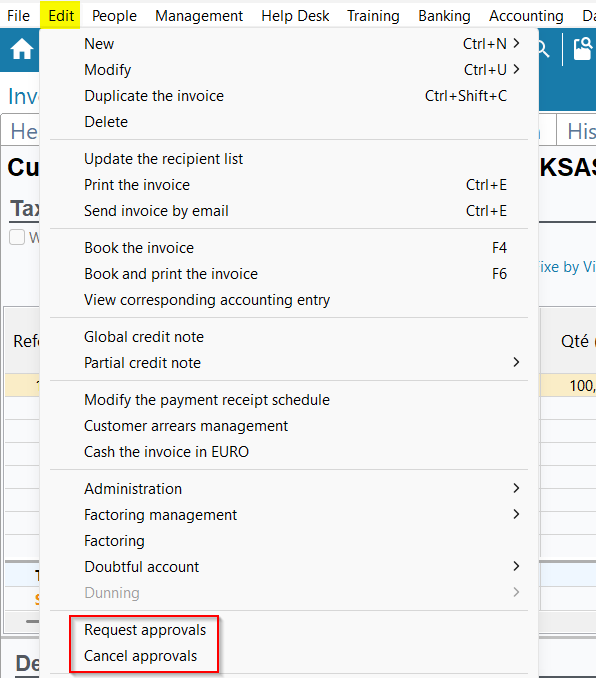
Note
When booking the invoice from Edit > Book invoice or Book and print the invoice a verification is made in order to determine if there is an approvals system on customer invoices and if all approvals were given for the invoice. If all approvals have not been received, the booking is blocked and an error message is displayed.
The Approvals tab has been added to the customer invoice and displays all information about the approval for the current invoice. It is possible to approve or deny an invoice from this tab.

In the search screen of invoices, the Approvals tab has also been added. It allows you to define search criteria for draft invoices, according to the approval status, approbators who need to approve the invoice or who approved the invoice.
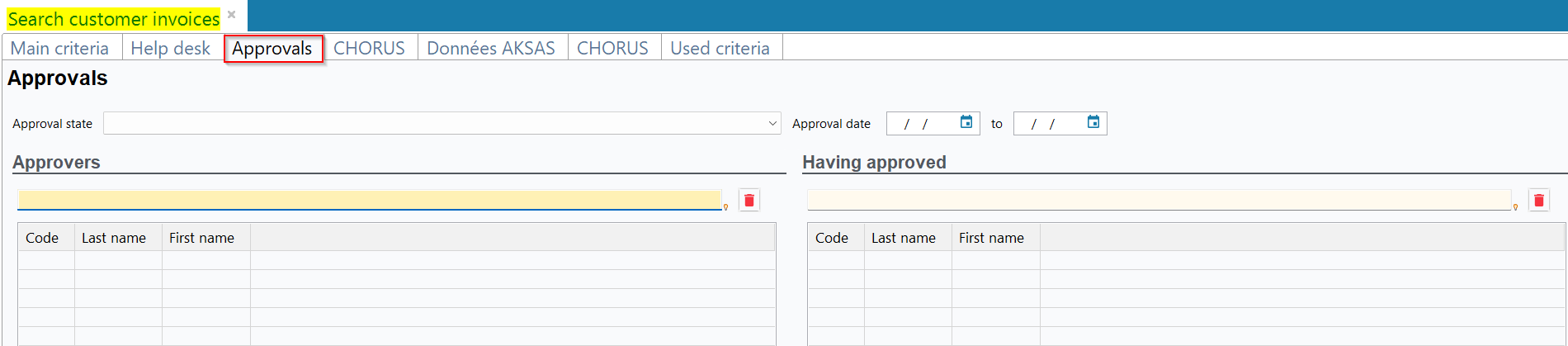
Customer invoices are now added to the list of management objects that can be approved from:
- My Akuiteo > My approvals;
- My Akuiteo > Interactive personal dashboard;
- Web Portal > Manager > Approvals;
- Web Portal > Interactive personal dashboard;
- Akuiteo Mobile > Approvals.
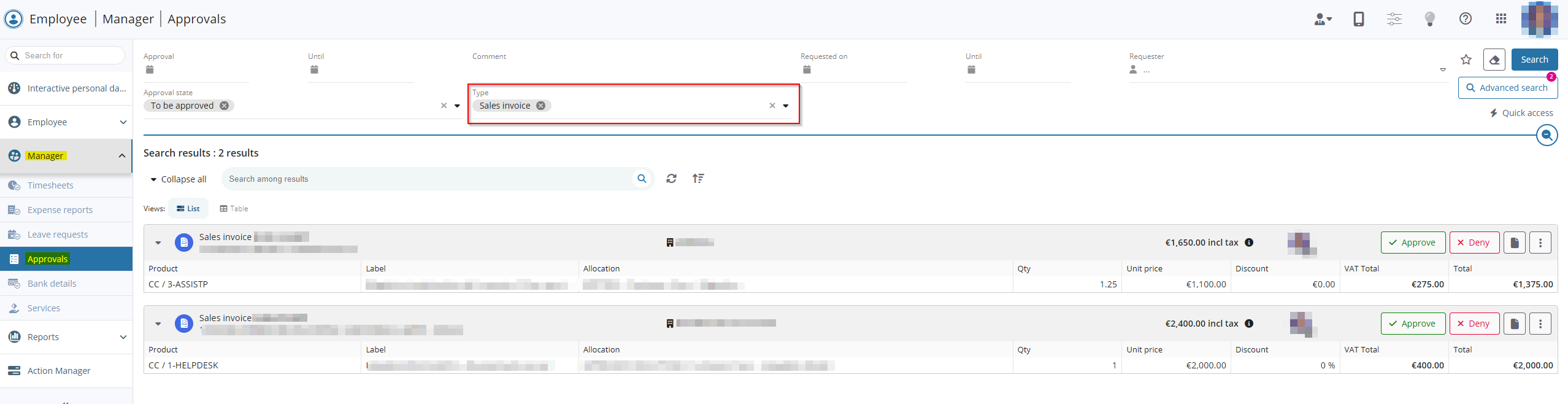
Invoices: Delivery site identically retrieved when duplicating the invoice
| DMF | 0205** SALES INVOICES * |
Before, when duplicating an invoice (Management > Sales > Invoices), the default Delivery site (Header tab > Customer section) was automatically retrieved on the duplicated invoice, even when it was modified on the original invoice.
Now, the delivery site specified on the original invoice is retrieved on the duplicated invoice. If the delivery site specified on the original invoice is closed when duplicating the invoice, then the default delivery site is specified on the duplicated invoice.
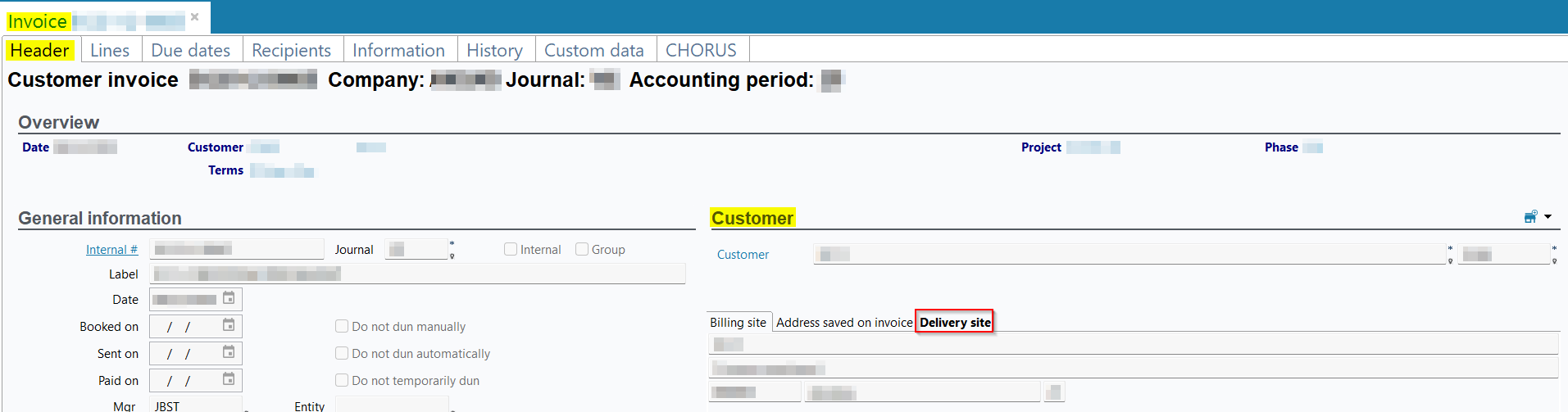
Intra-group rebilling of expenses and timesheets: Columns added to the rebilling table
| DMF | 0204** SALES DELIVERIES DELIVERIES |
The intra-group rebilling (Management > Sales > Intra-group rebilling of expenses and timesheets) allows you to rebill timesheets and/or expenses of an employee of one company to another one (internal or external).
From now on, the following columns have been added to the table of the Rebilling section:
- Under Purchase Invoice:
- Entity;
- Pilot project division; Pilot project company.
- Under Timesheets and expenses:
- Employee division; Employee entity.
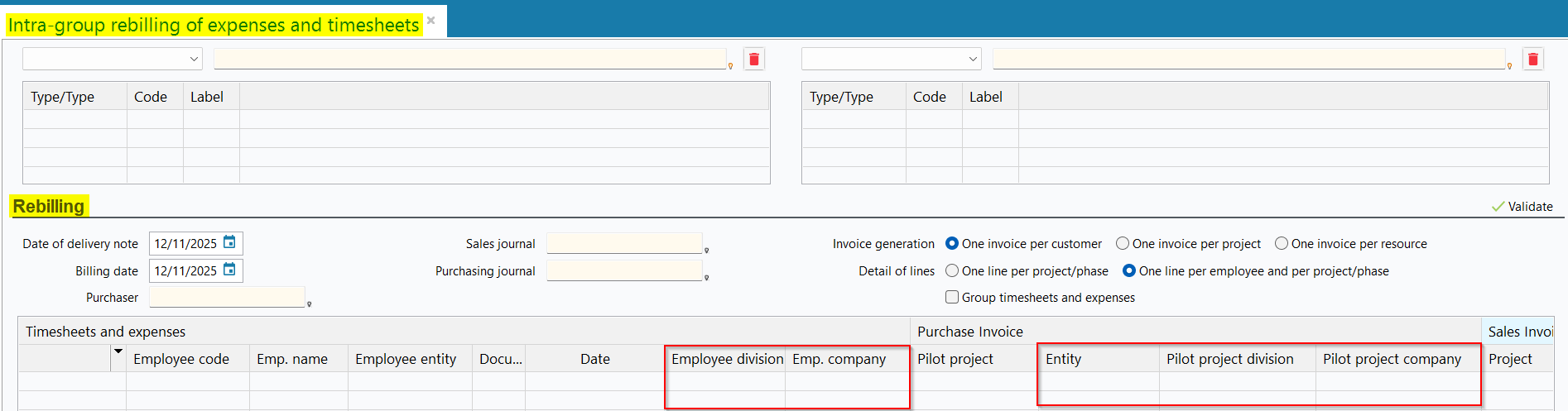
360 degree view: Billed customer displayed for all sales objects
| DMF |
0101** PROSPECTING PROSPECTS * 0201** SALES CUSTOMER * 06**** PROJECTS * * |
Previously, from the 360 degree view tab > Sales section of customers/prospects (People > Customers/Prospects) and projects (Management > Projects), the Billed customer column displayed the billed customer only for invoices and was empty for other objects.
From now on, the Billed customer column also displays the billed customer for other objects in the sales chain that can include a billed customer: customer contracts, quotations, sales orders, deliveries, and sales billing schedules.
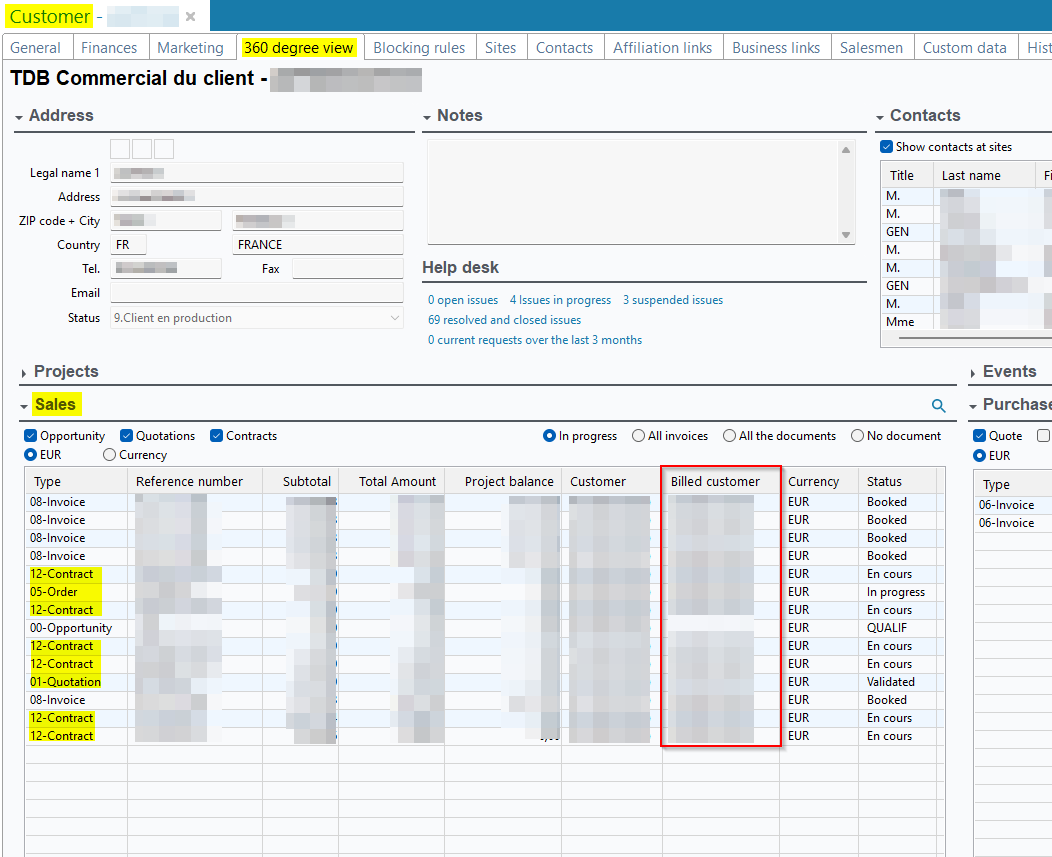
Deleted feature flags
Important
Starting from version 5.15.0, the features associated with the following feature flags are available as standard, and these feature flags are therefore deleted.
| Domaine / Sous-domaine | Label | Comment | Since |
|---|---|---|---|
| Mobile | Custom requests | See release note Custom requests: New Custom requests menu available. | 5.10.0 |
| Portail achats | Marquer Valider Facture Temp Manuel | See release note Temporary invoices: Possibility to mark an invoice as validated. | 5.14.0 |
| Portail achats | Reconciliation Pieces Achat | See release note Temporary invoices: New options to receive and bill purchase objects when validating. | 5.8.0 |
| Portail collaborateur > Employee | Employee Activity | Gives access to the Employee > Activity overview menu of the new Web Portal. This Activity overview menu offers the same features available in the Web Portal's current Activity overview menu with a new interface. | 5.0.15 |
| Portail collaborateur > Employee | Employee Agenda | Gives access to the Employee > Timesheets & schedules menu of the new Web Portal. This Timesheets & schedules menu offers the same features available in the Web Portal's current Timesheets & schedules menu with a new interface. | 5.0.13 |
| Portail collaborateur > Manager | Employee Approvals | Gives access to the Manager > Approvals menu of the new Web Portal. This Approvals menu offers the same features available in the Web Portal's current Approvals menu with a new interface. | 5.0.20 |
| Portail collaborateur > Employee | Employee Custom Requests | Gives access to custom requests of the Employee menu in the new Web Portal. Those custom requests menus offer the same features available in the Web Portal's current custom requests menu with a new interface. | 5.0.17 |
| Portail collaborateur > Employee | Employee Expenses | Gives access to the Employee > Expense reports menu of the new Web Portal. This Expense reports menu offers the same features available in the Web Portal's current Expense reports menu with a new interface. | 5.0.13 |
| Portail collaborateur > Employee | Employee Leave Requests | Gives access to the Employee > Leave requests menu of the new Web Portal. This Leave requests menu offers the same features available in the Web Portal's current Leave requests menu with a new interface. | 5.0.13 |
| Portail collaborateur > Manager | Employee Manager Expenses | Gives access to the Manager > Expense reports menu of the new Web Portal. This Expense reports menu offers the same features available in the Web Portal's current Validations > Expense reports menu with a new interface. | 5.0.17 |
| Portail collaborateur > Manager | Employee Manager Leaves | Gives access to the Manager > Leave requests menu of the new Web Portal. This Leave requests menu offers the same features available in the Web Portal's current Validations > Leave requests menu with a new interface. | 5.0.14 |
| Portail collaborateur > Manager | Employee Manager Times | Gives access to the Manager > Timesheets menu of the new Web Portal. This Timesheets menu offers the same features available in the Web Portal's current Validations > Time menu with a new interface. | 5.0.24 |
| Portail support | Recherche De Cartes | See release note Help Desk Portal: New Sprint cards menu available. | 5.9.0 |
| Portail support | Texte Riche | See release note Help Desk issues: Rich text on internal information and direct messages. | 5.9.0 |
| Portail ventes | Liens Filiation Crm | See release note Customers and Prospects: Possibility to manage business links. | 5.11.0 |
| Portail ventes | Liens Gestion Crm | See release note Customers and Prospects: Possibility to manage business links. | 5.10.0 |
| Portail ventes | Recherche Comptes Et Contacts | See release note CRM: CRM module migrated to the Sales Portal. | 5.14.0 |
| Transverse | Bridge Nature | See release note Bank statement imported by Bridge: Improvements brought to payment types. | 5.12.0 |
| Transverse | Controles Param Avec Mot Cle | See release note Search interface and web portal forms: Custom controls added. | 5.12.0 |
| Transverse | Healthchecks | This feature flag allows Akuiteo's tech team to make a quick diagnosis of an app health. | 5.14.0 |
| Transverse | Metriques Techniques | This feature flag allows Akuiteo's tech teams to improve their surveillance of the app and help them when an error occurs. | 5.14.0 |
| Transverse | Oneshot Probe | This feature flag allows Akuiteo's tech teams to occasionally diagnose the performance of a specific behavior in the production environment. | 5.14.0 |
| Transverse | Operation sur Critere | See release note Search criteria: Possibility to choose the behavior of a criterion. | 5.10.0 |
| Transverse | Puissance Fiscale Par Vehicule | See release note Expense reports: Improved linked to the mileage allowances. | 5.3.0 |
| Transverse | Tableau De Bord Interactif | See release note New Web Portal: Interactive personal dashboard available on the new Web Portal. | 5.6.0 |
| Transverse | Tdb Planning Date Fin | See release note Schedules: Improved handling of end dates. | 5.14.0 |
| Transverse | Vue Detaillee Sur Liste D Aide | See release note Web portals: Extended help list added for some fields. | 5.14.0 |
Available feature flags
| Domain / Sub-domain | Label | Comment | Since |
|---|---|---|---|
| Portail collaborateur | Changer De Collaborateur | See release note Timesheets & schedules and Activity overview: New function to manage the calendar and activity on behalf of another employee. | 5.15.0 |
| Employee Portal | Pastilles Approbateurs | See release note Approvals: New display for approvals. | 5.15.0 |
| Mobile | Approvals | See Approvals: New Approval menu available release note | 5.15.0 |
| Portail project | Indicateur Depassement de Plg | See release note Employee view: Under/over-scheduling indicators as percentages. | 5.15.0 |
| Portail achats | Statut Fac Achat | See release note Purchase invoices: Dematerialization status added. | 5.14.0 |
| Portail ventes | Portail vente | See release note New web portal dedicated to managing quotations. | 5.9.0 |
| Portail ventes | Opportunities | See release note CRM: CRM module migrated to the Sales Portal. | 5.14.0 |
| Portail ventes | Quotations | See release note New web portal dedicated to managing quotations. | 5.9.0 |
| Portail ventes | Signature Electronique Des Devis Web | See release note Quotations: Support for the Universign API to send quotations for electronic signature. | 5.14.0 |
| Portail ventes | Pipeline | See release note CRM: CRM module migrated to the Sales Portal. | 5.14.0 |
| Portail ventes | Vente Facturx | See release note Factures : Dématérialisation des factures de vente. | 5.8.0 |
| Portail support | Sprints | See release note Sprints: Sprint management moved from Agile Factory to the Help Desk Portal. | 5.14.0 |
| Technical | Jetons Api | See API: New API tokens menu available release note | 5.15.0 |
| Transverse | Import Options | See release note Imports: Improvement on the import screen. | 5.14.0 |
| Transverse | Action manager | See Web portals: New Action Manager menu available release note | 5.14.0 |
| Transverse | Lock Comptabilisation | See release note Booking invoices: Additional security when booking invoices. | 5.9.0 |
| Transverse | Lock Facturation Bl | See release note Deliveries billing: Additional security added when billing deliveries. | 5.15.0 |
| Transverse | Lock Fusion Factures | See Invoices: Security added when merging draft invoices release note | 5.15.0 |
| Transverse | Heures centiemes | See release note Scheduled items: New management rule added for the management of scheduled items in hours hundredth. | 5.15.0 |
| Transverse | Treso Controle Prlvt | See release note Invoices: Blocking added for invoices included in a direct debit. | 5.15.0 |
| Transverse | Vir Clients Auto | See release note Bank statement managements: Various improvements. | 5.15.0 |
| Transverse | Notification Echec Webhook | See release note Webhooks: Possibility to set up an email alert in case of error. | 5.15.0 |
Technical release notes
- As part of Akuiteo's dependencies updates, the OpenOffice classes have been deleted. Thus, the OpenOffice server host and OpenOffice port fields available in the Administration console > Configuration > Reports have also been deleted.
New DMFs
| Code | Domain | Module | Feature |
|---|---|---|---|
| 071116 | ACCOUNTING | BANK STATEMENTS | ADD BRIDGE LINE |
| 190407 | PORTAL | SCHEDULE VIEW | POSTPONE |
| 5008** | MOBILE | APPROVALS | * |


