
|
You must take note of the news identified with this icon since it highly modifies Akuiteo's current behavior or it adds significant value. |
 Purchases
Orders: Modification of the DMF to create a billing schedule
Purchases
Orders: Modification of the DMF to create a billing schedule
| DMF | 0408** PURCHASES BILLING SCHEDULES BILLING SCHEDULES |
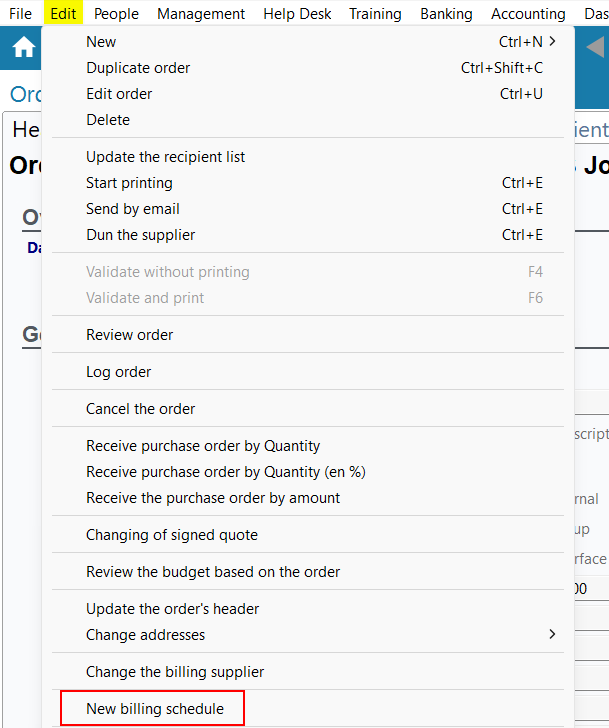
Before, the billing schedule creation from the purchase order (Management > Purchases > Purchase orders then Edit > New billing schedule) needed the DMF 040311 PURCHASES ORDERS CANCEL.
From now on, the creation of supplier billing schedules from an order requires the 040801 PURCHASES BILLING SCHEDULES NEW DMF.
Expense reports: Expense type label column added
| DMF | 0415** PURCHASES EXPENSE REPORTS * |
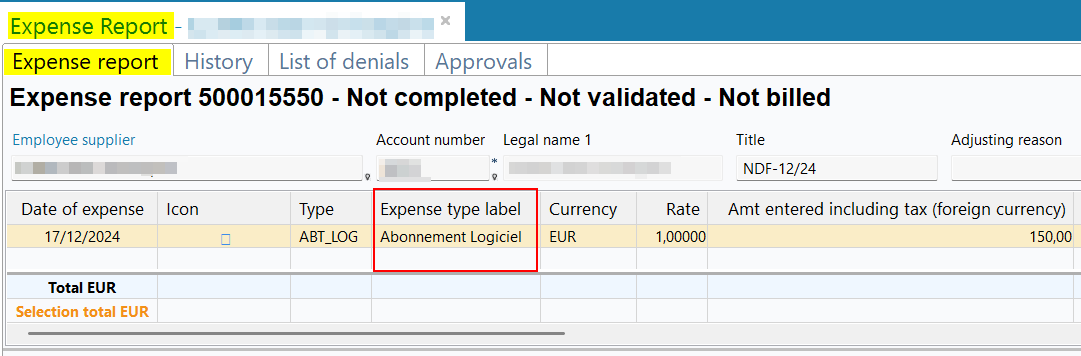
From now on, the Expense type label column, displaying the expense label, is available from:
- In the search results of the expense reports (Management > Purchases > Expense report);

- In the table of an expense report (My Akuiteo > My expense reports > Expense report tab).
Administration console
API tokens: Various improvements
| DMF | 090201 ADMINISTRATOR SETUP SERVER ADMINISTRATION CONSOLE |
Important
This feature requires enabling the following feature flag: Technique domain > Jetons Api label. To enable it, go to the Administration console > Configuration > Features, enable the Jetons Api feature flag then log in again.
API tokens are only use to access Akuiteo API resources, in replacement of the Oauth2 authentication. They allow you to identify and the authentication to third-parties app accessing the Akuiteo API resources. In this context, the API tokens menu (Administration console > Security > API tokens) has evolved.
Search criteria added
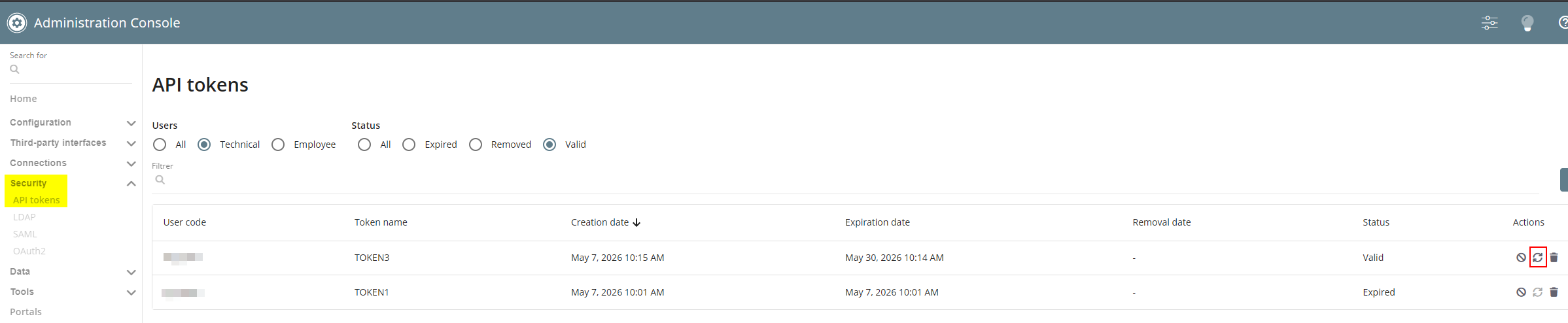
To make the search of a token easier, the Users and Status search criteria have been added and allows you to filter the displayed tokens.

Feature added to regenerate a token
The  icon is now available in the Actions column of the API tokens table. This feature allows you to regenerate a token by specifying a new expiration date for this token without having to specify all required information again. If the Expiration date is not specified, then the token is regenerated for a year by default.
This icon is grayed out and it is not possible to click on it when the token is expired or revoked.
New API tokens expiration notifications section
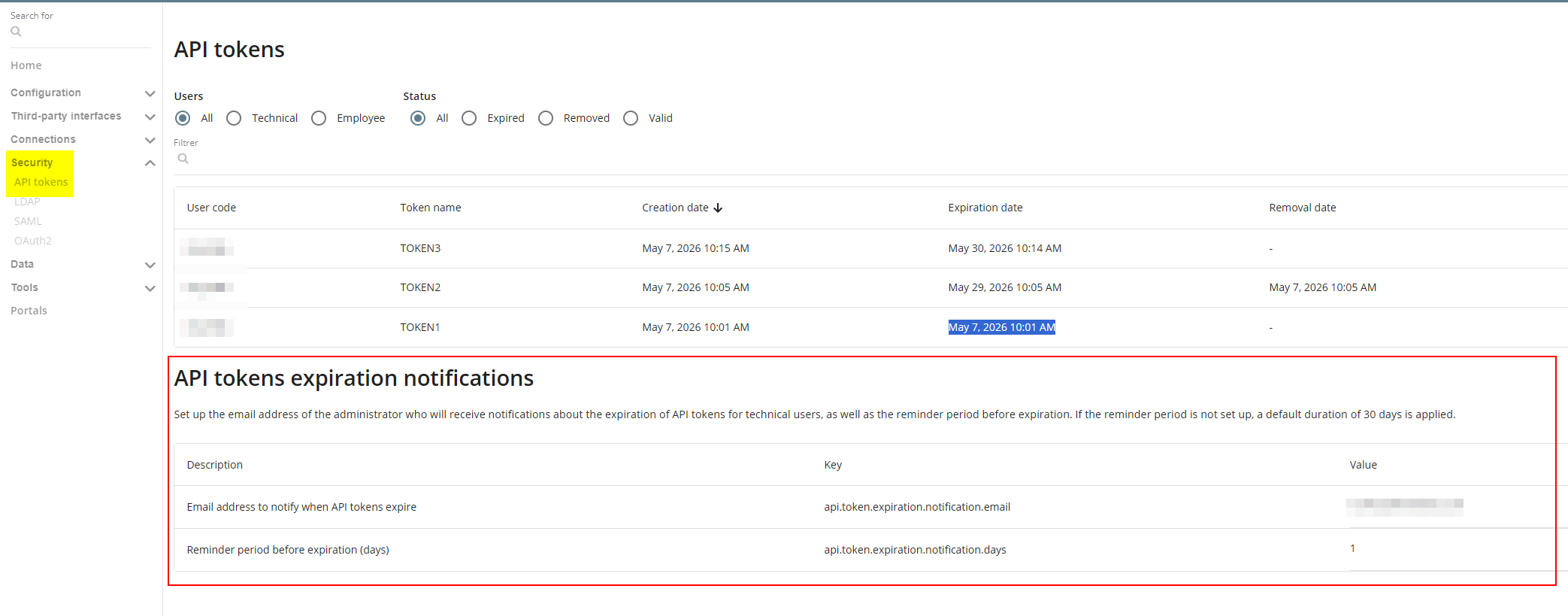
The new API tokens expiration notifications section is available at the bottom of the API tokens screen. It allows you to set up:
- the Email address to notify when API tokens expire which is receiving an email when a token is about to expire.
- the Reminder period before expiration (days) to apply to notify the person before a token expires. When this field is empty, a default duration of 30 days is applied.
Adding and deleting columns
In the API token table, the Status column has been added and display the status of each API token among the following values:
- Valid;
- Expired;
- Revoked.
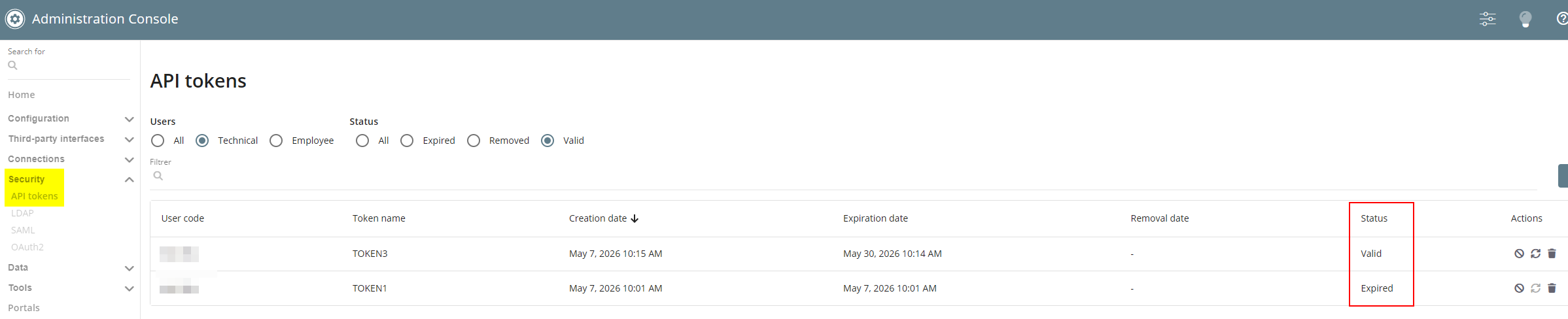
Furthermore, the Removal column has been deleted.
CQRS Pause: New CQRS Pause menu available
| DMF | 09**** ADMINISTRATOR * * |
Important
This evolution requires enabling the following feature flag: Portail admin Domain > Pause Cqrs Label. To enable it, go to the Administration console > Configuration > Features, enable the Pause Cqrs feature flag then log in again.
A CQRS table is a copy of an existing database table. It contains less information, allows you to read easily its data in some cases, such as, when starting a search.
Importing data to these tables, when creating or modifying multiple objects at the same time, can saturate the system and causes performance issues for the users.
The new CQRS Pause - Controlling the CQRS update menu allows you to put temporarily on hold the processing of the CQRS Assignment and/or CQRS Employee tables in order to prevent a server saturation.
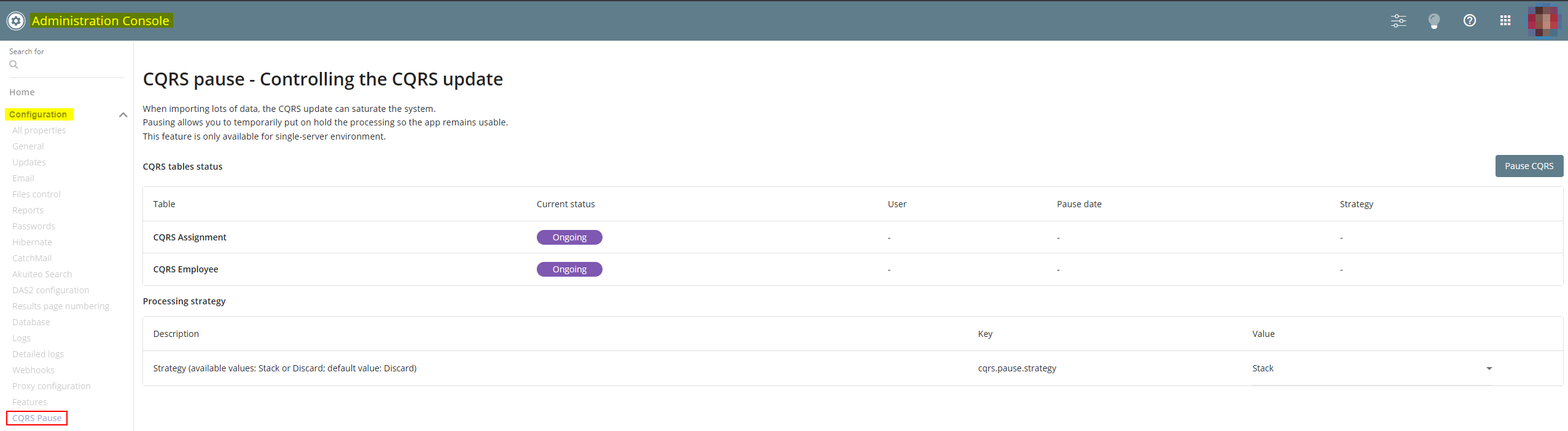
The user can chose the strategy to apply when putting on hold the tables among:
- Discard - Recommended when the import has over 10,000 items. It is the default strategy.
- Stack - Recommended when the import has less than 10,000 items.
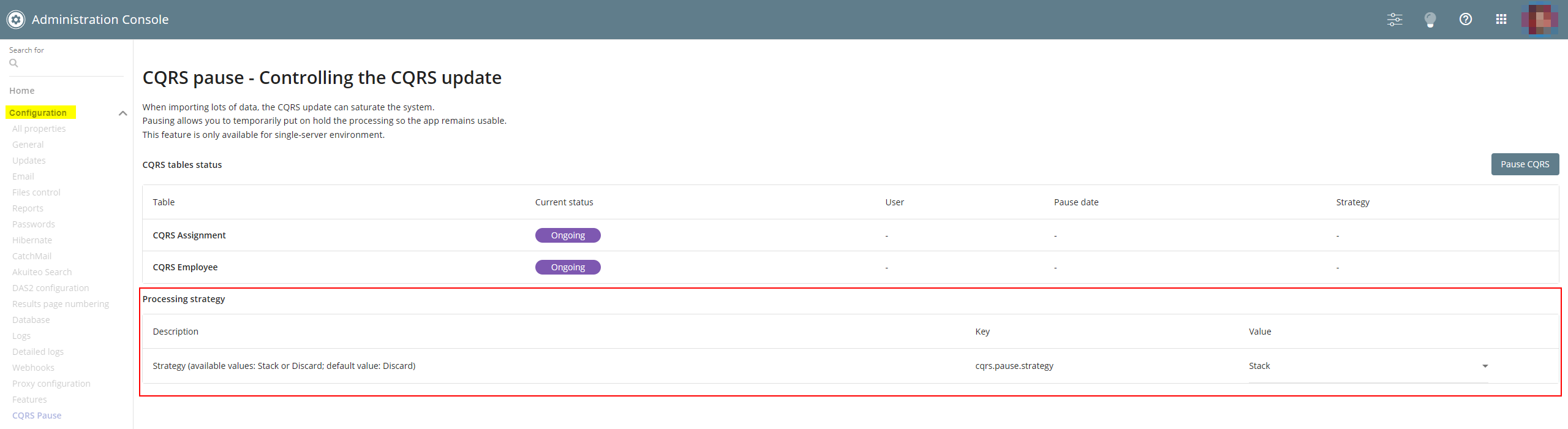
More information about the drawbacks and benefits of each strategy is available when hovering over the  available in the putting on hold window.
The tables imports are:
- putted on hold when clicking on Pause CQRS.
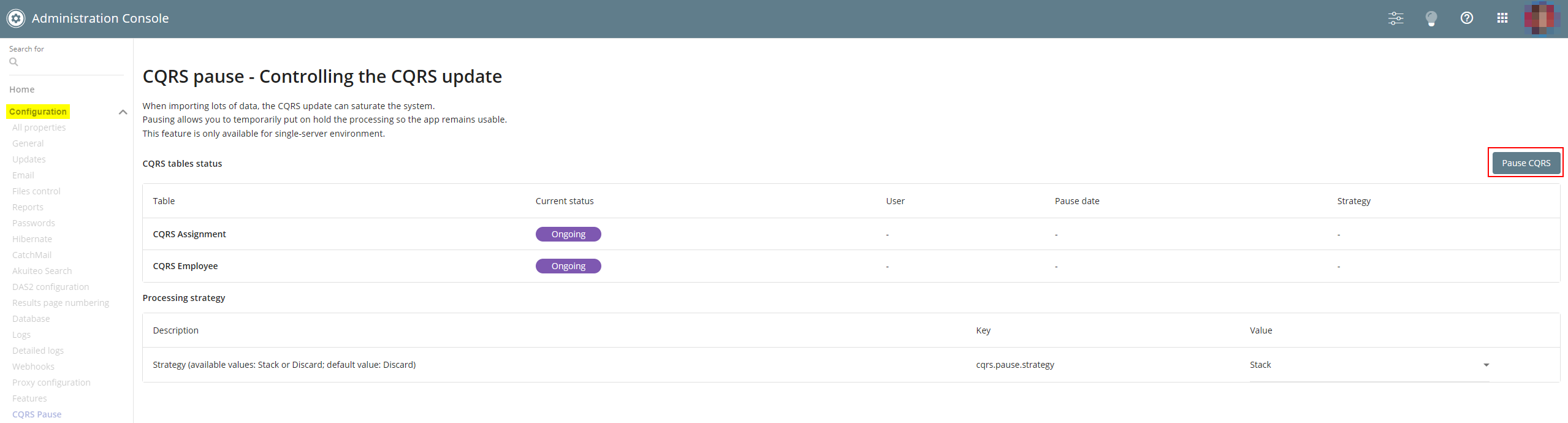
- resumed when clicking on Resume CQRS.
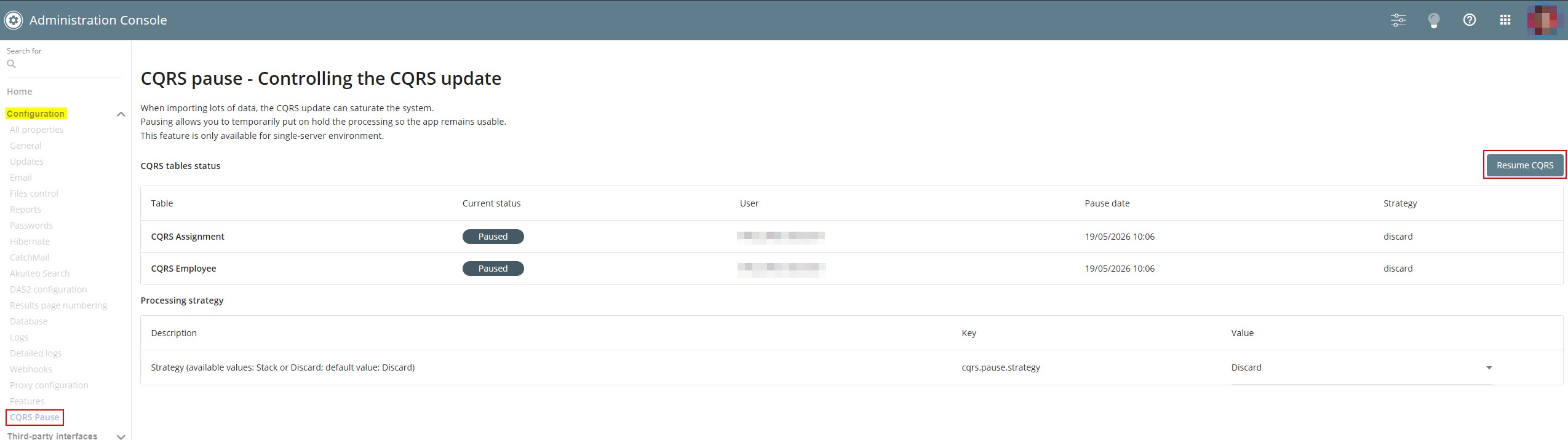
This feature is only available for mono-server environment.
Webhooks: Addition of the Dematerialization status event type
| DMF |
0901** ADMINISTRATOR SETUP * 0902** ADMINISTRATOR SETUP SETUP |
Important
This evolution requires enabling the following feature flag: Portail achats domain > Statut Fac Achat Label. To enable it, go to the Administration console > Configuration > Features, enable the Statut Fac Achat feature flag then log in again.
A webhook is used to notify an external system of an event occurring in Akuiteo. From now on, a webhook can be set up to send a request when a dematerialized invoice reaches a specific dematerialization status.
In the Administration console > Configuration > Webhooks > New webhook > Event type field, the Dematerialization status type has been added.

When the Event type is Dematerialization status, the following actions are available in the Event action(s) drop-down list and correspond to dematerialization statuses:
- 204 - Taken into account;
- 205 - Approved;
- 206 - Partially approved;
- 207 - In conflict;
- 208 - On hold;
- 210 - Rejected;
- 211 - Payment transferred;
- 212 - Cashed.

The webhook will then send a request when a dematerialized invoice reaches the status selected from the Event action(s) drop-down list. The request contains the external reference of the dematerialized invoice.
Example
I want to create a webhook to send a request when a dematerialized invoice reaches the Cashed status.
In the webhook creation screen, I select the following options:
- Event type: Dematerialization status
- Event action(s): 212 - Cashed
Note
For the Dematerialization status event type:
-
The INSERT action sends a request when a temporary or booked invoice reaches a dematerialization status for the first time. The request is sent without details of the dematerialization status, regardless of which dematerialization status from the listed options is reached.
-
The UPDATE action sends a request when the dematerialization status of a booked invoice is modified. The request is sent without details of the dematerialization status, regardless of which dematerialization status from the listed options is reached.
-
The DELETE action has no use but remains visible.
Training
RecupFeuillesCollectivesBSOFT batch: DESTINATAIRES parameter added to email the list of processed sessions
| DMF |
0901** ADMINISTRATOR SETUP SETUP 1803** TRAINING SESSIONS * |
The RecupFeuillesCollectivesBSOFT batch (Desktop Application > Tools > Setup > Batches > Batch creation and modification) allows retrieving sign-in sheets for training sessions completed and signed via the Bsoft connector, and merging them into a single document.
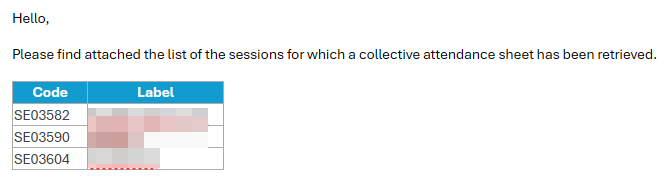
The DESTINATAIRES parameter has been added to the RecupFeuillesCollectivesBSOFT batch, allowing users to specify recipients in order to send an email containing the list of processed sessions.
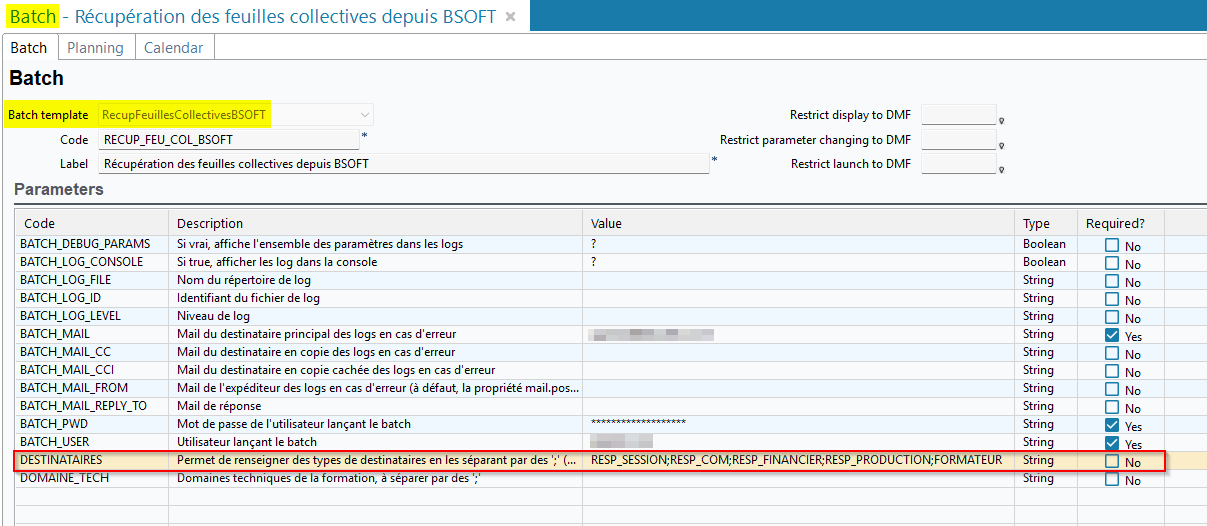
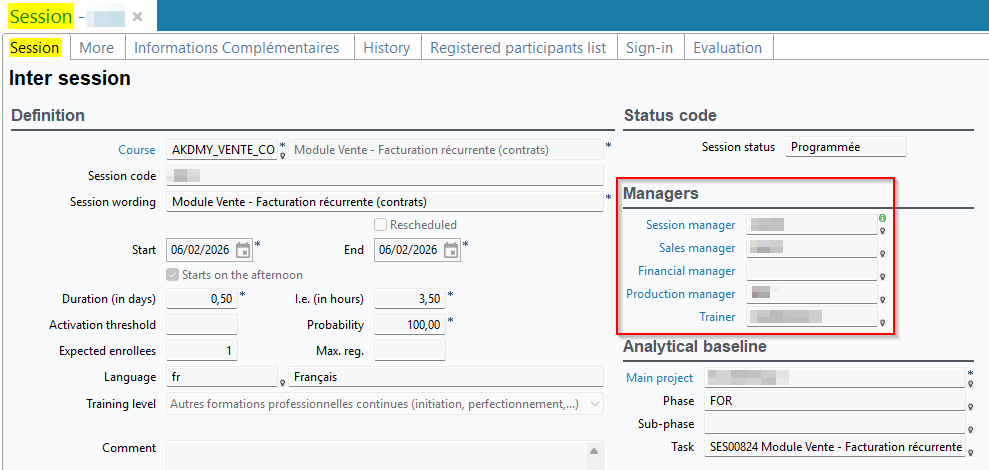
The following codes are available and correspond to the fields in the Managers section of a session (Training > Sessions then Session tab > Managers section):
RESP_SESSION;RESP_COM;RESP_FINANCIER;RESP_PRODUCTION;FORMATEUR.
Codes must be separated by ";".
At the end of the batch processing, an email is sent to each manager involved. The email includes the list of processed sessions associated with the manager.
Bsoft: Trainees email addresses retrieved in Bsoft space
| DMF | 1802** TRAINING INTERNSHIPS INTERNSHIPS |
The Bsoft connector allow the trainees to access the signing-in sheet in electronic format by scanning a QR code or clicking a link given by the application and signing it. The signing-in indicates the participation of the trainee to the training.
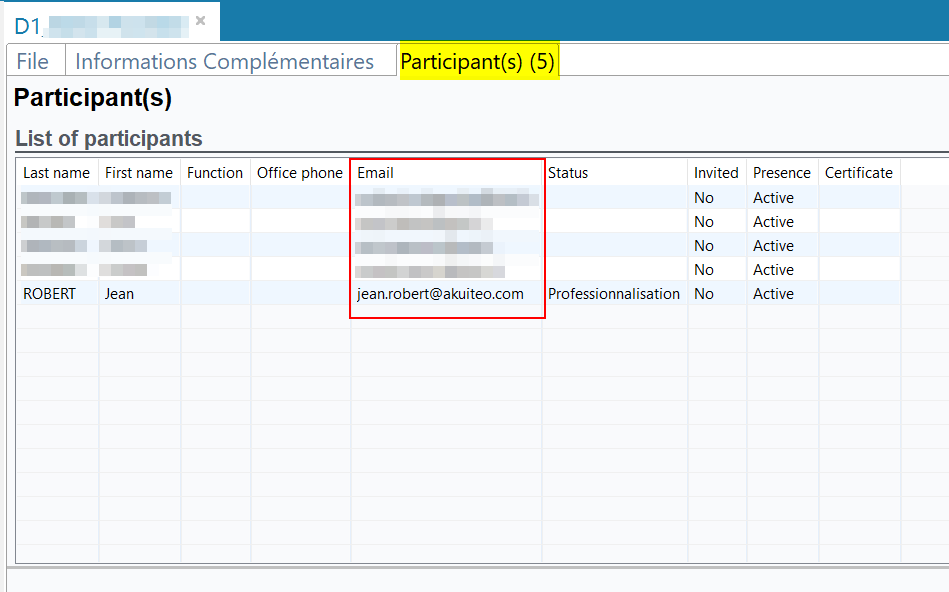
Before, when the training session was synchronized with Bsoft (Training > Sessions then Edit > Confirm and synchronize to the electronic signing tool), the email address of the trainees (Session > Registration file > Participant(s) tab) was not retrieved in the Bsoft space and required to be inputted manually.
Now, the email addresses of the participants for the synchronized session appear in the Bsoft space of the company.
If the contact (People > Contacts) matching the participant:
- is linked to multiple customers (General tab > Contact details of the contact at Customer xxx section) then the email address of the customer for the training session (File tab > Administrative information section) is displayed in Bsoft.
- is linked to multiple customer sites (People > Customers > Sites tab) for the same customer then the email address matching the main customer site is displayed in Bsoft.
- is linked to multiple customers sites for the same customer and the email address matching the main customer site cannot be retrieved then the email address of the older customer site is displayed in Bsoft.
- has no email address specified in the Contact details of the contact at Customer xxx section then the email of the Identity section is displayed in Bsoft.
Bsoft: Employee number retrieved for trainer IDs in the Bsoft space
| DMF |
1805** TRAINING TRAINERS TRAINERS 1808** TRAINING SETUP SETUP |
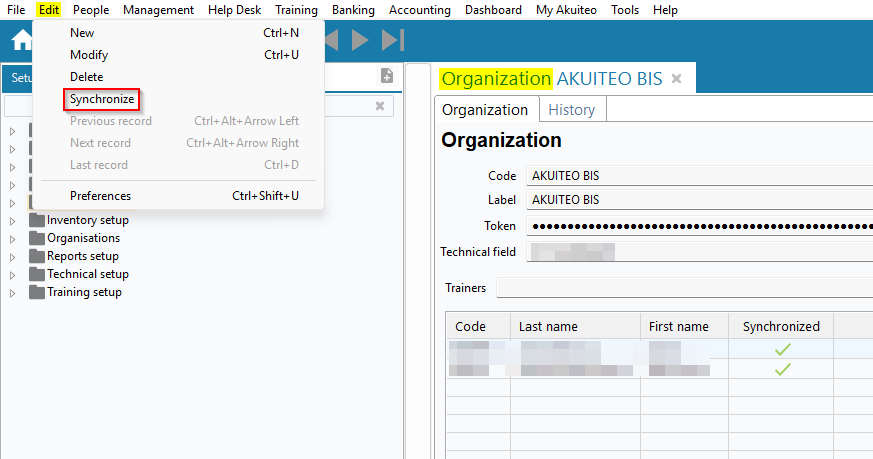
A Bsoft organization (Desktop Application > Tools > Setup > Organizations > Organizations) can be synchronized to Bsoft from the organization record sheet > Edit > Synchronize.
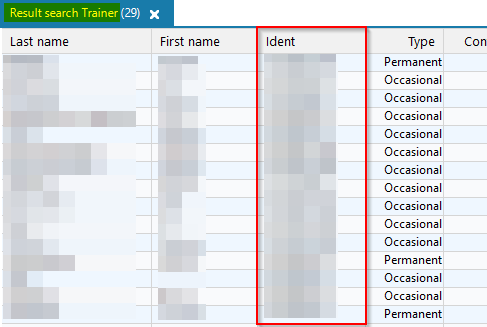
Previously, after synchronizing an organization, the trainer IDs in the Bsoft space > Animateurs category would match the trainer identification numbers visible in the trainer search results (Training > Trainers) in the Ident column.
Now, the trainer IDs in the Bsoft space match:
- The employee number specified in the trainer's employee record sheet (People > Employees) under the Employee tab > Details section > Employee number field;
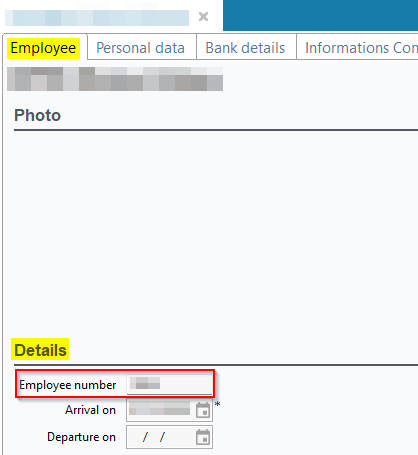
- The trainer ID number if the employee number is not specified on the employee record sheet or if the trainer is not linked to an employee.
Sessions: Ability to reschedule evaluations when reprogramming a session
| DMF | 1803** TRAINING SESSIONS * |
A session (Training > Sessions) can be rescheduled from the session record sheet in Edit > Modify the programming.
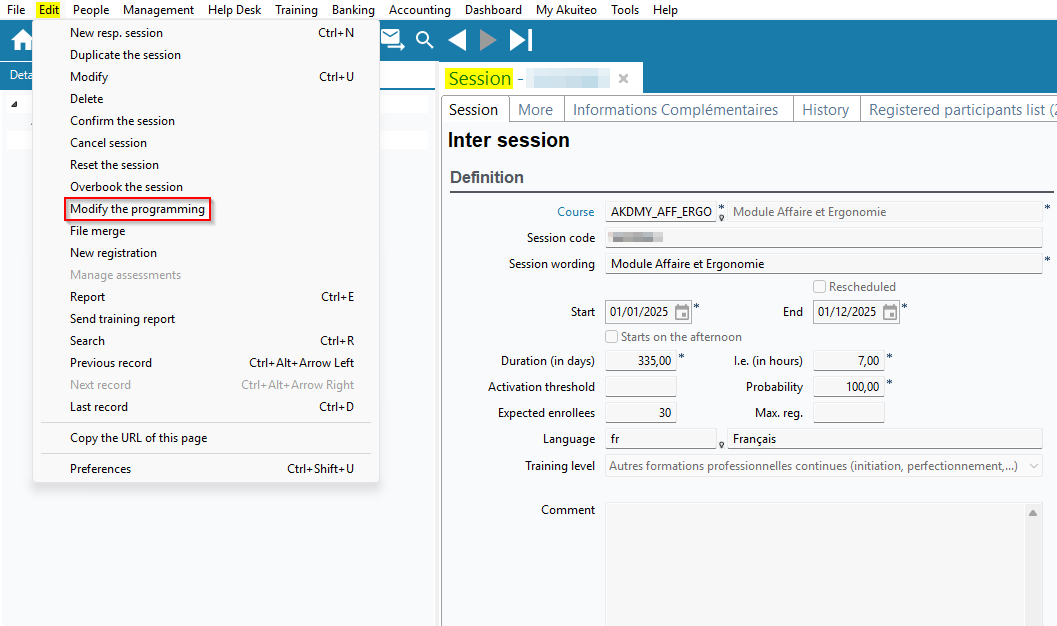
On the rescheduling window, the Reschedule evaluations box has been added and is checked by default.
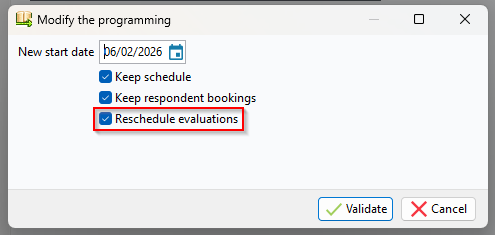
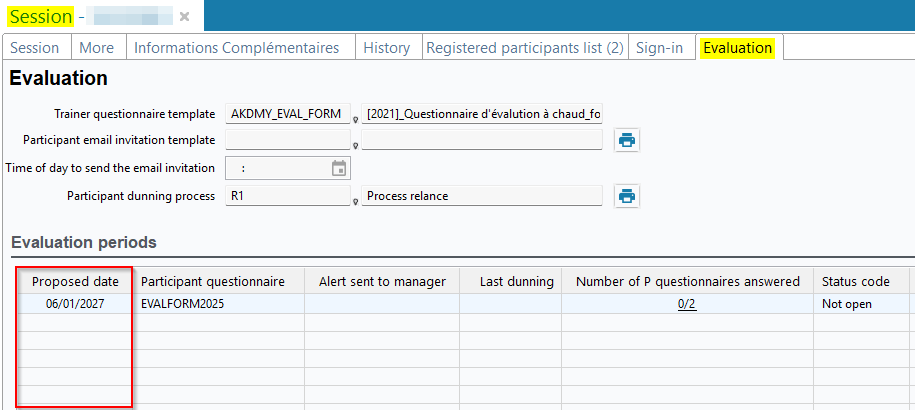
When the box is checked, the evaluation dates in the Evaluation tab (Proposed date column) are shifted by the same number of days as the rescheduling applied based on the New start date specified in the window. Evaluation dates can be rescheduled both in the past and in the future.
Setting up
Batches: Behavior modified for the DMF 091105 ADMINISTRATOR BATCH SHOW ALL BATCHES
| DMF | 0911** ADMINISTRATOR BATCH BATCH |
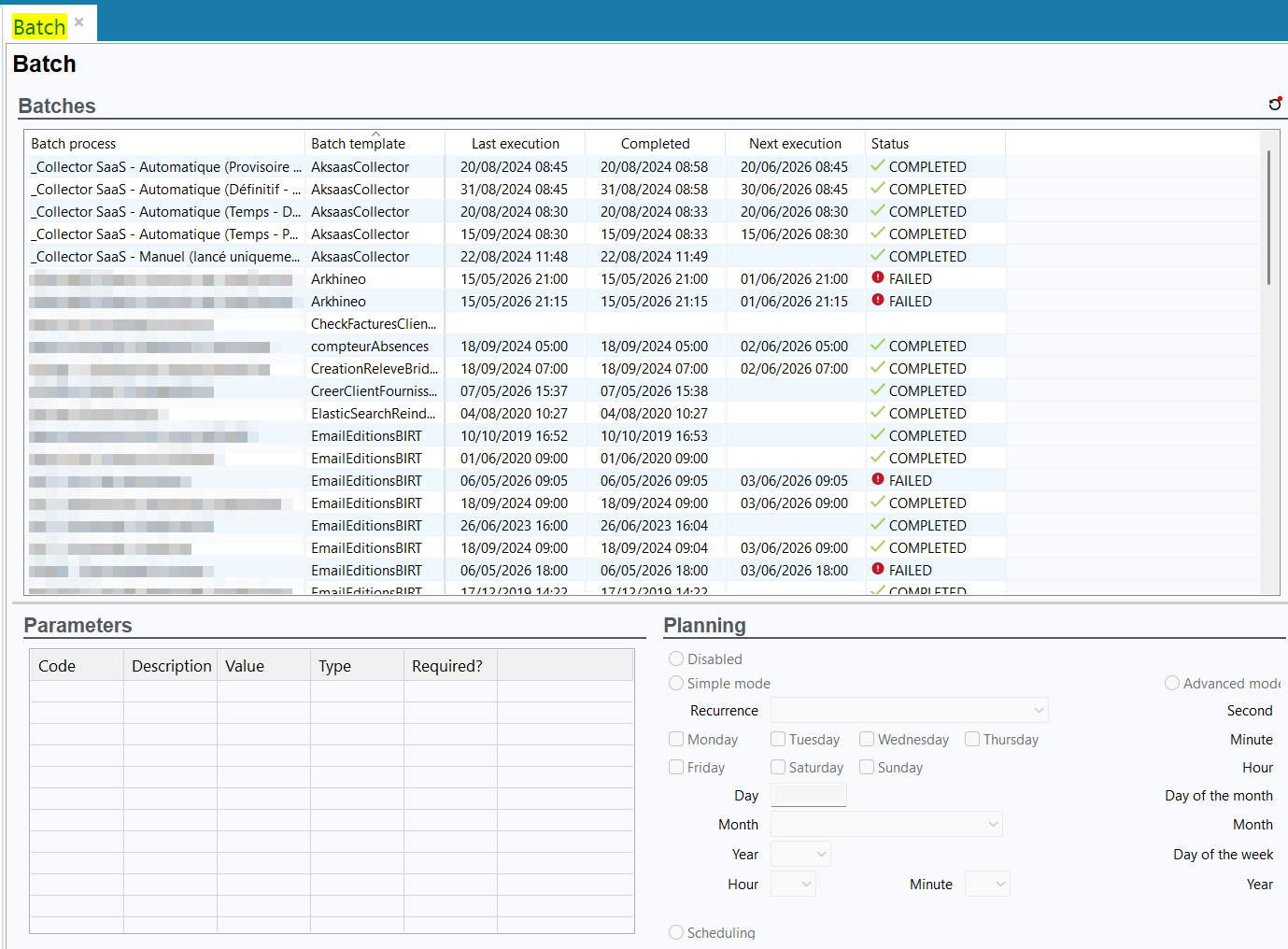
Before, the 091105 ADMINISTRATOR BATCH SHOW ALL BATCHES allowing users to access the list of all batches set up from Tools > Batches > Batches creation and modification on the connection company.
Now, for security reasons, this DMF is required in addition to the usual DMFs to access the following features from the Batches (execution reports) and Batches creation and modification menus:
- Batch creation;
- Batch consultation;
- Batch launching;
- Batch modification;
- Batch deletion.
This DMF has also been renamed as ADMINISTRATOR BATCH MANAGE BATCHES.
Invoice dematerialization: Replacement and addition of batches for issuing and receiving Factur-X files and lifecycles
| DMF | 0911** ADMINISTRATOR BATCH BATCH |
Important
This evolution requires enabling the Portail ventes domain > Vente FacturX label and Portail achats domain > Statut Fac Achat label feature flags. To enable it, go to the Administration console > Configuration > Features, enable the Vente FacturX and Statut Fac Achat feature flags then log in again.
Before, the batches (Tools > Setup > Batches > Batches creation and modification) used for the purchase and sales invoices dematerialization were:
- DematFacturesVente to put the sales invoices on the FTP/SFTP set up;
- DematFacturesAchats to receive the purchase invoices from the FTP/ SFTP set up.
Existing batches are replaced by other batches to manage the emission and reception of Factur-X and life cycles.
Replacement of the DematFacturesVente batch
The DematFacturesVente batch has been replaced by the DematEmissionFacturesVente batch. It allows you to transmit booked sales invoices, in the To be transmitted status, to the communication mode set up from the Settings Portal > Sales > Dematerialization > AP communication (see Managing communication toward the Aggregated Platform for sales invoices).
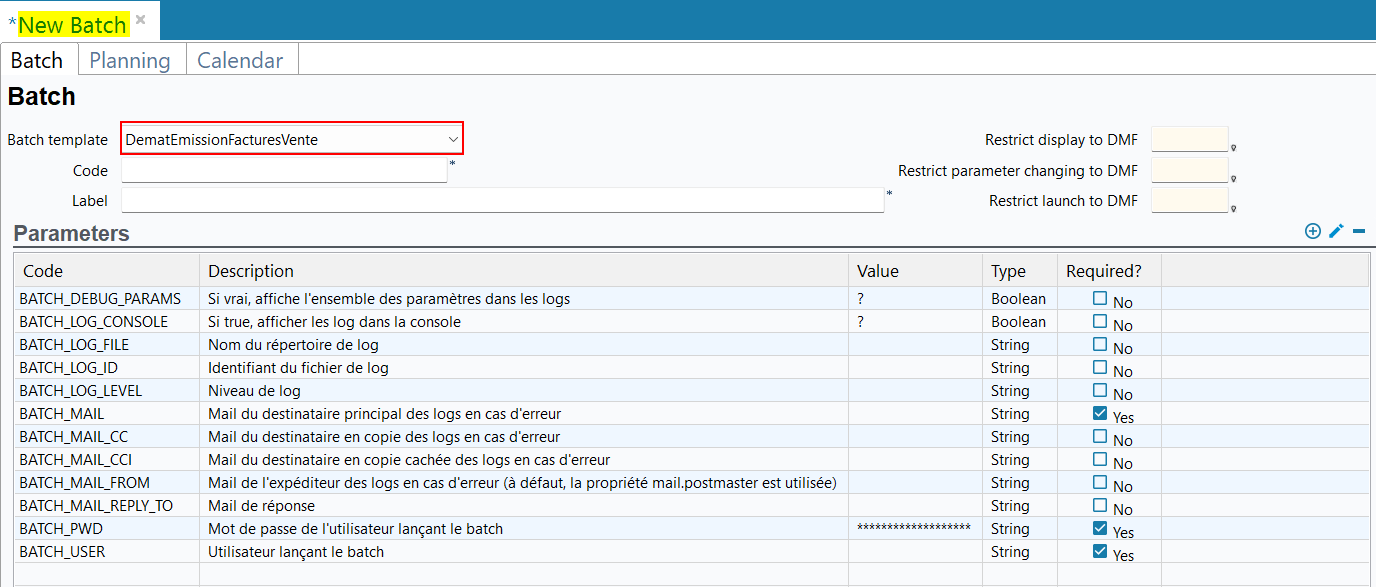
For more information about the DematEmissionFacturesVente batch, see DematEmissionFacturesVente batch.
Replacement of the DematFacturesAchats batch
The DematFacturesAchats batch has been replaced by the DematReceptionFacturesAchat batch. It allows you to receive the Factur-X from the communication mode set up from the Settings Portal > Purchase > Dematerialization > AP communication (see Managing communication toward the Aggregated Platform for purchase invoices) in order to create matches temporary invoices and make them available from the Purchase Portal > Temporary invoices.
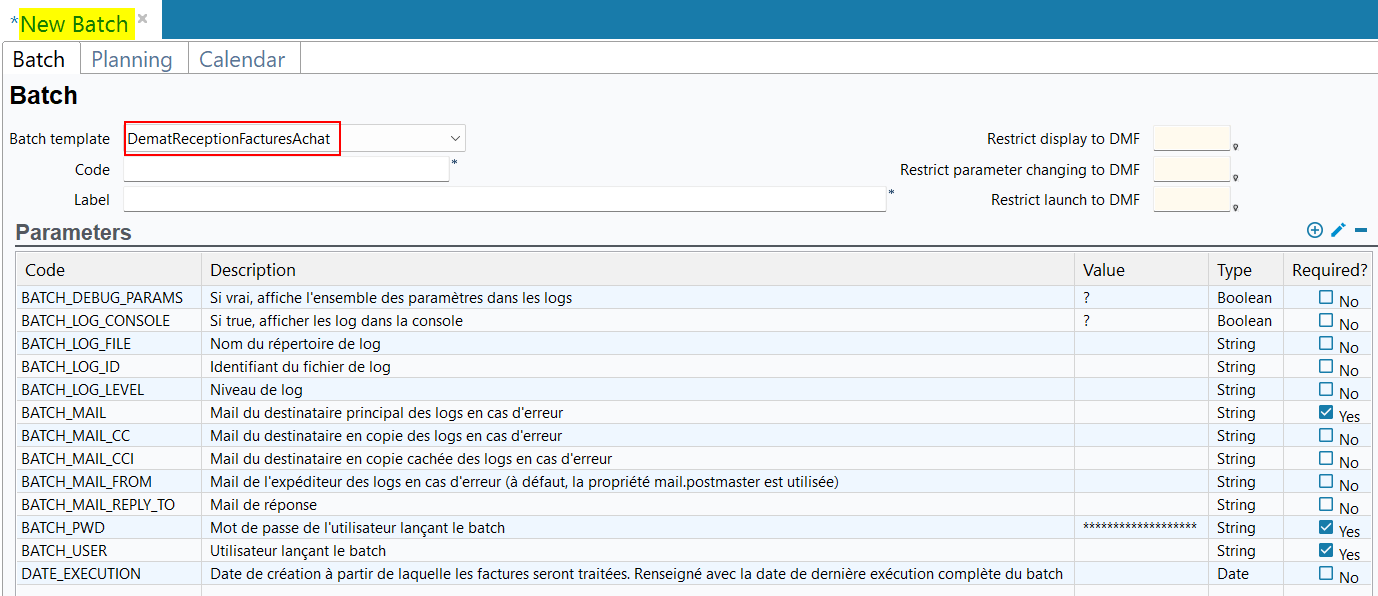
For more information about the DematReceptionFacturesAchat batch, see DematReceptionFacturesAchat batch.
New DematReceptionCDVFacturesVente batch
The new DematReceptionCDVFacturesVente batch is available. It allows you to receive the CDAR files emitted by the customers via the communication mode set up from Settings Portal > Sales > Dematerialization > AP communication in order to update the AP lifecycle and Technical status sections on the relevant sales invoices (Management > Sales > Invoices then Dematerialization tab).
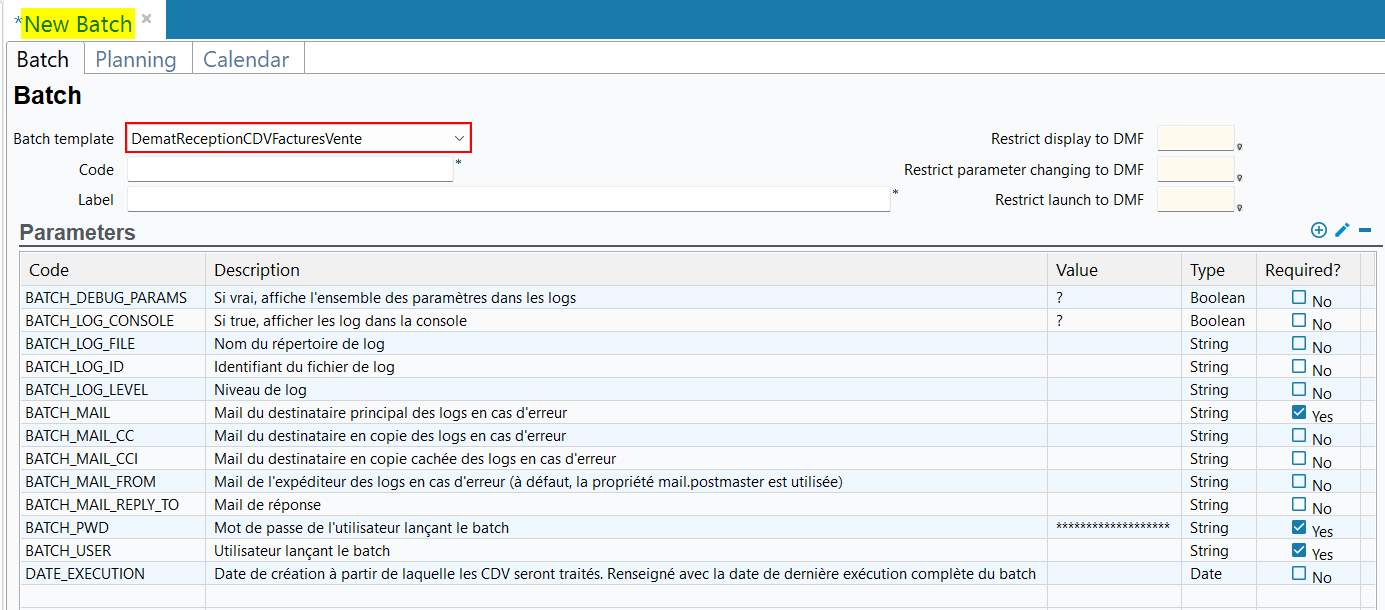
For more information about the DematReceptionCDVFacturesVente batch, see DematReceptionCDVFacturesVente batch.
New DematReceptionCDVFacturesAchat batch
The new DematReceptionCDVFacturesAchat batch is available. It allows you to receive CDAR files emitted by suppliers via the communication mode set up from the Settings Portal > Purchase > Dematerialization > AP communication in order to update:
- AP lifecycle and Technical status sections of the relevant purchase invoices (Management > Purchase > Invoices then Dematerialization tab), and
- the Dematerialization information section of the relevant temporary invoices (Purchase Portal > Temporary invoices).
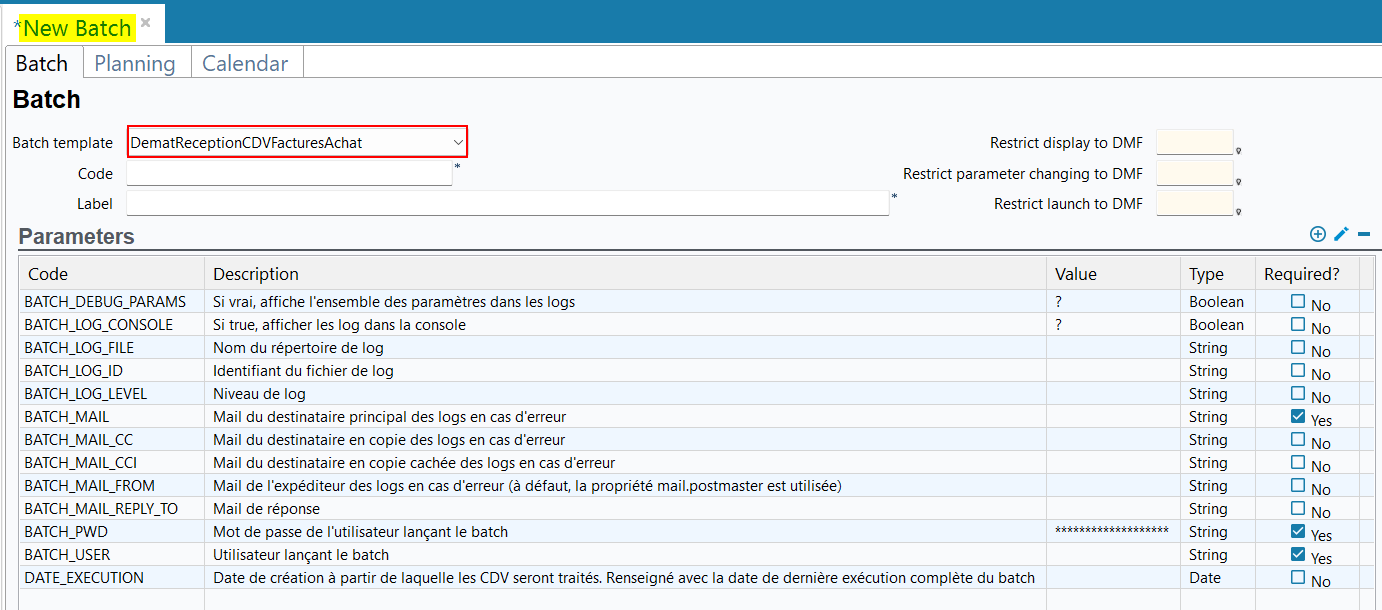
For more information about the DematReceptionCDVFacturesAchat batch, see DematReceptionCDVFacturesAchat batch.
New DematEmissionCDVFacturesAchatBatch batch
The new DematEmissionCDVFacturesAchatBatch batch is now available. It allows you to send CDAR files to the communication mode set up from the Settings Portal > Purchase > Dematerialization > AP communication. CDAR files are sent when:
-
the following sections are modified:
- AP lifecycle and Technical status sections of the relevant purchase invoices (Management > Purchase > Invoices then Dematerialization tab), and
- the Dematerialization information section of the relevant temporary invoices (Purchase Portal > Temporary invoices).
- the due date marked as To be transmitted.
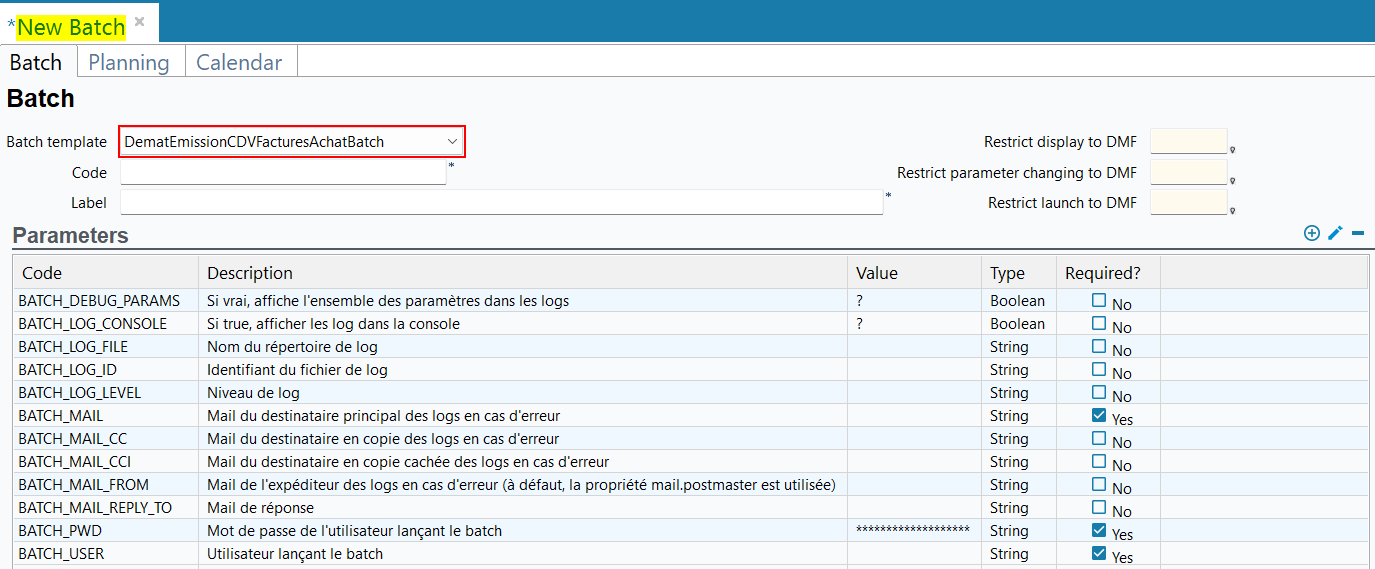
For more information about the DematEmissionCDVFacturesAchatBatch batch, see DematEmissionCDVFacturesAchatBatch batch.
New DematEmissionCDVFacturesVente batch
The new DematEmissionCDVFacturesVente batch is now available. It allows you to send CDAR files to the communication mode set up from the Settings Portal > Sales > Dematerialization > AP communication. CDAR files are sent when the due date of the invoice is marked as To be transmitted.
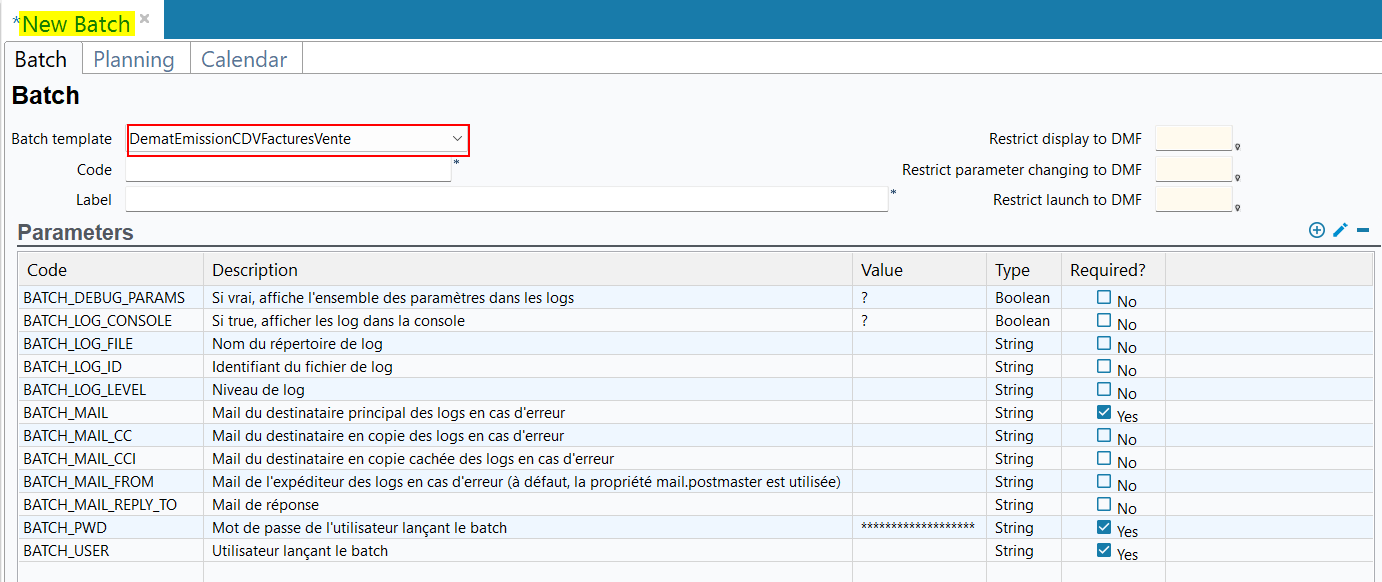
For more information about the DematEmissionCDVFacturesVente batch, see DematEmissionCDVFacturesVente batch.
Expenditure types: Indicator to manage the intra-group rebilling according to the expenditure type added
| DMF | 020426 SALES DELIVERIES CUSTOMER BILLING EXPENSES AND TIME SPENT |
The intra-group rebilling (Management > Sales > Intra-group rebilling of expenses and timesheets) allows you to rebill timesheets and expense reports lines.
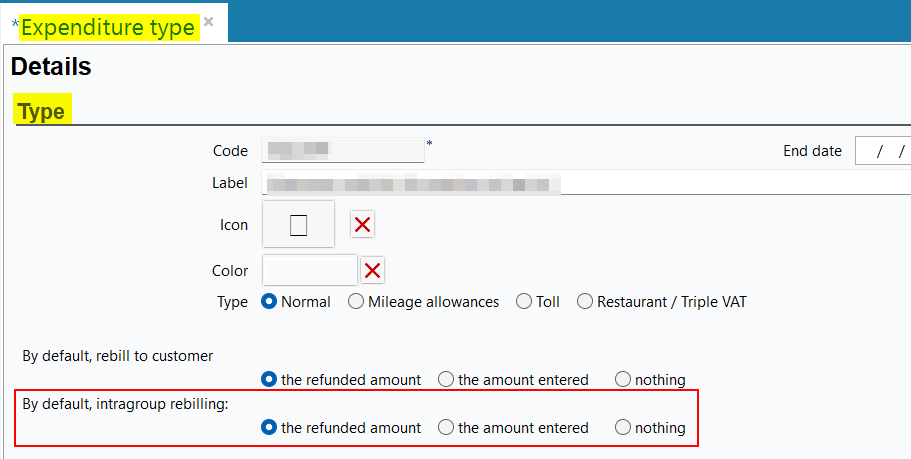
Now, the By default, intragroup rebilling parameter has been added in the expenditure type setup (Tools > Setup > General setup > Expense reports > Expenditure type then Type section). It allows you to select the rebilling type to apply for the expenditure type among the following options:
- the refunded amount - it is the default option,
- the amount entered,
- nothing.
Note
The Rebillable box of the expense creation form is never taken into account for the intra-group rebilling.
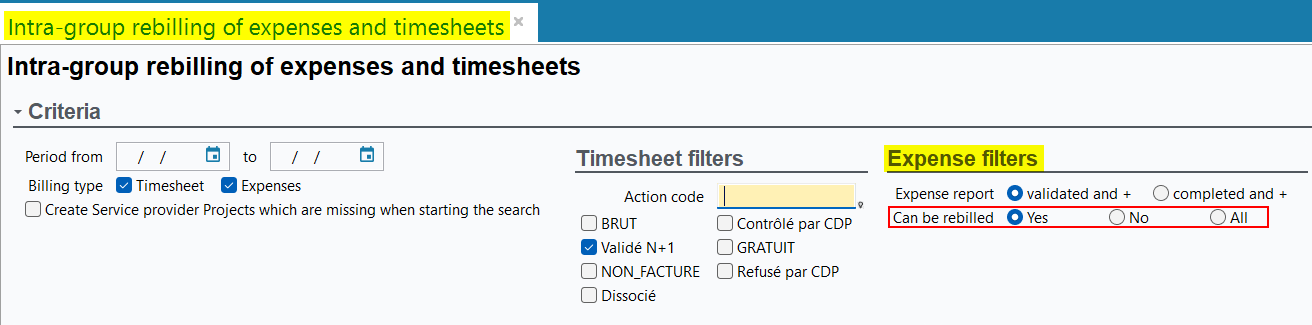
In the intra-group rebilling screen, the behaviour of the Can be rebilled search criterion of the Expense filters section has also been modified. Now, it takes into account the new By default, intragroup rebilling parameter of the expenditure type. When the criterion is on Yes, only the expense reports lines for which the the refunded amount or the amount entered option are selected in the setup of the expenditure type will be displayed in the table of the Rebilling section.
Note
If a setup was done for the expenditure types used for the intra-group rebilling before this evolution, then it must be reviewed when installing this version.
Purchase Portal
Temporary invoices: Added the external reference from the approved platform
| DMF | 0409** PURCHASES TEMPORARY INVOICES * |
Important
This evolution requires enabling the following feature flag: Portail achats domain > Statut Fac Achat Label. To enable it, go to the Administration console > Configuration > Features, enable the Statut Fac Achat feature flag then log in again.
In the Purchase Portal > Temporary invoices, the External reference (AP) has been added in the Dematerialization information section in temporary invoices and correspond to the unique number that identifies the dematerialized invoice at the Approved Platform (AP).
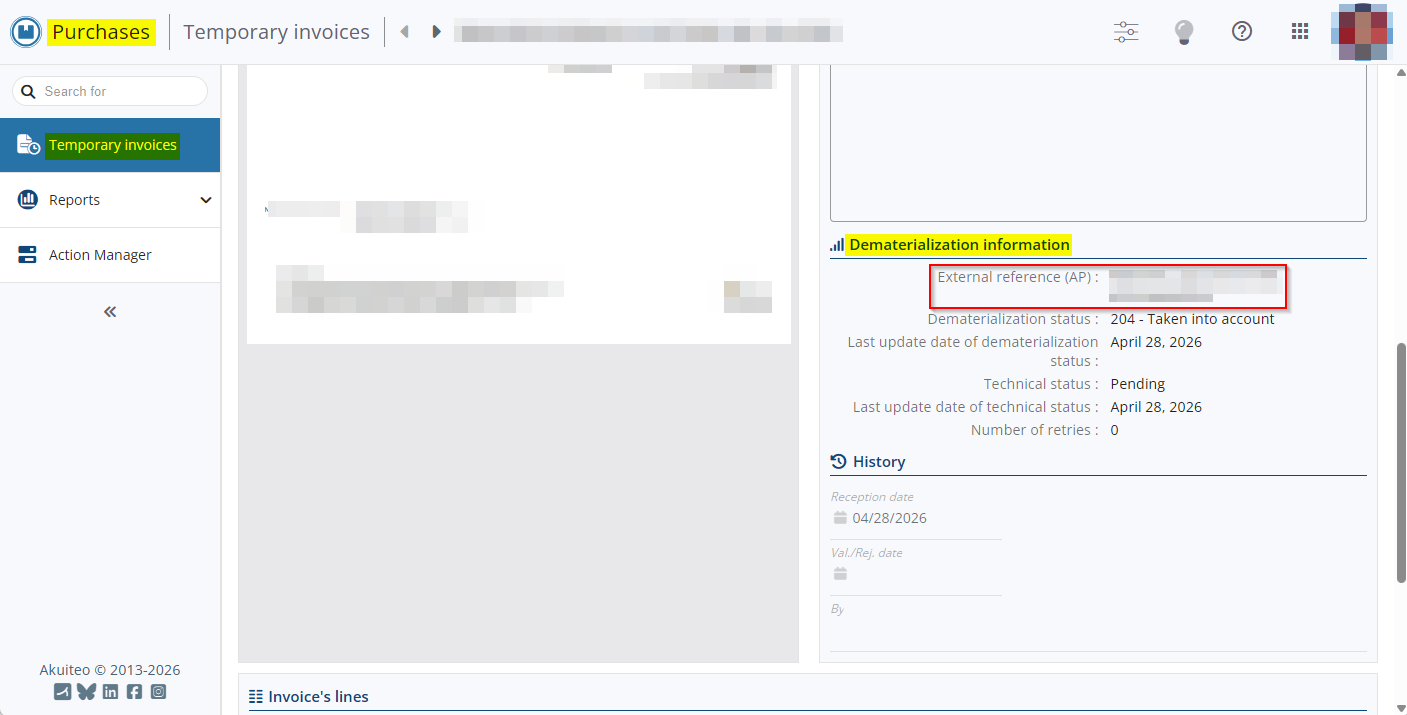
From now on, when a Factur-X is imported by the DematReceptionFacturesAchat * batch:
- if a JSON file matching the Factur-X is present in the directory and contains an external reference, this reference is retrieved in the new External reference (AP) field in the temporary invoice created;
- if no JSON file matches the Factur-X in the directory, the external reference will be randomly generated in the UUID format and specified in the External reference (AP) field of the temporary invoice created.
Each JSON file must:
- have the same name as the associated Factur-X file.
- contain the external reference in UUID format in the
externalReferencekey.
Example
The directory contains the Factur-X file named invoice0123.pdf.
The associated JSON file must therefore be named invoice0123.json and contain the reference in the following format:
{
    "externalReference": "06c6e568-d143-4cd4-853d-e21a693cf98e"
}
Note
When manually importing from the Purchase Portal, only one file can be imported at a time therefore the JSON file is not processed and the external reference is always generated randomly.
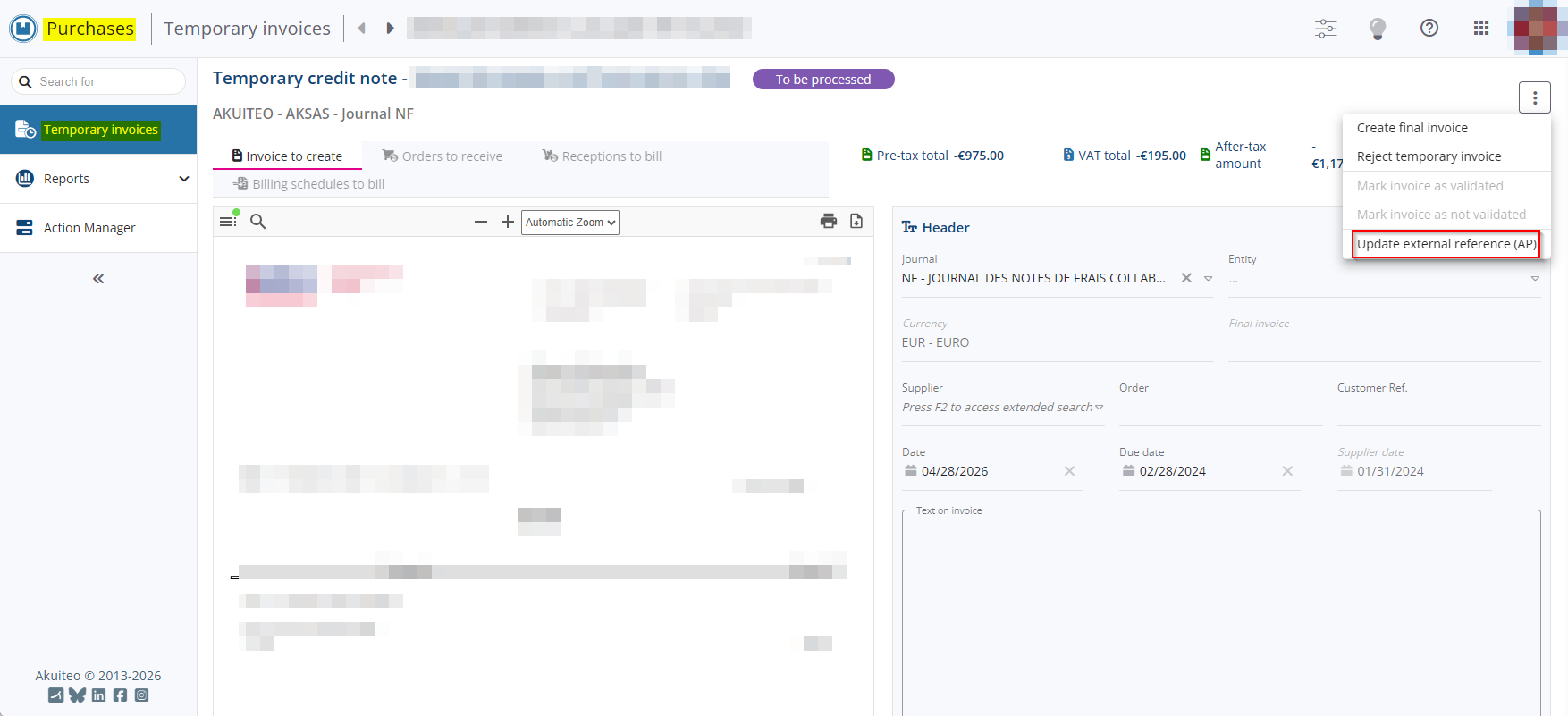
A function has been added to allow modification of the external reference for a temporary invoice. It is accessible via the  icon at the top of a temporary invoice screen > Update external reference (AP). The new DMF 040921 PURCHASES TEMPORARY INVOICES MODIFY EXTERNAL REFERENCE (AP) is required and the temporary invoice must be in the To be processed state.
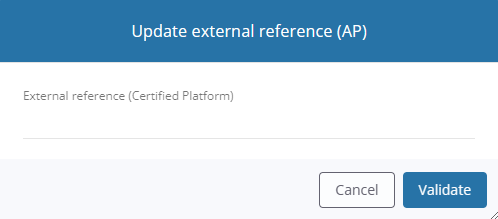
Then specify the new external reference in the window.
Temporary invoices: Clarification on the icon and DMF for downloading a temporary invoice
| DMF | 0409** PURCHASES TEMPORARY INVOICES * |
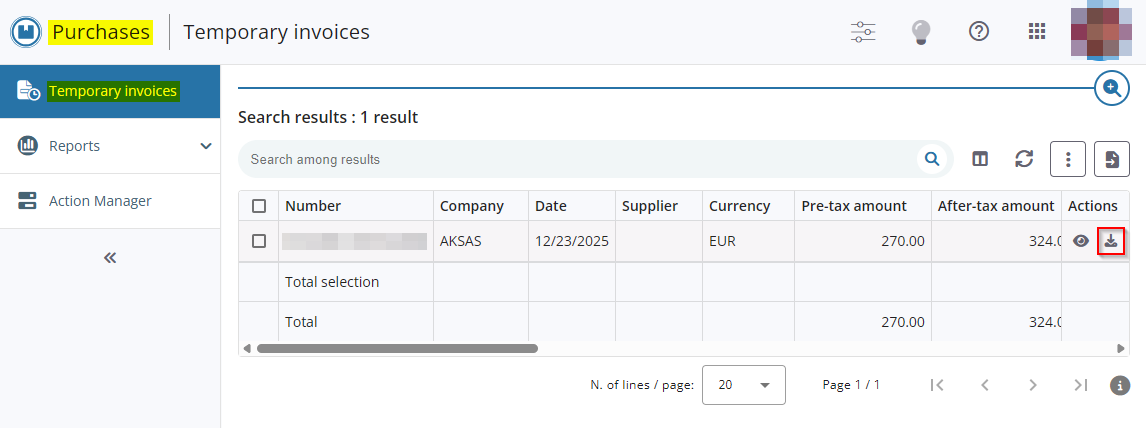
From the Purchase Portal > Temporary invoices, the  icon for downloading a temporary invoice's PDF from search results has been replaced with the
  icon.
icon.
Furthermore, the DMF 040905 040905 PURCHASES TEMPORARY INVOICES PRINT required to download a temporary invoice has been renamed PURCHASES TEMPORARY INVOICES DOWNLOAD PDF FROM SEARCH.
Web Portal
Timesheets & schedules: Timesheet generation from Outlook events and AI-powered autocompletion
| DMF |
0603** PROJECTS TIMESHEETS * 0901** ADMINISTRATOR SETUP SETUP 1901** WEB PORTAL TIMESHEETS & SCHEDULES MENU TIMESHEETS & SCHEDULES MENU |
Important
This feature requires the following feature flag: Portail Collaborateur domain > Facilitation Saisie Temps label. To enable it, go to the Administration console > Configuration > Features, enable the Facilitation Saisie Temps feature flag then log in again.
From now on, on the Web Portal > Employee > Timesheets & schedules, suggestions for timesheet entries can be automatically generated for the displayed week, based on the events present in the employee’s Outlook calendar for the same week.
By default, the assignments for the generated suggestions are left blank but can be predicted and specified automatically using AI.
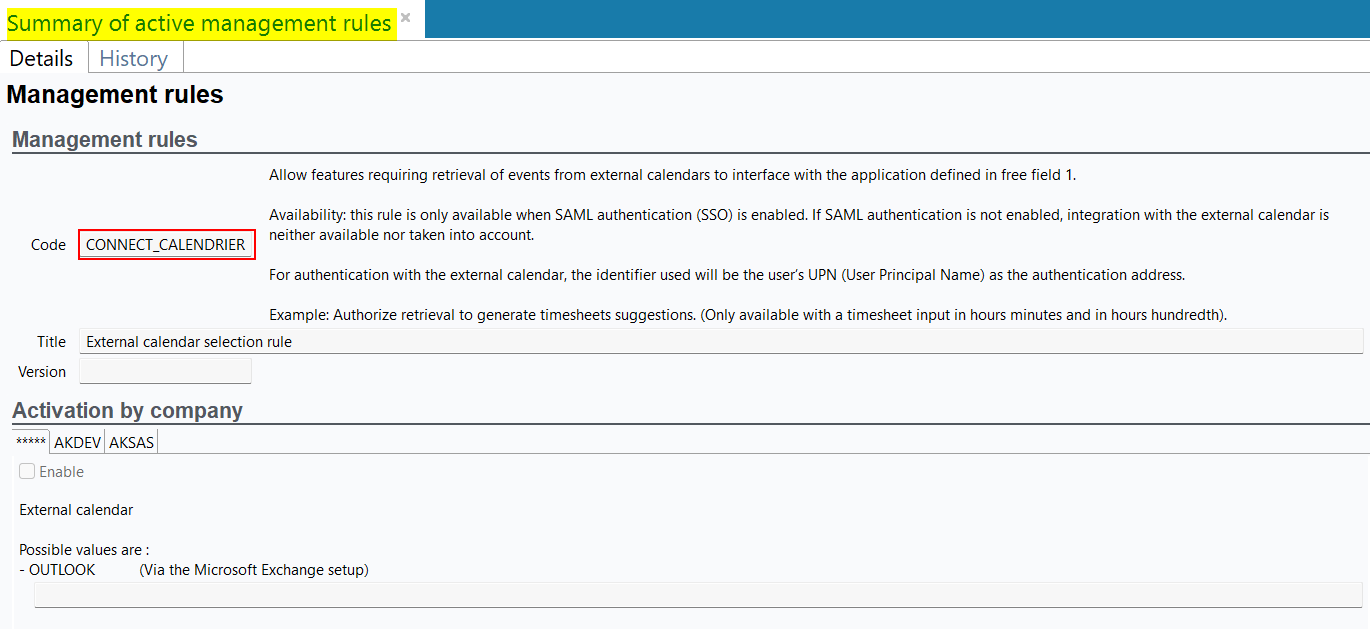
New CONNECT_CALENDRIER management rule
The CONNECT_CALENDRIER management rule has been added (Desktop Application > Tools > Setup > General setup > Special parameters > Management rules) and must be enabled to generate timesheet entry suggestions.
The management rule contains the External calendar parameter, enabling you to define the calendar tool in use. Currently, only the OUTLOOK value is available.
Important
For the management rule to work:
- SAML authentication must be enabled and set up (see Configuring the SAML authentication).
- An AES encryption key must be configured on the Akuiteo server. This key corresponds to the
-Dak.secretargument when starting the Akuiteo server. - The connection to Exchange via Microsoft Graph API must be configured (see Configuration for Microsoft Graph).
- The timesheet entry mode for timesheet entries must be set to hours-minutes or hours-hundredths (see Time input mode).
For more information, refer to CONNECT_CALENDRIER.
New feature to generate timesheet entry suggestions in the agenda
From the Web Portal > Employee > Timesheets & schedules, the CONNECT_CALENDRIER icon has been added to the right of the search field. It is only visible when the  management rule is enabled and the user has the new DMF 060364 PROJECTS TIMESHEETS TIMESHEET SUGGESTIONS.
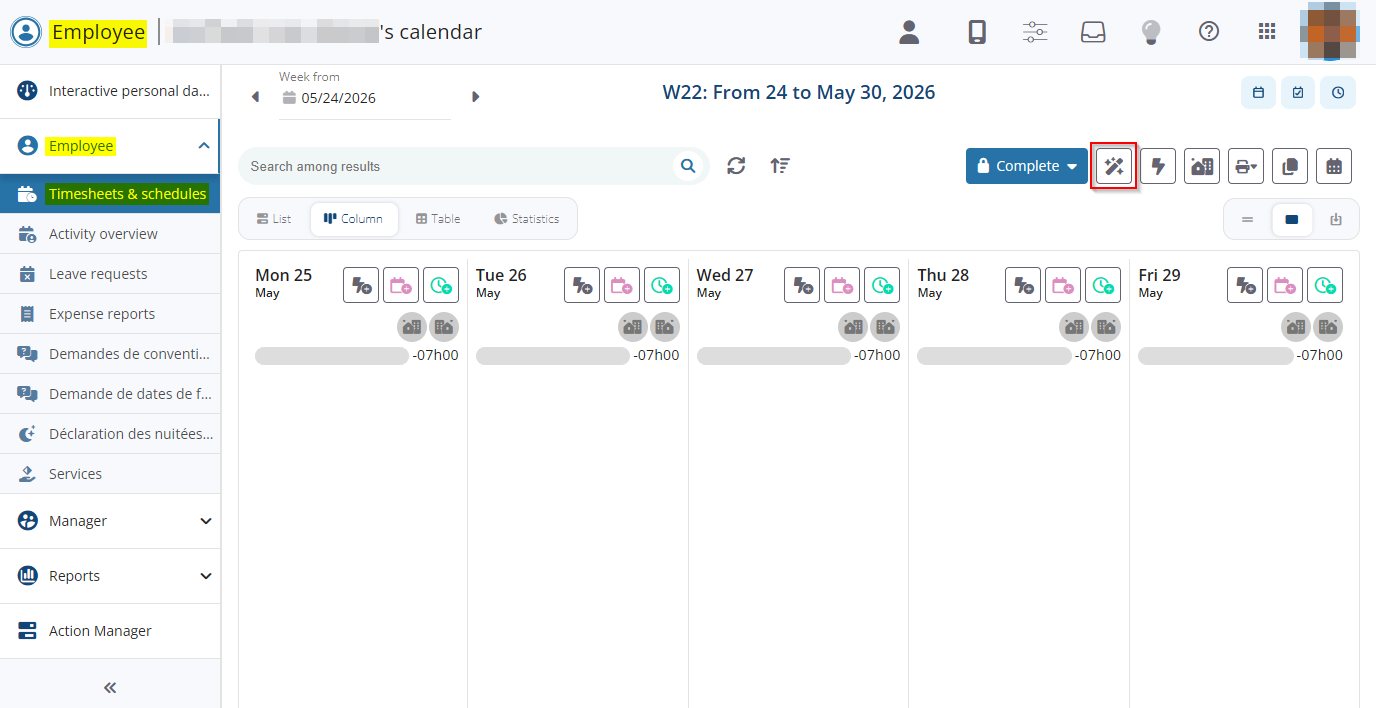
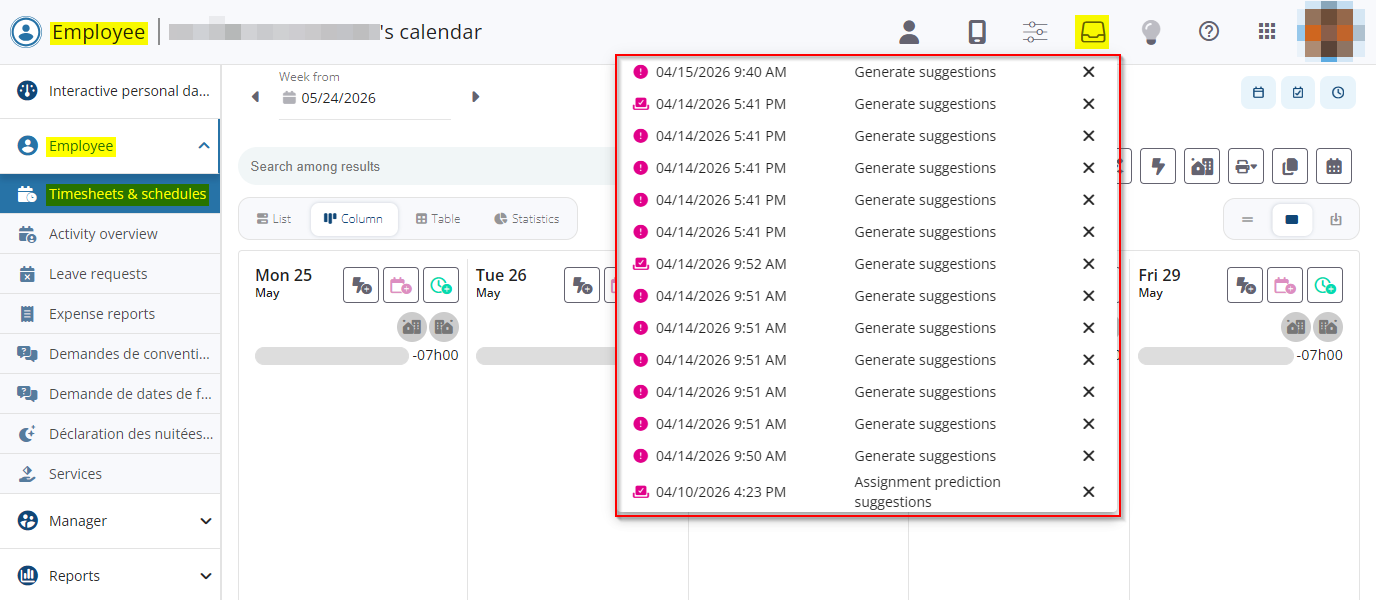
This icon triggers the extraction of events from the employee’s external calendar and generates the corresponding timesheet entry suggestions. The process runs as a background task. The list of background tasks can be accessed via the  icon in the portal's upper bar.
For more information about the tasks list, refer to Upper bar.
The generated suggestions are then displayed in the calendar and marked with the  icon. These suggestions must then be completed before they can be converted into timesheet entries.
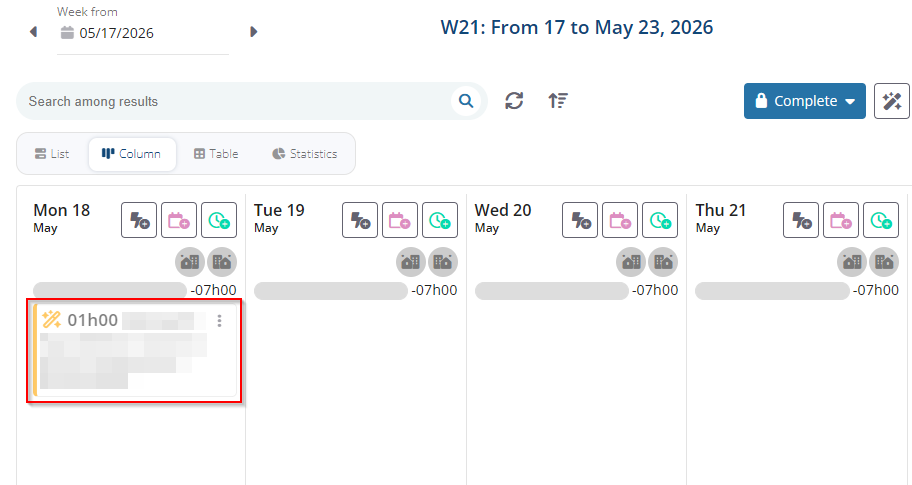
For more information, refer to Generating timesheet entry suggestions.
New setup screen for AI assignment prediction
In the Settings Portal, the Assignment prediction setup screen has been added under the Employee menu > Calendar and requires the new DMF 090188 ADMINISTRATOR SETUP ASSIGNMENT PREDICTION. This screen allows you to set up the connection to an AI model that will predict and automatically specify the assignments for timesheet entry suggestions.
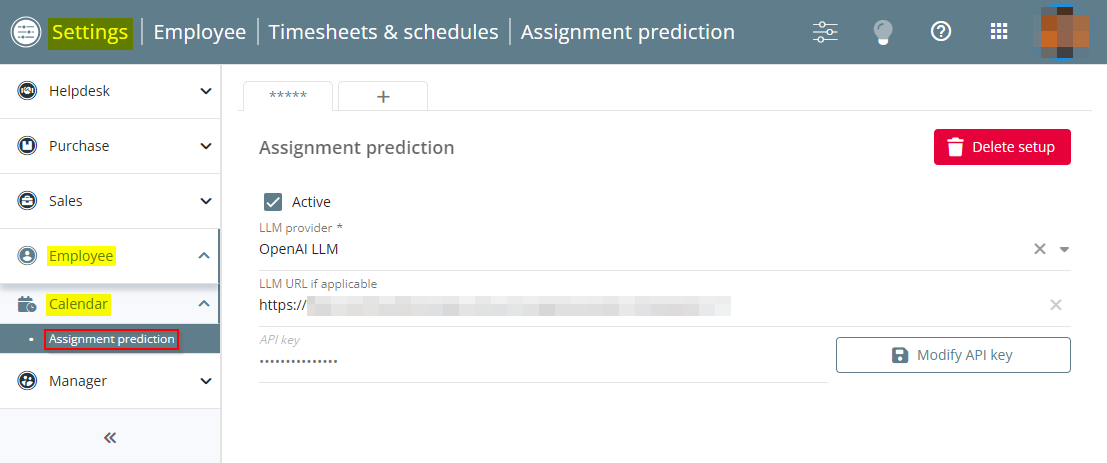
For more information, refer to Setting up AI assignment prediction.
New feature to predict assignments with AI for the generated suggestions
If assignment prediction has been enabled in the Settings Portal and the user has the new DMF 060365 PROJECTS TIMESHEETS PREDICT ASSIGNMENTS FOR MY SUGGESTIONS, a window will appear after generating suggestions in the top-right corner of the screen, offering to predict assignments for the generated proposals.
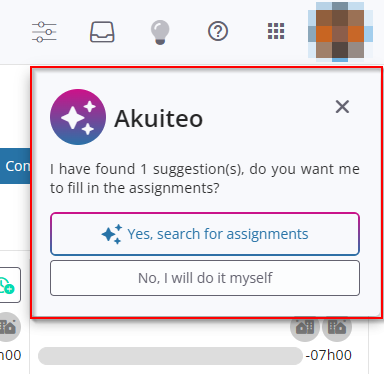
Select the desired option from the window:
- Yes, search for assignments to predict and automatically specify the assignments for the generated suggestions. If the AI finds no matching history, the suggestion will remain unassigned . Suggestions with AI-predicted assignments are marked with the
 icon.
icon.
Important
Assignment prediction is based only on the history of previously completed and approved/rejected suggestions from past weeks. As a result, prediction accuracy will be limited during initial use but will improve over time as the user approves or rejects suggestions week after week.
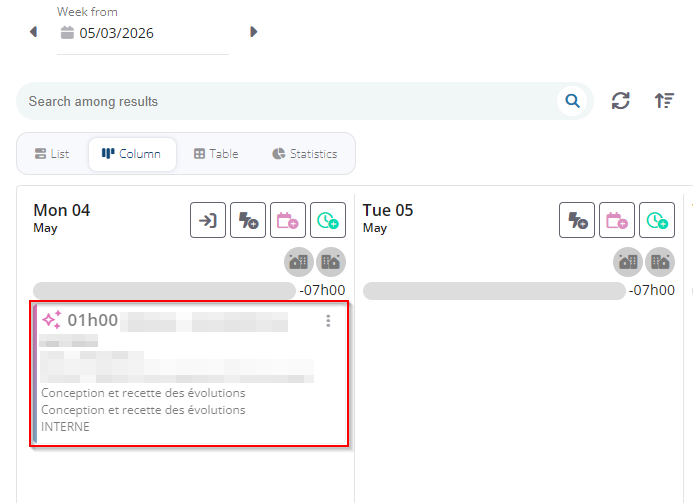
- No, I will do it myself to leave the assignments blank and specify them manually. If this option was selected or the window was dismissed, assignments can be predicted later via the in the portal’s upper bar > corresponding task details > Predict assignments.
Suggestions with predicted assignments can already be converted into timesheet entries, but can still be modified if needed.
Timesheets & schedules and Activity overview: COLLAB_DELEG management rule taken into account to manage the calendar and activity of another employe
| DMF |
1901** WEB PORTAL TIMESHEETS & SCHEDULES MENU TIMESHEETS & SCHEDULES MENU 1903** WEB PORTAL TIMESHEETS TIMESHEETS 1904** WEB PORTAL SCHEDULES SCHEDULES |
Important
This feature requires the following feature flag: Portail collaborateur domain > Changer De Collaborateur label. To enable it, go to the Administration console > Configuration > Features, enable the Changer De Collaborateur feature flag then log in again.
Before, only a manager could display and manage the calendar and activity of another employee they manage from the Web Portal > Employee > Timesheets and schedules and My activity when they had the 060208 PROJECT SCHEDULES MODIFY RESOURCE DMF
Now, the COLLAB_DELEG management rule is taken into account in the changing of employee window.
Thus, when the management rule is enabled and the manager has the DMF:
- 161213 TOOLS RESOURCE DELEGATIONS DELEGATE TO ALL RESOURCES FOR APPROVALS, then they can also see all employee under its set up delegation (Desktop Application > My Akuiteo > My delegations).
- 161209 TOOLS RESOURCE DELEGATIONS DELEGATE TO ALL RESOURCES FOR TIME then they can also see all non-generic employees of the company.
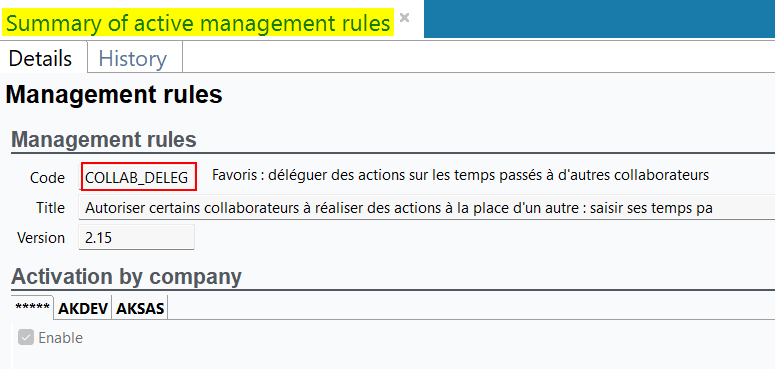
When the management rule is disabled, the manager can display and manage the calendar of another employee if they have the 060314 PROJECT TIMESHEETS VALIDATE TIMESHEETS OF ALL RESOURCES DMF. In this case, all employees of the company are displayed in the Employees I manage field.
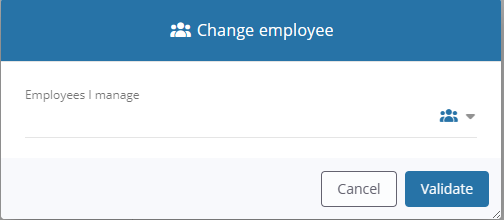
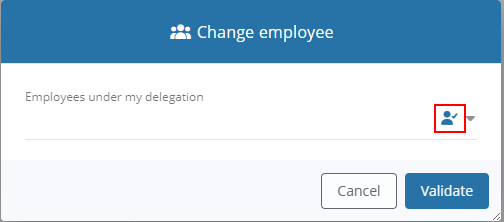
The  filter available on the right of the field has been modified Now, when clicking on this icon, the
  filter is displayed and allows you to filter employees for whom the manager has a delegation.
Timesheet review: Ability to specify a comment
| DMF | 1917** WEB PORTAL EMPLOYEES TIMESHEETS VALIDATION EMPLOYEES TIMESHEETS VALIDATION |
From the Web Portal > Manager > Timesheets & schedules, timesheets can be reviewed:
- from the Employees overview > Review all at the top or Review from the list;
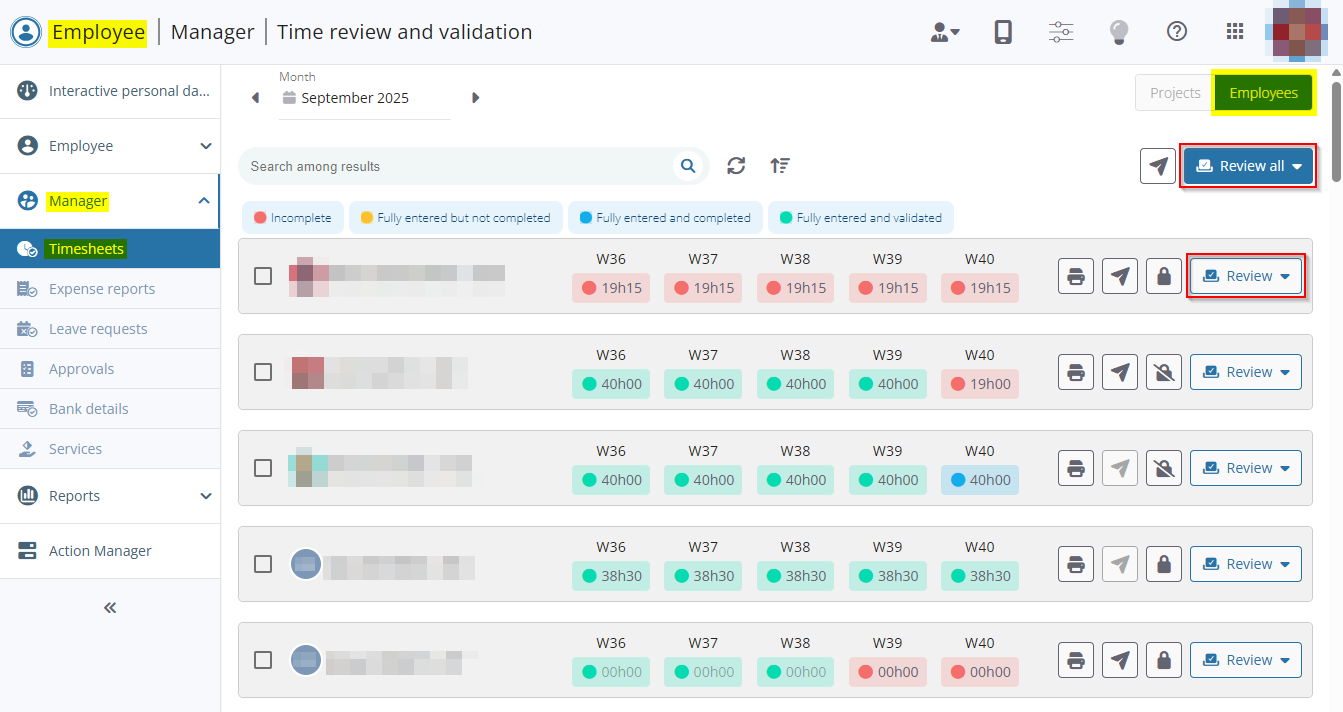
- from the Employees and Projects detailed view > Review all at the top or
 from the table.
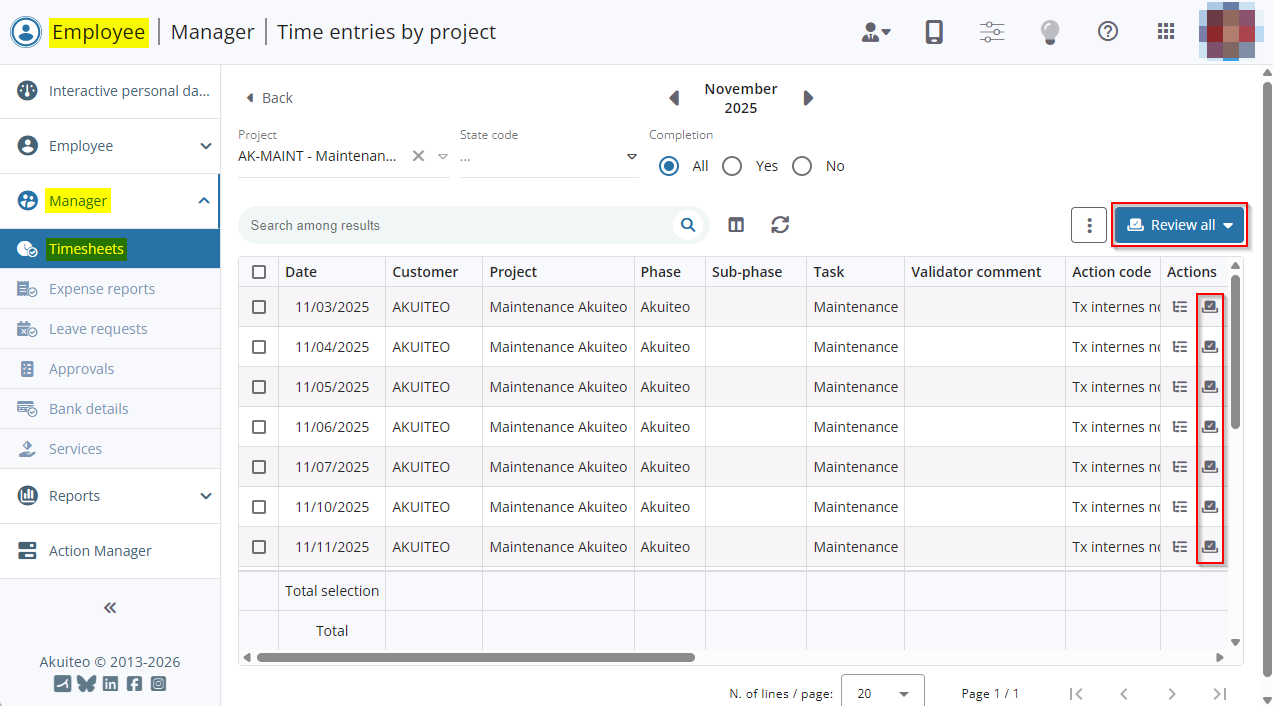
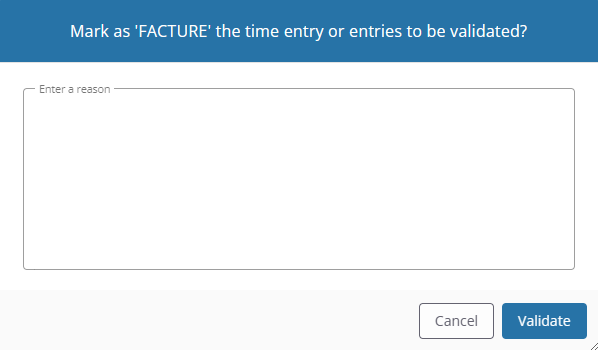
From now on, when reviewing one or multiple timesheets, the Enter a reason field has been added to the timesheet review confirmation window and is used to specify a related comment.
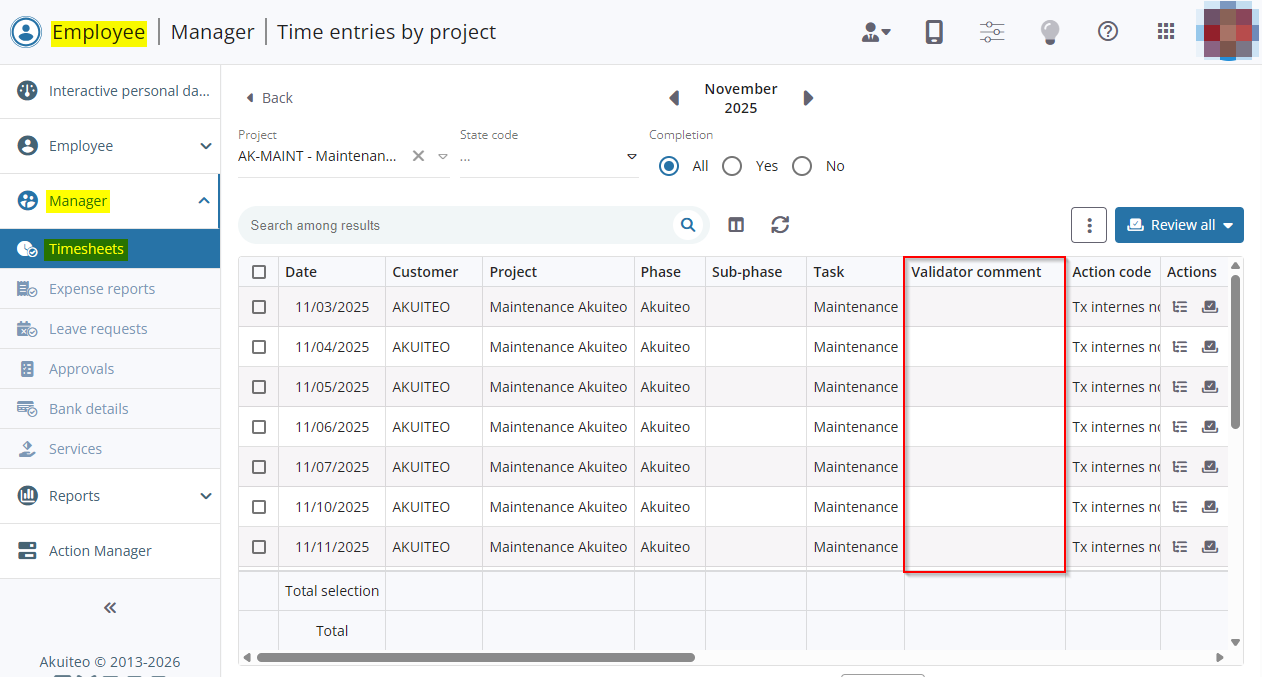
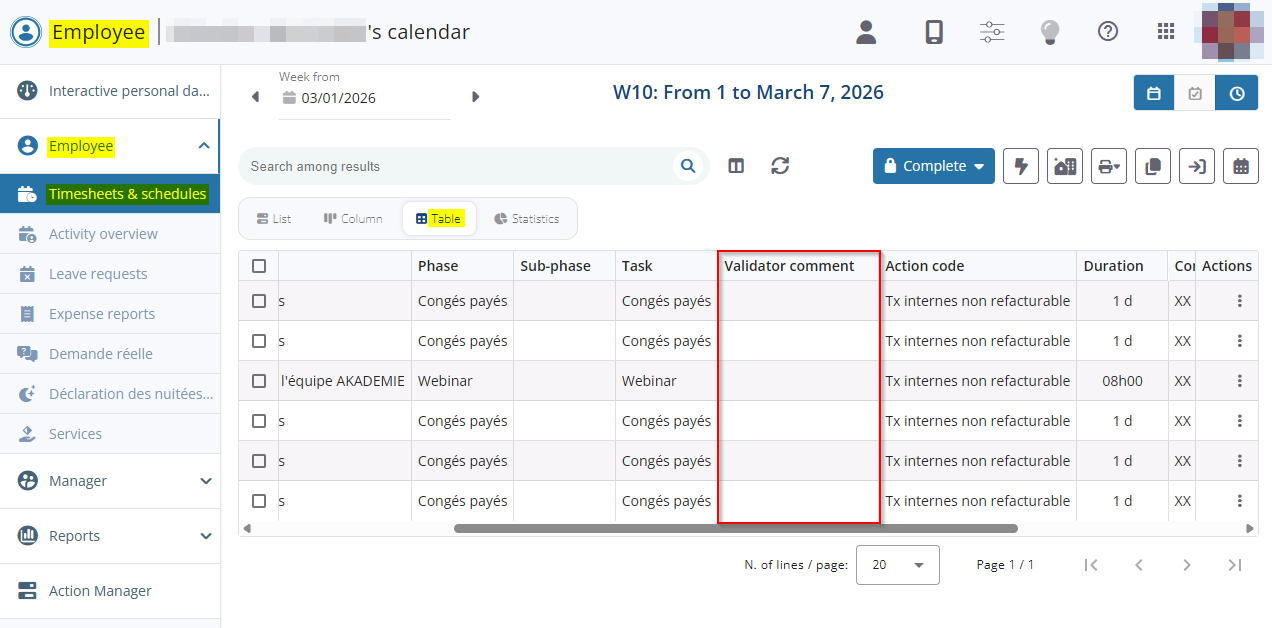
The corresponding Validator comment column has also been added:
- in the Manager module > Timesheets & schedules > Employees and Projects detailed views;
- in the Employee module > Timesheets & schedules in Table view.
Custom requests: Custom controls added to custom request expenses
| DMF |
0901** ADMINISTRATOR SETUP SETUP 1911** WEB PORTAL CUSTOM REQUESTS CUSTOM REQUESTS |
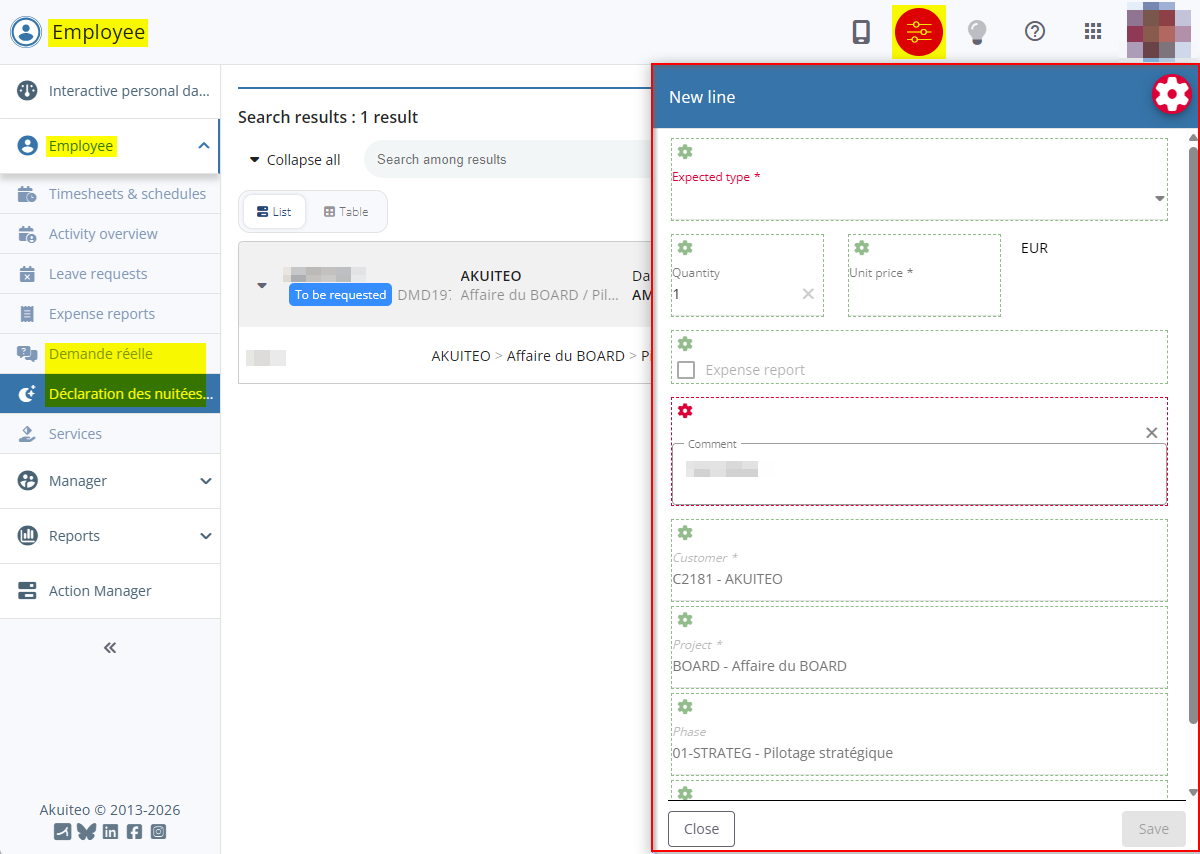
On a custom request (Web Portal > Employee module > custom request category menu), an expense can be added by clicking on + Line from a custom request block.
From now on, custom controls are compatible with the forms of custom request expenses. Click on the  icon in the upper bar of the portal to switch to setup mode in order to create custom controls for the desired fields in the form.
Settings Portal
Purchases: New AP communication menu for dematerialized invoices
| DMF | 0901** ADMINISTRATOR SETUP * |
Important
This evolution requires enabling the following feature flag: Portail achats domain > Statut Fac Achat Label. To enable it, go to the Administration console > Configuration > Features, enable the Statut Fac Achat feature flag then log in again.
Before, parameters related to the FTP or SFTP connection had to be specified in each setup batch to import Factur-X in Akuiteo.
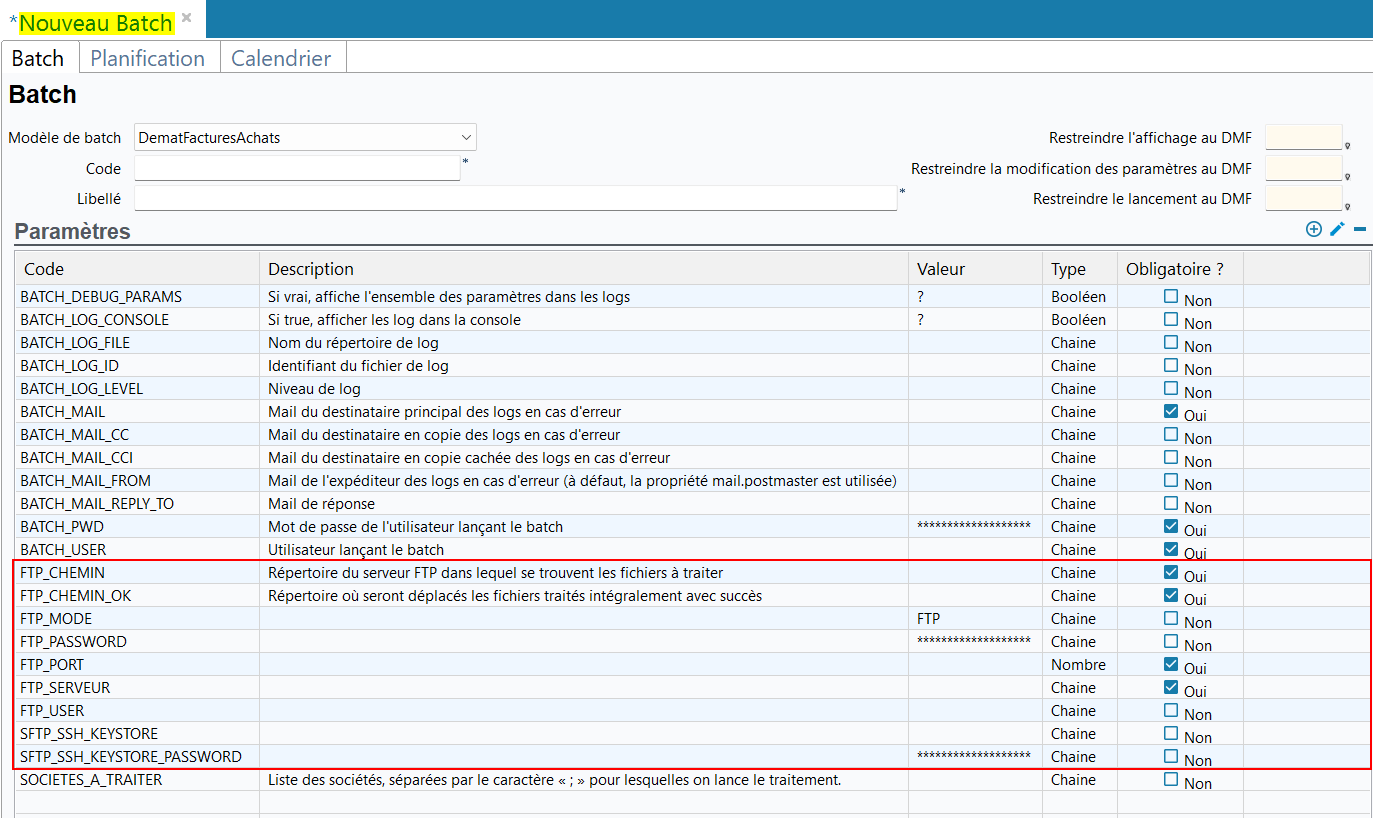
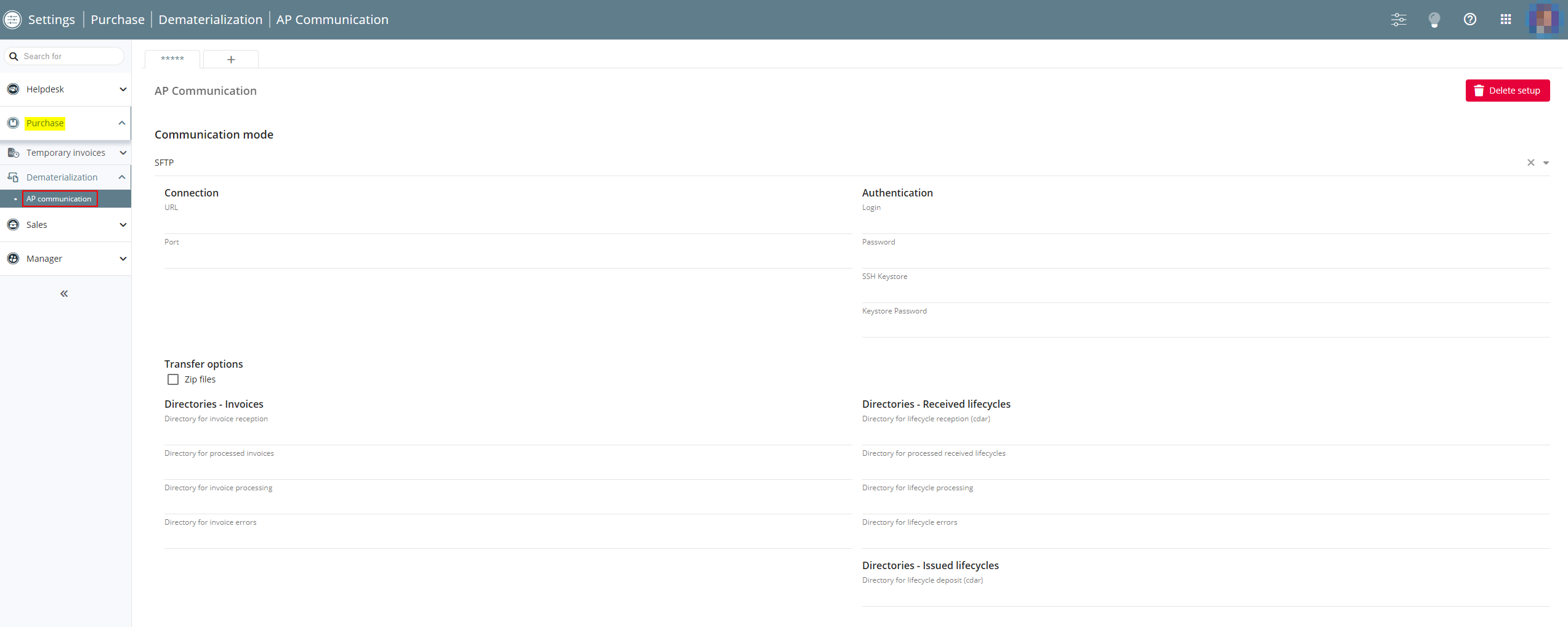
Now, the new AP communication menu is available in the Settings Portal > Purchases > AP communication. It allows you to set up for each company the communication mode to apply and the related parameters for the Factur-X management and the following batches:
- DematReceptionCDVFacturesAchat (voir DematReceptionCDVFacturesAchat batch);
- DematEmissionCDVFacturesAchatBatch (voir DematEmissionCDVFacturesAchatBatch batch);
- DematReceptionFacturesAchat (voir DematReceptionFacturesAchat batch).
The access to this menu requires the new 090190 ADMINISTRATOR SETUP PURCHASE AP COMMUNICATION DMF.
Sales: New AP communication menu for dematerialized invoices
| DMF | 0901** ADMINISTRATOR SETUP * |
Important
This feature requires the feature flag Portail ventes Domain > Statut Vente Facturx Label. To enable it, go to the Administration console > Configuration > Features, enable the Statut Vente Facturx feature flag then log in again.
Before, parameters related to the FTP or SFTP connection had to be specified in each setup batch to generate Factur-X when editing sales invoices in Akuiteo.
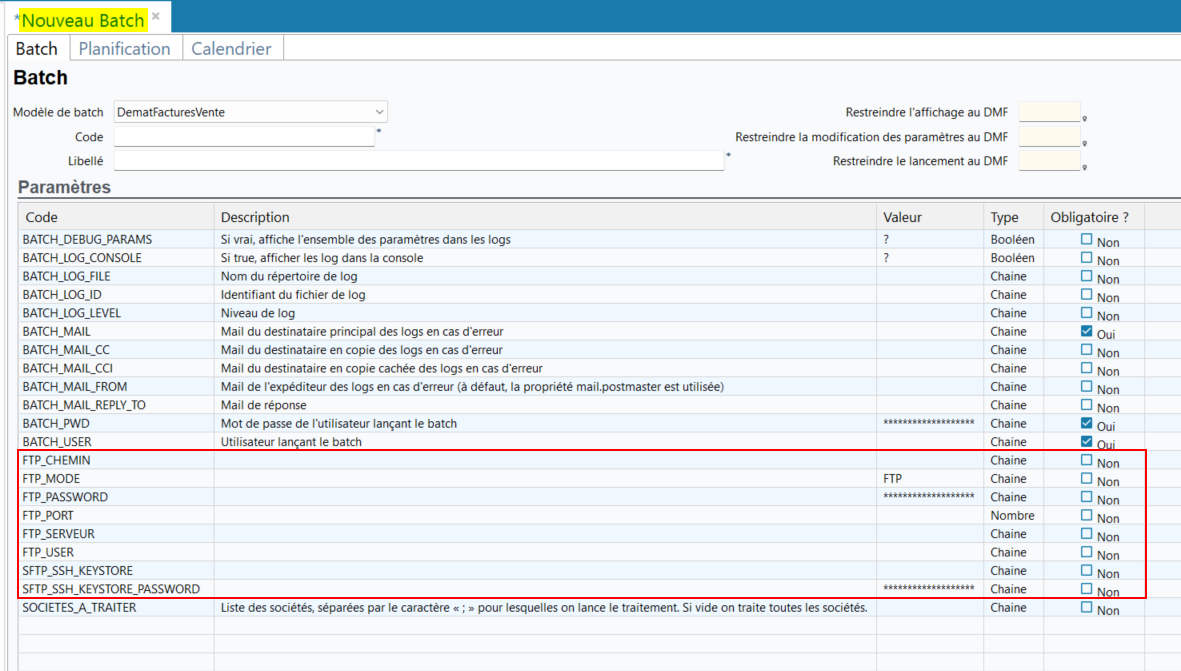
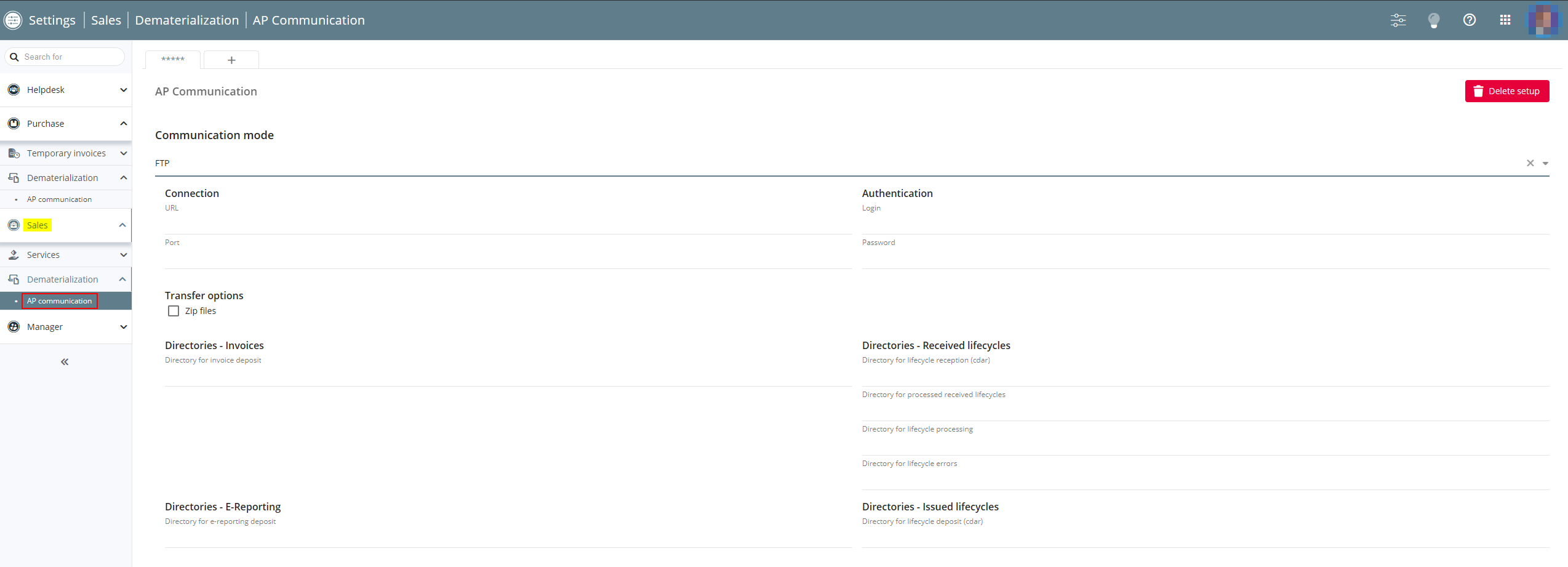
Now, the new AP communication menu is available in the Settings Portal > Sales > AP communication. It allows you to set up for each company the communication mode to apply and the related parameters for the Factur-X management and the following batches:
- DematEmissionCDVFacturesVente (voir DematEmissionCDVFacturesVente batch);
- DematReceptionCDVFacturesVente (voir DematReceptionCDVFacturesVente batch);
- DematEmissionFacturesVente (voir DematEmissionFacturesVente batch).
The access to this menu requires the 090189 ADMINISTRATOR SETUP SALES AP COMMUNICATION DMF.
Important
A communication mode has to be set up in order to generate the XML file linked to the Factur-X when booking a sales invoices (Desktop Application > Management > Sales > Invoices).
Project Portal
Project: Evolution of Project's calendar
| DMF | 25**** PROJECT * * |
Important
This evolution requires enabling the following feature flag: Portail project domain > Nouvel Agenda Label. To enable it, go to the Administration console > Configuration > Features, enable the Nouvel Agenda feature flag then log in again.
Project is an online portal designed for planners, to help them manage their teams' schedules. Without opening the Desktop Application, planners can:
- fill in employees' schedules, based on ongoing projects,
- monitor employees' estimated occupancy rate,
- schedule a project based on its deadlines.
Before, the calendar of the Project's Project view and Employee view menus was managed by an external component which could expend the resolution duration of an issue. To be more flexible, Akuiteo has developed its own component for this calendar.
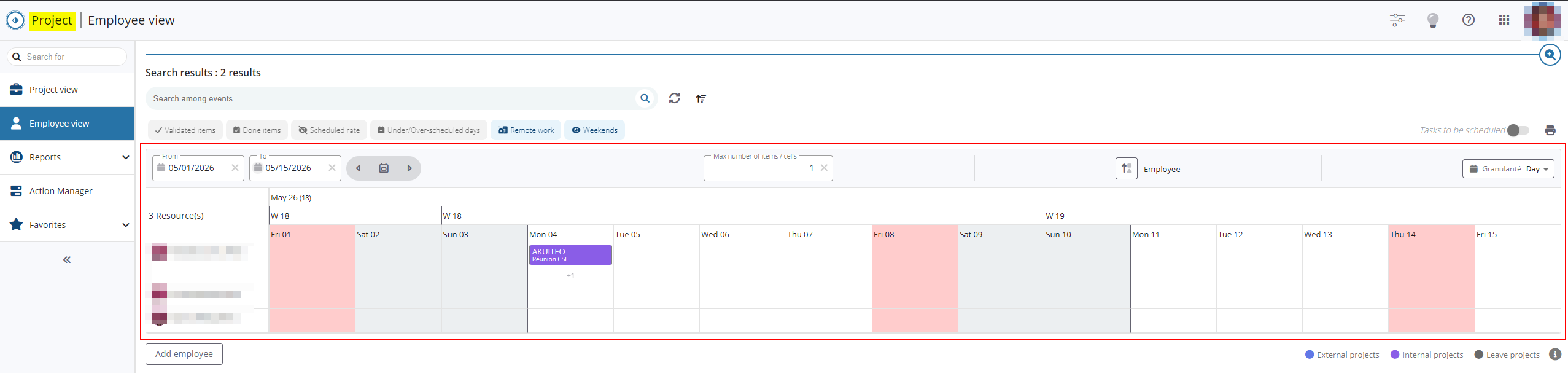
Along with this evolution, the following features are now available in the calendar's header:
- the From ... To fields allows you to define the period to be displayed in the calendar. By default, these fields are specified with the first and last day of the current month.
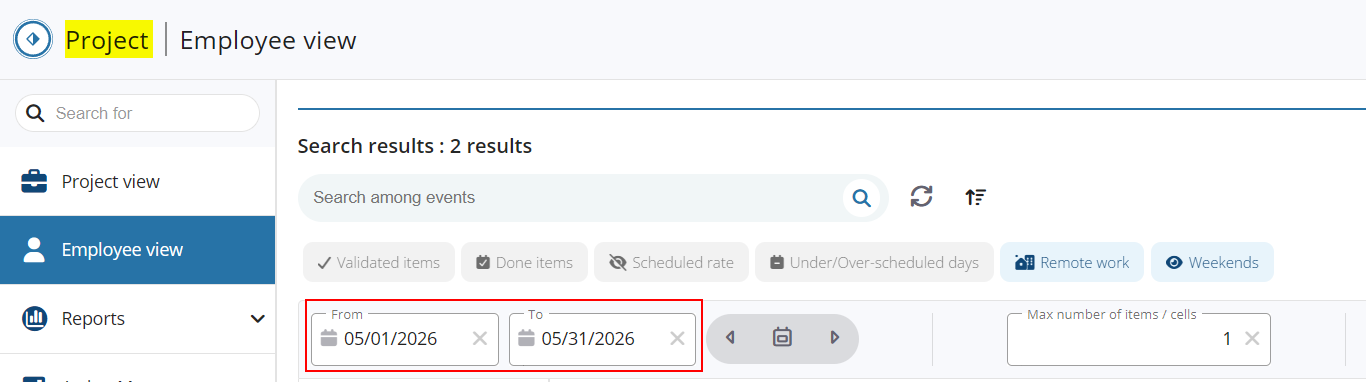
- the
 icon allows you to go back to today's date and the
  and
and  arrows allow you to navigate to the previous or next period and keep the same period duration as the one specified in the From ... To fields.
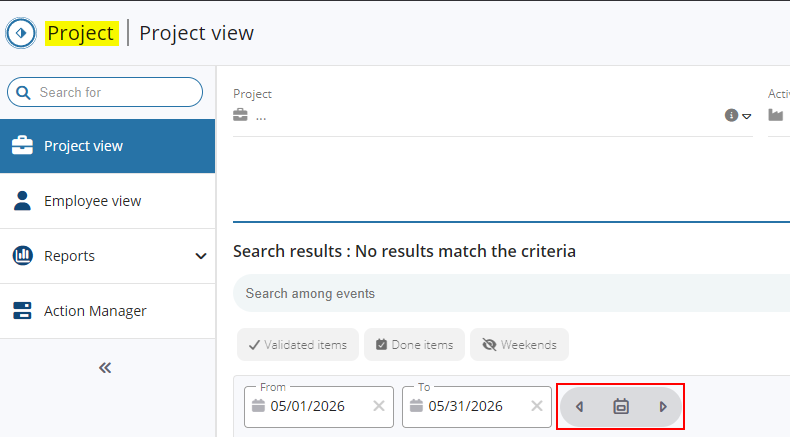
- The Max number of items / cells field allows you to specify a maximum number of scheduled items to be displayed in each cell of the calendar. When the number of items to be displayed is superior to the number specified, the +x mention is displayed at the bottom of the relevant cells. When the user clicks on the icon, the following ites are displayed.
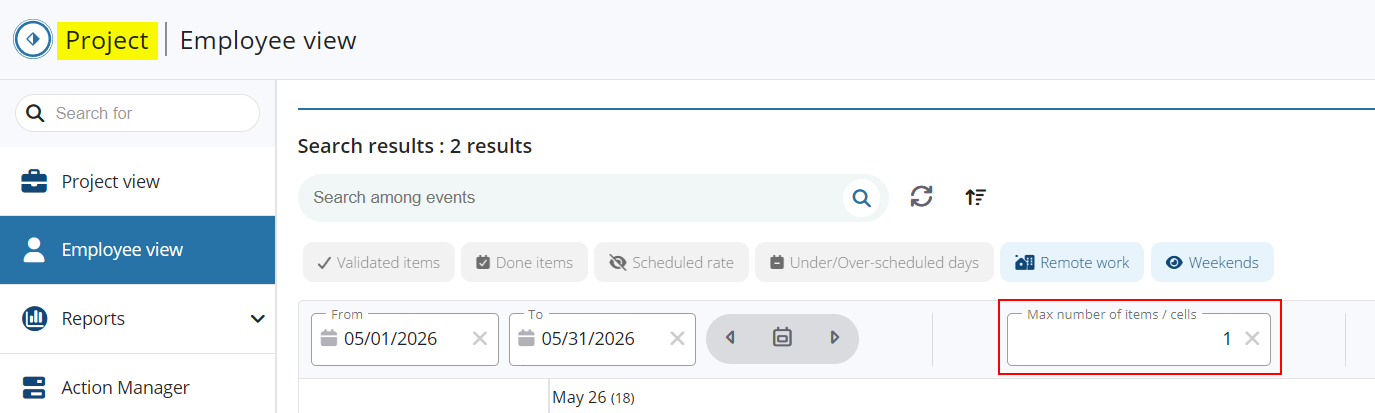
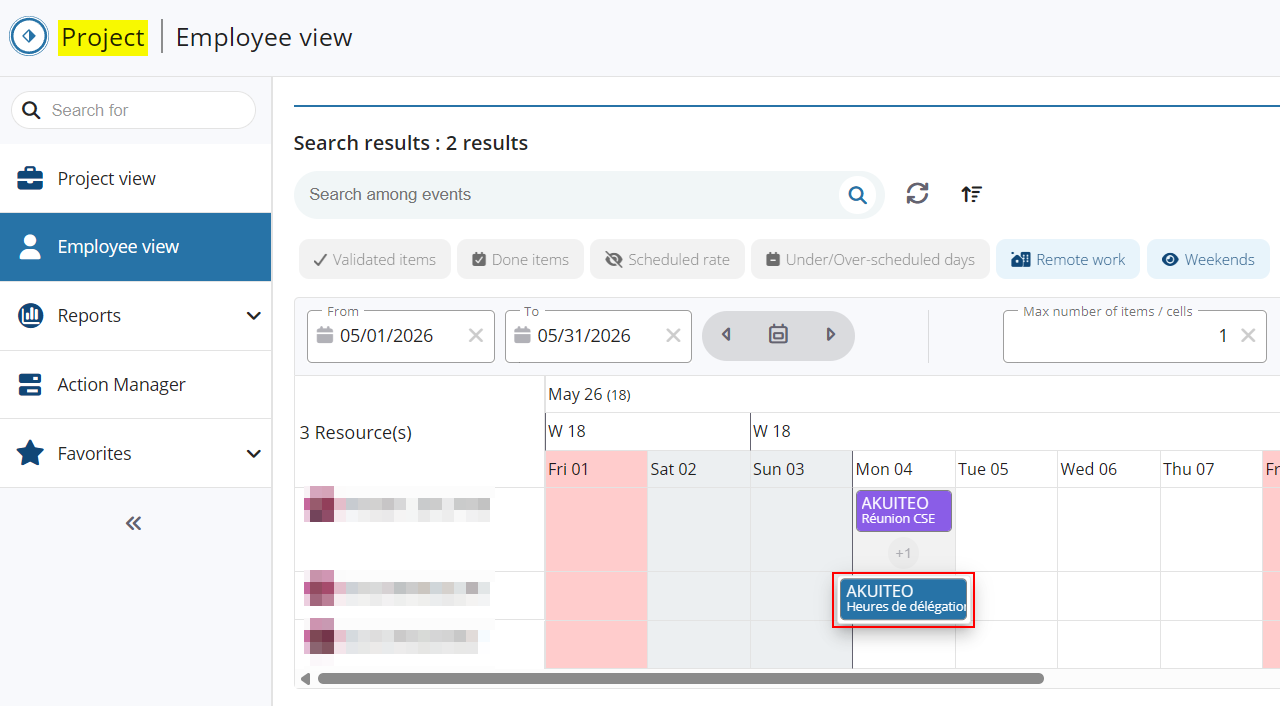
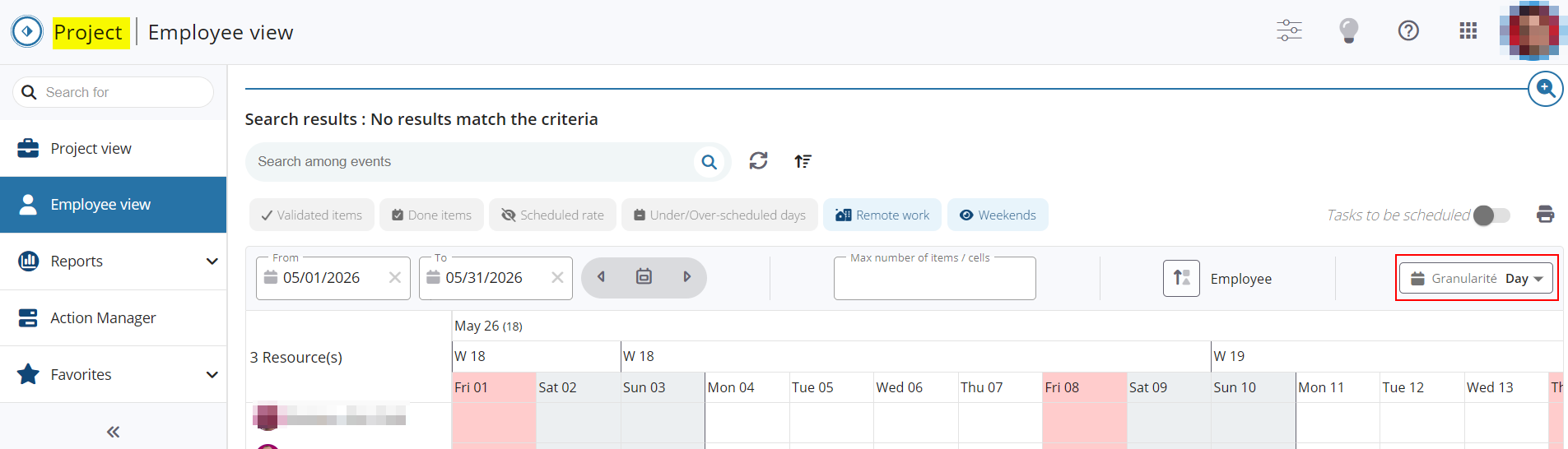
- The Granularity feature allows you to refine the calendar's display by selecting one of the following values:
- Month - displays one column per day for the duration specified in the From ... To field. It is the default display.
- Week - display one column per week for the duration specified in the From ... To field.
- Month - display one column per month for the duration specified in the From ... To field. When this granularity is selected, it is only possible to specify months in the From ... To field.
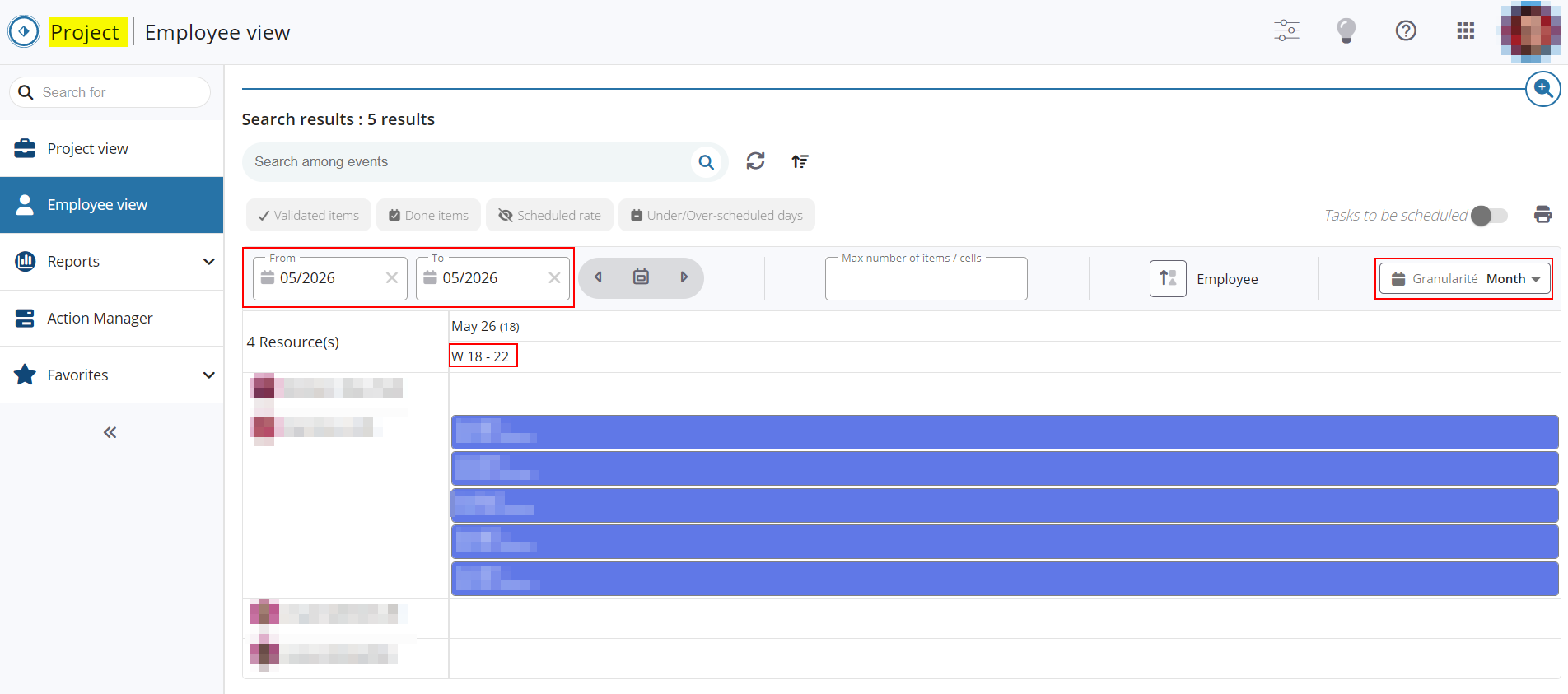
A search bar and the and  icons have been added above the calendar. These features allows you to search, refresh and filter displayed items.
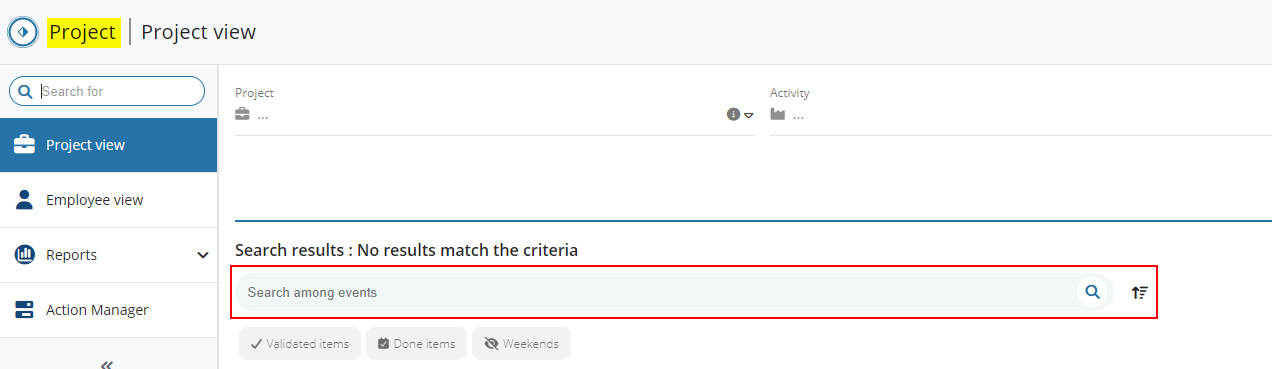
When the feature flag is enabled, the following features are no longer available:
- the Expand, Width of resources column in px and Start time / End time user preferences, available from the users' photo > Preferences.
- the quick modification of a scheduled item from the border of the item.
Help Desk Portal
Sprints: Possibility to display Reference 1 and 2 fields in the header of the US
| DMF |
1413** HELPDESK ISSUES * or 1426** HELPDESK SIMPLIFIED ISSUE * 1427** HELPDESK SPRINTS * |
The SPRINT_ENTETE_US management rule (Tools > Setup > General setup > Specific parameters > Management rules) allows you to customize information displayed in the US header in Agile Factory or Help Desk Portal > Sprints when the Portail support > Sprints feature flag is enabled.
The Reference 1 and 2 fields are customer references in free input available from:
- the Desktop Application > Help Desk > Issue search then Issue tab > Context section > Ref. 1 / 2;
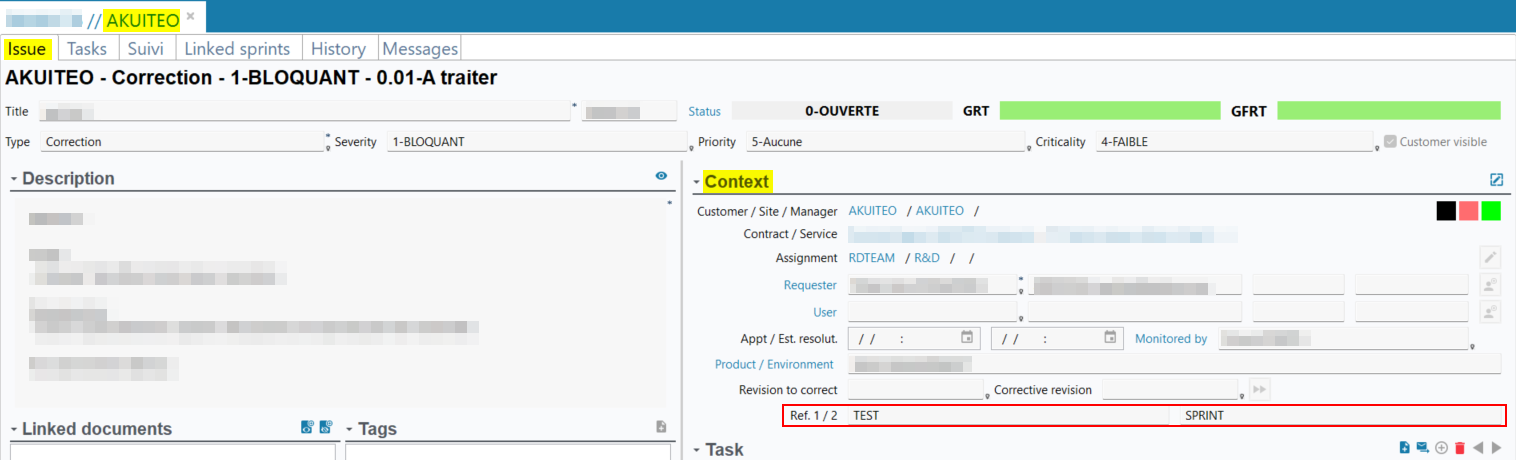
- the Help Desk Portal > Issues then context pane > Information section > Reference 1 and Reference 2.
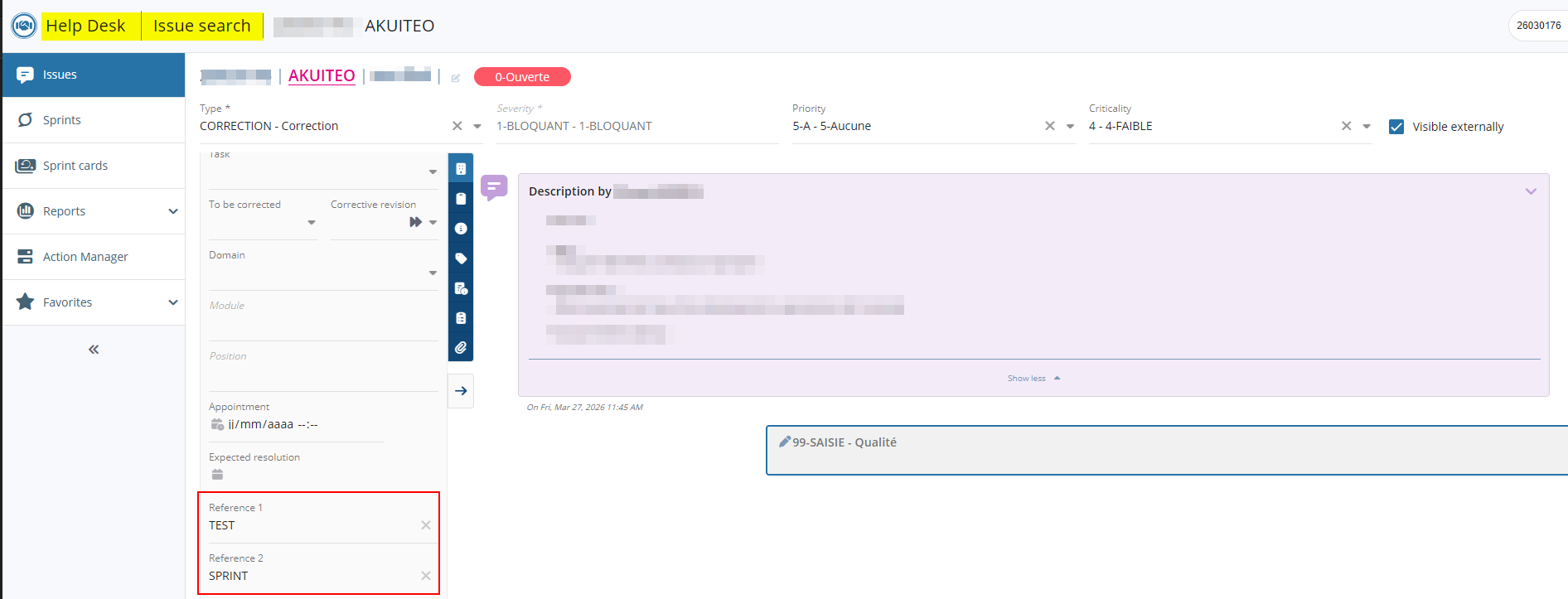
From now on, the REFERENCE1 and REFERENCE2 values can be specified in the parameters of the SPRINT_ENTETE_US management rule. When these values are specified in the:
- Information to display on a US title parameter, these values are displayed in the US title.

- Information to display when hovering over a US title parameter, these values are displayed when hovering over the US title.

Sales Portal
Customers: New feature flag for the customer and contact record sheets
| DMF | 0201** SALES CUSTOMER * |
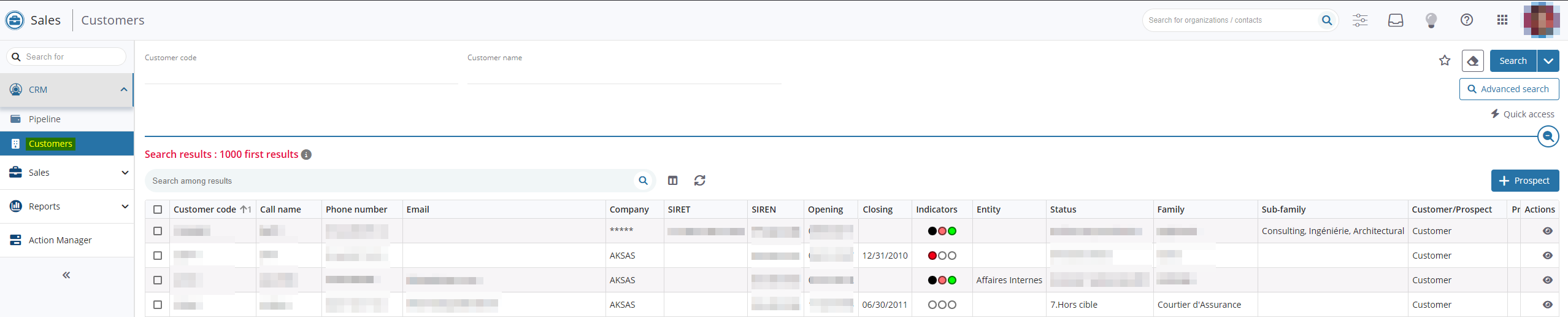
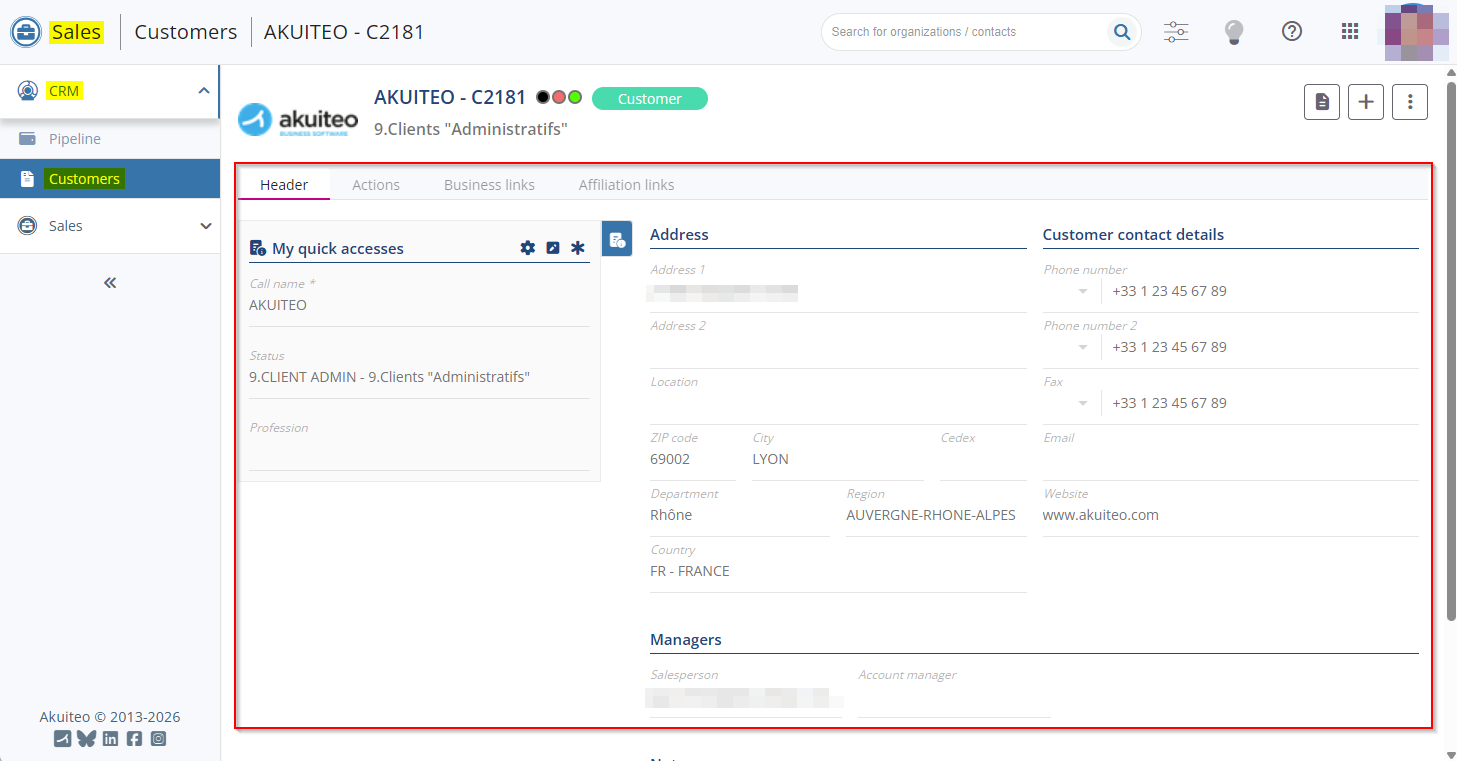
Before, the contact and customer record sheets (Sales Portal > CRM > Customers) required the Portail ventes domain > Portefeuille label feature flag.
Now, for the convenience of the user, the access to the customer and contact record sheets requires the new Portail ventes domain > Fiche Client label feature flag. When the user does not have this feature flag, the customers and contact record sheets are opened in the old CRM module.
Note
If the Portefeuille feature flag was enabled before the evolution, the Fiche Client feature flag will be automatically enabled.
Customers and Prospects: Type field added
| DMF |
0101** PROSPECTING PROSPECTS * 0201** SALES CUSTOMER * |
On customer and prospects from the Sales Portal > CRM > Customers > Header tab > My quick accesses section, the Type field has been added and allows you to select a type among those set up from Tools > Setup > General setup > Cross-cutting > Customer and supplier type. These types are used to define whether the SIREN number is required on third-parties.

In the general information window accessible from the  icon, the field is located in the Statistical information section.

The Type field is also available on the prospect creation screen > My quick accesses section.

Customers and Prospects: Modification of required DMFs to open a customer or prospect sheet
| DMF |
0101** PROSPECTING PROSPECTS * 0201** SALES CUSTOMER * |
Previously, from the customer and prospect search screen (Sales Portal > CRM > Customers), opening a customer or prospect sheet required the DMFs:
- 010102 PROSPECTING PROSPECTS MODIFY for a prospect;
- 020102 SALES CUSTOMER MODIFY for a customer.
From now on, those DMFs are no longer required and the DMFs 010104 PROSPECTING PROSPECTS SEARCH for a prospect and 020104 SALES CUSTOMER SEARCH for a customer are sufficient to open a result. However, if the user does not have the modification DMFs 010102 ou 020102, the result opens in read-only mode.
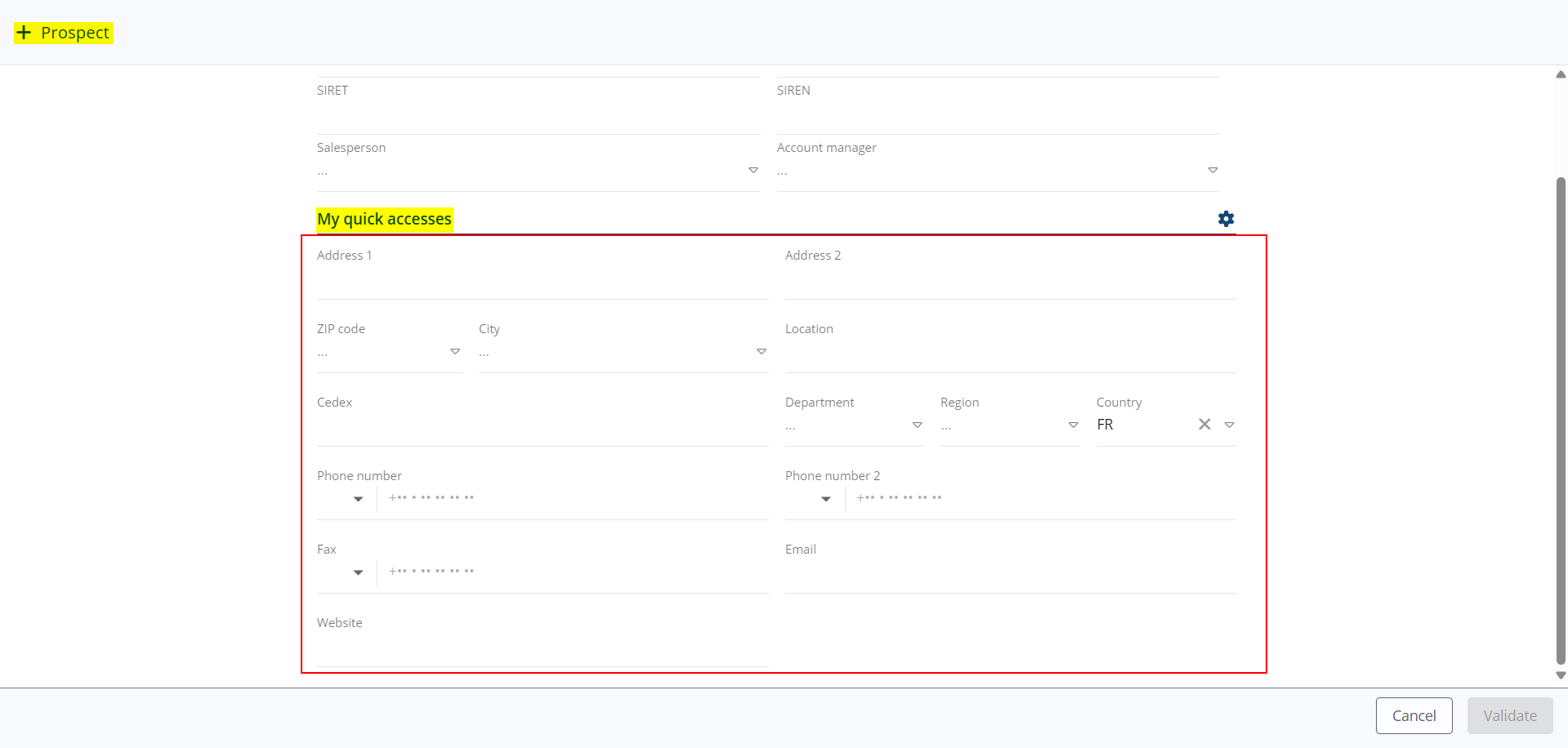
Prospect creation: Fields added in the My quick accesses section
| DMF |
0101** PROSPECTING PROSPECTS * |
The following fields are now available in the prospect creation form (Sales Portal > CRM > Customers > + Prospect) > My quick accesses section:
- Address 1;
- Address 2;
- ZIP code / City;
- Location;
- Cedex;
- Department / Region / Country;
- Phone number;
- Phone number 2;
- Fax;
- Email;
- Website.
Quotations: Extended help list added for the Issue field of lines
| DMF | 0202** SALES QUOTATIONS * |
On web portals, an expanded help list is available for certain fields by pressing F2, which displays the help list in the form of a detailed table.
In quotation line forms (Sales Portal > Sales > Quotations) > Help Desk data section, an extended help list has been added to the Issue field.

Search results are displayed in a table. A search interface is available at the top of the window and allows you to specify the Number and Title.
Select the result desired then click on Select at the bottom right of the window.

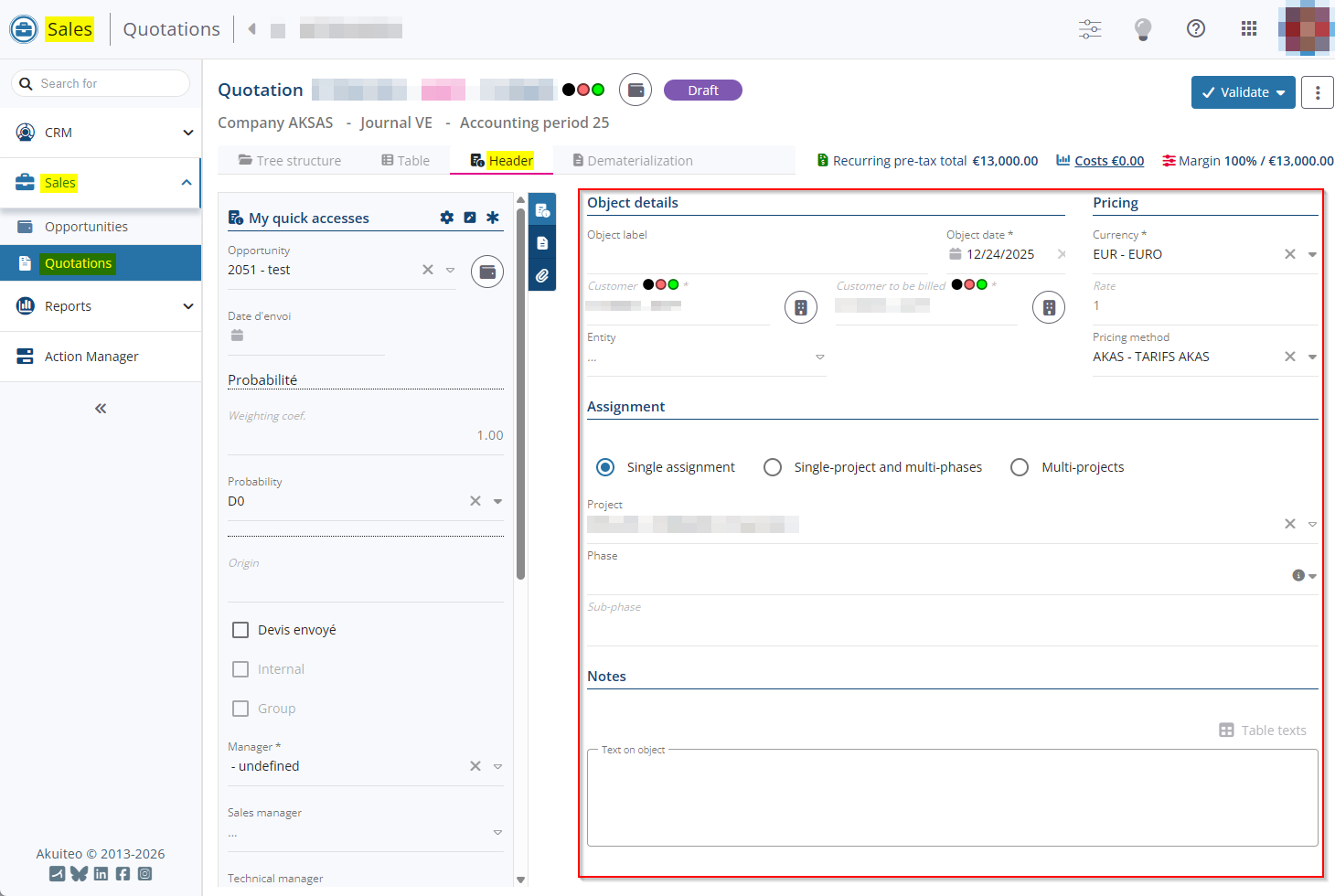
Quotations: Header tab reorganized
| DMF | 02**** SALES * SALES |
On a quotation (Sales Portal > Sales > Quotations), section have been added for the fields in the Header tab:
- Object details, which include the fields Object label, Object date, Customer, Customer to be billed, and Entity;
- Pricing, which includes the fields Currency, Rate, and Pricing method;
- Assignment, which includes the assignment type and, where applicable, the Project/Phase/Sub-phase fields;
- Notes, which includes the Text on object.
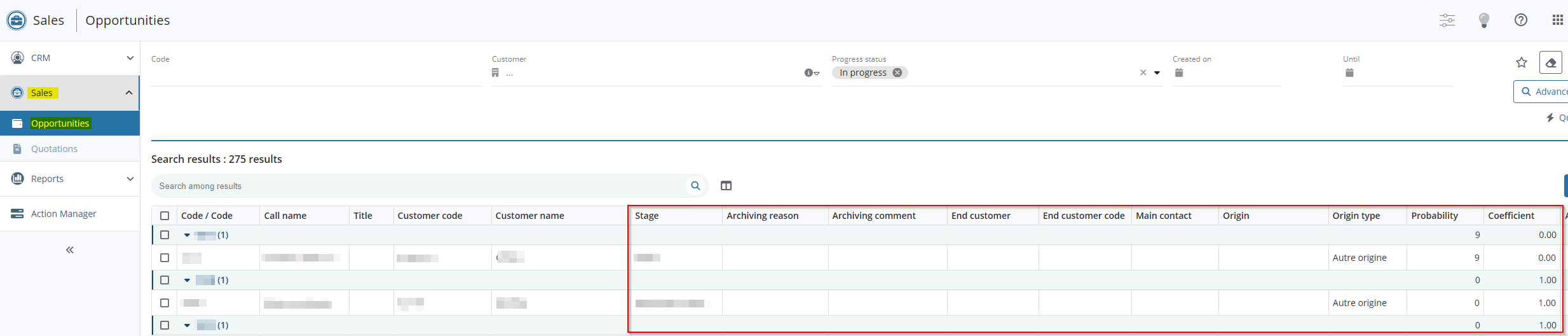
Opportunities: Columns added in the search results
| DMF | 0102** PROSPECTING OPPORTUNITIES * |
The following columns have been added to the opportunities search results (Sales Portal > Sales > Opportunities):
- Archiving reason;
- Archiving comment;
- End customer;
- End customer code;
- Main contact;
- Origin;
- Origin type;
- Probability;
- Coefficient;
- Stage.
Opportunities: Functions added to modify multiple opportunities and reschedule dates of multiple opportunities
| DMF | 0102** PROSPECTING OPPORTUNITIES * |
Important
This feature requires enabling the feature flag Transverse domain > Adoption Crm label. To enable it, go to the Administration console > Configuration > Features, enable the Adoption Crm feature flag then log in again.
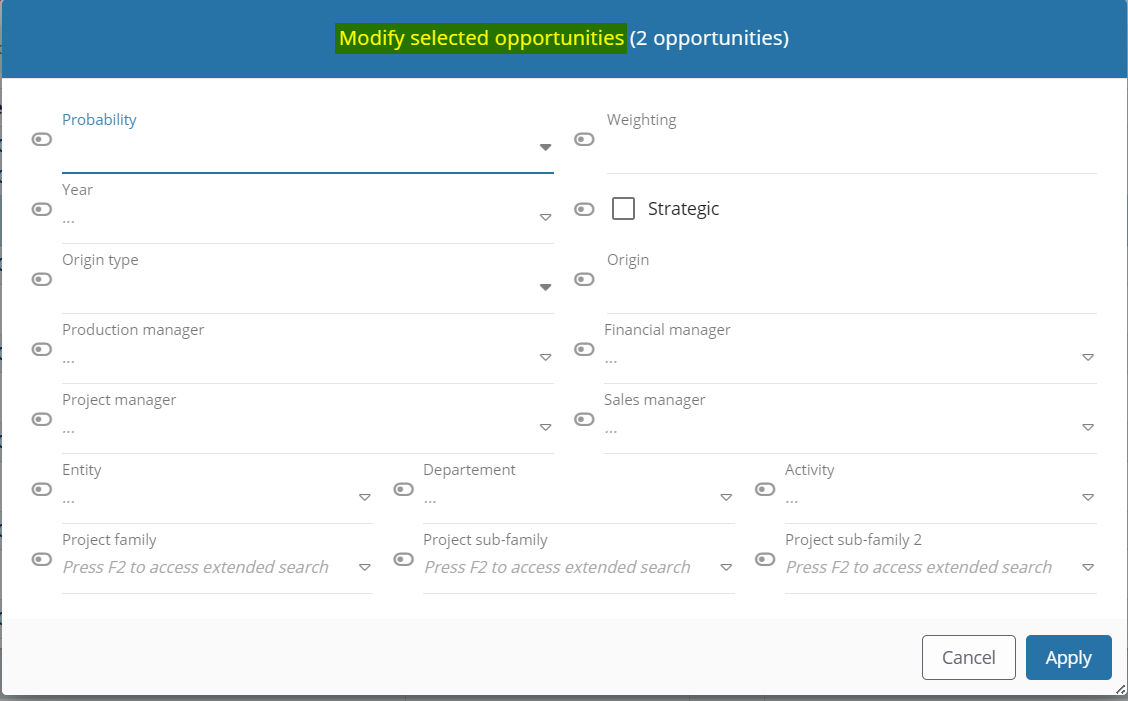
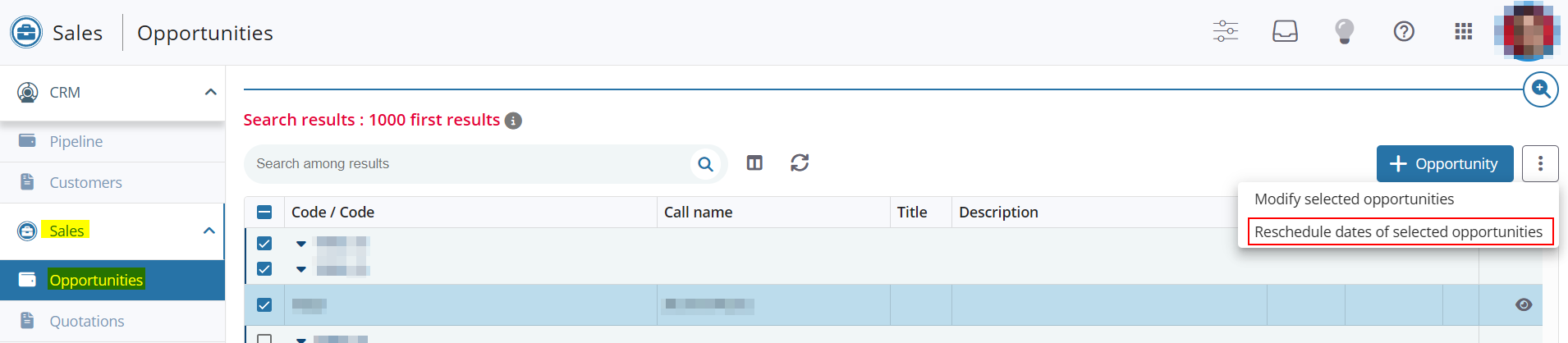
The Modify selected opportunities and Reschedule dates of selected opportunities features have been added in the following menus:
- Sales Portal > CRM > Pipeline in Table view;
- Sales Portal > Sales > Opportunities.
These features are available from the search results table, by checking the desired results and clicking on at the right of the + Opportunity then on:
- Modify selected opportunities.
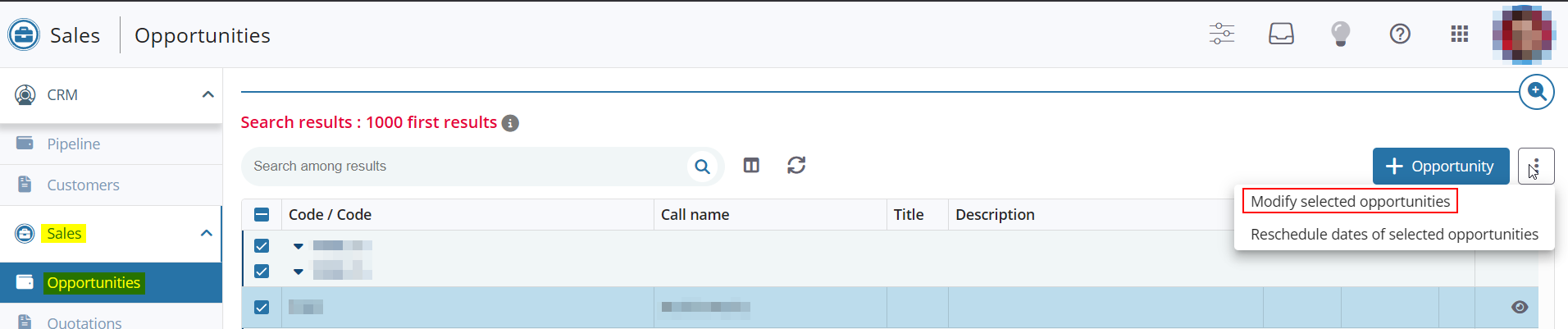
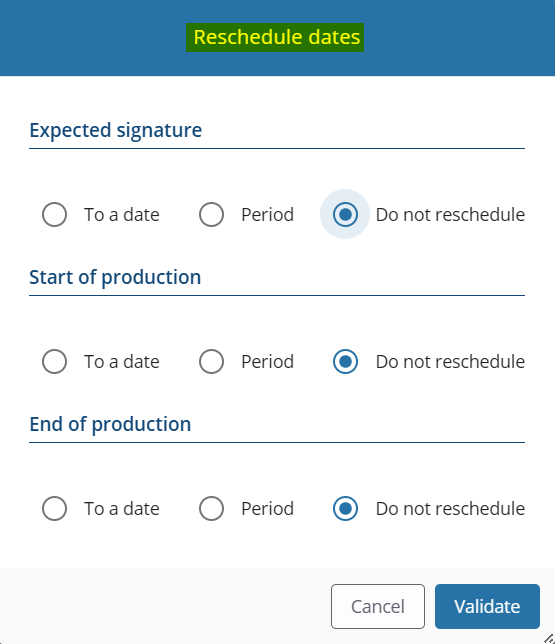
- Reschedule dates of selected opportunities to reschedule the Expected signature, Start of production and End of production.
These features require the 010219 PROSPECTING OPPORTUNITIES BATCH UPDATE DMF.
Pipelines and Opportunities: Columns and search criteria renamed
| DMF | 0102** PROSPECTING OPPORTUNITIES * |
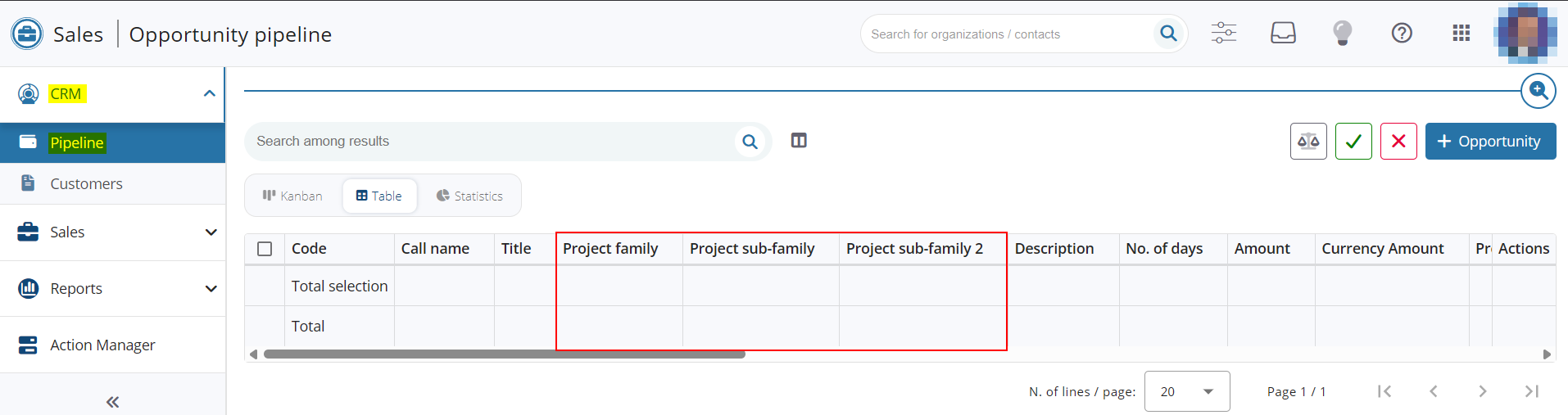
In the Sales Portal > CRM > Pipelines > Table view and Sales > Opportunities, the following columns have been renamed:
- Family 1 has been renamed Project family;
- Family 2 has been renamed Project sub-family;
- Family 3 has been renamed Project sub-family 2.
In the Sales Portal > Sales > Opportunities, the following search criteria have been renamed:
- Family 1 has been renamed Project family;
- Family 2 has been renamed Project sub-family;
- Family 3 has been renamed Project sub-family 2.

Pipelines: New display for the opportunity card details in Kanban view
| DMF | 0102** PROSPECTING OPPORTUNITIES * |
Important
This feature requires enabling the feature flag Transverse domain > Adoption Crm label. To enable it, go to the Administration console > Configuration > Features, enable the Adoption Crm feature flag then log in again.
From the opportunities pipeline (Sales Portal > CRM > Pipelines) in Kanban view, opportunities are displayed as cards.
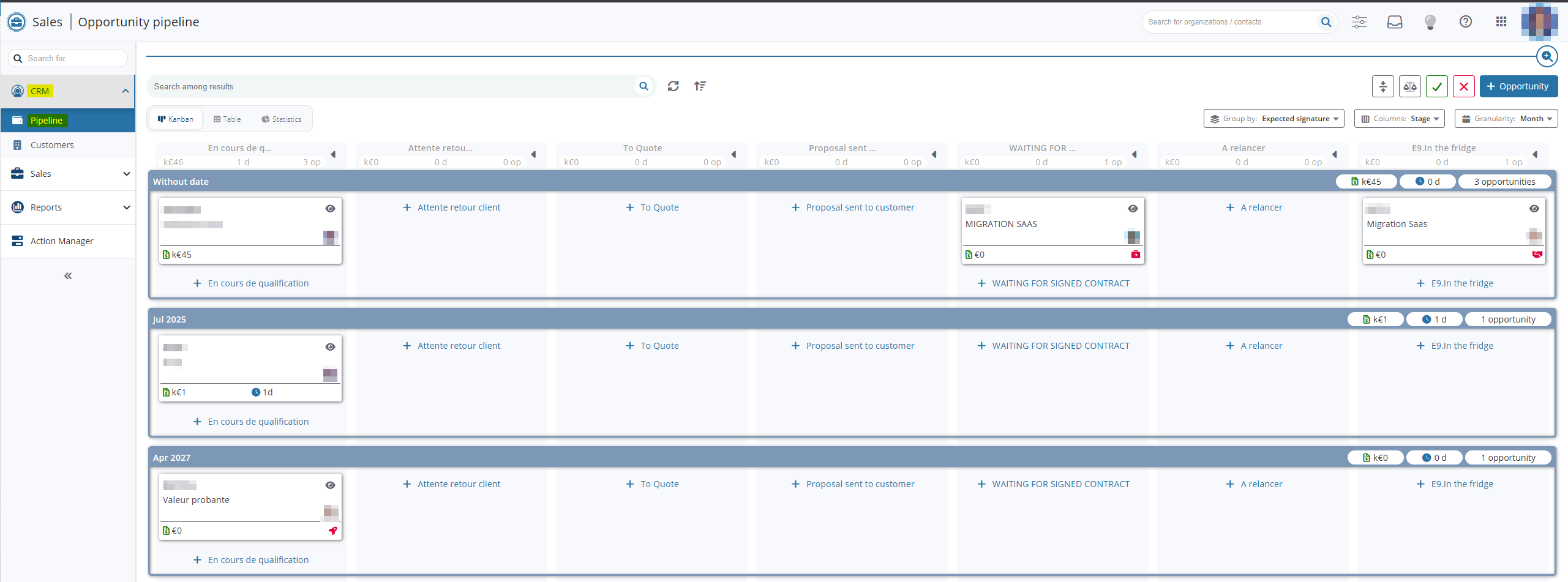
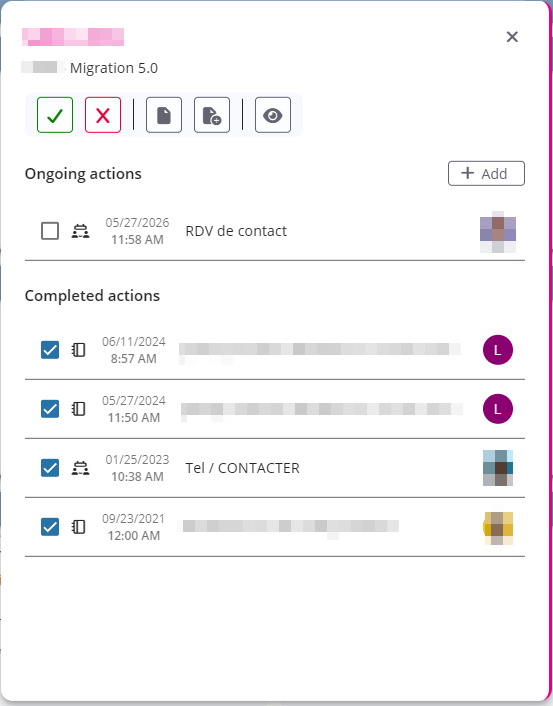
Now, when the user clicks on an opportunity card, a window displays:
- the name of the prospect or customer;
- the opportunity code and name;
- tags;
- icons to mark an opportunity as won or lost, show linked quotations, show opportunity record sheet;
- action creation button;
- the Ongoing actions and Completed actions, displayed from newest to oldest.
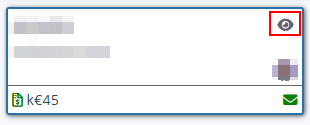
In Kanban view, the  icon displayed at the right of each opportunity card is now replaced by the
  icon and allows you to open the light form of the opportunity.
Help desk
Customer contracts: Payment terms retrieved from the delivered order
| DMF | 1415** HELPDESK CUSTOMER CONTRACTS * |
Payment terms are displayed in the customer contract (Help Desk > Contracts > Customer contracts) in the:
- simplified view, in the Customer contract tab > Header section > Terms tab.
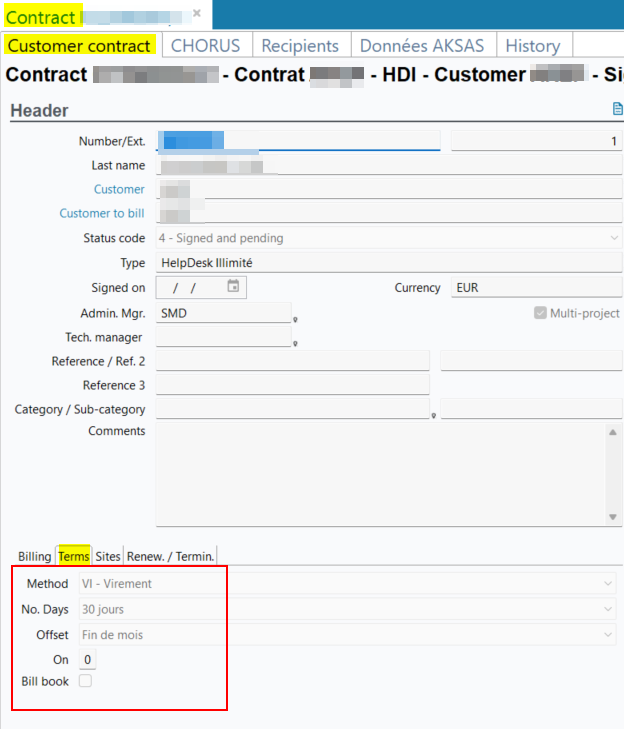
- classic view, in the Billing tab > Terms and conditions section.
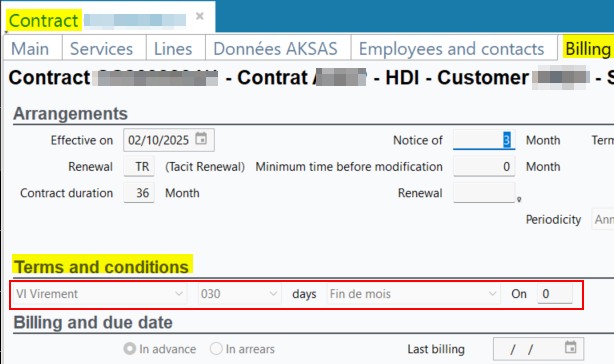
Before, when a customer contract was created when an order was delivered (Management > Sales > Deliveries), payment terms were not retrieved on the created contract.
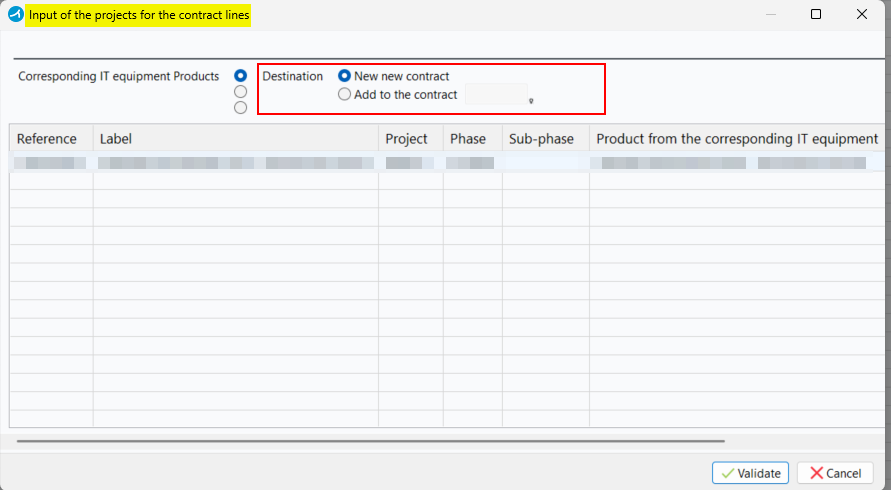
Now, when the delivered order creates a new customer contract (project of contract lines selection window > Create new contract option), payment terms of the order are retrieved on the contract.
When the delivery is added to an existing customer contract (project of contract lines selection window > Add to contract option), payment terms specified on the contract are kept.
Dashboards
Expense reports dashboard: Columns added for the amounts
| DMF | 1502** DASHBOARDS PURCHASES ANALYSIS * |
The expense reports dashboard (Dashboards > Purchases > Expense reports dashboard) allows you to view expense reports of employees of the company.
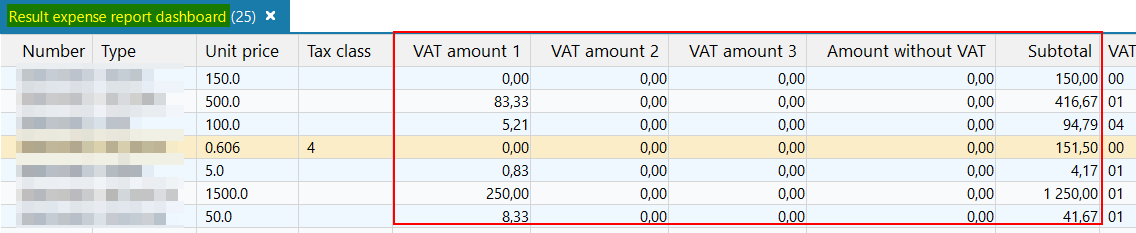
The following columns have been added to the search results of this dashboard:
- Pre-tax amount,
- VAT amount 1;
- VAT amount 2;
- VAT amount 3;
- Amount without VAT.
When the grouping criterion DOCUMENT - Record is selected from the Main criteria tab > Grouping section, the following columns are also available:
- VAT code 1;
- VAT rate 1;
- VAT code 2;
- VAT rate 2;
- VAT code 3;
- VAT rate 3.

Transverse
Actions: Modification of DMFs required to open an action
| DMF |
01**** PROSPECTING * * 02**** SALES * SALES 160904 TOOLS CROSS-FUNCTION WEB TASKS LIST |
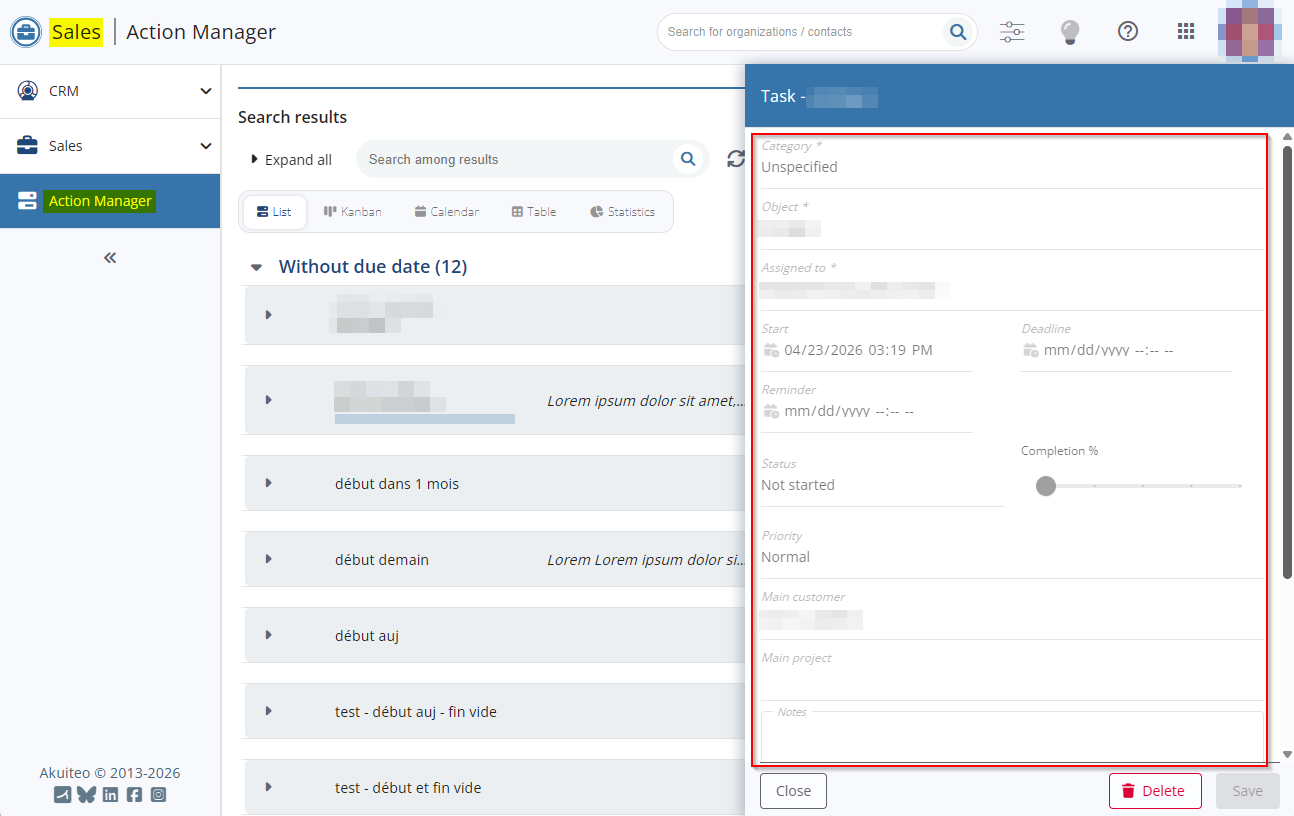
Previously, the DMF 160102 TOOLS EVENTS MODIFY was required to open the form of an action.
- the web portals' Action Manager menu:
- the icon of an action on an opportunity card in a pipeline in Kanban view (Sales Portal > CRM > Pipeline);
- the Activities tab of an opportunity (Sales Portal > Sales > Opportunities) or a customer/prospect (Sales Portal > CRM > Customers).
Now, the DMF 160104 TOOLS EVENTS SEARCH also allows opening the action form but only in read-only mode.
Online help: Improvements made to documentation search
| DMF |
A search filter has been added, allowing searches to be filtered by the desired product (for example, Desktop Application, Web Portal, etc.). Search results can therefore be filtered to show only the desired product.
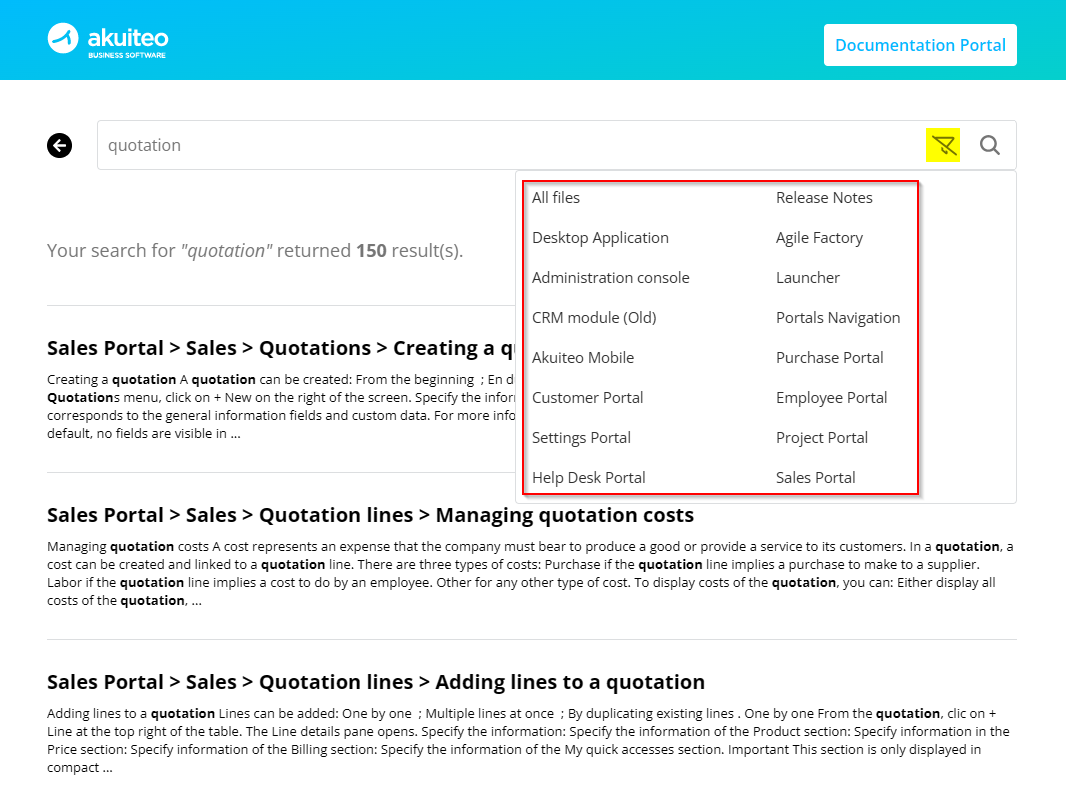
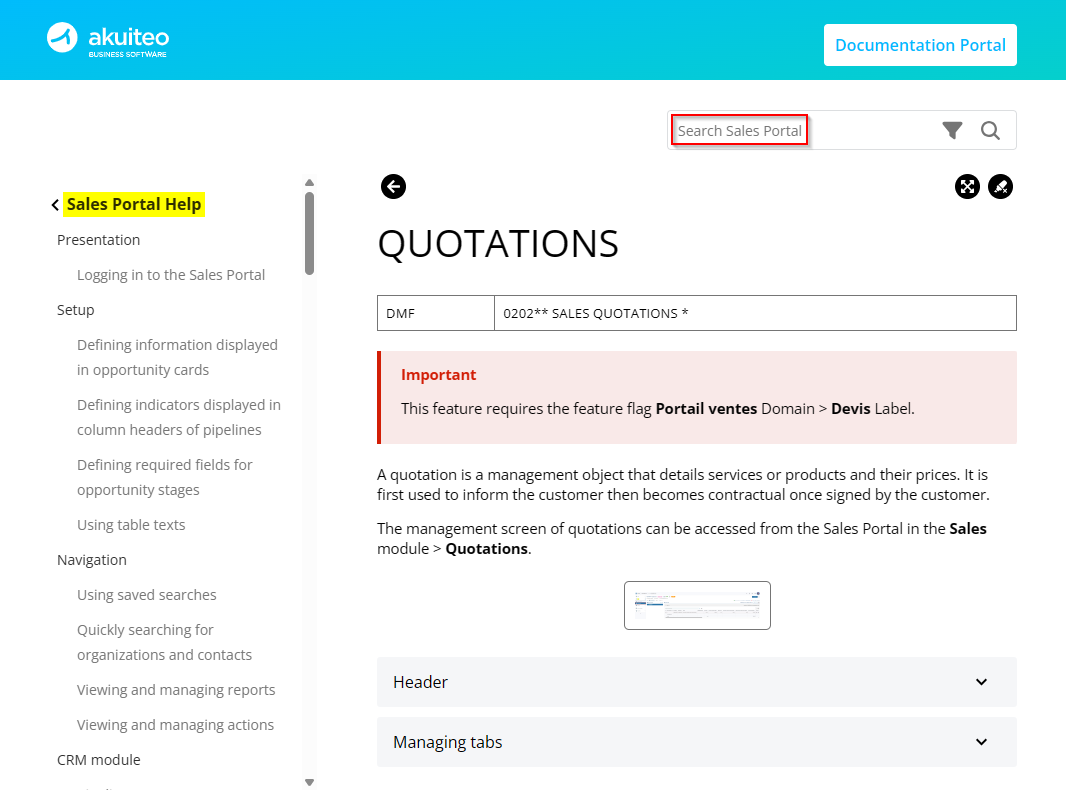
This new filter is automatically selected by default based on the help content being viewed. For example, when viewing the Sales Portal help, the Sales Portal filter is automatically selected by default.
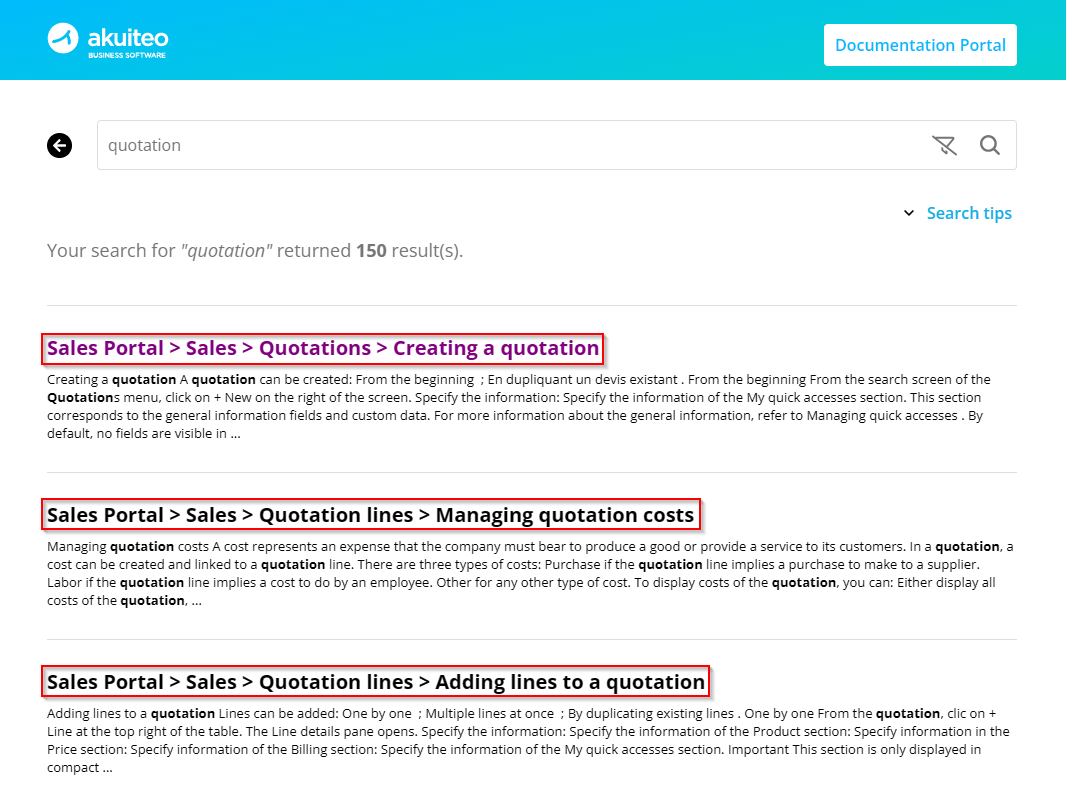
A breadcrumb trail is now displayed for each search result, making it possible to immediately identify the product corresponding to the search result as well as its location in the documentation.
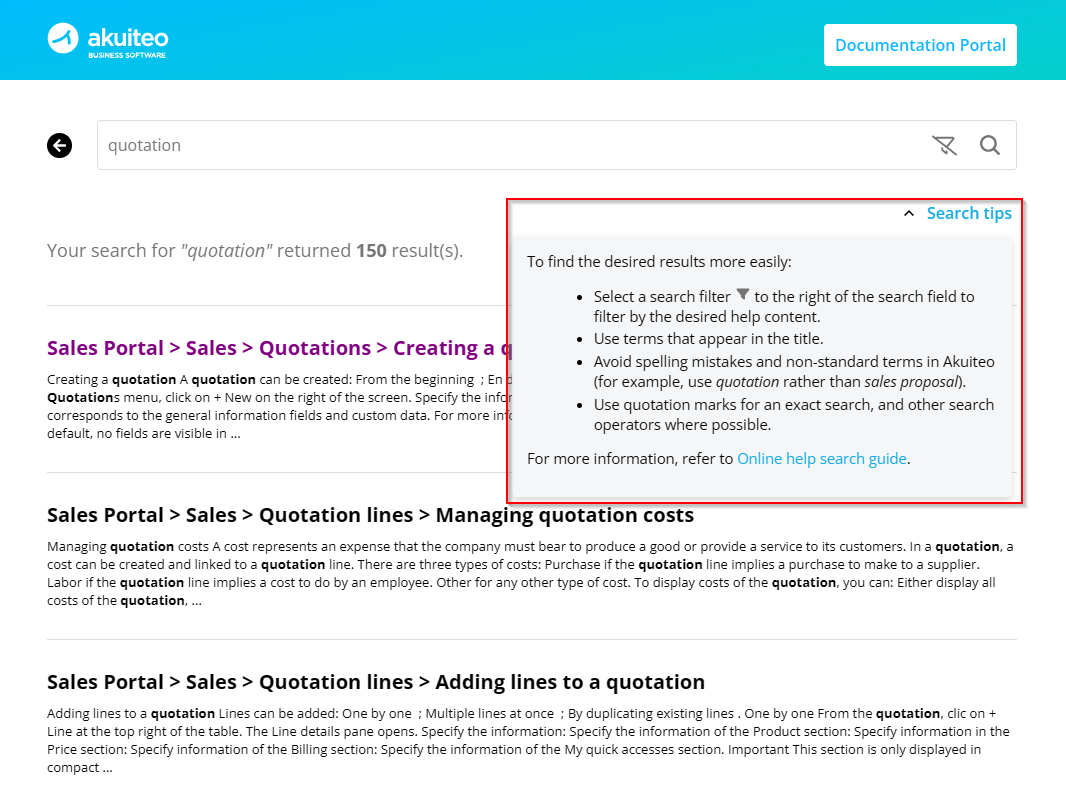
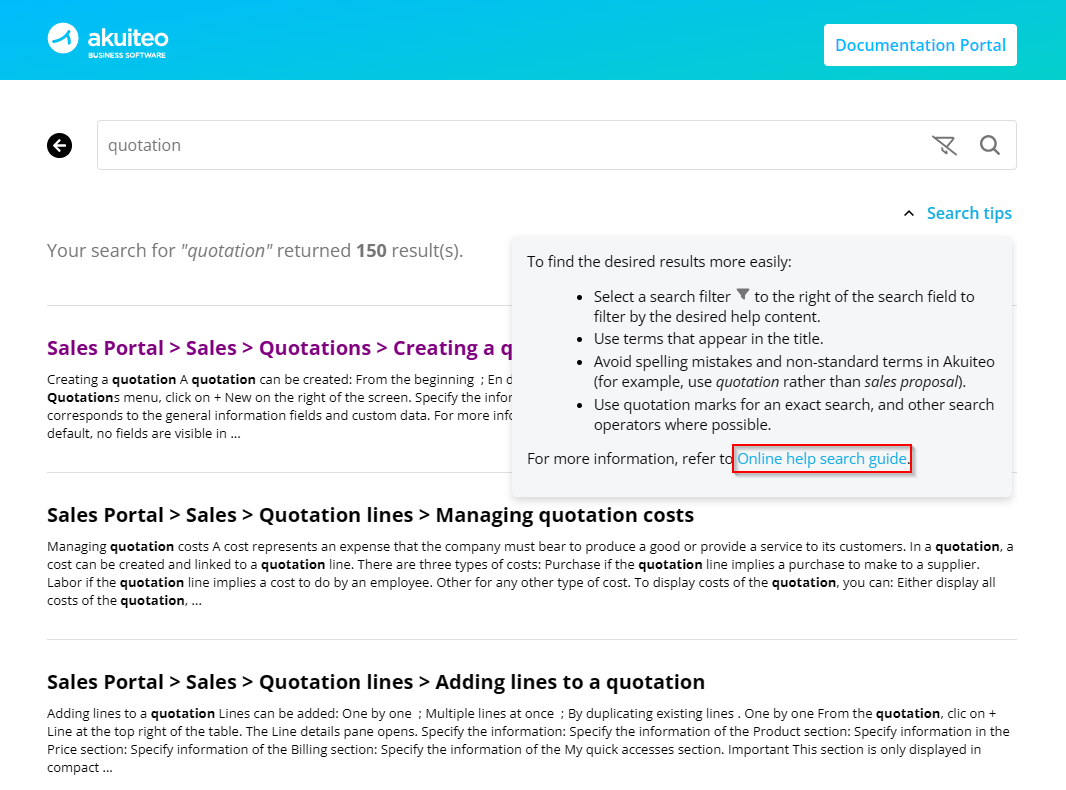
A Search tips section has been added at the top of the results page, providing tips for formulating a more precise search.
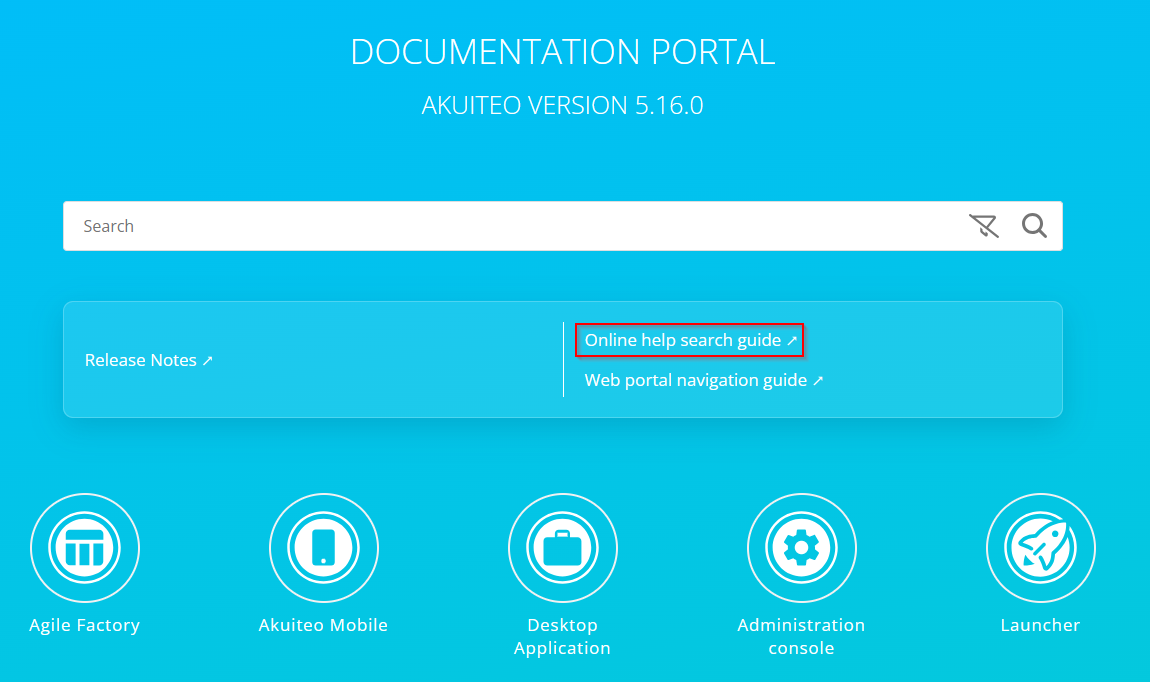
A search guide has been added, containing various recommendations and methods to help users find the desired results more easily. The guide can be accessed:
-
from the Documentation Portal;
-
from the new Search tips section at the top of the results page.
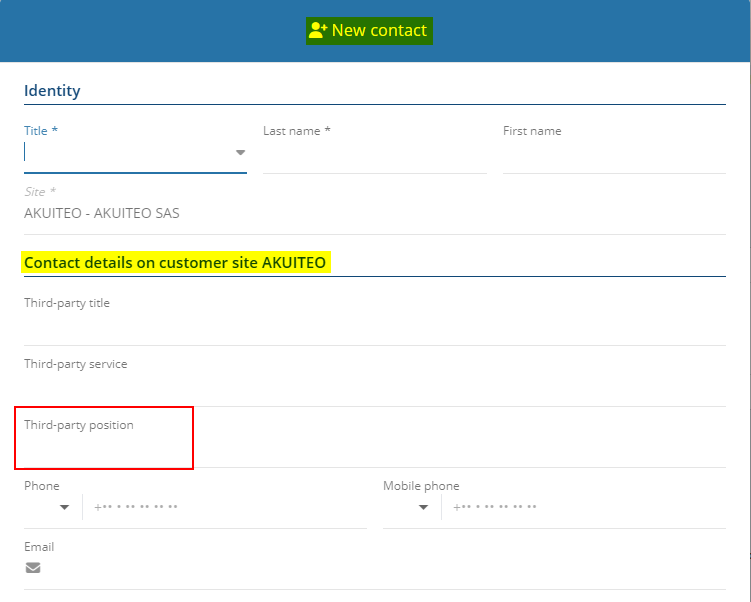
Contacts: Position field renamed Third-party position
| DMF |
0102** PROSPECTING OPPORTUNITIES * 1413** HELPDESK ISSUES * or 1426** HELPDESK SIMPLIFIED ISSUE * 1604** TOOLS CONTACTS * |
A contact can be created from:
- the context pane at the left side of an issue (Help Desk Portal > Issues > Contacts section > Requester and User fields >
 );
); - the opportunity in the pipeline (Sales Portal > CRM > Pipeline > Main contact field > );
- the opportunity record sheet (Sales Portal > Sales > Opportunities > Header tab > Main contact field > and Contacts > + New);
- the customer record sheet (Sales Portal > CRM > Customers > Contacts tab > + New).
For more clarity, the Position field (Information about customer site XX section) has been renamed Third-party position. It allows you to specify the position of the third-party in the customer company.
Quick contact creation: My quick accesses section added
| DMF |
0102** PROSPECTING OPPORTUNITIES * 1413** HELPDESK ISSUES * or 1426** HELPDESK SIMPLIFIED ISSUE * 1604** TOOLS CONTACTS * |
Before, the My quick accesses section was not available on the quick creation form of a contact from:
- the context pane at the left side of an issue (Help Desk Portal > Issues > Contacts section > Requester and User fields > );
- the opportunity in the pipeline (Sales Portal > CRM > Pipeline > Main contact field > );
- the opportunity record sheet (Sales Portal > Sales > Opportunities > Header tab > Main contact field > ).
From now on, the My quick accesses section is available at the bottom of the quick creation form of a contact and groups the fields of the general information and custom data set up on the company.
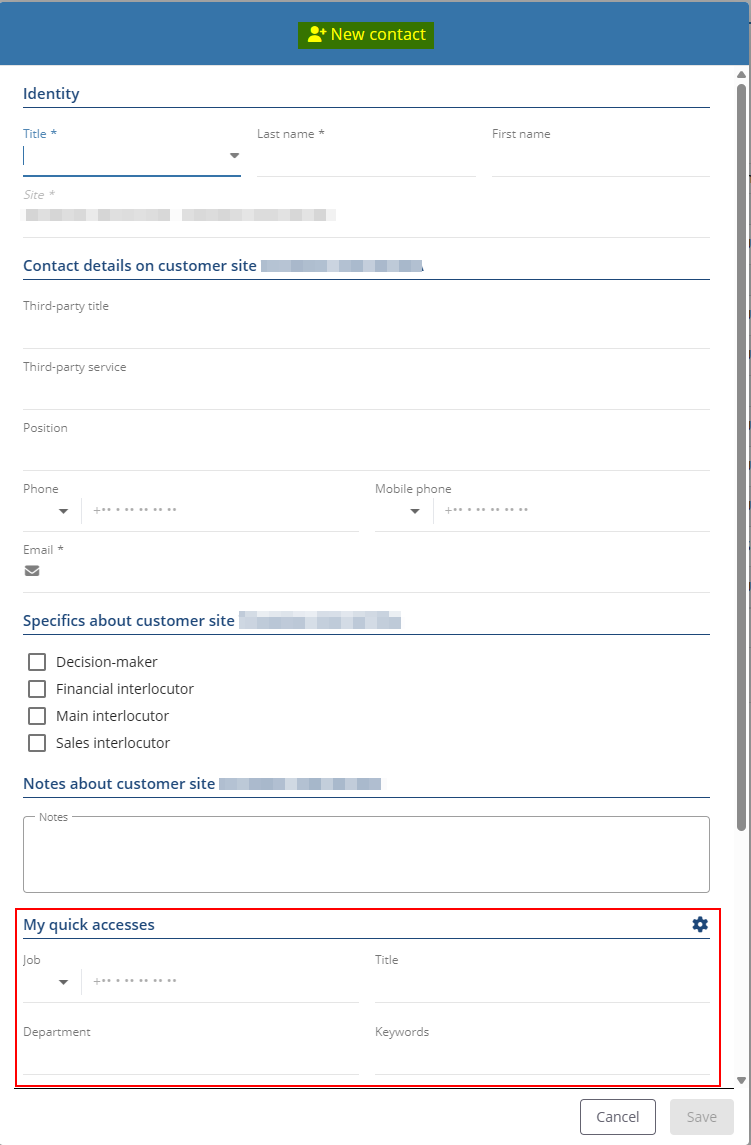
Note
Custom controls can be set up for the fields in this section.
Invoice dematerialization: Management of Approved Platform dematerialization information in sales
| DMF | 02**** SALES * SALES |
Important
This feature requires the feature flag Portail ventes Domain > Doc Vente Facturx Label. To enable it, go to the Administration console > Configuration > Features, enable the Doc Vente Facturx feature flag then log in again.
Under French legislation, companies established in France must issue and receive dematerialized invoices through an Approved Platform, which acts as an intermediary between the customer and the supplier.
A Dematerialization tab has been added throughout the sales chain to manage invoice lifecycle information and transmission to the Approved Platform.
Addition of the Dematerialization tab on customer sites and sales objects
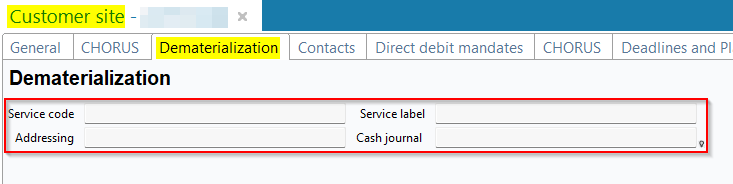
On customer sites (Desktop Application > Third-parties > Sites), the Dematerialization tab has been added and contains the following fields:
-
Service code, used to specify the routing code that identifies the customer’s billing site on the Approved Platform.
-
Service label, used to specify the name of the customer’s billing site.
-
Addressing, used to specify the email address of the recipient of the Factur-X at the customer’s billing site.
-
Cash journal, used to specify the cash journal associated with the billing site as part of invoice dematerialization.
The Dematerialization tab has also been added to the following objects:
-
Quotations (Desktop Application > Management > Sales > Quotations and Sales Portal > Sales > Quotations);
-
Orders (Desktop Application > Management > Sales > Orders);
-
Deliveries (Desktop Application > Management > Sales > Deliveries);
-
Billing tables (Desktop Application > Management > Sales > Billing schedules);
-
Invoices (Desktop Application > Management > Sales > Invoices);
-
Customer contracts (Desktop Application > Help Desk > Contracts > Customer contracts).
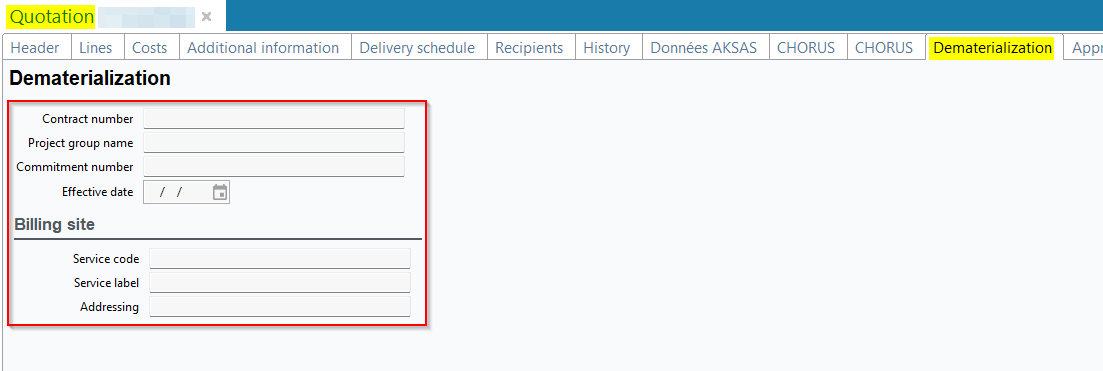
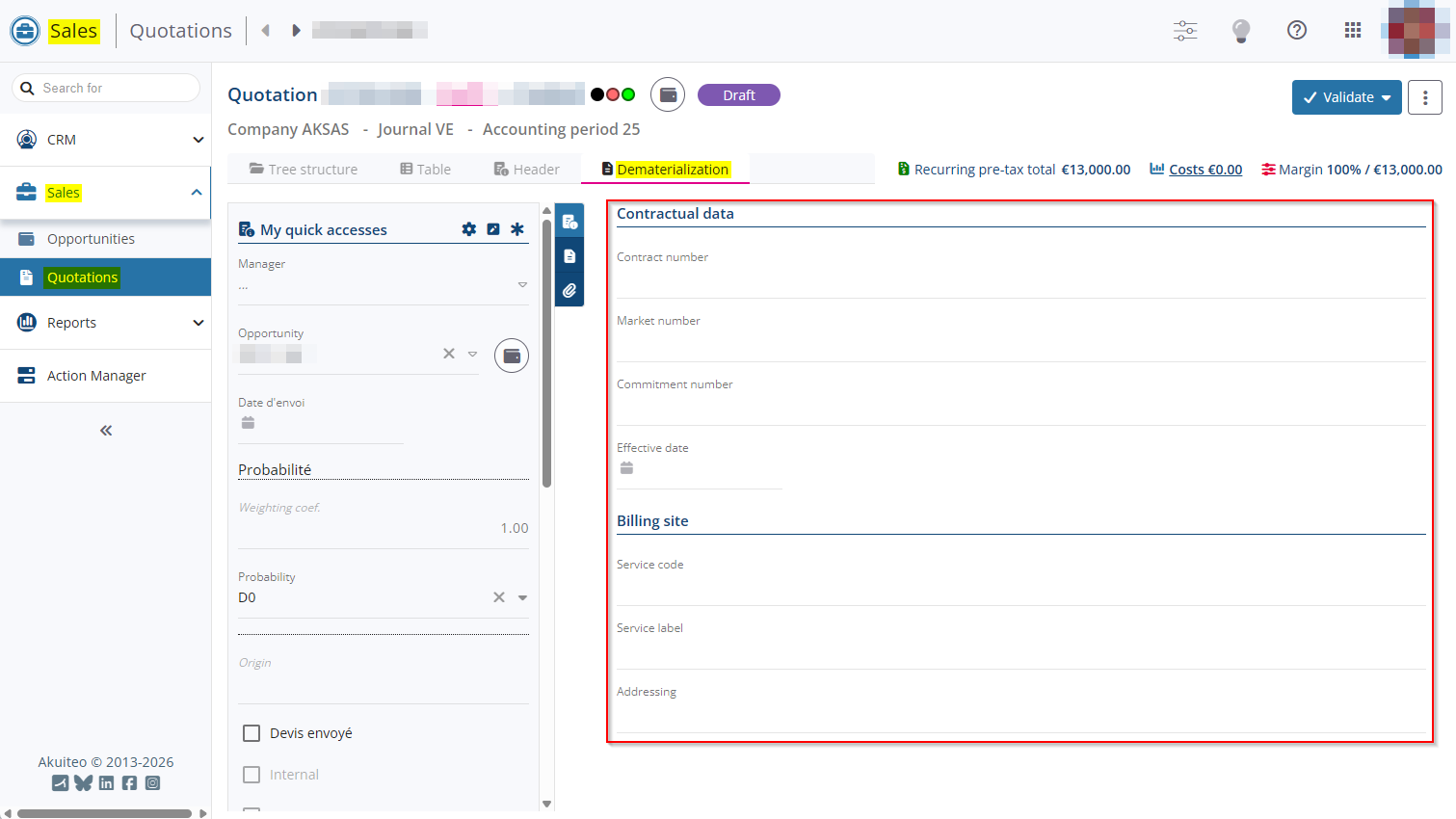
On these objects, the tab contains a Billing site section that, by default, uses the information specified in the Dematerialization tab of the billing site associated with the object. The Cash journal field is available only on invoices.
The tab also contains the following fields, which are used to specify the dematerialization information associated with the invoice:
-
Contract number;
-
Project group name;
-
Commitment number;
-
Effective date.
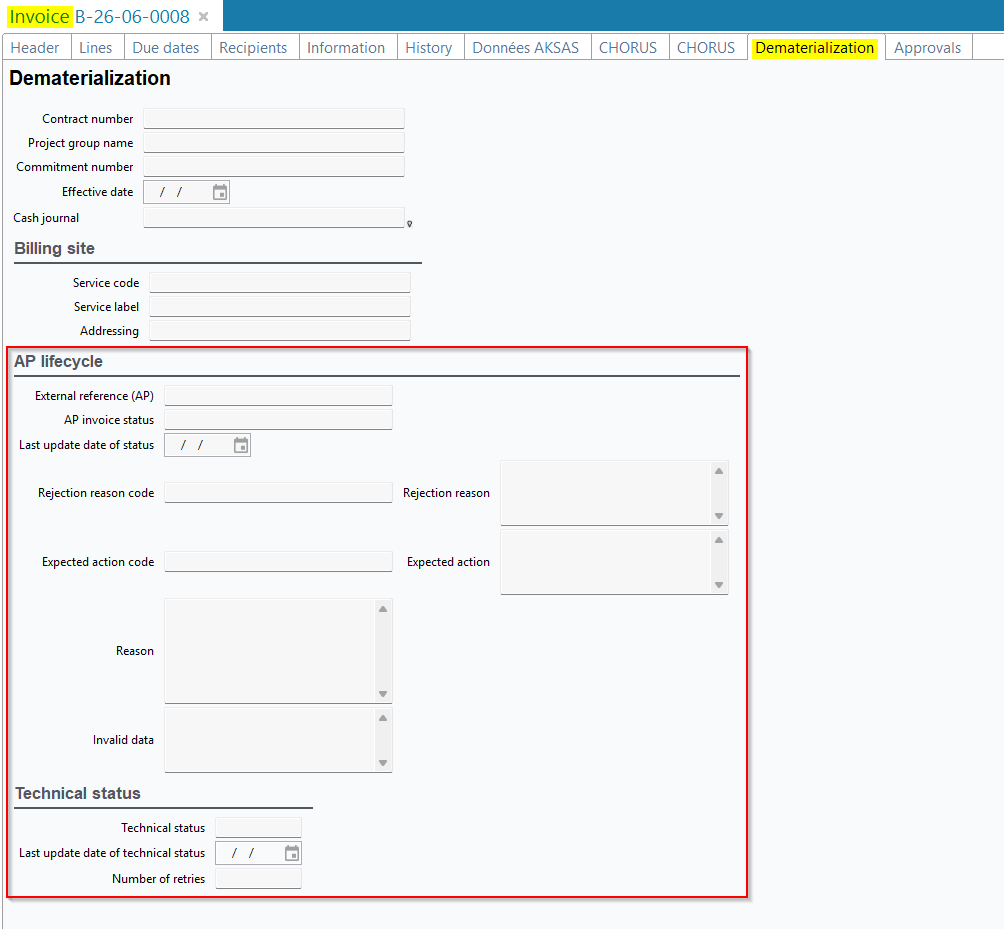
On invoices (Management > Sales > Invoices), the Dematerialization tab contains the AP lifecycle and Technical status sections, which include information about the lifecycle of the dematerialized invoice and the technical processing status handled by batches.
The information displayed in the AP lifecycle section is automatically updated when a CDAR file corresponding to the dematerialized invoice is retrieved by the new DematReceptionCDVFacturesVente batch (see release note Invoice dematerialization: Replacement and addition of batches for issuing and receiving Factur-X files and lifecycles). A CDAR file is an XML document which contains information about the dematerialized invoice lifecycle.
For more information, refer to Managing the dematerialization information.
Addition of manual transmission of Factur-X files
Note
Sales Factur-X files can also be transmitted using the DematEmissionFacturesVente batch (see release note Invoice dematerialization: Replacement and addition of batches for issuing and receiving Factur-X files and lifecycles).
A function has been added to search for and precisely select the invoices to be transmitted to the Approved Platform. It requires the new DMF 020577 SALES INVOICES FACTUR-X TRANSMISSION and is available from the Desktop Application > Management > Sales > Factur-X transmission.
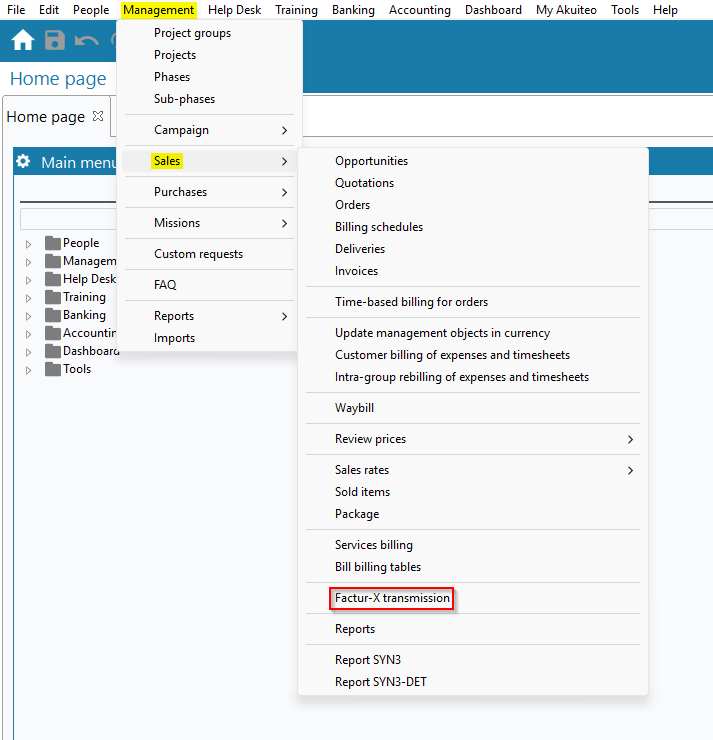
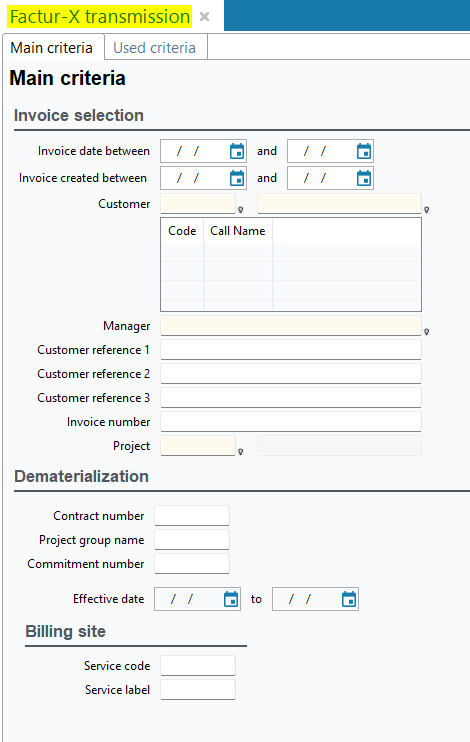
A search screen opens, allowing you to specify search criteria to find the invoices to be transmitted. Then select the dematerialized invoices to be transmitted and click on  at the top of the results table.
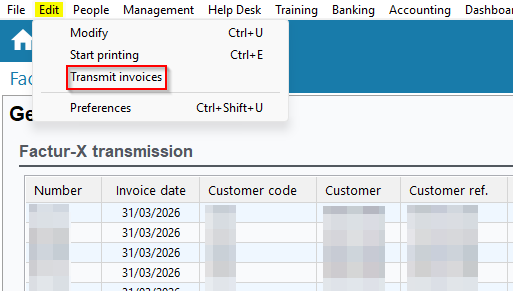
The list of all invoices to be transmitted opens. To transmit the invoices in the list, go to Edit > Transmit invoices.
For more information, refer to Manually transmitting Factur-X files.
Addition of AP invoice status modification
From invoices > Dematerialization tab > AP lifecycle section, the AP invoice status field indicates the status corresponding to the progress in the lifecycle of the dematerialized invoice: pending, submitted, rejected, paid, etc.
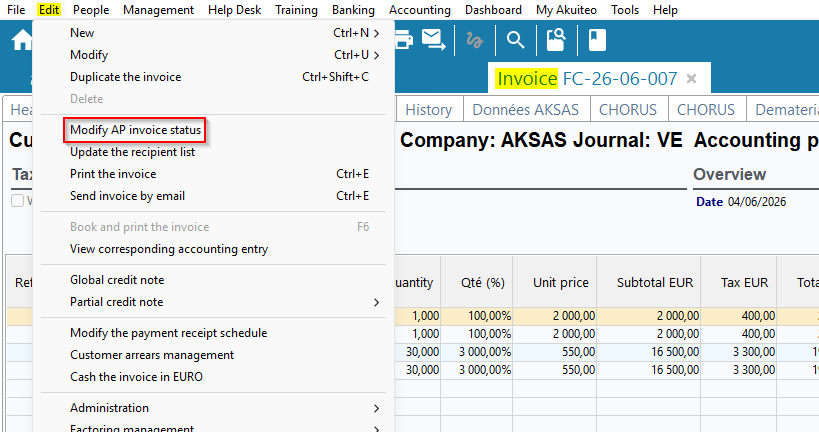
A function has been added to allow this status to be modified in the event of a data entry error by the customer. It requires the new DMF 020576 SALES INVOICES UPDATE DEMATERIALIZATION STATUS and can be accessed:
-
individually via Edit > Modify AP invoice status from the invoice screen.
-
in batch from a selection of invoice search results > Modify AP invoice status of selected lines.
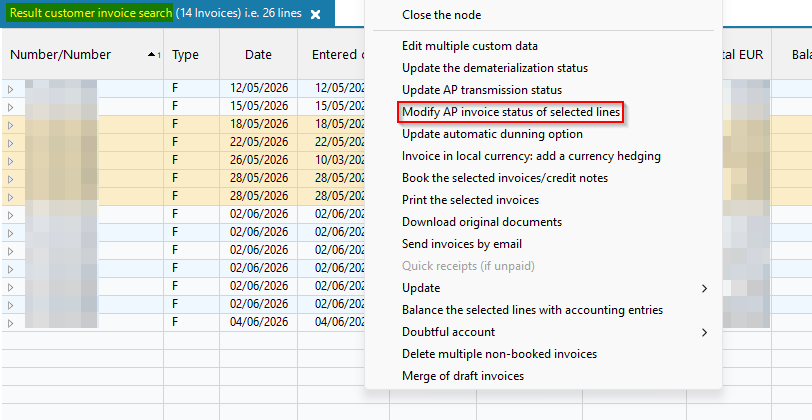
The new Dematerialization status must then be selected in a window.
Important
This manual status change only affects the display in Akuiteo and will therefore not be sent to the Approved Platform.
For more information, refer to Modifying the AP invoice status.
Addition of AP transmission status modification on invoices
The AP transmission status corresponds to the transmission state of the invoice to the Approved Platform. This status is displayed at the top of the Header tab on invoice record sheets.
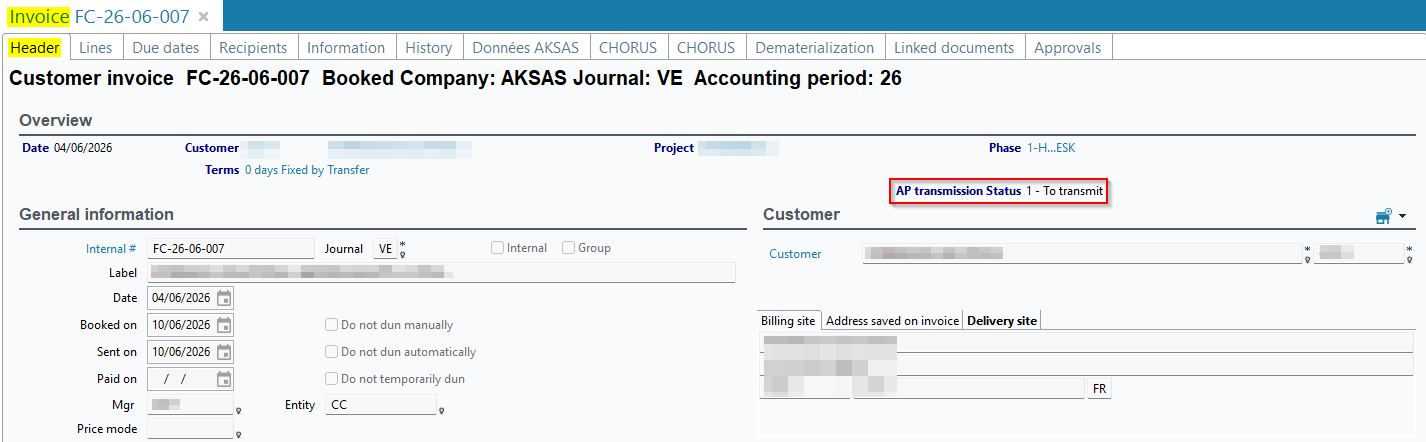
This status can be modified:
-
by right-clicking from a selection of invoice search results > Update AP transmission status.
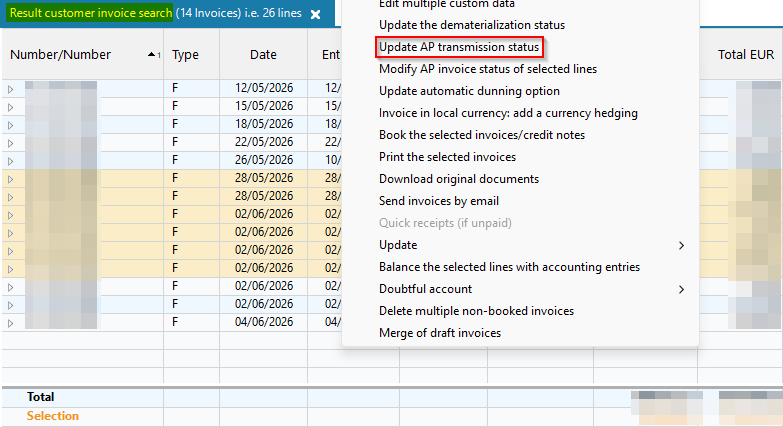
-
from an invoice >
 to the right of
  in the action bar > Update AP transmission status.
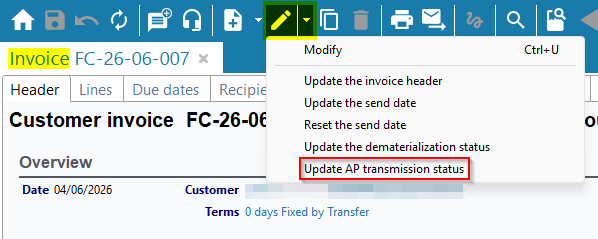
This function is governed by the new DMF 020578 SALES INVOICES MODIFY AP TRANSMISSION STATUS.
For more information, refer to Modifying the AP transmission status.
Addition of the AP transmission field in invoice due dates
In a due date's detail (from the invoice > Due dates tab > click on an due date) > Dates and due dates section, the AP transmission field has been added and can contain the following values:
- Not transmitted, meaning that the payment receipt for the due date will not be transmitted to the Approved Platform.
- To transmit, applied by default, meaning that the payment receipt of the due date will be sent to the Approved Platform in the form of a CDAR file when the DematEmissionCDVFacturesVente batch is run (see release note Invoice dematerialization: Replacement and addition of batches for issuing and receiving Factur-X files and lifecycles).
- Transmitted, automatically applied after the CDAR file corresponding to the payment receipt of the due date has been transmitted by the DematEmissionCDVFacturesVente batch.
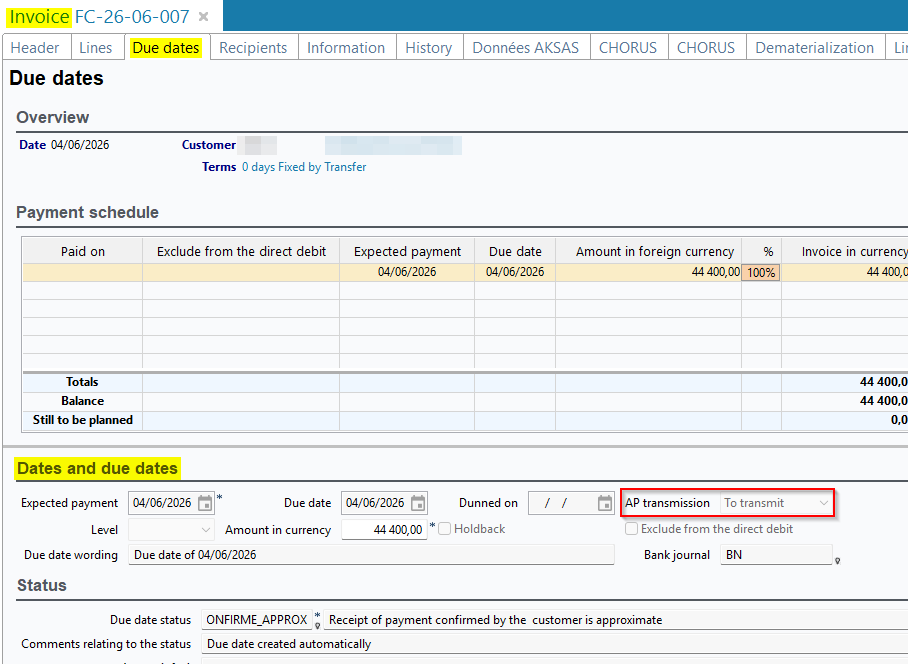
From the Due dates tab, a function has been added to allow the value in an due date's AP transmission field to be modified. This function requires the new DMF 020579 SALES INVOICES MODIFY DUE DATE AP TRANSMISSION STATUS and is accessible by right-clicking on the due date line > Modify AP transmission status.
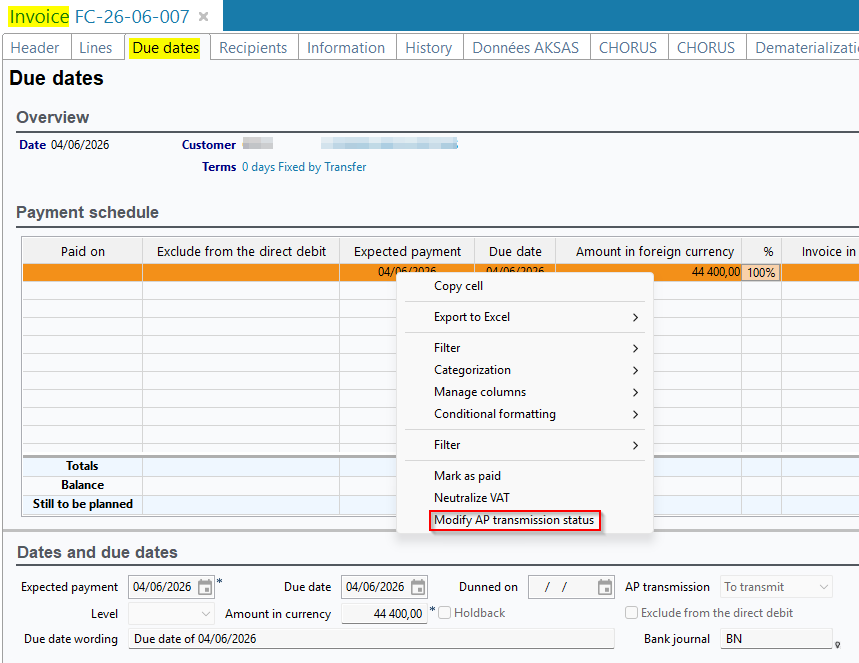
For more information, refer to Managing the transmission of due date payment receipts.
Addition of search criteria and columns
On the site search screen in the Desktop Application, the Dematerialization tab has been added and contains the following criteria:
-
Service code;
-
Service label;
-
Addressing;
-
Cash journal.
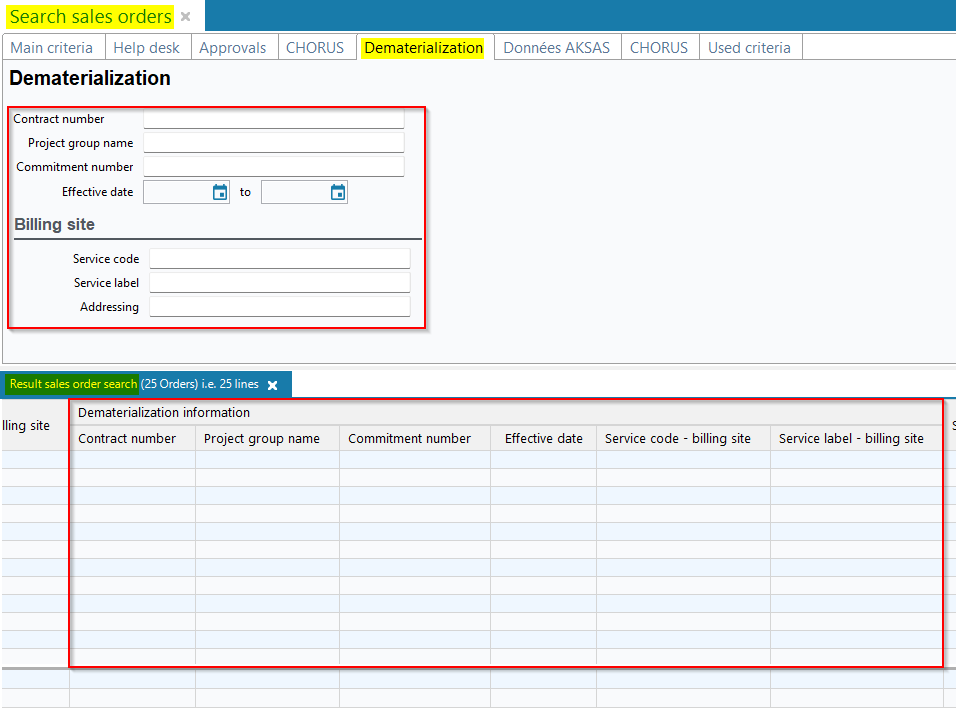
On the search screen for sales objects, the Dematerialization tab has been added and contains the following criteria:
-
Contract number;
-
Project group name;
-
Commitment number;
-
Effective date;
-
Service code;
-
Service label;
-
Addressing.
The corresponding columns have also been added to the search results for sales objects, in a new Dematerialization information column group.
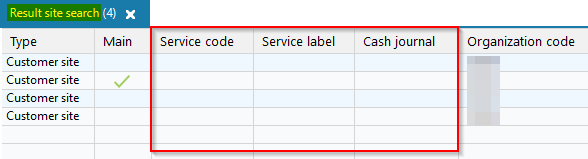
The following columns have been added to the customer site search results:
-
Service code;
-
Service label;
-
Cash journal.
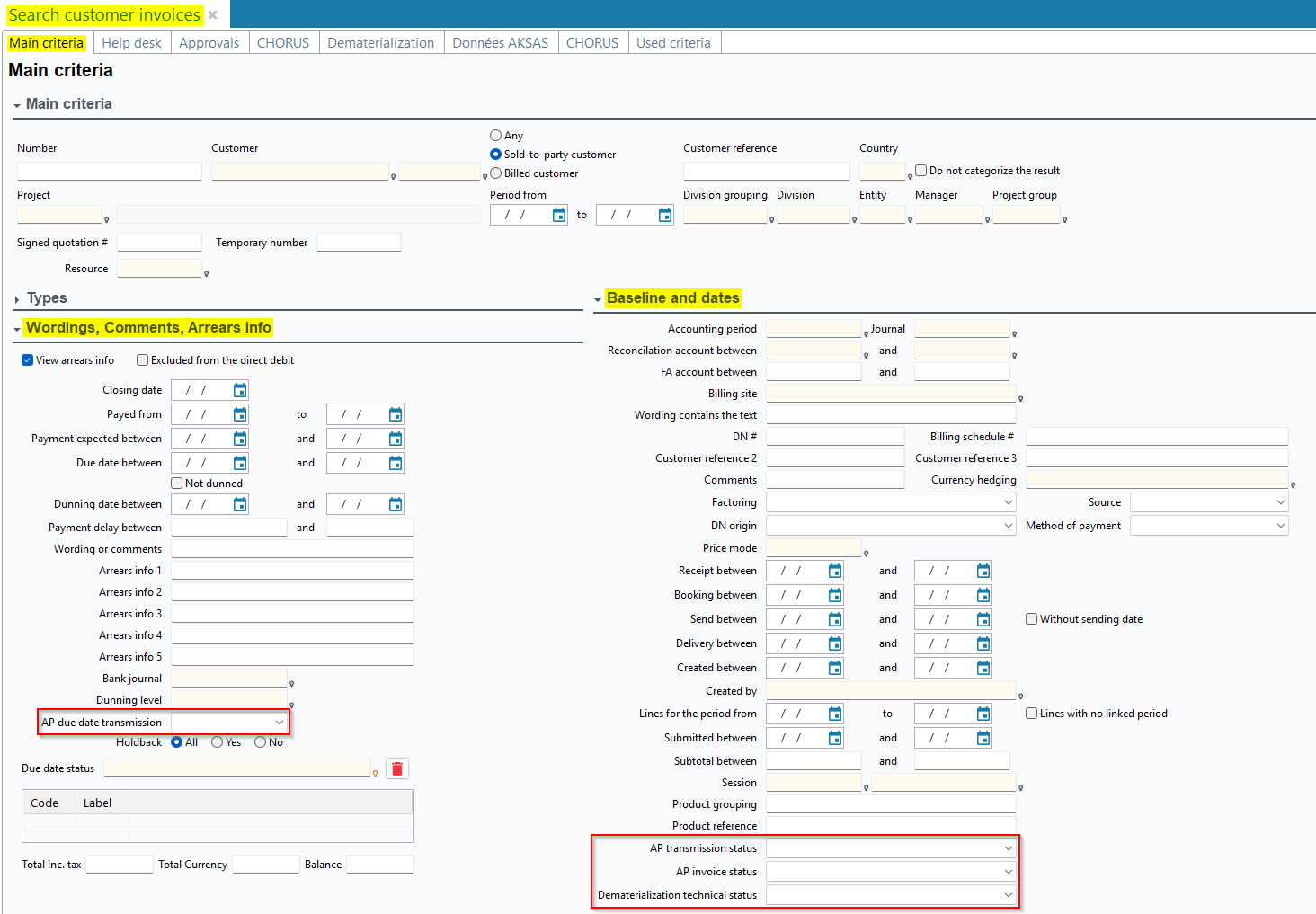
The following search criteria have been added to the customer invoice search screen:
-
Main criteria tab > Analytical baseline section:
-
AP transmission status;
-
AP invoice status;
-
Dematerialization technical status.
-
-
Main criteria tab > Wordings, Comments, Arrears Info section, while the View arrears info option is enabled:
-
AP transmission status.
-
In the invoice search results, the following columns have been added to the Dematerialization information column group:
-
AP transmission status;
-
AP invoice status;
-
Last update date of status;
-
Technical status;
-
Last update date of technical status;
-
Number of retries.

Invoice dematerialization: Management of Approved Platform dematerialization information in purchase invoices
| DMF |
0406** PURCHASES PURCHASE INVOICES * 0407** PURCHASES CREDIT NOTES CREDIT NOTES 0409** PURCHASES TEMPORARY INVOICES * |
Under French legislation, companies established in France must issue and receive dematerialized invoices through an Approved Platform, which acts as an intermediary between the customer and the supplier.
Addition of the Dematerialization tab on supplier invoices
On invoices (Desktop Application > Management > Purchases > Invoices), the Dematerialization tab has been added and contains the following information:
-
The Service code field, which corresponds to the routing code specified by the supplier and is used to identify the customer’s billing site on the Approved Platform.
-
The Addressing field, which corresponds to the email address specified by the supplier, corresponding to the recipient of the Factur-X on the customer’s billing site.
-
The AP lifecycle section, which contains information about the lifecycle of the dematerialized invoice. The information displayed in the AP lifecycle section is automatically updated when a CDAR file corresponding to the dematerialized invoice is retrieved by the new DematReceptionCDVFacturesAchat batch (see release note Invoice dematerialization: Replacement and addition of batches for issuing and receiving Factur-X files and lifecycles). A CDAR file is an XML document which contains information about the dematerialized invoice lifecycle.
-
The Technical status section, which contains technical information about invoice processing by the batches.
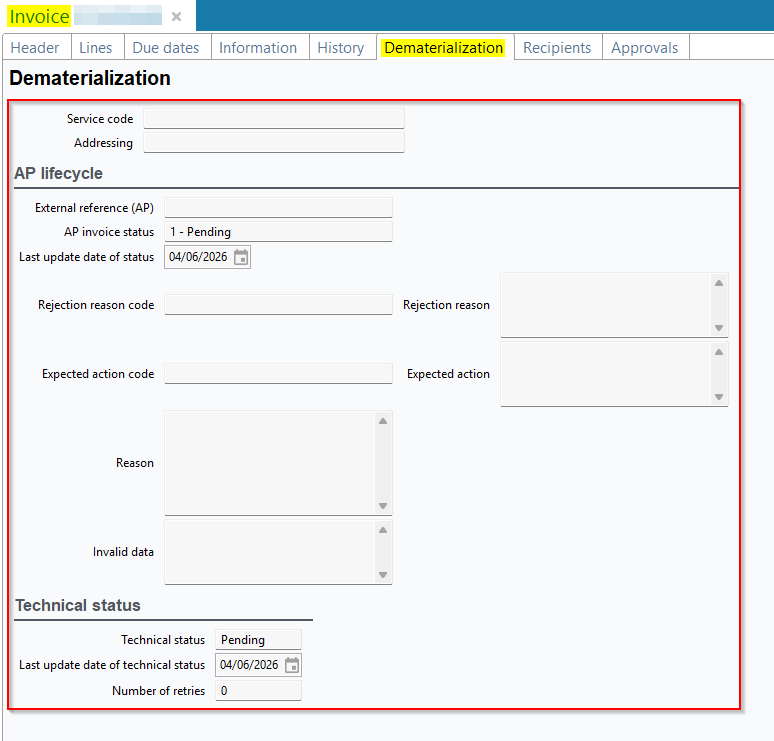
For more information, refer to Managing the dematerialization information.
Possibility to enter a reason when rejecting a temporary invoice
A temporary invoice (Purchase Portal > Temporary invoices) can be rejected:
-
from an invoice >
at the top of the screen > Reject temporary invoice; -
in batch from the search results >
at the top of the results > Reject selected invoices.
The following fields have been added to the rejection window:
-
Rejection reason;
-
Expected action;
-
Rejection details.
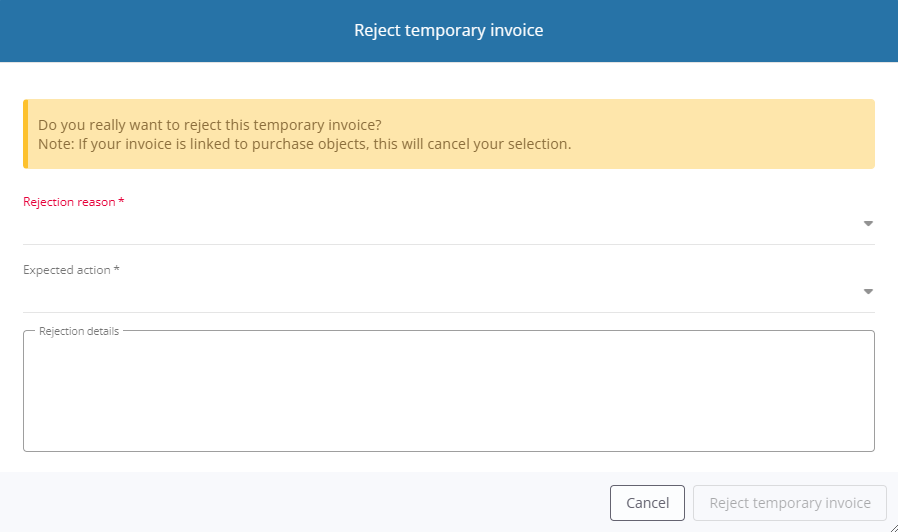
This rejection information will be visible in the Dematerialization information section of the temporary invoice. They will be sent to the supplier when the DematEmissionCDVFacturesAchatBatch batch is run (see release note Invoice dematerialization: Replacement and addition of batches for issuing and receiving Factur-X files and lifecycles).
For more information, refer to Denying temporary invoices.
Added fields in the Dematerialization information section of temporary invoices
On temporary invoices in the Purchase Portal, the following fields have been added to the Dematerialization information section:
-
Number of retries;
-
Rejection reason;
-
Expected action;
-
Reason;
-
Invalid data name.
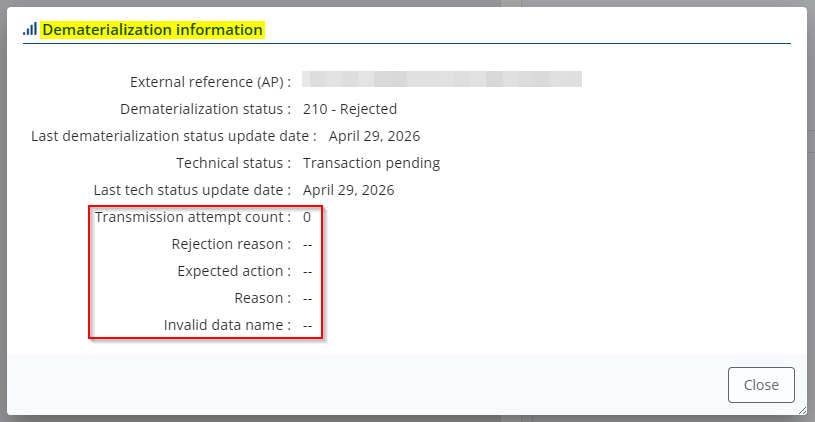
In addition, it is now necessary to click on the block in the Dematerialization information section to access all the information in the section.
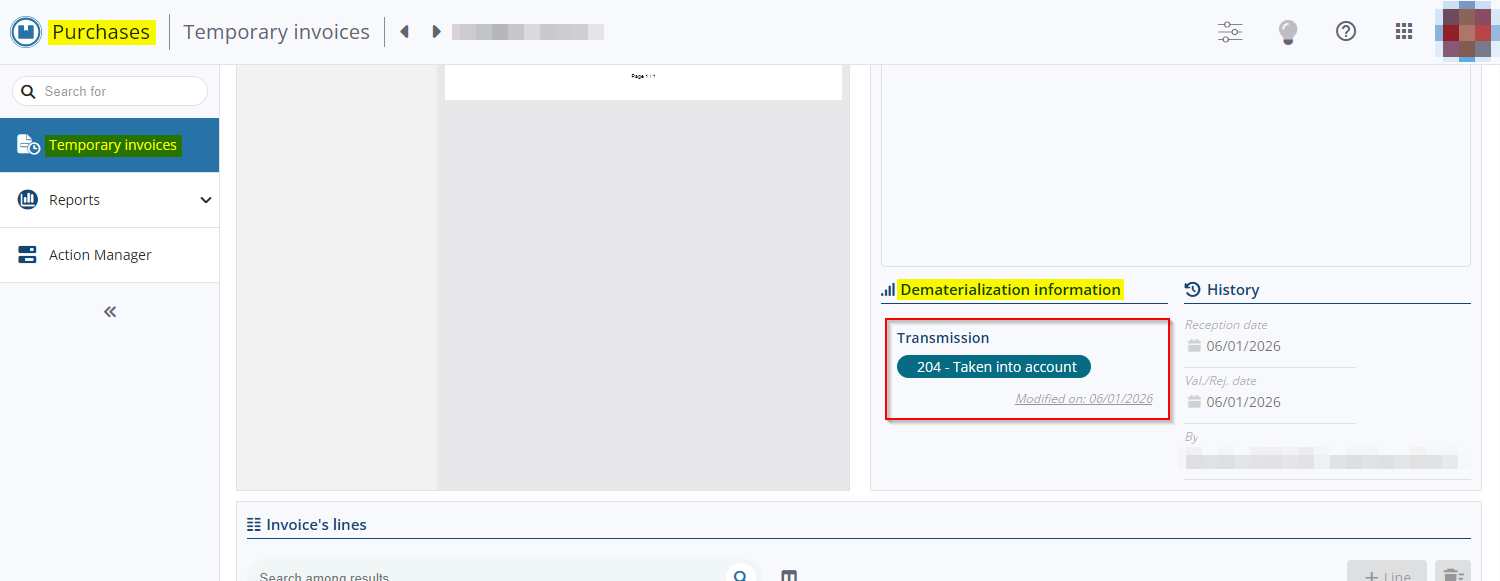
For more information, refer to Dematerialization information.
Addition of AP invoice status modification
On the Desktop Application, from invoices > Dematerialization tab > AP lifecycle section, the AP invoice status field indicates the status corresponding to the progress in the lifecycle of the dematerialized invoice: pending, submitted, rejected, paid, etc.
A function has been added to allow this status to be modified to indicate that the invoice is on hold, in conflict, or completed. This function requires the new DMFs:
-
040656 PURCHASES INVOICE UPDATE DEMATERIALIZATION STATUS for invoices;
-
040728 PURCHASES CREDIT NOTE UPDATE DEMATERIALIZATION STATUS for credit notes.
It can be accessed:
-
individually via Edit > Modify dematerialization status from the invoice screen.
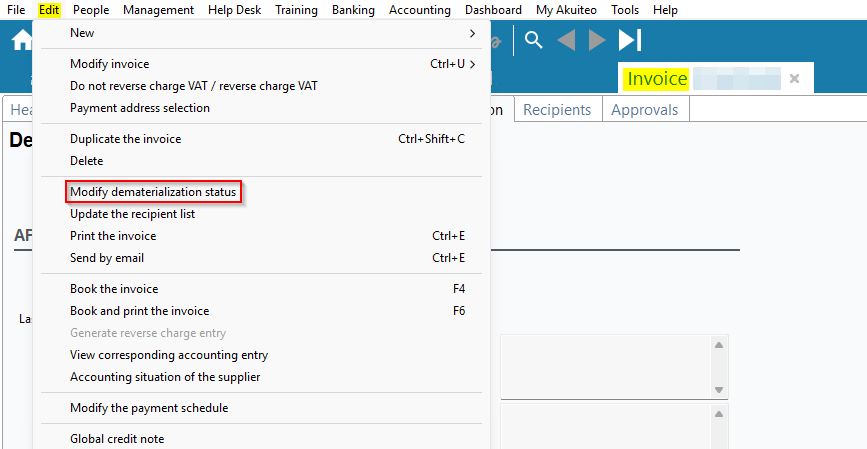
-
by batch from a selection of invoice search results > Modify dematerialization status of selected lines.
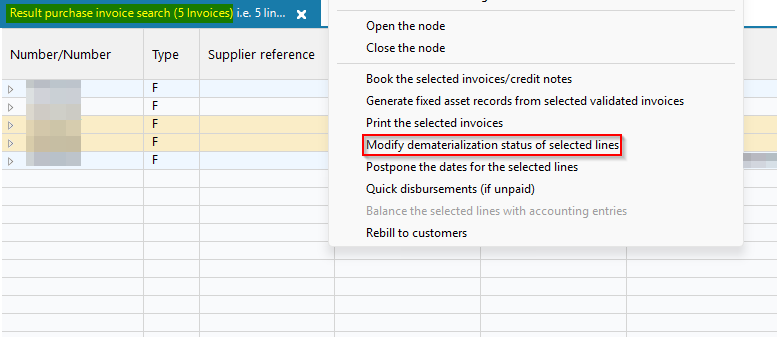
The new Dematerialization status must then be selected in a window, along with, where applicable, Rejection reason code, an Expected action code, a Reason, and the names of the Invalid data.
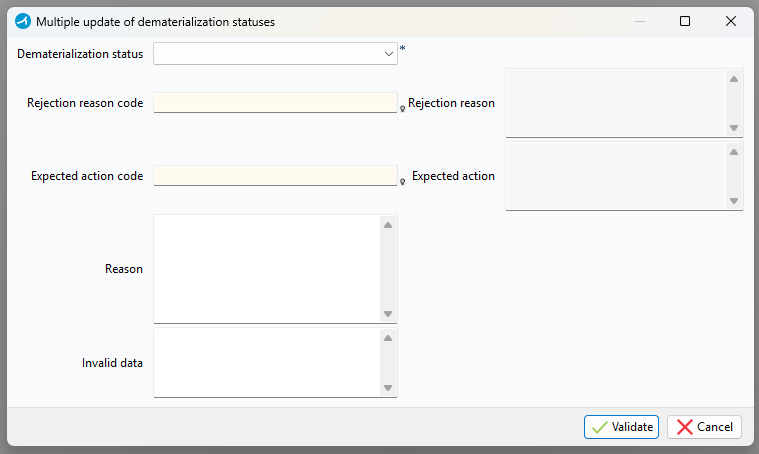
For more information, refer to Modifying the AP invoice status.
Addition of the AP transmission field in invoice due dates
From the Desktop Application, in a due date's detail (from the invoice > Due dates tab > click on an due date) > Dates and due dates section, the AP transmission field has been added and can contain the following values:
- Not transmitted, meaning that the payment for the due date will not be transmitted to the Approved Platform.
- To transmit, applied by default, meaning that the payment of the due date will be sent to the Approved Platform in the form of a CDAR file when the DematEmissionCDVFacturesAchatBatch batch is run (see release note Invoice dematerialization: Replacement and addition of batches for issuing and receiving Factur-X files and lifecycles).
- Transmitted, automatically applied after the CDAR file corresponding to the payment of the due date has been transmitted by the DematEmissionCDVFacturesAchatBatch batch (see release note Invoice dematerialization: Replacement and addition of batches for issuing and receiving Factur-X files and lifecycles).
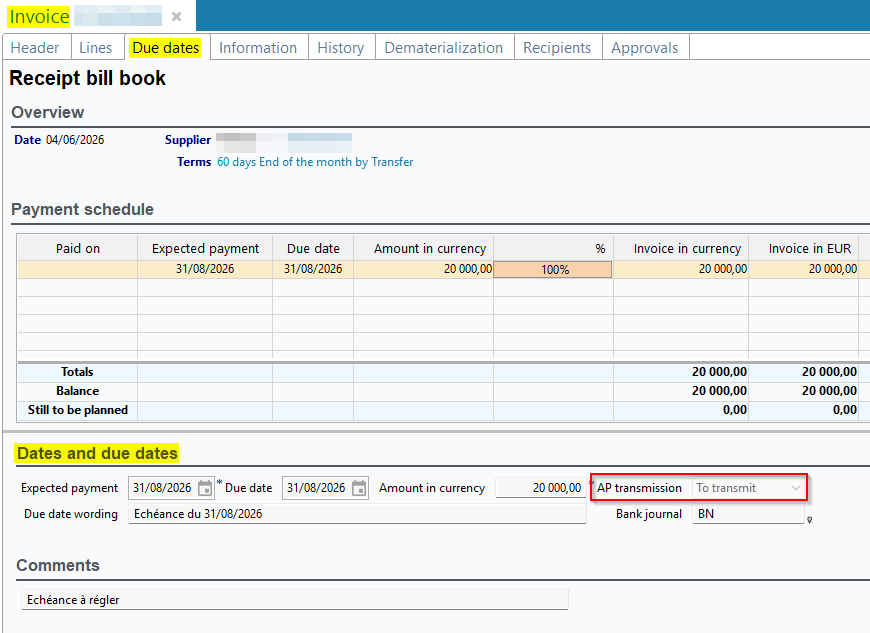
From the Due dates tab, a function has been added to allow the value in an due date's AP transmission field to be modified. This function requires the new DMF 040657 PURCHASES PURCHASE INVOICES MODIFY DUE DATE AP TRANSMISSION STATUS and is accessible by right-clicking on the due date line > Modify AP transmission status.
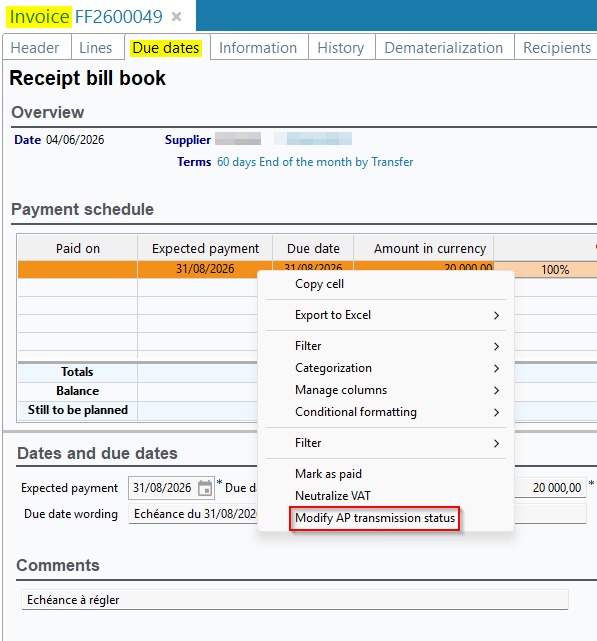
For more information, refer to Modifying the transmission state of a due date.
Addition of search criteria and columns in invoice search
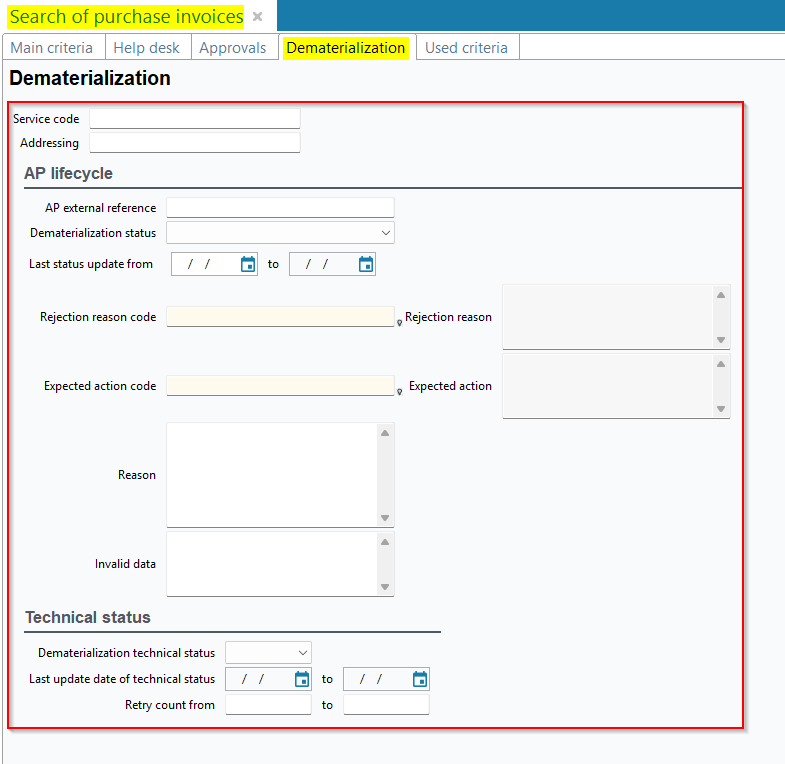
On the purchase invoice search screen in the Desktop Application, the Dematerialization tab has been added and contains criteria corresponding to the fields in the Dematerialization tab of invoices.
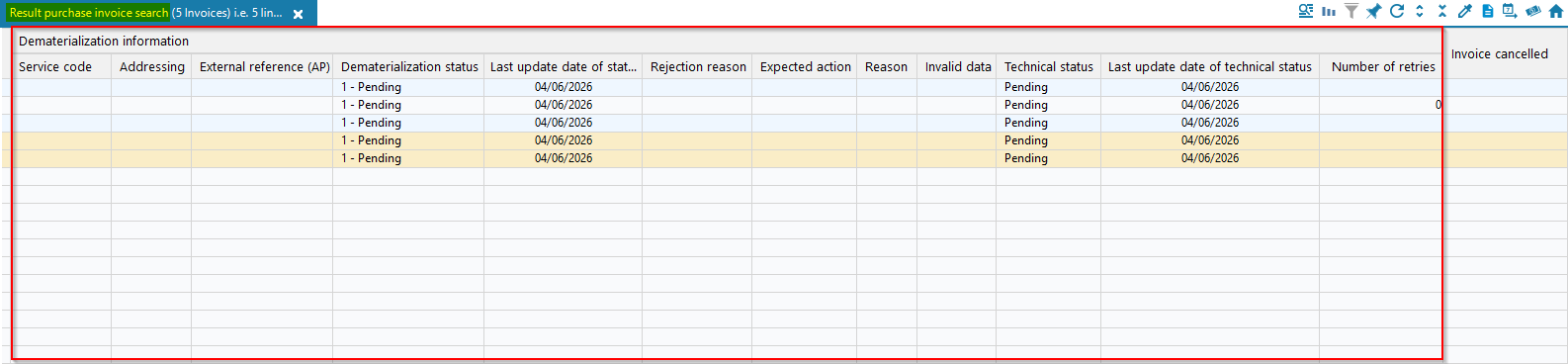
The corresponding columns have been added to the invoice search results in a new Dematerialization information column group.
On the temporary invoice search screen from the Purchase Portal, the following criteria and the corresponding columns have been added:
-
Service code;
-
Addressing;
-
Rejection reason;
-
Expected action;
-
Reason;
-
Invalid data name.
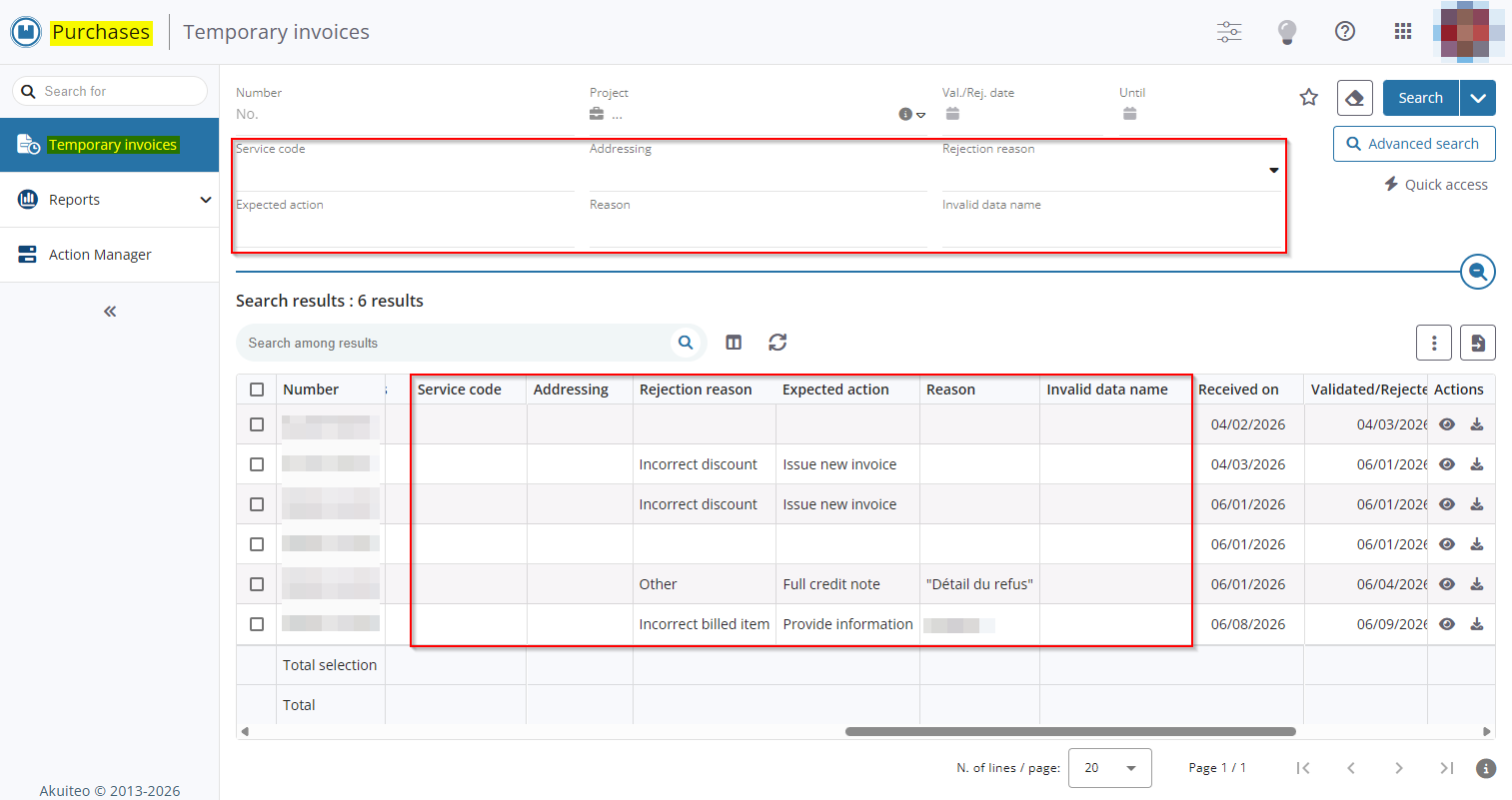
In the advanced search window, these criteria are also available in the Dematerialization tab.
Quotations and Action manager: Creation and modification information added to search criteria and results
| DMF | 160904 TOOLS CROSS-FUNCTION WEB TASKS LIST |
From the search screen of quotations (Sales Portal > Sales > Quotations) and the web portals' Action Manager menu, the following search criteria have been added, allowing actions to be filtered based on their creation and modification information:
- On the Sales Portal > Sales > Quotations:
- Created (this criterion replaces the former Creation date criterion);
- Created by;
- Modified ... Until;
- Modified by.
- On the web portals' Action Manager menu:
- Created;
- Created by;
- Modified ... Until;
- Modified by.


In the advanced search window, those criteria are located in a new Traceability tab.

Reports: Progress bar added
| DMF |
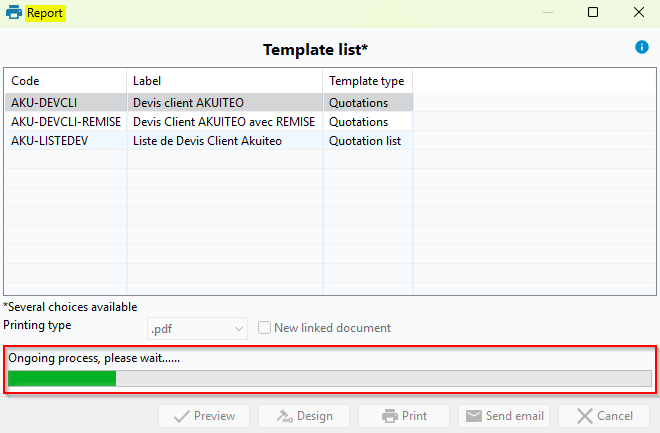
From now on, in the printing windows on the Desktop Application, a bar is displayed after starting the printing process and shows the progress.
Temporary invoices: Possibility to set up the sending of notification per email when importing an invoice
| DMF |
0901** ADMINISTRATOR SETUP * 0409** PURCHASES TEMPORARY INVOICES * |
Important
This evolution requires enabling the following feature flag: Portail achats domain > Parametrage Notifications Label. To enable it, go to the Administration console > Configuration > Features, enable the Parametrage Notifications feature flag then log in again.
Temporary invoices can be imported in Akuiteo:
- manually, from the Purchase Portal > Temporary invoices >
 , or
, or - by batch, with the DematReceptionFacturesAchats batch, available from the Desktop Application > Tools > Setup > Batches > Batches creation and modification.
From now, it is possible to set up the sending of notification emails when temporary invoices are imported in Akuiteo. Thus, a notification email is sent to the recipients set up in order to inform them that invoices have been imported.
New notification menu
The Notifications menu is available from the Settings Portal > Purchase > Temporary invoices > Notifications. It allows you to define the rules to apply to send notification emails to the recipients when temporary invoices are imported in Akuiteo. To add a new notification rule, click on + Notification rule on the right of the screen.
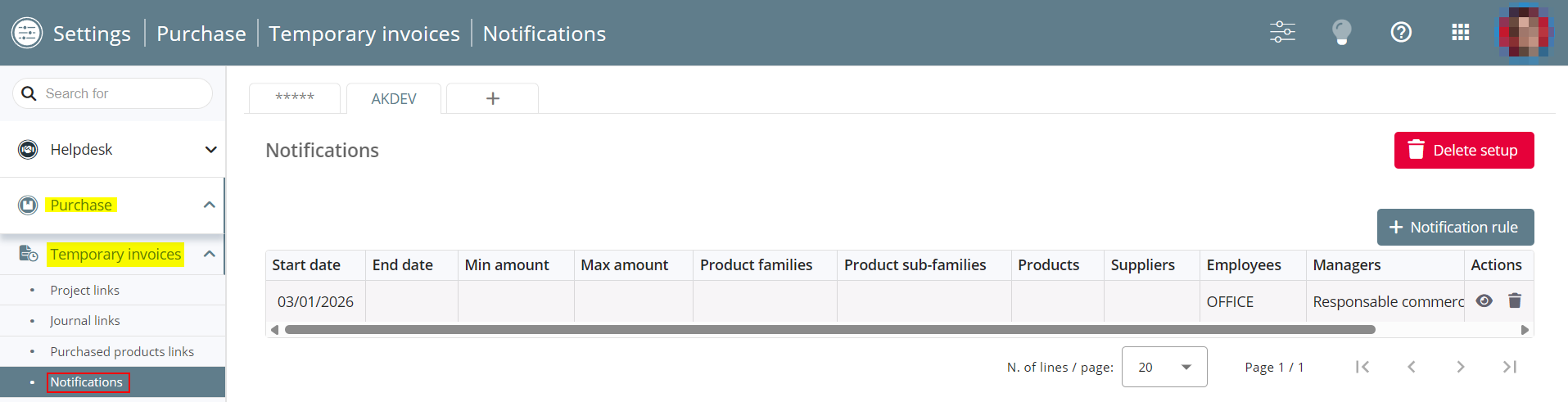
For more information about the notification setup, see Managing notification emails.
New DematNotifications batch
The DematNotifications batch is available and can be set up from the Desktop Application > Tools > Setup > Batches > Batch creation and modification. It allows you to analyse the temporary invoices imported in Akuiteo for the companies defined and send a notification email according to the rule applicable.
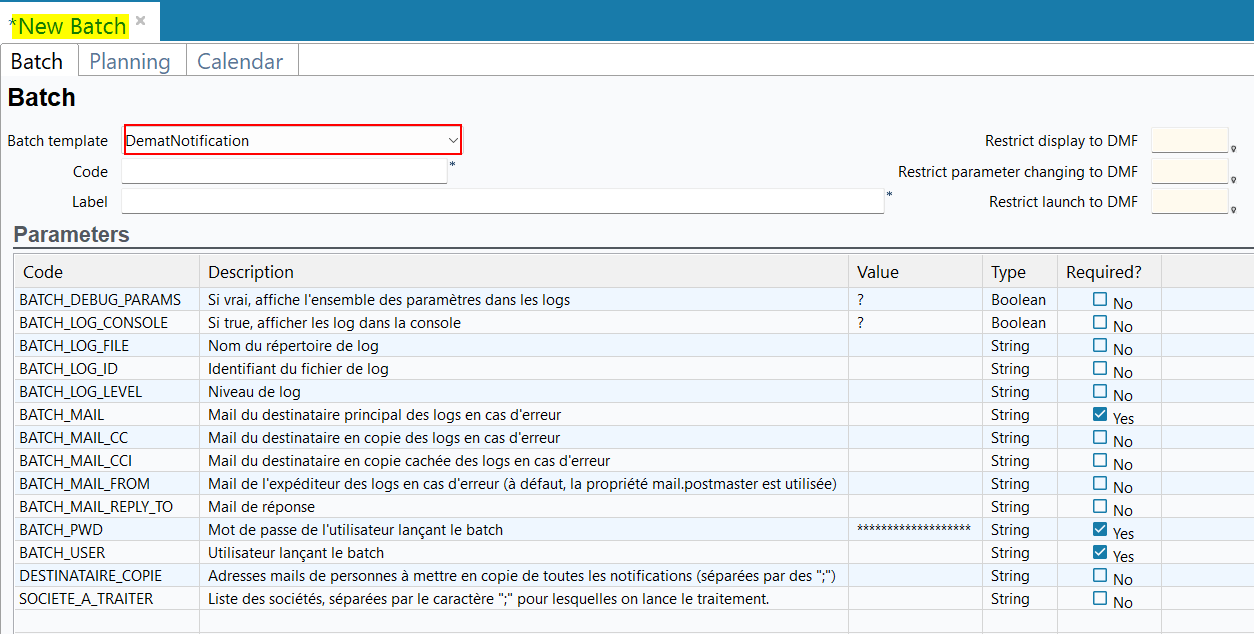
For more information about the DematNotifications batch, see DematNotification batch.
Action Manager: Type search criterion added
| DMF | 160904 TOOLS CROSS-FUNCTION WEB TASKS LIST |
From the Action Manager menu of the web portals, the Type search criterion has been added and allows you to filter actions according to their type (note, appointment, task).

Action manager: Various improvements
| DMF | 160904 TOOLS CROSS-FUNCTION WEB TASKS LIST |
Important
This feature requires enabling the feature flag Transverse domain > Adoption Crm label. To enable it, go to the Administration console > Configuration > Features, enable the Adoption Crm feature flag then log in again.
Actions are tasks that the employees must do during their working hours. They can be created and modified from the Action Manager menu, available from the web portals and from the Sales Portal:
- CRM > Pipeline > opportunity details;
- CRM > Customers > Actions tab;
- CRM > Customers > Contacts > Actions tab;
- Sales > Opportunities > Actions tab.
New Linked objects section available in the action details
Now, the Linked objects section is available from the action details and allows you to manage Akuiteo objects links.

Various actions are available from this section:
- Linking an object;
- Unlinking an object.
For more information about the Linked objects section, see Managing linked objects to an action.
Show details function added
Now, the Show details function is available for the Linked third-parties and Linked objects sections of an action. It is available when one third-party or object is linked to the action and allows you to display a table grouping all third-parties or linked objects.
The icon is available in the Actions column for the objects available in the web portals and allows you to open it in a new tab of the browser.


Note
The following feature flags are required to open matching objects in the web portals:
Portail ventes domain > Fiche client label;
Portail ventes domain > Opportunités label;
Portail ventes domain > Devis label.
Pre-filtering added when creating an action
Now, when creating an action from the Action Manager menu and Sales Portal > CRM > Pipeline > opportunity details > + Action, a drop down list allows you to select the action type to be created among:
- Appointment;
- Task;
- Note.
It allows you to filter actions displayed in the Category field and only display fields matching the type selected.

For more information about the action creation, see Creating actions.
Completed box added to the action light form
Now, the Completed box is available in the action light form, on the right of the Category form, from the Sales Portal > CRM > Opportunities and Action manager of the web portals. It allows you to indicate the action has been completed.
The 160108 TOOLS EVENTS COMPLETE DMF is required to display and check this box.
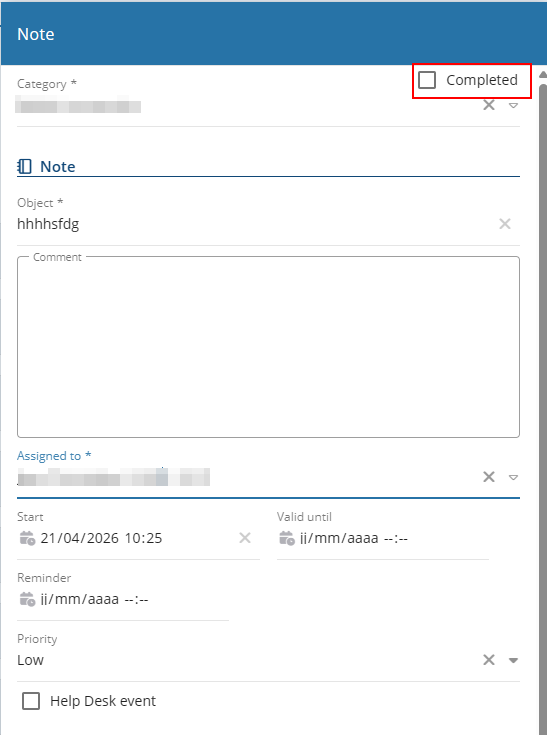
For more information about the completion of an action, see Completing an action.
Main contact of opportunity added to the Linked third-parties section
Now, when an action is created from an opportunity (Sales Portal > CRM > Pipeline or Sales > Opportunities), the Main contact of the opportunity (Header tab) is automatically added to the Linked third-parties section when saving it.

For more information about the Linked third-parties section of the action, see Managing third-parties linked to the action.
Action manager: Customer or prospect visualization on the action in List view
| DMF | 160904 TOOLS CROSS-FUNCTION WEB TASKS LIST |
In the Action manager menu of the web portals in List view, the code and name of the customer or prospect are now displayed above the name of the action.
When the user has the 010104 PROSPECTING PROSPECTS SEARCH or 020104 SALES CUSTOMER SEARCH DMF, a hyperlink allows you to access the customer or prospect record sheet in the Sales Portal > CRM > Customers.

Expense reports: Simplified entry of expenses with double/triple VAT
| DMF |
1905** WEB PORTAL EXPENSE REPORTS * 5001** MOBILE * * MOBILE EXPENSE REPORTS * MOBILE EXPENSE REPORTS * |
Previously, in Akuiteo Mobile > Expense reports and > in the Web Portal > Employee > Expense reports, saving an expense with a Restaurant / Triple VAT expense type was blocked when one or more VAT amounts were not specified, and it was necessary to:
-
manually remove the unused VAT codes, or
-
replace the VAT codes with a 0% VAT code.
In addition, the first VAT/VAT 1 line always had to be specified even if VAT 2 and/or VAT 3 were specified.
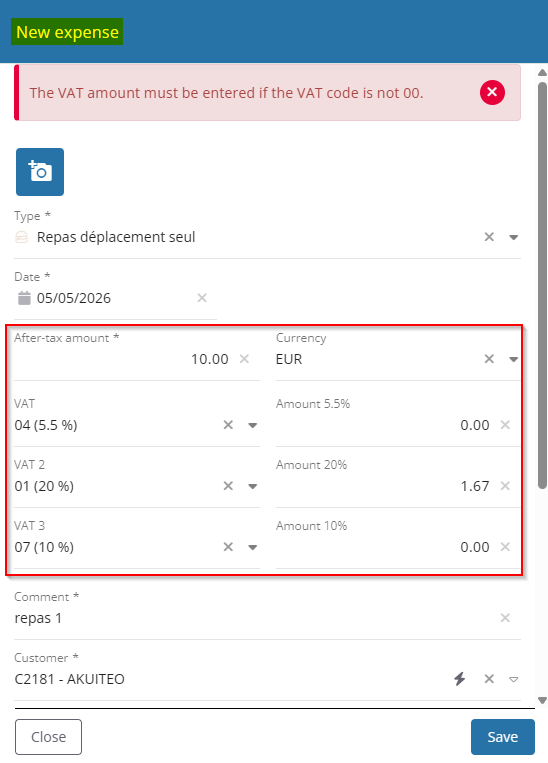
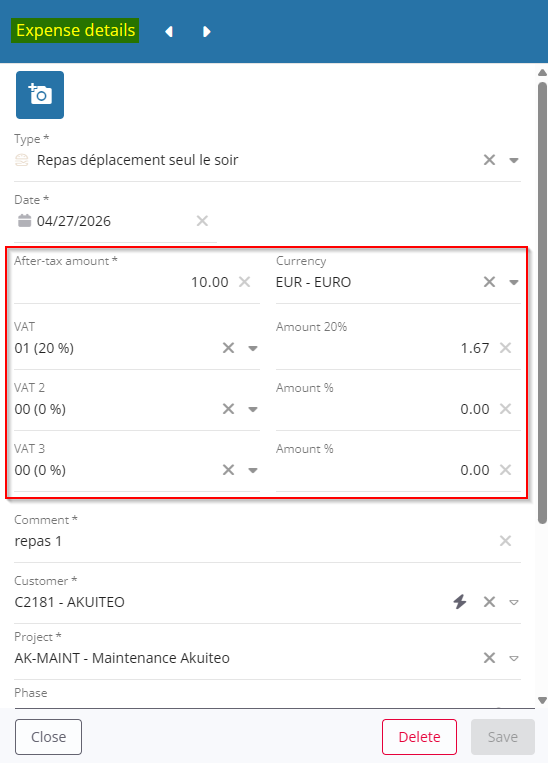
From now on, an expense with one or two VAT lines can be saved without having to modify or remove the VAT codes from the €0 VAT lines. After saving:
- if a VAT line is €0, the VAT code for that line is automatically replaced with a 0% VAT code.
- if the first VAT/VAT 1 line is €0 but VAT 2 and/or VAT 3 are specified, the VAT 2 and/or VAT 3 lines are automatically moved up to fill the first VAT/VAT 1 line and, if applicable, VAT 2.
Web portals: Added the result position on hover over the navigation buttons
| DMF |
01**** PROSPECTING * * 02**** SALES * SALES 04**** PURCHASES * * 14**** HELPDESK * * 19**** WEB PORTAL * WEB PORTAL 24**** AGILE FACTORY * AGILE FACTORY |
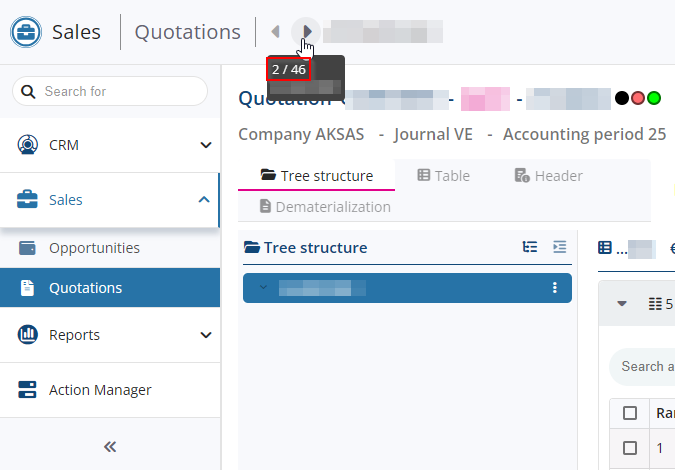
From the web portals, when an object is opened from the search results, its position within the results is displayed as position / total number of results when hovering over the object number in the portal’s upper bar.
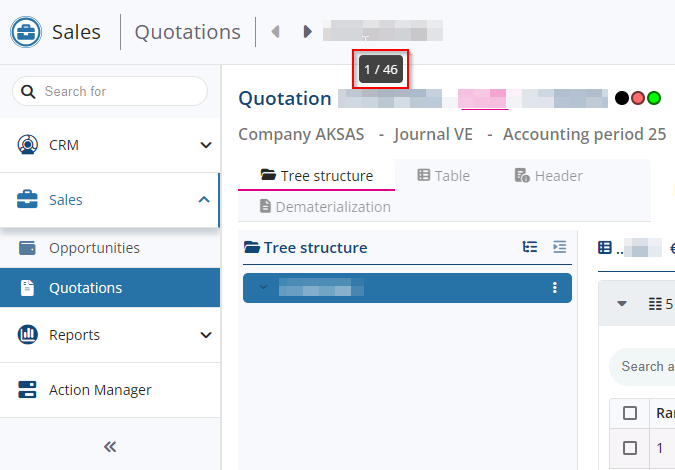
Now, the position is also displayed when hovering over the navigation buttons  and
and  to the left of the object number.
Web portals: Password modification feature added
| DMF |
01**** PROSPECTING * * 02**** SALES * SALES 04**** PURCHASES * * 14**** HELPDESK * * 19**** WEB PORTAL * WEB PORTAL 24**** AGILE FACTORY * AGILE FACTORY |
On web portals, a new feature has been added that allows logged-in users to modify their password. This feature is accessible by clicking on the user’s picture in the portal’s upper bar, then selecting Password.
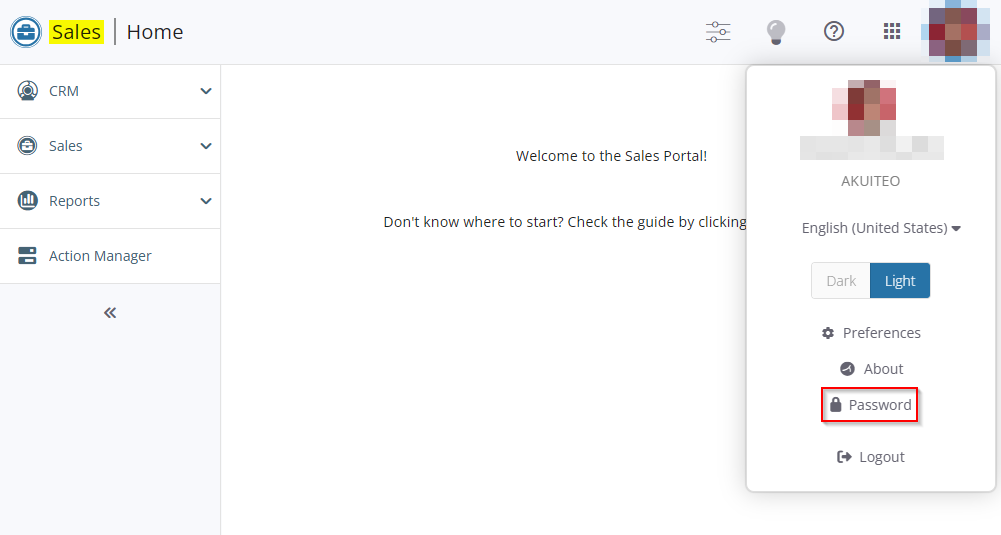
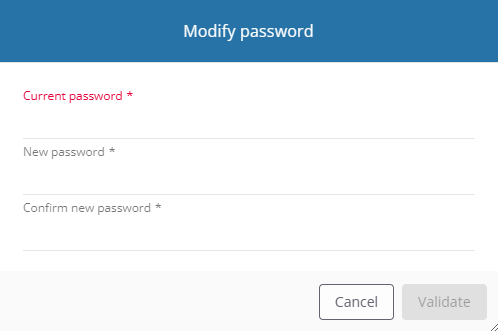
A window then appears, allowing the user to set a new password.
Important
This feature is only available to users whose authentication credentials are stored in the Akuiteo database.
Web portals: Standardized display options and views and added tab-based navigation
| DMF |
01**** PROSPECTING * * 02**** SALES * SALES 04**** PURCHASES * * 14**** HELPDESK * * 19**** WEB PORTAL * WEB PORTAL 25**** PROJECT * * |
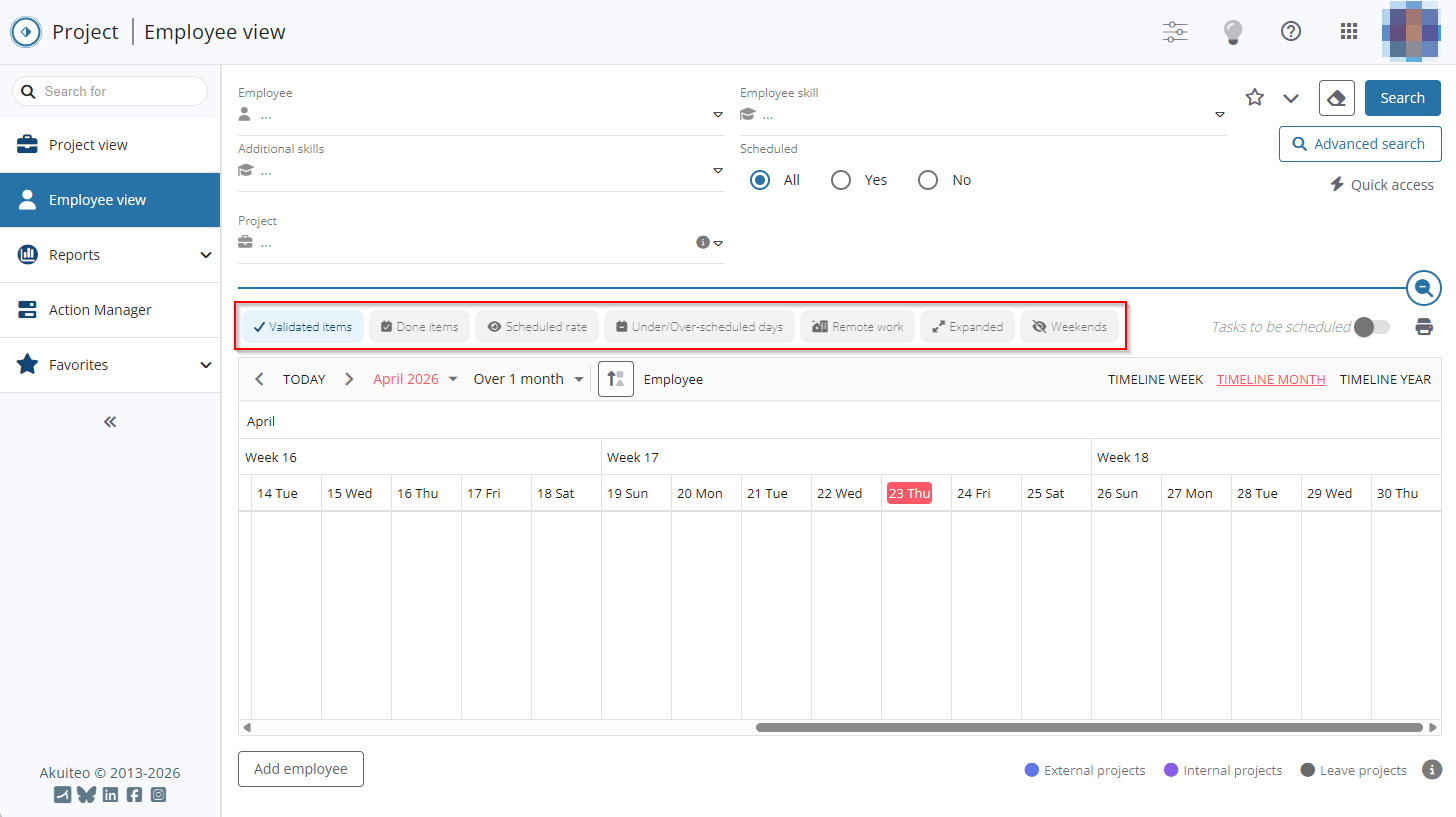
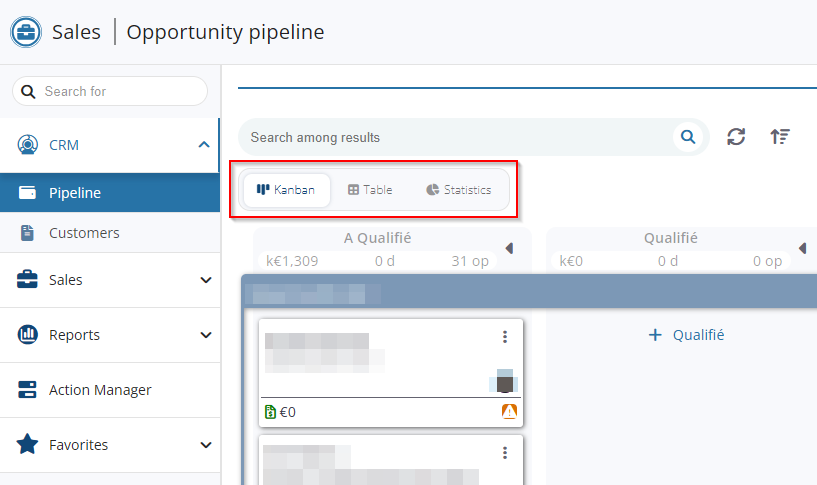
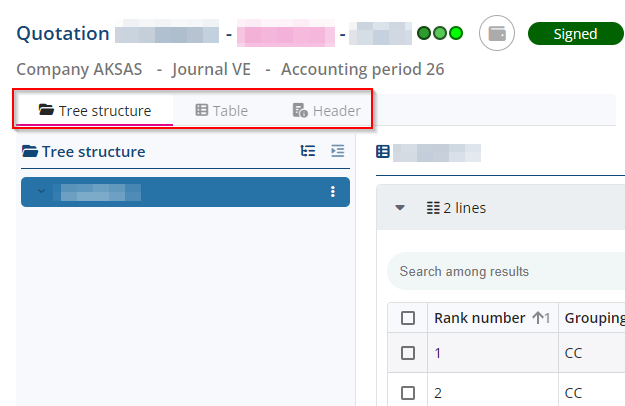
On web portals, button styling for views and display options has been standardized, and tab-based navigation has been added:
-
Display options are used to show or hide specific elements or to highlight certain content characteristics. Multiple display options can be enabled simultaneously.
-
Views are used to select the desired display format for search results: as a table, list, etc. Only one view can be displayed at once.
-
Tabs are used to navigate between different parts of a management object. Only one tab can be displayed at once.
Web portals: BIRT reports parameters layout
| DMF |
160903 TOOLS CROSS-FUNCTION WEB REPORTS |
BIRT reports are reports that can be set up from the Desktop Application and available in the web portals in order to print a management object or a report.
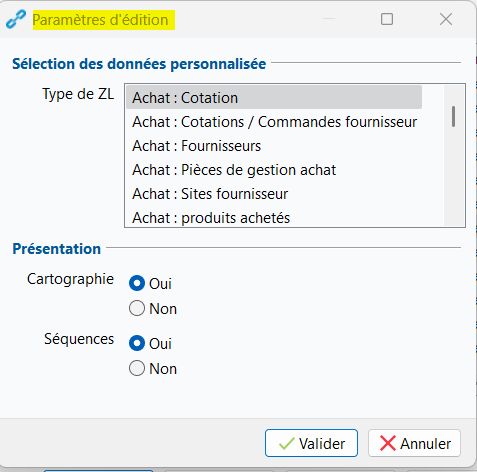
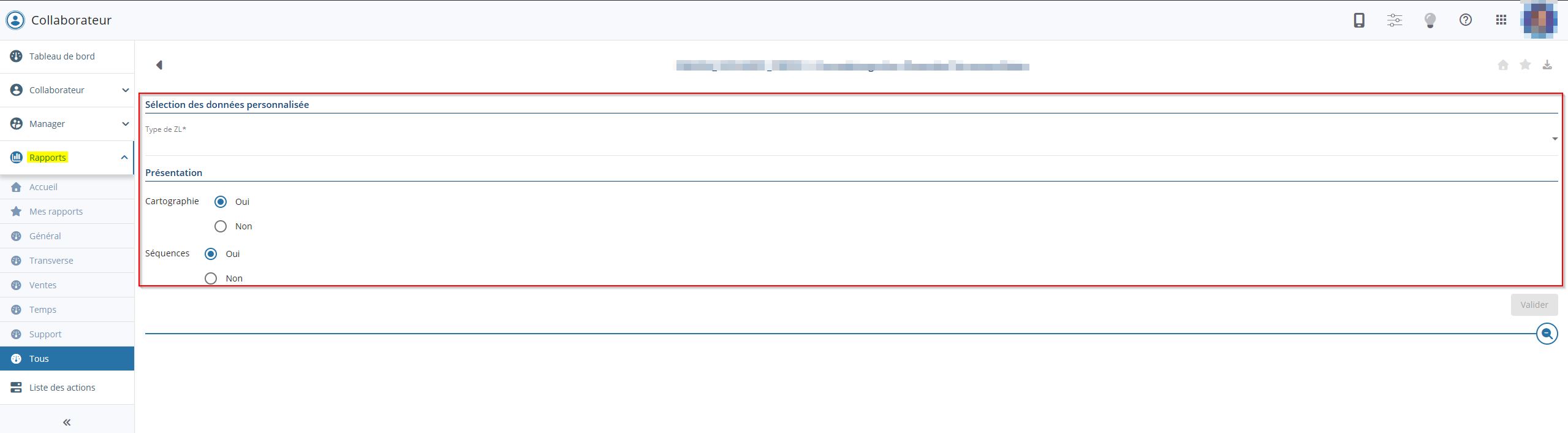
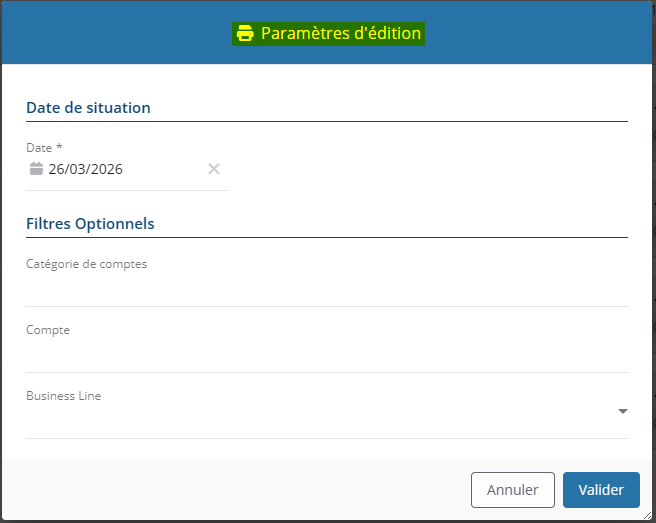
From now on, the parameters layout before starting printing from the web portals is identical to the layout in the Desktop Application. Thus, when the parameters are divided in sections in the Desktop Application, this layout is kept in the web portals.
Web portals: Ability to export results to Excel without running a search
| DMF |
01**** PROSPECTING * * 02**** SALES * SALES 04**** PURCHASES * * 14**** HELPDESK * * |
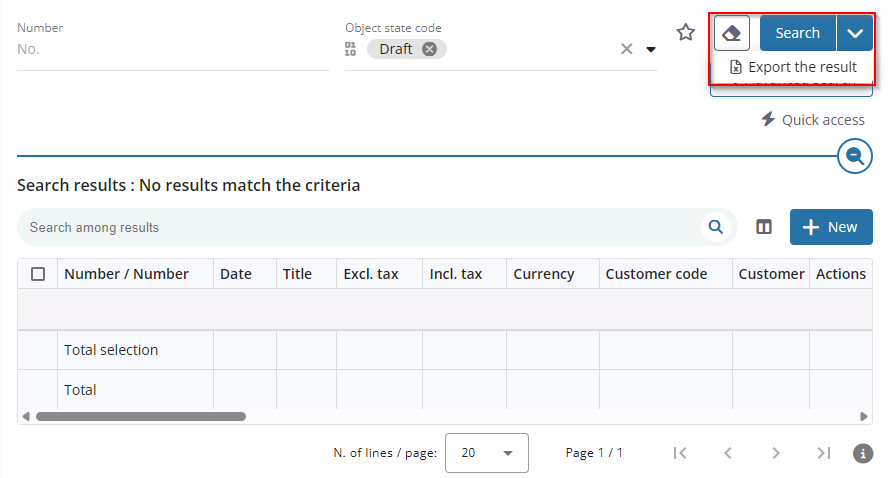
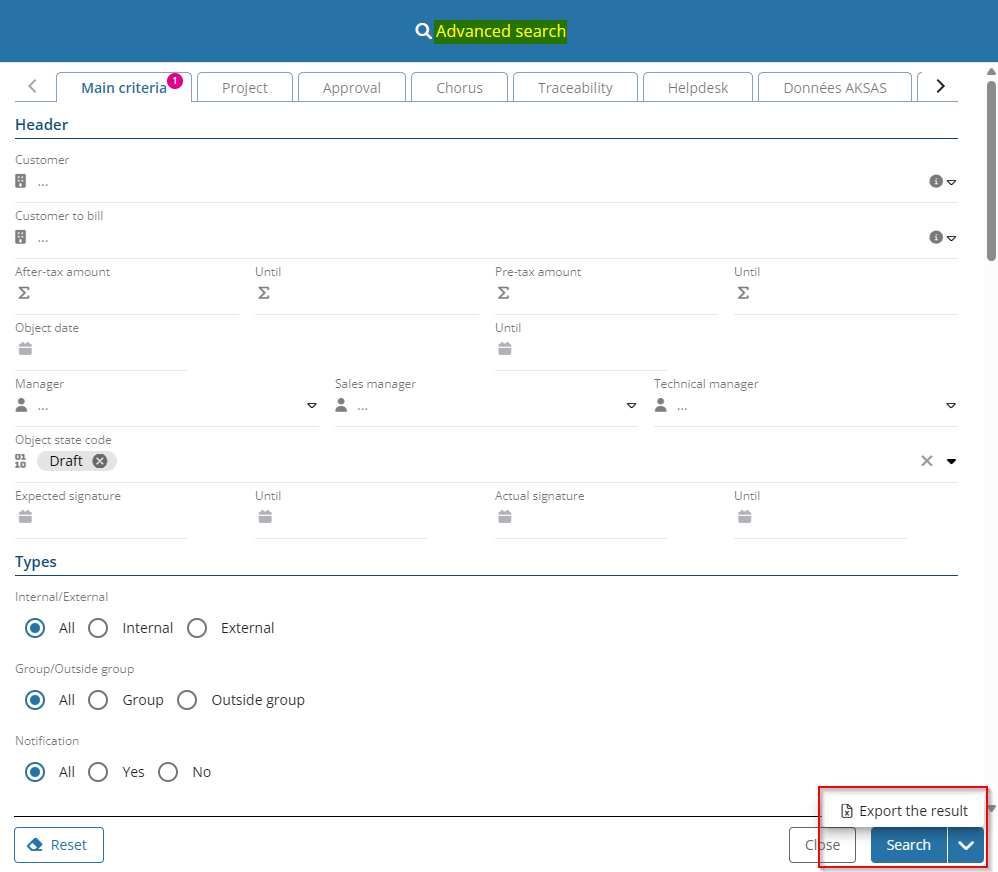
From now on, from the search screens of web portals in table view, results can be exported to Excel without needing to run the search beforehand. This feature is located to the right of the Search button in the search interface or in the advanced search window, under the new dropdown menu  > Export the result.
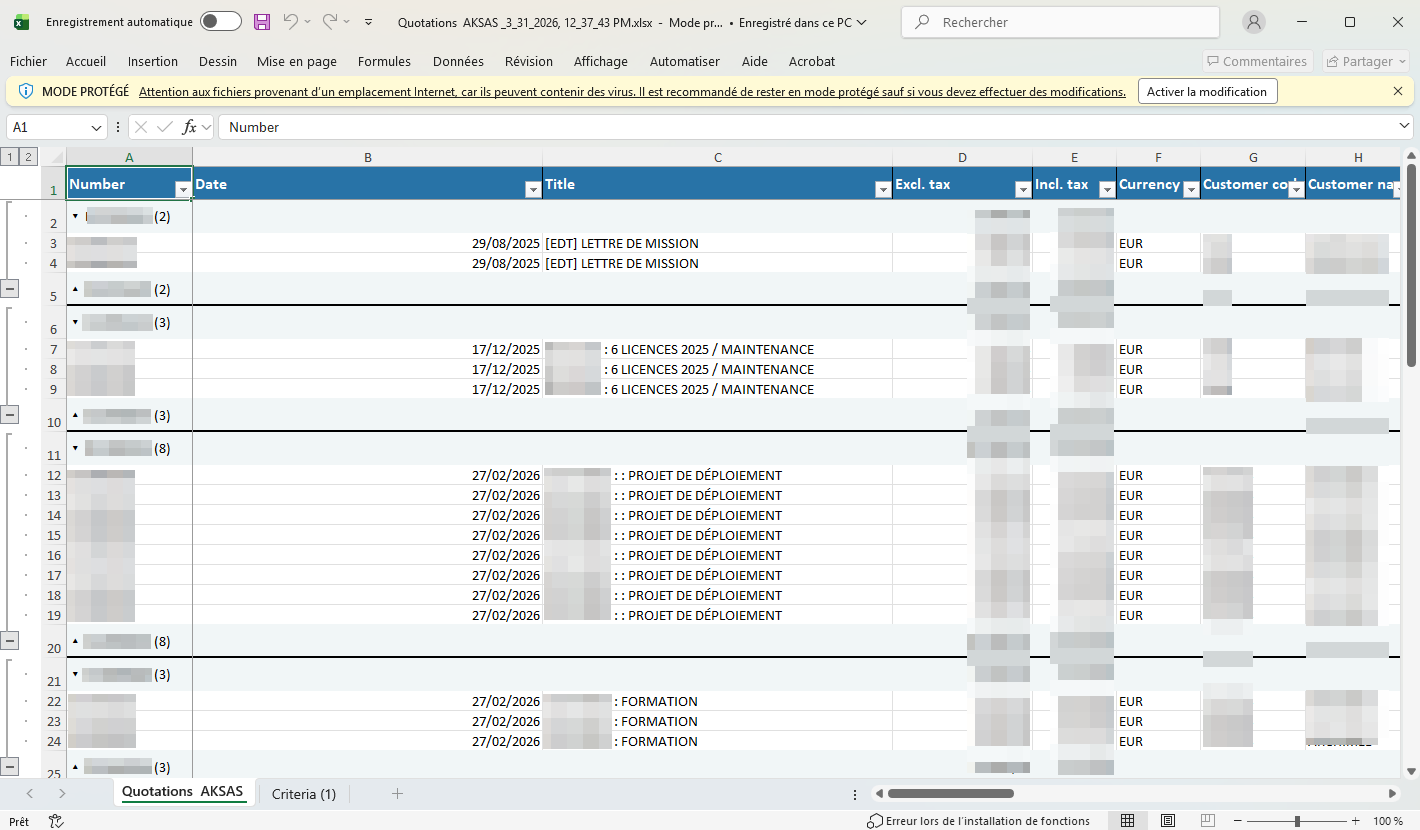
The export contains only the columns set as visible form the results table. The column order, row sorting, categorization, and conditional formatting are preserved in the export.
Reports: Search bar added
| DMF |
160903 TOOLS CROSS-FUNCTION WEB REPORTS |
From now on, a search bar is available in the Reports menu in the web portals. It is displayed when more than 10 reports are available and allows you to quickly find a report in particular.
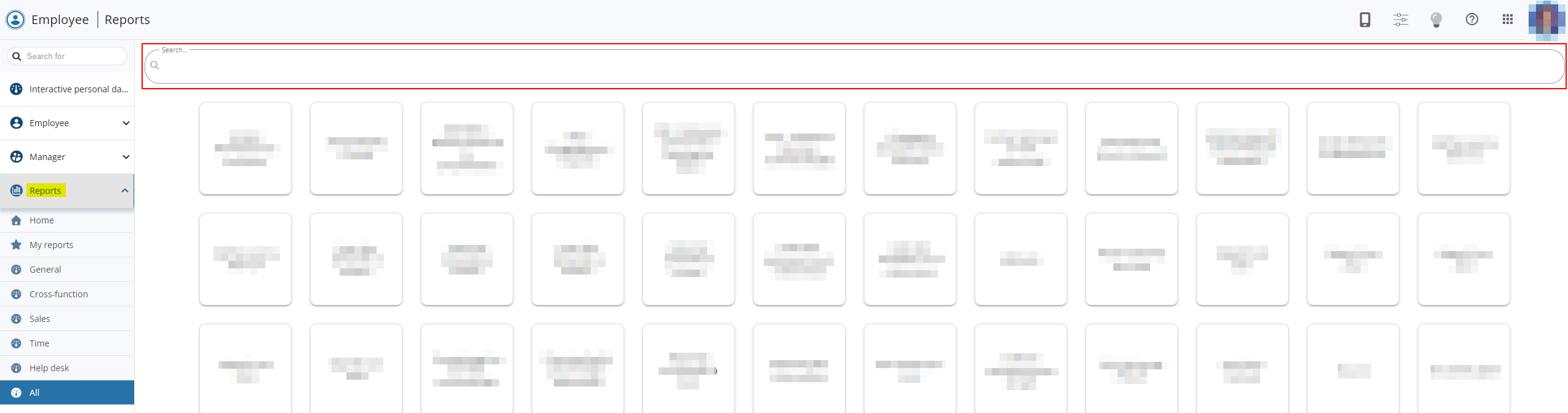
Table texts: Button moved to the toolbar
| DMF |
0202** SALES QUOTATIONS * 1414** HELPDESK TASKS * 1426** HELPDESK SIMPLIFIED ISSUE * |
The rich text available in the Help Desk Portal allows you to get advanced features, such as inserting bold text, underlining it, etc.
Table texts are predefined texts that can be quickly inserted in a field where the cursor is placed by typing / followed by the code of the table text desired or by clicking on the Table texts button.
Before, the Table texts button was displayed at the top right of the area for the following fields:
- the Description of an issue;
- the Customer response;
- the Internal information of a task;
- direct messages.
From now on, the Table texts button is displayed in the toolbar of the relevant field.

Banking
Advances: Ability to process customer advances and interface harmonization
| DMF | 0811** BANKING AUTOMATIC PAYMENTS * |
The Advance payments and International advance payments menus (Banking > Batch reports and batch processing > Advance payments and International advance payments) allow you to record advances to suppliers.
It is now possible to process advances (including international advances) for customers too.
In the screen for searching due dates to include in the advance > Main criteria tab, the Third party type section has been added and contains the following checkboxes:
- Customer, unchecked by default;
- Supplier, checked by default.
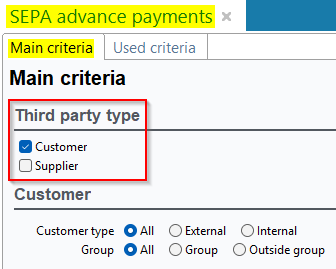
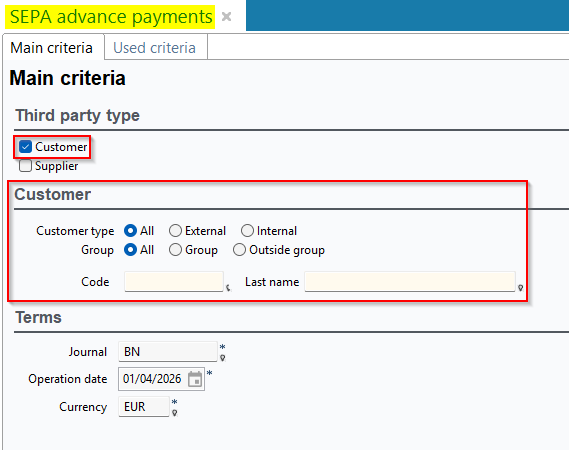
When the Supplier box is unchecked, the Suppliers section is now hidden.
When the Customer box is checked, the new Customer section becomes available and includes the following search criteria:
- Customer type;
- Group;
- Code / Name.
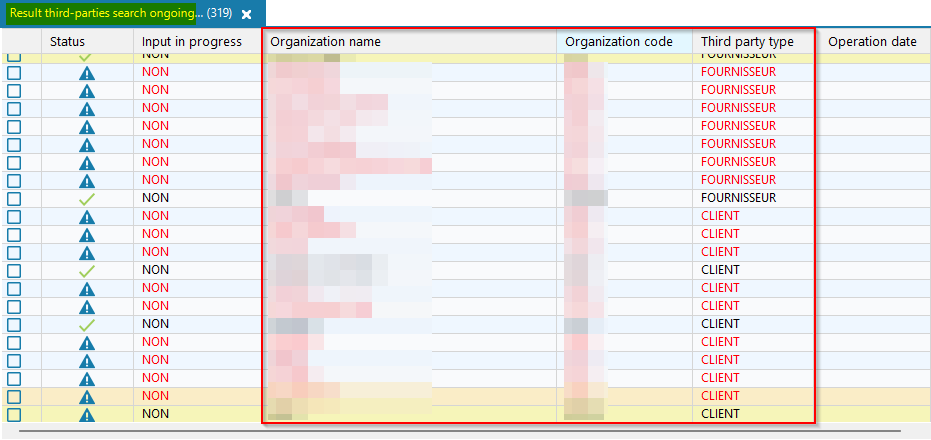
In the search results for third-parties to add to the advance, a new Third party type column has been added and displays FOURNISSEUR for suppliers or CLIENT for customers.
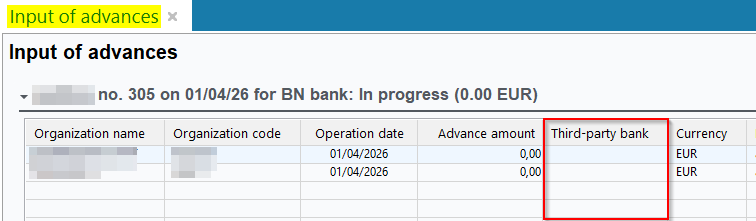
In the advance entry screen and in the search results for third-parties to add to an advance:
- The Supplier code column has been renamed Organization code;
- The Supplier name column has been renamed Organization name;
In the advance entry screen, the Supplier bank column has been renamed to Third-party bank.
Payments differences: Possibility to specify a default project
| DMF | 0807** BANKING SETUP SETUP |
Balancing payment differences in Akuiteo leads to the creation of an entry in the following cases:
- Balancing with an accounting entry (Management > Sales > Invoices then Edit > Administration > Balance with an accounting entry);
- Settling with an accounting entry (Accounting > Bank reconciliation > Bank statement management then right-click from a non-reconciled statement line > Settle with accounting entry);
- Settling with an accounting entry (Banking > Customer receipts / disbursements then Edit > Charge > Settle with accounting entry).
When creating the entry, the Project column was empty by default and could only be specified manually.
From now on, it is possible to associate a default project to each type of payment difference in the setup screen of payment differences (Tools > Setup > General setup > Banking > Payment difference).
The Linked project column has been added in the Accounts section and allows you to specify for each type of payment difference, the default project to specify on the entry line.
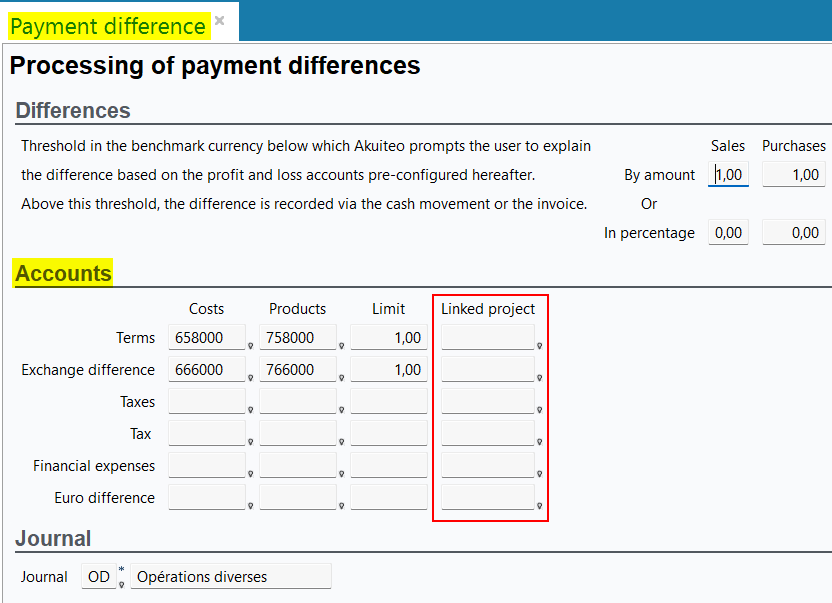
When creating the entry to balance the payment difference, if the project:
- is specified in the setup then it is automatically specified in the Project column of the entry line and can be modified.
- is not specified in the setup then the behavior before the evolution is kept and the project must be manually specified.
International bank transfers: Currency control added and interface harmonization
| DMF | 0811** BANKING AUTOMATIC PAYMENTS * |
The International bank transfers menu (Banking > Batch reports and batch processing > International bank transfers) allows you to enter international transfers to settle related supplier invoices.
Now, due dates can now only be added to an international bank transfer if they match the currency of existing due dates in the transfer.
In the search screen of due dates to include in the international bank transfer > Main criteria tab:
-
A new Invoice type section has been added, containing the Purchase invoices box, checked by default.
-
The Invoice selection section has been renamed Supplier invoices selection and is now hidden when the Purchase invoices box is unchecked.
-
The Currency criterion has also been renamed to Management object currency.
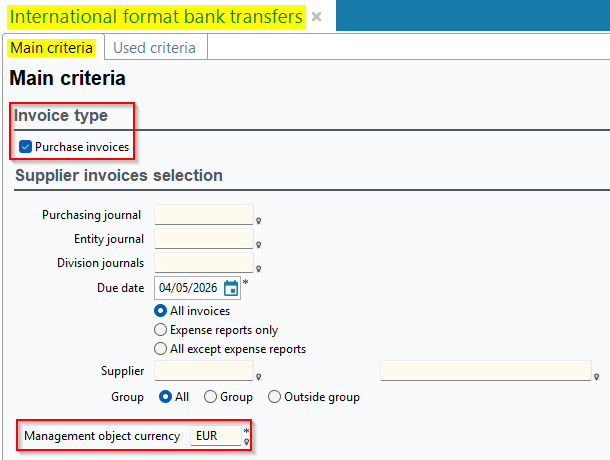
In the international bank transfer entry screen:
- The Type column has been added;
- The Supplier ref. ref. column has been renamed Third-party reference;
- The Supplier 2 reference column has been renamed Third-party reference 2;
- The Supplier 3 reference column has been renamed Third-party reference 3;
- The Supplier name column has been renamed Organization code;
- The Supplier name column has been renamed Organization name;
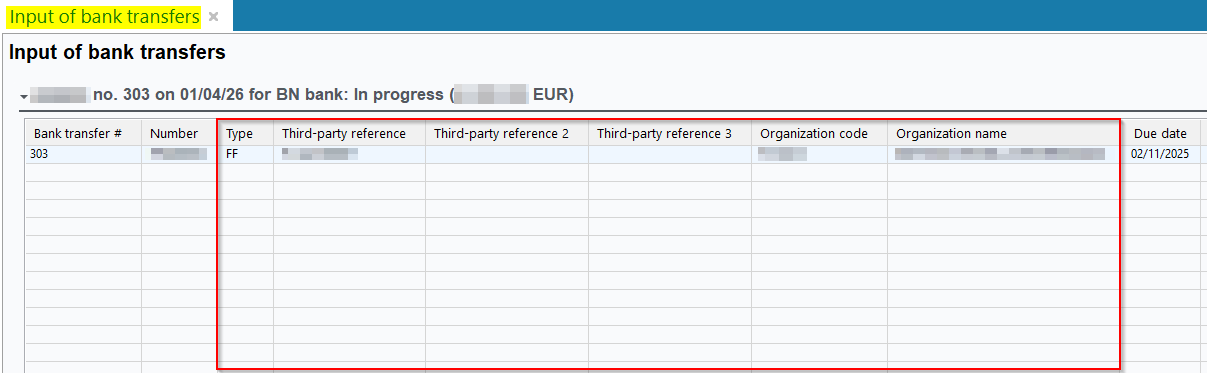
In the search results of due dates to include in the international bank transfer, the following columns have been renamed:
- The Supplier name column has been renamed Organization code;
- The Supplier name column has been renamed Organization name;
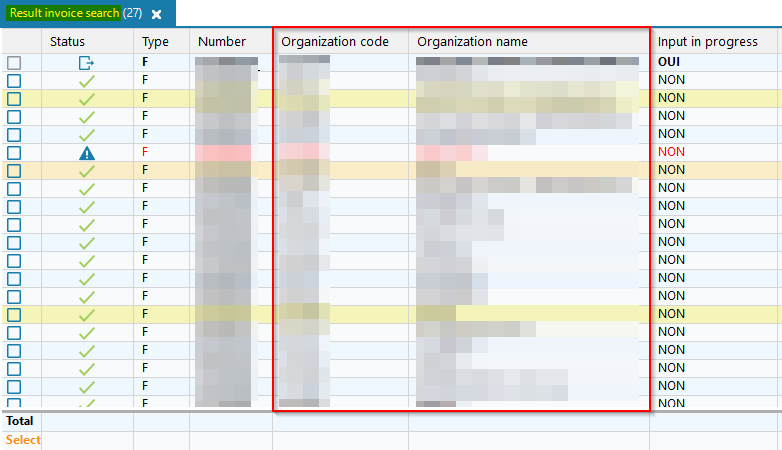
SEPA bank transfers: Added support for including customer credit notes to SEPA transfers and interface harmonization
| DMF | 0811** BANKING AUTOMATIC PAYMENTS * |
The Bank transfers menu (Banking > Batch reports and batch processing > Bank transfers) allows you to enter SEPA transfers to settle related supplier invoices.
Customer credit notes can now be included in SEPA transfers to process refunds.
In the screen for searching due dates to include in the transfer > Main criteria tab, the Third party type section has been added and contains:
- the new Purchase invoices box, checked by default.
- the new Customer credit notes box, unchecked by default.
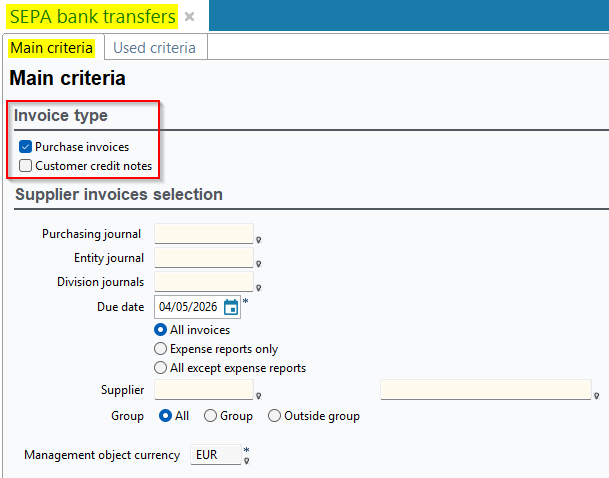
The Invoice selection section has been renamed Supplier invoices selection and is now hidden when the Purchase invoices box is unchecked. The Currency criterion has also been renamed to Management object currency.
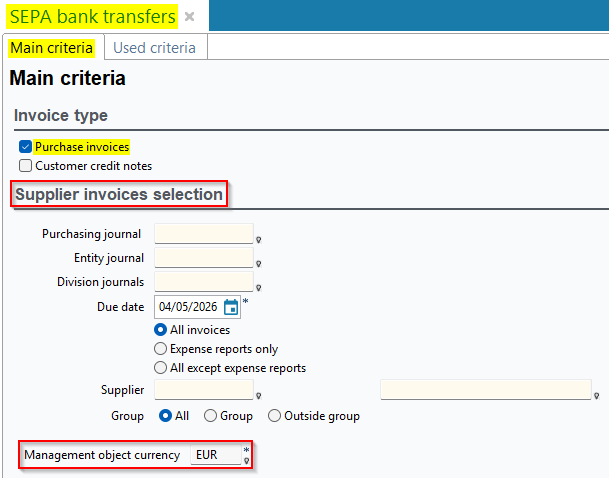
When the Customer credit notes box is checked, the new Customer credit notes selection section becomes available and includes the new following search criteria:
- Sales journal;
- Entity journal;
- Division journals;
- Due date;
- Customer;
- Group.
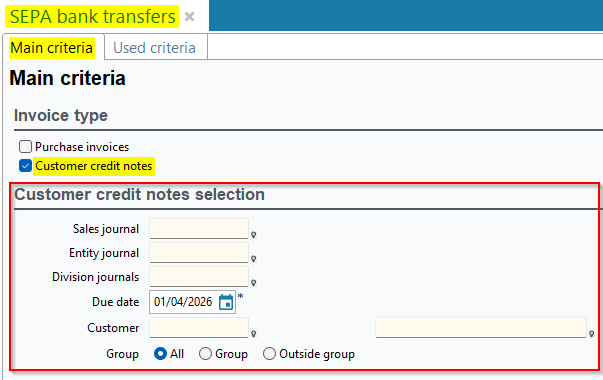
In the SEPA bank transfer entry screen:
- A new Type column has been added displaying FF for supplier invoices and FC for customer credit notes;
- The Supplier ref. column has been renamed Third-party reference;
- The Supplier 2 reference column has been renamed Third-party reference 2;
- The Supplier 3 reference column has been renamed Third-party reference 3;
- The Supplier name column has been renamed Organization code;
- The Supplier name column has been renamed Organization name;
In the search results of due dates to include in the SEPA transfer, the following columns have been renamed:
- The Supplier name column has been renamed Organization code;
- The Supplier name column has been renamed Organization name.
In the SEPA transfer entry screen, the function Add a payment address available by right-clicking on a transfer line has been renamed to Add an address.
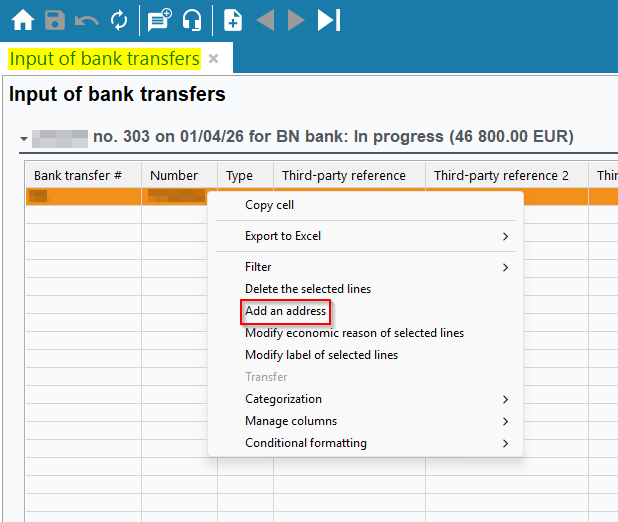
Sales
Orders: Changes to the delivery of recurring lines
| DMF | 0203** SALES SALES ORDERS * |
From a validated order (Management > Sales > Orders), lines can be delivered from:
-
Edit > Deliver the order on quantities / Deliver the order on quantities (in %) / Deliver the order on the amounts.
-
the Lines tab > right-click on a selection of lines > Deliver the selected lines.
Previously, when delivering lines whose Billing type was Recurrent and whose Periodicity was Unique, the creation of a contract was suggested, and these lines were included in the generated delivery.
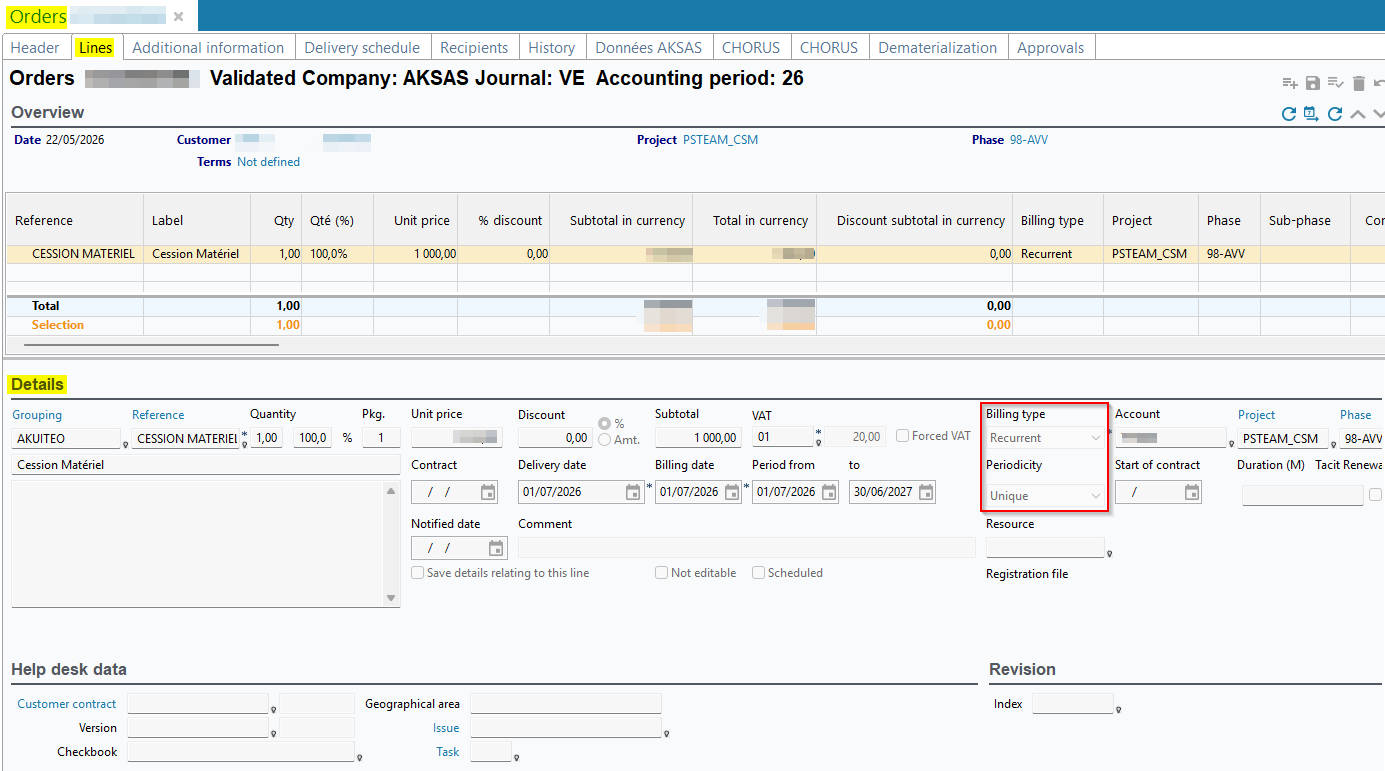
From now on, lines whose Billing type is Recurrent (line details > Billing type field) are always excluded from the delivery, whether the Periodicity is Unique or not. Delivering and billing must be managed exclusively through a contract.
In addition, a check has been added when delivering order lines. If an order line has its Billing type set to Recurrent, but no template service is specified on the associated sold product sheet (Management > Sales > Sold items, then General tab > Related service section > Template service field), the following message is now displayed:

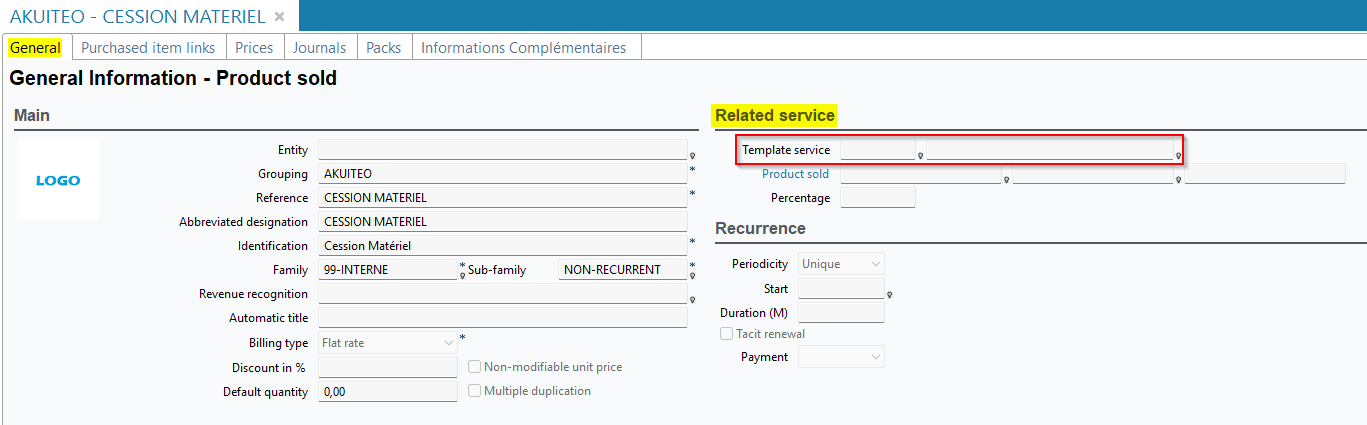
Subcontracting orders: Possibility to modify the assignment of the customer order
| DMF | 0203** SALES SALES ORDERS * |
For the group and internal subcontracting, management objects are created as mirror images. Thus, purchase and sales orders and invoices has the same lines and the same assignments. When these objects are created, they are validated and cannot be modified.
Now, for the single-project customer orders created from the subcontracting (Management > Sales > Orders), the phase, sub-phase and task can be modified by doing a right-click from a selection of lines in the Lines tab > Modifying phases/sub-phases/tasks of selected lines.
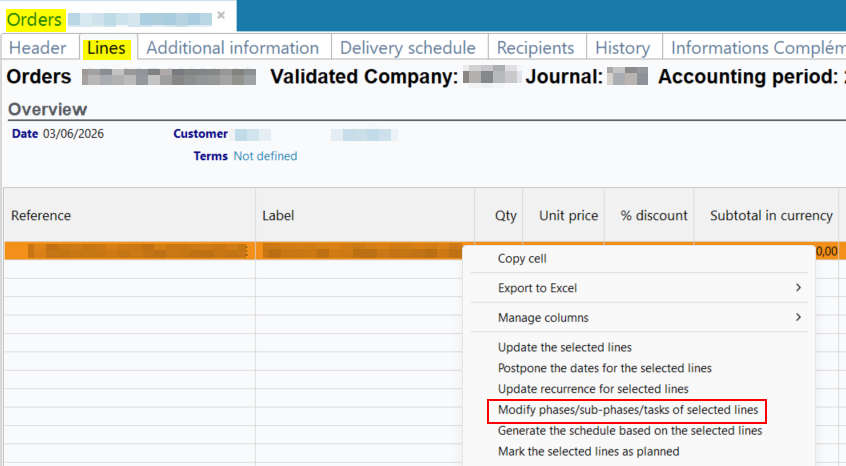
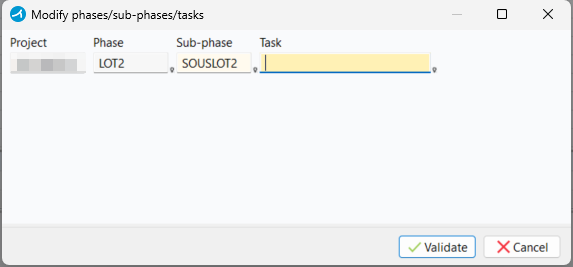
If the order is single-project / single-phase, the assignment is also modified in the Header tab > Project section.
This feature requires the 020302 SALES ORDERS MODIFY DMF.
Invoice dematerialization: Addition of a check on the mandate and direct debit information in Factur-X
| DMF | 0205** SALES INVOICES * |
Important
This feature requires the feature flag Portail ventes Domain > Vente FacturX Label. To enable it, go to the Administration console > Configuration > Features, enable the Vente FacturX feature flag then log in again.
Invoices (Management > Sales > Invoices) can be booked:
-
individually from an invoice record sheet via Edit > Book the invoice or Book and print the invoice;
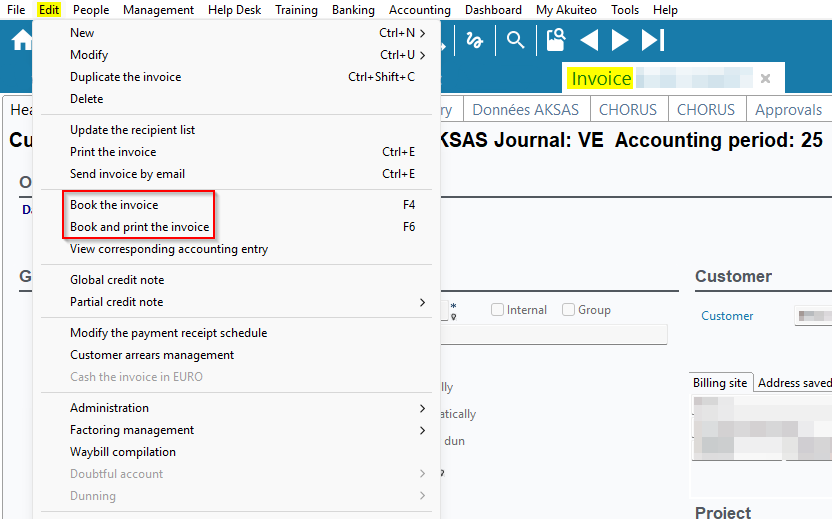
-
in batches by right-clicking on a selection of search results > Book the selected invoices/credit notes.
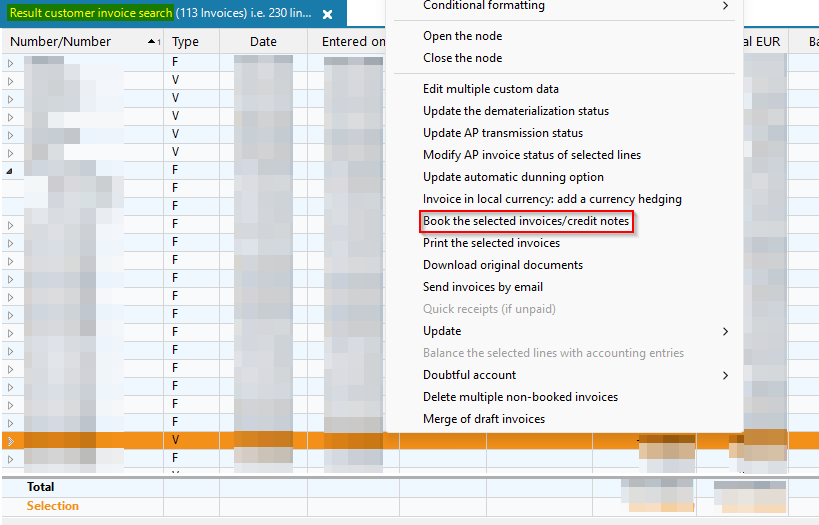
From now on, if the payment method is set to Debit and no active mandate (Banking > Direct debit mandates) is associated with either the billing site or the billed customer, an error message prevents the invoice from being booked:
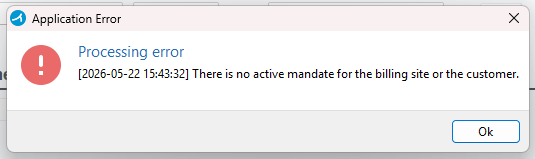
Notes
A mandate is active when the Status code on the mandate sheet is Open.
The mandate associated with the billing site takes priority. If there is no active mandate for the billing site, the billed customer’s mandate is used.
This check is also applied when changing the payment method on a booked invoice:
-
from the hyperlink at the top of the invoice screen;
-
when updating payment terms in batch, accessible by right-clicking on a selection of results > Update > Update terms and conditions.
In addition, the following direct debit information has been added to the XML of generated sales Factur-X invoices:
-
UMR on the mandate sheet;
-
Call name of the billing site associated with the mandate (People > Sites then General tab > Identity section);
-
IBAN of the billing site associated with the mandate (People > Sites then General tab > IBAN section).
Invoice dematerialization: Addition of the Exemption (VATEX) field on invoices and addition of the VATEX code in Factur-X files
| DMF | 0205** SALES INVOICES * |
Important
This feature requires the feature flag Portail ventes Domain > Vente FacturX Label. To enable it, go to the Administration console > Configuration > Features, enable the Vente FacturX feature flag then log in again.
VATEX codes are standardized codes used in electronic invoicing to indicate the legal reason for VAT exemption, reverse charge, or non-application of VAT.
From now on, on invoices (Management > Sales > Invoices), the Exemption (VATEX) field has been added in the Header tab, under the General information section, and allows you to specify a VATEX code. The help list provides the VATEX codes available under European legislation.
By default, the code specified is:
-
VATEX-EU-G if the country of the delivery site is outside the EU;
-
VATEX-EU-IC if the country of the delivery site is in the EU and all lines have a debit VAT regime;
-
VATEX-EU-IC if the country of the delivery site is in the EU and all lines have a credit VAT regime;
-
left blank in other cases and/or if the country of the delivery site is France.
If the delivery site is changed on the invoice, the Exemption (VATEX) field is updated automatically.
This field is required when the VAT amount on the invoice is zero. When booking the invoice, if the Exemption (VATEX) field is blank while the VAT amount is zero, the following window is displayed:
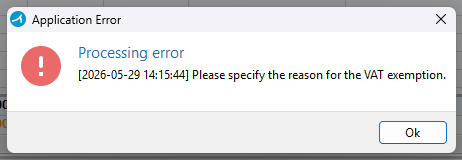
The VATEX code is then automatically specified in the XML of VAT-exempt sales Factur-X files generated from Akuiteo.
Note
The VATEX code is taken into account as a grouping criterion when merging draft invoices, accessible by right-clicking on a selection of invoice results > Merge of draft invoices, or using the FusionFactures batch. Thus, invoices that do not have the same Exemption (VATEX) code cannot be merged together.
Invoices dematerialization: Type field added in the sales and purchase invoices and processing type added in the Factur-X
| DMF | 0205** SALES INVOICES * |
Important
This feature requires the feature flag Portail ventes Domain > Vente FacturX Label. To enable it, go to the Administration console > Configuration > Features, enable the Vente FacturX feature flag then log in again.
In the customer and supplier type setup (Tools > Setup > General setup > Cross-cutting > Customer and supplier type), the Type field has been added, with a drop-down list containing the following values:
-
Legal entity;
-
Actual person;
-
Local government.

For customer and supplier types that were already created before this evolution, the Type is automatically selected according to the following mappings:
-
Actual person for the customer and supplier type with code PERSONNE PHYSIQUE.
-
Legal entity for the customer and supplier type with code PERSONNE MORALE.
-
Local government for the customer and supplier type with code SERVICE PUBLIC.
Otherwise, outside these mappings, the Type field is empty by default.
This information is then used to determine and automatically populate the processing type in the XML of generated sales Factur-X invoices:
-
B2B (business-to-business) if:
-
the billing site's country is France, and
-
the billed customer's type is Legal entity.
-
-
B2G (business-to-government) if:
-
the billing site's country is France, and
-
the billed customer's type is Local government.
-
-
B2INT (business-to-international business) if:
-
the billing site's country is different from France, and
-
the billed customer's type is Legal entity.
-
-
B2C (business-to-consumer) if the billed customer's type is Actual person.
Services billing: Additional security added when billing services
| DMF | 0205** SALES INVOICES * |
Important
This evolution requires enabling the following feature flag: Transverse domain > Lock Fact Prestations label. To enable it, go to the Administration console > Configuration > Features, enable the Fact Prestations feature flag then log in again.
In order to enhance the security when billing services made with the FacturationPrestationsDevis batch (Management > Sales > Services billing or Tools > Setup > Batches > Batches creation and modification) in long processing (for example the billing of hundreds of services), a technical improvement has been made.
When a service is being billed, this service is locked in order to prevent billing other services at the same time, and thus to prevent billing a service twice. As long as the processing is not finished, the locked object cannot be billed or updated.
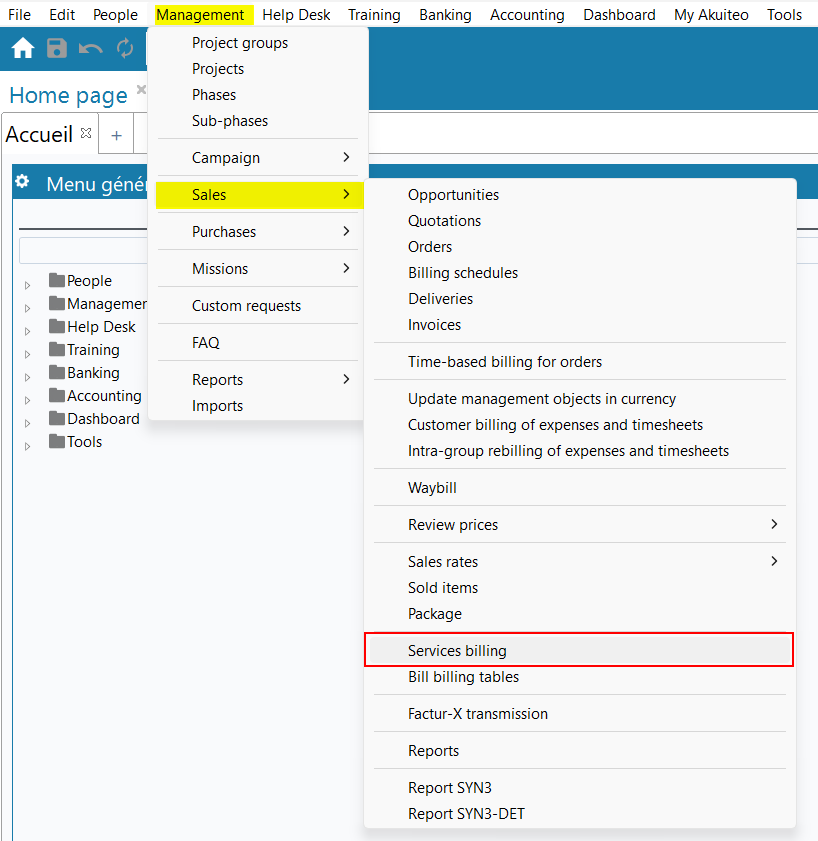
Billing of services and billing tables: Batch execution report section added when launching the batch
| DMF | 0205** SALES INVOICES * |
Now, the new Batch execution report section is available in the launching window of the following batches:
- FacturationPrestationsDevis only when launched from Management > Sales > Services billing.
- FacturationTdfCliGen oonly when launched from Management > Sales > Bill billing tables.
This section displays the following information:
- Last batch start date with the Status, the date on which the process is Completed and the Number of commits;
- Second to last batch start date with the Status, the date on which the process is Completed and the Number of commits.
The Number of commits matches the number of services or billing tables have been processed by the batch.
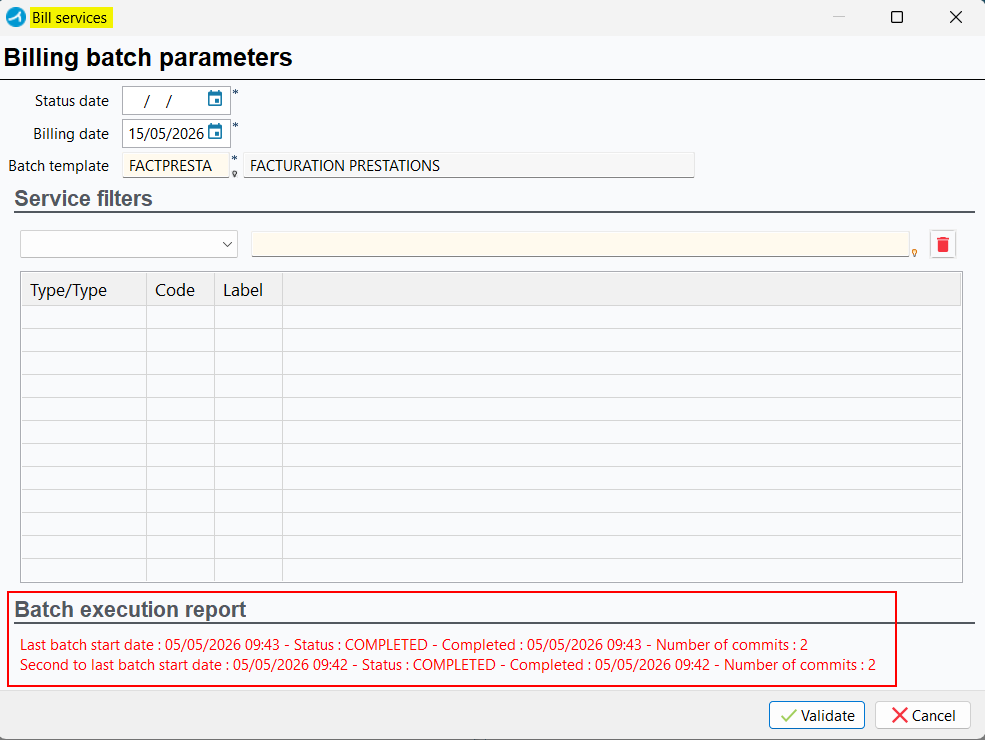
Invoices: Renaming and modification of the With no dunning date criterion
| DMF | 0205** SALES INVOICES * |
In the invoice search screen (Management > Sales > Invoices) > Main criteria tab > Wordings, Comments, Arrears Info section, the With no dunning date criterion has been renamed Not dunned for greater clarity and has been moved above the Dunning date between ... and criterion.
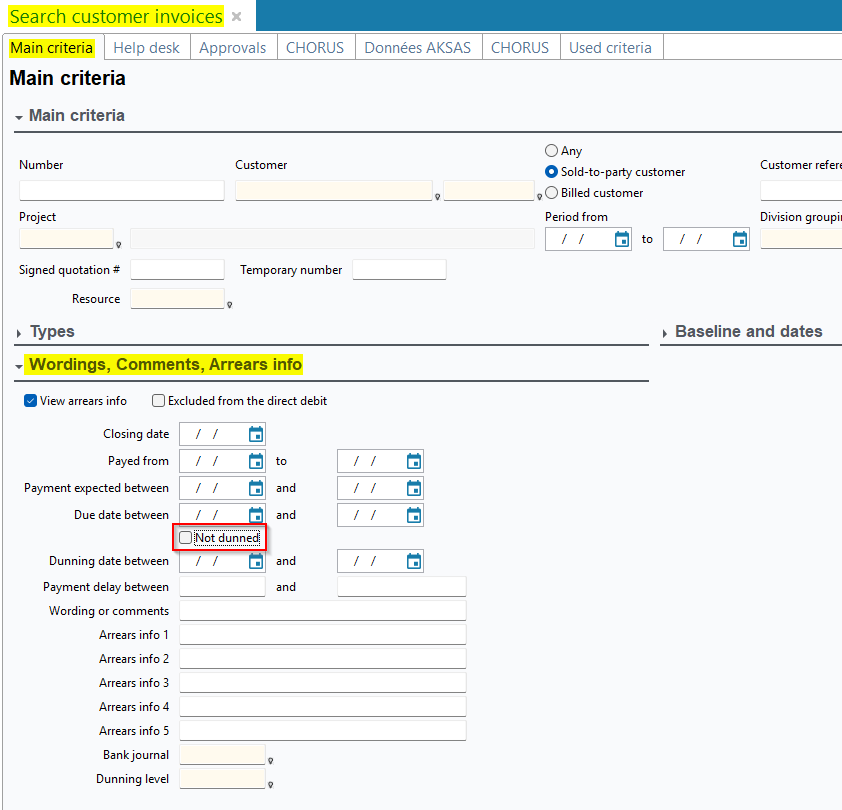
Previously, checking the With no dunning date criterion only hid the Dunning date between ... and criterion and did not allow users to specifically search for due dates that have no dunning date.
From now on, the Not dunned criterion still hides the Dunning date between ... and criterion, but it also allows users to specifically search for due dates that do not have a dunning date (from an invoice > Due dates tab > due date details > Dates and due dates section > Dunned on field).
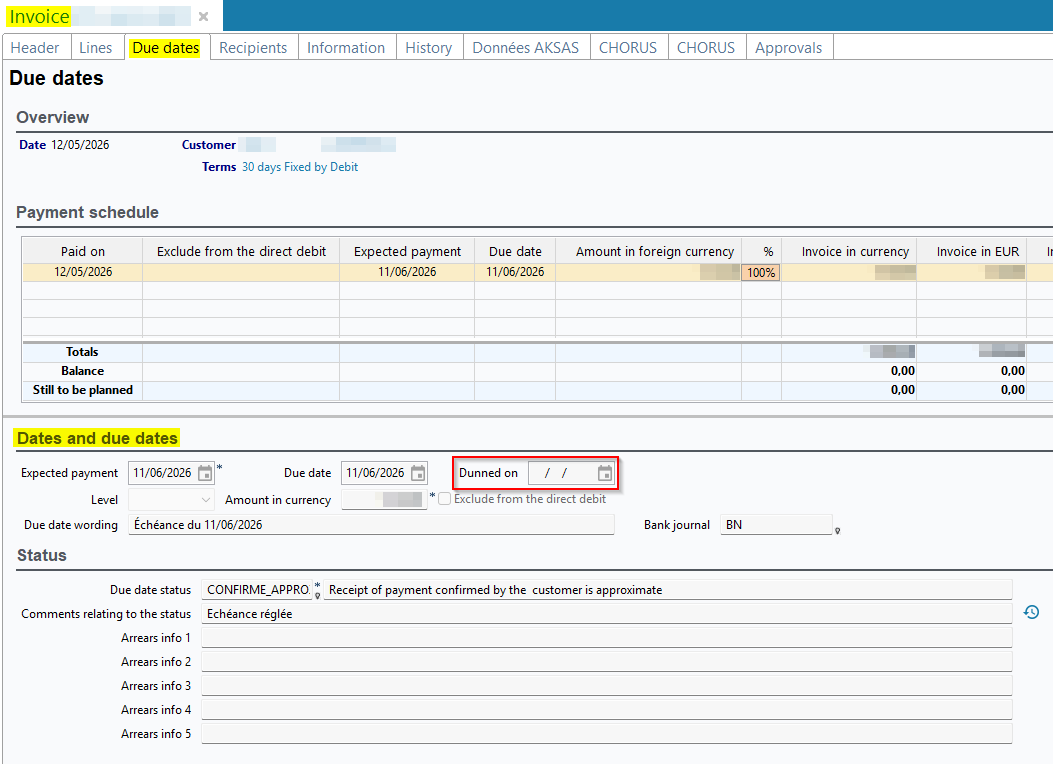
Deliveries and billing schedules: Task column added
| DMF |
0204** SALES DELIVERIES DELIVERIES 0207** SALES BILLING SCHEDULES * |
The Task column has been added to the table of the Lines tab of the following sales management objects:
- Sales > Deliveries;
- Sales > Billing schedules.
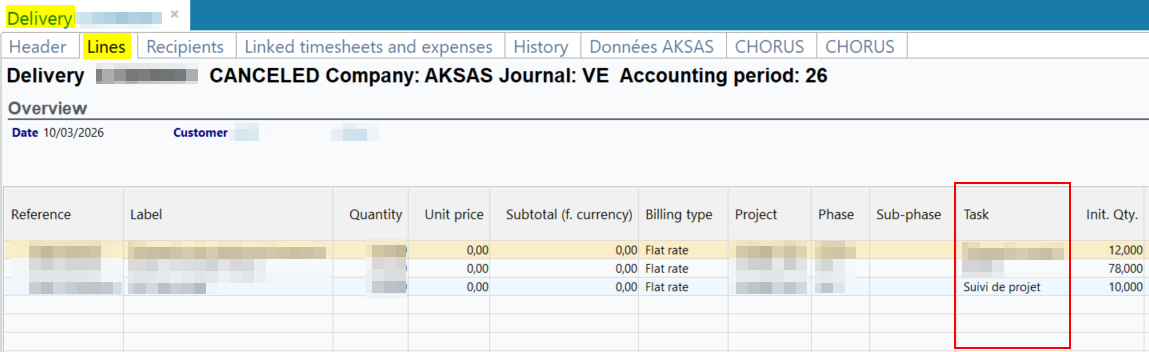
Sales objects: Ability to include linked documents in generated Factur-X
| DMF | 02**** SALES * SALES |
Important
This feature requires the feature flag Portail ventes Domain > Doc Vente Facturx Label. To enable it, go to the Administration console > Configuration > Features, enable the Doc Vente Facturx feature flag then log in again.
From now on, in the Linked documents tab or the Linked documents in sales module tab (accessible via Edit > All linked documents in sales module) of the following objects, you can specify which documents to include in the Factur-X generated when booking a customer invoice:
-
Quotations (Management > Sales > Quotations);
-
Orders (Management > Sales > Orders);
-
Deliveries (Management > Sales > Deliveries);
-
Invoices (Management > Sales > Invoices);
-
Billing schedules (Management > Sales > Billing schedules).
The following functions have been added and are now available via right-click on a linked document line:
-
Mark as to be transmitted (dematerialization), visible only when the document is marked as not to be transmitted.
-
Mark as not to be transmitted (dematerialization), visible only when the document is marked as to be transmitted.
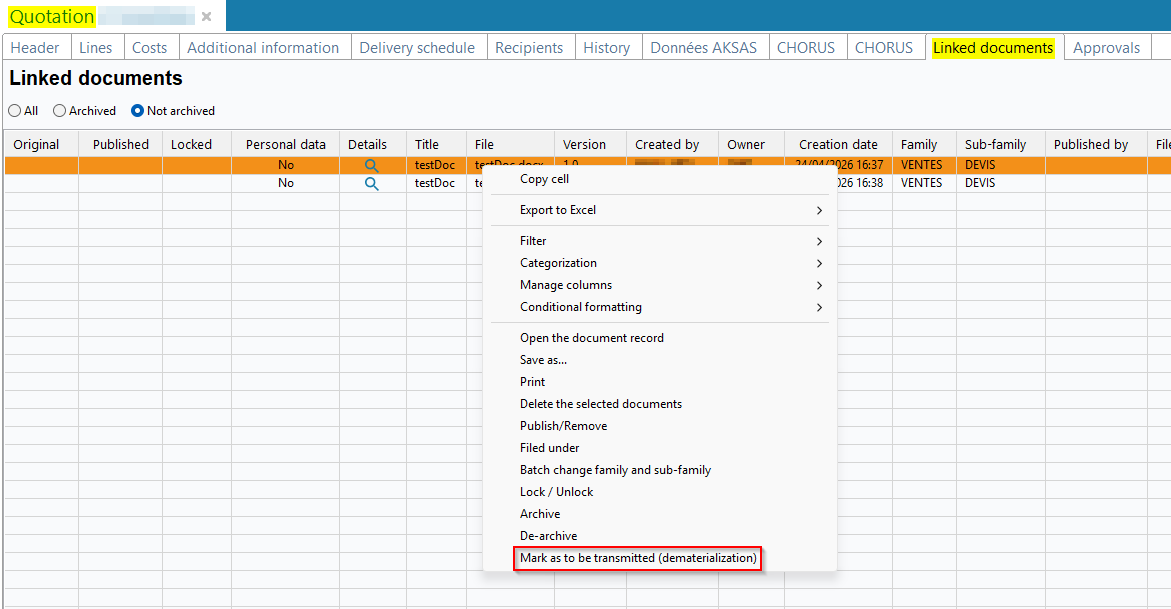
These functions require the DMF 100109 OFFICE AUTOMATION WRITE MODIFY DOCUMENT.
The To be transmitted (dematerialization) column has been added and displays Yes for documents marked as to be transmitted and No for documents marked as not to be transmitted. By default, the column is set to No after a linked document is added. The value is automatically carried over when creating other objects in the same sales chain.
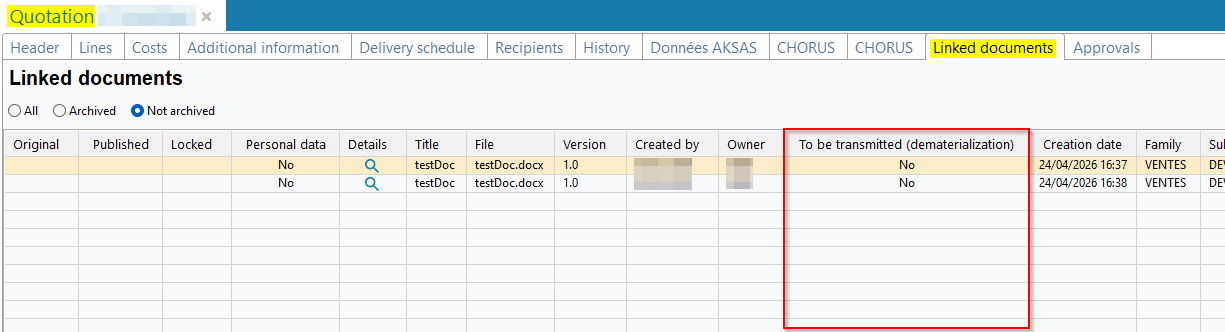
When booking a customer invoice, all linked documents with the To be transmitted (dematerialization) column set to Yes are automatically included in the generated Factur-X file.
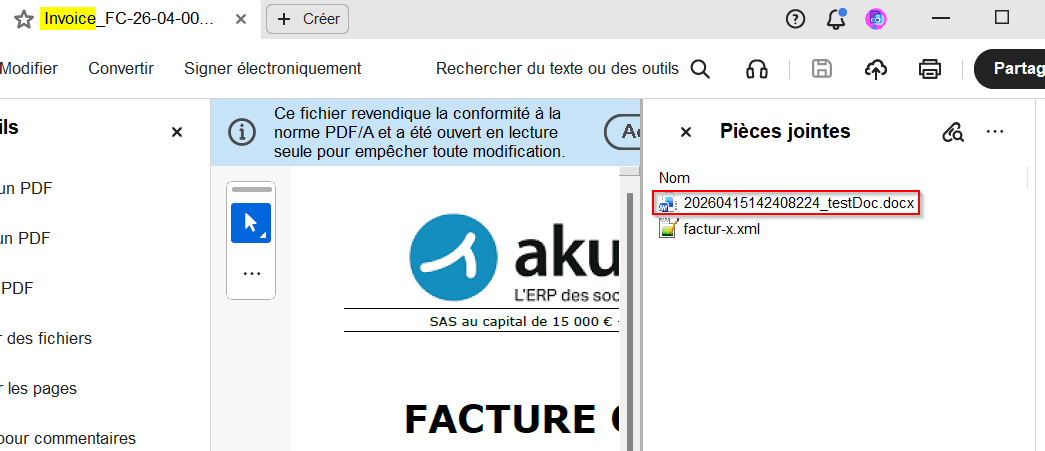
Intra-group rebilling: Option added for the generated invoices lines' details
| DMF | 020426 SALES DELIVERIES CUSTOMER BILLING EXPENSES AND TIME SPENT |
For the intra-group rebilling, the purchase and sales invoices are generated when rebilling (Management > Sales > Intra-group rebilling of timesheets and schedules). Options allows you to define the details of the generated invoices (Rebilling section).
Now, the One line per project/ phase without details option is available for the Detail of lines parameter. When this option is selected, only one line per project and per phase is available in the purchase and sales invoices generated when rebilling expenses and times. This line has the following characteristics:
- Quantity of 1;
- Unit price matching the total amount rebilled.
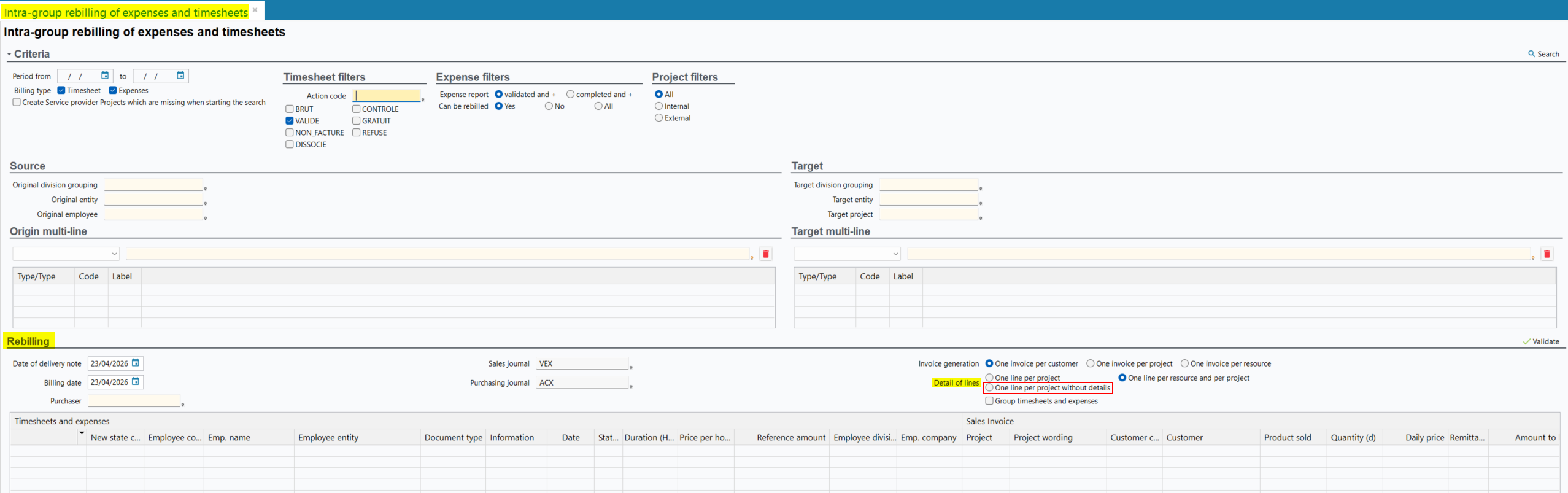

Biliing schedules: Additional security when billing billing schedules
| DMF | 0207** SALES BILLING SCHEDULES * |
Important
This evolution requires enabling the following feature flag: Transverse domain > Lock Lignes Tabfac Cli label. To enable it, go to the Administration console > Configuration > Features, enable the Lock Lignes Tabfac Cli feature flag then log in again.
In order to enhance the security when billing billing schedules lines made with the FacturationTdfCliGen batch (Management > Sales > Billing billing schedules or Tools > Setup > Batches > Batches creation and modification) in long processing (for example the billing of hundreds of lines), a technical improvement has been made.
When a billing schedules is being billed, this billing schedule line is locked in order to prevent billing other billing schedules lines at the same time, and thus to prevent billing a line twice. As long as the processing is not finished, the locked object cannot be billed or updated.
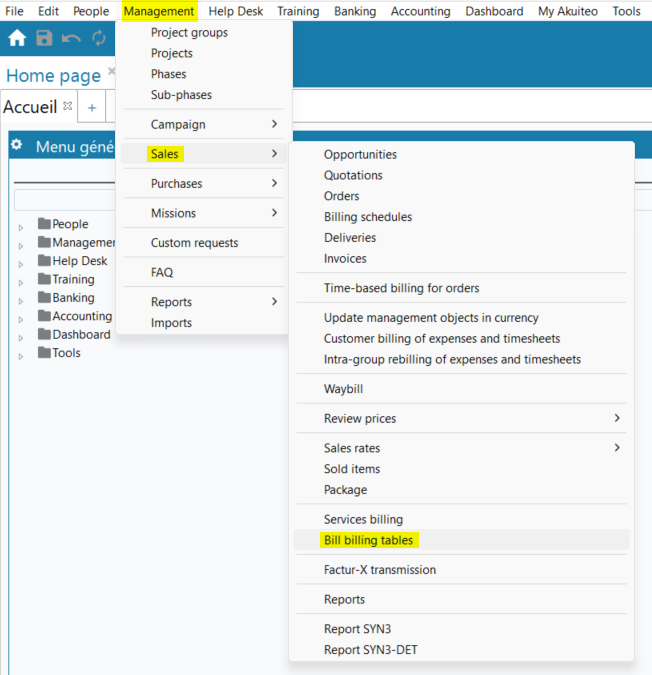
Available feature flags
Technical release notes
-
The web portals have been upgraded to Angular version 21.
-
The Desktop Application and the web portals have been upgraded to Font Awesome version 7.2 in order to access to more icons.
-
The DMF 160905 TOOLS CROSS-FUNCTION API TOKEN USER PROFILE has been added. It does not affect Akuiteo in version 5.16.0 and will be taken into account later as part of a future evolution.
-
Security controls have been added on batches. Now, the user specified in the
BATCH_USERparameter must be an administrator user. For the SQLBatchJob, the path specified in theCHEMINparameter is restricted to the following directories: generated, warehouse or template.
New DMFs
| Code | Domain | Module | Feature |
|---|---|---|---|
| 020576 | SALES | INVOICES | UPDATE DEMATERIALIZATION STATUS |
| 020577 | SALES | INVOICES | FACTUR-X TRANSMISSION |
| 020578 | SALES | INVOICES | MODIFY AP TRANSMISSION STATUS |
| 020579 | SALES | INVOICES | MODIFY DUE DATE AP TRANSMISSION STATUS |
| 040656 | PURCHASES | INVOICES | UPDATE DEMATERIALIZATION STATUS |
| 040657 | PURCHASES | INVOICES | MODIFY DUE DATE AP TRANSMISSION STATUS |
| 040728 | PURCHASES | CREDIT NOTES | UPDATE DEMATERIALIZATION STATUS |
| 040921 | PURCHASES | TEMPORARY INVOICES | MODIFY EXTERNAL REFERENCE (AP) |
| 060364 | PROJECTS | TIMESHEETS | TIMESHEET SUGGESTIONS |
| 060365 | PROJECTS | TIMESHEETS | PREDICT ASSIGNMENTS FOR MY SUGGESTIONS |
| 090188 | ADMINISTRATOR | SETUP | ASSIGNMENT PREDICTION |
| 090189 | ADMINISTRATOR | SETUP | SALES AP COMMUNICATION |
| 090190 | ADMINISTRATOR | SETUP | PURCHASE AP COMMUNICATION |
| 160905 | TOOLS | CROSS-FUNCTION | API TOKEN USER PROFILE |


