Important
This feature requires the feature flag Portail Collaborateur domain > Facilitation Saisie Temps label.
The CONNECT_CALENDRIER management rule must be enabled and the associated setup completed (see CONNECT_CALENDRIER).
Timesheet entry suggestions are preliminary elements to actual timesheet entries. They are generated and pre-filled from employees' Outlook events to streamline the process of entering their timesheets.
 Header
The Timesheets & schedules menu displays schedules, timesheets and timesheet entry suggestions and allows you to manage them in a weekly view. The following features are available in the screen header banner:
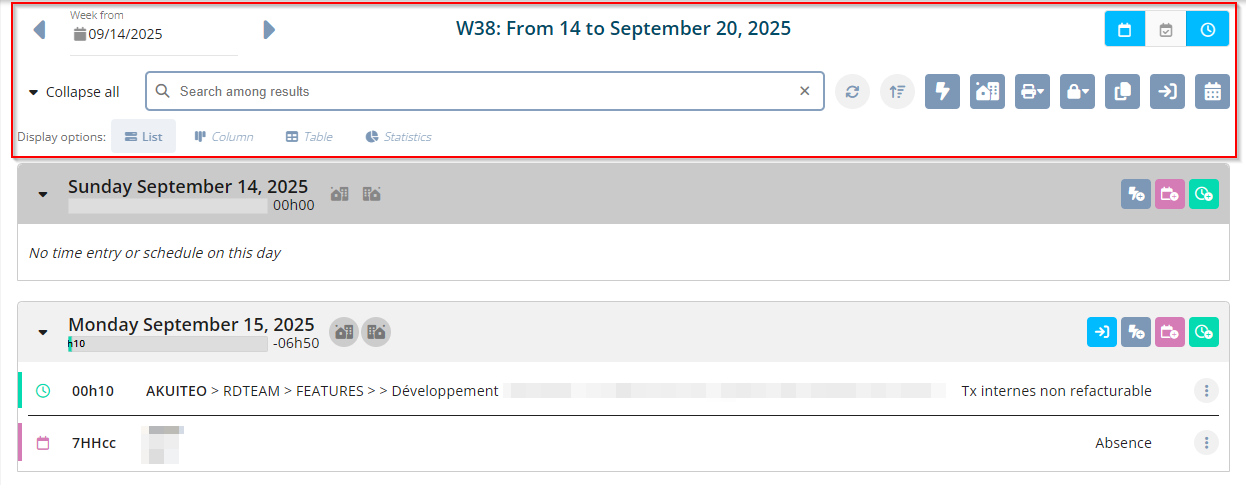
| Feature | Description |
|---|---|
|
Week selection
|
To move from a week to another, use the arrows The Week field is also available and is used to select the desired week through a date picker. |
|
Schedule and timesheet filters
|
The
|
|
Timesheet completion |
Used to complete timesheets for the week or the month. For more information, refer to Completing timesheets. |
|
Timesheet entry suggestion generation
|
Important This feature requires the feature flag Portail Collaborateur domain > Facilitation Saisie Temps label. The Used to generate timesheet entry suggestions from events in the employee's external calendar. For more information, refer to Generating timesheet entry suggestions. |
|
Quick entry modification
|
Allows modifying or deleting quick entries. For more information, refer to Modifying or deleting a quick entry. |
|
Recurring remote work declaration
|
Used to create a weekly standard input to declare remote work and use it for a given time period on the current accounting period. For more information, refer to Declaring recurring remote work. |
|
Printing schedules and timesheets
|
Used to print schedule or timesheets. For more information, see Printing scheduled items and Printing timesheets. |
|
Week duplication
|
Used to duplicate timesheets of the whole week to the following weeks. For more information, refer to Entire week. |
|
Transfer into timesheets
|
Used to transfer into timesheets:
For more information, refer to Transferring Schedules into Time Spent. |
|
Month display
|
Used to open the current month's agenda and displays schedules along with timesheet entries. Timesheet entry suggestions are not shown. |
| Views |
Various views are available and each one has its own characteristics and specific features:
|
 and
and 
 and
and  or open the calendar to select the desired week.
 ,
,  and
and 


 Views
List view
Views
List view

Click on List from the views to display scheduled items, timesheets and timesheet entry suggestions as a list. This list contains a block per day displayed (from the preferences) and each block retrieves the scheduled items, timesheets and suggestions on this day.
Public holidays are displayed in red.
Reference
For more information about the setup of results in list view, refer to Managing results in list view.
Note
The sorting headers is not available on the calendar.
Column view
Click on Column from the views to display scheduled items, timesheets and timesheet entry suggestions in columns. This display contains one block per day displayed (from the preferences) and each block retrieves the scheduled items, timesheets and suggestions on this day.
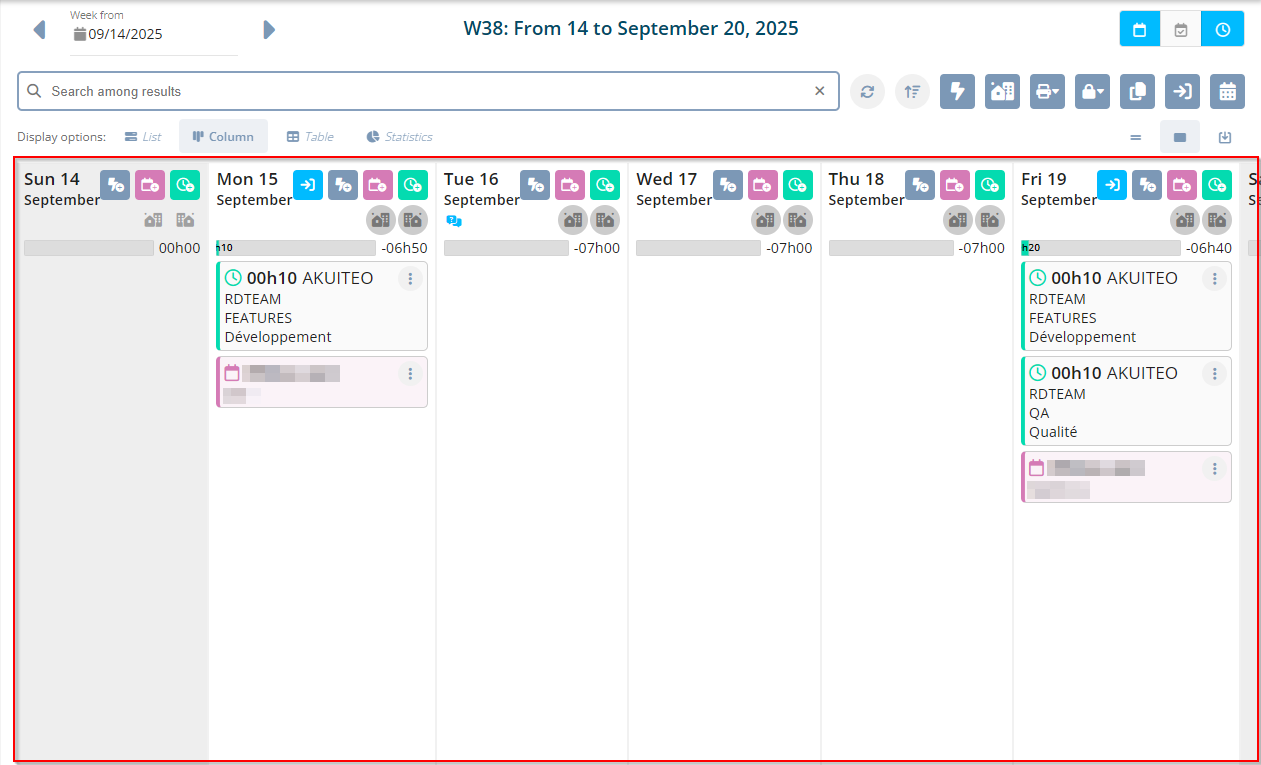
At the top right of the columns, the following options allow you to manage the detailed display of the scheduled items, timesheets and suggestions:
-
 Overview to only display duration, customer and visual indicators (for example, the comment or review status)
 -
 Normal view to display all information for the item
 -
 Scaled view to display items in blocks with height proportional to the item duration
Note
In scaled view, the Ratio in % of the column view to scale user preference is used to display the whole screen, without having to scroll in order to view all blocks. This ratio can be set up from 50 % to 200 % according to the user's needs.
A quick search field  is available on top of the results table. The search starts as soon as one character is typed and the results are filtered automatically.
On the right of the quick search field, the  icon allows you to refresh results.
Public holidays are displayed in red.
To sort the items displayed in each block of a day, click on the  icon at the right of the search field to display the sorting options:
| Sorting the content |
Displays a window to manage the sorting options. The Available columns option show the different values on which you can apply a sorting. Use the search field to quickly find a column. The search starts as soon as one character is typed and the columns from the Available columns section are filtered automatically. Move it to the Sorted columns section on each criterion you want to sort:
Click on Apply to sort the elements according to the selected criteria. |
| Default sorting | Click on this option to go back to the default sorting. |
 order or by descending / inverse alphabetical
  order.
 for the desired criterion.Table view
Click on Table from the views to display scheduled items, timesheets and timesheet entry suggestions as a table. Each table line corresponds to a scheduled item, a timesheet or a suggestion.
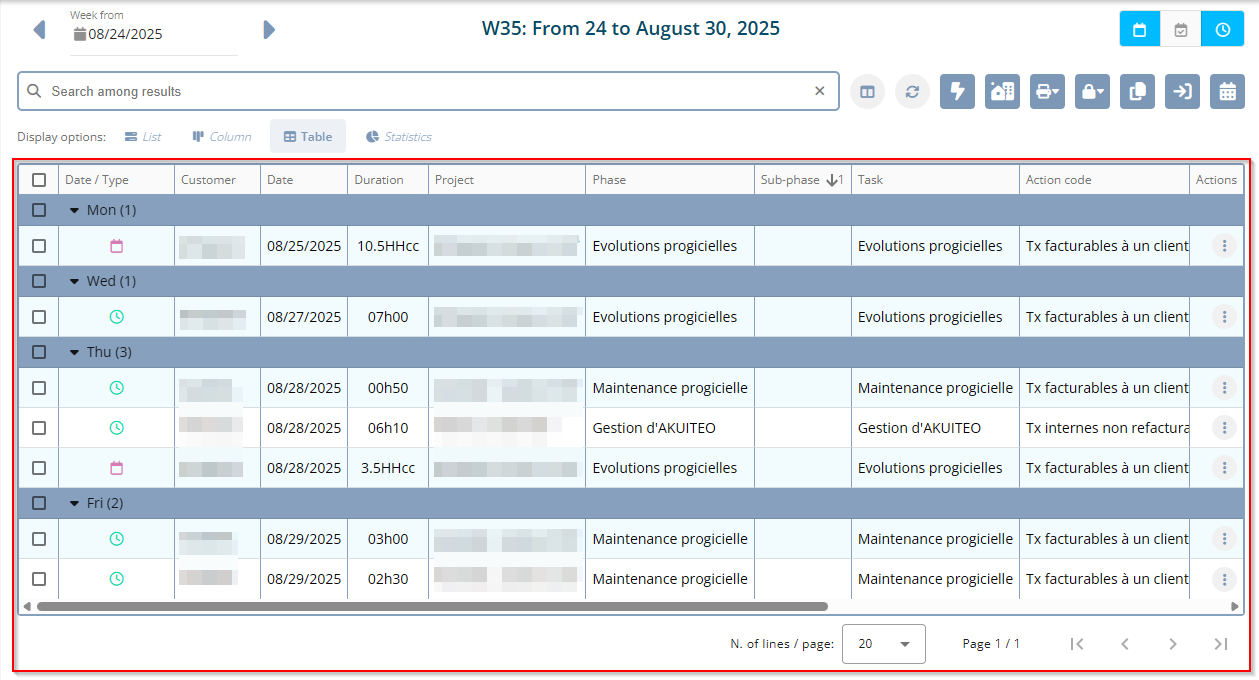
Done scheduled items are hatched and indicated wit the  icon in the Type column.
Important
This display allows you to manage scheduled items or timesheets already created, but you cannot create a new item. To do so, you must be in List or Column display.
Reference
For more information about the setup of results in table view, refer to Managing results in table view.
Statistics view
Click on Statistics from the views to display various statistics about the timesheets specified. These statistics do not take into account schedules and timesheet entry suggestions.
This view is for informational purposes only and does not allow management of


